chmod changes what users can do with a file, and chown changes who owns it. Both work the same on Ubuntu 26.04 LTS and Ubuntu 26.10. This guide explains how to read permissions, use numeric and symbolic modes, change owners and groups, and handle special bits, with copy-ready examples and a free cheat sheet.
-rwxr-xr-- means owner rwx, group r-x, others r–.chmod u+x changes one bit and leaves the rest alone.sudo chown user:group file sets both in one command.find to give folders 755 and files 644 instead of chmod -R 777.Download the Ubuntu Chmod and Chown Commands Cheat Sheet
Every command from this guide on one printable sheet. Grab the PDF, or pick EPUB, DOCX, MOBI or AZW3 for your reader.
Also see Top 40 Linux commands for Ubuntu 26.04, Sudo command cheat sheet, Disk and partition commands in Ubuntu and UFW firewall commands in Ubuntu.
Read permissions first
Every file has an owner, a group and three sets of permissions: for the owner (u), the group (g) and everyone else (o).
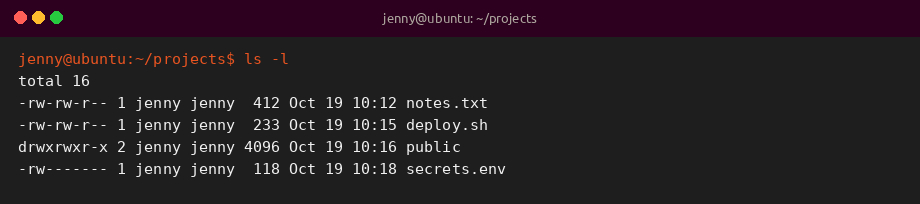
1. List permissions
The first column shows the type and permissions, then the owner and group.
2. Show numeric permissions
stat prints the mode as letters and as an octal number.
3. Check your user and groups
Group membership decides which group permissions apply to you.
Chmod examples
chmod accepts symbolic modes such as u+x and numeric modes such as 755. Symbolic modes change only what you name. Numeric modes set every bit at once.
4. Make a script executable
Adds execute permission. u+x limits it to the owner.

5. Add and remove with symbolic modes
Give the group write access and remove read access for others in one command.
6. Set a file to 644
Owner can read and write. Everyone else can only read. The usual mode for documents and web files.
7. Set a folder or script to 755
Owner has full access. Others can read and enter or run it.
8. Protect private keys
SSH refuses keys that other users can read.
9. Change a tree recursively
Capital X adds execute only to folders and to files that are already executable.
10. Folders 755, files 644
find applies a different mode to each type, which is the clean way to fix a messy tree.
11. Copy permissions from another file
Matches the mode of a reference file.
12. Show what changed
-c reports only files whose mode changed. -v reports every file.
Chown and chgrp examples
Only root can give a file to another user, so chown almost always needs sudo.
13. Change the owner
Gives the file to the user alice.
14. Change owner and group
Sets both at once with user:group.
15. Change only the group
chgrp, or chown with a leading colon, changes just the group.
16. Take ownership of a folder tree
Fixes files created with sudo inside your home folder.
17. Find root-owned files in your home
Lists files that will give you Permission denied errors.
18. Change only matching owners
–from changes ownership only if the current owner matches.
19. Give a web server access
Ubuntu web servers run as www-data. Group ownership plus g+rwX lets you and the server both write, without making every file executable.
20. Add a user to a group
Group changes apply after the user logs out and back in.
Special bits, umask and ACLs
Special bits add a fourth digit in front of the normal mode, for example 2775.
21. Setgid on a shared folder
New files inherit the folder group, which keeps team folders consistent.
22. Sticky bit
Users can only delete their own files in the folder, as in /tmp.
23. Find setuid programs
Setuid programs run with the owner rights. Review this list when auditing a system.
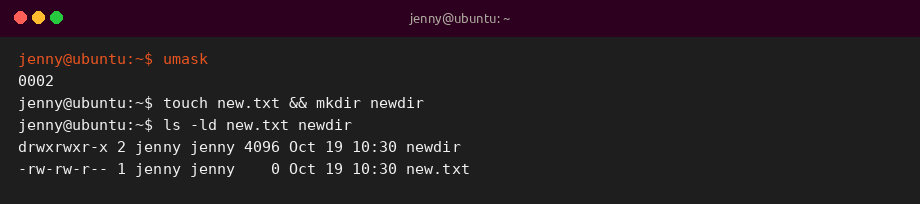
24. Check and set the umask
umask removes bits from new files. The Ubuntu default 002 gives 664 files and 775 folders.
25. Grant one extra user with an ACL
ACLs add per-user rules on top of normal permissions. Install acl if setfacl is missing.
Permission numbers quick reference
| Mode | Letters | Typical use |
|---|---|---|
777 |
rwxrwxrwx | Avoid. Anyone can change or delete |
775 |
rwxrwxr-x | Shared team folders |
755 |
rwxr-xr-x | Folders, scripts and programs |
700 |
rwx—— | Private folders such as ~/.ssh |
664 |
rw-rw-r– | Shared team files |
644 |
rw-r–r– | Documents and web files |
600 |
rw——- | Private keys and secrets |
400 |
r——– | Read-only secrets |
Tips and best practices
If something says Permission denied, check three things in order: who you are (id), who owns the file (ls -l), and whether every parent folder lets you in (ls -ld on each folder).
Avoid chmod 777 as a quick fix. It lets every user and every service change the file. Fix the owner or group instead.
Related Ubuntu command guides
- Top 40 Linux commands for Ubuntu 26.04
- Apt and snap commands in Ubuntu
- Systemctl and journalctl commands in Ubuntu
- UFW firewall commands in Ubuntu
- Disk and partition commands in Ubuntu
- Linux networking commands
- Advanced Linux commands
- Linux security commands
- Sudo command cheat sheet
- Grep command cheat sheet
- Tar command cheat sheet
- Wget command cheat sheet