 You can install Spotify on Ubuntu using the official APT repository maintained by Spotify developers, the officially published Snap package from the Snap Store, or the sandboxed Flatpak package via Flathub.
The Linux desktop client provides access to the full Spotify library, including millions of songs, podcasts, and radio stations.
While the Linux client is maintained by Spotify engineers as a passion project rather than an officially supported platform, it receives regular updates and functions exactly like its Windows and macOS counterparts, offering seamless synchronization across your devices, high-quality audio streaming, and playlist management.
This guide provides step-by-step terminal instructions for installing and configuring Spotify on Ubuntu 26.04, 24.04, and 22.04 LTS. We cover the setup process for all three major package formats, show you how to securely import the official GPG signing keys, and demonstrate how to perform a clean system uninstallation.
If any of these steps fail on your system, please drop a comment below or contact us and we will help you get it resolved.
APT, Flatpak, & Snap Setup Walkthroughs
Configure the Spotify streaming client on your system. Learn how to securely import the official GPG keys, add repositories, and choose between native or sandboxed application containers.
Choosing the right installation format determines how Spotify integrates with your system’s audio servers (PulseAudio/PipeWire) and how updates are delivered. Review the comparison grid below to select the option that best fits your workflow.
Spotify Installation Methods Compared
Review the installation choices below to evaluate release updates, containment levels, and desktop integration capabilities.
| Method | Source channel | Updates | Sandbox isolation | Integration & Details |
|---|---|---|---|---|
| Snap Store (Link) | Official Spotify Publisher | Automatic, background updates. | Strict snap confinement | Recommended by Spotify for ease of use. Bundles all required libraries. |
| APT Repo | repository.spotify.com | Manual, via apt update |
None (Native system access) | Fast startup time, standard system integration. Requires manual verification keys. |
| Flatpak (Flathub) | Flathub Container Registry | Manual/Automatic (depends on settings) | Strict sandbox restriction | Maintained by community packaging team. Keeps host OS completely clean. |
Method 1: Install Spotify via the Snap Store (Recommended)
Spotify officially recommends the Snap package for Linux users. The primary advantage of using Snap is that it automatically handles background updates, ensuring that your client remains up to date without requiring manual terminal intervention. The application runs securely within a sandbox, meaning it cannot interfere with critical system files.
Open your terminal using the shortcut key combination Ctrl+Alt+T and run the snap command to download and install the official package:
sudo snap install spotify
After the installation completes, Spotify will be immediately available in your application launcher menu. Snap will check for updates in the background on a regular schedule.
Method 2: Install Spotify via the Official APT Repository
If you prefer a standard system installation over isolated packages (like Snap or Flatpak), you can install Spotify directly from their official software source. This method often results in slightly faster application startup times and blends seamlessly with your system. However, you will need to securely import their verification keys to confirm the software is authentic.
Use the curl command to download the public key from Spotify’s secure servers, then pipe it into the gpg utility to save it to your system’s trusted keyring directory. This guarantees that any updates you receive are actually signed by Spotify developers:
curl -sS https://download.spotify.com/debian/pubkey_5384CE82BA52C83A.asc | sudo gpg --dearmor --yes -o /etc/apt/trusted.gpg.d/spotify.gpg
Add the new software source to your system so your computer knows where to find and download the Spotify packages:
echo "deb https://repository.spotify.com stable non-free" | sudo tee /etc/apt/sources.list.d/spotify.list
Finally, refresh your system to recognize the newly added software source, and proceed with the installation of the Spotify app:
sudo apt update
sudo apt install spotify-client -y
Method 3: Install Spotify via Flatpak (Flathub)
Flatpak offers an alternative, isolated installation method. While the Flatpak build is maintained by the Linux community rather than Spotify directly, it securely separates the application from your core system files. This is useful if you want to ensure the application cannot access your sensitive system data.
If Flatpak is not yet configured on your computer, install the daemon package via APT:
sudo apt update
sudo apt install flatpak -y
Add the official Flathub remote server to query and pull application packages:
flatpak remote-add --if-not-exists flathub https://dl.flathub.org/repo/flathub.flatpakrepo
Fetch and install the build from Flathub:
flatpak install flathub com.spotify.Client -y
How to Launch Spotify on Ubuntu
Once installation finishes, you can launch Spotify directly from your desktop interface or by executing the necessary command via the terminal.
Open your desktop application grid, search for Spotify, and click the green icon.
Alternatively, run the launch command matching your selected installation type:
For APT & Snap installations:
spotify
For Flatpak container builds:
flatpak run com.spotify.Client
Spotify Interface Screenshots
Here is a look at the Spotify desktop client running smoothly on Ubuntu 26.04. The interface features a sleek dark mode that matches seamlessly with Ubuntu’s dark theme.

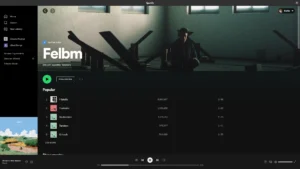


-
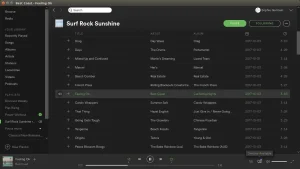
- Album dark theme from How to Install Spotify on Ubuntu 26.04 – Complete Guide
-

- Spotify screenshot from How to Install Spotify on Ubuntu 26.04 – Complete Guide
How to Completely Uninstall Spotify
If you want to remove Spotify from your system entirely, follow the cleanup instructions below that correspond to your active installation format. These steps purge the software and remove configuration files.
For APT installations (Removes the package and source list):
sudo apt remove spotify-client -y
sudo apt autoremove --purge -y
sudo rm /etc/apt/sources.list.d/spotify.list
sudo rm /etc/apt/trusted.gpg.d/spotify.gpg
For Snap installations (Purges the snap package):
sudo snap remove spotify
For Flatpak installations (Removes the application and unused runtimes):
flatpak uninstall com.spotify.Client -y
flatpak uninstall --unused -y
Use the links below to access official documentation and community forums for further Spotify troubleshooting:
Frequently Asked Questions
Common troubleshooting questions and installation solutions.
Does Spotify provide an official APT repository for Ubuntu?
Yes, Spotify provides an official Debian repository. You can install it by importing their GPG key and adding the repository URL: echo "deb https://repository.spotify.com stable non-free" | sudo tee /etc/apt/sources.list.d/spotify.list.
Is there an official Snap package for Spotify on Ubuntu?
Yes, Spotify officially maintains a Snap package in the Snap Store. You can install it on any Ubuntu system by running: sudo snap install spotify.
How do I install Spotify using Flatpak?
To install Spotify via Flatpak, first ensure the Flathub repository is enabled, then run: flatpak install flathub com.spotify.Client.
Why is there no sound when playing music on Spotify for Linux?
Audio issues in the Spotify Linux client are often caused by missing PulseAudio or PipeWire dependencies. Ensure that the pulseaudio-utils and alsa-utils packages are installed, and check your system’s output device settings.
How do I completely uninstall Spotify from Ubuntu?
To remove Spotify installed via APT, run: sudo apt remove spotify-client -y. If you installed via Snap, run: sudo snap remove spotify. For Flatpak, use: flatpak uninstall com.spotify.Client -y.
Related audio guides: Best Music Players On Ubuntu · Best Audio Editors for Ubuntu · Install FFmpeg on Ubuntu