 Some of the best web browsers for Ubuntu are Firefox, Brave, and Vivaldi – covering everyday use, privacy, and deep customization respectively. Ubuntu runs on a wide range of hardware and supports many ways of working, so the right browser depends less on brand recognition and more on what you actually need from it.
This guide covers 12 browsers that work reliably on Ubuntu 26.04 or newer. They are grouped into three categories: everyday browsers that handle general use well, privacy-first browsers that limit data collection by default, and advanced browsers built for keyboard control or deep customization. Each entry includes an install command so you can get started immediately.
Top Pick From Each Category
- Everyday: Firefox – open source, pre-installed on Ubuntu, the most balanced default choice
- Privacy-First: Brave – blocks ads and trackers right away, no setup required
- Advanced: Vivaldi – more built-in features and layout controls than any other browser on this list
Everyday Browsers
These browsers handle general web use reliably on Ubuntu. They are well-maintained, widely supported, and work with most websites without issues. Good defaults for anyone who needs a browser that gets out of the way.
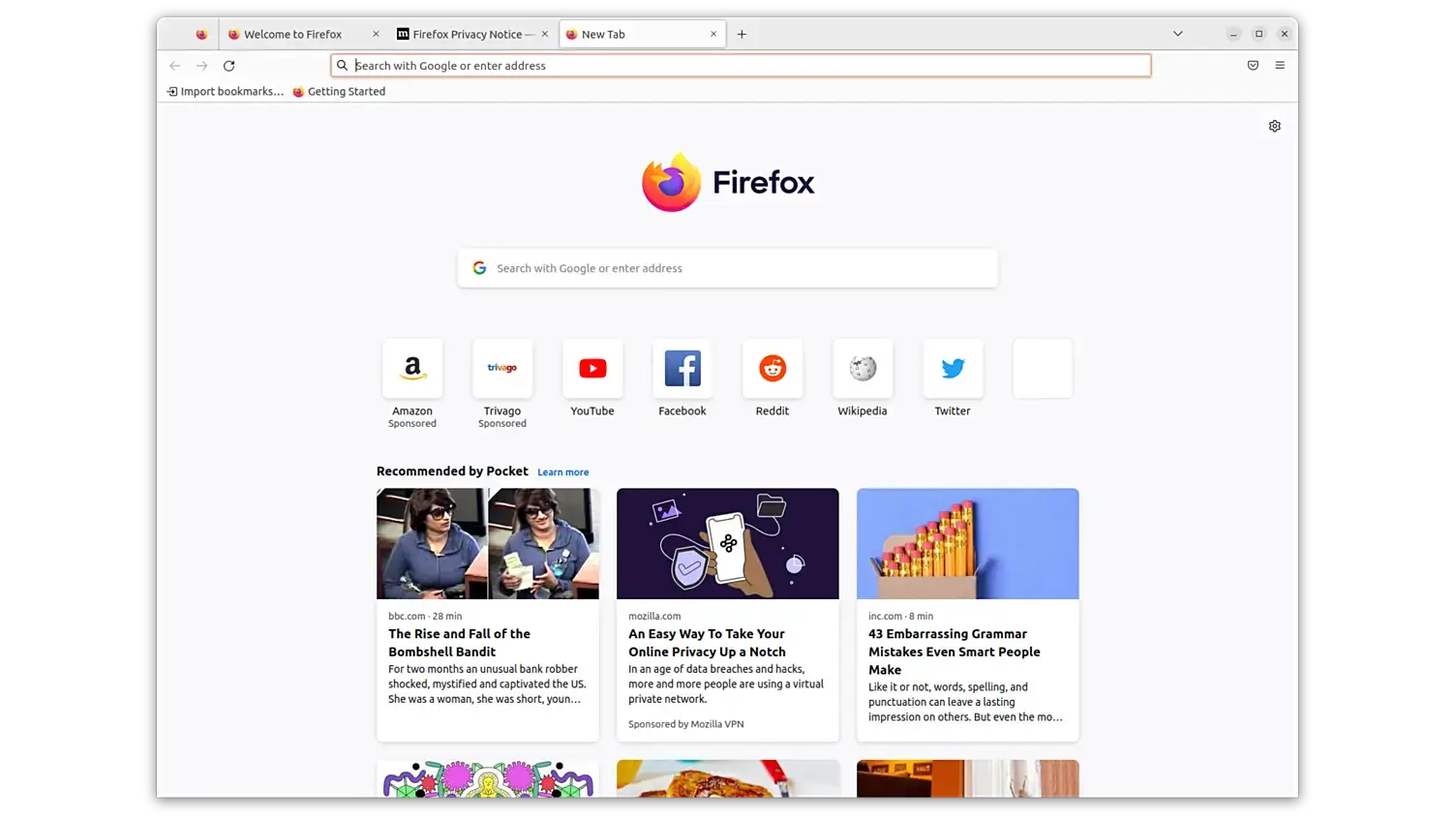
Best For: Most Ubuntu users – balanced performance, strong add-on support, and useful privacy options
Why Choose It? Firefox comes pre-installed on Ubuntu and remains the most well-rounded open-source browser available on Linux. It has a large add-on library, regular security updates, and enough built-in privacy controls for most users without extra setup. Mozilla’s public mission also puts user control closer to the center than Google Chrome does.
- Engine: Gecko (independent from Chromium)
- Extensions: Large library via addons.mozilla.org
- Privacy: Enhanced Tracking Protection enabled by default
- Sync: Built-in across devices via Firefox Account
Quick Tip: Go to Settings > Privacy & Security and switch Tracking Protection to “Strict” for noticeably better protection on most sites.
Install Command:
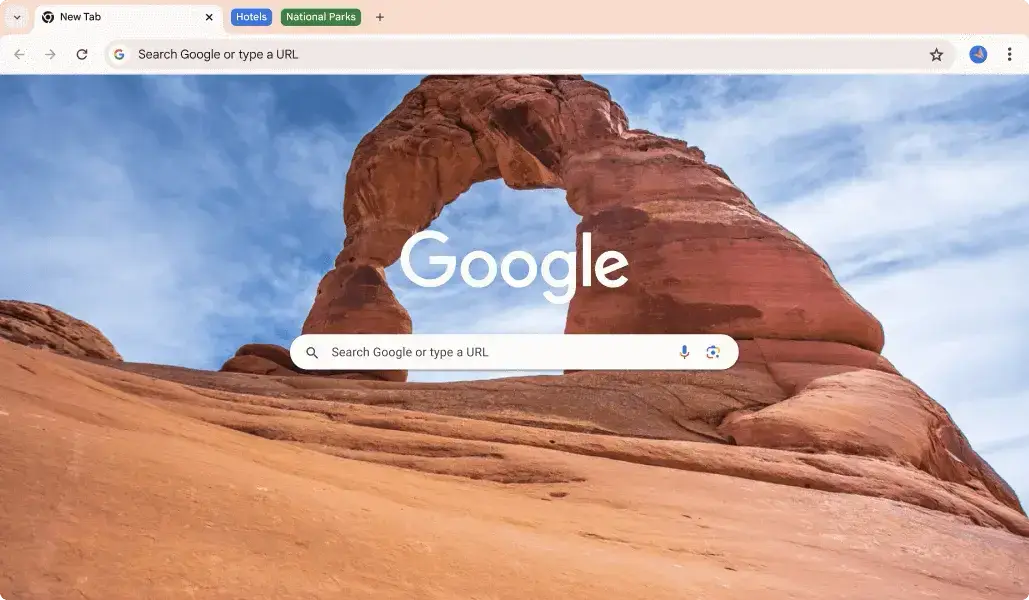
Best For: Users already using Google services who need Chrome-specific site support or Google Workspace sign-in
Why Choose It? Chrome has the largest share of the web browser market, which means it is the browser many websites are tested against first. On Ubuntu it installs cleanly via a .deb package and works well. The trade-off is that Chrome is closed source and sends significant usage data to Google by default. If Google’s data practices are a concern, Chromium or Brave are better alternatives.
- Engine: Blink (Chromium-based)
- Extensions: Chrome Web Store – the largest extension library available
- Google sync: Calendar, Drive, Gmail, and Chrome data across devices
- Updates: Automatic via Google’s own update mechanism after .deb install
Quick Tip: Chrome is not in Ubuntu’s default software sources. Download the .deb from the official site and install with sudo dpkg -i. Chrome then manages its own updates automatically.
Install Command:
sudo dpkg -i google-chrome-stable_current_amd64.deb
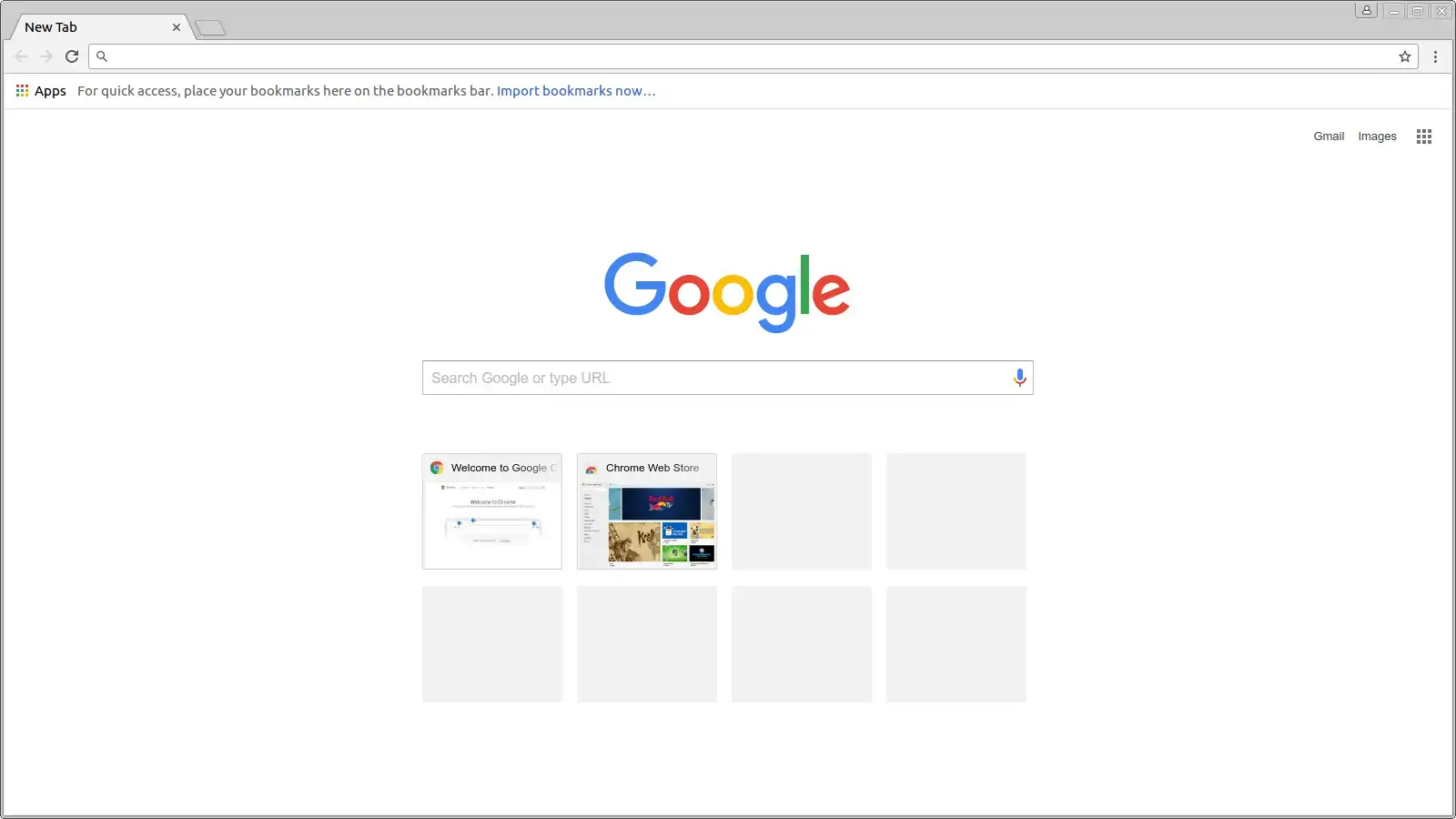
Best For: Users who want Chrome-compatible browsing without Google’s closed-source additions or usage data reporting
Why Choose It? Chromium is the open-source project that Google Chrome is built on. It ships without Google Account sign-in, without Chrome’s extra media support, and without the background Google services that Chrome runs. On Ubuntu it is available directly as a snap package. The trade-off is that some media sites may not play H.264 video right away, though extra media packages can fix that.
- Engine: Blink – same page engine as Chrome
- Extensions: Compatible with Chrome Web Store extensions
- No Google tracking: No built-in usage data sent to Google servers
- Ubuntu install: Available as a snap through Ubuntu’s default software sources
Quick Tip: If you need H.264 video support in Chromium, install chromium-codecs-ffmpeg-extra – this adds media support that the base package leaves out.
Install Command:

Best For: Users who want a feature-rich browser with tab stacking, split view, built-in notes, and deep interface customization
Why Choose It? Vivaldi is built by former Opera developers who wanted a browser with more user control. It offers more layout and customization options than any other browser in this list – tab stacking, split-screen browsing, a built-in ad blocker, reading list, notes, and a sidebar for panels, bookmarks, or web apps. It installs cleanly on Ubuntu via .deb and works with Chrome extensions.
- Engine: Blink (Chromium-based, Chrome extensions supported)
- Tab management: Tab stacking, hibernation, and two-level tab bars
- Built-in tools: Notes, reader view, screenshot tool, web panels, calendar
- Interface control: Move the address bar, tabs, and panels to any position
Quick Tip: Try Quick Commands (F2) to move between tabs, open settings, and run browser actions from the keyboard without touching the mouse. It is one of Vivaldi’s most useful features.
Install Command:
sudo dpkg -i vivaldi-stable_amd64.deb
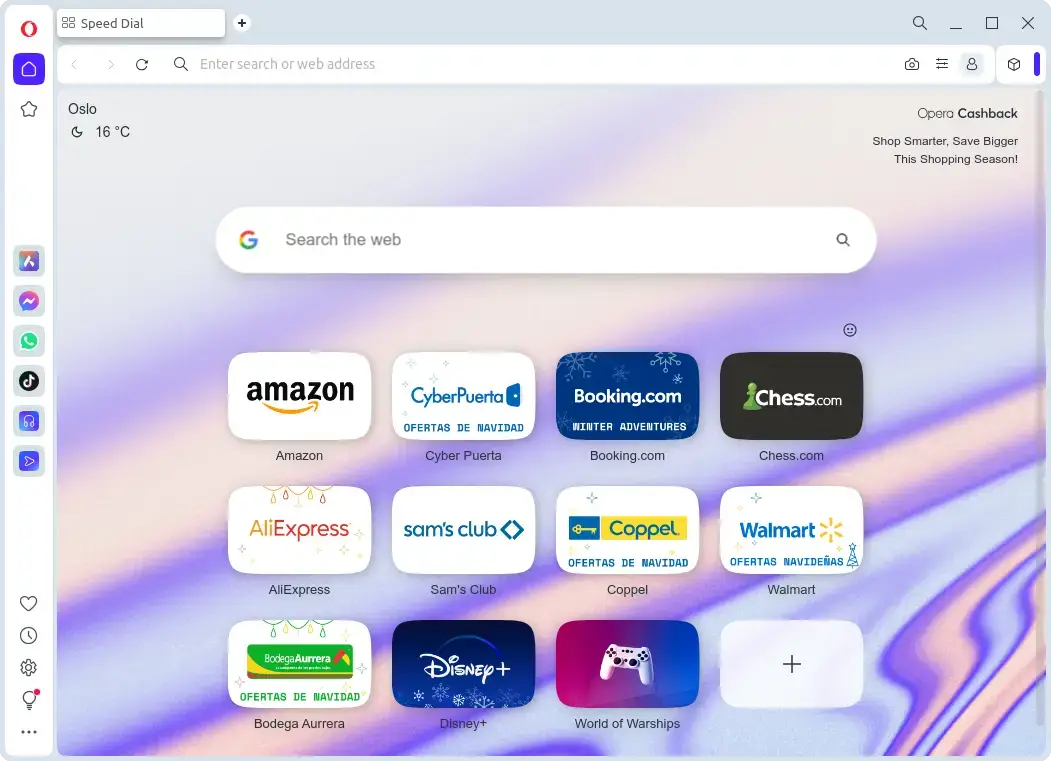
Best For: Users who want a browser with a built-in ad blocker and proxy VPN without adding extensions
Why Choose It? Opera has a long history on Linux and remains a capable everyday browser. It includes a free built-in VPN, which is really a proxy service rather than a full VPN, plus an ad blocker, a sidebar for messaging apps, and a battery saver mode. Worth knowing: Opera is owned by a Chinese group since 2016, and it has promoted its own crypto wallet and financial services. Those features are optional, but privacy-focused users should note the ownership context.
- Engine: Blink (Chromium-based, Chrome extensions supported)
- Built-in VPN: Free proxy service – masks IP from websites, not from Opera itself
- Sidebar: Messaging apps, Spotify, WhatsApp, and social shortcuts
- Flow: Cross-device sync between Opera on desktop and mobile
Quick Tip: You can enable the ad blocker and VPN from the Easy Setup panel in the top-right corner. Both are off by default, so turn them on if you plan to use them.
Install Command:
sudo dpkg -i opera-stable_amd64.deb
Privacy-First Browsers
These browsers are built with privacy as a core feature, not an afterthought. They block trackers and ads by default, reduce or remove usage data reporting, and are designed to share as little user data as possible with websites and the browser maker itself.
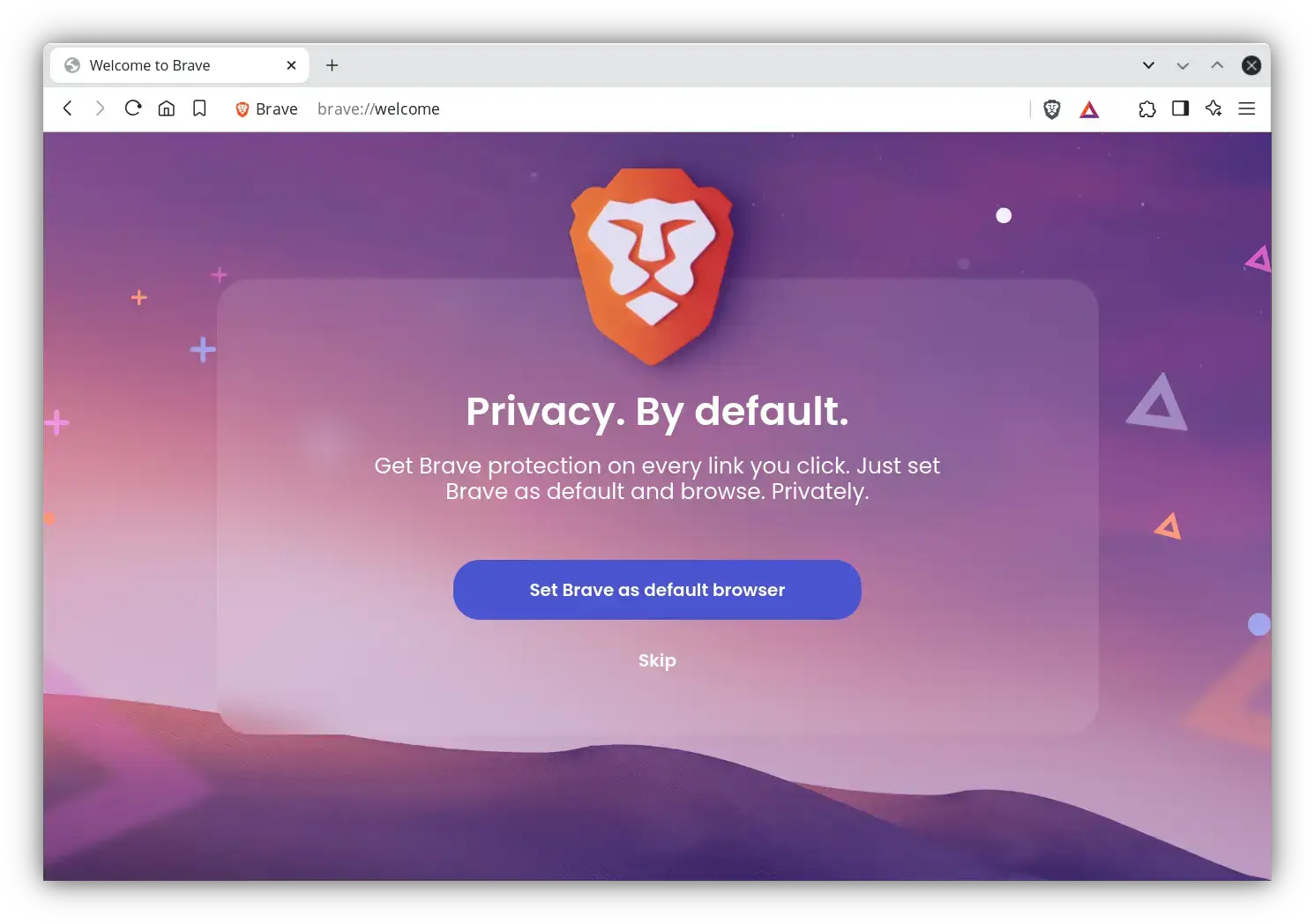
Best For: Users who want strong privacy defaults without any setup – Brave blocks trackers and ads right away
Why Choose It? Brave is the easiest privacy browser for users who do not want to configure anything. It blocks ads, third-party trackers, and many browser fingerprinting attempts by default, which also makes pages load faster. Browser fingerprinting is when sites identify you through your browser and device details. Brave is based on Chromium, so Chrome extensions work, and it feels familiar to anyone coming from Chrome. The optional Brave Rewards program is crypto-based ads. It is opt-in and can be ignored completely.
- Engine: Blink (Chromium-based)
- Shields: Built-in ad and tracker blocking that updates automatically
- Fingerprinting: Changes browser details to reduce cross-site tracking
- Tor integration: Private Window with Tor option available for extra anonymity
Quick Tip: Click the Brave Shields icon (lion) in the address bar to see exactly what was blocked on the current page and to adjust per-site settings if a site breaks.
Install Command:
sudo curl -fsSLo /usr/share/keyrings/brave-browser-archive-keyring.gpg https://brave-browser-apt-release.s3.brave.com/brave-browser-archive-keyring.gpg
echo “deb [signed-by=/usr/share/keyrings/brave-browser-archive-keyring.gpg arch=amd64] https://brave-browser-apt-release.s3.brave.com/ stable main” | sudo tee /etc/apt/sources.list.d/brave-browser-release.list
sudo apt update && sudo apt install brave-browser
Best For: Firefox users who want Mozilla data reporting, data collection, and sponsored content removed at the source
Why Choose It? Librewolf is Firefox, but stripped of the things Mozilla sends back to its own servers – usage data, crash reports, sponsored shortcuts on the new tab page, and Pocket integration. It ships with uBlock Origin pre-installed and stronger privacy settings by default. Updates track Firefox releases closely, so you get the same security patches without the data collection. If you already use Firefox and have been manually disabling data reporting, Librewolf does that work for you permanently.
- Engine: Gecko (Firefox fork – full Firefox compatibility)
- Data reporting: All Mozilla usage data collection removed
- Pre-installed: uBlock Origin enabled by default
- No Pocket: No sponsored content, no Firefox Suggest, no home page ads
Quick Tip: Librewolf’s stricter privacy settings may break some sites. If you hit issues, check about:config for privacy.resistFingerprinting. Changing this for the affected site usually resolves most problems.
Install Command:
sudo extrepo enable librewolf
sudo apt update && sudo apt install librewolf
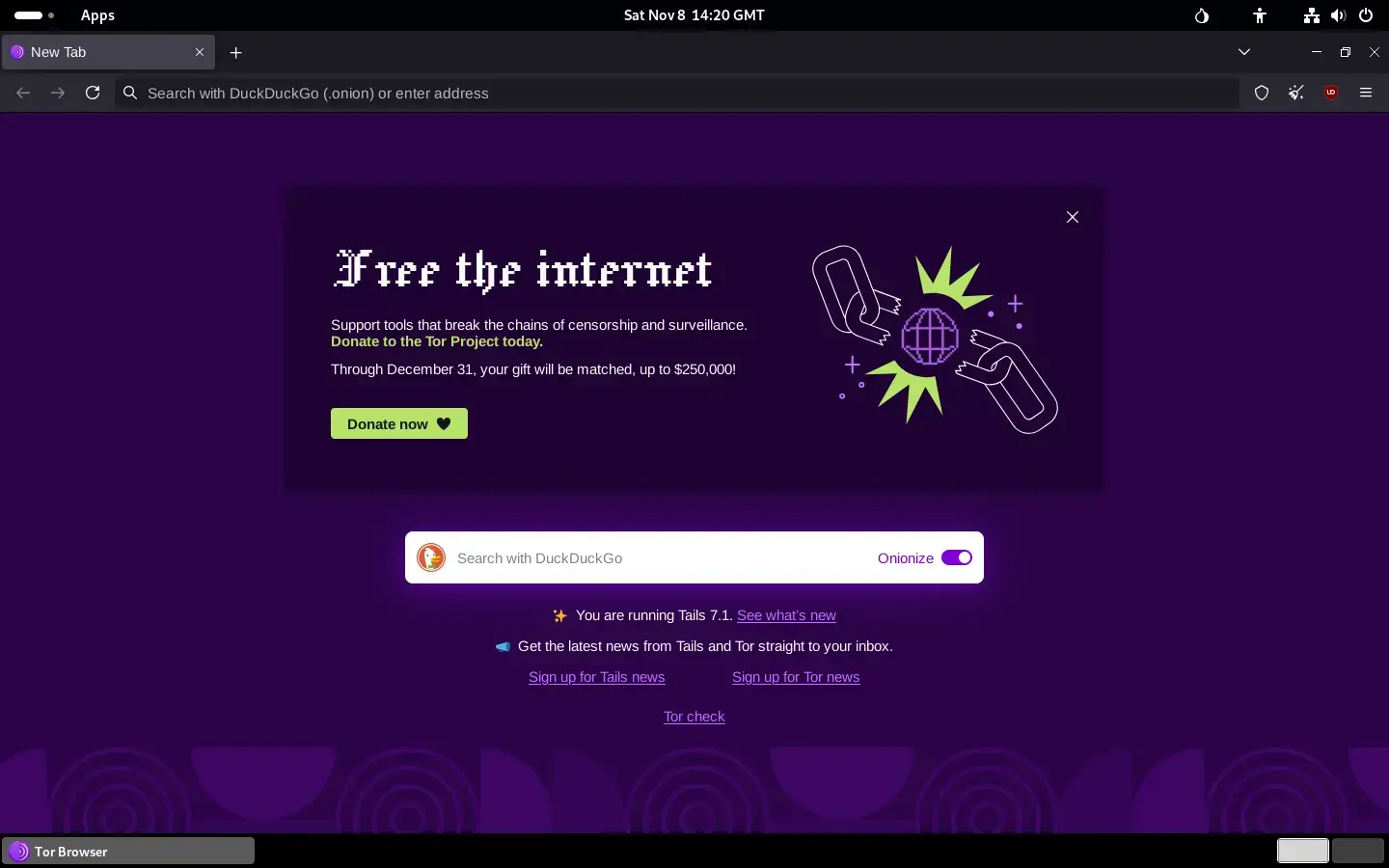
Best For: Users who need genuine anonymity, such as journalists, activists, or anyone whose IP address and identity must not be traced
Why Choose It? Tor Browser is the only browser on this list built specifically for anonymity rather than general privacy. It routes all traffic through the Tor network, which bounces it through multiple relays before reaching the destination, making it extremely difficult to trace back to the user. It also reduces browser fingerprinting and disables JavaScript on the highest security setting. The trade-off is speed. Tor is significantly slower than any other browser here, and it is not appropriate for general daily use. Use it when you actually need what it provides.
- Network: Routes through Tor, so destination sites do not see your real IP address
- Fingerprinting: Makes browsers look alike to reduce identification
- Security levels: Standard, Safer, and Safest modes. Safest disables JavaScript entirely
- No logging: No browsing history or cookies are saved between sessions
Quick Tip: Do not install browser extensions in Tor Browser. Each extension changes details about your browser and makes you stand out from other Tor users, which weakens its main protection.
Install Command:
torbrowser-launcher
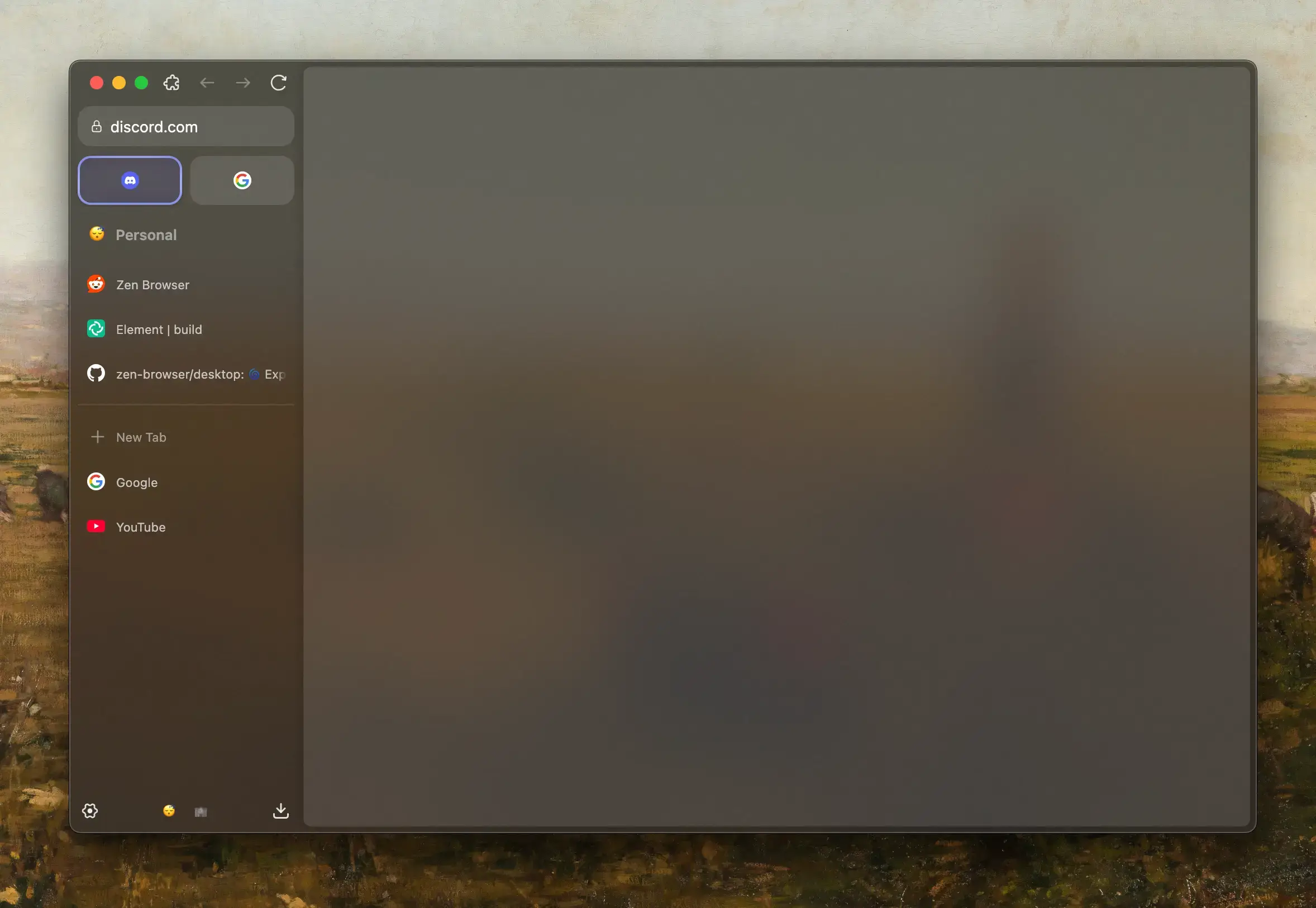
Best For: Users who want Firefox’s privacy base with a redesigned, minimal interface and strong customization options
Why Choose It? Zen Browser is one of the faster-growing Firefox forks and has built a strong following in a short time. It changes the browser interface: tabs can sit vertically in a sidebar, spaces let you group tabs by task, and the overall design is cleaner than standard Firefox. Privacy settings are stricter than Firefox by default. It is still a relatively young project, so some rough edges exist, but the development pace is solid and the community is active.
- Engine: Gecko (Firefox-based, Firefox extensions compatible)
- Interface: Vertical tab sidebar, compact layout, tab groups by task
- Privacy: Stricter defaults than Firefox, no usage data sent to Mozilla
- Themes: Visual customization with Zen Mods – community-created interface themes
Quick Tip: The vertical tab sidebar is on by default but can feel unfamiliar at first. Give it a week before switching back. Many users who stick with it find horizontal tabs feel cramped afterwards.
Install Command:
Advanced & Specialist Browsers
These browsers are not for everyone. They are built for specific needs: keyboard control, close desktop fit, or lower memory use on older hardware. If one of these matches how you work, nothing else will feel as natural.
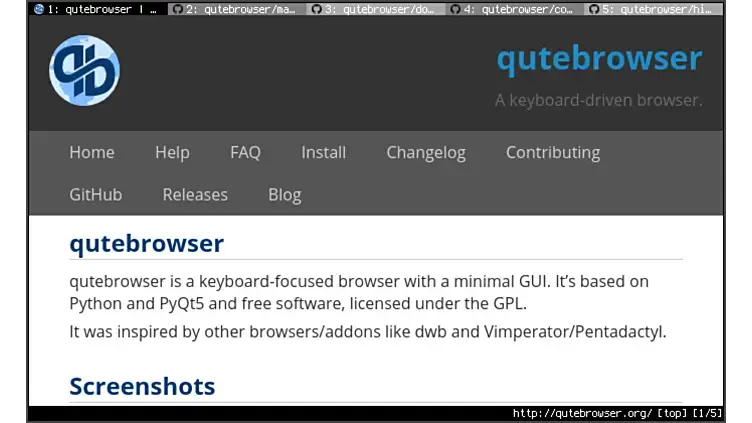
Best For: Vim users and keyboard-first users who want to browse, navigate, and manage tabs without touching the mouse
Why Choose It? qutebrowser is a keyboard-focused browser with Vim-style keys. Press f to show letter labels on every link on the page, then type the letters to follow the link. No mouse needed. Settings live in a Python-based config file, giving users precise control over every setting. It is a niche tool, but for users who live in the terminal and text editors, it makes browsing feel consistent with the rest of their tools.
- Engine: QtWebEngine (Blink-based)
- Keybindings: Vim-style navigation throughout – hjkl scrolling, / search, gt/gT tab switching
- Config: Python-based config file at ~/.config/qutebrowser/config.py
- Ad blocking: Built-in host-based ad blocking with custom filter lists
Quick Tip: Type :help in the command bar when starting out. qutebrowser’s built-in help is thorough and explains every keybinding with examples.
Install Command:
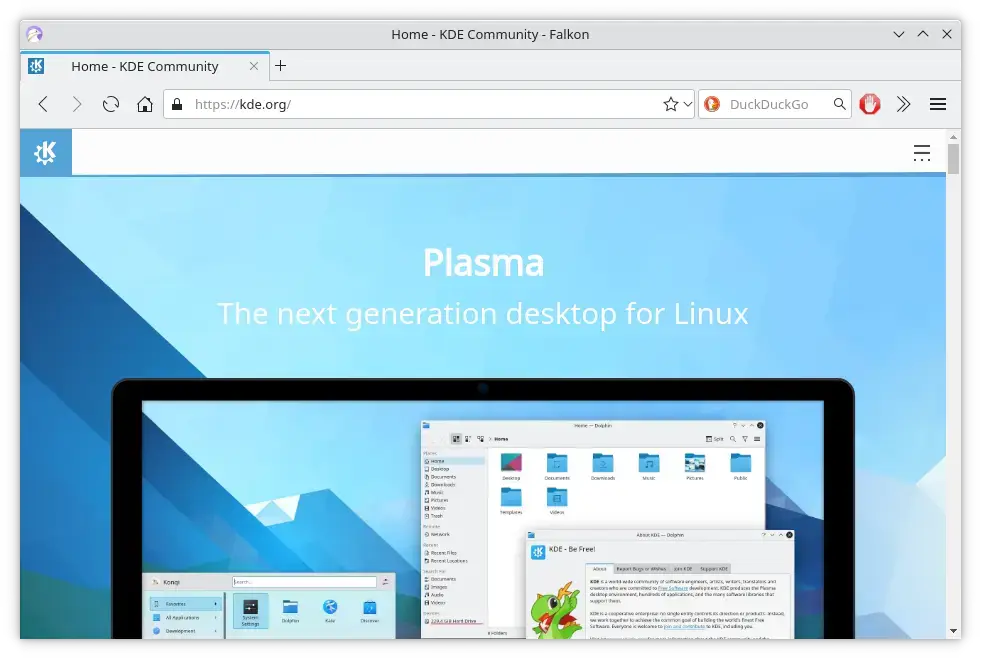
Best For: KDE Plasma users who want a lightweight browser that fits cleanly with the desktop without pulling in many extra packages
Why Choose It? Falkon is the official KDE browser, maintained by KDE and updated with each Plasma release. It uses QtWebEngine to show web pages, works with KDE’s wallet, notifications, and file manager, and uses noticeably less memory than Chrome or Firefox at idle. If you are running Plasma on older hardware, Falkon is worth considering as your primary browser. It supports extensions through its own plugin system, though the library is much smaller than Firefox or Chrome.
- Engine: QtWebEngine (Blink-based)
- KDE integration: KWallet password manager, KDE notifications, consistent Qt styling
- Lightweight: Lower memory footprint than mainstream browsers
- Ad blocking: Built-in AdBlock plugin included
Quick Tip: Falkon works on GNOME and other desktops too, but it pulls in Qt libraries as extra packages. On a non-KDE system those packages add disk space, so Firefox or Chromium may be lighter choices outside of Plasma.
Install Command:
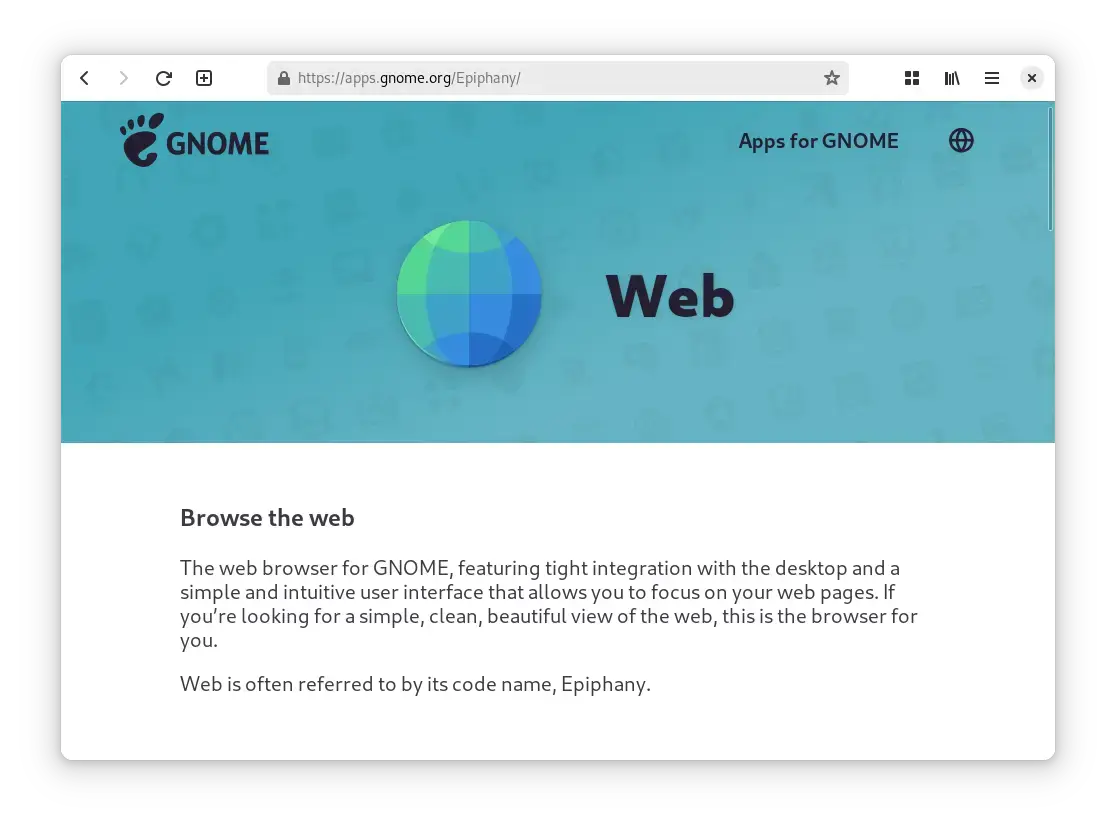
Best For: GNOME desktop users who want a browser that looks and behaves like a native GNOME application
Why Choose It? GNOME Web is the default browser in the GNOME desktop environment and is built with WebKitGTK, a page engine distinct from both Blink and Gecko. It fits tightly with GNOME’s design language, GNOME Shell, and the system keyring. It is noticeably lighter than Firefox or Chrome, and its clean interface removes almost everything except the page. Extension support is limited, so it works best for users who do not rely on browser extensions.
- Engine: WebKitGTK – independent from Blink and Gecko
- GNOME integration: System keyring, GNOME Shell search, native file picker
- Web apps: Install any website as a standalone application on the GNOME desktop
- Privacy: Intelligent Tracking Prevention built in
Quick Tip: The “Install as Web Application” feature is genuinely useful. Open any web app, click the menu, and install it. It appears in your application drawer as its own app with no browser interface around it.
Install Command:
Browser Comparison Table
| Browser | Engine | Category | License | Blocks Ads | Memory Use | Install Method |
|---|---|---|---|---|---|---|
| Firefox | Gecko | Everyday | Open Source | Via extensions | Medium (~350 MB) | apt |
| Google Chrome | Blink | Everyday | Closed source | Via extensions | High (~500 MB+) | .deb download |
| Chromium | Blink | Everyday | Open Source | Via extensions | Medium (~380 MB) | apt (snap) |
| Vivaldi | Blink | Everyday | Freeware | Built-in | Medium-High (~420 MB) | .deb download |
| Opera | Blink | Everyday | Closed source | Built-in | Medium-High (~420 MB) | .deb download |
| Brave | Blink | Privacy-First | Open Source | Built-in (default) | Medium (~370 MB) | apt (repo) |
| Librewolf | Gecko | Privacy-First | Open Source | uBlock Origin (default) | Medium (~340 MB) | apt (extrepo) |
| Tor Browser | Gecko | Privacy-First | Open Source | NoScript (default) | Medium (~300 MB) | apt (launcher) |
| Zen Browser | Gecko | Privacy-First | Open Source | uBlock Origin (default) | Medium (~360 MB) | Flatpak |
| qutebrowser | Blink (Qt) | Advanced | Open Source | Built-in (hosts) | Low (~150 MB) | apt |
| Falkon | Blink (Qt) | Advanced | Open Source | Built-in plugin | Low (~120 MB) | apt |
| GNOME Web | WebKitGTK | Advanced | Open Source | ITP (built-in) | Low (~130 MB) | apt |
Which Browser Is Right for You
Stick with Firefox. It is already installed, it is reliable, and it has everything most users need. No setup required.
Google Chrome is the obvious choice. It works well with Google’s own services and has unmatched site support. Just be aware of what you are trading in terms of data.
Brave is the easiest entry point. Install it, open it, and it is already blocking trackers and ads. Nothing to configure.
Librewolf is Firefox with all of Mozilla’s data collection removed. Your Firefox extensions and muscle memory transfer directly.
Tor Browser is the only option here. Use it when anonymity matters more than speed. Do not use it as your main everyday browser.
Vivaldi goes further than any other browser for layout control, with movable tabs, split views, tab stacking, and a sidebar you can build out with web apps.
qutebrowser is for you. Once the keybindings click, switching back to a mouse-driven browser will feel slow.
Falkon fits cleanly with Plasma and KWallet without pulling in many extra packages. It is a good secondary browser at minimum.
How to Set Your Default Browser on Ubuntu
Once you have installed a new browser, Ubuntu will not switch to it automatically. You need to tell the system which browser to use when you click a link in another application. Email clients, file managers, and terminal links all follow this setting.
There are two ways to do it.
Option 1: Through Settings (GUI)
Open the Settings app, go to Default Applications, and find the Web row. Click the dropdown and select your new browser from the list. It will appear there as long as it registered itself correctly during install.
Running that command opens the same Default Applications panel directly if you prefer the terminal.
Option 2: Through the Terminal
The xdg-settings command handles default application assignments from the command line. To check your current default browser:
To set a new default, you need the browser’s .desktop file name. Here are the correct names for the browsers in this guide:
| Browser | Command to set as default |
|---|---|
| Firefox | xdg-settings set default-web-browser firefox.desktop |
| Google Chrome | xdg-settings set default-web-browser google-chrome.desktop |
| Chromium | xdg-settings set default-web-browser chromium-browser.desktop |
| Brave | xdg-settings set default-web-browser brave-browser.desktop |
| Vivaldi | xdg-settings set default-web-browser vivaldi-stable.desktop |
| Librewolf | xdg-settings set default-web-browser librewolf.desktop |
If a browser does not appear in the Settings panel, run ls /usr/share/applications/ | grep -i browser to find its exact .desktop filename, then use that with xdg-settings set.
Frequently Asked Questions
What is the best web browser for Ubuntu?
Firefox is the best default choice for most Ubuntu users. It is open source, actively maintained by Mozilla, and comes pre-installed on Ubuntu. It has a large extension library, solid privacy controls, and works with almost every website. For users who care most about privacy, Brave or Librewolf are stronger choices. For advanced users who want more control over the browser interface, Vivaldi is worth the extra setup time.
Can I install Google Chrome on Ubuntu?
Yes. Google Chrome is not in Ubuntu’s default software sources, but it installs cleanly from the official .deb package on the Google Chrome website. Download the .deb file and run sudo dpkg -i google-chrome-stable_current_amd64.deb in the terminal. After the first install, Chrome keeps itself updated by adding a Google software source to your system.
Is Firefox or Brave better for privacy on Ubuntu?
Both are strong choices, but they work differently. Brave blocks ads and trackers right away with no setup required. Firefox offers more control through extensions and settings but needs some setup to reach the same level of protection. If you want Firefox’s engine without Mozilla data reporting, Librewolf is the better choice than either. It is Firefox with data collection stripped out and uBlock Origin pre-installed.
What is the most lightweight browser for Ubuntu?
Falkon and GNOME Web (Epiphany) are among the lightest options available. Falkon fits neatly into KDE Plasma. GNOME Web is built for GNOME desktops. Both use significantly less memory than Chrome or Firefox at idle, making them good choices for older hardware or machines with limited RAM. qutebrowser is also lean, though it brings in Python and Qt packages on first install.
Is Chromium the same as Google Chrome?
No. Chromium is the open-source project that Chrome is based on, but they are different in a few important ways. Chrome adds Google Account sync, automatic updates through Google’s servers, extra media support, and usage data reporting. Chromium has none of those additions. It is a better choice for users who want Chrome-compatible browsing without Google’s data collection. The main practical downside is that some video sites may need extra media packages before H.264 video plays.
What browser should I use for anonymity on Ubuntu?
Tor Browser is the only browser on this list designed specifically for anonymity. It routes all traffic through the Tor network, which bounces connections through multiple relays to make them extremely difficult to trace. It also reduces browser fingerprinting, which is when sites identify you by your browser and device details, and it stores no history between sessions. The trade-off is speed. Tor is significantly slower than any other browser here. It is the right tool when anonymity genuinely matters, not as your main everyday browser.
Which browsers on this list are fully open source?
Firefox, Chromium, Brave, Librewolf, Tor Browser, Zen Browser, qutebrowser, Falkon, and GNOME Web are all open source. Their source code is public. Google Chrome, Opera, and Vivaldi are not fully open source. Chrome and Opera are closed source, while Vivaldi uses Chromium as its open-source core but keeps its interface code closed. For users who want software that can be checked by the community, the open-source options are the safer choice.
More Ubuntu software guides: Best Audio Editors for Ubuntu | Best Media Players for Ubuntu | Best Software for Ubuntu | Best File Managers for Ubuntu