 You can install Zen Browser on Ubuntu using the official terminal install script, a sandboxed Flatpak (Flathub) package, or a standalone AppImage.
Zen Browser is a fast, private web browser built on Firefox. It features vertical tabs, customizable workspaces to group your tabs, and layout changes to keep you focused. Because it is designed to block tracking scripts out of the box, it is a great choice for Linux desktop users who want speed and privacy.
This guide provides step-by-step terminal instructions for all three installation methods, details desktop shortcut steps, and explains how to manage updates on Ubuntu 24.04 and 26.04 LTS.
If you run into any setup issues, feel free to drop a comment below or contact us directly for support. We are always here to help you get it running.
Script, Flatpak & AppImage Setup Guides
Configure Zen Browser on your Ubuntu machine. Compare the fast terminal script setup with the secure Flatpak container, and run the verified installation commands.
Choosing the right installation method impacts how Zen Browser integrates with your desktop environment and how updates are handled. Below is a detailed breakdown of each method to help you decide.
Zen Browser Installation Methods Compared
Review the table below to compare package formats, updates, and isolation features across the different setup methods.
| Method | Version Age | Auto-Updates | Sandboxing | Best For |
|---|---|---|---|---|
| Official Shell Script | Latest version (tarball) | Built-in self-updater / re-run script | No (runs as standard user bin) | Users who want the fastest performance and custom menus |
| Flatpak | Latest stable version | Automatic (via flatpak update) | Yes (runs in a secure sandbox) | Extra security and keeping browser files separated |
| AppImage | Latest release build | Manual download update | No (unless using firejail) | Testing without installing anything |
Method 1: Install Zen Browser via the Official Shell Script
The recommended way to install Zen Browser is using the official shell script. The script downloads the browser, extracts it to a folder in your home directory, and sets it up. Because this runs entirely in your user folder, you do not need administrative (sudo) access to install or update the browser. You can choose between the standard Stable channel or the nightly updated Twilight channel.
Open your terminal (Ctrl+Alt+T). Paste the following command and press Enter to run the Stable installer:
curl -fsSL https://github.com/zen-browser/updates-server/raw/refs/heads/main/install.sh | $SHELL
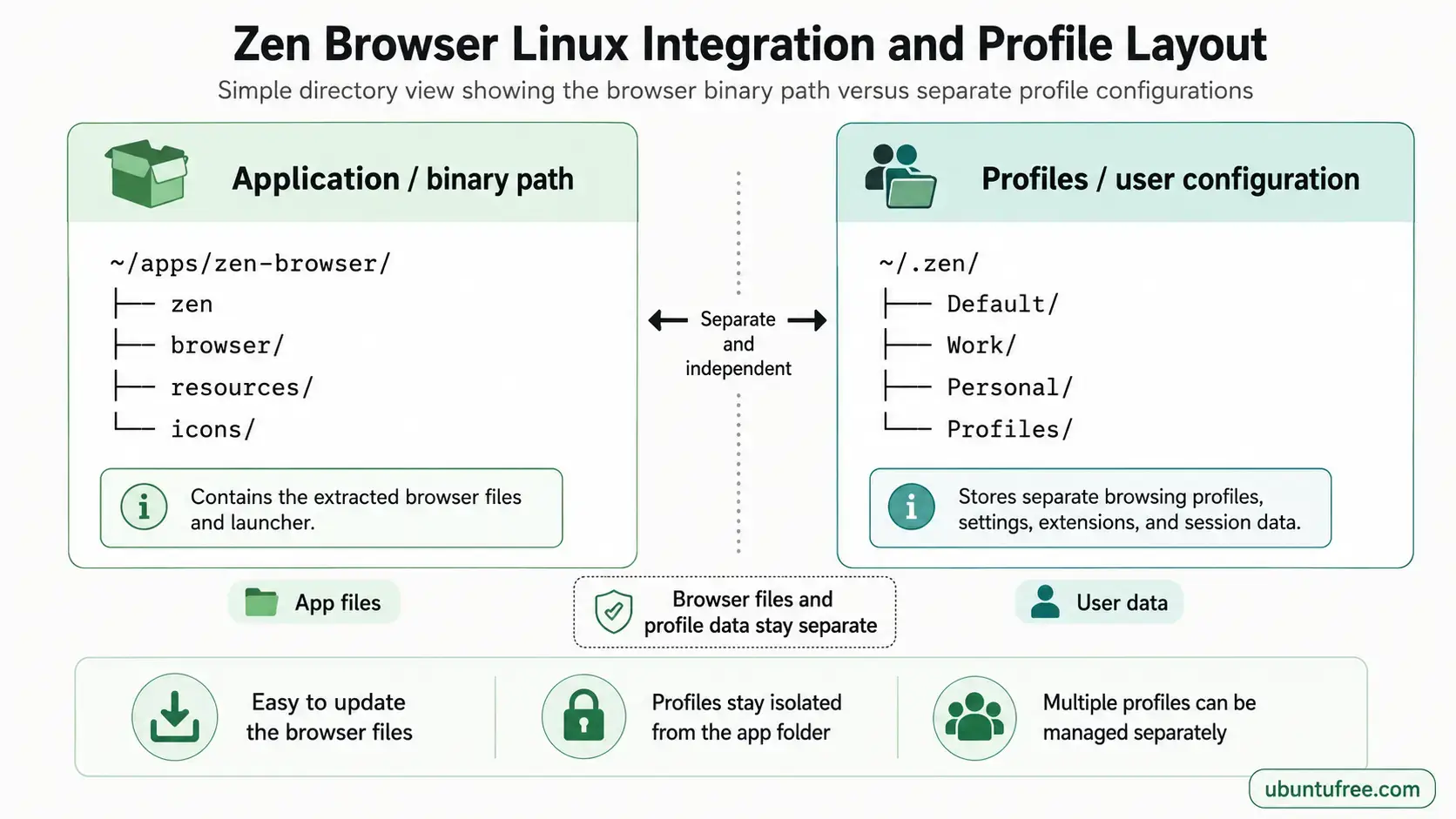
This command installs the standard release files to ~/.tarball-installations/zen/ and configures your user settings folder in ~/.zen/.
If you want to test the newest features before they release, run the command below to install the nightly Twilight channel:
curl -fsSL https://github.com/zen-browser/updates-server/raw/refs/heads/main/install-twilight.sh | $SHELL
This command installs the development release files to ~/.tarball-installations/zen-twilight/. Bookmarks and general user history continue to use the shared ~/.zen/ settings folder.
Manual Desktop Menu Integration
Because the script extracts the browser files to a folder inside your home directory, Zen Browser will not show up in your applications menu automatically. You can configure a launcher file so the browser appears in your applications search bar and can be pinned to your Ubuntu dock.
Open your terminal and create a new desktop shortcut configuration file. Select the command below that matches your channel choice:
# For the Stable Channel:
nano ~/.local/share/applications/zen.desktop

# For the Twilight Channel:
nano ~/.local/share/applications/zen-twilight.desktop
Copy and paste the configuration settings into the editor window. Make sure to replace YOUR_USERNAME with your actual Ubuntu account name (e.g. wisdom) in both the Exec and Icon lines:
Launcher settings for Stable:
[Desktop Entry]
Version=1.0
Type=Application
Name=Zen Browser
Comment=Experience a faster, more secure, and privacy-focused web browser.
Exec=/home/YOUR_USERNAME/.tarball-installations/zen/zen %u
Icon=/home/YOUR_USERNAME/.tarball-installations/zen/browser/chrome/icons/default/default128.png
Terminal=false
Categories=Network;WebBrowser;
MimeType=text/html;text/xml;application/xhtml+xml;application/xml;application/vnd.mozilla.xul+xml;application/rss+xml;application/rdf+xml;image/gif;image/jpeg;image/png;image/webp;x-scheme-handler/http;x-scheme-handler/https;
StartupWMClass=zen
Launcher settings for Twilight:
[Desktop Entry]
Version=1.0
Type=Application
Name=Zen Browser Twilight
Comment=Test the newest Zen Browser features before they release.
Exec=/home/YOUR_USERNAME/.tarball-installations/zen-twilight/zen %u
Icon=/home/YOUR_USERNAME/.tarball-installations/zen-twilight/browser/chrome/icons/default/default128.png
Terminal=false
Categories=Network;WebBrowser;
MimeType=text/html;text/xml;application/xhtml+xml;application/xml;application/vnd.mozilla.xul+xml;application/rss+xml;application/rdf+xml;image/gif;image/jpeg;image/png;image/webp;x-scheme-handler/http;x-scheme-handler/https;
StartupWMClass=zen-alpha
Save and close the file. In nano, press Ctrl+O, press Enter to confirm, and then press Ctrl+X to exit.
Method 2: Install Zen Browser via Flatpak (Flathub)
If you want to keep the browser completely separated from your main system files, you can install Zen Browser as a Flatpak. This runs the browser in a secure, isolated box (called a sandbox). Starting with version 1.6b, the application ID changed to app.zen_browser.zen. Older guides using the io.github... name will not work.
If you have not set up Flatpak on your system, install the flatpak service and configure the Flathub package catalog:
sudo apt update
sudo apt install flatpak -y
sudo flatpak remote-add --if-not-exists flathub https://dl.flathub.org/repo/flathub.flatpakrepo
Run the flatpak command below to download and install the browser on your system:
flatpak install flathub app.zen_browser.zen -y
Method 3: Run Zen Browser via AppImage
If you want to run Zen Browser without installing it on your system, you can use the AppImage format. An AppImage is a single file that runs immediately when you double-click it. This is useful for running the browser from a USB drive or testing it without changing your main settings.
Navigate to the official Zen Browser Releases Page and download the latest .AppImage file. Open your terminal in the directory where you saved the file (typically ~/Downloads) and execute the commands below to grant execution permission and run the browser:
# Set execution permissions
chmod +x zen-*.AppImage

# Launch the browser
./zen-*.AppImage
Zen Browser Linux Integration and Profile Layout
Post-Install Customization and Updates
After launching Zen Browser, click the settings cog in the bottom-left corner to customize the look. Here you can set up vertical tabs, create workspaces to keep your work and personal tabs separate, and install community layouts from the official Zen Mods store. Unlike other Firefox forks that require you to manually edit CSS files, Zen Mods let you toggle theme behaviors, hover-effects, and interface layouts directly inside the browser settings menu.
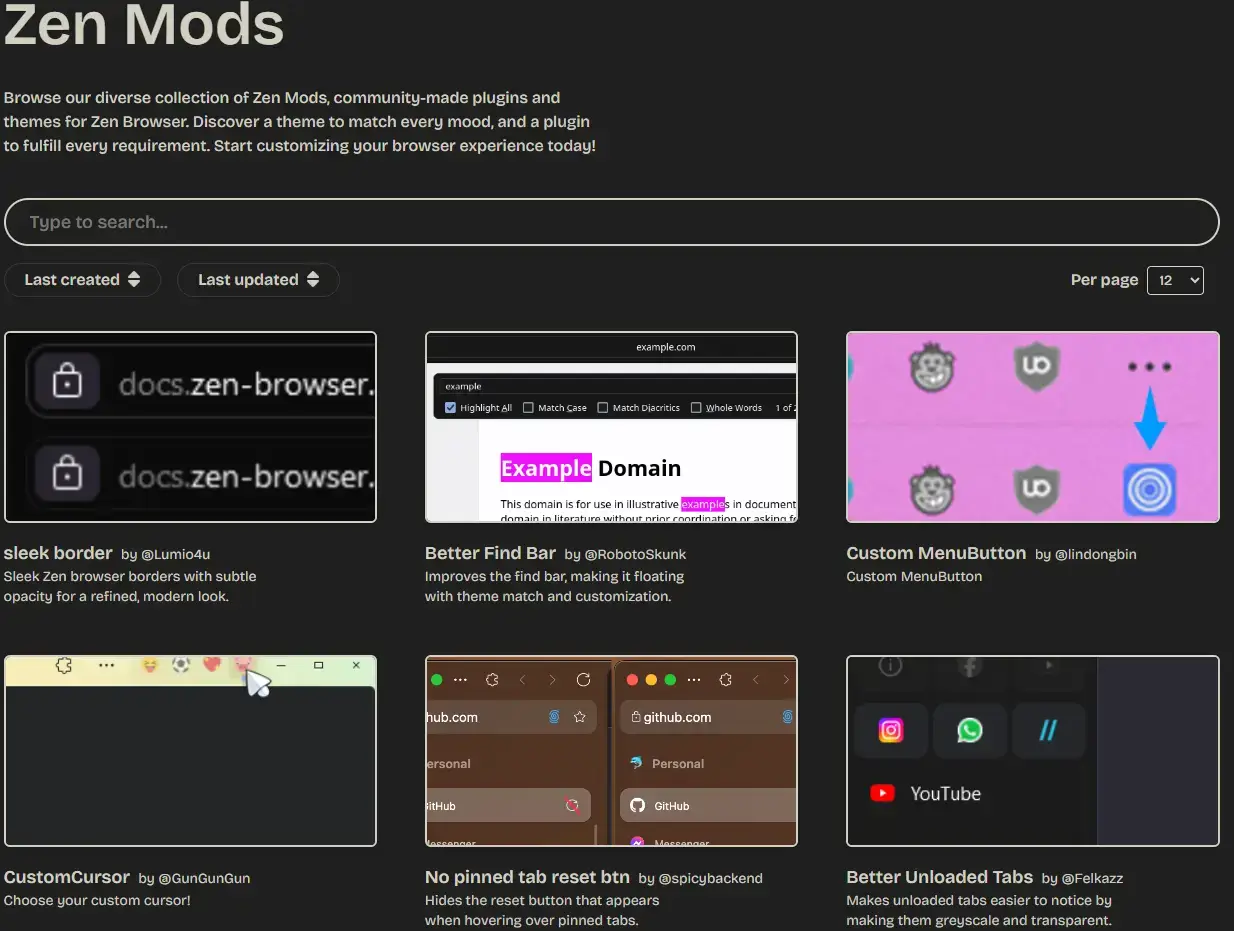
The Zen Mods page where you can browse different type of mods for the browser.
How you get updates depends on your installation method:
- Official Script Method (Stable): Run the install script in the terminal again. This replaces the browser files with the latest version in
~/.tarball-installations/zenwhile keeping your bookmarks and settings safe. - Official Script Method (Twilight nightly): Run the Twilight install script again in your terminal. This downloads the latest development build and replaces the files in
~/.tarball-installations/zen-twilightwhile preserving your profile directories. - Flatpak Method: The system updates this automatically, or you can run `flatpak update` in the terminal.
- AppImage Method: Download the new AppImage file from the official release page.
Zen Browser Screenshot
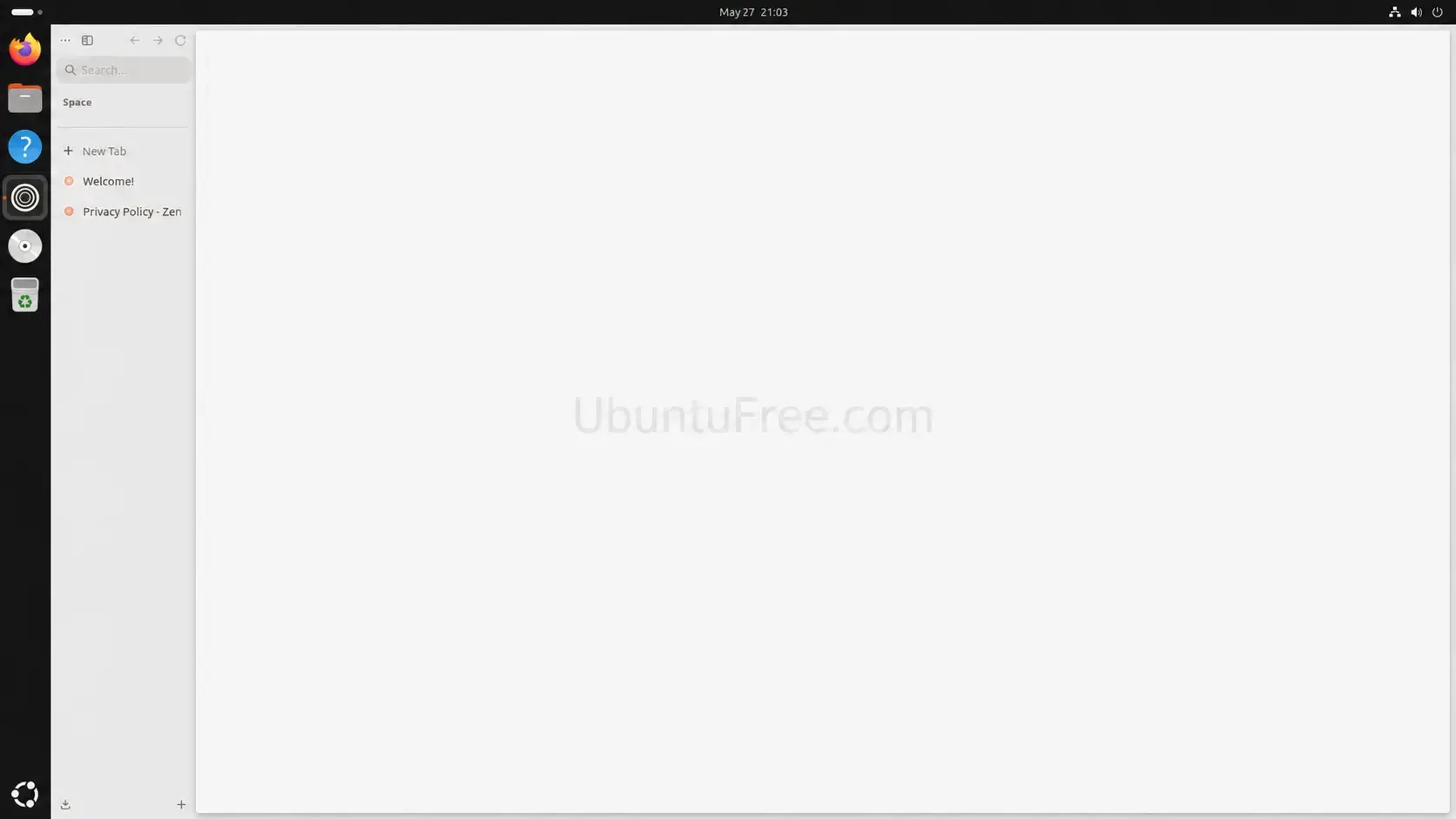
Screenshot of Zen Browser on Ubuntu
Troubleshooting Common Usability Issues
Since Zen Browser is updated frequently with new layout designs, you might run into display or window scaling issues. Here is how to fix them.
If you click the Zen icon and a second icon opens in your dock, the launcher settings are not matching the browser window. Make sure you added StartupWMClass=zen (or StartupWMClass=zen-alpha for the Twilight version) to the end of your desktop launcher file. If the double icon stays, right-click the shortcut in your dock, select Unpin, restart the browser, and then right-click the running window to pin it again.
Zen Browser runs natively on Ubuntu’s default display server (Wayland). If the text looks blurry when fractional scaling is turned on, type about:config in the address bar, accept the warning, search for widget.wayland.fractional-scale.enabled, and set it to true. If menus begin to flicker, change the setting back to false and run the browser in compatibility mode by launching it with the MOZ_ENABLE_WAYLAND=0 prefix.
To import your bookmarks and passwords from standard Firefox, you can copy the database files directly. Close Zen Browser, open your terminal, and run these commands:
# Copy Firefox bookmarks and history to Zen
cp ~/.mozilla/firefox/*.default-release/places.sqlite ~/.zen/*.default/

# Copy saved logins and passwords
cp ~/.mozilla/firefox/*.default-release/key4.db ~/.zen/*.default/
cp ~/.mozilla/firefox/*.default-release/logins.json ~/.zen/*.default/
Note: Remember to replace the asterisk * in the paths above with the actual randomized string names of your profile directories, which you can find under about:profiles inside the browser.
If the installer script stops running or gets stuck, delete the incomplete files and start the process again.
# Delete Stable Channel partial files:
rm -rf ~/.tarball-installations/zen

# Delete Twilight Channel partial files:
rm -rf ~/.tarball-installations/zen-twilight
sudo apt update && sudo apt install curl -y
# Re-run installation for your chosen channel (Stable or Twilight)
How to Uninstall Zen Browser from Ubuntu
If you want to remove Zen Browser from your system, choose the commands below that match how you installed it.
1. For the Shell Script Method (Stable):
Delete the installation directory and remove the custom desktop entry file:
rm -rf ~/.tarball-installations/zen
rm -f ~/.local/share/applications/zen.desktop
2. For the Shell Script Method (Twilight nightly):
Delete the twilight installation directory and remove the custom desktop entry file:
rm -rf ~/.tarball-installations/zen-twilight
rm -f ~/.local/share/applications/zen-twilight.desktop
3. For the Flatpak Method:
Uninstall the flatpak package and clean up unused runtime frameworks:
flatpak uninstall -y app.zen_browser.zen
flatpak uninstall --unused -y
4. For the AppImage Method:
Delete the downloaded AppImage file from your system folders.
Delete User Profiles and History:
Removing the browser files does not delete your bookmarks or browsing history. To completely delete all of your settings, run these commands in the terminal:
# Delete script and AppImage settings
rm -rf ~/.zen/

# Delete Flatpak settings
rm -rf ~/.var/app/app.zen_browser.zen/
Frequently Asked Questions
Is Zen Browser officially supported on Ubuntu?
Yes. Zen Browser supports Ubuntu through an official shell installation script, a Flatpak package available on Flathub, and a standalone AppImage format.
How do I update Zen Browser when installed via the official shell script?
You can update the browser by re-running the official installation script. This downloads and overrides the binary files in your installation folder while preserving your user profiles, configuration settings, and bookmarks.
Why does Zen Browser show duplicate or double icons in the Ubuntu dock?
This occurs when the browser’s window class does not match the desktop launcher metadata. You can resolve this by adding the line StartupWMClass=zen to your custom zen.desktop launcher configuration.
Can I import my Firefox profile data into Zen Browser?
Yes. Since Zen Browser is built on the Firefox engine, you can use the built-in import wizard or copy your places.sqlite and logins.json database files directly into your Zen profile folder.
Does the Flatpak version of Zen Browser support hardware acceleration?
Yes. The Flatpak version supports hardware-accelerated rendering, provided your system has the appropriate GPU drivers (such as Mesa or NVIDIA drivers) installed and configured on your Ubuntu host.
More Ubuntu web browser guides: LibreWolf · qutebrowser · Falkon Browser · GNOME Web · Vivaldi Browser · Brave Browser