 You can install the Brave Browser on Ubuntu using the official APT repository, the official Snap package, or Flatpak from Flathub. Brave is a fast, secure web browser that blocks ads, trackers, and cookies by default.
Since it uses the same underlying open-source Chromium engine as Google Chrome, you get full support for Chrome extensions and web standards while keeping your personal browsing data private.
This guide provides clear terminal instructions for all three installation methods, compares their security sandboxing, and explains how to configure updates on Ubuntu 24.04 and 26.04 LTS.
If you run into any setup issues or package conflicts, please drop a comment below or contact us directly for support. We are always here to help you get it running.
APT, Snap & Flatpak Complete Guide
Configure the Brave Browser on your Ubuntu machine. Compare native repository performance against containerized sandboxes, and run the verified terminal setup scripts.
Each installation method has differences in security sandbox isolation, start-up times, and update delivery speeds. Understanding these differences helps you choose the layout that fits your workflow on Ubuntu.
Brave Browser Installation Methods Compared
Use the table below to compare security sandboxing, update methods, and package maintainers.
| Method | Sandboxed | Key Verification | Updates | Maintained By |
|---|---|---|---|---|
| Native APT (Recommended) | No (Native app performance) | Official GPG Keyring | System Update (APT) | Brave Software |
| Official Snap | Yes (AppArmor sandbox) | Snapcraft Store Signed | Automatic Background | Brave Software |
| Flatpak | Yes (Bubblewrap sandbox) | Flathub Build Signed | System Update (Flatpak) | Community / Verified |
Method 1: Install Brave via the Native APT Repository (Recommended)
Setting up Brave Browser using the official APT repository is the method recommended by the developers. It installs the native package directly onto Ubuntu, which results in faster start-up times and optimal integration with system themes. It also configures your system to download updates automatically whenever you run standard system maintenance.
Ubuntu 24.04 and 26.04 handle software repositories using a modern configuration format called deb822. Instead of writing long single-line repository strings, this format groups the download address and security settings inside a clean text file.
Import the security key to authorize Brave’s software packages. This step verifies that the browser files you download are genuine and have not been altered by attackers:
sudo curl -fsSLo /usr/share/keyrings/brave-browser-archive-keyring.gpg https://brave-browser-apt-release.s3.brave.com/brave-browser-archive-keyring.gpg
Fetch and add Brave’s official repository configuration file to your system. This directs the Ubuntu package manager to download Brave from the correct official servers:
curl -fsSL https://brave-browser-apt-release.s3.brave.com/brave-browser.sources | sudo tee /etc/apt/sources.list.d/brave-browser-release.sources
Update your local software list to find the newly added repository, then install Brave:
sudo apt update && sudo apt install -y brave-browser
Method 2: Install Brave via Snap Package (Official)
The Snap package is an easy, one-command installation method that works out of the box on Ubuntu. The Brave developers maintain this package themselves, so you receive updates immediately. Snap apps run inside a secure sandbox that protects your system by restricting access to your personal files and hardware unless you grant permission.
Run the snap installation command in your terminal to fetch and unpack the browser container:
sudo snap install brave
Method 3: Install Brave via Flatpak (Flathub)
Flatpak is another popular option for running applications inside a secure sandbox on Linux. The Flatpak version of Brave is community maintained but verified on the Flathub app store. It isolates the browser from the rest of your operating system, which is helpful if you want to restrict the browser’s access to your personal folders or system network tools.
Ensure the Flatpak utility is installed on your system and register the Flathub package store:
sudo apt update
sudo apt install -y flatpak
sudo flatpak remote-add --if-not-exists flathub https://dl.flathub.org/repo/flathub.flatpakrepo
Run the flatpak command to download and install the browser package:
flatpak install flathub com.brave.Browser
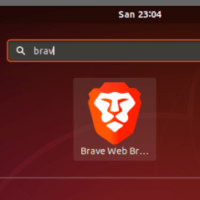
Brave Browser Screenshots
-
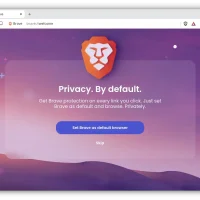
- Brave privacy setting from Brave Browser on Ubuntu 24.04: Install Guide & Tips
-
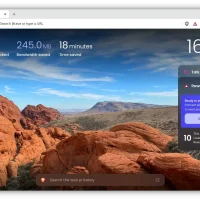
- Brave rewards from Brave Browser on Ubuntu 24.04: Install Guide & Tips
Troubleshooting Common Brave Setup Issues
If you run into issues when installing or starting Brave Browser, use the solutions below to fix them.
If you see error messages about invalid signatures or missing security keys when running system updates, the keyring file may be corrupted or missing. You can delete the old keyring and download a fresh copy from Brave’s servers:
sudo rm -f /usr/share/keyrings/brave-browser-archive-keyring.gpg
sudo curl -fsSLo /usr/share/keyrings/brave-browser-archive-keyring.gpg https://brave-browser-apt-release.s3.brave.com/brave-browser-archive-keyring.gpg
sudo apt update
If Brave’s repository is added to your system more than once, Ubuntu will show duplicate warning errors during updates. Clean up your configuration by removing the old duplicate files, then add the correct repository file back:
sudo rm -f /etc/apt/sources.list.d/brave-browser*.list
sudo rm -f /etc/apt/sources.list.d/brave-browser*.sources
curl -fsSL https://brave-browser-apt-release.s3.brave.com/brave-browser.sources | sudo tee /etc/apt/sources.list.d/brave-browser-release.sources
sudo apt update
Some graphics drivers can cause Brave to freeze or display a blank window when you open it. You can temporarily turn off graphics hardware acceleration from the terminal to see if the browser opens correctly:
brave-browser --disable-gpu
If Brave fails to save sync data or repeatedly asks for your password keyring on launch, the browser may be locked out of your system password manager. For the Snap version, you must connect the password manager service interface manually in your terminal. For APT or Flatpak installations, you can bypass system keyring lockouts by launching Brave with a basic local password store:
# Grant keyring access to Snap version
sudo snap connect brave:password-manager-service

# Bypass keyring for APT package
brave-browser --password-store=basic

# Bypass keyring for Flatpak package
flatpak run com.brave.Browser --password-store=basic
How to Uninstall Brave Browser from Ubuntu
If you want to remove the browser from your machine or purge its configurations, use the terminal instructions below for your selected setup method.
1. For the Native APT Repository Method:
Purge the browser packages, clean up the sources file and GPG keyring, and refresh your package lists:
sudo apt purge -y brave-browser
sudo rm -f /etc/apt/sources.list.d/brave-browser-release.sources
sudo rm -f /usr/share/keyrings/brave-browser-archive-keyring.gpg
sudo apt update
2. For the Snap Package:
Uninstall the snap container from your machine:
sudo snap remove brave
3. For the Flatpak Package:
Uninstall the Flatpak app and delete its sandbox directories:
flatpak uninstall -y com.brave.Browser
rm -rf ~/.var/app/com.brave.Browser
Optional: Clear User Settings and Profiles:
The uninstall steps above do not delete your bookmarks, profiles, or passwords. To completely remove all browser user data, run the command below in your home folder:
rm -rf ~/.config/BraveSoftware ~/.cache/BraveSoftware
Frequently Asked Questions
Is Brave Browser officially supported on Ubuntu?
Yes, Brave Software officially supports and maintains builds for Ubuntu. They provide an official native APT repository as well as a verified Snap package in the Snap Store.
What is the recommended method to install Brave Browser on Ubuntu?
Brave recommends using their official APT repository. This method installs the native Debian package, ensures the fastest performance, and handles updates directly through Ubuntu’s standard package management system.
How do I update Brave Browser on Ubuntu?
If you installed Brave via the APT repository, update it by running sudo apt update && sudo apt upgrade in your terminal. If you installed the Snap or Flatpak packages, your system updates them automatically in the background, or you can run sudo snap refresh brave or flatpak update respectively.
Can I sync Brave Browser on Ubuntu with other devices?
Yes, Brave Sync is fully supported on Ubuntu. You can generate a sync chain code on your mobile device or another computer, select Sync under Brave Settings on Ubuntu, and enter the code to sync bookmarks, history, and passwords securely.
How do I completely uninstall Brave Browser from Ubuntu?
Run the specific uninstall commands: sudo apt purge -y brave-browser (for APT), sudo snap remove brave (for Snap), or flatpak uninstall -y com.brave.Browser (for Flatpak). To remove all user configuration and browsing profiles, delete the directories ~/.config/BraveSoftware and ~/.cache/BraveSoftware from your home directory.
More Ubuntu web browser guides: Firefox Browser · Tor Browser · Chromium Browser · Opera Browser · Google Chrome · Best Web Browsers