 You can install the Chromium browser on Ubuntu using the default Snap package, Flatpak, or a native APT repository. Chromium is the open-source codebase behind Google Chrome, Brave, and Opera. It provides a lightweight, minimalist web browsing environment that does not contain proprietary trackers or licensing restrictions.
While Ubuntu includes Firefox by default, Chromium is an excellent alternative for developers, privacy advocates, and users who require a Chrome-based environment on Linux.
This guide provides detailed terminal instructions for all four installation methods, compares Chromium to Google Chrome, and resolves common issues like Widevine DRM media playback, duplicate repository warnings, and sandbox directory limits on Ubuntu 24.04 LTS and 26.04 LTS.
If you run into any issues, feel free to leave a comment below or contact us. We are always here to help.
Snap, Flatpak & APT Complete Guide
Configure the open-source Chromium browser on Ubuntu Desktop. Learn to set up official Snaps, Flathub Flatpaks, or configure native deb packages via XtraDeb PPA or Linux Mint pinning in one guide.
Chromium provides the absolute foundation for modern web engineering. By deploying it on Ubuntu, you get an extremely fast browser that complies with standard web specifications. However, Ubuntu users face unique packaging decisions. The default installation method will configure a containerized Snap package, which might not fit workflows that require direct filesystem interaction, customized hardware profiling, or specific developer tools. Understanding your installation options helps you choose the layout that matches your system requirements.
Choosing the Right Installation Method
There are four ways to install Chromium on Ubuntu. The table below compares their maintainers, sandboxing structures, and typical update cycles.
| Method | Publisher | Updates | Sandbox | Best For |
|---|---|---|---|---|
| Snap Store | Canonical (Official) | Automatic (via snapd) | Yes (AppArmor) | Standard desktop use, ARM64 |
| Flatpak | Flathub Community | Automatic (via flatpak) | Yes (Bubblewrap) | Isolated containers, cross-distro |
| XtraDeb PPA | Community PPA | Manual (via apt upgrade) | None (Native deb) | Native speed, directory access |
| Mint Pinning | Linux Mint Repository | Manual (via apt upgrade) | None (Native deb) | High-security native builds |
If you want a secure, zero-maintenance setup, the Snap or Flatpak builds are ideal because they receive automatic patches in the background. If you are developing web applications, debugging local services, or accessing external developer keys, a native APT deb package is the best choice to avoid container access restrictions.
Method 1: Install Chromium via default Snap Store
Canonical has designated Snap as the official distribution channel for Chromium on Ubuntu. If you run the classic command sudo apt install chromium-browser, Ubuntu will download and install the Snap package behind the scenes using a transition wrapper. To bypass this redirect, run the installation directly from the terminal (Ctrl+Alt+T).
Initialize the official Snap package download from the Snapcraft repository:
sudo snap install chromium
Method 2: Install Chromium via Flatpak (Flathub)
Flatpak encapsulates applications using Bubblewrap sandbox technologies, isolating the browser configuration files from your system. Since Ubuntu does not include Flatpak by default, you must configure the backend environment before downloading the package.
Install the Flatpak system daemon and register the official Flathub application hub:
sudo apt update
sudo apt install -y flatpak
sudo flatpak remote-add --if-not-exists flathub https://dl.flathub.org/repo/flathub.flatpakrepo
Note: After configuring Flatpak for the first time, you may need to log out of your desktop session and log back in to ensure your system updates environment variables and populates desktop shortcuts.
Run the Flatpak command to pull the verified Chromium build from Flathub:
flatpak install flathub org.chromium.Chromium
Method 3: Install Native Chromium deb (Non-Snap)
If you want a native `.deb` package to bypass Snaps entirely, Ubuntu’s default repositories will not provide it. Instead, you can use the community-maintained XtraDeb PPA or pin the Linux Mint upstream package repository.
To avoid package conflicts or having duplicate versions of the browser in your desktop applications, purge the transitional wrapper and snap installation before proceeding:
sudo snap remove chromium
sudo apt purge -y chromium-browser*
The XtraDeb project packages open-source software for Ubuntu. Add their PPA, update your packages, and install Chromium:
sudo add-apt-repository -y ppa:xtradeb/apps
sudo apt update
sudo apt install -y chromium
Because Linux Mint blocks Snap packages, they maintain native deb builds of Chromium. You can safely link their repository and tell APT to pull only Chromium from it.
1. Prevent Snap transitional package reinstallation:
echo -e "Package: chromium-browser*\nPin: release a=*\nPin-Priority: -10" | sudo tee /etc/apt/preferences.d/nosnap.pref
2. Import the Linux Mint GPG Keyring:
curl -fsSL https://packages.linuxmint.com/dbin/mint-keyring.gpg | sudo tee /etc/apt/keyrings/linuxmint-keyring.gpg > /dev/null
3. Add the Linux Mint upstream source configuration (Ubuntu 24.04 uses wilma; Ubuntu 26.04 uses zena):
# For Ubuntu 24.04:
echo -e "Types: deb\nURIs: http://packages.linuxmint.com\nSuites: wilma\nComponents: upstream\nInclude: chromium\nSigned-By: /etc/apt/keyrings/linuxmint-keyring.gpg" | sudo tee /etc/apt/sources.list.d/linuxmint.sources

# For Ubuntu 26.04:
echo -e "Types: deb\nURIs: http://packages.linuxmint.com\nSuites: zena\nComponents: upstream\nInclude: chromium\nSigned-By: /etc/apt/keyrings/linuxmint-keyring.gpg" | sudo tee /etc/apt/sources.list.d/linuxmint.sources
4. Configure Pin-Priority to allow Chromium but reject all other Mint packages:
echo -e "Package: chromium\nPin: origin packages.linuxmint.com\nPin-Priority: 500\n\nPackage: *\nPin: origin packages.linuxmint.com\nPin-Priority: -10" | sudo tee /etc/apt/preferences.d/mint-chromium.pref
5. Update package caches and install the native deb:
sudo apt update
sudo apt install -y chromium
Method 4: Switch to Beta or Developer Channels
If you want to test upcoming features or experiment with newer browser builds, you can switch to the Beta or Developer (Edge) channels. This is easiest to configure using the containerized packages.
Switch Snap Channels:
To switch an existing Snap installation to the Beta or Edge (Dev) build without losing browser profiles:
# Switch to Beta:
sudo snap switch chromium --channel=beta
sudo snap refresh

# Switch to Developer/Edge:
sudo snap switch chromium --channel=edge
sudo snap refresh
Access Flatpak Beta Builds:
Add the Flathub beta repository and download the experimental Chromium build:
sudo flatpak remote-add --if-not-exists flathub-beta https://flathub.org/beta-repo/flathub-beta.flatpakrepo
flatpak install flathub-beta org.chromium.Chromium
Chromium vs. Google Chrome: Technical Comparison
While Google Chrome is compiled from the Chromium codebase, they are distinct browser environments. Review the key functional differences before determining which to use on Ubuntu:
- Google Account Sync Restrictions: Google restricts access to its private sync APIs for third-party Chromium builds. You cannot synchronize bookmarks, browsing history, or passwords natively across devices using a Google account in Chromium. Google Chrome includes full native sync support.
- Widevine DRM Components: Google Chrome includes the proprietary Widevine CDM out of the box, allowing you to stream encrypted media from platforms like Netflix, Spotify, or Prime Video. Chromium does not include DRM software natively, requiring manual plugin integration or helper packages.
- ARM64 Hardware Support: Google Chrome is compiled only for 64-bit Intel/AMD hardware (amd64) on Linux. Chromium has native compile targets for ARM64 architectures, making it the most performant and supported browser option for single-board computers like the Raspberry Pi 5 running Ubuntu.
- License & Codebase: Chromium uses a clean BSD open-source license and does not contain proprietary telemetry or built-in tracking features. Chrome includes proprietary Google software wrappers, Crashpad analytics, and automatic background updater scripts.
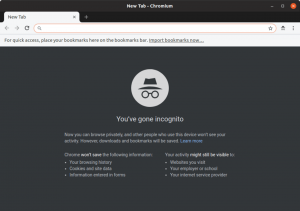
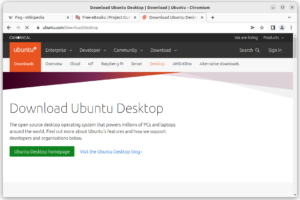
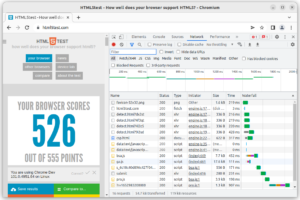
Chromium Screenshots
Troubleshooting Common Chromium Issues
If streaming platforms show errors regarding system DRM limitations, Chromium lacks the Widevine Content Decryption Module (CDM). You can fix this by installing the CDM library manually or using the Flatpak version, which handles DRM packaging automatically. Alternatively, download Google Chrome for media streaming.
If you see repository errors after adding the XtraDeb PPA or Linux Mint configuration, check for duplicate files in your sources folders. Delete any duplicate entry lists using your terminal:
sudo rm /etc/apt/sources.list.d/xtradeb-apps.list
sudo apt update
If you are using the Snap version of Chromium and cannot access downloads in your home folder or on external USB drives, connect the removable-media interface manually using this command:
sudo snap connect chromium:removable-media
How to Uninstall Chromium from Ubuntu
If you want to remove Chromium and revert your system configurations, select the terminal command below that corresponds to your initial installation method:
1. For the Snap Package (Method 1):
Remove the snap package and purge all associated container caching directories:
sudo snap remove --purge chromium
2. For the Flatpak Package (Method 2):
Remove the Flatpak sandbox container and delete any unused system runtimes:
flatpak uninstall org.chromium.Chromium
flatpak uninstall --unused
3. For the Native APT deb Package (Method 3):
Purge the native packages and delete any registered PPAs or sources lists:
# Purge the packages
sudo apt purge -y chromium

# If you installed the XtraDeb PPA, remove it:
sudo add-apt-repository --remove -y ppa:xtradeb/apps

# If you pinned the Linux Mint repository, delete the custom files:
sudo rm -f /etc/apt/sources.list.d/linuxmint.sources
sudo rm -f /etc/apt/preferences.d/mint-chromium.pref
sudo rm -f /etc/apt/preferences.d/nosnap.pref
sudo rm -f /etc/apt/keyrings/linuxmint-keyring.gpg

# Re-synchronize package lists
sudo apt update
Frequently Asked Questions
What is the easiest way to install Chromium on Ubuntu?
The default and easiest way is using the Snap package, which can be installed directly from the terminal by running: sudo snap install chromium. This package is officially maintained, automatically updated, and sandboxed for security.
How do I install a native Chromium deb package without Snap?
You can install a native Chromium deb package using either the community-maintained XtraDeb PPA or by pinning the Linux Mint upstream repository. Both methods bypass the Ubuntu Snap redirect and install Chromium directly via APT.
Can I sync my Google Account settings in Chromium on Ubuntu?
No. Google restricts access to its private sync APIs for third-party Chromium builds. While you can import bookmarks locally and use Google services by logging in on websites, the native browser-level sync feature is not available.
Does Chromium support Netflix and Spotify on Ubuntu?
Not out of the box. Chromium does not include proprietary DRM components like Widevine. To play DRM-protected content from Netflix or Spotify, you must install the Widevine CDM manually, use Flatpak which includes it via a helper, or install Google Chrome.
How do I update Chromium on Ubuntu?
It depends on your installation method. The Snap and Flatpak versions update automatically in the background. If you installed Chromium via a PPA or Linux Mint repository, updates are managed through your standard system packages using: sudo apt update && sudo apt upgrade.
Is Chromium supported natively on the Raspberry Pi?
Yes. Chromium is fully compiled for the ARM64 architecture, making it the default and most performant browser choice for Raspberry Pi 5 users running Ubuntu.
More Ubuntu browser guides: Best Web Browsers for Ubuntu · Install Chrome on Ubuntu · Opera Browser for Ubuntu · Install Opera GX on Ubuntu