 You can install the Opera GX gaming browser on Ubuntu using the official APT repository, a direct .deb package download, the Snap Store, or Flatpak. Opera GX is built specifically for gamers, bringing resource-saving limiters (CPU, RAM, and network bandwidth), custom browser mods, a gaming news hub (GX Corner), and direct sidebar integrations for Discord and Twitch to Linux.
If you are looking for the standard productivity edition instead, see our guide on how to install Opera Browser on Ubuntu.
Our installation guide details all four setup methods with step-by-step terminal instructions. It also covers updating the application, duplicate repository troubleshooting, uninstallation, and hardware architecture limits on Ubuntu 24.04 LTS and 26.04 LTS.
APT, .deb, Snap & Flatpak Complete Guide
Configure the official Opera software repository, import the GPG signing key, download the standalone package, configure official Snaps, or install via Flatpak in one detailed walkthrough.
Opera GX offers features specifically built for gaming performance. Unlike generic browsers, it features a resource control system known as GX Control. This lets you toggle CPU, RAM, and network bandwidth limiters so the browser does not degrade system performance during active gaming sessions. It also features GX Mods, which alter the browser theme, sound effects, keyboard typing sounds, and backgrounds dynamically. Additionally, the sidebar houses instant access to Discord and Twitch, making it easy to stream and talk without leaving your main window.
Choosing the Right Installation Method
There are four official ways to set up Opera GX on Ubuntu. The table below outlines how each method behaves regarding auto-updates, publisher authority, system sandboxing, and vendor support.
| Method | Publisher | Updates | Sandbox | Best For |
|---|---|---|---|---|
| APT Repository | Official (Opera) | Automatic (via apt) | None (Native) | Native performance & automation |
| Direct .deb | Official (Opera) | Automatic (repo added post-install) | None (Native) | Fast standalone installations |
| Snap Package | Official (Opera) | Automatic (via Snapd) | Yes (AppArmor) | Snap-centric systems, fast setup |
| Flatpak | Official (Opera Verified) | Automatic (via Flathub) | Yes (Bubblewrap) | Sandboxed environments, Flatpak users |
For the most stable and natively integrated experience, the APT repository and direct .deb download methods are recommended. They run directly on your system, avoiding sandbox permissions that sometimes limit access to local system fonts, hardware acceleration, or file folders.
Method 1: Install Opera GX via the Official APT Repository
Configuring the APT repository manually is the most robust installation method. It adds the official Opera signing key and repository to your system configuration, ensuring the browser is updated natively whenever you run standard system updates. Open your terminal by pressing Ctrl+Alt+T and run the following steps.
First, ensure that common utilities like curl, gnupg, and ca-certificates are installed, then create the keyring folder:
sudo apt update
sudo apt install -y ca-certificates curl gnupg
sudo install -m 0755 -d /etc/apt/keyrings
Download Opera’s official GPG signing key to verify the integrity of the downloaded browser files. We will save it to the secure keyring path requested by modern Debian standards:
curl -fsSL https://deb.opera.com/archive.key | sudo gpg --dearmor -o /etc/apt/keyrings/opera-browser.gpg
sudo chmod a+r /etc/apt/keyrings/opera-browser.gpg
Security Note: Using this method avoids using the deprecated and less secure keyring toolchain like apt-key, which has been phased out in modern Ubuntu installations.
Add the repository line targeting the stable Opera GX build to your system’s software sources list:
echo "deb [signed-by=/etc/apt/keyrings/opera-browser.gpg arch=amd64] https://deb.opera.com/opera-gx-stable/ stable non-free" | sudo tee /etc/apt/sources.list.d/opera-gx.list
Update your local package registry to recognize the new repository packages, and then run the installation command:
sudo apt update
sudo apt install -y opera-gx-stable
During the configuration process, the terminal will show a package configuration wizard asking: “Do you want to configure the repository to receive automatic updates? [Yes/No]”.
Because we have already configured the keyring and repository manually, you must select No using your keyboard arrow keys and press Enter.
Selecting Yes will write an automatic script that creates a duplicate configuration file under `/etc/apt/sources.list.d/`, which leads to duplicate repository warnings every time you update your packages. If you accidentally select Yes, follow the troubleshooting steps below to fix the duplicate warning.
Method 2: Install Opera GX via Direct .deb Download
Downloading the standalone `.deb` package file is a faster way to install Opera GX. Installing the `.deb` package using the APT package manager automatically configures the software sources repository for future updates, saving you from setting up keyring configuration manually.
Use the wget tool to retrieve the latest installer package directly from Opera’s servers, and install it:
wget https://download3.operacdn.com/pub/opera_gx/desktop/stable/linux/opera-gx-stable_amd64.deb
sudo apt install ./opera-gx-stable_amd64.deb
Apt installation rule: Always run sudo apt install ./filename.deb instead of using sudo dpkg -i. Using APT allows the system to resolve and retrieve missing dependency packages from official repositories, whereas dpkg does not pull in dependencies and might result in broken installations.
Method 3: Install Opera GX via the Official Snap Package
For users who prefer sandbox container applications, Opera maintains an official Snap package for Opera GX. Snaps run inside a secure container configuration governed by AppArmor, isolating the application from the core operating system files.
Run this command in your terminal to retrieve and set up the official Snap package:
sudo snap install opera-gx
Method 4: Install Opera GX via Flatpak (Flathub)
Flatpak isolates the browser using Bubblewrap sandbox technologies. Note: While the standard Opera browser on Flathub is a community-maintained fork, the Opera GX package on Flathub is officially vendor-supported by the Opera team, carrying their verified publisher badge.
If you have not set up Flatpak on your Ubuntu system, install the runtime package and add the Flathub server repository configuration:
sudo apt update
sudo apt install -y flatpak
flatpak remote-add --if-not-exists flathub https://dl.flathub.org/repo/flathub.flatpakrepo
Run the Flatpak command to pull down and install the verified application package:
flatpak install flathub com.opera.opera-gx
Opera GX Screenshots
-
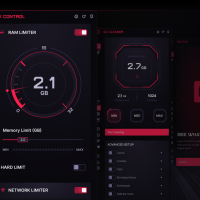
- Gx control from How to Install Opera GX on Ubuntu – Gaming Browser Guide
-

- Light theme on operagx from How to Install Opera GX on Ubuntu – Gaming Browser Guide
-
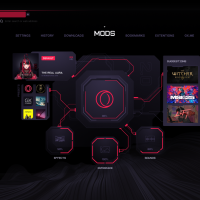
- Customize operagx from How to Install Opera GX on Ubuntu – Gaming Browser Guide
-
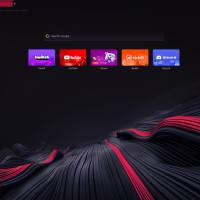
- Operagx live on ubuntu os from How to Install Opera GX on Ubuntu – Gaming Browser Guide
Troubleshooting Common Opera GX Repository Issues
If you see a package registry warning reading “Target Packages is configured multiple times” or “Duplicate sources.list entry” when updating your Ubuntu system packages, your system has registered the repository sources twice. This warning commonly happens if you set up the repository manually and then answer “Yes” to Opera’s automatic setup prompt during the direct installer configuration.
To fix the warning, delete the duplicate sources configuration file added by the script:
sudo rm /etc/apt/sources.list.d/opera-gx-stable.list
Next, run standard updates to confirm that the package manager database synchronizes without any warnings:
sudo apt update
Frequently Asked Questions
What is the best way to install Opera GX on Ubuntu?
The official APT repository method is the recommended way. It configures the official Opera software repository and GPG signing key on your system, allowing the gaming browser to update automatically alongside other system updates via the standard apt package manager.
Is the Flatpak version of Opera GX on Flathub official?
Yes. Unlike the standard Opera browser which is community-maintained, the Opera GX package on Flathub is officially vendor-supported. This means it is verified and maintained with direct support from the Opera team.
Does Opera GX support Ubuntu running on Raspberry Pi or ARM64?
No. Opera GX does not publish official Linux ARM64 packages. The APT repository, direct .deb installer, official Snap, and Flatpak packages are compiled exclusively for x86_64 (amd64) hardware architectures.
Why does apt update show duplicate repository warnings after installing Opera GX?
This occurs if both your manual sources list setup and Opera’s post-installation script configure the repository on your system. To resolve it, delete the duplicate sources configuration file by running: sudo rm /etc/apt/sources.list.d/opera-gx.list and run update again.
How is Opera GX different from the standard Opera browser on Ubuntu?
Opera GX is designed specifically for gamers. It includes unique built-in limiters for CPU, RAM, and network bandwidth, a GX Corner page showing gaming releases, customizable sound effects, and sidebar integrations for Twitch and Discord. The standard Opera browser is built for general productivity.
More Ubuntu application guides: Install Opera Browser on Ubuntu · Best Web Browsers for Ubuntu · Install Google Chrome on Ubuntu · Install Discord on Ubuntu