 You can install Falkon Browser on Ubuntu using the official Ubuntu repositories (APT), the official Snap package, or Flatpak (Flathub). Recognized as one of the best web browsers for Ubuntu, Falkon is a lightweight, open-source web browser developed under the KDE project.
It uses the QtWebEngine rendering engine, which is built on the Blink engine, to deliver fast page loads and exceptionally low memory consumption. For users running KDE Plasma or those looking for a lean secondary browser, Falkon provides native desktop integration with minimal resource usage.
This guide provides step-by-step terminal instructions for all three installation methods, compares their performance, and outlines post-installation tweaks for Ubuntu 24.04 and 26.04 LTS.
Let us know in the comments below if you run into any setup issues, or you can contact us directly for support. We are always here to help you get it running.
APT, Snap & Flatpak Setup Guides
Configure Falkon Browser on your Ubuntu machine. Compare native repository performance against containerized sandboxes, and run the verified terminal setup scripts.
Quick CLI Setup Cheatsheet
If you are an experienced user looking for a quick setup, copy and paste the commands below for your preferred installation format:
sudo apt update && sudo apt install falkon -y
sudo apt purge falkon -ysudo snap install falkon
sudo snap remove falkonflatpak install flathub org.kde.falkon -y
flatpak uninstall org.kde.falkon -yChoosing the right installation package structure affects how Falkon runs on your desktop environment and how updates are handled. Review the details below to determine which method fits your workflow best.
Falkon Installation Methods Compared
Review the table below to compare the package formats, security settings, and auto-update support for the three installation paths.
| Method | Version Age | Auto-Updates | Security Isolation | Best For |
|---|---|---|---|---|
| Official APT | Stable repository build | System updates (via apt upgrade) | No (runs natively) | KDE Plasma users who want perfect system integration |
| Official Snap | Latest stable release | Automatic (via background snapd service) | Yes (sandboxed) | Non-KDE environments to avoid local dependency bloat |
| Flatpak | Latest stable release | Automatic (via flatpak update) | Yes (sandboxed) | Sandbox isolation and independent configuration cache |
Method 1: Install Falkon via the Native APT Repository
The native package method fetches Falkon directly from the official Ubuntu software repositories. This ensures that the application runs natively with the best performance and utilizes your system’s shared Qt resources. For users running the KDE Plasma desktop, this is the recommended path as it integrates seamlessly with system notifications, file dialogs, and the KWallet credentials manager.
Note that if you are using the default GNOME desktop environment, installing Falkon via APT will download several shared KDE and Qt libraries as dependencies, adding to your overall disk footprint.
Open your terminal (Ctrl+Alt+T) and synchronize your local repository catalogs to see the latest package changes:
sudo apt update
Run the installation command to fetch the Falkon binary and its required system runtime packages:
sudo apt install falkon -y
Method 2: Install Falkon via the Official Snap Package
Snap is a modern packaging system developed by Canonical that is enabled out of the box on all Ubuntu installations. Installing Falkon as a Snap package means it runs inside a secure, restricted sandbox. Because the Snap bundles all necessary libraries and dependencies internally, it will not populate your system with additional Qt or KDE software packages, making it an excellent choice for users on default GNOME desktops.
To pull down the latest stable revision of the browser from Canonical’s Snap Store, execute this terminal command:
sudo snap install falkon
Method 3: Install Falkon via Flatpak (Flathub)
Flatpak is a sandboxed packaging environment similar to Snap. Many Linux users prefer Flatpak for its sandboxing capabilities and rapid package updates from Flathub. The Falkon Flatpak build is officially compiled by the KDE team, ensuring that you receive the latest upstream features and security updates directly.
By default, Ubuntu does not ship with Flatpak enabled. Install the Flatpak manager service and connect to the official Flathub application repository by executing these commands:
sudo apt update
sudo apt install flatpak -y
sudo flatpak remote-add --if-not-exists flathub https://dl.flathub.org/repo/flathub.flatpakrepo
Now install the official Flatpak application build from the Flathub server:
flatpak install flathub org.kde.falkon -y
Post-Installation Settings: AdBlock, Bookmarks & Custom Plugins
Once Falkon is running on your system, you can adjust some default features to improve your browsing experience. Falkon includes built-in extensions and layout options that let you browse efficiently right away.
Because Falkon uses its own lightweight plugin system instead of the Chrome Web Store or Firefox Add-ons, it comes with a native AdBlock extension ready to use. To activate it:
- Launch Falkon and click the Preferences (gear) icon in the top right, or go to Edit > Preferences.
- Select Extensions from the left-hand sidebar menu.
- Locate AdBlock in the plugin list and check the box to enable it.
- Click the AdBlock settings option (or gear icon next to the list entry) to view active filters. From here, you can enable preloaded subscription lists like EasyList or EasyPrivacy, or paste custom filter URLs to block trackers.
Falkon allows you to import and manage bookmarks easily through native layouts:
- Importing HTML Bookmarks: Open the Bookmarks menu, select Bookmarks Manager, click File > Import, and select your exported
.htmlbookmarks file from another browser. - Sidebar Layout: You can toggle the vertical bookmarks sidebar by pressing Ctrl+B or going to View > Sidebar > Bookmarks, which is useful for widescreen monitors.
Falkon (version 3.1 or newer) includes support for custom plugins written in Python. This allows you to add custom scripts or toolbar items. To configure Python plugin support on Ubuntu:
- Ensure the system has Python and PyQt bindings installed (required to load PyQt5 interfaces inside Falkon):
sudo apt install python3 python3-pyqt5 -y
- Create the local directory where Falkon looks for custom plugins:
# For APT and Native installations:
mkdir -p ~/.config/falkon/plugins/

# For Flatpak installations:
mkdir -p ~/.var/app/org.kde.falkon/config/falkon/plugins/
- Place your custom Python plugin folder inside this directory. Each plugin must have an
__init__.pyfile and a metadata configuration file (often namedplugin.ini) so that Falkon detects it. - Restart Falkon, go to Preferences > Extensions, and check the box next to your new Python plugin in the list to enable it.
Falkon Browser Screenshots
-
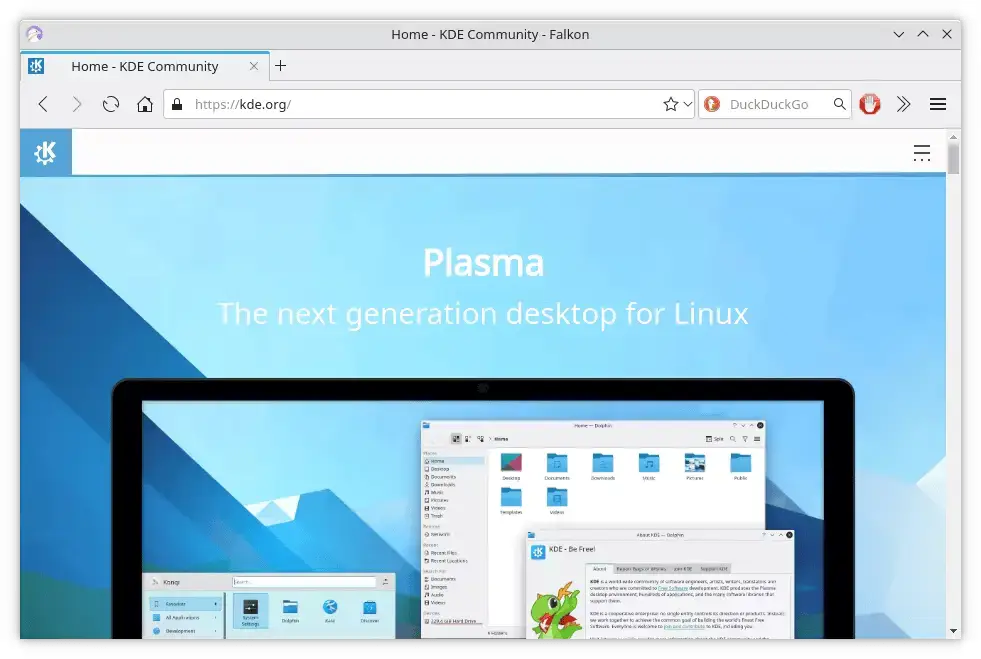
- Falkon kde homepage from How to Install Falkon on Ubuntu 26.04 – Complete Setup Guide
-
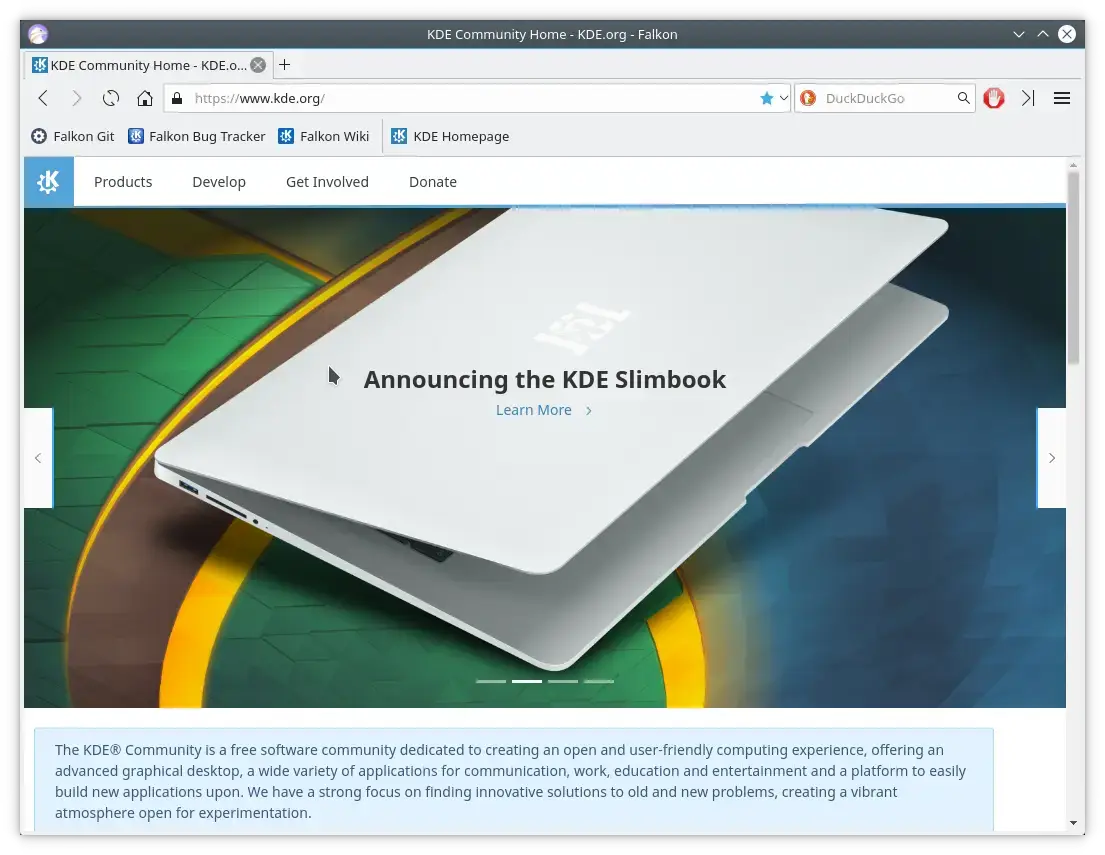
- Falkon screenshot from How to Install Falkon on Ubuntu 26.04 – Complete Setup Guide
Troubleshooting Falkon Usability and Theme Issues
Because Falkon is designed for the KDE desktop, running it under other desktop environments, such as default GNOME on Ubuntu, can lead to password prompt notifications or out-of-place visual styles. You can resolve these issues using the steps below.
Under GNOME desktops, Falkon may trigger popups asking you to configure a KWallet password database. If you do not wish to use KWallet, you can disable this check. Open Falkon, go to Preferences (or Edit > Preferences), select Password Manager, and change the storage backend from KWallet to Plaintext or local storage. This will save passwords in a local, unencrypted file inside your user directory, stopping the KWallet prompts. Only use this option if your user folder is already protected with full disk encryption.
By default, Falkon’s Qt buttons and menus might look blocky or outdated under GNOME’s GTK theme. To force Falkon to follow your GTK system style, install the Adwaita-Qt theme engine:
sudo apt install adwaita-qt -y
Next, test the interface style by launching Falkon with the style override flag from the terminal:
QT_STYLE_OVERRIDE=adwaita falkon
To make this change permanent, you can append export QT_STYLE_OVERRIDE=adwaita to your ~/.profile or ~/.bashrc file, or set it system-wide in /etc/environment.
How to Uninstall Falkon Browser from Ubuntu
If you need to remove Falkon Browser, choose the command below that matches the installation method you used.
1. For the Native APT Repository Method:
Remove the Falkon application and clean up any orphaned dependencies that were installed alongside it:
sudo apt purge falkon -y
sudo apt autoremove -y
2. For the Snap Method:
Uninstall the sandboxed Snap package from your system:
sudo snap remove falkon
3. For the Flatpak Method:
Delete the Flatpak application and run the cleanup utility to clear unused shared runtimes:
flatpak uninstall org.kde.falkon -y
flatpak uninstall --unused -y
Delete Your Saved Profiles and Cache Files:
To completely clear your local settings, bookmarks, cache, and passwords, delete the browser’s hidden directories using these terminal commands:
# Delete native APT settings and cache folders
rm -rf ~/.config/falkon ~/.cache/falkon

# Delete Flatpak user profile and sandboxed settings
rm -rf ~/.var/app/org.kde.falkon
Frequently Asked Questions
Is Falkon Browser available in the official Ubuntu repositories?
Yes. Falkon is available in the official Ubuntu repositories and can be installed natively via the APT package manager using the command sudo apt install falkon.
What rendering engine does Falkon Browser use?
Falkon uses the QtWebEngine rendering engine, which is based on the Chromium-based Blink layout engine, providing modern web standards support and fast rendering.
How do I disable the KWallet password prompts in Falkon on GNOME?
To disable KWallet keyring popups on non-KDE environments like GNOME, open Falkon, go to Preferences, select Password Manager, and change the storage method from KWallet to Plaintext or another local backend.
How can I block ads natively in Falkon?
Falkon features a built-in AdBlock extension. You can enable it by going to Preferences, choosing Extensions, checking the AdBlock box, and selecting your preferred filter lists in the settings.
Can I install Chrome or Firefox extensions in Falkon Browser?
No. Falkon does not support standard Chrome (CRX) or Firefox (XPI) extensions. It supports a selection of built-in plugins, including AdBlock, GreaseMonkey, and mouse gestures.
More Ubuntu web browser guides: LibreWolf · Zen Browser · qutebrowser · Falkon Browser · GNOME Web · Vivaldi Browser · Brave Browser