 You can install LibreOffice on Ubuntu using the default APT package manager, the official Fresh PPA for the latest features, Snap, Flatpak, or the portable AppImage.
As the default open-source office suite on Ubuntu, LibreOffice includes Writer (word processor), Calc (spreadsheets), Impress (presentations), Draw (vector graphics), Base (databases), and Math (formula editor). It provides complete file compatibility with Microsoft Office formats without licensing costs or cloud constraints.
This guide provides step-by-step terminal instructions to install, configure, and upgrade LibreOffice on Ubuntu 26.04, 24.04, and 22.04 LTS. We cover all five installation channels, sandbox font troubleshooting overrides, MIME file associations, and clean uninstallation steps.
If you encounter any issues, please leave a comment below or contact us for support.
APT, PPA, Snap, Flatpak & AppImage Walkthroughs
Configure the LibreOffice suite on your desktop. Learn how to add the stable Fresh repository, manage sandbox font bindings, set default MIME handlers, and execute portable AppImage binaries on your system.
Choosing your installation format determines your update frequency, containment isolation, access to system fonts, and general performance speeds. Review the comparison grid below to select the setup format that best fits your workflow.
LibreOffice Installation Methods Compared
Evaluate version update channels, containment, font accessibility, and desktop integration capabilities across the 5 distribution packages.
| Method | Channel Source | Ubuntu Version Matrix | Isolation Levels | Integration & Fonts |
|---|---|---|---|---|
| APT Default | Ubuntu Main Repositories | Stable system builds (frozen version matching launch) | None (Full system access) | Default system fonts, perfect performance integration, lightweight. |
| APT PPA | Official Fresh stable PPA | Latest stable upstream releases (evergreen updates) | None (Full system access) | Default system fonts, direct hardware access, native performance. |
| Snap (Snap Store) | Canonical Snapcraft Registry | Latest stable updates (auto-updates enabled) | Confinement sandboxing | Auto-updates, larger footprint, sandboxed folder routing. |
| Flatpak (Flathub) | Flathub Container Registry | Latest stable upstream releases | Strict container sandbox | Requires manual permission commands to access local system fonts folders. |
| AppImage | Official LibreOffice Downloads | Upstream portable releases | Portable execution | Requires FUSE package. Best for testing side-by-side versions. |
Method 1: Install LibreOffice via the Default Ubuntu Repositories (APT)
Installing LibreOffice from the default Ubuntu repositories is the standard pathway for users who prioritize total desktop integration and maximum stability. Native APT packages match the exact package freezing parameters of your specific Ubuntu release, utilizing shared library runtimes and integrating seamlessly with default window management components, printers, and system-wide fonts. If you run a minimal desktop configuration, this option fetches only the core layout dependencies.
Because LTS releases focus on package freezes, the version available in the standard repositories tracks the frozen version from the OS release date. For users seeking the newest tool designs, format filter updates, and engine features, use the PPA, Snap, or Flatpak options instead.
Before pulling package details, update your local index caches to access the newest available packages:
sudo apt update
Execute the install command to configure the complete suite (Writer, Calc, Impress, Draw, and Math):
sudo apt install libreoffice -y
Method 2: Install LibreOffice via the Official Fresh PPA
If you prefer native APT integration but want the latest stable upstream release, the official LibreOffice Fresh PPA is the recommended setup path. Maintained by The Document Foundation packaging team, the PPA compiles stable upstream software builds specifically for active Ubuntu releases. This channel receives regular updates containing file compatibility filters, user interface additions, and speed enhancements without sandboxing restrictions.
Add the official PPA repository keys and sources registry configuration to your system:
sudo add-apt-repository ppa:libreoffice/ppa -y
Update your APT database configuration cache to recognize the newly added PPA archive:
sudo apt update
If you have a default installation of LibreOffice, running this command upgrades it to the Fresh stable version. If you are starting fresh, it will fetch and install the package suite:
sudo apt install libreoffice -y
Method 3: Install LibreOffice via the Snap Store
For users who prefer containerized software management and automatic updates, Snap is a highly reliable option. Supported natively by Canonical and pre-configured on Ubuntu, Snap packages run in separate containment fields, preventing dependency interference with other system libraries. The LibreOffice Snap package is updated automatically in the background, ensuring your tools remain current.
Open a terminal window (Ctrl+Alt+T) and install the official package using the snap command:
sudo snap install libreoffice
Method 4: Install LibreOffice via Flatpak (Flathub)
If you run a sandboxed desktop environment or prefer the Flatpak ecosystem, installing the suite via Flathub is an excellent choice. Flatpak isolates application runtimes from system directories. Because the Flatpak environment isolates resources, you must configure folder permission overrides to allow LibreOffice to locate system-installed fonts or external partitions.
If the Flatpak tool is not configured on your system, install the daemon package via APT:
sudo apt update && sudo apt install flatpak -y
Add the official Flathub catalog configuration to access container packages:
flatpak remote-add --if-not-exists flathub https://dl.flathub.org/repo/flathub.flatpakrepo
Fetch and configure the official LibreOffice Flatpak package from Flathub:
flatpak install flathub org.libreoffice.LibreOffice -y
By default, container isolation blocks the Flatpak from accessing system and user-installed fonts (like Microsoft fonts). To grant read-only folder permissions to system fonts, execute this override command:
flatpak override --user --filesystem=xdg-config/fontconfig:ro --filesystem=~/.local/share/fonts:ro --filesystem=/usr/share/fonts:ro org.libreoffice.LibreOffice
Method 5: Deploy LibreOffice via the Official AppImage (Portable)
If you need to test different versions of LibreOffice or run the application as a portable tool without standard system configurations, AppImage is a great choice. AppImage packages contain all required runtime files inside a single executable binary. Since these files are portable, you can run them directly from a USB drive or local directory.
To execute AppImages on modern Ubuntu distributions (22.04 LTS and newer), you must install the legacy FUSE user-space filesystem library first, as it is not pre-packaged in default desktop installations.
Ensure your Ubuntu platform has FUSE support configured to allow AppImage mounts:
sudo apt update && sudo apt install libfuse2 -y
Create an Applications folder inside your home directory and download the official LibreOffice AppImage package. Rather than hardcoding version numbers, we target the evergreen URL:
mkdir -p ~/Applications
cd ~/Applications
wget https://appimages.libreitalia.org/LibreOffice-latest.basic-x86_64.AppImage
Update the package permissions structure to allow executable binary tasks to run:
chmod +x LibreOffice-latest.basic-x86_64.AppImage
Start the suite interface directly using terminal commands:
./LibreOffice-latest.basic-x86_64.AppImage
Advanced Configuration: Setting default MIME File Associations
If your desktop environment does not launch DOCX, XLSX, ODT, or ODS files inside LibreOffice automatically, you can set the MIME type handler configurations in your terminal using the system’s association tools:
Associate LibreOffice Writer and Calc as default editors for Microsoft and OpenDocument formats:
# Associate Writer with DOCX and ODT formats
xdg-mime default libreoffice-writer.desktop application/vnd.openxmlformats-officedocument.wordprocessingml.document
xdg-mime default libreoffice-writer.desktop application/x-odt

# Associate Calc with XLSX and ODS formats
xdg-mime default libreoffice-calc.desktop application/vnd.openxmlformats-officedocument.spreadsheetml.sheet
xdg-mime default libreoffice-calc.desktop application/x-ods
How to Update and Upgrade LibreOffice on Ubuntu
To ensure you have the newest security updates, file filters, and interface fixes, update your installation based on the packaging format you selected during setup:
Run the update command that corresponds to your packaging format:
For APT Default or PPA Installations:
sudo apt update && sudo apt upgrade -y
For Snap Store Installations:
sudo snap refresh libreoffice
For Flathub Flatpak Installations:
flatpak update org.libreoffice.LibreOffice -y
For Portable AppImage Packages:
AppImage packages do not include automatic backend updating channels. To upgrade your portable instance, download the newest .AppImage version from the download registry and replace your old file in ~/Applications/.
How to Completely Uninstall LibreOffice and Clean configuration files
If you need to remove LibreOffice, select the uninstallation pathway below that corresponds to your original packaging method. These steps purge program binaries, remove repository records, and delete custom user setting profiles.
Purge the LibreOffice package binaries using the tool matching your active setup type:
For APT Default and PPA Installations:
sudo apt remove --purge libreoffice* -y
sudo apt autoremove --purge -y
To delete the Fresh PPA Repository:
sudo add-apt-repository --remove ppa:libreoffice/ppa -y
For Snap Store Installations:
sudo snap remove libreoffice
For Flathub Flatpak Installations:
flatpak uninstall org.libreoffice.LibreOffice -y
flatpak uninstall --unused -y
For AppImage Installations:
rm -f ~/Applications/LibreOffice-latest.basic-x86_64.AppImage
Uninstalling the software leaves configuration files in your user space. To remove these leftover configuration directories, run the commands that match your package type:
# Delete native APT and PPA configurations
rm -rf ~/.config/libreoffice

# Delete Flatpak sandbox data caches
rm -rf ~/.var/app/org.libreoffice.LibreOffice

# Delete Snap user configuration data
rm -rf ~/snap/libreoffice
Interface Screenshots
To inspect the LibreOffice application menus, spreadsheet configurations, and design options on Ubuntu, refer to the screenshots layout gallery below:
-
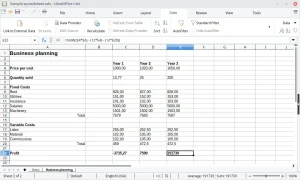
- Libreoffice calc screenshot from How to Install LibreOffice on Ubuntu 26.04 – Complete Guide
-
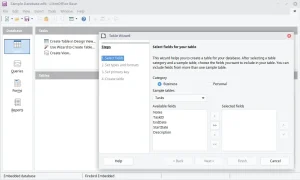
- Libreoffice database screenshot from How to Install LibreOffice on Ubuntu 26.04 – Complete Guide
-
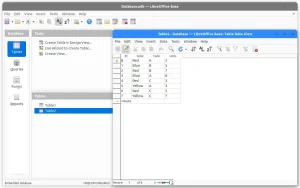
- Libreoffice database tables example from How to Install LibreOffice on Ubuntu 26.04 – Complete Guide
-
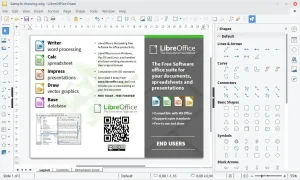
- Libreoffice draw from How to Install LibreOffice on Ubuntu 26.04 – Complete Guide
-
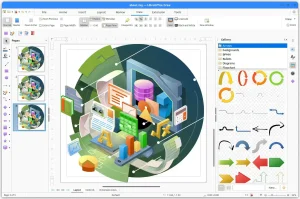
- Libreoffice draw with gallery from How to Install LibreOffice on Ubuntu 26.04 – Complete Guide
-
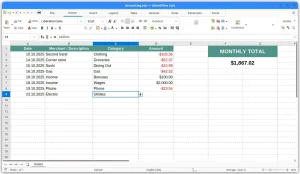
- Libreoffice excel clone from How to Install LibreOffice on Ubuntu 26.04 – Complete Guide
-
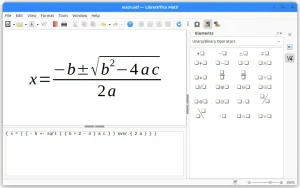
- Libreoffice math screenshot from How to Install LibreOffice on Ubuntu 26.04 – Complete Guide
-
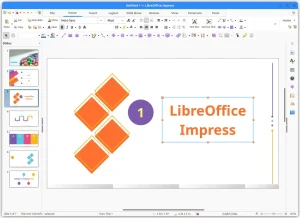
- Libreoffice powerpoint clone from How to Install LibreOffice on Ubuntu 26.04 – Complete Guide
-
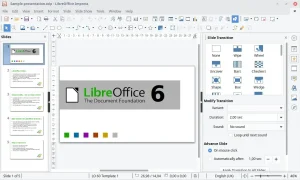
- Libreoffice presentation screenshot from How to Install LibreOffice on Ubuntu 26.04 – Complete Guide
-
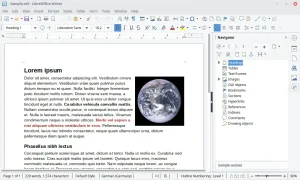
- Libreoffice writer screenshot from How to Install LibreOffice on Ubuntu 26.04 – Complete Guide
-
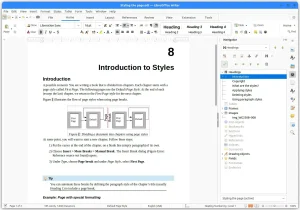
- Libreoffice writer styled layout from How to Install LibreOffice on Ubuntu 26.04 – Complete Guide
Use the links below to access the official forums, source code repositories, and user handbooks for LibreOffice help:
Frequently Asked Questions
What is the difference between LibreOffice Fresh PPA and the default Ubuntu version?
The default Ubuntu repositories prioritize system stability, meaning the pre-packaged version remains frozen matching the release state of your Ubuntu version. The official LibreOffice Fresh PPA provides the latest stable upstream release, giving you access to new features, better file filter compatibility, and performance updates.
How do I resolve missing fonts in Flatpak or Snap versions of LibreOffice?
Containerized packages like Flatpak and Snap run in secure sandbox environments and cannot view user fonts by default. To fix this, run the terminal override command: flatpak override --user --filesystem=xdg-config/fontconfig:ro --filesystem=~/.local/share/fonts:ro --filesystem=/usr/share/fonts:ro org.libreoffice.LibreOffice to bind your system font directories.
How do I associate file formats like DOCX or ODT with LibreOffice in the terminal?
If your desktop does not associate document files with LibreOffice automatically, you can set the MIME type handler manually via command line. For example, associate text documents by running: xdg-mime default libreoffice-writer.desktop application/vnd.openxmlformats-officedocument.wordprocessingml.document or xdg-mime default libreoffice-writer.desktop application/x-odt.
Is there an official AppImage version of LibreOffice?
Yes, LibreOffice officially provides upstream AppImage packages for portable execution. To run it on modern Ubuntu versions (22.04 LTS and newer), you must install the FUSE library by running: sudo apt update && sudo apt install libfuse2 -y.
How do I upgrade LibreOffice using the terminal?
The upgrade method depends on your installation type. For APT/PPA: sudo apt update && sudo apt upgrade -y. For Snap: sudo snap refresh libreoffice. For Flatpak: flatpak update org.libreoffice.LibreOffice. For AppImage, you simply download the newer AppImage file and replace the existing one.
Related office suites guides: Microsoft Office Alternatives for Ubuntu · Install OnlyOffice on Ubuntu · Install WPS Office on Ubuntu