Using ubuntu keyboard shortcuts is the most effective way to navigate your desktop, manage windows, control the terminal, and run applications quickly. Keyboard commands like Super for the Activities overview, Ctrl + Alt + T for the terminal, and Super + Arrow Keys for window tiling can save hours of mouse movements and menu navigation.
The Ultimate Guide
Master your desktop workflow in Ubuntu with over 100 essential keyboard shortcuts for navigation, window tiling, terminal commands, and web browsing.
1. System & Desktop Navigation
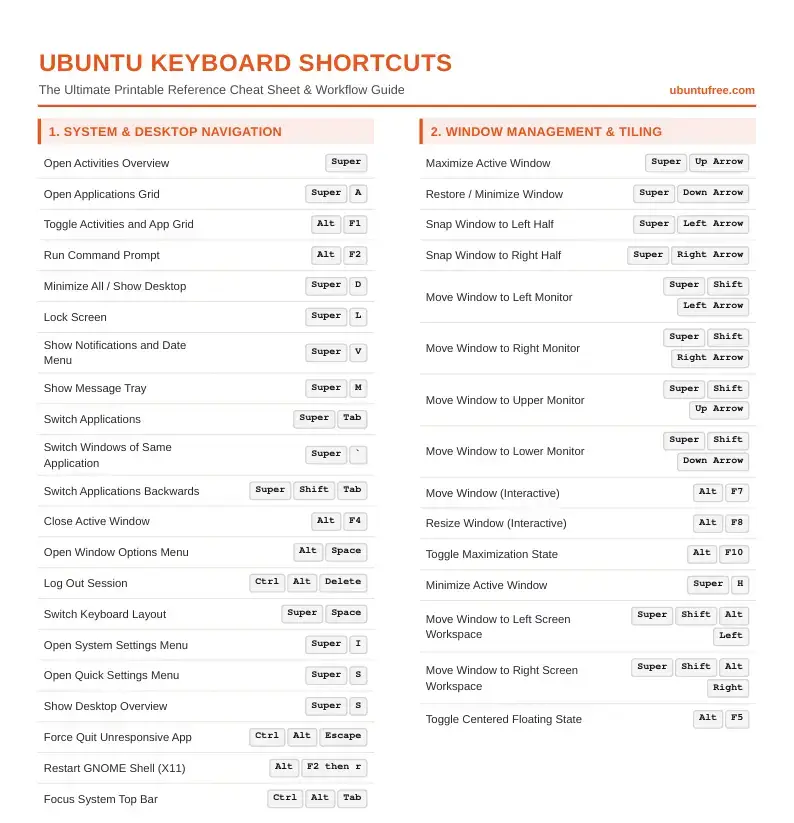
These commands help you navigate the GNOME desktop environment, launch the system menu, lock your screen, and control basic session settings in Ubuntu.
| Action / Function | Keyboard Shortcut |
|---|---|
| Open Activities Overview | Super |
| Open Applications Grid | Super + A |
| Toggle Activities and App Grid | Alt + F1 |
| Run Command Prompt | Alt + F2 |
| Minimize All / Show Desktop | Super + D |
| Lock Screen | Super + L |
| Show Notifications and Date Menu | Super + V |
| Show Message Tray | Super + M |
| Switch Applications | Super + Tab |
| Switch Windows of Same Application | Super + ` |
| Switch Applications Backwards | Super + Shift + Tab |
| Close Active Window | Alt + F4 |
| Open Window Options Menu | Alt + Space |
| Log Out Session | Ctrl + Alt + Delete |
| Switch Keyboard Layout | Super + Space |
2. Window Management & Tiling
Ubuntu features refined window management capabilities. Use these key binds to split, snap, and resize your app windows without picking up the mouse.
| Action / Function | Keyboard Shortcut |
|---|---|
| Maximize Active Window | Super + Up Arrow |
| Restore / Minimize Window | Super + Down Arrow |
| Snap Window to Left Half | Super + Left Arrow |
| Snap Window to Right Half | Super + Right Arrow |
| Move Window to Left Monitor | Super + Shift + Left Arrow |
| Move Window to Right Monitor | Super + Shift + Right Arrow |
| Move Window to Upper Monitor | Super + Shift + Up Arrow |
| Move Window to Lower Monitor | Super + Shift + Down Arrow |
| Move Window (Interactive) | Alt + F7 |
| Resize Window (Interactive) | Alt + F8 |
| Toggle Maximization State | Alt + F10 |
| Minimize Active Window | Super + H |
3. Workspace Controls
Workspaces organize your screen layouts and isolate different app groupings. Use these controls to navigate workspaces and move active windows across them.
| Action / Function | Keyboard Shortcut |
|---|---|
| Switch to Previous Workspace | Super + Page Up or Super + Alt + Up |
| Switch to Next Workspace | Super + Page Down or Super + Alt + Down |
| Move Window to Previous Workspace | Super + Shift + Page Up |
| Move Window to Next Workspace | Super + Shift + Page Down |
| Switch to Left Workspace | Ctrl + Alt + Left Arrow |
| Switch to Right Workspace | Ctrl + Alt + Right Arrow |
| Move Window to Left Workspace | Ctrl + Alt + Shift + Left |
| Move Window to Right Workspace | Ctrl + Alt + Shift + Right |
| Move Window to Workspace 1-4 | Super + Shift + Alt + [1-4] |
| Switch Directly to Workspace 1-4 | Super + Alt + [1-4] |
4. Screenshots & Screen Recording
The interactive capture tool in standard Ubuntu versions allows you to screenshot specific regions, windows, or screen casts. These keys give you quick, direct shortcuts to capture media.
| Action / Function | Keyboard Shortcut |
|---|---|
| Launch Screenshot & Screen Recording UI | Print Screen |
| Take Screenshot of Current Window | Alt + Print Screen |
| Take Screenshot of Entire Screen | Shift + Print Screen |
| Copy Area Screenshot to Clipboard | Ctrl + Shift + Print Screen |
| Save Screen Recording (Legacy Toggle) | Ctrl + Alt + Shift + R |
| Copy Window Screenshot to Clipboard | Ctrl + Alt + Print Screen |
| Toggle Zoom Screen Magnifier | Super + Alt + 8 |
5. Nautilus File Manager Navigation
Manage files and folders in the standard Nautilus file explorer with these shortcuts, enabling rapid tab creation, path editing, and search operations.
| Action / Function | Keyboard Shortcut |
|---|---|
| Open New Explorer Window | Ctrl + N |
| Open Selected Folder in New Tab | Ctrl + T |
| Close Explorer Window or Tab | Ctrl + W |
| Focus Location Path Bar | Ctrl + L |
| Show / Hide Hidden Files | Ctrl + H |
| Open File Search Bar | Ctrl + F |
| Switch to List View | Ctrl + 1 |
| Switch to Grid View | Ctrl + 2 |
| Rename Selected Item | F2 |
| Create New Folder | Ctrl + Shift + N |
| Go Up to Parent Directory | Alt + Up Arrow |
| Go Back in History | Alt + Left Arrow |
| Go Forward in History | Alt + Right Arrow |
| Open File Properties Panel | Alt + Enter |
| Select All Directory Items | Ctrl + A |
| Move Items to Trash | Delete |
| Delete Items Permanently | Shift + Delete |
| Invert Selection | Ctrl + Shift + I |
6. Terminal Ptyxis & GNOME Terminal
Ptyxis is the standard terminal client for modern Ubuntu versions. These standard command line hotkeys allow you to manage multiple tabs, search buffers, and zoom layout instantly.
| Action / Function | Keyboard Shortcut |
|---|---|
| Open New Terminal Tab | Ctrl + Shift + T |
| Open New Terminal Window | Ctrl + Shift + N |
| Close Current Terminal Tab | Ctrl + Shift + W |
| Close Terminal Window | Ctrl + Shift + Q |
| Copy Selected Console Text | Ctrl + Shift + C |
| Paste Clipboard Text to Console | Ctrl + Shift + V |
| Search Console Output Buffer | Ctrl + Shift + F |
| Switch to Previous Tab | Ctrl + Page Up |
| Switch to Next Tab | Ctrl + Page Down |
| Move Terminal Tab to Left | Ctrl + Shift + Page Up |
| Move Terminal Tab to Right | Ctrl + Shift + Page Down |
| Increase Console Font Size | Ctrl + Shift + + |
| Decrease Console Font Size | Ctrl + - |
| Reset Font Size to Default | Ctrl + 0 |
| Toggle Terminal Full Screen | F11 |
7. Text Editing & Document Navigation
Whether you are editing configs in text editors, writing code in VS Code, or drafting documents, these universal keys allow you to navigate and edit text blocks instantly.
| Action / Function | Keyboard Shortcut |
|---|---|
| Undo Last Action | Ctrl + Z |
| Redo Last Action | Ctrl + Y or Ctrl + Shift + Z |
| Select All Document Text | Ctrl + A |
| Open Find UI Panel | Ctrl + F |
| Open Find & Replace Panel | Ctrl + H |
| Save Document File | Ctrl + S |
| Open New Blank File | Ctrl + N |
| Open File Dialog | Ctrl + O |
| Print Current Document | Ctrl + P |
| Move to Start of Document | Ctrl + Home |
| Move to End of Document | Ctrl + End |
| Delete Entire Previous Word | Ctrl + Backspace |
8. Web Browser Actions (Firefox & Chrome)
Since Firefox and Chrome are popular web browsers, these keyboard shortcuts let you switch tabs, focus the URL address bar, and hard-refresh cached pages in Ubuntu.
| Action / Function | Keyboard Shortcut |
|---|---|
| Open New Browser Tab | Ctrl + T |
| Reopen Last Closed Tab | Ctrl + Shift + T |
| Close Current Browser Tab | Ctrl + W |
| Open New Browser Window | Ctrl + N |
| Open Private Window | Ctrl + Shift + P or Ctrl + Shift + N |
| Switch to Next Tab | Ctrl + Tab |
| Switch to Previous Tab | Ctrl + Shift + Tab |
| Focus Location URL Bar | Ctrl + L or Alt + D |
| Reload Current Webpage | Ctrl + R or F5 |
| Hard Reload (Clear Cache) | Ctrl + Shift + R or Ctrl + F5 |
| Bookmark Current Webpage | Ctrl + D |
| Toggle Browser History Page | Ctrl + H |
| Toggle Downloads List Page | Ctrl + J |
| Zoom Browser View In | Ctrl + + |
| Zoom Browser View Out | Ctrl + - |
Printable Shortcut Cheat Sheets (PDF)
If this shortcuts guide has saved you time and made your Ubuntu desktop experience smoother, please consider supporting our work.
By downloading the printable PDF cheat sheet package for just $1, you directly support the maintenance of our site and help us keep producing Linux guides.
This package includes both clean printer-friendly light and sleek dark mode layouts, perfect for offline viewing . We are deeply grateful for your support!
Frequently Asked Questions
What is the shortcut to open the terminal in Ubuntu?
You can open the terminal in Ubuntu by pressing Ctrl + Alt + T on your keyboard. This will instantly launch the default command-line console.
How do I snap windows to split-screen in Ubuntu?
Select the window you want to snap and press Super + Left Arrow to snap it to the left half, or Super + Right Arrow to snap it to the right half of the screen.
How can I view all keyboard shortcuts in Ubuntu?
You can view, search, and customize all shortcuts by opening Settings from the system menu, then navigating to Keyboard and selecting View and Customize Shortcuts.
Is there a quick way to lock the screen in Ubuntu?
Yes, you can lock your screen instantly by pressing Super + L. This protects your session and prompts for your password when you return.
How do I switch between workspaces in Ubuntu?
You can switch workspaces by using the Super + Page Up and Super + Page Down shortcuts, or by pressing Super to open the Activities overview and selecting the workspace.
More Ubuntu guides: Ubuntu Desktop 26.04 Download · Ubuntu Server 26.04 Download