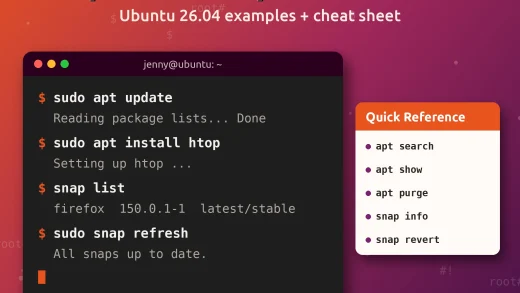
Ubuntu 26.04 LTS and Ubuntu 26.10 use systemd to start and supervise services. systemctl controls those services and journalctl reads the logs they write. This guide walks through the commands you need to check, start, enable and debug services, with copy-ready examples and a free cheat sheet.
systemctl status name shows state, recent log lines and the main PID in one view.start runs a service now. enable starts it at boot. enable --now does both.sudo systemctl daemon-reload after changing unit files by hand.journalctl -u name filters the journal to one service.journalctl -p err -b lists errors from the current boot.journalctl --vacuum-time trims old logs when the journal grows large.Download the Ubuntu Systemctl and Journalctl Cheat Sheet
Every command from this guide on one printable sheet. Grab the PDF, or pick EPUB, DOCX, MOBI or AZW3 for your reader.
Also see Top 40 Linux commands for Ubuntu 26.04, Linux security commands, Apt and snap commands in Ubuntu and UFW firewall commands in Ubuntu.
Check services with systemctl
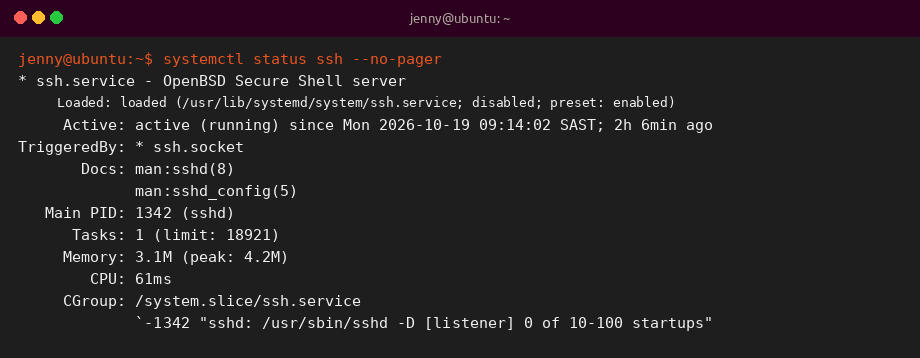
Service names end in .service, but you can leave the suffix off. On Ubuntu 24.04 and newer, the OpenSSH server uses socket activation, so you may also see an ssh.socket unit listening on port 22.
1. Show service status
Shows whether the service is loaded, enabled and running, plus the latest log lines.
Press q to leave the pager, or add –no-pager.
2. Quick yes or no checks
Return a single word and an exit code, which makes them handy in scripts.
3. List running services
Shows every service that is currently running.
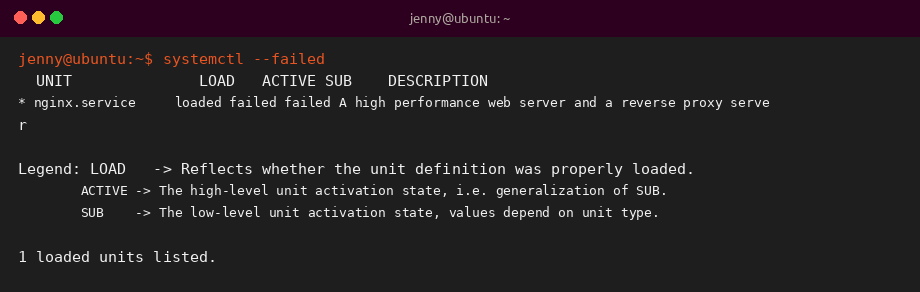
4. List failed units
The first command to run when something on the system seems broken.
5. List services enabled at boot
Shows unit files and whether they start automatically.
Start, stop and enable services
These commands change system state, so they need sudo.
6. Start and stop a service
Runs or stops the service right now. It does not change what happens at boot.
7. Restart or reload
restart stops and starts the process. reload asks it to re-read its config without dropping connections, if the service supports it.
8. Enable at boot and start now
Creates the boot-time links and starts the service in one step.
9. Disable at boot and stop now
Removes the boot-time links and stops the service.
10. Mask a service
Blocks a service from being started at all, even by other units. unmask reverses it.
11. Reboot or power off
systemctl also handles power actions.
Inspect and edit unit files
Package unit files live in /usr/lib/systemd/system. Never edit those directly. Use drop-in overrides in /etc/systemd/system so upgrades do not wipe your changes.
12. Show a unit file
Prints the unit file and any drop-in overrides that apply to it.
13. Override settings safely
Opens an editor for a drop-in file such as /etc/systemd/system/ssh.service.d/override.conf.
14. Reload systemd after manual edits
Needed when you create or change unit files without systemctl edit.
15. Show dependencies
Displays the units this service needs or pulls in.
16. List timers
Shows scheduled systemd timers, when they last ran and when they run next.
17. Find slow boot services
systemd-analyze reports total boot time. blame sorts units by how long they took.
Read logs with journalctl
Ubuntu keeps a persistent journal in /var/log/journal, so logs survive reboots. Members of the adm and sudo groups can read all system logs. Other users see only their own.
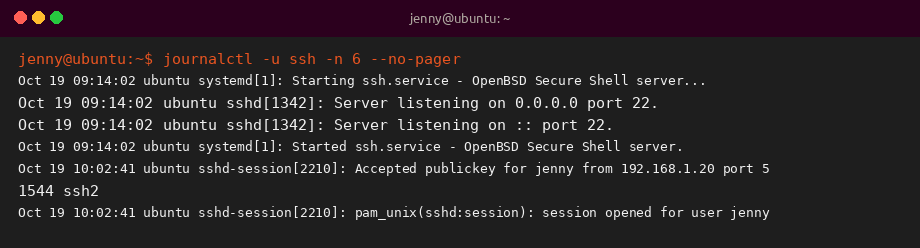
18. Logs for one service
Shows all journal entries for a unit, oldest first.
19. Follow logs live
Streams new lines as they arrive, like tail -f. Press Ctrl+C to stop.
20. Jump to the newest lines
-e opens the pager at the end. -n limits output to the last N lines.
21. Current and previous boots
-b shows the current boot, -b -1 the one before. –list-boots lists them all.
22. Errors only
Filters by priority. err includes err, crit, alert and emerg.
23. Filter by time
Accepts relative times and full timestamps.
24. Kernel messages
The journal version of dmesg, limited to the current boot.
25. Different output formats
Useful for scripts or for precise timestamps.
26. Check and trim journal size
Shows disk usage, then deletes entries older than two weeks or beyond a size cap.
Systemctl and journalctl quick reference
| Goal | Command |
|---|---|
| Is it running? | systemctl status name |
| Start now / stop now | sudo systemctl start name / stop name |
| Start at boot | sudo systemctl enable --now name |
| Apply config change | sudo systemctl reload name or restart name |
| What failed? | systemctl --failed |
| Service logs | journalctl -u name -e |
| Live logs | journalctl -u name -f |
| Errors this boot | journalctl -p err -b |
| Last boot logs | journalctl -b -1 |
Tips and best practices
When a service fails, run systemctl status name first, then journalctl -u name -e for the full error. Fix the config, run sudo systemctl daemon-reload if you edited a unit, and restart.
Many daemons can check their own config before a restart, for example sudo sshd -t for OpenSSH. Testing first avoids locking yourself out of a remote server.
Related Ubuntu command guides
- Top 40 Linux commands for Ubuntu 26.04
- Apt and snap commands in Ubuntu
- UFW firewall commands in Ubuntu
- Disk and partition commands in Ubuntu
- Chmod and chown commands in Ubuntu
- Linux networking commands
- Advanced Linux commands
- Linux security commands
- Sudo command cheat sheet
- Grep command cheat sheet
- Tar command cheat sheet
- Wget command cheat sheet