These are the top 40 Linux commands worth knowing on Ubuntu 26.04 LTS and Ubuntu 26.10. Each entry includes a short explanation and a copy-ready example. Open a terminal with Ctrl+Alt+T and try them in a test folder first.
Download the Linux Commands Cheat Sheet
All 40 commands from this guide in one file. Pick PDF for printing, or EPUB / DOCX / MOBI / AZW3 for your reader.
New to Ubuntu? Start with a fresh install from the Ubuntu 26.04 LTS download page or the Ubuntu 26.10 download page, then come back here to build muscle memory in the terminal.
What are Linux commands?
Linux commands are programs you run in a shell such as bash. You type a command name, optional flags, and arguments, then press Enter. On Ubuntu the default graphical terminal runs bash, so everything below works out of the box on a normal desktop or server install.
File management commands
Navigate directories, create and remove files, and move data around safely.
1. pwd
Print the absolute path of your current working directory. Use it before risky deletes so you know where you are.
2. ls
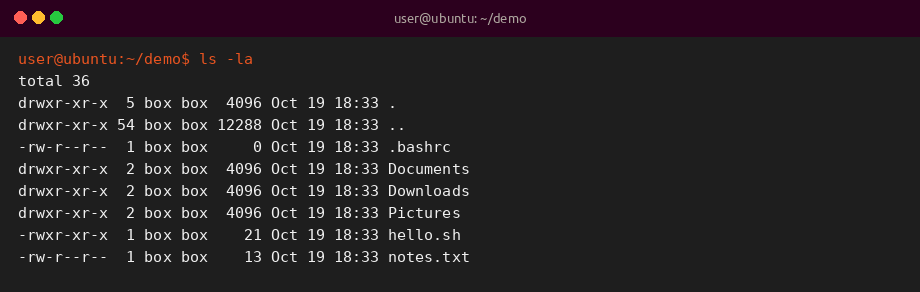
List directory contents. The -la flags show hidden files and permissions in a long listing.
3. cd
Change directory. Use cd ~ for your home folder and cd – to jump back to the previous path.
4. mkdir
Create a new directory. Add -p to create parent folders in one step.
5. rmdir
Remove an empty directory. For folders with files, use rm -r only after you confirm the path.
6. touch
Create an empty file or update the timestamp on an existing file.
7. cat
Print a file to the terminal. For long files, prefer less so you can scroll.
8. cp
Copy files or directories. Use -r to copy directories recursively.
9. mv
Move or rename files and directories.
10. rm
Delete files. Add -r for directories and -i to confirm each step. There is no trash can in the shell.
Tip: never run rm -rf / or wildcards you have not expanded with ls first.
Text editing commands
11. nano
Friendly full-screen editor. Shortcuts appear at the bottom of the screen (Ctrl+O save, Ctrl+X exit).
12. vim
Powerful modal editor (vi-compatible). Press i to insert, Esc then :wq to save and quit, or :q! to quit without saving.
Permissions and ownership
13. chmod
Change file mode bits. 755 is common for scripts you want to execute.
14. chown
Change the owner and optional group. Needs sudo when you do not already own the file.
Search and text processing
For a deeper grep walkthrough, see our grep command cheat sheet.
15. find
Search the filesystem by name, type, or time. Start the search path as narrowly as you can.
16. grep
Search for text patterns inside files. -n shows line numbers and -i ignores case.
System monitoring and services
17. ps
Snapshot of running processes. ps aux is the classic full list.
18. top
Live process monitor. Press q to quit. Many desktops also ship htop as a friendlier alternative (sudo apt install htop).
19. df
Report free disk space on mounted filesystems. -h prints human-readable sizes.

20. du
Estimate file or directory disk usage. -sh summarizes one path.
21. free
Show RAM and swap usage. -h keeps the units readable.

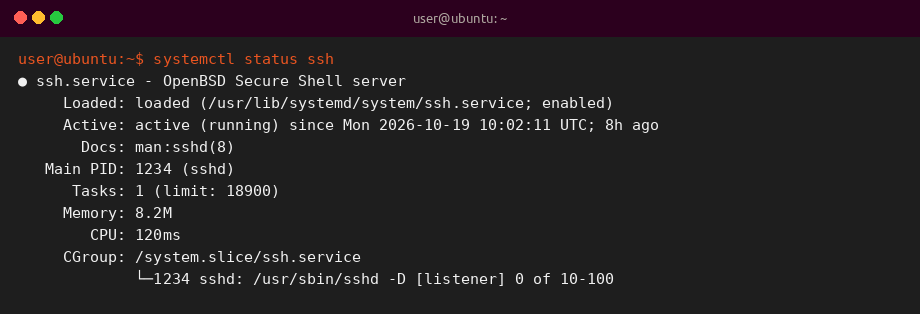
22. systemctl
Control systemd services and inspect unit state. Prefer this over the old service command on modern Ubuntu.
23. journalctl
Read the systemd journal. -u filters by unit and -xe shows recent warnings with extra detail.
System information
24. uname
Print kernel and architecture details. -a is the full summary.
25. uptime
Show how long the system has been running plus load averages.
26. whoami
Print the effective username of the current shell.
27. hostname
Print or set the machine hostname. Reading it needs no privileges.
Package management
28. apt
Ubuntu and Debian package manager. Prefer apt over apt-get for interactive use. Do not use apt-key; modern repos use signed-by keyring files under /etc/apt/keyrings.
Archiving and compression
Need more tar recipes? See the tar command cheat sheet.
29. tar
Create or extract .tar archives, often with gzip via -z.
30. zip
Create a zip archive. Handy when sharing with non-Linux systems.
31. unzip
Extract a zip archive into the current directory (or -d target).
Networking commands
For a fuller networking set, read 20 must-know Linux networking commands. Prefer ip and ss over the older ifconfig and netstat tools.
32. ip
Modern tool for addresses, links and routes. Replaces most ifconfig and route usage.

33. ss
Socket statistics. Faster modern replacement for many netstat checks.
34. wget
Download files over HTTP, HTTPS or FTP. Great for scripts and large files.
35. curl
Transfer data with flexible headers and methods. Excellent for APIs.
36. ssh
Secure remote shell login.
37. scp
Copy files over SSH. For many files or resumes, prefer rsync.
38. rsync
Efficient file sync locally or over SSH. -avz is a common starting set of flags.
Help and scheduling
39. man
Read the manual page for a command. Press q to quit the pager.
40. crontab
Edit per-user cron schedules. cron is the daemon; crontab is the command you usually run.
Quick reference table
A compact map of all 40 commands in this guide.
| Range | Group | Commands |
|---|---|---|
| 1-10 | Files | pwd, ls, cd, mkdir, rmdir, touch, cat, cp, mv, rm |
| 11-12 | Editors | nano, vim |
| 13-14 | Permissions | chmod, chown |
| 15-16 | Search | find, grep |
| 17-23 | Monitor and services | ps, top, df, du, free, systemctl, journalctl |
| 24-27 | System info | uname, uptime, whoami, hostname |
| 28 | Packages | apt |
| 29-31 | Archives | tar, zip, unzip |
| 32-38 | Networking | ip, ss, wget, curl, ssh, scp, rsync |
| 39-40 | Help and cron | man, crontab |
Why these commands matter
File, package and process commands cover most daily Ubuntu admin tasks. Networking and systemd tools matter as soon as you run a server, container host or remote workstation. Learning this set once pays off every time you fix a full disk, restart a service or sync a project over SSH.
If you are still on Ubuntu 24.04 LTS, plan your move with the upgrade to Ubuntu 26.04 LTS guide. Already on 26.04 and curious about the interim release? See how to upgrade to Ubuntu 26.10.