These disk and partition commands work on Ubuntu 26.04 LTS and Ubuntu 26.10. They cover listing drives, checking free space, partitioning and formatting a new disk, mounting it at boot and checking drive health. Copy-ready examples and a free cheat sheet are included.
lsblk -f shows every disk, partition, filesystem and mount point at a glance.df -h reports free space per filesystem. du -sh measures folders.parted mklabel gpt is the modern choice for disks of any size.mkfs.ext4 -L name makes drives easy to recognise later.blkid in /etc/fstab so mounts survive device name changes.sudo findmnt --verify and sudo mount -a before rebooting.Download the Ubuntu Disk and Partition Commands Cheat Sheet
Every command from this guide on one printable sheet. Grab the PDF, or pick EPUB, DOCX, MOBI or AZW3 for your reader.
Also see Top 40 Linux commands for Ubuntu 26.04, Advanced Linux commands, Chmod and chown commands in Ubuntu and Apt and snap commands in Ubuntu.
List disks and partitions
Start every disk task by identifying the right device. These commands only read information.
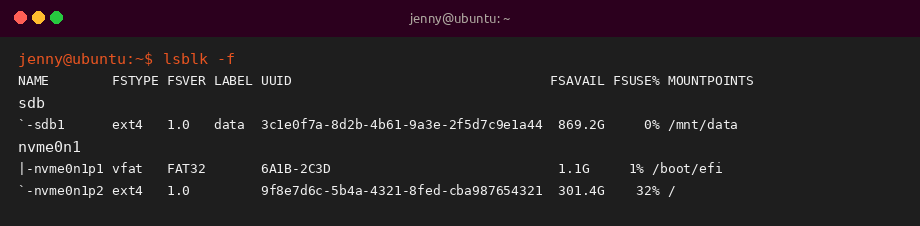
1. Show block devices
Lists disks and partitions as a tree. -f adds filesystem type, label, UUID and free space.
2. Choose lsblk columns
Pick only the fields you need.
3. Show UUIDs and labels
Prints the UUID, label and type of every filesystem.
4. Show partition tables
fdisk -l and parted -l print the partition layout of each disk.
5. Show what is mounted where
findmnt prints mounts as a tree. -D gives a df-style view.
Check disk space
Use df to see how full each filesystem is, then du to find which folders are responsible.
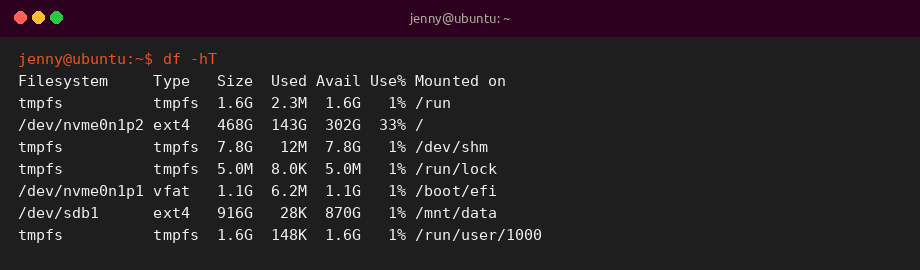
6. Free space per filesystem
-h prints human-readable sizes. -T adds the filesystem type.
7. Check inodes
A disk can run out of inodes, which limit the number of files, while space is still free.
8. Size of a folder
Summarises the total size of one directory.
9. Find the biggest folders
Lists first-level folders by size, largest last.
10. Interactive disk usage
ncdu lets you browse folders by size and delete from inside the tool.
Partition a new disk
The next commands destroy existing data on the target disk. Unmount it first and double-check the name with lsblk.
11. Wipe old signatures
Removes leftover filesystem and RAID signatures so tools do not get confused.
12. Create a GPT partition table
Writes a new, empty GPT label to the disk.
13. Create one partition for the whole disk
Creates a partition named data covering the disk with optimal alignment.
14. Partition interactively
fdisk is menu driven: n creates a partition, p prints the table, w writes and exits. cfdisk offers a simpler text interface.
Format and repair filesystems
Format the partition, not the whole disk. ext4 is the default Linux filesystem on Ubuntu. Use exFAT for USB drives shared with Windows and macOS.
15. Create an ext4 filesystem
Formats the partition and gives it a label.
16. Format a USB drive
FAT32 works everywhere. exFAT handles files over 4 GB. Install exfatprogs if mkfs.exfat is missing.
17. Change an ext4 label
Renames the filesystem without touching the data.
18. Check and repair ext4
Run only on an unmounted filesystem. -f forces a check even if it looks clean.
19. Grow a partition and filesystem
growpart extends partition 1 into free space, then resize2fs grows ext4 to match. growpart comes from cloud-guest-utils.
Mount drives and edit fstab
A filesystem is usable once it is mounted on a folder. Add it to /etc/fstab to mount it at every boot.
20. Mount a partition
Creates a mount point and attaches the filesystem to it.
21. Unmount a partition
Close any files and terminals using it first.
22. Mount at boot by UUID
Copy the UUID from blkid and add one line to /etc/fstab. nofail lets the system boot if the drive is missing.
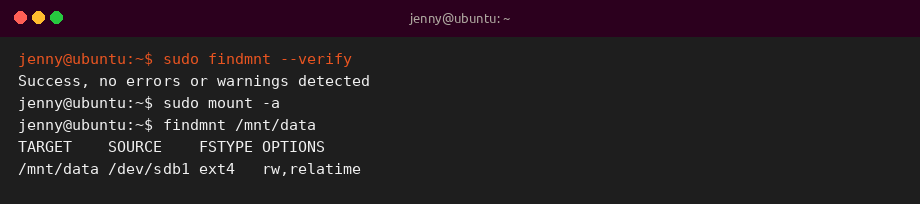
23. Test fstab before rebooting
findmnt –verify checks the file for errors, daemon-reload refreshes systemd and mount -a mounts every entry.
24. Mount USB drives as a normal user
udisksctl mounts under /media like the desktop does, and can power the drive off safely.
Drive health and swap
Check drives before they fail, and confirm swap is active on systems with little RAM.
25. Check SMART health
smartctl reads the drive self-monitoring data. -H gives a pass or fail summary, -a shows everything.
26. Show swap
Ubuntu uses a swap file at /swap.img by default.
Disk commands quick reference
| Task | Command |
|---|---|
| List disks | lsblk -f |
| Free space | df -hT |
| Folder sizes | sudo du -h --max-depth=1 /var | sort -h |
| New GPT table | sudo parted /dev/sdb mklabel gpt |
| New partition | sudo parted -a optimal /dev/sdb mkpart data ext4 0% 100% |
| Format ext4 | sudo mkfs.ext4 -L data /dev/sdb1 |
| Mount | sudo mount /dev/sdb1 /mnt/data |
| Get UUID | sudo blkid /dev/sdb1 |
| Test fstab | sudo findmnt --verify && sudo mount -a |
Tips and best practices
GNOME Disks (gnome-disk-utility) and GParted do the same jobs with a graphical interface. They are a good way to double-check a layout before you run a destructive command in the terminal.
After mounting a new ext4 drive, it is owned by root. Give your user access with sudo chown, covered in the chmod and chown guide linked below.
Related Ubuntu command guides
- Top 40 Linux commands for Ubuntu 26.04
- Apt and snap commands in Ubuntu
- Systemctl and journalctl commands in Ubuntu
- UFW firewall commands in Ubuntu
- Chmod and chown commands in Ubuntu
- Linux networking commands
- Advanced Linux commands
- Linux security commands
- Sudo command cheat sheet
- Grep command cheat sheet
- Tar command cheat sheet
- Wget command cheat sheet