 You can install Thunderbird on Ubuntu using the default APT repository, the developer-supported Mozilla Team PPA, the official Snap Store, or the verified Flatpak package on Flathub.
Thunderbird is a feature-rich, open-source email client that integrates email accounts, calendars, address books, feeds, and messaging into a single desktop application. Widely regarded as one of the best email clients for Ubuntu, Thunderbird is particularly valued by users who require complete control over their data, native offline storage, PGP message signing, and complex server configurations.
This guide provides step-by-step terminal instructions for all four installation methods, compares their security sandboxing, and explains how to safely migrate your mail profile database.
If you run into any setup issues, feel free to drop a comment below or contact us directly for support. We are always here to help you get it running.
APT, PPA, Snap & Flatpak Step-by-Step
Configure Thunderbird email on your Ubuntu machine. Learn how to bypass the Snap wrapper with the native PPA candidate, implement filesystem sandbox overrides, and migrate existing profiles.
Choosing how to install Thunderbird impacts how your email profiles are isolated from the host OS, where attachments are saved, and how system updates are managed. We strongly advise selecting one primary source to manage your email data. Using multiple parallel installations can lead to profile conflicts or duplicate system desktop entries.
Thunderbird Installation Methods Compared
Review the comparison table below to understand packaging differences, sandbox levels, and auto-update support for each source.
| Method | Package Format | Automatic Updates | Sandboxed | Best For |
|---|---|---|---|---|
| APT (Default Repositories) | Snap on 24.04/26.04; Native DEB on 22.04 | Yes (via Snap refreshes / APT update) | Yes (on 24.04/26.04 via Snap) | Standard users accepting default Ubuntu packaging |
| Mozilla Team PPA | Native DEB (ESR channel) | Yes (via system apt upgrade) | No | Users wanting standard native DEB performance without sandbox overhead |
| Snap Store | Snap (Canonical stable container) | Yes (automatic background refreshes) | Yes | Users who prefer default Snapcraft desktop workflow |
| Flatpak (Flathub) | Flatpak (Verified by MZLA/Mozilla) | Yes (via flatpak update) | Yes | Users who prefer sandboxed Flatpak packages and Flathub runtime |
Method 1: Install Thunderbird via Ubuntu Default APT Repositories
The default APT command is the quickest path to install Thunderbird. However, the package behavior varies significantly depending on your Ubuntu LTS release. On Ubuntu 22.04 LTS, this command pulls a native .deb package directly from the archive. (A .deb file is a standard installation package used by Ubuntu, similar to a .exe installer on Windows).
On Ubuntu 24.04 and 26.04 LTS, Ubuntu has transitioned the package base so that running apt install pulls a transitional package instead. (A transitional package is a placeholder file that automatically installs a newer package format, like a Snap container, in the background).
Open your terminal window (Ctrl+Alt+T). Refresh your local package database and install Thunderbird:
sudo apt update && sudo apt install thunderbird -y
Method 2: Install Native DEB Packages via Mozilla Team PPA
If you are running Ubuntu 24.04 or 26.04 LTS and want to avoid the Snap sandbox completely, you should use the official Mozilla Team PPA. A PPA (Personal Package Archive) is an external software repository that lets developers publish software updates directly to Ubuntu users. Because Ubuntu’s default system settings will automatically prefer its own Snap version, you must configure a preferences file (called APT pinning) to tell your system to choose the PPA version instead.
Add the Launchpad repository source to your system’s software configuration:
sudo add-apt-repository ppa:mozillateam/ppa -y
Create a custom preferences file. This ruleset gives the PPA package a high priority (1001) and sets the default Ubuntu archive wrapper priority to block (-1), forcing APT to select the native version:
cat <<EOF | sudo tee /etc/apt/preferences.d/thunderbird-ppa
Package: thunderbird
Pin: release o=LP-PPA-mozillateam
Pin-Priority: 1001

Package: thunderbird
Pin: release o=Ubuntu
Pin-Priority: -1
EOF
Run a metadata refresh to read the new pinning rules. Then, install the browser. The --allow-downgrades flag is required if the Snap-based transitional wrapper was already configured on your system:
sudo apt update && sudo apt install --allow-downgrades thunderbird -y
When switching package configurations on Ubuntu, running apt autoremove might list packages that other non-Snap applications rely on. Always review the target uninstall list in your terminal window before typing y to confirm package cleanup.
Method 3: Install Thunderbird from the Snap Store
Thunderbird is maintained directly under Canonical’s verified account in the Snapcraft repository. On Ubuntu 24.04 and 26.04 LTS, the default desktop configuration will already point to this container format. If you run a custom minimal environment or want to fetch the package directly through the Snap manager, you can trigger the install immediately. The package runs in a secure sandbox, preventing email script attachments from accessing your system directories.
Ensure snapd is active, then fetch the stable channel build:
sudo snap install thunderbird
Method 4: Install Thunderbird via Flatpak (Flathub)
The Flatpak build of Thunderbird is verified and published under MZLA Technologies, the corporate arm of the Mozilla Foundation. This sandboxed version is highly popular among users who prefer the Flathub runtime model. Flatpak applications run in a secure, isolated container (sandbox). This means they cannot see your local files by default. To save attachments to external drives or partitions outside your home directory, you must run specific override permissions.
Configure Flathub as a trusted remote source on your system if you have not done so already:
sudo flatpak remote-add --if-not-exists flathub https://dl.flathub.org/repo/flathub.flatpakrepo
Install the verified Mozilla Thunderbird Flatpak package:
sudo flatpak install flathub org.mozilla.Thunderbird -y
By default, the Flatpak sandbox limits local folder access. If you need to attach files from USB drives, mounted volumes, or general system locations, apply targeted overrides below:
# Allow access to secondary disks mounted under /media
flatpak override --user --filesystem=/media org.mozilla.Thunderbird

# Allow access to systems mounted under /mnt
flatpak override --user --filesystem=/mnt org.mozilla.Thunderbird

# Option: Grant full host operating system read/write access
flatpak override --user --filesystem=host-os org.mozilla.Thunderbird
If you ever want to revert these security configurations and restore the default strict sandbox isolation rules, run: flatpak override --user --reset org.mozilla.Thunderbird.
Profile Folder Backup and Migration Steps
Each package format stores your Thunderbird profile data (emails, local accounts, extensions, and settings) in a different directory. If you switch between APT, Snap, or Flatpak, your system might load a blank setup because it cannot locate your existing mail database. Each format stores your Thunderbird profile (which contains your emails, passwords, and accounts) in a different hidden folder. If you switch formats, Thunderbird might look in the wrong folder and appear blank. You can fix this by copying your profile folder to the new location.
~/.thunderbird/• Snap Installations:
~/snap/thunderbird/common/.thunderbird/• Flatpak Installations:
~/.var/app/org.mozilla.Thunderbird/.thunderbird/Ensure Thunderbird is fully closed before running migration commands. Run the commands that match your source and destination package formats:
# Step A: Generate a backup tarball of your native profile
tar -cvzf thunderbird-profile-backup.tar.gz -C ~ .thunderbird

# Step B: Copy Native profile TO Snap directory
mkdir -p ~/snap/thunderbird/common/
cp -a ~/.thunderbird ~/snap/thunderbird/common/

# Step C: Copy Native profile TO Flatpak directory
mkdir -p ~/.var/app/org.mozilla.Thunderbird/
cp -a ~/.thunderbird ~/.var/app/org.mozilla.Thunderbird/

# Step D: Restore/Migrate Snap profile back TO Native
cp -a ~/snap/thunderbird/common/.thunderbird ~/

# Step E: Restore/Migrate Flatpak profile back TO Native
cp -a ~/.var/app/org.mozilla.Thunderbird/.thunderbird ~/
What is the tar command doing? This command compresses your profile folder into a single backup file (similar to a .zip archive on Windows) so that your data is safe during updates.
Profile Version Mismatch: If you run a package version that is older than the one used to create the profile directory, Thunderbird may prevent access. In this case, launch the application from the command line using: thunderbird --allow-downgrade to override the profile lock.
Thunderbird Desktop User Interface Gallery
Below is a screenshot gallery demonstrating the active Thunderbird desktop user interface running on Ubuntu, showing active mail inboxes and account configuration settings.
-
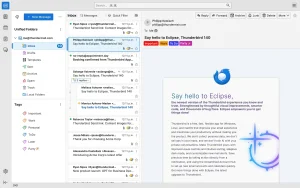
- Thunderbird light theme
-
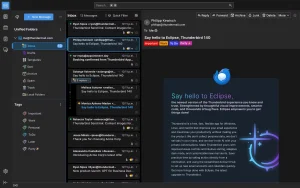
- Thunderbird dark theme
Thunderbird Video Setup Guide
If you prefer a visual walkthrough, you can watch our step-by-step video tutorial demonstrating the Launchpad PPA setup, Snap Store package installations, Flatpak filesystem sandbox overrides, and profile migration:
How to Uninstall Thunderbird from Ubuntu
To completely revert your mail configurations, ensure you purge both the application packages and the leftover profile databases on your system. Run the commands below for the package format you installed.
1. Purge APT Default & PPA Installations:
Remove the program binaries, delete Launchpad keys, and clean up the custom pinning rules file:
sudo apt purge -y thunderbird
sudo rm -f /etc/apt/preferences.d/thunderbird-ppa
sudo add-apt-repository --remove ppa:mozillateam/ppa -y
sudo apt update
On systems where the default transitional package was configured, APT may have added the Snap version. Remove it manually: sudo snap remove --purge thunderbird.
2. Uninstall Snapcraft Package:
sudo snap remove --purge thunderbird
3. Uninstall Flathub Package:
flatpak uninstall -y org.mozilla.Thunderbird
flatpak uninstall --unused -y
4. Purge Profile Folders (Optional):
Uninstalling the binary files leaves your emails and databases intact. To completely wipe all local account settings, attachments, and profiles, run:
# Wipe APT/PPA local directory
rm -rf ~/.thunderbird ~/.cache/thunderbird

# Wipe Snap local directory
rm -rf ~/snap/thunderbird

# Wipe Flatpak sandbox directory
rm -rf ~/.var/app/org.mozilla.Thunderbird
Troubleshooting Thunderbird Site & Startup Issues
If you encounter graphics anomalies, extension lockups, or profile loading errors, review these common fixes.
If an extension or broken user theme causes the application to crash before loading, launch Thunderbird in Safe Mode. Safe Mode temporarily disables hardware acceleration and user extensions:
# APT/PPA native launch
thunderbird --safe-mode

# Snap launch
snap run thunderbird --safe-mode

# Flatpak launch
flatpak run org.mozilla.Thunderbird --safe-mode
If your terminal attempts to pull the Snap package after PPA setup, verify the priority levels of your packages. Run: apt-cache policy thunderbird. The output table must list the Mozilla PPA line at priority 1001, and the default Ubuntu archive at priority -1. If they both show 500, confirm the preferences path `/etc/apt/preferences.d/thunderbird-ppa` is typed correctly, update cache with `sudo apt update`, and execute the install with `–allow-downgrades` flag.
If saving files prompts access denied warnings, Flatpak’s isolation is blocking directory mounts. Check the current active permissions by running: flatpak info --show-permissions org.mozilla.Thunderbird. If access to `/media` is missing, verify you executed the filesystem overrides in Step 4, and restart the browser session.
Access these community links to resolve mail issues, discuss configuration settings, or look up bug states:
Thunderbird for Ubuntu FAQ
Find quick answers to common questions about configuring, migrating, and managing your Thunderbird email installation on Ubuntu.
Is Thunderbird pre-installed on Ubuntu?
Thunderbird is pre-installed on many standard Ubuntu Desktop installations. However, if you perform a minimal installation or need to reinstall it, you can install it via APT, Snap, or Flatpak.
How do I install the native Thunderbird DEB package on Ubuntu 26.04 or 24.04?
Since Ubuntu 24.04 and 26.04 use a transitional Snap package by default, you must add the official Mozilla Team PPA (ppa:mozillateam/ppa) and configure an APT pinning preference file to prioritize the PPA version over the Snap wrapper.
Where are my Thunderbird email profiles stored on Ubuntu?
The profile folder path depends on the package format: native APT/PPA profiles are stored in ~/.thunderbird, Snap profiles in ~/snap/thunderbird/common/.thunderbird, and Flatpak profiles in ~/.var/app/org.mozilla.Thunderbird/.thunderbird.
How can I allow the Flatpak version of Thunderbird to access local files and attachments?
You can grant filesystem access using the flatpak override command. For example, run flatpak override --user --filesystem=/media org.mozilla.Thunderbird to allow access to external drives under /media, or use --filesystem=host-os for full host access.
Will uninstalling Thunderbird delete my emails and accounts?
No. Uninstalling Thunderbird only removes the application binaries. Your email accounts, messages, and profile configurations are preserved in their respective profile folders (e.g., ~/.thunderbird) unless you delete them manually.
More Ubuntu application guides: Best Email Clients for Ubuntu · Install Geary email client on Ubuntu · Mailspring Guide · Install Bluemail on Ubuntu