 You can install Qutebrowser on Ubuntu using the official Ubuntu repositories (APT) or inside a Python virtual environment via pipx.
Qutebrowser is a fast, keyboard-driven web browser with a minimalist graphical user interface based on Python and Qt. It features Vim-style keyboard shortcuts, keyboard-driven link selection overlays (hints), and a command line interface for navigating the web without a mouse. Because it uses the Chromium-based QtWebEngine under the hood, it delivers modern web standard compatibility while remaining extremely lightweight.
This guide provides step-by-step terminal instructions for both installation methods, explains how to perform updates, and details how to resolve common layout or multimedia issues on Ubuntu 24.04 and 26.04 LTS.
If you run into any setup issues, feel free to drop a comment below or contact us directly for support. We are always here to help you get it running.
APT Repository & Python pipx Setup Guides
Configure the keyboard-driven Qutebrowser on your Ubuntu machine. Run the native package for automated library setup, or configure a Python virtual environment for the latest upstream release.
Choosing the right installation method impacts how Qutebrowser integrates with your desktop environment and how updates are handled. Below is a detailed breakdown of each method to help you decide.
Qutebrowser Installation Methods Compared
Compare the available installation methods for Qutebrowser on Ubuntu to choose the package format that matches your preferences.
| Method | Version Age | Auto-Updates | Sandboxing | Best For |
|---|---|---|---|---|
| Official APT Package | Stable version (LTS release frozen) | Automatic (via apt upgrade) | No (runs natively as host user bin) | Users wanting a simple setup with automatic system library dependencies. |
| Python pipx Virtualenv | Latest upstream release | Manual (via pipx upgrade qutebrowser) | No (unless using tools like firejail) | Users wanting the newest browser features and latest Chromium engine core. |
Method 1: Install qutebrowser via the Native APT Package
The simplest way to install the browser is using your system’s package manager. Because qutebrowser is included in the official Ubuntu Universe repository, it can be installed natively. This method is highly recommended for users who prefer standard system updates. Because this method uses the official distribution channels, it automatically configures all underlying Qt graphical bindings, input handlers, and audio codecs.
Open a terminal window (Ctrl+Alt+T). Update your system software lists and run the installation package utility:
sudo apt update && sudo apt install qutebrowser -y
This command downloads the browser binary and sets up system shortcuts automatically. Note that on stable Ubuntu LTS versions, this package remains version-frozen to ensure stability.
Method 2: Install qutebrowser via Python pipx
If you want the newest features and the latest security fixes for the underlying Chromium engine, you should install qutebrowser using Python pipx. The pipx tool installs Python applications into their own virtual environment to prevent package version conflicts, while adding the executable launcher directly to your user path. This allows you to run the latest upstream browser code on older LTS distributions.
1. Install the pipx Package Manager:
Open your terminal and install pipx from the official repositories, then configure your environment path variables:
sudo apt update && sudo apt install pipx -y
pipx ensurepath
Note: After running pipx ensurepath, you must close your current terminal window and open a new one to apply the environment changes.
2. Install qutebrowser in the Virtual Environment:
Execute the installer command. To ensure qutebrowser can access system libraries, graphics drivers, and hardware acceleration pathways, you must append the --system-site-packages flag:
pipx --system-site-packages install qutebrowser
Crucial Fact: The --system-site-packages flag is mandatory because qutebrowser relies on heavy binary PyQt bindings and system OpenGL libraries to run. Standard pip cannot compile or locate these complex system display components inside a fully isolated virtual environment. This flag allows pipx to bridge the Python container with your system’s packages.
The Flatpak package for qutebrowser on Flathub has been archived and is officially marked as End-of-Life (EOL). It no longer receives security fixes or version updates. If you see online guides directing you to install qutebrowser via Flatpak, please ignore them. Use either the native APT repository or a Python virtual environment via pipx to install the browser safely.
Post-Install Navigation and Configuration
Because qutebrowser features a minimal layout without buttons or search bars, navigation relies on keyboard keys. When you launch the browser, you will see a clean page. Here is a quick reference guide to get started:
To configure settings permanently, you should write them to a Python configuration file rather than relying on session commands. To generate the default config file, launch qutebrowser and enter command mode by pressing the colon key, then run this command inside the browser prompt:
:config-write-py
This writes the default settings template to ~/.config/qutebrowser/config.py. You can open and edit this file with any text editor to add custom behaviors. Below is a configuration example:
# Autogenerated config.py for qutebrowser on Ubuntu
config.load_autoconfig()

# Set default search engine to DuckDuckGo
c.url.searchengines = {
    'DEFAULT': 'https://duckduckgo.com/?q={}',
    'g': 'https://google.com/search?q={}'
}

# Enable dark mode on all websites
c.colors.webpage.darkmode.enabled = True

# Increase UI font size for high-resolution displays
c.fonts.default_size = '11pt'
Import Bookmarks from Firefox or Chrome
To transfer bookmarks from mainstream browsers like Firefox or Chrome, you can utilize the python importer script packaged with the browser. First, export your bookmarks from Firefox or Chrome as a standard bookmarks.html file. Then run the command below that matches your installation path to import them directly into your qutebrowser quickmarks list:
# For Native APT Installations (Script provided in system share folders):
python3 /usr/share/qutebrowser/scripts/importer.py bookmarks.html >> ~/.config/qutebrowser/quickmarks

# For pipx installations (Script referenced in virtualenv packages):
python3 ~/.local/pipx/venvs/qutebrowser/lib/python3.*/site-packages/qutebrowser/scripts/importer.py bookmarks.html >> ~/.config/qutebrowser/quickmarks
Note: Note that the Python beautifulsoup4 package is required for the conversion to run. If your system throws a module error, install it via APT: sudo apt install python3-bs4 -y. Additionally, qutebrowser allows you to write bookmarks manually as a simple space-separated list of URL [Title] lines saved directly inside your bookmarks database file at ~/.config/qutebrowser/bookmarks/urls.
Enable Brave’s Native Rust-Based Ad-Blocker
qutebrowser features an advanced, built-in ad-blocking engine that processes Adblock Plus syntax using Brave’s Rust libraries. However, because this requires the Python adblock library, the package must be added manually depending on how you installed the browser:
1. For the Native APT Package:
Install the packaged python-adblock library system-wide from the official repositories:
sudo apt update && sudo apt install python3-adblock -y
2. For the pipx Virtualenv:
Inject the adblock library dependency directly into the isolated qutebrowser virtual environment:
pipx inject qutebrowser adblock
3. Enable and Update Blocklists inside the Browser:
Launch qutebrowser, press the colon key, and run the following command prompts to activate the blocker and fetch the latest filtering lists:
:set content.blocking.method adblock
:adblock-update
Qutebrowser Screenshots
How the browser looks like, as you can see, it’s very ‘simple’ and retro, a lot of you might love that.
-
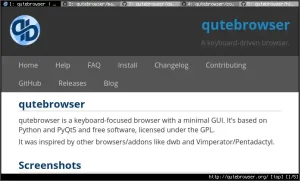
- Qutebrowser main page from How to Install Qutebrowser on Ubuntu 26.04 – Complete Setup Guide
-
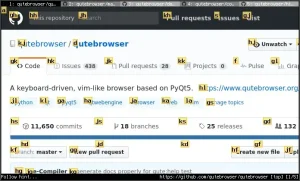
- Qutebrowser hints from How to Install Qutebrowser on Ubuntu 26.04 – Complete Setup Guide
-
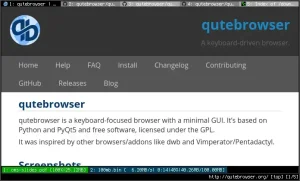
- Qutebrowser dl page from How to Install Qutebrowser on Ubuntu 26.04 – Complete Setup Guide
-
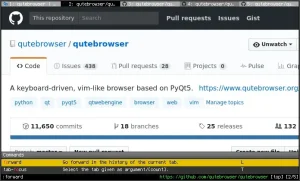
- Qutebrowser complete task from How to Install Qutebrowser on Ubuntu 26.04 – Complete Setup Guide
Troubleshooting Usability and Driver Glitches
Because qutebrowser relies on complex Python bindings to interact with system graphical components, you may experience missing web codecs or display crashes. Use these steps to resolve them.
If videos fail to load on streaming platforms, you are missing system-level media codecs. You can resolve this by installing the GStreamer plugins and the Ubuntu restricted extras packages in your host terminal:
sudo apt update
sudo apt install ubuntu-restricted-extras -y
sudo apt install gstreamer1.0-plugins-good gstreamer1.0-plugins-bad gstreamer1.0-plugins-ugly gstreamer1.0-libav -y
Many qutebrowser users also bind link shortcuts to play videos externally using mpv, which runs faster than browser players. You can bind this to the uppercase M key in your config.py:
# Spawn mpv for current link selection
config.bind('M', 'hint links spawn nohup mpv --ytdl-format="best" {hint-url}')
Make sure you have both mpv and yt-dlp installed on your host: sudo apt install mpv yt-dlp -y.
If you see a traceback message pointing to a missing PyQt6.QtWebEngineCore or PyQt5.QtWebEngineCore module on startup, your Python virtual environment cannot find the system Qt bindings. Ensure that you used the --system-site-packages flag during installation and that the bindings are installed globally on your Ubuntu machine. Run the terminal commands below that correspond to your Ubuntu release:
# For Ubuntu 26.04 LTS (Qt6 based bindings):
sudo apt install python3-pyqt6.qtwebengine -y

# For Ubuntu 24.04 LTS (Qt5 based bindings):
sudo apt install python3-pyqt5.qtwebengine -y
How to Uninstall qutebrowser from Ubuntu
If you want to remove the browser from your machine, choose the section below that matches your original installation method.
1. For the Native APT Package Method:
Purge the browser packages and clean up remaining system dependencies:
sudo apt purge qutebrowser -y
sudo apt autoremove -y
2. For the pipx Virtualenv Method:
Run the uninstall command to delete the virtual environment container files:
pipx uninstall qutebrowser
Delete User Profiles, Cache, and Cache Folders:
Uninstalling the browser files does not delete your bookmarks, history, or saved configuration files. To delete all configuration folders completely, run these commands in the terminal:
# Delete configuration settings
rm -rf ~/.config/qutebrowser

# Delete temporary cache files
rm -rf ~/.cache/qutebrowser

# Delete saved local application data (bookmarks and history)
rm -rf ~/.local/share/qutebrowser
Frequently Asked Questions
Is Qutebrowser officially supported on Ubuntu?
Yes. Qutebrowser is included in the official Ubuntu Universe repository, meaning you can install it natively using the APT package manager. You can also run the latest upstream version using a Python virtual environment via pipx.
Can I use Qutebrowser on Wayland?
Yes. Qutebrowser runs on Wayland natively. If you use the native APT package or pipx, you can launch the browser with the environment variable QT_QPA_PLATFORM=wayland set, or configure your profile settings to run under the Wayland platform.
Why does Qutebrowser throw an error about missing WebEngine modules when using pipx?
This occurs if pipx is run without the system-site-packages flag, or if the host system is missing the PyQt WebEngine bindings. You can resolve this by installing python3-pyqt6.qtwebengine (on Ubuntu 26.04) or python3-pyqt5.qtwebengine (on Ubuntu 24.04) via APT first.
How do I generate the default configuration file for Qutebrowser?
You can generate a default configuration file by launching the browser and typing the command :config-write-py in command mode. This writes a Python configuration file named config.py inside your ~/.config/qutebrowser directory.
How do I enable dark mode for websites in Qutebrowser?
You can enable dark mode by typing the command :set colors.webpage.darkmode.enabled true in the browser command line, or by adding the line c.colors.webpage.darkmode.enabled = True to your custom config.py file.
More Ubuntu web browser guides: LibreWolf · Zen Browser · Falkon Browser · GNOME Web · Vivaldi Browser · Brave Browser · Best Browsers for Ubuntu