 You can install GNOME Web on Ubuntu using the official Ubuntu repositories (APT), the stable Flatpak (Flathub) release, or the experimental Canary builds.
GNOME Web, historically and internally known as Epiphany, is a sleek, minimalist browser designed for the GNOME desktop environment. Recognized as one of the best web browsers for Ubuntu, GNOME Web uses the WebKitGTK rendering engine, the standard Linux port of Apple’s WebKit engine that powers Safari.
This design provides standard web compliance, incredibly low resource usage, and clean integration with the system desktop shell.
This guide provides step-by-step instructions for all three installation channels, compares their packaging benefits, and lists troubleshooting configurations for Ubuntu 24.04 and 26.04 LTS.
If you run into any setup issues, feel free to leave a comment below or contact us directly for support. We are always here to help you get it running.
APT & Flatpak Setup Guides
Configure GNOME Web (Epiphany) on your Ubuntu machine. Compare native repository performance against containerized stable and nightly experimental sandboxes, and run the verified terminal setup scripts.
Quick CLI Setup Cheatsheet
If you are an experienced user looking for a quick setup, copy and paste the commands below for your preferred installation format:
sudo apt update && sudo apt install epiphany-browser -y
sudo apt purge epiphany-browser -yflatpak install flathub org.gnome.Epiphany -y
flatpak uninstall org.gnome.Epiphany -yflatpak --user install https://nightly.gnome.org/repo/appstream/org.gnome.Epiphany.Canary.flatpakref
flatpak uninstall org.gnome.Epiphany.Canary -yChoosing the right installation format determines the stability of your browser engine and how visual elements display on your desktop. Review the detailed comparisons below to decide which package fits your usage needs.
GNOME Web Installation Methods Compared
Review the table below to compare the package formats, software versions, and sandboxing features of the three installation choices.
| Method | Version Age | Auto-Updates | Sandboxing | Best For |
|---|---|---|---|---|
| Official APT | Ubuntu repository version (v46 on 24.04 LTS, v49 on 26.04 LTS) | Standard system updates (via apt upgrade) | No (runs natively) | Users seeking lightweight performance and native GNOME Keyring integration without Flatpak runtimes |
| Stable Flatpak | Latest stable release (recommended by GNOME project) | Automatic (via flatpak update) | Yes (Bubblewrap sandbox) | Default recommended setup for the latest stable WebKit engine and browser security updates |
| GNOME Canary | Experimental nightly builds (direct from master branch) | Manual update checks (via flatpak update) | Yes (Bubblewrap sandbox) | Developers and testers trying new features or testing web apps against unstable upstream WebKitGTK |
Method 1: Install GNOME Web Natively via the APT Repository
The native package method retrieves GNOME Web directly from the official Ubuntu repositories. This ensures the application runs with native performance and integrates cleanly with your desktop environment. Under the hood, this build uses the system’s WebKitGTK packages, and passwords integrate natively with the GNOME Keyring.
Note that GNOME Web is packaged under its historical name, epiphany-browser, in the repositories. While this native method is fast and does not require container runtimes, the version provided by Ubuntu LTS releases remains frozen. If you are on Ubuntu 24.04 LTS, you will be running GNOME Web 46. On Ubuntu 26.04 LTS, you will run GNOME Web 49. To get the latest features and upstream WebKit upgrades, we recommend the Flatpak method instead.
Open a terminal window (Ctrl+Alt+T) and synchronize your local repository catalogs to access the latest metadata updates:
sudo apt update
Execute the install command using the historical package name in the repositories:
sudo apt install epiphany-browser -y
Method 2: Install GNOME Web via Flatpak (Flathub)
The Flatpak version is officially recommended by the GNOME project. Because WebKit is a complex rendering engine, maintaining a secure, modern browsing experience requires running the newest stable releases. The Flatpak package bundles the latest WebKit engine, isolating the browser within a sandboxed environment on your desktop.
This method ensures your browser is updated regularly, independent of the base operating system’s frozen repositories, making it a perfect fit for users on LTS releases like Ubuntu 24.04 and 26.04.
If Flatpak is not yet set up on your system, install the flatpak daemon and add the official Flathub remote repository to your configuration:
sudo apt update
sudo apt install flatpak -y
sudo flatpak remote-add --if-not-exists flathub https://dl.flathub.org/repo/flathub.flatpakrepo
Run the Flathub installation script to pull down the stable package build:
flatpak install flathub org.gnome.Epiphany -y
Method 3: Install GNOME Web Canary (Nightly Build)
If you are a web developer testing software compatibility or a Linux enthusiast wanting to test raw upstream features, you can install the Canary version. This is the experimental branch of Epiphany, built nightly against the master branch of WebKitGTK. It runs independently of your stable browser installation, letting you test experimental features safely in a separate user profile.
Run the installation command to fetch the nightly manifest package directly from GNOME’s server repository. Note that the --user flag is used to install this experimental software inside your local home folder without root access requirements:
flatpak --user install https://nightly.gnome.org/repo/appstream/org.gnome.Epiphany.Canary.flatpakref
Once installed, you can launch the Canary build via your application launcher or by executing the flatpak command directly:
flatpak run org.gnome.Epiphany.Canary
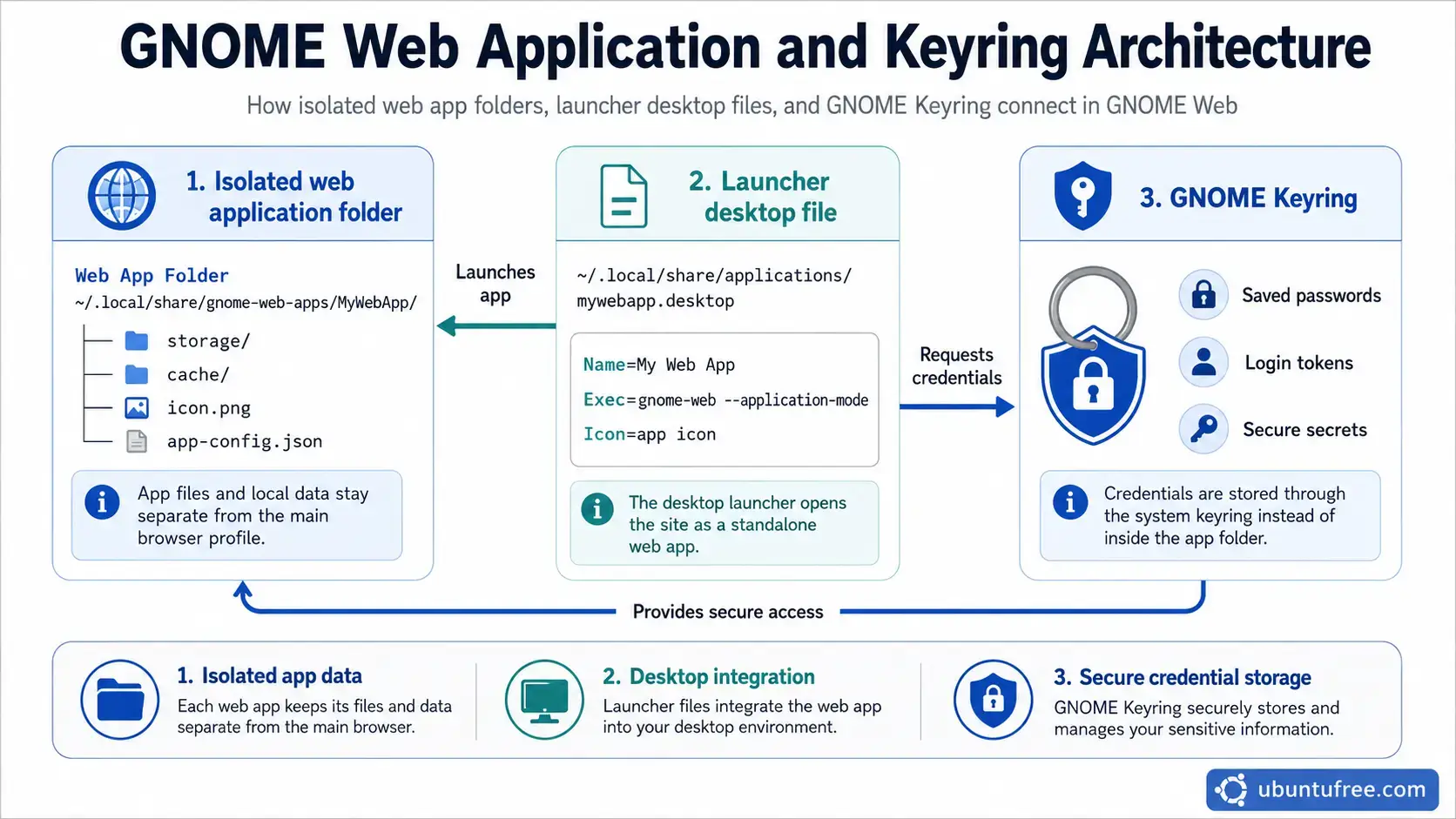
GNOME Web Application and Keyring Architecture
Post-Installation Features: Web Applications and Sync
GNOME Web includes unique native features that make it stand out from chromium-based alternatives. Two of the most useful features are its native Web Application creator and integrated synchronization.
One of GNOME Web’s most popular native integrations is the ability to turn websites into isolated desktop applications. These applications run in dedicated windows with no URL bars or navigation clutter, showing up in your GNOME application drawer like native programs.
- Launch GNOME Web and navigate to the website you want to isolate (such as WhatsApp Web, Twitter, or Discord).
- Click the Application Menu (three lines/hamburger icon) in the top-right corner.
- Select Install Site as Web Application from the dropdown list.
- Provide a clean title for your application and click Create. The browser will create an isolated runtime profile and write a desktop launcher shortcut to
~/.local/share/applications/. - Open your system Application drawer; your web app is now ready to launch, pin to the dock, or set as a startup application.
Instead of forcing you to use a proprietary sync cloud, GNOME Web integrates Firefox Sync directly. You can log into your Firefox Account to sync tabs, bookmarks, history, and passwords across your desktop and mobile devices.
- Click the Application Menu (three lines) in the top-right corner.
- Open the Preferences window.
- Navigate to the Sync tab on the left sidebar.
- Click the sign-in prompt. A secure Mozilla configuration screen will display, allowing you to log in with your credentials. Once connected, sync services run automatically in the background.
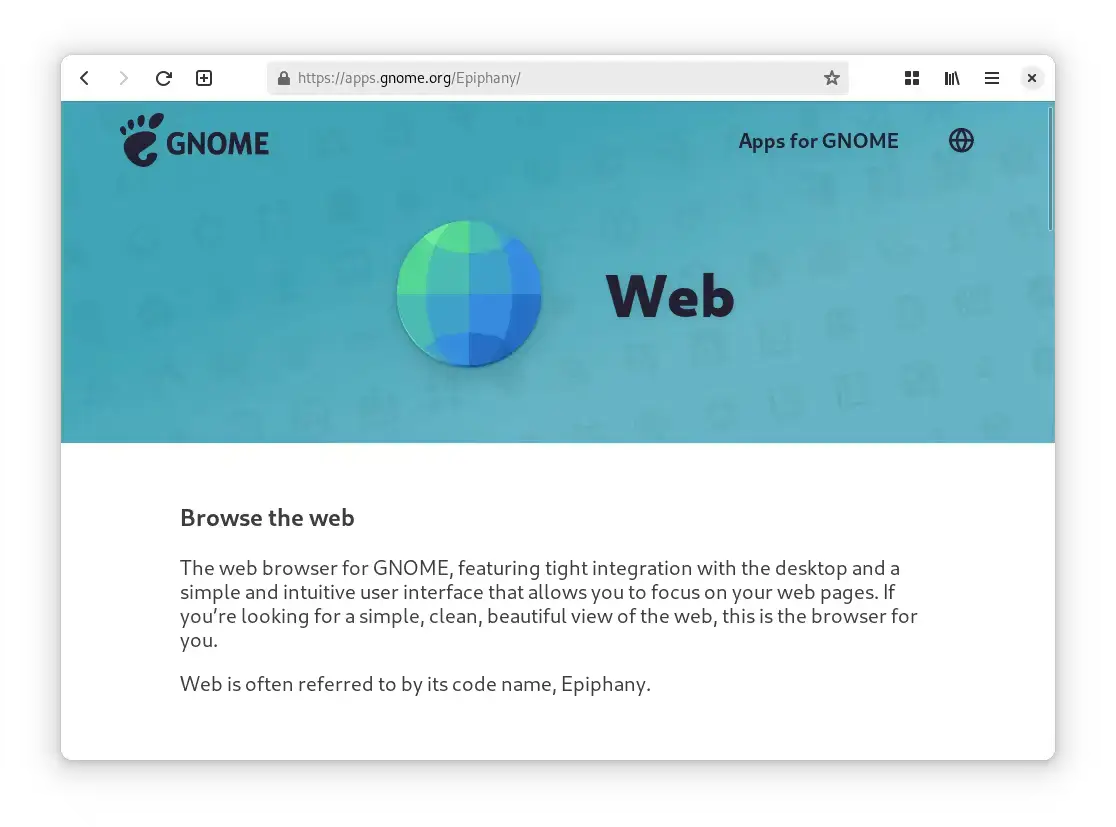
GNOME Web Screenshot
How the GNOME Web browser looks like on Ubuntu, organized and neat.
Troubleshooting GNOME Web on Ubuntu
If you encounter page rendering failures or sandbox permissions issues while using GNOME Web, review the common resolutions below.
On computers using older graphics cards or integrated graphics hardware, the browser’s hardware-accelerated modes can cause pages to crash or load as blank screens. You can bypass these graphics conflicts by telling the browser to render using software instead. Open your terminal and launch GNOME Web with this temporary override flag:
WEBKIT_DISABLE_COMPOSITING_MODE=1 epiphany
To make this adjustment permanent, you can append export WEBKIT_DISABLE_COMPOSITING_MODE=1 to your local shell profile (~/.profile or ~/.bashrc) file, or set it system-wide in /etc/environment.
Because Flatpak runs the browser inside a secure, isolated box (sandbox), the application may fail to talk to your system keyring (GNOME Keyring) to retrieve your saved passwords. This causes repeating login prompts. To bridge this security sandbox gap and grant password access, run this permission override command in your terminal:
flatpak override org.gnome.Epiphany --talk-name=org.freedesktop.secrets
Alternatively, you can install Flatseal (a graphical permissions manager) and toggle the D-Bus communication path (the channel that lets apps communicate with your keyring daemon) for `org.freedesktop.secrets` inside the permissions page for GNOME Web.
How to Uninstall GNOME Web from Ubuntu
If you want to remove GNOME Web, choose the removal commands matching your installation format and clean up any remaining profile configurations.
1. For the Native APT Method:
Purge the epiphany package configuration files and remove unneeded dependencies:
sudo apt purge epiphany-browser -y
sudo apt autoremove -y
2. For the Stable Flatpak Method:
Uninstall the stable sandbox build and clean up unused runtime frameworks:
flatpak uninstall org.gnome.Epiphany -y
flatpak uninstall --unused -y
3. For the GNOME Canary Flatpak Method:
Uninstall the experimental nightly build:
flatpak uninstall org.gnome.Epiphany.Canary -y
Clean Up Saved Profiles and Cached Data:
To delete all stored bookmarks, local history profiles, cached files, and login cookies, run the following cleanup scripts in your terminal:
# Delete native APT cache, config, and state profiles
rm -rf ~/.config/epiphany ~/.cache/epiphany ~/.local/share/epiphany

# Delete Flatpak stable profile configuration files
rm -rf ~/.var/app/org.gnome.Epiphany

# Delete Flatpak Canary profile configuration files
rm -rf ~/.var/app/org.gnome.Epiphany.Canary
Frequently Asked Questions
Is GNOME Web a Chromium-based browser?
No. GNOME Web does not use Chromium as its layout engine. It uses the WebKitGTK rendering engine, which is the Linux port of Apple’s WebKit layout engine (the engine powering Safari). This allows GNOME Web to be fast, lightweight, and completely independent of Google’s browser ecosystem.
Can I run GNOME Web on other desktop environments like KDE or XFCE?
Yes. GNOME Web can run on any desktop environment. If you install it via APT, it will download necessary GNOME runtime libraries. If you install it via Flatpak, all required libraries are bundled within the container, preventing system bloat.
How do I update GNOME Web on Ubuntu?
Updates depend on your installation format. The native APT package is updated alongside standard system upgrades via sudo apt upgrade. Flatpak builds are updated by executing flatpak update, and GNOME Software center handles Flatpak updates automatically.
Does GNOME Web support standard Chrome or Firefox extensions?
No. GNOME Web does not support the Chrome Web Store or Firefox Add-ons repository. It has built-in adblocking features and supports limited experimental WebExtensions support (which can be toggled in Preferences under the Extensions page), but it is not compatible with general browser add-ons.
Why do pages crash or load blank on older computers?
This is usually caused by WebKitGTK’s hardware-accelerated compositing mode conflicting with older GPU drivers. Launching the browser from the terminal with the environment override flag WEBKIT_DISABLE_COMPOSITING_MODE=1 epiphany will resolve this issue by shifting rendering to software rasterization.
More Ubuntu web browser guides: LibreWolf · Zen Browser · qutebrowser · Falkon Browser · Vivaldi Browser · Brave Browser