 Some of the best video editors for Ubuntu are Kdenlive, Shotcut, OpenShot, DaVinci Resolve, and Blender. Ubuntu provides a rich ecosystem of video editors that can handle anything from quick social media clips to full-length films.
Whether you are a beginner looking to compile family clips or a professional compositor requiring Hollywood-grade VFX tools, there is a dedicated editor for your workflow.
This guide compiles 15 video editing applications split into three distinct categories: professional post-production suites, beginner and intermediate video editors, and lightweight trimmers or specialist VJ tools. All apps are verified to run on Ubuntu 26.04 LTS and newer. Installation commands are provided via standard repositories, Snaps, or Flatpaks to ensure you get the absolute latest versions quickly.
Top Pick From Each Category
- Professional: DaVinci Resolve – Hollywood-grade post-production, advanced color grading, and node visual effects
- Beginner & Intermediate: Shotcut – stable multi-track layout, rich audio filters, and direct timeline editing without imports
- Lightweight Cutter: LosslessCut – instant zero-re-encoding raw media trimming that saves CPU rendering time
Professional & Advanced Video Editors
These applications are designed for high-end post-production, professional color grading, visual effects, and complex multi-cam timelines. They feature strict color pipelines, GPU encoding acceleration, and professional audio interfaces.
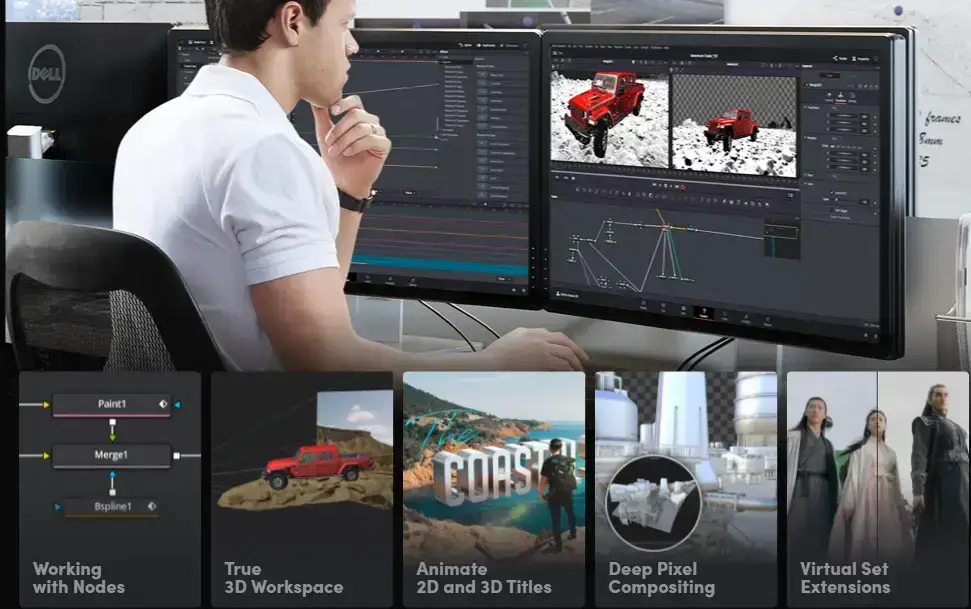
Best For: Hollywood-grade color correction, detailed audio editing, and complex VFX workflows
Why Choose It? DaVinci Resolve is the premier professional suite available for Linux. It merges advanced editing, Hollywood-grade color grading, Fusion compositing (node-based VFX), and Fairlight audio post-production in one program. The free version is incredibly capable, enabling exports up to 4K at 60fps.
- Node-Based VFX: Integrated Fusion workspace for visual effects and tracking
- Neural Engine: Advanced AI tools for automated masking, tracking, and audio isolation
- Fairlight Audio: Professional multi-channel digital audio workstation built directly into the editor
Quick Tip: The free Linux version lacks native H.264/AAC decoding. You must convert compression formats using FFmpeg to DNxHR (.mov) and PCM (.wav) prior to importing files.
Install Command:
chmod +x DaVinci_Resolve_*_Linux.run
sudo ./DaVinci_Resolve_*_Linux.run
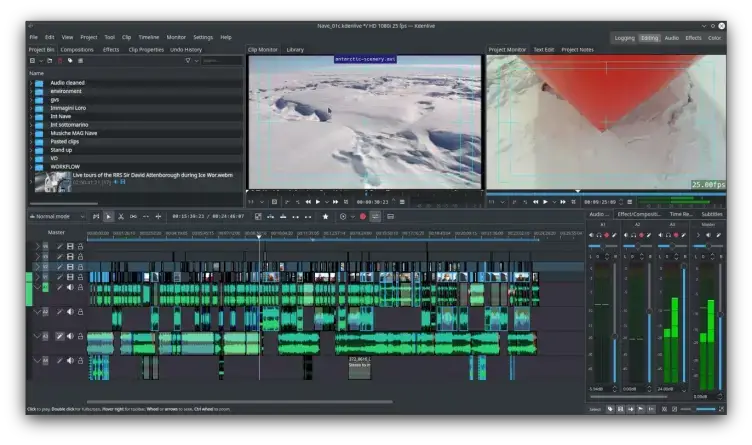
Best For: General YouTubers, creative vloggers, and editors seeking a traditional multi-track layout
Why Choose It? Kdenlive is the default open-source standard for Linux video editing. Based on the MLT framework and KDE libraries, it offers a timeline interface highly similar to Adobe Premiere Pro. Recent updates in 2025/2026 introduce automated local subtitles using OpenAI’s Whisper model, nested timelines, and improved multi-threaded preview caching.
- Local Speech-to-Text: Generate accurate auto-subtitles locally without cloud services
- Proxy Editing: Automatically generates low-res edit clips for smooth scrubbing on 4K footage
- Robust Audio Routing: Advanced audio levels tracker and channel mixers
Quick Tip: Use the “Timeline Preview Renders” option under Project Settings if complex transitions or filters cause preview frames to drop during timeline editing.
Install Command:
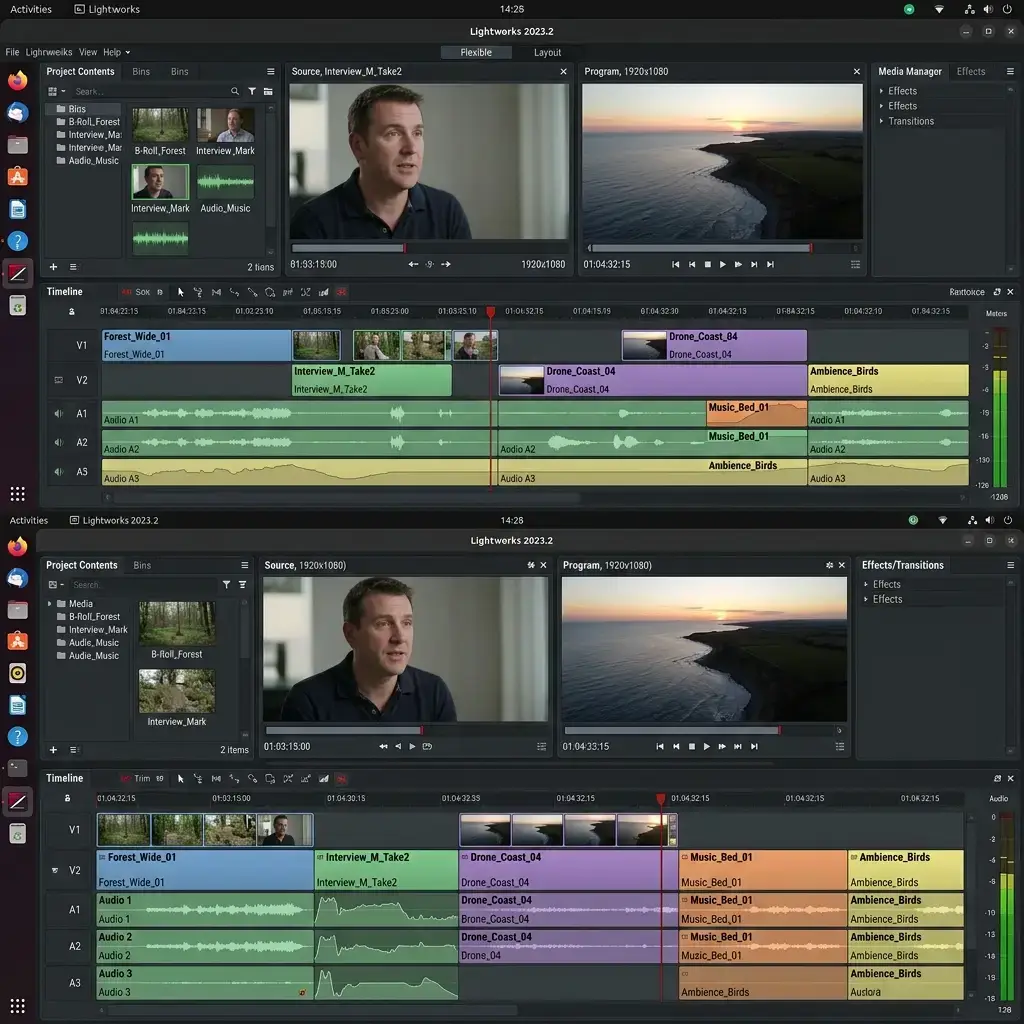
Best For: Film editors seeking professional keyboard-driven timeline trims and multicam syncing
Why Choose It? Lightworks has a long pedigree in Hollywood, having edited feature films like Pulp Fiction and The Wolf of Wall Street. Its native Linux client runs smoothly on Ubuntu. The software relies heavily on efficient keyboard-driven trimming, allowing editors to make edits quickly once they memorize the workflow layout.
- Console Integration: Built to work with hardware editing control surfaces
- Advanced Multicam: Real-time syncing and switching of dozens of video streams
- Custom Layouts: Clean flexible rooms setup for multi-monitor workspaces
Quick Tip: Use the dedicated key mapping options in settings to switch the shortcut profiles to match Premiere Pro or Avid Media Composer if you are migrating styles.
Install Command:
sudo apt install ./lightworks_*_amd64.deb
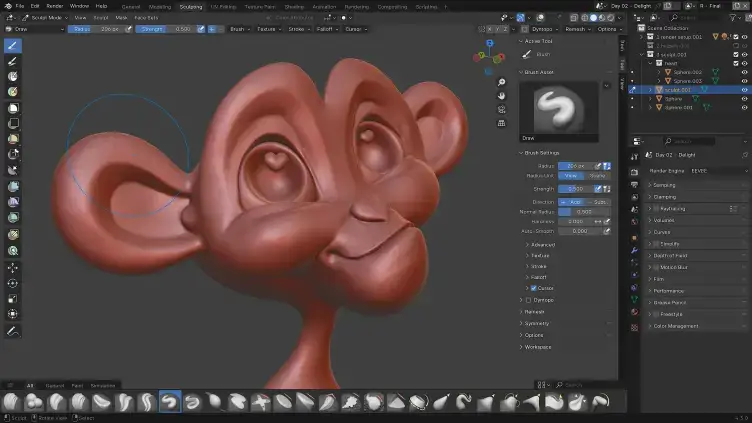
Best For: 3D animators, VFX artists, and creators who want timeline editing inside their production pipeline
Why Choose It? Blender’s Video Sequence Editor (VSE) is a surprisingly powerful component of the main 3D animation suite. It lets you import, cut, mask, and color-grade footage within the same environment where you model 3D assets. In Blender 4.x/5.0, the VSE received a performance overhaul, generating visual waveforms instantly and adding drag-and-drop snapping.
- Unified Ecosystem: Edit 3D animation renders without exporting to external software
- Python Automation: Script editing sequences or custom render queues
- Professional Composition: Multi-channel timelines, tracking, audio mixers, and custom transforms
Quick Tip: Set the Memory Cache limit under Preferences > System to a larger value (e.g. 4096MB or higher) to enable smooth preview scrubbing in the VSE timeline.
Install Command:
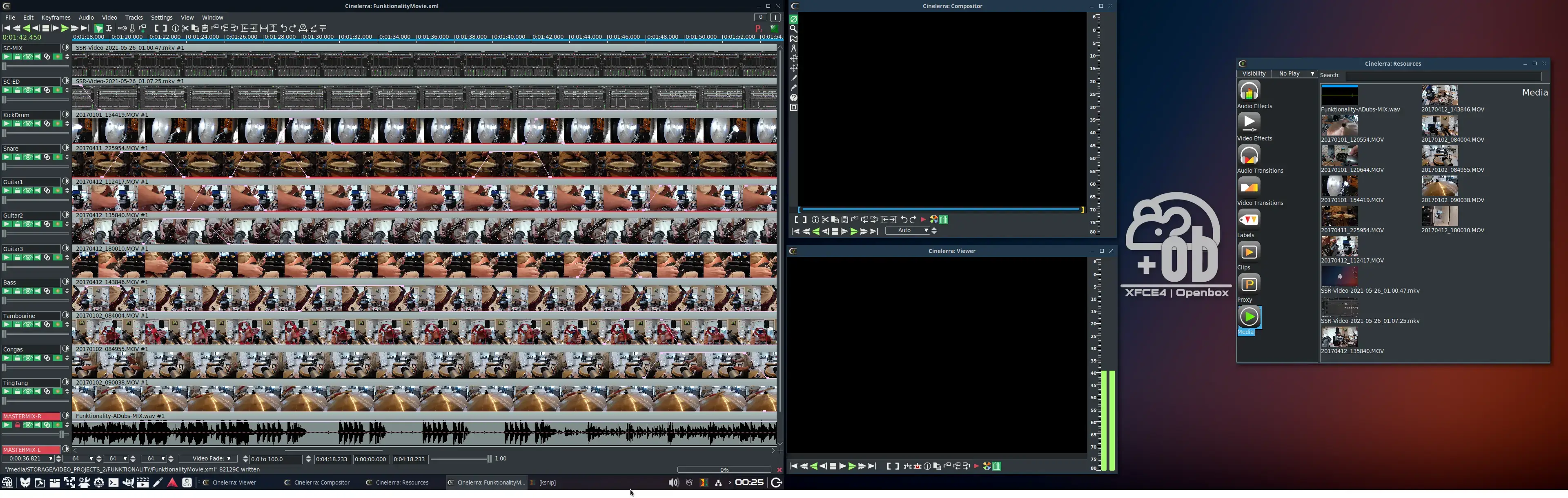
Best For: Advanced power users requiring render clusters, multi-GPU support, and 8K workflows
Why Choose It? Cinelerra is one of the oldest and most powerful professional editors on Linux. The “GG Infinity” community fork is actively updated, supporting modern codecs, multi-GPU processing, and cluster rendering (delegating render work across multiple machines on a local network). Its modular multi-window interface can feel dated, but it scales perfectly on multi-monitor setups.
- Cluster Rendering: Scale render tasks across local LAN computers to cut render times
- FFmpeg Core: Internal integration with FFmpeg libraries for complete format support
- Advanced Keyframing: Precise control of audio and visual parameters over time
Quick Tip: Set the render path to a fast SSD and configure the thread count to match your CPU cores under Preferences > Performance to speed up timeline exports.
Install Command:
chmod +x Cinelerra-*.AppImage
./Cinelerra-*.AppImage
Beginner & Intermediate Video Editors
These video editors offer a balance of accessibility and features. They are the ideal starting point for general content creation, school projects, or hobbyist editing without requiring deep technical knowledge.
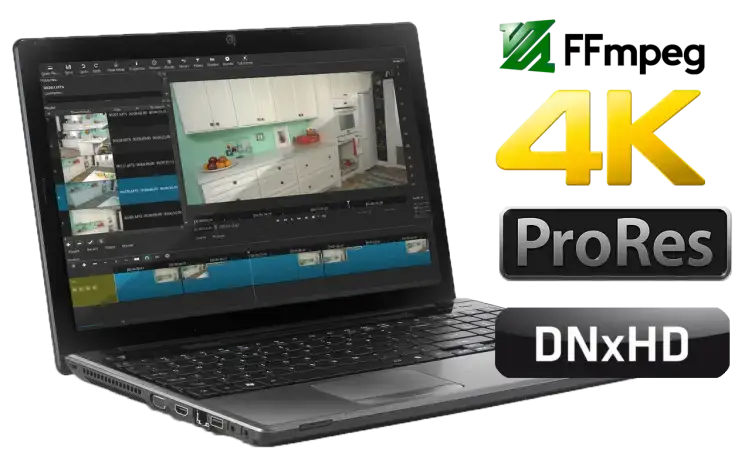
Best For: Creators wanting stable native file handling, audio-focused filters, and fast GPU exports
Why Choose It? Shotcut is highly praised for native format support: it edits files directly from your storage card without needing an import step. It features GPU-accelerated video filters, multi-track timelines, color wheels, and hardware exports. Version releases in 2025/2026 add native hardware AV1 video encoding and a reworked keyframes timeline interface.
- No Imports: Work directly with native files on your drive, saving storage space and time
- Hardware Acceleration: Utilizes Nvidia NVENC or AMD VA-API on Linux for swift exports
- Audio Filters: Robust set of high-quality tools for leveling podcast audio
Quick Tip: Use the “Hardware Encoder” checkbox under export settings to choose NVENC (Nvidia) or VA-API (AMD/Intel) to render files up to 5x faster.
Install Command:
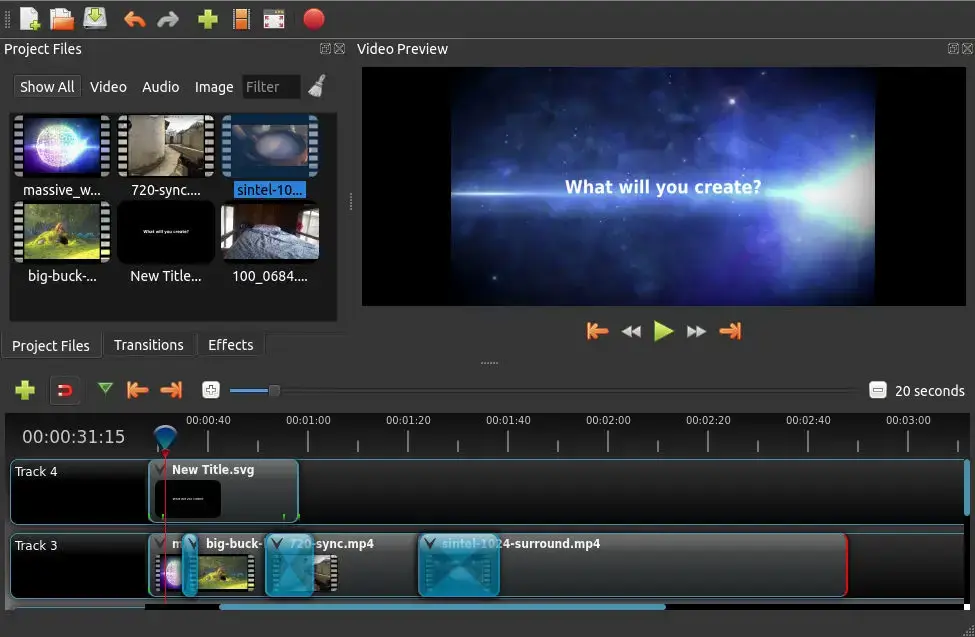
Best For: Beginners, social media creators, and anyone needing a quick drag-and-drop video timeline
Why Choose It? OpenShot is built specifically to address the steep learning curves of Linux video editing. It has a clean, drag-and-drop workspace layout with predefined tracks. Keyframe animations, title cards, clip scaling, and standard transitions are easy to apply. OpenShot 3.x upgrades timeline snapping and multithreading speed.
- Drag and Drop: Simple layout makes arranging media tracks effortless
- 3D Titles: Render basic 3D titles and text animations using Blender integration
- Unlimited Tracks: Create as many audio and video timeline tracks as needed
Quick Tip: Change the preview profile to 720p 30fps under Preferences > Preview to reduce playback lagging while cutting clips. This doesn’t affect final output rendering.
Install Command:
sudo apt update
sudo apt install openshot-qt
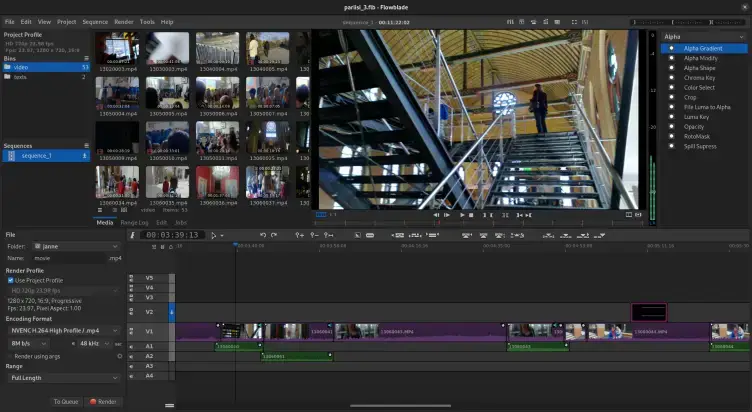
Best For: Editors preferring strict insert-style cutting, quick timeline trims, and G’MIC filters
Why Choose It? Flowblade is a fast, Python-based editor designed for Linux. It utilizes a strict “magnetic” insert workflow similar to Apple Final Cut Pro: dragging a clip moves adjacent clips on the timeline automatically, keeping files contiguous and audio synced. It also integrates G’MIC image processing tools for creative visuals.
- Magnetic Timeline: Clips snap together dynamically to prevent blank space gaps
- G’MIC Filters: Advanced open-source filtering tools built directly into the editor
- Lightweight Core: Low system resource usage compared to heavy C++ editing applications
Quick Tip: Change the timeline mode to “Overwrite” or “Insert” using the toolbar controls to switch how clips behave when dragged onto your timeline track.
Install Command:
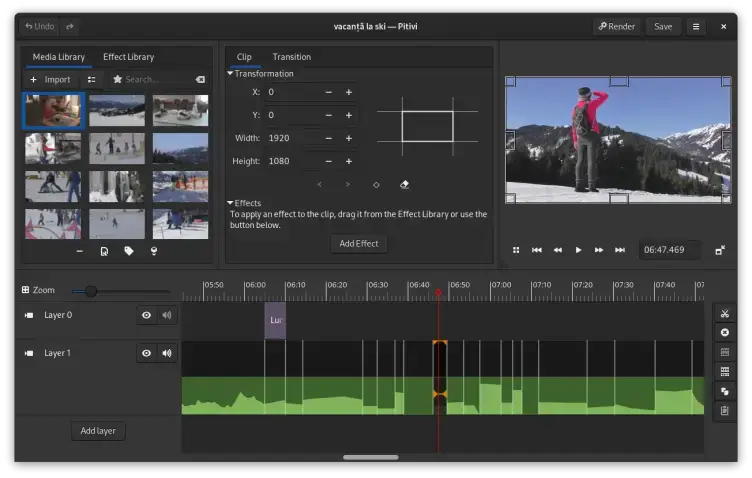
Best For: GNOME desktop environments, simple editing, and GTK integration
Why Choose It? Pitivi is a clean, video editor closely aligned with the GNOME desktop project. Utilizing GStreamer as its backend, it handles video and audio track transitions efficiently. The layout focuses on clean spacing and minimal visual clutter, keeping the editor accessible to hobbyists.
- GTK Design: Matches standard GNOME desktop interface layouts
- GStreamer Backend: Reliable core media decoding library on Linux
- Animated Effects: Keyframe-driven audio and video transitions
Quick Tip: Make sure to update GStreamer libraries (`sudo apt install gstreamer1.0-plugins-bad gstreamer1.0-plugins-ugly`) to ensure wide media format support in Pitivi.
Install Command:
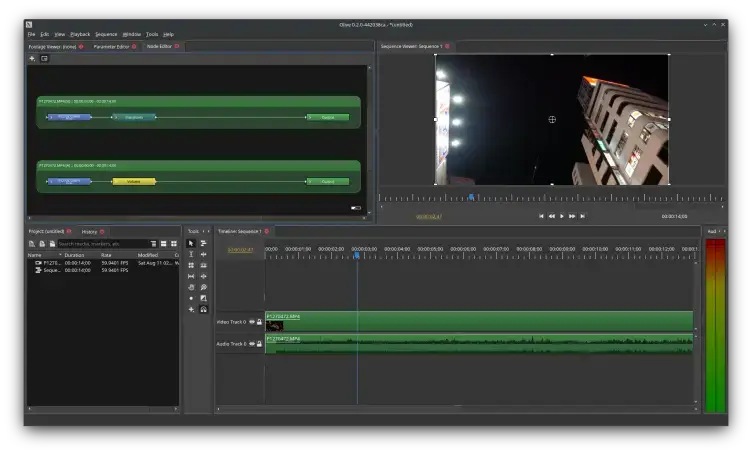
Best For: Intermediate users seeking node-based visual compositing inside a timeline editor
Why Choose It? Olive is a next-generation open-source video editor aiming to provide professional features. The development branch (v0.2) is built around a powerful node-based compositing workflow. Every filter, transform, or blend you apply to your timeline is configured visually using nodes, offering massive creative freedom.
- Node Compositor: Build custom transition pipelines and visuals using visual nodes
- Shaders Performance: Renders visual effects on the GPU using custom GLSL shaders
- Color Management: Built-in support for OpenColorIO (OCIO) color routing
Quick Tip: Use the dedicated “Node Editor” tab to group transitions or stack effect filters visually rather than overlaying them on multiple timeline tracks.
Install Command:
Lightweight Cutters & Specialist Tools
These applications are designed for fast, lossless video trimming (bypassing re-encoding delays), simple transcodes, or specialist VJ and live performance video setups.
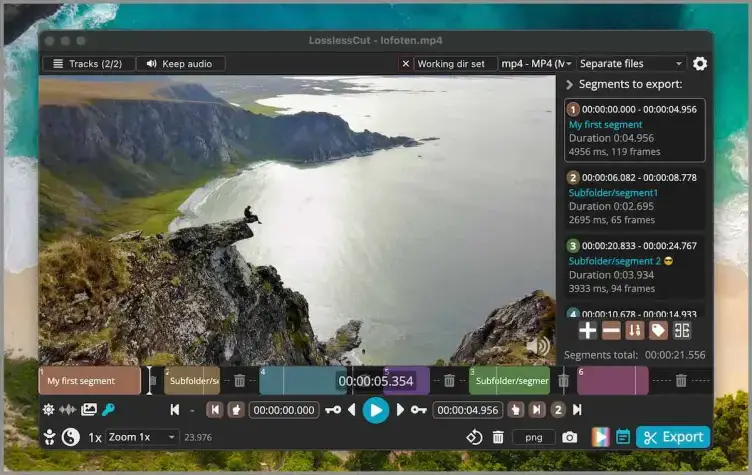
Best For: Trimming action cams, drones, or long screen recordings instantly without quality loss
Why Choose It? LosslessCut is the fastest video trimmer available. Rather than decoding and re-rendering your footage (which takes time and loses quality), LosslessCut utilizes FFmpeg to cut data packets at keyframes instantly. Trimming a 4GB video clip takes under 2 seconds, maintaining the original file size and codecs perfectly.
- Zero Rendering: Instant timeline cut-and-save saves CPU and GPU power
- Track Management: Keep or discard specific audio tracks and subtitles
- Raw Metadata: Retains original capture data from action cams
Quick Tip: Keep the “Discard Audio” option unchecked unless you explicitly want a silent export. Ensure the edit mode is set to avoid encoding delays.
Install Command:
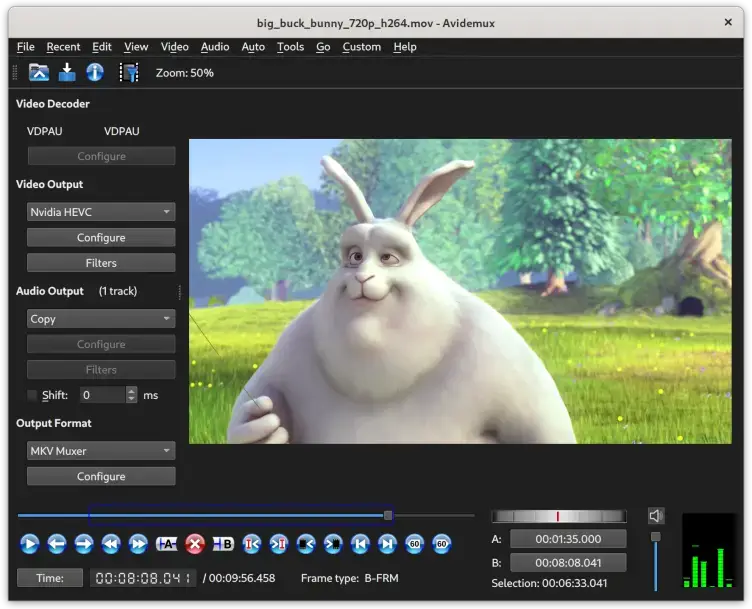
Best For: Basic video processing, frame-accurate cuts, and visual filter encoding
Why Choose It? Avidemux is a classic Linux video tool designed for basic visual editing, formatting, and encoding tasks. It is ideal for users who do not require a complex multi-track timeline but need to perform visual cuts, join segments, or apply visual filters (such as resizing or cropping) to a single video stream.
- Lossless Option: Set video/audio outputs to “Copy” to cut files instantly without encoding
- Visual Filters: Renders resizing, crop filters, rotation, and subtitles
- Format Conversion: Transcodes to MP4, MKV, AVI, and other wrappers
Quick Tip: Set both the Video Output and Audio Output dropdown menus to “Copy” to cut sections of video instantly without waiting for a re-encode.
Install Command:
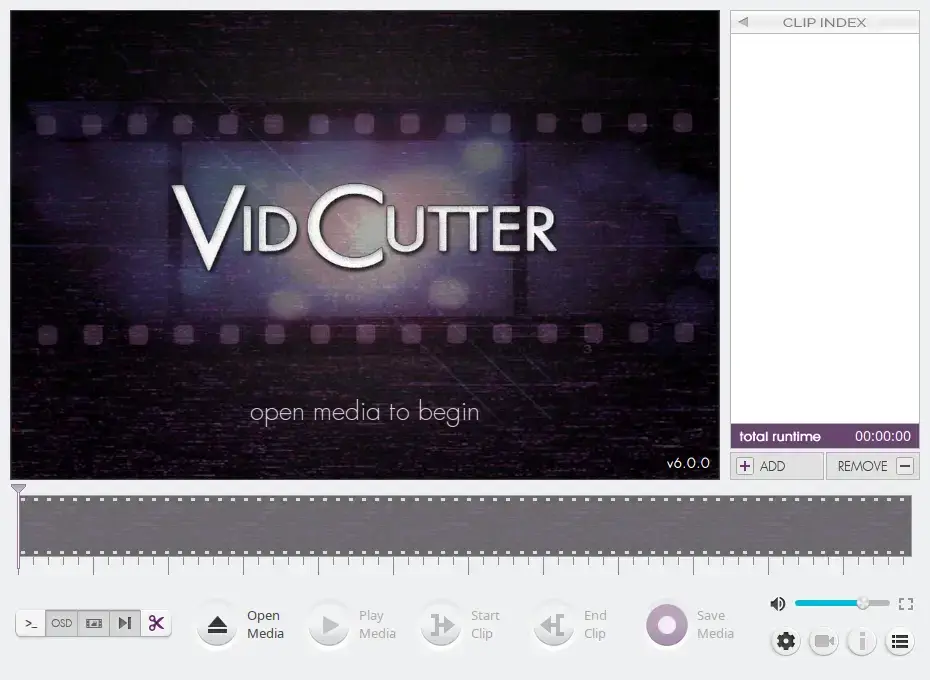
Best For: Instantly joining and cutting multiple video segments in one timeline
Why Choose It? Vidcutter is a simple desktop app built on Qt5 and Python that lets you cut and join video segments. It utilizes a lightweight interface to set start and end points on clips, add them to a list, and merge them into one file. It performs these edits losslessly without re-rendering the visual blocks.
- SmartCut: Performs frame-accurate trims at non-keyframe borders
- No re-encoding: Exports merged segments instantly with original codecs
- Simple Interface: Zero learning curve for compiling video clips
Quick Tip: Enable the “SmartCut” feature in the app settings to allow precise frame-accurate edits instead of snapping only to keyframe markers.
Install Command:
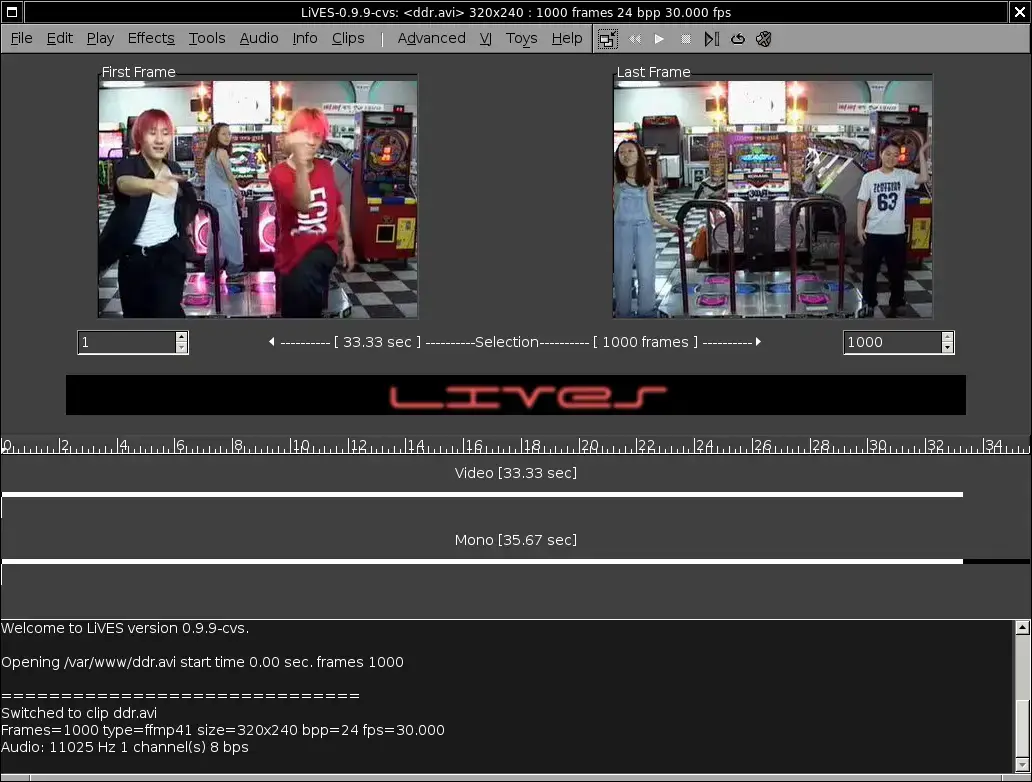
Best For: VJs, live video mixing, and realtime performance artists
Why Choose It? LiVES bridges the gap between traditional timeline editing and live video performance. VJs can trigger visual loops using keyboard keys, apply visual effects in real time to the output screen, and mix multiple video feeds to a live audio beat. It features multitrack mixing, RFX plugin support, and live camera feed integrations.
- Live VJ Window: Map clips to keyboard shortcuts and trigger them to music loops
- Realtime RFX: Dozens of live visual filters, color shifts, and transitions
- MIDI Integration: Connect hardware VJ controllers and MIDI decks to mix video
Quick Tip: Use the multi-track VJ window to preload visual loops and map them to keys to mix clips instantly on the fly during a performance.
Install Command:
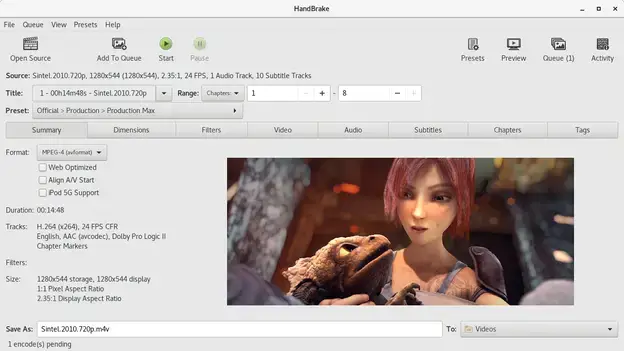
Best For: Transcoding, encoding, compressing, and aligning variable frame rates (VFR) to constant frame rates (CFR)
Why Choose It? While not a timeline video editor, HandBrake is an essential companion transcoder for Linux editors. Professional editors often reject variable frame rates (VFR) recorded by smartphones, resulting in audio sync drift. HandBrake handles batch transcoding, converting files to edit-friendly CFR and H.264/H.265 compression formats easily.
- VFR to CFR: Stabilizes smartphone recordings to a fixed frame rate to prevent editor audio drift
- Presets Library: Dozens of optimized profiles for YouTube, web formats, and devices
- Batch Queues: Compile lists of multiple videos to transcode overnight
Quick Tip: Under the “Video” tab, always set Framerate to “Constant Framerate” and click “Same as source” to stabilize smartphone and game capture footage for your video timeline.
Install Command:
Technical Comparison Table
Use this comparison table to quickly assess the editing capabilities, platform support, and rendering engines of each application.
| Video Editor | Difficulty | Primary Formats | GPU Render Acceleration | Proxy Clips | Licensing |
|---|---|---|---|---|---|
| DaVinci Resolve | Advanced / Pro | DNxHR, ProRes, MXF | Yes (Nvidia CUDA / AMD ROCm) | Yes | Proprietary / Freemium |
| Kdenlive | Intermediate | MP4, MKV, MOV, AV1 | Yes (Timeline rendering & encode) | Yes | GPL-3.0-or-later |
| Lightworks | Advanced | MXF, MP4, MOV | Yes (Timeline preview & encode) | Yes | Proprietary / Freemium |
| Blender VSE | Advanced | MP4, AVI, EXR sequences | Yes (Render engine overlays) | Yes | GPL-2.0-or-later |
| Cinelerra-GG | Advanced | MKV, MP4, raw formats | Yes (Multi-GPU rendering) | Yes | GPL-2.0 |
| Shotcut | Intermediate | All (via FFmpeg core) | Yes (Hardware encoding exports) | Yes | GPL-3.0 |
| OpenShot | Beginner | MP4, MKV, WebM | Partial (Experimental) | No | GPL-3.0 |
| Flowblade | Intermediate | MP4, MOV, MKV | Yes (Encoding profiles) | Yes | GPL-3.0 |
| Pitivi | Beginner | OGG, WebM, MP4 | No | No | LGPL-2.1-or-later |
| Olive | Intermediate | MP4, MOV, WebM | Yes (GPU shaders preview) | Yes | GPL-3.0 |
| LosslessCut | Beginner | All (No re-rendering) | No (Not required) | No | GPL-3.0 |
| Avidemux | Beginner | MP4, MKV, AVI | Yes (NVENC profiles) | No | GPL-2.0 |
| Vidcutter | Beginner | MP4, MKV, MOV | No (Not required) | No | GPL-3.0 |
| LiVES | Intermediate | MPEG, AVI, WebM | Yes (Real-time playback filters) | No | GPL-3.0 |
| HandBrake | Beginner | MP4, MKV, WebM | Yes (NVENC / Intel QSV / VA-API) | No | GPL-2.0 |
Which Video Editor Is Right for You?
Choose DaVinci Resolve. Its professional node-based color panel is unmatched for grading, though you must transcode H.264 formats first on the free Linux tier.
Stick with Kdenlive or Shotcut. They offer a multi-track interface similar to Premiere Pro with auto-subtitles and hardware-accelerated exports.
Start with OpenShot. Its straightforward layout, pre-defined tracks, and simple transition controls make it perfect for quick home video projects.
Use LosslessCut. Since it cuts data packets directly at keyframes without decoding or re-rendering, a multi-gigabyte trim completes in under two seconds.
Try the Blender VSE. It lets you compose, cut, and edit sequences directly within your existing 3D viewport pipeline without external roundtripping.
Run it through HandBrake. Convert variable frame rates (VFR) to a constant frame rate (CFR) before importing into your timeline to fix sync problems.
Troubleshooting & Configuration Tuning
Editing videos on Linux sometimes introduces configuration roadblocks. Use the recovery box below to handle missing audio codecs, configure hardware graphics rendering, or resolve Flatpak sandbox permissions.
If your video editor fails to import clips, display audio waveforms, or access local filesystems, execute the following commands in your terminal:
1. Enable Missing Codecs (AAC, H.264, MP3, etc.)
2. Fix Flatpak Sandbox File Permissions (Access External Drives)
flatpak override –filesystem=host org.kde.kdenlive
3. Install Nvidia Proprietary CUDA Drivers (For DaVinci Resolve)
Frequently Asked Questions
What is the best overall video editor for Ubuntu?
Kdenlive is widely considered the best overall video editor for Ubuntu. It is free, open source, and offers a robust set of professional features like proxy editing and local AI speech-to-text without the steep learning curve of proprietary alternatives.
Is DaVinci Resolve free on Ubuntu?
Yes, DaVinci Resolve has a free tier available for Linux. However, you must transcode H.264/AAC media files to formats like DNxHR before importing, as the free version on Linux does not natively support patented commercial codecs due to licensing.
What is the easiest video editor for beginners on Linux?
OpenShot is the most beginner-friendly video editor on Ubuntu. Its drag-and-drop workflow, basic transition tools, and simple timeline make it ideal for quick cuts, social media projects, and school work.
How do I fix missing video and audio codecs on Ubuntu?
You can install essential patent-encumbered multimedia codecs on Ubuntu by opening a terminal and running the command: sudo apt install ubuntu-restricted-extras.
Why are my Flatpak video editors unable to open external USB drives?
Flatpak packages run in isolated sandboxes. To grant your video editor permission to access host filesystems and external drives, you can use the command-line tool Flatseal, or execute: flatpak override –filesystem=host [app-id] in your terminal.
More Ubuntu guides: Best Media Players for Ubuntu · Best Audio Editing Software on Ubuntu · The Best Photo Editors for Ubuntu · The Best Software for Ubuntu · Best Office Suites for Ubuntu