 You can install Telegram on Ubuntu with Flatpak, Snap, Ubuntu’s APT repository when available, or Telegram’s official Linux download. For most people, Flatpak or Snap is the easiest route because updates are simple and the app appears in the normal Ubuntu app launcher.
If you want Telegram’s own upstream Linux build, use the official download from Telegram. If you prefer Ubuntu’s package tools, APT is still worth trying, but availability and version freshness can vary by Ubuntu release.
Both routes are simple on Ubuntu and keep Telegram close to the current desktop release. Use Telegram’s official Linux download if you specifically want the build from Telegram’s own website.
Best Ways to Install Telegram on Ubuntu
The best Telegram install method depends on how you like to manage apps. Flatpak and Snap are convenient, APT fits users who prefer Ubuntu’s normal package manager, and Telegram’s official Linux download is useful when you want the upstream build directly from Telegram.
Method 1: Install Telegram with Flatpak
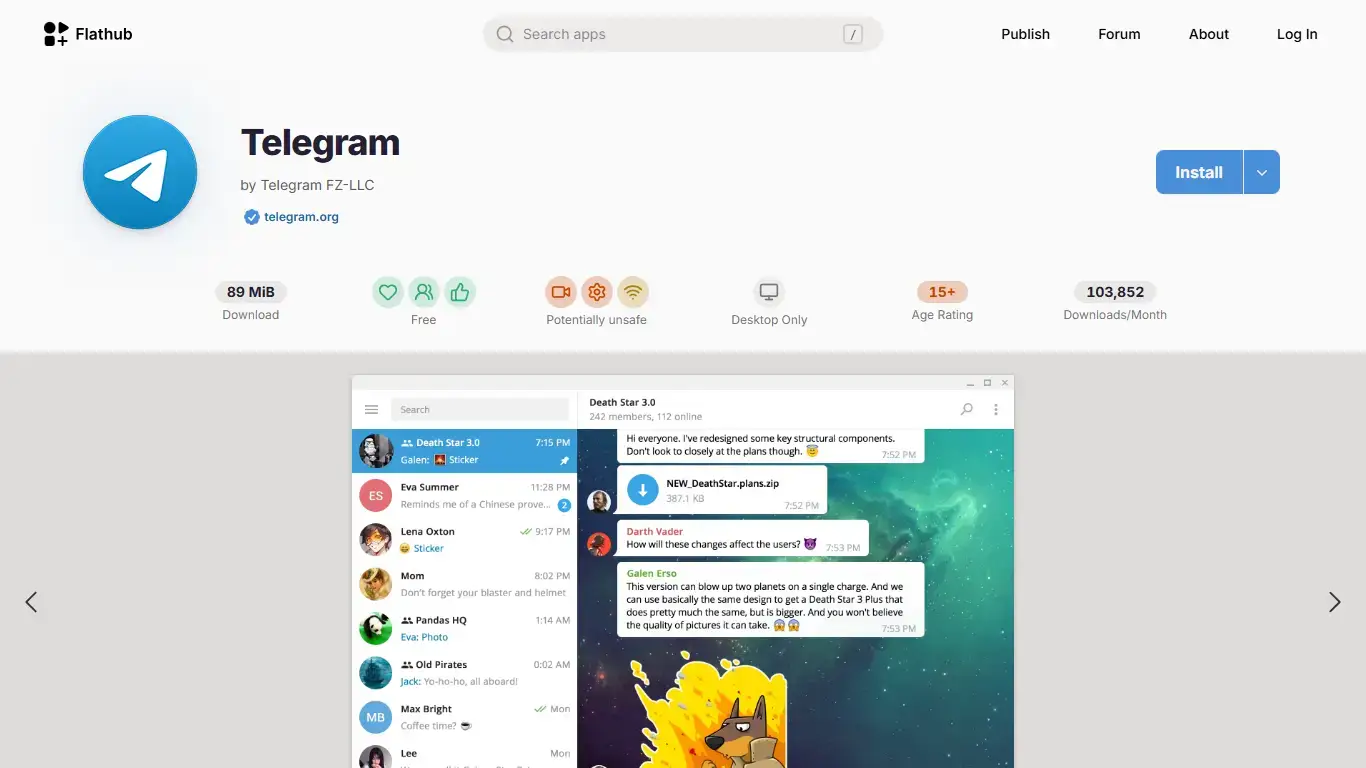
Flatpak is a strong choice if you use Flathub or GNOME Software. It works across many Linux distributions and keeps Telegram separate from some system packages.
sudo apt update
sudo apt install flatpak
flatpak remote-add --if-not-exists flathub https://flathub.org/repo/flathub.flatpakrepo
flatpak install flathub org.telegram.desktop
Launch it with:
flatpak run org.telegram.desktopNote: If the Telegram icon does not appear right away, log out and sign back in, or restart the desktop session.
Method 2: Install Telegram with Snap
Snap is the shortest install path on standard Ubuntu desktops because Snap support is usually already enabled. The Snap Store lists Telegram under the verified Telegram FZ-LLC publisher account.
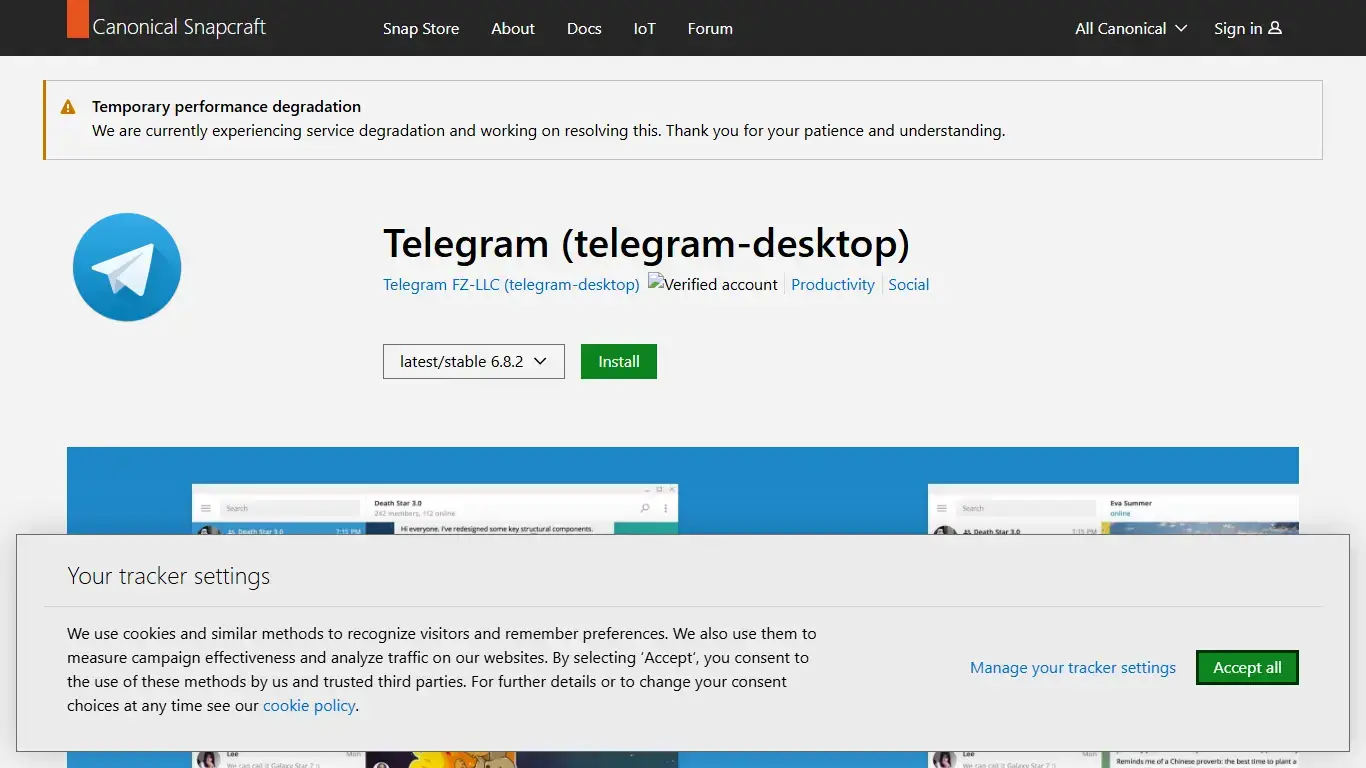
sudo snap install telegram-desktopLaunch Telegram from the Ubuntu app menu, or run:
telegram-desktopTip: Snap updates usually happen automatically. You can also check updates with sudo snap refresh telegram-desktop.
Method 3: Install Telegram from Ubuntu’s APT Repository
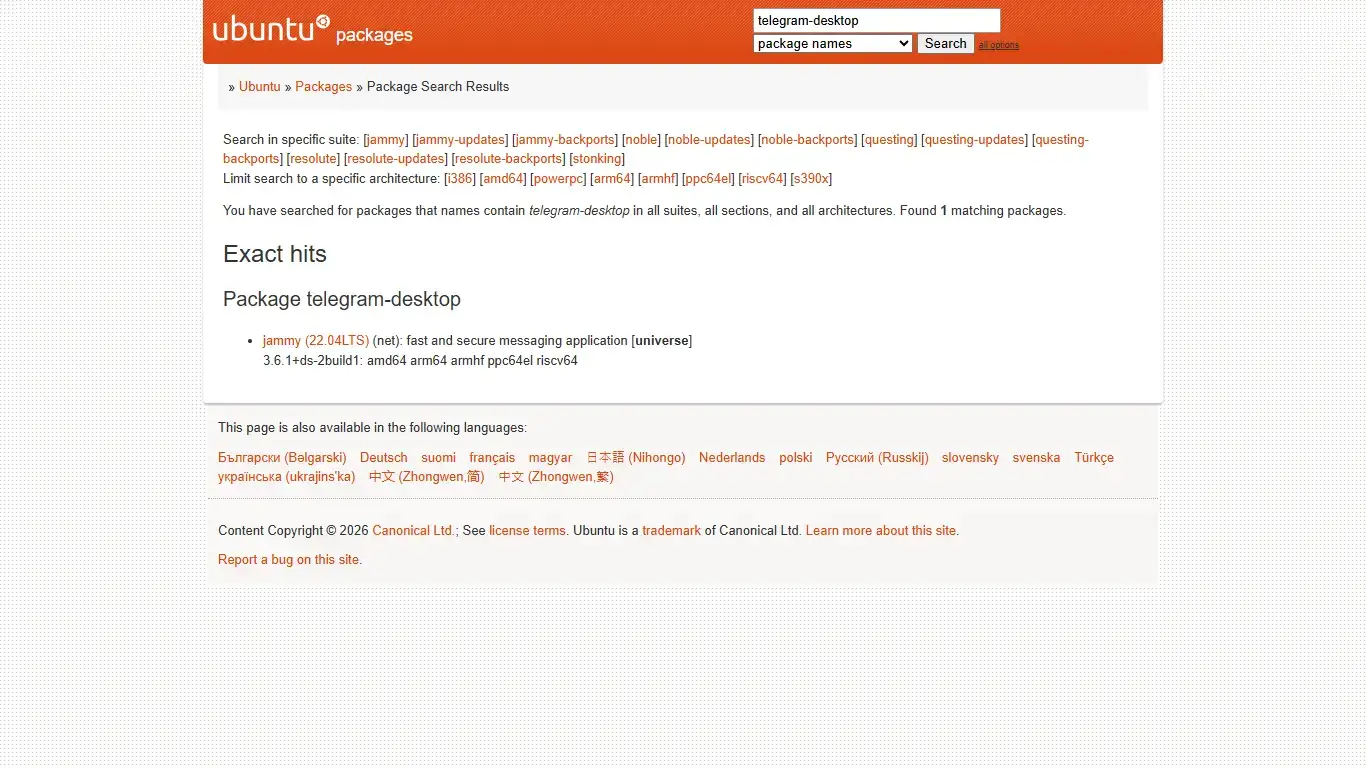
APT is worth using if you prefer Ubuntu’s package manager and want Telegram managed with the rest of your system packages. The important detail is that package availability and freshness can vary by Ubuntu release.
sudo apt update
sudo apt install telegram-desktop
Launch Telegram from the app menu, or run:
telegram-desktopNote: If Ubuntu says it cannot locate the package, or if the version is much older than Telegram’s current desktop release, use Flatpak, Snap, or Telegram’s official Linux download instead.
Method 4: Install the Official Telegram Linux Download
Telegram provides an official Linux desktop download as a compressed .tar.xz file. This is the upstream route from Telegram’s own website, but it is a little more manual than Flatpak or Snap.
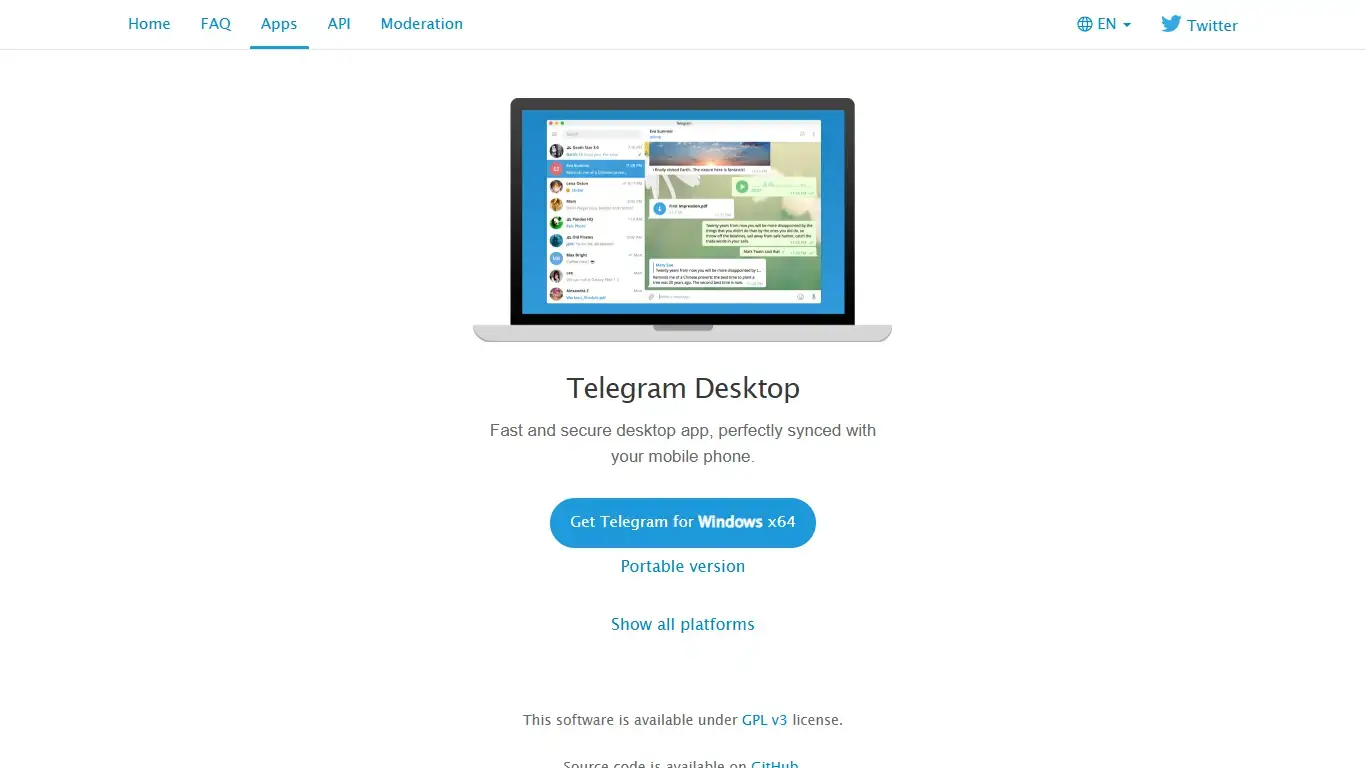
- Open desktop.telegram.org.
- Choose the Linux download.
- Save the file to your Downloads folder.
- Open a terminal.
- Extract the file and move the Telegram folder into /opt.
cd ~/Downloads
tar -xf tsetup*.tar.xz
sudo mv Telegram /opt/Telegram
sudo ln -sf /opt/Telegram/Telegram /usr/local/bin/telegram-desktop
Now launch Telegram with:
telegram-desktopTip: When Telegram runs from its official Linux folder, it can create a desktop entry for your user. If it does not appear in the app menu, launch it once from the terminal, then check again.
Log In and Set Up Telegram Desktop
After installation, open Telegram from the Ubuntu app menu. You can sign in with your phone number, or you can scan a QR code from Telegram on your phone.
First Setup Checklist
- Sign in with your phone number or scan the QR code from your phone.
- Allow desktop notifications if you want message alerts.
- Open Telegram settings and choose your download folder.
- Check whether Telegram should keep running in the tray after you close the window.
- Test a voice call or video call if calls matter to you.
- Pin Telegram to your dock or favorites if you use it daily.
Telegram Desktop works independently after login, so your phone does not need to stay connected for normal desktop use. Keep your phone nearby during first login, because Telegram may ask you to confirm the new session.
Privacy and Session Settings to Check
Telegram Desktop is convenient, but any desktop messaging app deserves a quick privacy check after login. This is especially true on shared computers, work machines, or laptops that leave your desk often.
Recommended Privacy Checks
- Open Telegram settings and review Devices or Active Sessions.
- Remove old computers or phones you no longer use.
- Set a local passcode if other people can access your Ubuntu session.
- Review notification previews if private messages might appear on your screen.
- Use Secret Chats on mobile when you specifically need end-to-end encrypted one-to-one chats.
Note: Telegram cloud chats sync across devices. Secret Chats are different and are tied to the device where they were started, so they do not behave like normal synced chats.
Fix Common Telegram Problems on Ubuntu
Telegram Does Not Appear in the App Menu
Log out and sign back in. For Flatpak, this is common after first setup. For the official Linux download, launch Telegram once from the terminal so it can create its desktop entry.
Notifications Do Not Work
Check Ubuntu notification settings, then check Telegram’s notification settings. If you use Focus mode, Do Not Disturb, or a custom desktop environment, notifications may be muted outside Telegram.
Files Download to the Wrong Folder
Open Telegram settings and change the download path. If you use Flatpak, the app may have a more limited view of your home folders than a normal APT package.
The APT Package Is Missing or Old
Use Flatpak, Snap, or the official Telegram Linux download. APT is convenient when available, but it is not always the freshest Telegram route on every Ubuntu release.
How to Uninstall Telegram from Ubuntu
Use the uninstall command that matches the method you used to install Telegram.
Flatpak
flatpak uninstall org.telegram.desktopSnap
sudo snap remove telegram-desktopAPT
sudo apt remove telegram-desktopOfficial Linux Download
sudo rm -rf /opt/Telegram
sudo rm -f /usr/local/bin/telegram-desktop
rm -f ~/.local/share/applications/telegramdesktop.desktop
Before removing Telegram from a shared or public computer, open Telegram settings and terminate the desktop session from your account. You can also remove the session later from Telegram on your phone.
More Ubuntu Messaging and Social Apps
If you are setting up a full messaging desktop, these related Ubuntu guides may help:
Telegram on Ubuntu FAQ
Can I install Telegram on Ubuntu?
Yes. You can install Telegram on Ubuntu with Flatpak, Snap, Ubuntu’s APT repository when available for your release, or the official Linux download from Telegram.
What is the best way to install Telegram on Ubuntu?
For most users, Flatpak or Snap is the easiest option because updates are handled through normal app-store style tools. The official Telegram Linux download is best if you want Telegram’s upstream build directly from Telegram.
Is Telegram Desktop official on Linux?
Yes. Telegram provides an official Linux desktop download from desktop.telegram.org. The Snap package is published by the verified Telegram FZ-LLC account, while Flatpak and APT should still be treated as package-source routes with their own update behavior.
Can I install Telegram with APT on Ubuntu?
Sometimes. The telegram-desktop package may be available depending on your Ubuntu release and enabled repositories, but it can lag behind Telegram’s official builds. If APT cannot find it, use Flatpak, Snap, or the official Linux download instead.
How do I log in to Telegram Desktop on Ubuntu?
Open Telegram Desktop, then sign in with your phone number or scan the QR code from Telegram on your phone. After login, check notifications, downloads, active sessions, and privacy settings.