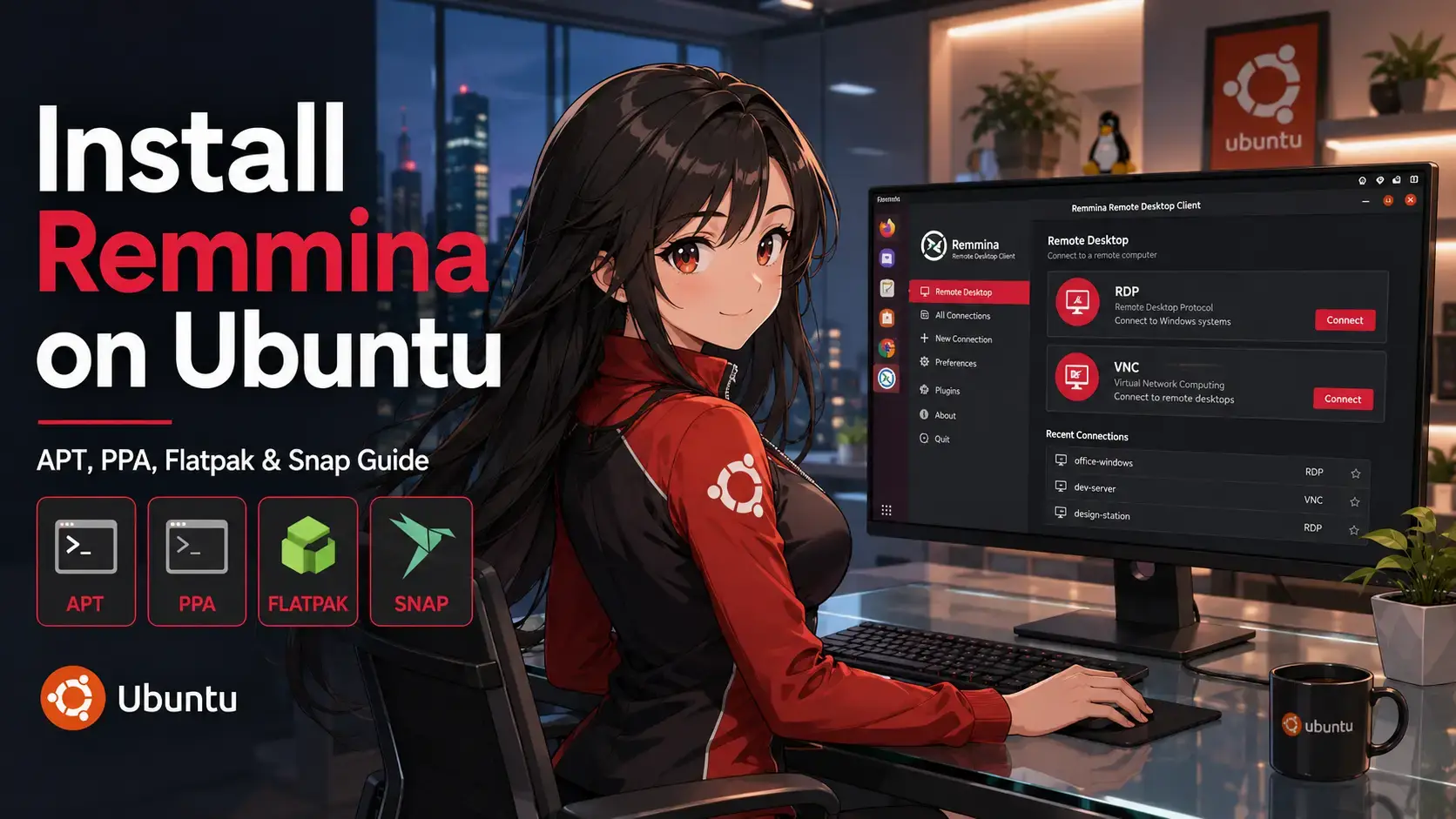
 You can install Remmina on Ubuntu using the native APT package manager, the official Remmina Next PPA repository, or sandboxed formats like Flatpak and Snap.
Remmina is a feature-rich, open-source remote desktop client designed for Linux. It allows system administrators and remote workers to connect to Windows, macOS, and Linux machines using multiple protocols, including RDP, VNC, SSH, and SPICE, all from a unified tabbed interface.
This guide provides step-by-step terminal instructions for installing and configuring Remmina on Ubuntu 26.04, 24.04, and 22.04 LTS. We cover native package setup, Snap sandboxing overrides, Flatpak installation, and practical RDP connection configurations for Windows 11.
If you encounter any issues during the installation or connection setup, feel free to leave a comment below or contact us directly for troubleshooting support. We are always happy to help you get connected.
Native APT, Official PPA, Snap, & Flatpak Guides
Configure secure remote desktop connections on your Ubuntu machine. Fix missing RDP options, resolve Snap sandboxing restrictions, and establish stable connections to Windows 11 hosts.
Choosing the correct installation method determines how your remote connections are sandboxed and how frequently Remmina receives updates. Review the comparison below to select the setup that matches your environment.
Remmina Installation Methods Compared
Review the installation options below to understand security, package sources, update frequency, and sandboxing details.
| Method | Package Source | Updates Delivery | Sandboxing & Security | System Integration |
|---|---|---|---|---|
| APT Repositories | Default Ubuntu (Official) | Managed via standard system updates | None (Unconfined system access) | Excellent. Full printer, audio, and keyring support. |
| APT PPA (Remmina Next) | Launchpad PPA (Official Developer) | Rapid updates directly from developers | None (Unconfined system access) | Recommended for Ubuntu 24.04 and 22.04 LTS. |
| Flatpak (Flathub) | Flathub Repository (Community) | Managed via Flatpak helper daemons | Strictly sandboxed; requires portal helpers | Isolation blocks local directories unless explicitly overridden. |
| Snap (Snap Store) | Snapcraft Store (Official Developer) | Automatic updates in background | Sandboxed; requires manual interface connection | Requires explicit connect commands for audio and clipboard sharing. |
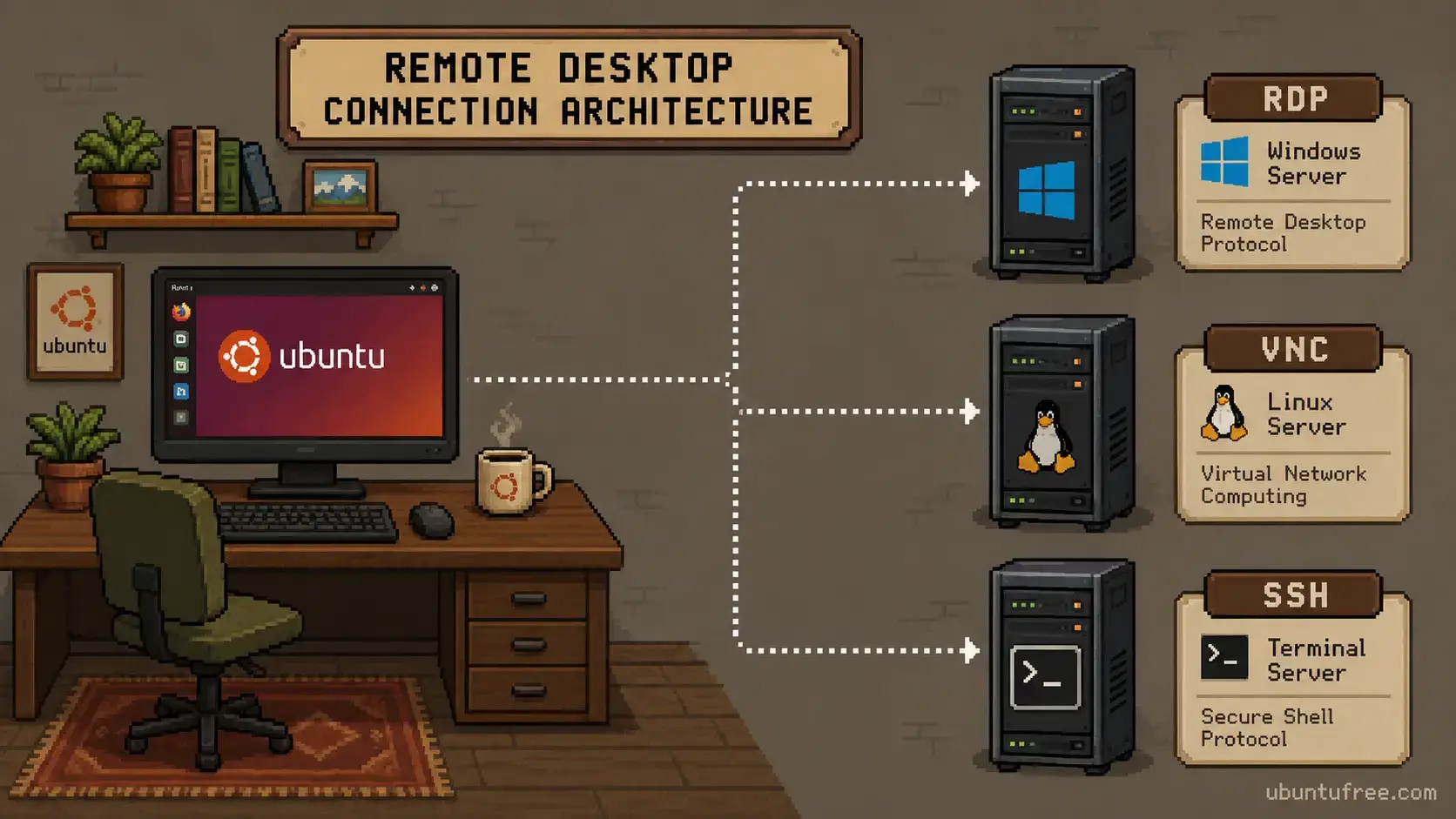
Remmina Connection Flow Layout
To help understand how the Remmina application coordinates remote sessions across different protocols to target hosts, reference the network structure below:
Method 1: Install Remmina via APT & Official PPA
Using the native package manager ensures optimal desktop integration, seamless clipboard operations, and system-level keyring access. On Ubuntu 26.04 LTS, the default system repositories already ship with a modern Remmina package. For Ubuntu 24.04 and 22.04 LTS systems, we recommend adding the official Remmina Next PPA repository to access newer versions containing key RDP protocol updates.
If you are running Ubuntu 26.04, skip this step. If you are on Ubuntu 24.04 or 22.04, add the official developer PPA to your system configuration:
sudo add-apt-repository ppa:remmina-ppa-team/remmina-next -y
Update your APT database to scan the newly added repository strings:
sudo apt update
To avoid missing connection protocol options, install the base Remmina package alongside the required plugins for RDP connection support, VNC rendering, and secure secret storage:
sudo apt install remmina remmina-plugin-rdp remmina-plugin-vnc remmina-plugin-secret -y
Tip: You can search for other protocols (like SPICE or EXEC) using the command apt-cache search remmina-plugin.
Method 2: Install Remmina via Snap & Apply Sandbox Overrides
The developer-maintained Snap version runs inside a sandboxed environment, protecting your system. However, this isolation blocks desktop helpers by default. You must run terminal commands after installation to grant Remmina access to your clipboard, microphone, audio hardware, and printer systems.
Execute the snap install command to retrieve and set up the stable channel package:
sudo snap install remmina
Allow the sandboxed application to interact with your host system services by executing the following interface mapping scripts:
# Enable local audio playback
sudo snap connect remmina:audio-playback :audio-playback

# Enable local audio recording (Microphone pass-through)
sudo snap connect remmina:audio-record :audio-record

# Access secure desktop keyring storage for saved passwords
sudo snap connect remmina:password-manager-service :password-manager-service

# Allow document forwarding to local printers
sudo snap connect remmina:cups-control :cups-control

# Enable automatic server discovery via local network scans
sudo snap connect remmina:avahi-observe :avahi-observe
Verify connected plugs using the status check tool: snap connections remmina.
Method 3: Install Remmina via Flatpak
If you prefer using Flatpak container formats, a community-maintained Remmina application is available on Flathub. Note that Flatpak isolation restricts connection profiles to sandboxed directories, which isolates them from system configurations.
If Flatpak is not already configured on your system, install it using APT:
sudo apt install flatpak -y
Configure the system-level remote pointer to the Flathub catalog:
sudo flatpak remote-add --if-not-exists flathub https://dl.flathub.org/repo/flathub.flatpakrepo
Install the containerized package from the repository remote:
flatpak install flathub org.remmina.Remmina -y
Tip: To run the application from the command line, use flatpak run org.remmina.Remmina.
Configuring Windows 11 RDP Remote Desktop Connections
Windows 11 (Pro, Enterprise, and Education editions only) has Network Level Authentication (NLA) enabled by default. To connect to Windows 11 without security negotiation errors or connection handshake loops, configure your connection settings in Remmina as follows:
1. Basic Profile Options:
Open Remmina, click the Create a new connection profile icon (represented by a green plus sign), and configure the Basic tab:
- Protocol: Select RDP – Remote Desktop Protocol.
- Server: Enter the target IP address or hostname of the remote Windows computer.
- Username / Password: Provide the credentials of the Windows account. If connecting to a Microsoft/Azure AD account, enter the full login email.
2. Advanced Security Configurations:
Click the Advanced tab located at the top of the profile editor and update the security protocol to match Windows 11’s default requirements:
- Locate the Security protocol negotiation field.
- Change the selection from default to Negotiate or TLS (do not select RDP). Negotiate is the most robust option, as it allows FreeRDP to establish secure handshakes automatically.
3. Resolving Clipboard Sync and Audio Issues:
To pass system audio and sync your local clipboard data with the remote host:
- Ensure Disable clipboard sync is unchecked on the Advanced settings tab.
- Find the Audio output drop-down menu, and select Local to play Windows sound streams on your local Ubuntu speakers.
Click Save and Connect to initiate the remote desktop session.
Migrating Saved Remmina Connection Profiles
Because sandboxed formats isolate configurations, saved connection profiles (`.pref` files) are stored in different directories depending on your installation method. If you switch from Snap or Flatpak to native packages, you must copy your profiles to the active installation directory to restore your saved connections:
~/.config/remmina/~/snap/remmina/common/.config/remmina/~/.var/app/org.remmina.Remmina/config/remmina/Example: Migrate Profiles from Snap to Native APT:
Copy your connection configurations to your user folder directory, ensuring you create the destination folder first:
mkdir -p ~/.config/remmina
cp -r ~/snap/remmina/common/.config/remmina/*.pref ~/.config/remmina/
Remmina User Interface & Screenshots
Below is a screenshot gallery demonstrating the active Remmina user interface and connection profile drawer running on Ubuntu Desktop.
-
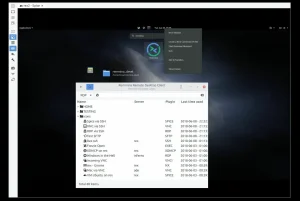
- Remmina desktop client connected ssh from How to Install Remmina on Ubuntu 26.04 – Complete Guide
-
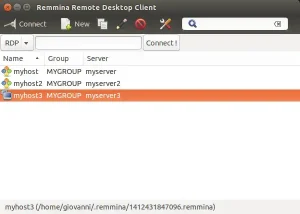
- Remmina remote desktop pc server from How to Install Remmina on Ubuntu 26.04 – Complete Guide
-
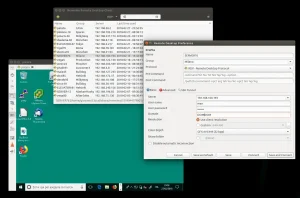
- Remmina remote desktop windows 8 from How to Install Remmina on Ubuntu 26.04 – Complete Guide
-
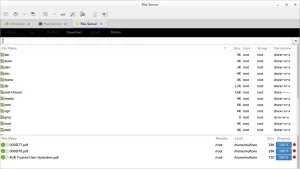
- Remmina screenshot file server from How to Install Remmina on Ubuntu 26.04 – Complete Guide
-
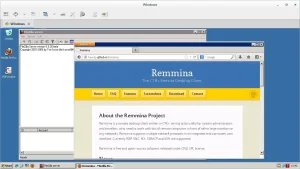
- Remmina screenshot old windows from How to Install Remmina on Ubuntu 26.04 – Complete Guide
-
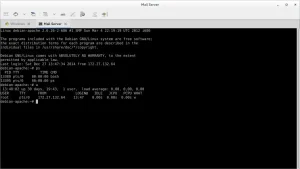
- Remmina screenshot setting up mail server from How to Install Remmina on Ubuntu 26.04 – Complete Guide
-
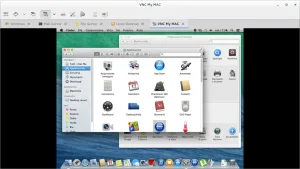
- Remmina screenshot vnc my mac from How to Install Remmina on Ubuntu 26.04 – Complete Guide
-
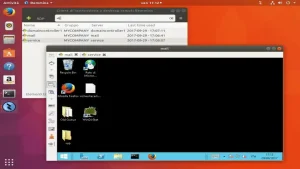
- Remmina screenshot windows 7 from How to Install Remmina on Ubuntu 26.04 – Complete Guide
Remmina Video Setup Guide
If you prefer a visual walkthrough, you can watch our step-by-step video tutorial demonstrating the PPA installation process, how to override Snap sandboxing permissions, and how to connect to a remote server:
How to Completely Uninstall Remmina and Revert System Changes
If you need to remove Remmina from your system, verify that you deactivate active packages, clean up custom repository strings, and remove sandboxed system folders to prevent configuration conflicts.
Run the clean script depending on your initial installation setup:
For APT and PPA systems:
sudo apt remove remmina remmina-plugin-* -y
sudo apt autoremove --purge -y
For Snap installations:
sudo snap remove remmina
For Flatpak (Flathub) installations:
flatpak uninstall org.remmina.Remmina -y
If you added the Remmina developer PPA, delete it from your system configuration directory to prevent update warnings:
sudo add-apt-repository --remove ppa:remmina-ppa-team/remmina-next -y
sudo apt update
To delete all saved connection profiles and local configs, execute this command:
rm -rf ~/.config/remmina ~/.local/share/remmina
Refer to the following resources for community support and official documentation:
Frequently Asked Questions
Why does my Remmina Snap package not sync the clipboard or play audio?
By default, Snap packages run in a strictly confined sandbox. This blocks Remmina from accessing host system services like audio playback, microphones, and password managers. You can resolve this by manually running terminal commands like sudo snap connect remmina:audio-playback :audio-playback and ensuring that clipboard sync is enabled in your connection profile settings.
How do I connect to Windows 11 from Remmina without connection errors?
Windows 11 has Network Level Authentication (NLA) enabled by default. To connect successfully, open your connection profile settings in Remmina, go to the “Advanced” tab, and set the “Security protocol negotiation” field to “Negotiate” or “TLS”. This ensures Remmina negotiation matches the host’s security requirements.
What is the official Remmina PPA and should I use it on Ubuntu 26.04?
The official Remmina PPA is ppa:remmina-ppa-team/remmina-next. It provides the latest point releases of Remmina for older Ubuntu LTS versions like 24.04 and 22.04. However, you should not add this PPA on Ubuntu 26.04, as the PPA does not maintain a “resolute” release suite and Ubuntu 26.04 already ships with a very recent, stable Remmina package.
How do I migrate my saved Remmina connection profiles to another installation method?
Connection profiles are stored in different directories based on how Remmina was installed. APT/PPA stores them in ~/.config/remmina/, Snaps use ~/snap/remmina/common/.config/remmina/, and Flatpaks use ~/.var/app/org.remmina.Remmina/config/remmina/. You can copy your profile .pref files between these directories to restore your saved connections.
How do I fix a missing RDP option in Remmina after installing via APT?
If the RDP or VNC connection protocols are missing in Remmina, the corresponding plugin packages were not installed. You can install them manually via terminal by running sudo apt install remmina-plugin-rdp remmina-plugin-vnc and then restarting the Remmina application to load the newly installed modules.
Related remote desktop guides: Install AnyDesk on Ubuntu · Install TeamViewer on Ubuntu · Best Remote Desktop Apps for Ubuntu · Install Zoom on Ubuntu · Install Android Studio