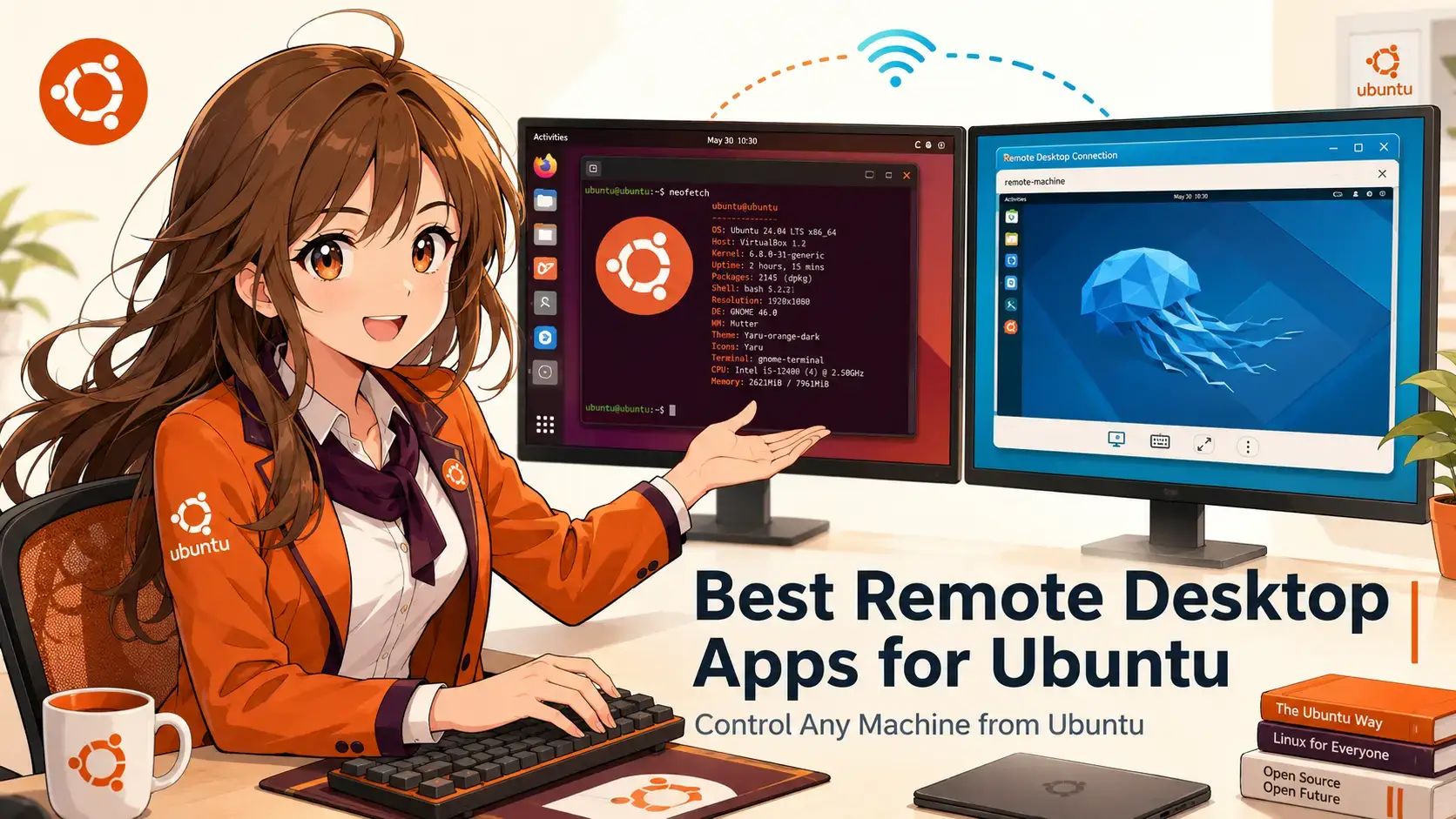
 The best remote desktop software for Ubuntu includes Remmina, RustDesk, NoMachine, AnyDesk, and TigerVNC, along with focused tools like Xpra, Parsec, X2Go, and KRDC. The right choice depends on whether you need simple remote access, remote support, or a tool for a specific job.
This guide covers nine tools across three practical groups: general remote access, unattended and support access, and tools for more specific needs. All nine are available on Ubuntu including 26.04 LTS/newer and still receive updates.
Top 3 Remote Desktop Tools at a Glance
- Remmina: Best all-round client for Ubuntu – RDP, VNC, SSH, and SPICE in one app
- RustDesk: Best open-source self-hosted option – run your own relay server
- NoMachine: Fastest local network option – usually smoother than VNC
Remmina
RustDesk
NoMachine
X2Go
TigerVNC
👥 Support Access
AnyDesk
⚙ Specific Needs
Xpra
Parsec
KRDC
Remote Access Tools
These are tools where you control both machines. You install the needed software on your own hardware, connect over a local network, VPN, or SSH tunnel, and avoid sending the session through a company relay server. This is the right group for most Ubuntu users.
Best For: Ubuntu users who connect to different kinds of machines from one app
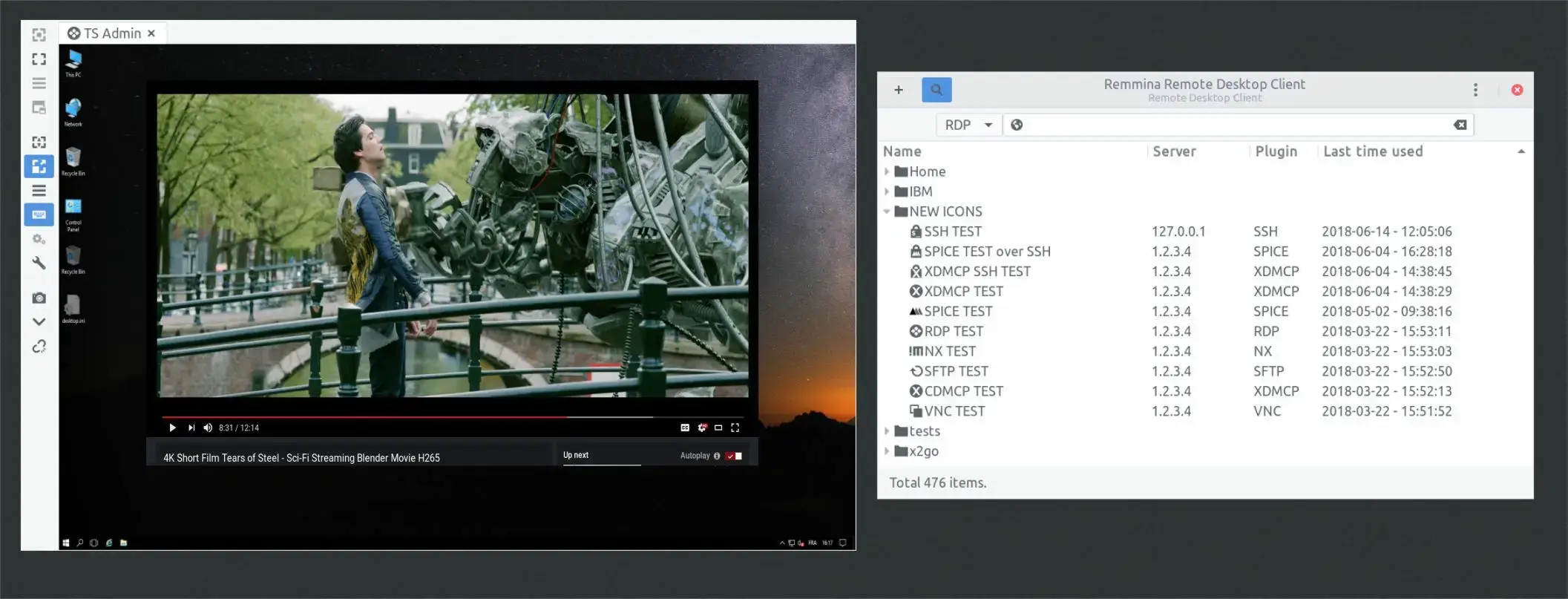
Why Choose It? Remmina is the most flexible remote desktop client for Ubuntu. It handles RDP, VNC, SSH, SPICE, and X2Go from one tabbed window. If you connect to Linux machines, Windows servers, and virtual machines, Remmina saves you from keeping separate tools for each connection type.
- Connection types: RDP, VNC, SSH, SPICE, X2Go, and NX via plugins
- Tabbed interface: Manage multiple simultaneous remote sessions in one window
- SSH tunneling: Built-in tunnel support for secure connections over public networks
- Connection profiles: Save, organise, and quickly reconnect to frequent hosts
- Screen scaling: Adjust screen size and quality for each connection
Quick Tip: Use SSH tunneling mode when connecting to a VNC or RDP server over the internet. It encrypts the session without needing a VPN.
Install Command:
Best For: Users who want TeamViewer-style remote access but prefer to run their own relay server
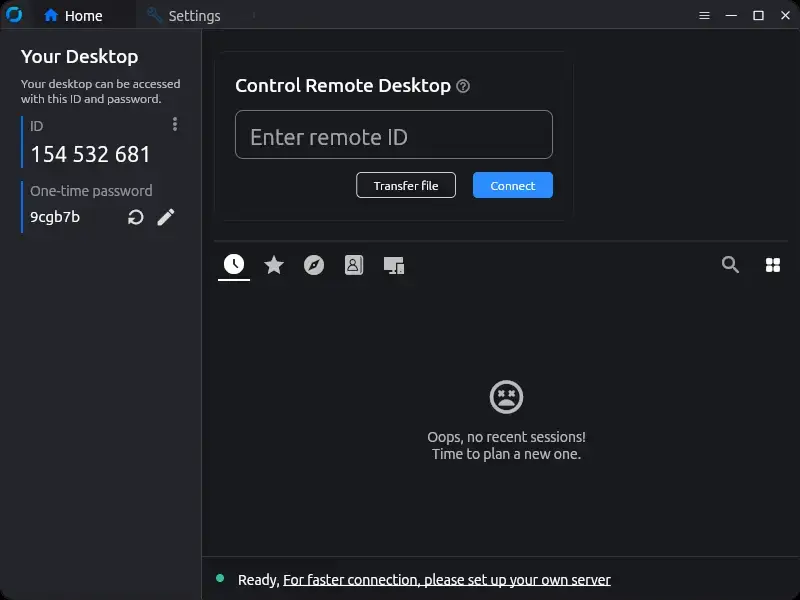
Why Choose It? RustDesk is a strong open-source alternative to TeamViewer and AnyDesk. You can use RustDesk’s public relay servers, or run your own relay on a VPS so your remote sessions stay under your control. The Linux client still gets regular updates, including audio fixes for PipeWire and PulseAudio.
- Self-hosted server: Deploy your own relay with RustDesk Server OSS on any VPS
- End-to-end encryption: All connections encrypted regardless of relay mode
- File transfer: Built-in file transfer and clipboard sync
- Cross-platform: Linux, Windows, macOS, Android, iOS, and a web client
- No account required: Works with a simple ID and password like TeamViewer
Quick Tip: If you already run a VPS, deploy the RustDesk Server OSS Docker image there. Your remote sessions can then use your own server instead of RustDesk’s public relay.
Install Command:
sudo dpkg -i rustdesk.deb
sudo apt install -f
Best For: Fast remote desktop on a local network, especially when VNC feels slow
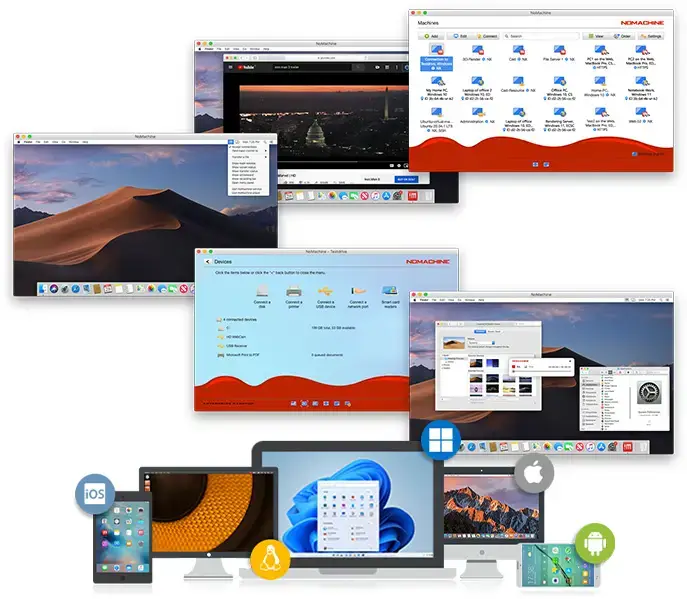
Why Choose It? NoMachine usually feels smoother than VNC on a local network or fast connection. It is free for personal use, and setup is simple: install it on both machines and connect. It also handles audio, file sharing, and printer sharing without extra setup.
- NX connection: Usually feels smoother than VNC on a local network
- Audio redirection: Remote audio plays on your local machine without extra setup
- File sharing: Transfer files between local and remote machines from within the session
- Multi-monitor: Full multi-monitor support on both host and client
- Cross-platform: Linux, Windows, macOS, Android, iOS, Raspberry Pi
Quick Tip: NoMachine works best when both machines have it installed. For connecting to a machine running a standard VNC server, use Remmina instead.
Install Command:
# Then install with:
sudo dpkg -i nomachine_*.deb
Best For: Accessing headless Ubuntu servers or remote Linux machines over SSH, especially on slower connections
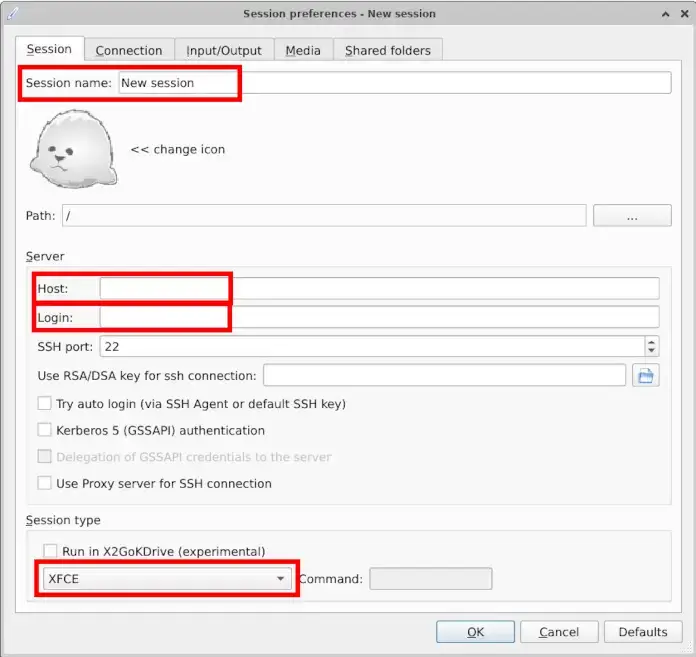
Why Choose It? X2Go sends your full remote desktop session through SSH. The connection is encrypted by default and handles slower links better than plain VNC. It is a strong choice for remote Linux servers where you want a full desktop without setting up a separate VPN or RDP server.
- SSH by default: No separate VPN needed – the session runs entirely through SSH
- Better on slow links: Handles delay better than plain VNC
- Resume sessions: Disconnect and reconnect without losing open apps
- Desktop support: Works with XFCE, LXDE, MATE, and others
- File sharing: Mount local directories on the remote machine during the session
Quick Tip: X2Go works best with lightweight desktop environments like XFCE. Full GNOME sessions over X2Go can feel heavy. Install xfce4 on the server and select it in the X2Go session settings.
Install Command:
sudo apt install x2goserver x2goserver-xsession# Install client on your local Ubuntu machine
sudo apt install x2goclient
Best For: Running a VNC server on an Ubuntu machine so other devices can connect to it using any VNC client
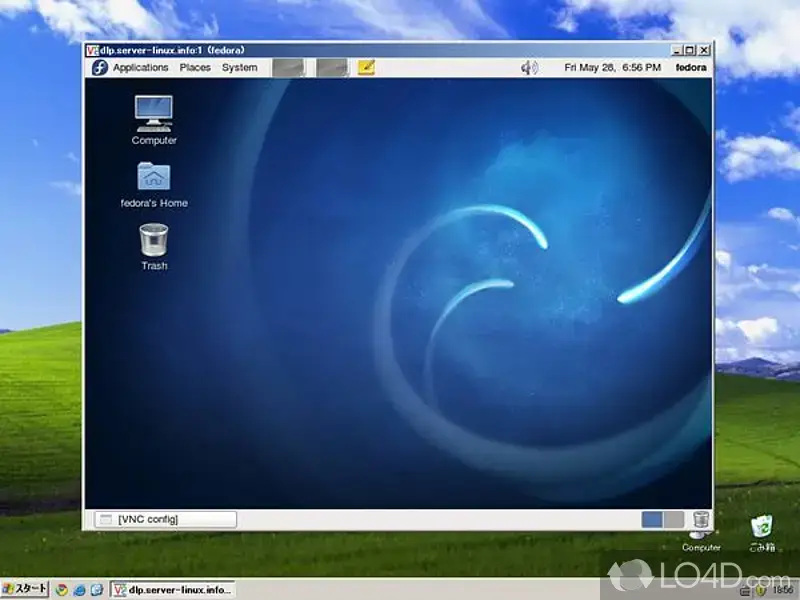
Why Choose It? TigerVNC is one of the safest VNC choices on Ubuntu because it covers both sides of the connection: a VNC server for your Ubuntu machine and a viewer for connecting to other VNC servers. If you specifically need VNC, TigerVNC is the right pick. It receives security updates and is available from Ubuntu’s official repositories.
- Standalone server: Run a VNC server on Ubuntu without a physical display attached
- TLS encryption: Optional TLS support for encrypted VNC connections
- Compression options: Adjust encoding and compression for different network conditions
- Clipboard sharing: Bidirectional clipboard between local and remote sessions
- Maintained: Security updates are still released
Quick Tip: Always tunnel TigerVNC over SSH when connecting over the internet. Plain VNC without a tunnel is unencrypted. Use ssh -L 5901:localhost:5901 user@remotehost then connect your VNC viewer to localhost:5901.
Install Command:
Unattended and Support Access
These tools are built for remote support and unattended access. They are useful when the other person cannot set up networking, or when you need to connect without a static IP or port forwarding. The tradeoff is that the connection usually goes through a relay server.
Best For: Fast remote support and unattended access for personal, non-commercial use
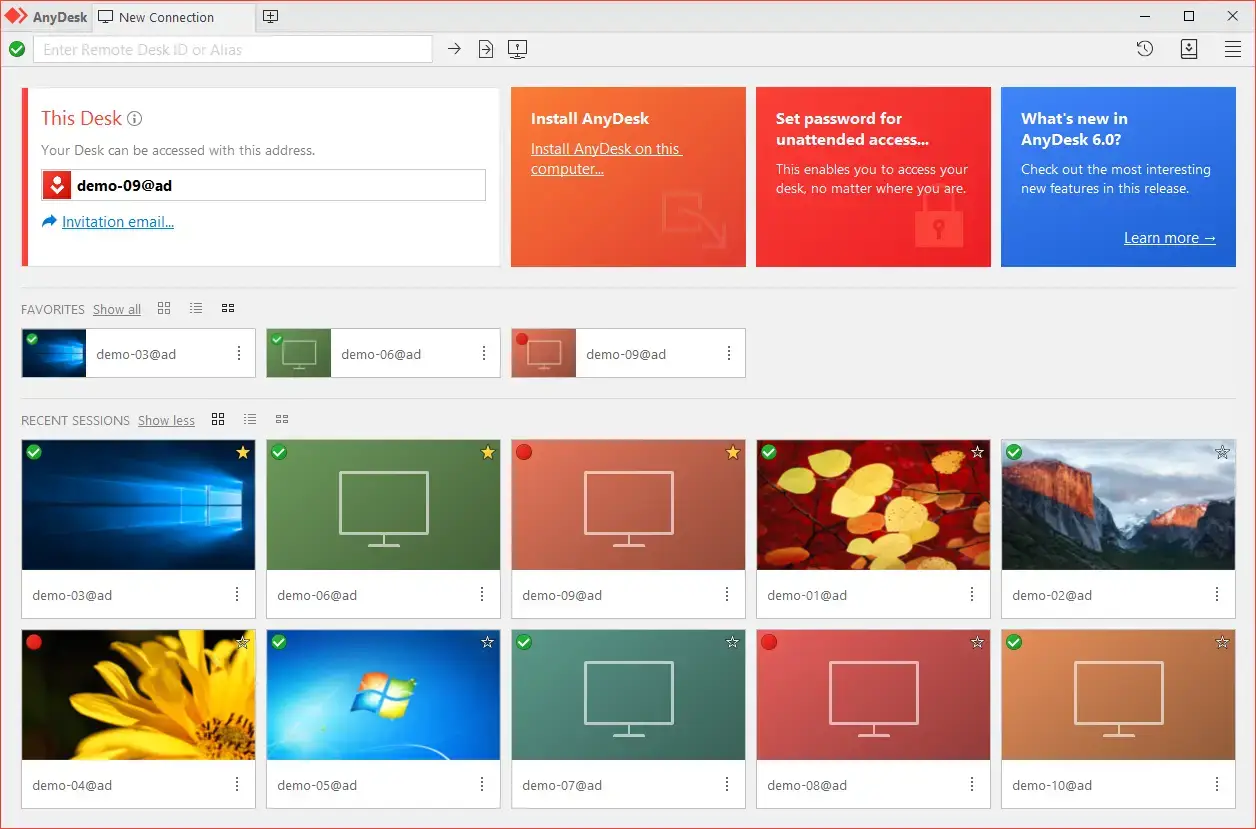
Why Choose It? AnyDesk is fast, simple to set up, and works across Linux, Windows, macOS, Android, and iOS without port forwarding or a VPN. It is practical when you need to help someone remotely or access your own machines. Note: since October 2025, the free tier is limited to personal and non-commercial use only, with a cap of three simultaneous device connections. Commercial use requires a paid plan.
- Fast response: DeskRT is built for smooth remote desktop use
- No port forwarding: Works through AnyDesk relay servers without network changes
- File transfer: Drag-and-drop file transfer between local and remote machines
- Unattended access: Set a password for access to your machine without someone present
- Cross-platform: Linux, Windows, macOS, Android, iOS, ChromeOS, Raspberry Pi
Quick Tip: If you need AnyDesk-style convenience without the free tier limits, RustDesk with a self-hosted server is the better free option.
Install Command:
echo “deb http://deb.anydesk.com/ all main” | sudo tee /etc/apt/sources.list.d/anydesk-stable.list
sudo apt update && sudo apt install anydesk
Tools for Specific Needs
These tools solve more specific problems. Xpra runs remote app windows on your local desktop. Parsec is built for GPU-heavy work where delay matters. KRDC is the native option for KDE users who want a simple RDP and VNC client. They are not for everyone, but each one is useful in the right situation.
Best For: Running single remote apps that appear as normal windows on your local desktop
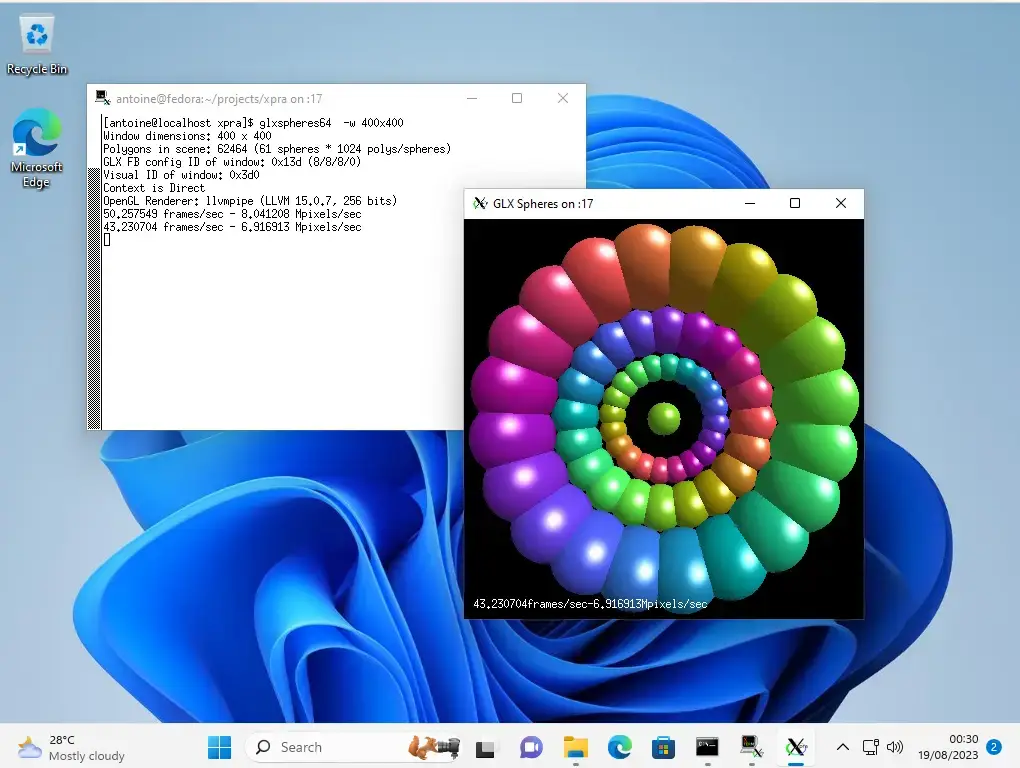
Why Choose It? Xpra does something no other tool on this list does. Instead of showing a full remote desktop inside a window, it sends single app windows to your local desktop. A remote Firefox session running on your server appears beside your local apps. Disconnect, and the remote app keeps running. Reconnect later and continue where you left off.
- Rootless mode: Remote app windows blend into your local desktop, not inside a remote desktop frame
- Persistent sessions: Disconnect and reconnect without closing remote apps
- Browser access: Access remote sessions from a web browser without installing a client
- Audio and clipboard: Full audio forwarding and clipboard sync over the remote connection
- SSH support: Runs securely over SSH by default
Quick Tip: Use the official Xpra repository rather than the Ubuntu repo version. The Ubuntu package lags behind and can cause compatibility issues. Install from xpra.org for the latest stable build.
Install Command:
curl -fsSL https://xpra.org/xpra.asc | sudo gpg –dearmor -o /etc/apt/trusted.gpg.d/xpra.gpg
echo “deb https://xpra.org/ $(lsb_release -cs) main” | sudo tee /etc/apt/sources.list.d/xpra.list
sudo apt update && sudo apt install xpra
Best For: Creative work, development, and remote workstations where input delay matters
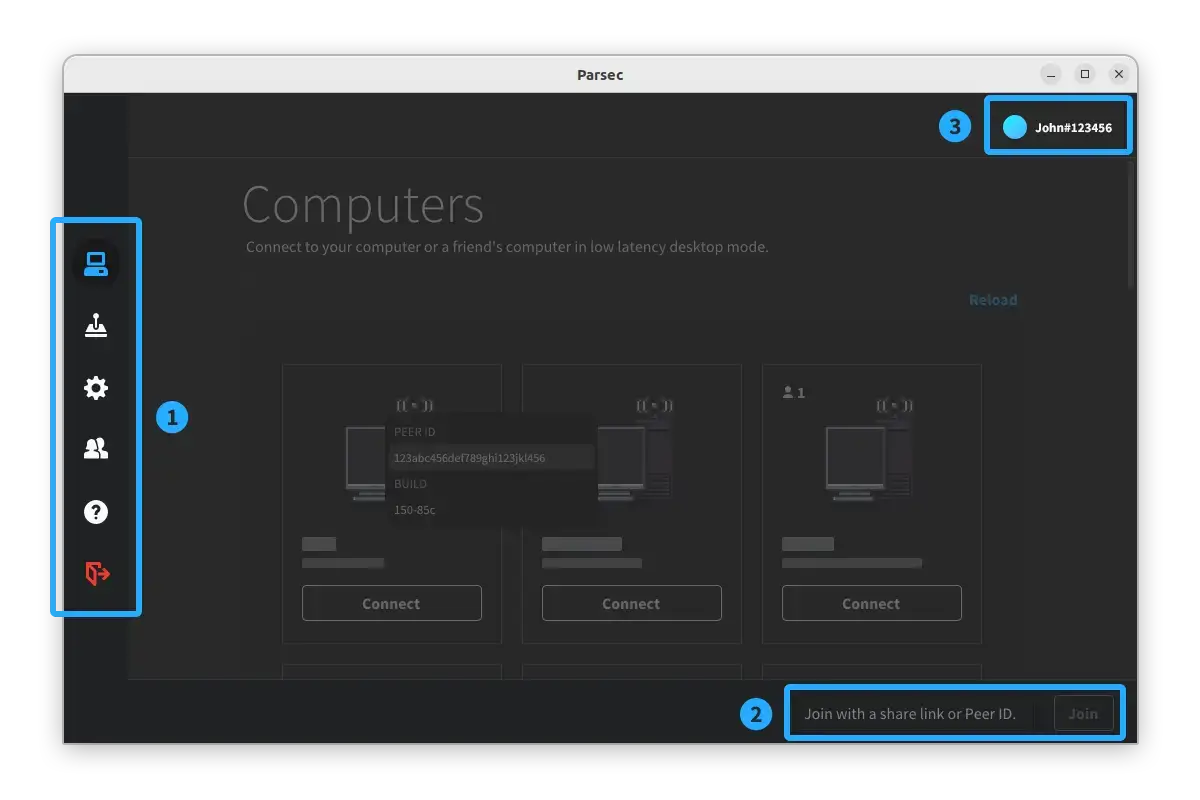
Why Choose It? Parsec is built for remote sessions where input delay matters: 3D work, video editing, CAD, or using a powerful workstation from a lighter laptop. It uses hardware encoding for fast response. On Linux it works best as a client under X11. Hosting from Linux requires an NVIDIA or AMD GPU with hardware encoding support.
- Fast response: Hardware encoding with NVENC or VAAPI keeps input delay low
- 4K at 60fps: 4K streaming without the stutter of standard VNC or RDP
- Direct connection: Peer-to-peer connection between machines when possible
- Controller support: USB gamepad passthrough for remote gaming and simulation work
- Flathub available: Clean installation via Flatpak on Ubuntu
Quick Tip: Parsec hosting on Linux works best under X11, not Wayland. If your Ubuntu session defaults to Wayland, switch to the Xorg session at the login screen before starting the Parsec host.
Install Command:
flatpak install flathub com.parsecgaming.parsec# Or download the .deb directly from parsec.app
Best For: KDE and Kubuntu users who want a simple remote desktop client
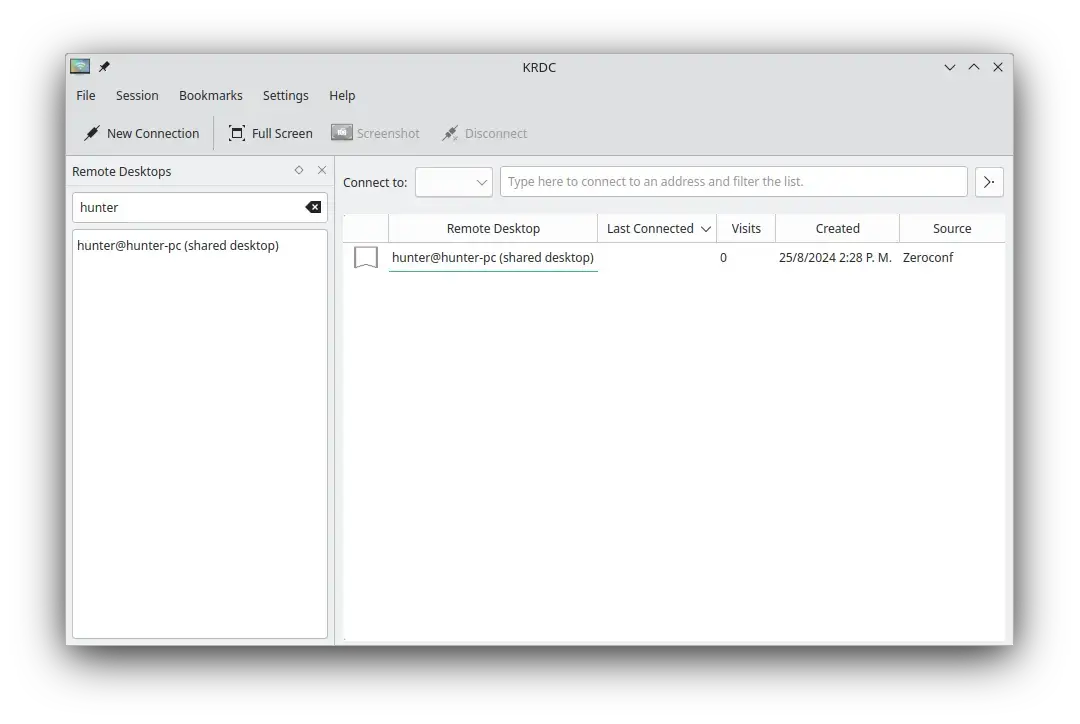
Why Choose It? KRDC is the KDE Remote Desktop Client, a clean RDP and VNC client that fits naturally into KDE Plasma. It does not try to do everything Remmina does. It handles RDP and VNC connections, saves bookmarks for frequent hosts, and works with KDE tools like KWallet. If you run Kubuntu and want something simple, KRDC is the right pick.
- KDE integration: Native look and feel within KDE Plasma, with KWallet for saved passwords
- RDP and VNC: Supports both common remote desktop connection types
- Bookmarks: Save and organise frequent connections for quick reconnection
- Lightweight: Minimal overhead, no background services outside of sessions
- Maintained: Part of the KDE Applications release cycle
Quick Tip: On GNOME Ubuntu, Remmina is the better choice. KRDC is specifically worth using on Kubuntu where it ships as part of the default KDE application set and integrates with KWallet for password management.
Install Command:
Quick Comparison
| Tool | License | Connection Types | Self-Hosted | Best For |
|---|---|---|---|---|
| Remmina | Open Source | RDP, VNC, SSH, SPICE, X2Go | Client only | Several connection types from Ubuntu |
| RustDesk | Open Source | Proprietary (E2E encrypted) | Yes – full server | Privacy-first remote access |
| NoMachine | Free / Proprietary | NX (proprietary) | Yes – P2P | Fast LAN remote desktop |
| X2Go | Open Source | NX over SSH | Yes – server + client | Headless Linux servers |
| TigerVNC | Open Source | VNC | Yes – server + viewer | VNC server on Ubuntu |
| AnyDesk | Free personal / Paid | DeskRT (proprietary) | No – relay dependent | Personal remote support |
| Xpra | Open Source | Xpra over SSH | Yes – server + client | Persistent remote apps |
| Parsec | Free personal / Paid | Proprietary P2P | Yes – P2P direct | GPU-heavy remote workstation access |
| KRDC | Open Source | RDP, VNC | Client only | KDE / Kubuntu native client |
Which Tool Is Right for You?
Use Remmina. It handles RDP (Windows), VNC (Linux/Mac), and SSH all from one tabbed window. Install it from the Ubuntu repos and add the RDP and VNC plugins.
Use RustDesk with a self-hosted server. Deploy the RustDesk Server OSS Docker image on your VPS so remote sessions use your own relay.
Use NoMachine. It usually feels smoother than VNC on a local network, and it handles audio and file transfer without extra setup.
Use X2Go. It sends the desktop session through SSH, works well on slower connections, and does not require a separate VPN or RDP server setup.
Use TigerVNC. It is a reliable VNC server for Ubuntu and is available directly from the Ubuntu repos. Always tunnel it over SSH when connecting over the internet.
Use AnyDesk for personal use, or RustDesk if you want the same convenience without the free tier restrictions. Both work without port forwarding or VPN configuration.
Use Xpra. It runs individual remote application windows directly on your local desktop and keeps sessions alive after you disconnect. Nothing else on this list does this.
Use Parsec. Hardware encoding makes it the best tool here for 3D rendering, video editing, or CAD over a remote connection.
Use KRDC for basic RDP and VNC access. It works with KWallet and feels native to KDE. For more complex setups, Remmina still works fine on KDE.
Frequently Asked Questions
What is the best remote desktop software for Ubuntu?
Remmina is the best all-round remote desktop client for Ubuntu. It supports RDP, VNC, SSH, SPICE, and X2Go in one app, and it is available from Ubuntu’s repositories. For private self-hosted access, RustDesk is the strongest open-source alternative.
Can I use RDP on Ubuntu?
Yes. Remmina with the RDP plugin is the strongest RDP client for Ubuntu. KRDC also supports RDP and is a simple choice for KDE users. If you want Windows machines to connect to an Ubuntu desktop, install xrdp separately.
What is RustDesk and how is it different from AnyDesk?
RustDesk is a free, open-source remote desktop app you can run through your own server. AnyDesk uses its own relay servers, while RustDesk lets you use your own VPS so your remote sessions stay under your control. RustDesk also has no personal-use device cap.
Is NoMachine free to use on Ubuntu?
Yes. NoMachine is free for personal, non-commercial use. It uses NX, which usually feels smoother than VNC on a local network. Commercial use requires a paid license.
What remote desktop tool works best for accessing a headless Ubuntu server?
X2Go works well for headless Ubuntu servers. It sends the desktop session through SSH and handles slower connections better than plain VNC. Xpra is another good option if you want to run single remote apps instead of a full desktop.
Is AnyDesk still free on Ubuntu?
AnyDesk is free for personal and non-commercial use only. Since October 2025, the free tier is limited to personal use with a cap of three devices and session restrictions. Commercial use requires a paid plan.
What is the fastest remote desktop option for Ubuntu?
Parsec is the fastest option for GPU-heavy remote work because it uses hardware encoding and is built for low input lag. For normal remote desktop use on a local network, NoMachine is the better general choice.
More Ubuntu software guides: Best Web Browsers for Ubuntu | Best File Managers for Ubuntu | Best Software for Ubuntu | Best Media Players for Ubuntu