 You can install WeChat on Ubuntu using the official native .deb package from Tencent, the portable AppImage binary, or the community-maintained Flatpak from Flathub.
Tencent released an official WeChat desktop client for Linux in late 2024, built natively with the Qt framework.
Unlike older Wine-based workarounds, this client runs directly on your system without translation layers, delivering full chat, voice messaging, file transfer, and contact management features on Ubuntu.
This guide provides step-by-step terminal instructions for installing and configuring WeChat on Ubuntu 26.04, 24.04, and 22.04 LTS. We cover all three installation methods, launch configuration, common troubleshooting scenarios, and clean system uninstallation.
If any of these steps give you trouble, please drop a comment below or contact us and we will help you sort it out.
Official Native Linux Desktop Client
Set up the Tencent WeChat client on your Ubuntu system. Learn how to install via the official .deb package, run the portable AppImage, or use the community Flatpak from Flathub.
The installation method you choose determines how WeChat integrates with your Ubuntu system, how it receives updates, and whether it runs inside a sandboxed container. The official .deb package provides the deepest system integration. The AppImage requires zero installation and runs as a standalone binary. The community Flatpak adds sandboxing but is not maintained by Tencent. Review the comparison grid below to select the format that fits your workflow.
WeChat Installation Methods Compared
Review the three available installation methods to evaluate source, format, system integration, and update behavior.
| Method | Source | Ubuntu Compatibility | Sandbox | Notes |
|---|---|---|---|---|
| Official .deb (Tencent) | linux.weixin.qq.com | 22.04: ✓ 24.04: ✓ 26.04: ✓ |
None (native system access) | Recommended. Native Qt build, full desktop integration, APT handles dependencies. |
| Official AppImage (Tencent) | linux.weixin.qq.com | 22.04: ✓ 24.04: ✓ 26.04: ✓ |
None (self-contained binary) | Portable, no install needed. Run directly from any directory. No auto-updates. |
| Flatpak (Flathub) | Flathub (community-maintained) | 22.04: ✓ 24.04: ✓ 26.04: ✓ |
Sandboxed container | Not official from Tencent. Sandboxed with managed updates via Flatpak. |
Method 1: Install WeChat via the Official .deb Package (Recommended)
The official .deb package from Tencent provides the cleanest installation experience on Ubuntu. It registers desktop menu entries, handles library dependencies through APT, and integrates natively with your system’s Qt/GTK theme. This is the recommended method for users who want a permanent installation with full desktop integration.
Before installing any new software, refresh your local APT package cache and apply pending system updates:
sudo apt update && sudo apt upgrade -y
Open your web browser and navigate to the official WeChat Linux download page. Select the .deb format matching your system architecture (x86_64 for standard PCs, arm64 for ARM-based devices):
Save the downloaded file to your ~/Downloads directory. The filename will follow the pattern WeChatLinux_x86_64.deb (the exact version number may vary).
Open your terminal using Ctrl+Alt+T and install the downloaded .deb file. Replace the filename with the exact file you downloaded:
cd ~/Downloads
sudo apt install ./WeChatLinux_x86_64.deb
APT will automatically resolve and install any required library dependencies. If you see dependency errors, run sudo apt --fix-broken install and then repeat the install command.
Confirm that WeChat was installed successfully by checking for the package in your system’s installed packages list:
dpkg -l | grep wechat
Method 2: Run WeChat as an AppImage (Portable, No Install)
If you prefer not to install software at the system level, the AppImage format lets you run WeChat as a standalone executable. AppImages are fully self-contained, bundle all required libraries, and do not modify your system’s package database. This is ideal for testing, portable setups, or environments where you cannot run sudo commands.
Visit the official download page and select the AppImage format for your architecture:
Downloaded files do not have execute permissions by default on Ubuntu. Grant the permission before running:
chmod +x ~/Downloads/WeChatLinux_x86_64.AppImage
Run the AppImage directly from the terminal. It will launch the full WeChat desktop client without installing anything to your system:
~/Downloads/WeChatLinux_x86_64.AppImage
Method 3: Install WeChat via Flatpak (Community-Maintained)
A community-maintained WeChat Flatpak package is available on Flathub. This is not published by Tencent, but it provides a sandboxed environment with managed updates through the Flatpak system. Choose this method if you prefer container-based isolation or want automatic update handling through Flatpak’s infrastructure.
If Flatpak is not yet configured on your system, install the core package via APT:
sudo apt update && sudo apt install flatpak -y
Add the official Flathub remote server to your Flatpak configuration:
flatpak remote-add --if-not-exists flathub https://dl.flathub.org/repo/flathub.flatpakrepo
Fetch and install the community-maintained WeChat package from the Flathub registry:
flatpak install flathub com.tencent.WeChat -y
Confirm that the Flatpak reference for WeChat is registered on your system:
flatpak info --show-ref com.tencent.WeChat
How to Launch WeChat on Ubuntu
WeChat requires an active graphical session (X11 or Wayland) and a working internet connection to authenticate via QR code. On first launch, you will need to scan a QR code using the WeChat mobile app on your phone to log in.
Open your desktop application grid, type WeChat in the search bar, and click the application icon. For Flatpak installations, you may need to log out and log back in for the icon to appear after the first install.
Open your terminal using Ctrl+Alt+T and run the launch command matching your installation type:
For .deb installations:
For AppImage:
~/Downloads/WeChatLinux_x86_64.AppImage
For Flatpak installations:
flatpak run com.tencent.WeChat
Interface Screenshots
Below are screenshots of the WeChat desktop client interface running on an Ubuntu system, showing the login QR code, conversation list, and chat window layouts:
-
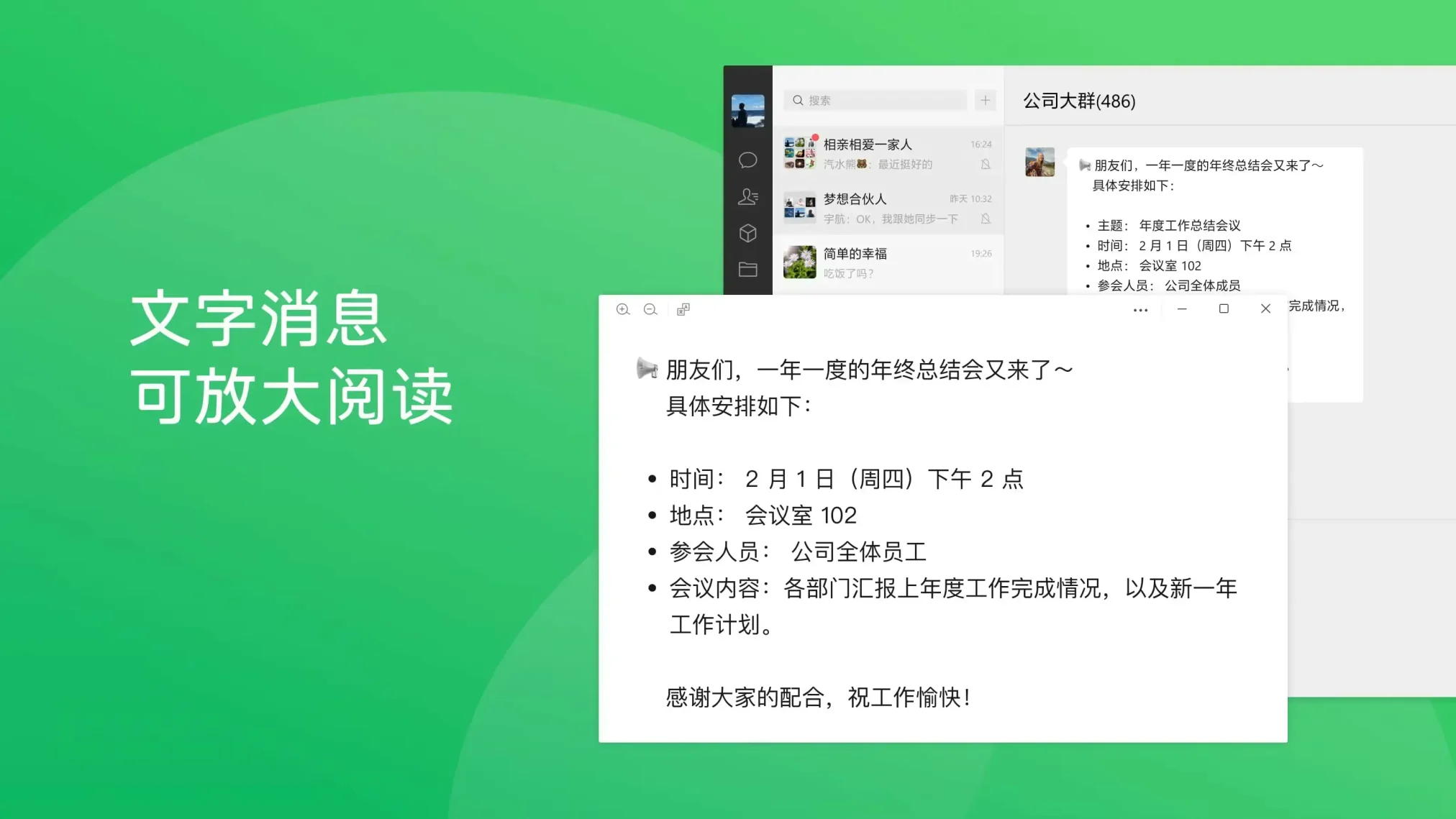
- Text messenging screenshot from How to Install WeChat on Ubuntu 26.04 – Complete Guide
-

- Video calling screenshot from How to Install WeChat on Ubuntu 26.04 – Complete Guide
Troubleshooting Common WeChat Issues on Ubuntu
This section covers the most common problems users encounter when installing or running WeChat on Ubuntu, along with their solutions.
On fresh or minimal Ubuntu installations, the WeChat .deb may depend on libraries that are not yet present. APT will report unmet dependency errors during the install:
dpkg: dependency problems prevent configuration of wechat
Solution: Run the APT fix command to automatically download and install any missing dependencies, then verify the installation:
sudo apt --fix-broken install
Some users report unclosable blank windows or notification popups that persist on screen. This is a known rendering issue in earlier WeChat Linux builds.
Solution: Force-close all WeChat processes and relaunch the application:
killall wechat
If killall does not find the process, locate it manually and terminate by PID:
On GNOME-based Ubuntu desktops, system tray icons require a shell extension to function properly. WeChat’s tray icon may not appear or may stay highlighted after reading messages.
Solution: Install the AppIndicator GNOME Shell extension. On Ubuntu 22.04 and newer, you can install it from the Ubuntu repositories: sudo apt install gnome-shell-extension-appindicator. After installation, log out and back in to activate the extension.
If Chinese character input does not function correctly inside WeChat on Ubuntu, the issue is typically related to the system input method framework. WeChat works best with fcitx5 rather than the default iBus framework. Install fcitx5 with sudo apt install fcitx5, set it as your default input method in Settings, and restart your session. The WeChat client should recognize fcitx5 input correctly after the switch.
How to Completely Uninstall WeChat and Remove User Data
If you need to remove WeChat, follow the cleanup instructions below that match your installation method. These steps remove the application binaries, clean up leftover dependencies, and delete local configuration and cache files.
Remove the WeChat binaries using the package manager that matches your current installation:
For .deb installations:
sudo apt remove wechat -y
sudo apt autoremove --purge -y
For AppImage:
rm ~/Downloads/WeChatLinux_x86_64.AppImage
For Flatpak installations:
flatpak uninstall com.tencent.WeChat -y
flatpak uninstall --unused -y
Uninstalling the application does not remove your chat history, login cache, or configuration files. These are stored in your home directory. To perform a complete cleanup, delete the following directories:
## Clean .deb or AppImage configuration and cache
rm -rf ~/.local/share/WeChat
rm -rf ~/.config/WeChat

## Clean Flatpak application data
rm -rf ~/.var/app/com.tencent.WeChat
Deleting the WeChat data directories permanently removes all locally cached chat history, transferred files, and login session data. Back up any important files before running the cleanup commands.
Use the links below to access the official download page, community Flatpak listing, and version tracking for WeChat on Linux:
Frequently Asked Questions
Does Tencent provide an official WeChat client for Linux?
Yes. Since late 2024, Tencent distributes an official native WeChat desktop client for Linux built with the Qt framework. You can download the .deb installer or AppImage directly from the official page at linux.weixin.qq.com. The Linux client supports x86_64 and arm64 architectures.
What is the difference between the WeChat .deb package and the AppImage?
The .deb package integrates with your Ubuntu system through APT, handles dependencies automatically, and registers desktop menu entries. The AppImage is a single self-contained executable that requires no installation and runs independently without modifying your system. Choose .deb for permanent installations and AppImage for portable or temporary use.
Is there a WeChat Snap package for Ubuntu?
No. There is no official or community-maintained Snap package for WeChat. The three supported installation methods are the official .deb package, the official AppImage, and the community-maintained Flatpak from Flathub.
Can I use WeChat Web as an alternative on Ubuntu?
WeChat Web at web.wechat.com is still operational, but Tencent has restricted web login access for many accounts, especially newer registrations. If your account supports web login, you can scan the QR code with your mobile app to authenticate. For full desktop functionality, the native Linux client is recommended.
How do I fix dependency errors after installing the WeChat .deb package?
If APT reports unmet dependencies after installing the WeChat .deb file, run sudo apt --fix-broken install to resolve them automatically. This command downloads and installs any missing library packages that the WeChat .deb depends on.
Related messaging guides: Install Signal on Ubuntu · Install Telegram on Ubuntu · Install WhatsApp on Ubuntu · Install Rocket.Chat on Ubuntu