 You can install Krita on Ubuntu using the AppImage file, the self-contained Flatpak package from Flathub, the Snap Store edition, or the native Ubuntu package manager (APT).
Krita is a free, open-source digital painting application built for digital artists, illustrators, and animators.
It features advanced tools like customizable brush engines, layer masks, vector drawing tools, and animation timelines. Many artists consider it the best drawing software available for Linux desktops.
This guide provides step-by-step instructions to configure Krita on Ubuntu 26.04, 24.04, and 22.04 LTS. We cover running the AppImage, configuring desktop launcher integration, Flatpak sandbox folder access overrides, Snap removable-media connections, and a warning to purge the deprecated Krita Lime repository PPA.
If any of these steps fail on your system, please drop a comment below or contact us and we will help you get it resolved.
AppImage, Flatpak, Snap, & APT Setup Walkthroughs
Configure the Krita paint studio on your system. Learn how to launch the upstream AppImage, set filesystem overrides, add desktop shortcuts, and verify drawing tablet input integration.
Selecting the right installation format is critical for digital painters. It determines whether you receive automatic updates, how Krita integrates with your drawing tablet driver configurations (such as Wacom tools), and how easily you can customize resources like brushes or workspaces. Review the comparison grid below to select the option that best fits your workflow.
Krita Installation Methods Compared
Use the comparison table to weigh sandbox containment, ease of setup, resource management, and update delivery speeds for each installer track.
| Method | Source Channel | Isolation Confinement | Tablet & Theme Integration | Stable Version Matrix |
|---|---|---|---|---|
| AppImage | KDE Official Servers | None (Runs natively) | Full hardware device access, direct theme integration, portable build. | Always latest stable upstream (v5.3.2.1) |
| Flatpak (Flathub) | Flathub Registry | Sandbox confinement | Requires filesystem overrides for custom brush imports or external storage. | Updated via Flathub helper (v5.3.2.1) |
| Snap (Snap Store) | Snapcraft Store | Strict confinement | Requires manual connection of interface plugs for external storage access. | Always latest stable upstream (v5.3.2.1) |
| APT Package | Ubuntu Universe Archive | None (Runs natively) | Full hardware device access, default system theme matching. | 26.04: v5.2.2 24.04: v5.2.2 22.04: v5.0.2 |
Method 1: Install Krita using the Upstream AppImage
Running Krita via AppImage is the method recommended directly by the Krita development team. An AppImage file is a precompiled, self-contained application wrapper that includes every required library and dependency (such as specific Qt dependencies and Python extensions) packed directly inside the single file. This isolation guarantees that updates to your base operating system libraries do not conflict with Krita’s paint engine settings or trigger rendering issues on your drawing canvas.
Because Krita AppImage is a portable program format, it does not write itself to standard system package folders. You can manage the application file by placing it inside your home folder and creating a desktop launcher entry to display the application icon cleanly alongside your other installed desktop applications.
Open your terminal application and execute the following commands to create a dedicated local software directory inside your user profile, navigate to it, and download the official stable build of Krita:
mkdir -p ~/.local/bin
cd ~/.local/bin
wget https://download.kde.org/stable/krita/5.3.2.1/krita-5.3.2.1-x86_64.appimage
Before you can launch the downloaded software package, you must grant it execution permissions. In the terminal, execute the following command:
chmod +x krita-5.3.2.1-x86_64.appimage
To verify that Krita appears in your desktop application dashboard search menu with its official icon, generate a local desktop launcher configuration file. Run this command to create and open the file:
nano ~/.local/share/applications/krita-appimage.desktop
Paste the following configuration details inside the file, replacing yourusername with your actual Ubuntu system username, then save (Ctrl+O, Enter) and exit nano (Ctrl+X):
[Desktop Entry]
Name=Krita (AppImage)
Comment=Digital Painting and Illustration Program
Exec=/home/yourusername/.local/bin/krita-5.3.2.1-x86_64.appimage %F
Icon=krita
Type=Application
Categories=Graphics;2DGraphics;RasterGraphics;
MimeType=image/x-ora;image/x-psd;image/png;image/jpeg;
Terminal=false
StartupNotify=true
Rebuild your desktop application list to register the new launcher shortcut:
update-desktop-database ~/.local/share/applications/
You can now search for “Krita” in your system menu to launch the application. Alternatively, start it from the command line by executing: ~/.local/bin/krita-5.3.2.1-x86_64.appimage.
Method 2: Install Krita via Flatpak (Flathub)
Flatpak is a popular option for users who want isolated, self-contained applications that handle software updates automatically. The Flatpak package of Krita is maintained on Flathub and includes all its required libraries in a single download. Running Krita in this sandboxed environment protects your main system files from software conflicts.
Because Flatpak containers restrict file access, you must configure permission overrides to let Krita read or write to directories beyond your standard user folders, such as external hard drives or secondary drawing partitions. This setup can be completed using terminal commands as detailed in the sandbox overrides section below.
If your Ubuntu workstation is not yet configured to run Flatpak files, install the core background daemon package from the default repositories:
sudo apt update && sudo apt install flatpak -y
Configure Flathub as your primary remote library repository to search and download containerized applications:
flatpak remote-add --if-not-exists flathub https://dl.flathub.org/repo/flathub.flatpakrepo
Run the installation command to download the verified package of Krita from Flathub:
flatpak install flathub org.kde.krita -y
Note that Flatpak will download shared runtime library frameworks. If this is your first Flatpak install, the download size may exceed 600 MB.
Method 3: Install Krita via the Snap Store (Canonical)
Snap is pre-installed on standard Ubuntu desktops. Like Flatpak, Snap apps package all necessary files inside a single container, making updates and software maintenance automatic. The official Snap package of Krita is maintained directly by KDE developers, ensuring you always get the latest stable version.
While Snaps integrate well with Ubuntu out of the box, they run inside strict security boundaries. By default, Krita Snap cannot read or write to files outside your home folder. If you need to access external hard drives or mounted partitions, you must run the interface connection command shown below.
To install the Krita Snap package, run this command in your terminal:
sudo snap install krita
To grant Krita access to files stored on USB drives or secondary hard drives mounted in `/media` or `/mnt`, run this command in your terminal:
sudo snap connect krita:removable-media
Method 4: Install Krita via default Ubuntu repositories (APT)
If you prefer a traditional install without sandboxing, you can get Krita from the official Ubuntu Universe repository using the default package manager (APT). This package uses your system’s shared library files, which reduces the download size and ensures Krita matches your system’s desktop theme.
Because Ubuntu freezes repository packages to maintain stability on LTS versions, the version of Krita in the default repositories is older. Ubuntu 26.04 LTS and 24.04 LTS carry Krita v5.2.2, while Ubuntu 22.04 LTS carries Krita v5.0.2. If you want the latest stable paint features, use the AppImage or Flatpak methods instead.
The Universe software source is usually enabled on desktop installations. If you are running a minimal desktop or server image, run this command to configure it:
sudo add-apt-repository universe -y
Update your local system software packages index to register the newest repository information:
sudo apt update
Execute the installation command to download Krita and all required Qt framework dependencies:
sudo apt install krita -y
Warning: The Deprecated Krita Lime PPA
Many older guides recommend adding the Krita Lime Launchpad PPA (ppa:kritalime/ppa) to get the latest stable software on Ubuntu. However, this PPA is abandoned and deprecated. Trying to add this repository on Ubuntu 24.04 or 26.04 LTS will cause repository errors and block your system from updating its packages.
If you have added this PPA to your system, it is recommended to purge it. Run the following commands to safely remove the PPA source information and restore your standard package database:
Remove the PPA from your software sources and update your APT cache files:
sudo add-apt-repository --remove ppa:kritalime/ppa -y
sudo apt update
Configuring Sandbox Permissions for Custom Storage Paths
When using Flatpak or Snap, sandboxing restrictions prevent Krita from reading or writing to folders outside your home directory. This can block you from importing custom brushes or saving drawings to external storage drives. Use the commands below to grant Krita the necessary folder access permissions.
/media or custom project storage folders, execute the following override command:flatpak override --user --filesystem=/media org.kde.krita
sudo snap connect krita:removable-media
How to Uninstall Krita from Ubuntu
If you need to remove Krita from your workstation, use the uninstallation commands corresponding to your installation method. Purging application files helps prevent configuration conflicts when switching package managers.
rm ~/.local/bin/krita-*-x86_64.appimage
rm ~/.local/share/applications/krita-appimage.desktop
update-desktop-database ~/.local/share/applications/
flatpak uninstall flathub org.kde.krita -y
flatpak uninstall --unused -y
sudo snap remove krita
sudo apt purge krita -y
sudo apt autoremove -y
Note that package managers preserve your personal configuration profiles and brush files. To delete all remaining metadata, manually remove the settings directories: rm -rf ~/.config/kritadisplayrc ~/.local/share/krita ~/.var/app/org.kde.krita.
Interface Screenshots
Once Krita is set up, you will see the brush manager, paint layouts, and layers interface panels configured as shown in the interface screenshots below:
-
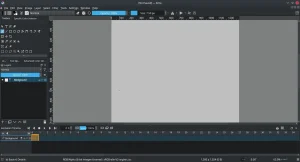
- Animation canvas from How to Install Krita on Ubuntu 26.04 – Complete Setup Guide
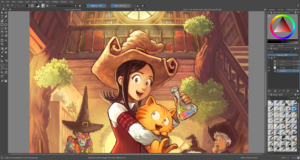
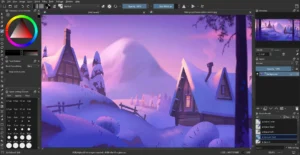
-
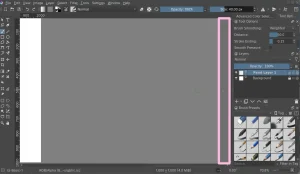
- Canvas from How to Install Krita on Ubuntu 26.04 – Complete Setup Guide
-
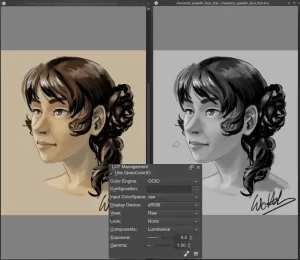
- Character face color options from How to Install Krita on Ubuntu 26.04 – Complete Setup Guide
-
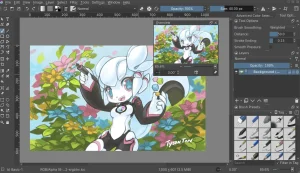
- Krita diagram from How to Install Krita on Ubuntu 26.04 – Complete Setup Guide
-
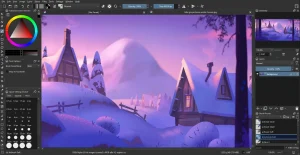
- Krita screenshot hd custom cartoon drawing from How to Install Krita on Ubuntu 26.04 – Complete Setup Guide
Krita on Ubuntu FAQ
What is the recommended way to install Krita on Ubuntu?
The Krita development team officially recommends using the standalone AppImage format for Linux. This format packages all required dependencies directly from the upstream project, avoiding potential package conflicts with your Ubuntu system libraries.
Is the Krita Lime PPA still supported for modern Ubuntu versions?
No, the Krita Lime PPA is abandoned and deprecated. Adding it to Ubuntu 26.04 or 24.04 will lead to repository errors. If you have it installed, you should remove it by running: sudo add-apt-repository --remove ppa:kritalime/ppa.
How do I grant Krita Flatpak permission to save files to external storage drives?
Because Flatpak packages run in a sandbox, they cannot write outside your home directory by default. To grant filesystem access to external hard drives or custom folder partitions, run: flatpak override --user --filesystem=/media org.kde.krita.
How do I fix lag or tablet pressure sensitivity issues in Krita on Ubuntu?
Check if you are running Wayland or X11. Krita 5.3 is built on Qt5 and has better drawing tablet driver support under X11. If you experience canvas lag or pressure failure, log out and select “Ubuntu on Xorg” at the login screen.
How do I completely remove Krita and clean up all configuration profiles?
Purge the installed package using your selected manager (APT, Flatpak, or Snap), then delete the cache and configuration directories in your home folder (~/.config/kritadisplayrc, ~/.local/share/krita, and ~/.var/app/org.kde.krita).
More Ubuntu configuration guides: GIMP Ubuntu Installation Guide · Best Photo Editors for Ubuntu · Blender Ubuntu Installation Guide · Shotcut for Ubuntu