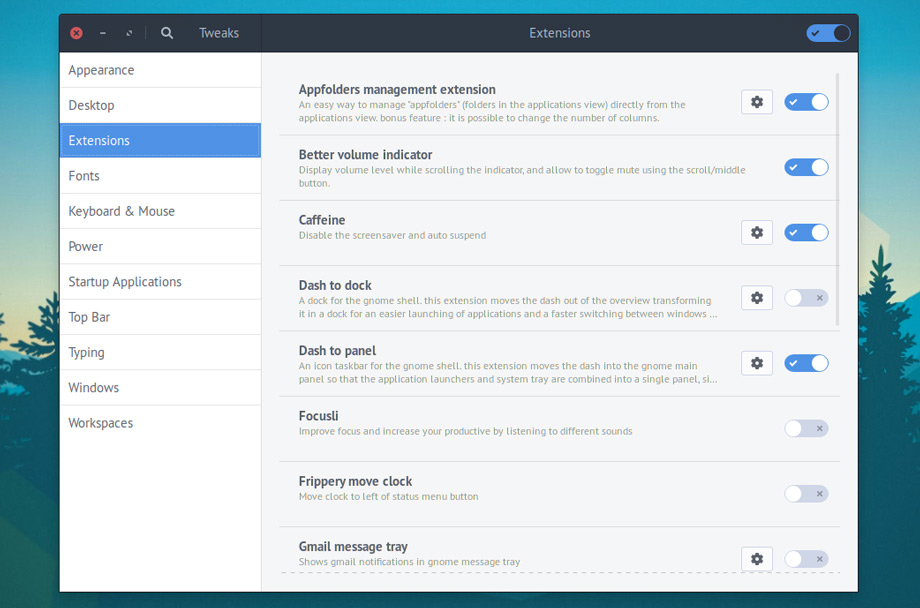

Bennu is a new, free file manager for Linux written in Rust, with Mac-style column browsing, quick previews and a background search index. This guide shows you how to install it on Ubuntu 26.04 and 24.04 and set it up the way you like.
Check Your System
Open a terminal (press Ctrl+Alt+T) and check your Ubuntu version, your PC type and whether Bennu is already installed:
You want Ubuntu 26.04 or 24.04 and amd64. If bennu --version prints a version, Bennu is already installed and you can jump to Keep Bennu Updated. If it says the command was not found, carry on with Method 1.
Not sure which method to pick? Use the official .deb file in Method 1. It is the only Bennu package made for Ubuntu right now.
Method 1: Install Bennu with the Official .deb (Recommended)
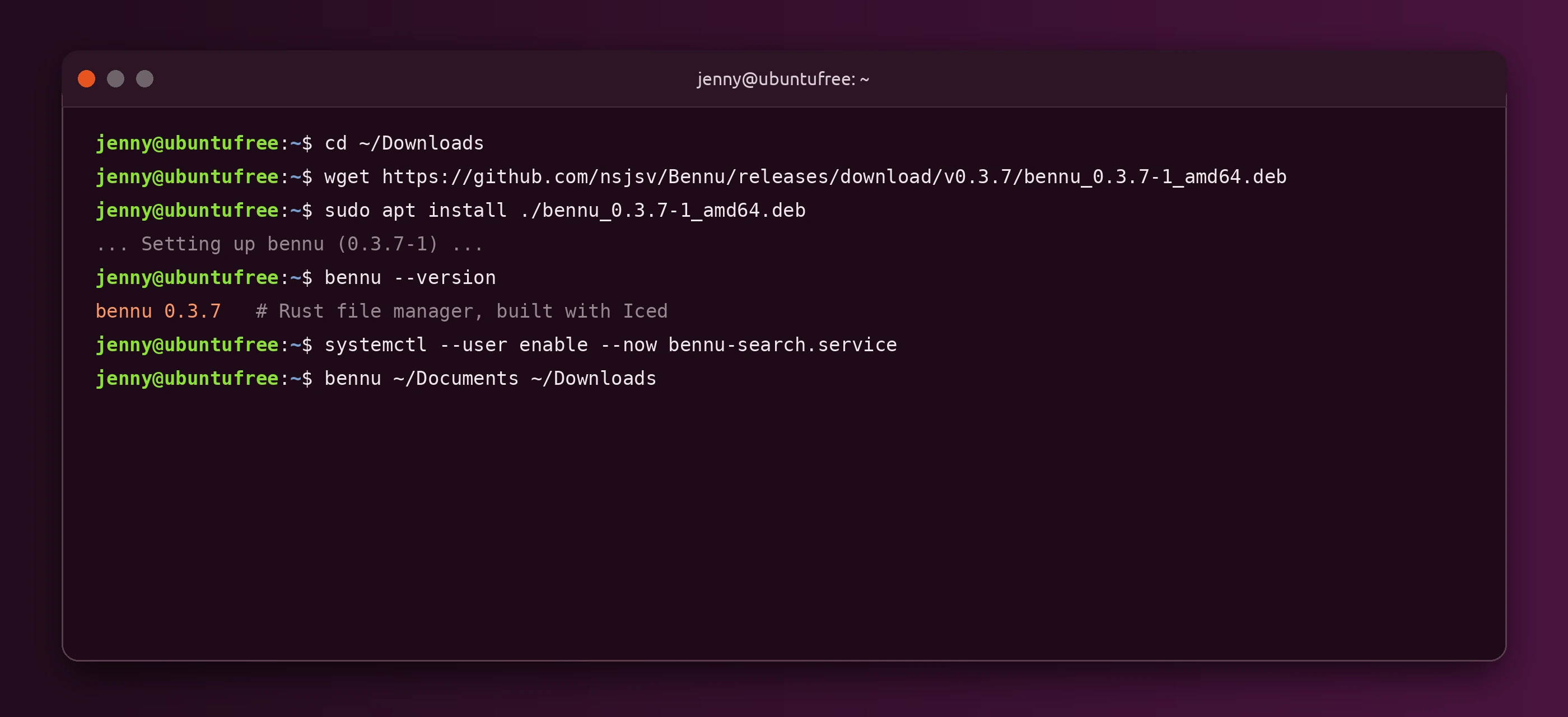
Works on Ubuntu 26.04 and 24.04 (64-bit PCs). A .deb is a single install file, like an .exe on Windows. The Bennu developer publishes one with every release on GitHub. On 9 November 2026 the latest release was Bennu 0.3.7, from 30 October 2026.
Other Ways to Install Bennu
No Flatpak, Snap or PPA yet. When we checked on 9 November 2026, Bennu was not on Flathub, the Snap Store or in a PPA, and Ubuntu does not package it. The developer offers three other downloads, but none of them suit Ubuntu better than the .deb:
- Portable .tar.xz: this build needs a newer system library (glibc 2.43) than Ubuntu 24.04 has, so it will not start there. Stick with the .deb.
- .rpm: made for Fedora and openSUSE, not Ubuntu.
- AUR package: for Arch Linux only.
Ubuntu 22.04 LTS: the .deb needs newer libraries than 22.04 ships (such as libasound2t64), so Bennu is not supported there. Ubuntu 26.10 has the same libraries as 26.04, so the .deb should work there too.
Compare the Methods
Open Bennu
Open the apps menu and click Bennu. From a terminal, you can also open folders straight away:
bennu . opens the folder you are in. Listing several folders opens each one in its own tab. Giving it a file, such as bennu report.pdf, opens its folder with the file selected. If Bennu is already running, it reuses the open window.
First Run and Setup
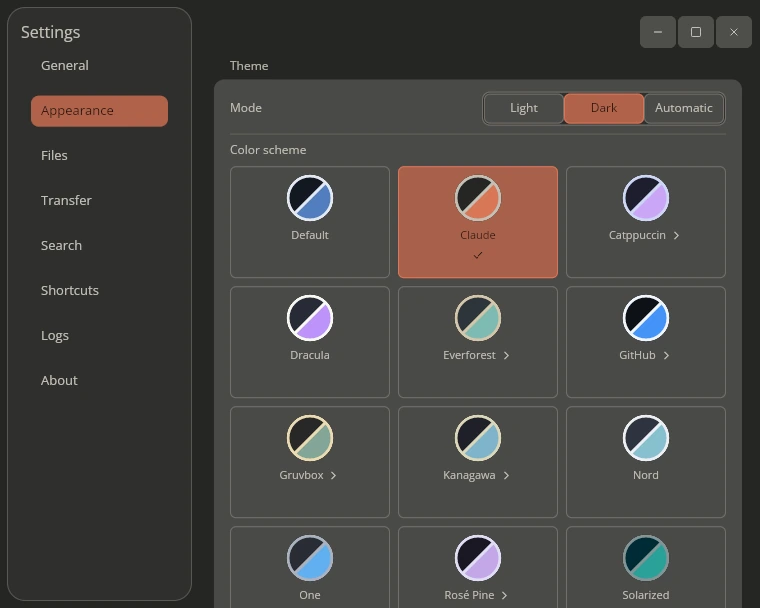
Click the gear icon at the top of the sidebar to open Settings. The General page sets the language, the folder Bennu starts in, what happens when you launch it again, and your terminal. On Appearance, choose Light, Dark or Automatic to follow Ubuntu, and pick a color scheme such as Catppuccin, Dracula, Nord or Gruvbox. Other pages cover file operations, shortcuts, search and LocalSend transfers.
A Quick Look Around Bennu
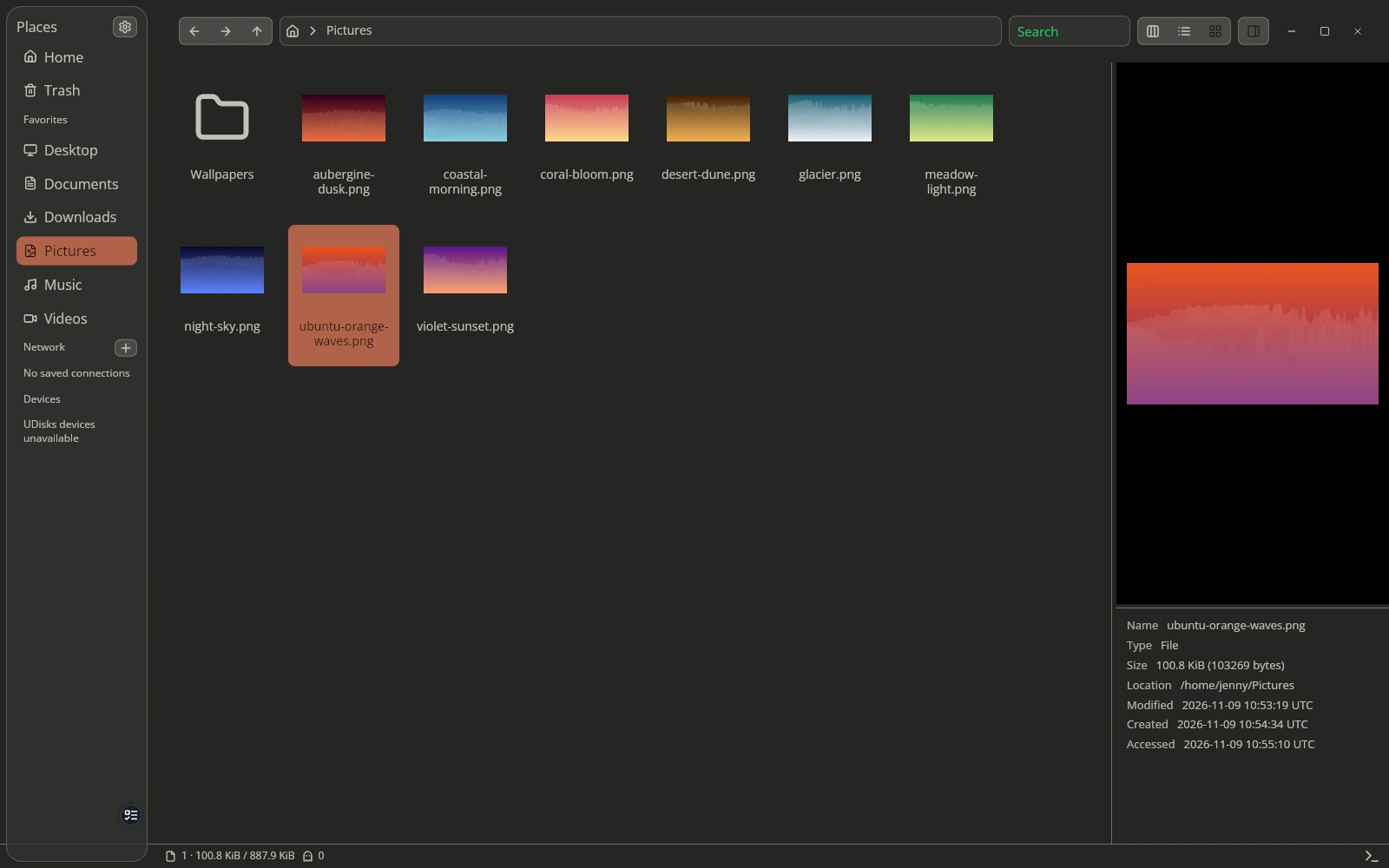
The sidebar on the left holds Places (Home and Trash), your Favorites, saved Network locations (SMB, WebDAV and SFTP) and Devices such as USB drives. The toolbar has back, forward and up buttons, a path bar, search, and three view buttons: columns, list and grid. The last button opens the preview panel.
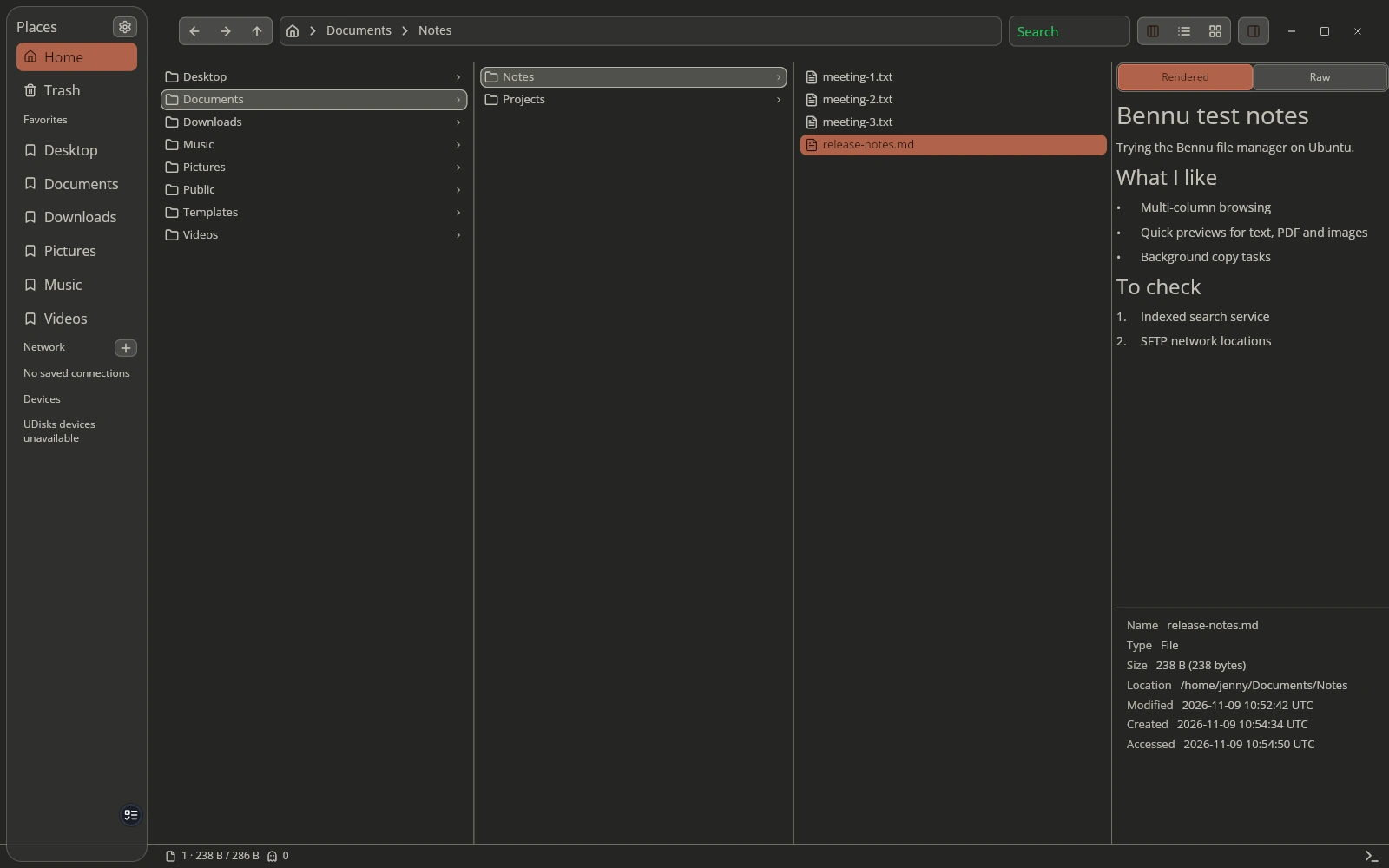
The preview panel shows text, Markdown, folder trees, archives, PDFs, Office files, images, audio and video without opening another app. In grid view you get thumbnails, and clicking a picture shows a large preview in the panel.
Turn On Fast Indexed Search
Bennu can keep an index of your Home folder so search results appear almost instantly. The .deb installs the search service but does not switch it on. Enable it for your user (no sudo needed):
Check it with systemctl --user status bennu-search.service. Add more folders to the index in Settings, Search. Without the service, Bennu still searches the current folder by scanning it. New to user services? Our systemctl and journalctl cheat sheet explains these commands.
Get Full Previews for PDFs, Videos and Archives
Some previews need extra tools that Bennu suggests but does not install. Add the ones you want:
ffmpeg and ffmpegthumbnailer handle video, poppler-utils handles PDFs, p7zip-full handles .7z and .rar archives, gvfs-backends adds network and phone locations, and libsecret-tools saves network passwords. For Office document previews, also install LibreOffice with sudo apt install libreoffice.
Make Bennu Your Default File Manager (Optional)
Bennu works next to Ubuntu’s Files app (Nautilus) and does not replace it. To make folders open in Bennu everywhere, run:
To switch back to Ubuntu’s Files app, run xdg-mime default org.gnome.Nautilus.desktop inode/directory. Bennu is developed and tested mainly on Wayland, which is Ubuntu’s default desktop session.
What Is New in Bennu 0.3.7
- Safer file operations: renaming never overwrites an existing file, name clashes keep both copies with a number, and failed moves or batch renames roll back.
- Better undo and trash: stopped tasks can undo the finished part, and Bennu now runs its own trash so items restore to the right place.
- Smarter search: file names match on any part, and the index follows mounted drives.
- Shared thumbnails: thumbnails follow the freedesktop standard, so they are shared with other file managers.
- LocalSend fixes: more reliable transfers to phones and other computers.
Keep Bennu Updated
The .deb does not add a software source, so Bennu does not update with Ubuntu. Check the releases page now and then, download the new .deb and install it the same way. Your settings are kept.
Common Problems and Fixes
sudo add-apt-repository universe, then sudo apt update and install the .deb again.lsb_release -a.sudo apt install poppler-utils for PDFs or sudo apt install ffmpeg for video, then reopen the file.systemctl --user enable --now bennu-search.service and check it with journalctl --user -u bennu-search.service -f.Remove Bennu
Turn off the search service, then remove the package and anything it pulled in:
Check it is gone with dpkg -l bennu. If you made Bennu the default for folders, switch back with the xdg-mime command above.
Optional cleanup: Bennu keeps its settings, session and search index in your home folder. Warning: this deletes your Bennu settings, tabs and favorites for good.
Helpful Resources
Grab the 0.3.7 .deb, install it with apt, then run bennu . in any folder to try the column view.
Related guides: Best file managers for Ubuntu · Things to do after installing Ubuntu 26.04 · The best software for Ubuntu · How to check your Ubuntu version