
Lemonade is a free, open-source app that runs AI models on your own Ubuntu PC, so your chats, code and images never leave your computer. This guide shows you how to install it on Ubuntu 26.04 and 24.04, download your first model and connect your favourite apps to it.
Not sure which method to pick? On Ubuntu 26.04 or 24.04, use the official PPA. On Ubuntu 26.10 or 22.04, use the Snap. Not sure which one you have? Check your Ubuntu version.
Method 1: Install Lemonade from the Official PPA (Recommended)
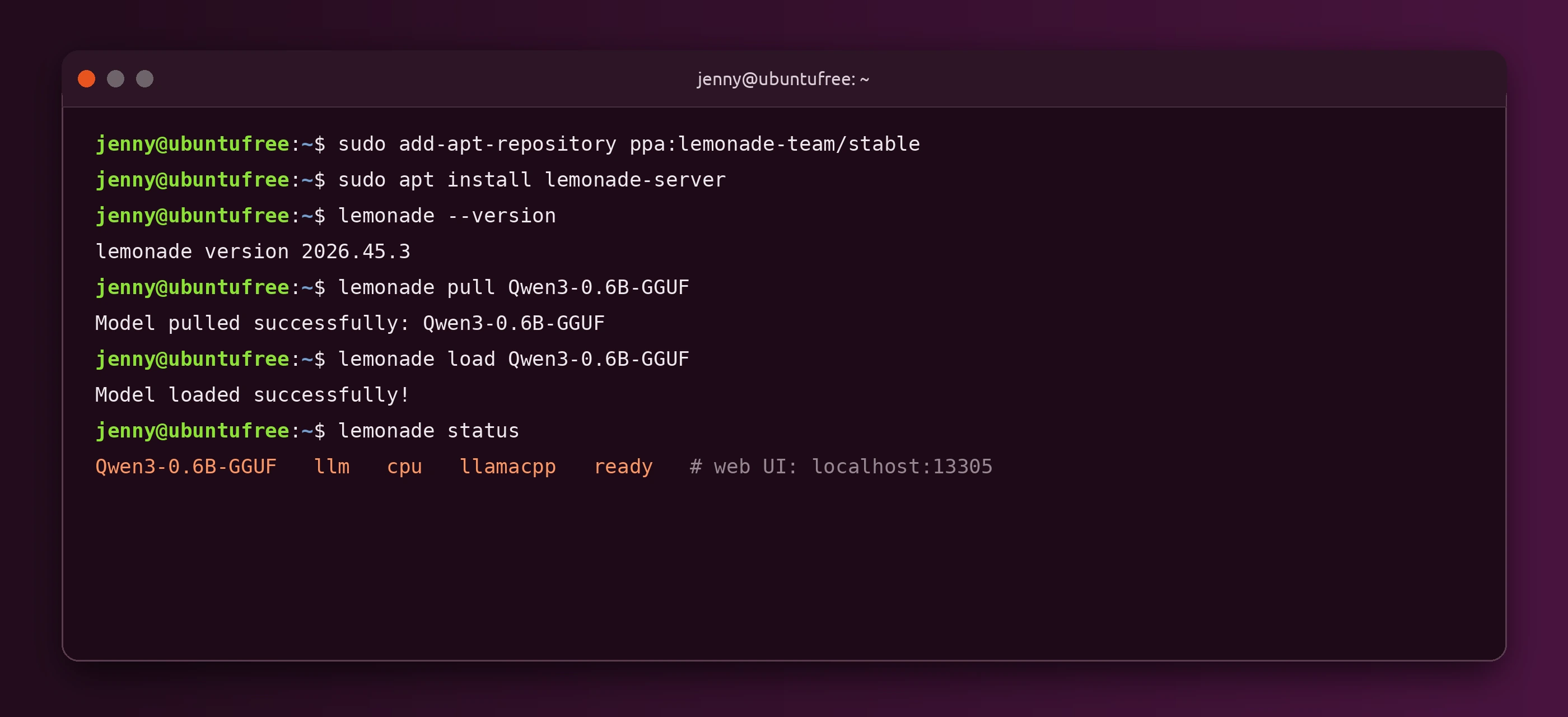
Works on Ubuntu 26.04 and 24.04. A PPA (Personal Package Archive) is an extra software source on Launchpad that apt, Ubuntu’s package manager, can install and update from. The Lemonade team publishes its own builds there. On 9 November 2026 the PPA had Lemonade 2026.45.3 for both releases, the same version as the latest stable release on GitHub.
Method 2: Install Lemonade with Snap
Works on Ubuntu 26.10, 26.04, 24.04 and 22.04. Snap is Ubuntu’s built-in app store format, and every app runs in its own sandbox. The lemonade-server Snap is published by Ken VanDine, a verified Star developer on the Snap Store, and its stable channel had version v2026.45.3 on 9 November 2026. Use it when the PPA does not cover your release.
Other Ways to Install Lemonade
Ubuntu 22.04 LTS: the PPA has no 22.04 build, so use the Snap from Method 2. Ubuntu 26.10: the PPA only has an older build for 25.10, so the Snap is the way to get the current release.
Compare the Methods
Open Lemonade
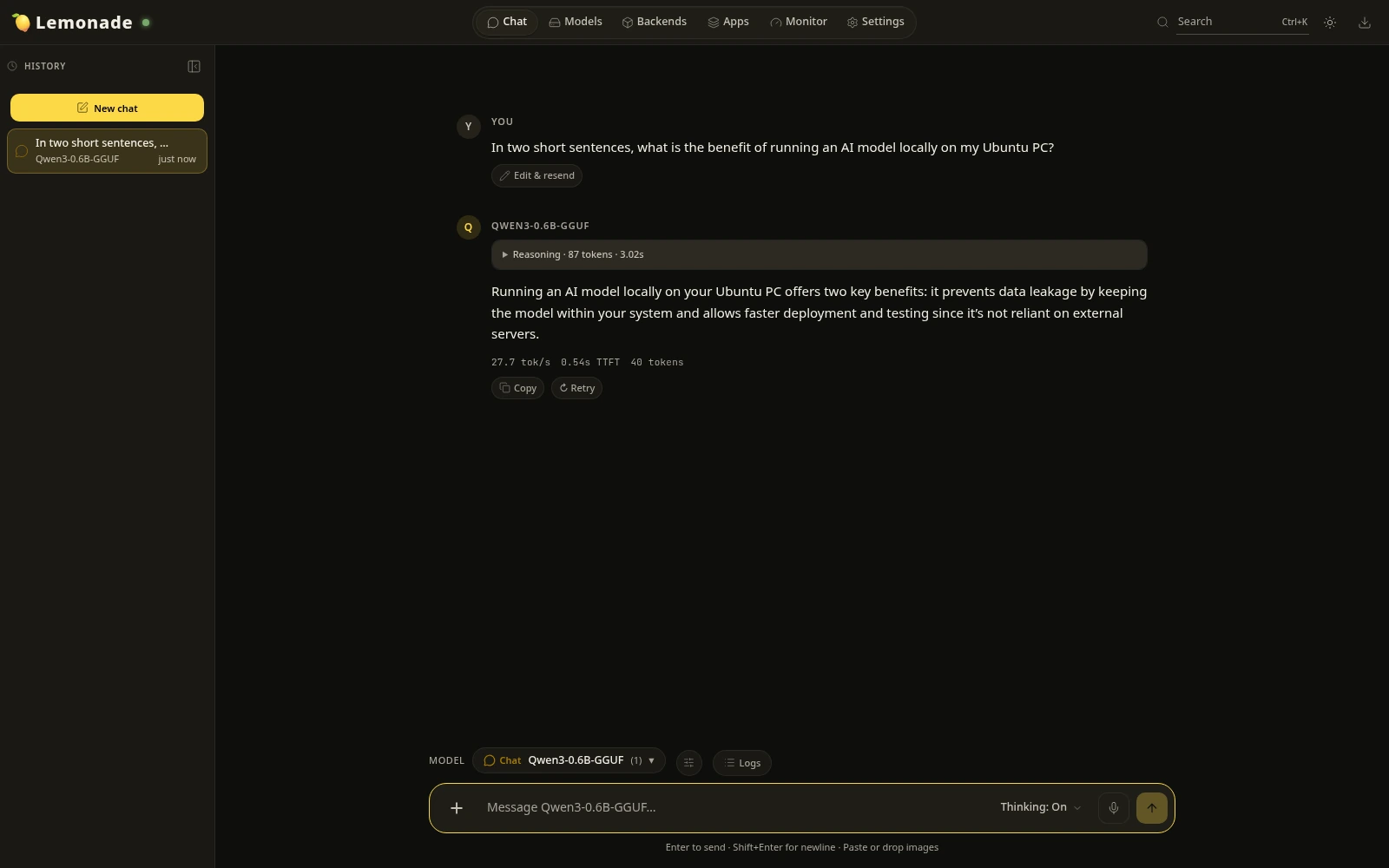
Lemonade runs in the background, so there is nothing to launch. Open your browser and go to http://localhost:13305. If you installed Lemonade Desktop, open Lemonade from the apps menu instead. The web app opens on the Chat tab, ready for your first model.
First Run: Download Your First Model
Lemonade does not ship with a model, so you need to download one first. A model is the AI brain that answers your questions. Start small to check everything works. Qwen3-0.6B-GGUF is only 0.38 GB and runs fine on a normal CPU. In our test it answered at about 28 tokens (small word pieces) per second with no graphics card at all.
When you want a smarter model, try Gemma-4-E2B-it-GGUF (4.1 GB) or Qwen3-4B-GGUF (2.4 GB). Our Qwen on Ubuntu guide explains how the model sizes compare. Lemonade hides models that are too big for your RAM, so anything in the list should fit. Then pick the model in the Model box under the chat and start typing. To load a downloaded model and open the web app in one go, use:
A Quick Look Around Lemonade
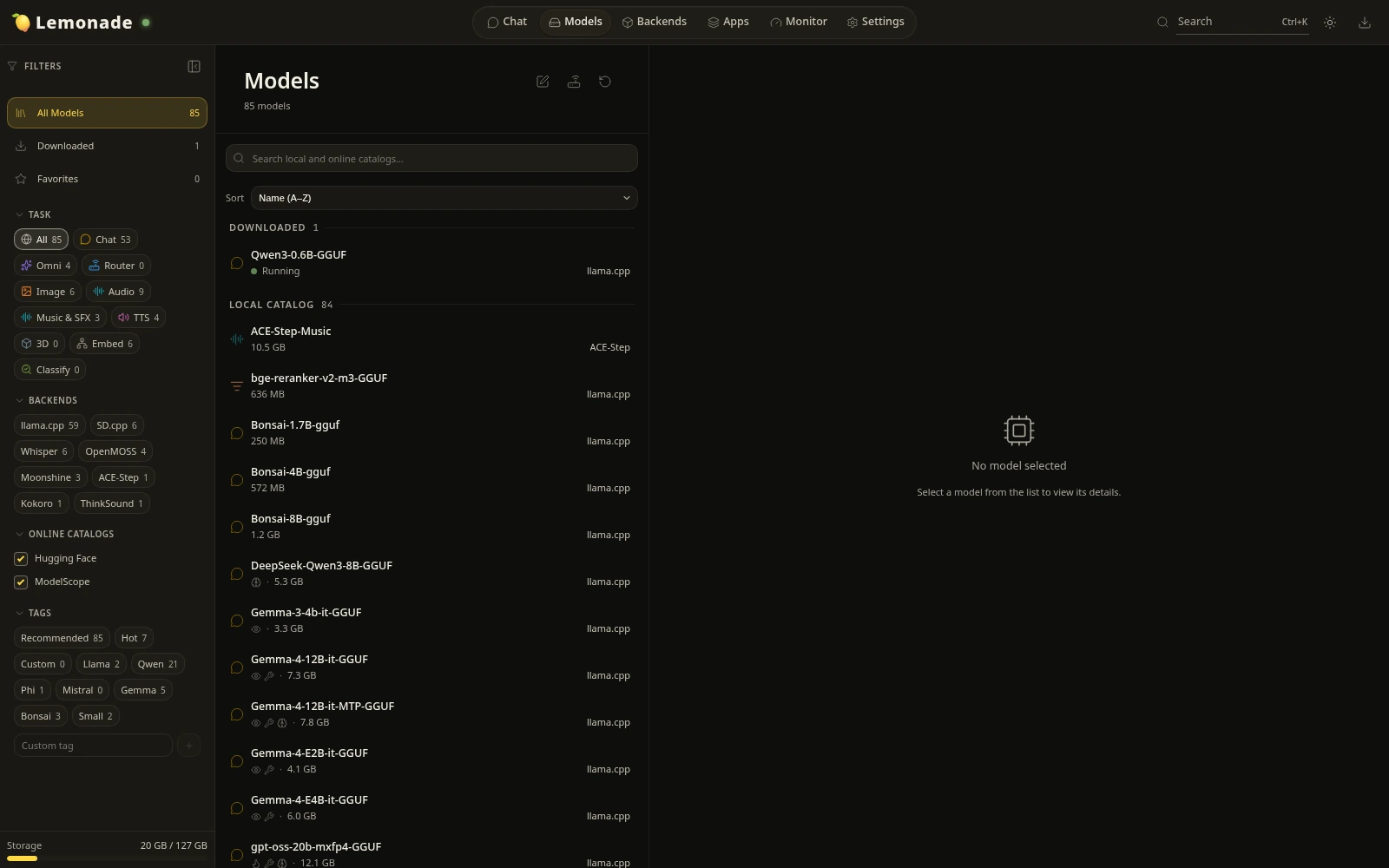
The web app has six tabs along the top:
- Chat: talk to text models, attach images for vision models and turn the Thinking mode on or off.
- Models: the built-in catalog of more than 80 models for chat, images, speech, transcription and embeddings, plus search across Hugging Face and ModelScope.
- Backends: the engines that run models, such as llama.cpp, whisper.cpp and stable-diffusion.cpp. Install the ones you need with one click.
- Apps: tools that work with Lemonade out of the box.
- Monitor: what is loaded and how hard your PC is working.
- Settings: the server options, also available with
lemonade config.
Use Your Graphics Card for Faster Answers
Lemonade starts on the CPU, which works everywhere but is slow for big models. A backend is the engine that runs the model on your hardware. See what your PC can use:
For most graphics cards, install the Vulkan version of llama.cpp. It works on AMD, Intel and NVIDIA GPUs:
- AMD Radeon and Ryzen AI: Lemonade is sponsored by AMD and also offers ROCm backends and NPU support for Ryzen AI chips. Get your driver ready with our AMD drivers on Ubuntu guide.
- NVIDIA: a CUDA backend is available for Turing (GTX 16 and RTX 20 series) and newer cards. Install the driver first with our NVIDIA drivers on Ubuntu guide.
- Intel: use Vulkan, and see our Intel graphics drivers guide.
Connect Your Apps to Lemonade
Lemonade speaks the same language (API) as OpenAI, Anthropic and Ollama, so many apps can use it by changing one address. Point any OpenAI-compatible app at http://localhost:13305/api/v1, with any text as the API key. Test it from the terminal:
Lemonade can also start coding agents for you with a local model, for example lemonade launch claude, lemonade launch codex or lemonade launch opencode. For a full chat interface with documents and users, pair it with Open WebUI.
Keep Lemonade Updated
Lemonade ships a new release almost every week.
Common Problems and Fixes
sudo systemctl enable --now lemond, then check systemctl --no-pager status lemond. On the Snap, run sudo snap restart lemonade-server.daemon. Read the logs with journalctl -u lemond -e or sudo snap logs -f lemonade-server.daemon.apt-cache policy lemonade-server. If there is no candidate, use the Snap.lemonade backends install llamacpp:vulkan, or pick a smaller model such as Qwen3-0.6B or Qwen3-1.7B.lemonade config set disable_model_filtering=true, but models bigger than your RAM or VRAM will not load.localhost. To share it on your network, run lemonade config set host=0.0.0.0 and set an API key with LEMONADE_API_KEY in /etc/default/lemond (PPA), then restart the service. Only do this on a network you trust.Remove Lemonade
PPA: remove the packages, the PPA and anything left over:
Check it is gone with apt-cache policy lemonade-server. It should show no installed version and no candidate.
Snap: the --purge option also deletes the Snap’s data and downloaded models.
Optional cleanup (PPA): models downloaded by the background service stay in /var/lib/lemonade and can take many gigabytes. Warning: this deletes every downloaded model and setting.
Helpful Resources
Add the PPA or install the Snap, download Qwen3-0.6B to test, then open localhost:13305 and ask your first question.
Related guides: Ollama on Ubuntu · LM Studio for Ubuntu · Open WebUI on Ubuntu · Best open source AI tools for Ubuntu