 You can install the Opera Browser on Ubuntu using the official APT repository, a direct .deb package download, the Snap Store, or Flatpak. Opera is a Chromium-based web browser built for productivity. It includes a free built-in VPN proxy, an ad blocker, a sidebar for messaging apps like WhatsApp and Telegram, and the Aria AI assistant. While Ubuntu comes pre-installed with Firefox, Opera is a popular choice for users who want a feature-rich browser that supports Chrome extensions out of the box.
This guide walks through all four installation methods with step-by-step terminal commands. It covers duplicate repository fixes, updates, uninstallation, and some limits on Ubuntu 24.04 LTS and 26.04 LTS.
APT, .deb, Snap & Flatpak Complete Guide
Set up the official Opera software repository, register the GPG signing key, download the standalone package, configure official Snaps, or install via Flatpak in one detailed walkthrough.
Opera is built on Chromium, meaning it renders web pages with the same engine as Google Chrome. However, it diverges significantly in its user interface and feature set. Rather than relying on extra browser add-ons, Opera built features directly into the browser. These include automatic tab grouping (Tab Islands), custom workspaces, tracker blocking, and a messaging sidebar. For Ubuntu users, installing Opera provides a complete, out-of-the-box browser setup that requires very little configuration.
Choosing the Right Installation Method
There are four ways to get the standard Opera browser on Ubuntu. The table below outlines how each method behaves regarding auto-updates, publisher authority, and system sandboxing.
| Method | Publisher | Updates | Sandbox | Best For |
|---|---|---|---|---|
| APT Repository | Official (Opera) | Automatic (via apt) | None (Native) | Standard systems, developers |
| Direct .deb | Official (Opera) | Automatic (repo added post-install) | None (Native) | Fast one-time installations |
| Snap Package | Official (Opera) | Automatic (via Snapd) | Yes (AppArmor) | Quick CLI setups, Snap users |
| Flatpak | Unofficial (Community) | Automatic (via Flathub) | Yes (Bubblewrap) | Isolated sandbox preference |
For the most stable and natively integrated experience, the APT repository and direct .deb download methods are recommended. They run directly on your system, avoiding sandbox permissions that sometimes limit access to local system fonts, hardware acceleration, or file folders.
Method 1: Install Opera via the Official APT Repository
Setting up the APT repository manually ensures your GPG keys are stored securely. Open your terminal (Ctrl+Alt+T) and follow these steps.
Make sure curl is installed and create the keyrings directory if it does not already exist:
sudo apt update
sudo apt install -y ca-certificates curl gnupg
sudo install -m 0755 -d /etc/apt/keyrings
Download Opera’s signing key and save it to the keyrings folder:
curl -fsSL https://deb.opera.com/archive.key | sudo gpg --dearmor -o /etc/apt/keyrings/opera-browser.gpg
sudo chmod a+r /etc/apt/keyrings/opera-browser.gpg
This keyring setup avoids using the deprecated apt-key command, which has been removed in newer versions of Ubuntu.
Add the Opera software repository to your system sources list:
echo "deb [signed-by=/etc/apt/keyrings/opera-browser.gpg arch=amd64] https://deb.opera.com/opera-stable/ stable non-free" | sudo tee /etc/apt/sources.list.d/opera-stable.list
Refresh your package lists to sync with the new Opera repository, and then install the stable browser package:
sudo apt update
sudo apt install -y opera-stable
During installation, the terminal will show a prompt asking: “Do you want to configure the repository to receive automatic updates? [Yes/No]”.
Since we already set up the repository manually, select No (use the arrow keys to highlight “No” and press Enter).
Selecting Yes will write a duplicate sources configuration file to your system, resulting in duplicate repository warnings when you run apt update. If you select Yes by mistake, see the Troubleshooting section below to fix the warning.
Method 2: Install Opera via Direct .deb Download
If you prefer not to use the terminal to set up files, downloading the official `.deb` package file is a faster method. Installing this package automatically configures the software repository for future updates.
Use wget to download the latest stable version from Opera’s official download servers, and then install it with apt:
wget https://download3.operacdn.com/pub/opera/desktop/stable/linux/opera-stable_amd64.deb
sudo apt install ./opera-stable_amd64.deb
Apt vs dpkg: Always install local installer files using sudo apt install ./filename.deb instead of sudo dpkg -i. APT automatically finds and installs any extra software packages Opera needs to run. Dpkg does not do this, which can cause installation errors.
Method 3: Install Opera via the Official Snap Package
Opera builds and maintains an official Snap package. This is ideal if you prefer sandboxed applications that cannot access system files by default, or if you prefer managing software via Snapcraft.
Since Snaps work by default on Ubuntu, run the install command directly:
sudo snap install opera
Method 4: Install Opera via Flatpak (Flathub)
Flatpak isolates the browser completely inside a secure sandbox container using Bubblewrap. This method works well if you manage your software library via Flathub.
Warning: Unofficial Community Package
The standard Opera Browser Flatpak package hosted on Flathub is maintained by the community, not by Opera. While it runs the genuine Opera browser, it is not officially supported by Opera. For official support, use the Snap package, direct .deb, or APT method.
Ubuntu does not include Flatpak by default. Install Flatpak and register the Flathub repository:
sudo apt update
sudo apt install -y flatpak
flatpak remote-add --if-not-exists flathub https://dl.flathub.org/repo/flathub.flatpakrepo
Run the Flatpak command to download and install Opera:
flatpak install flathub com.opera.Opera
Opera Browser Screenshots
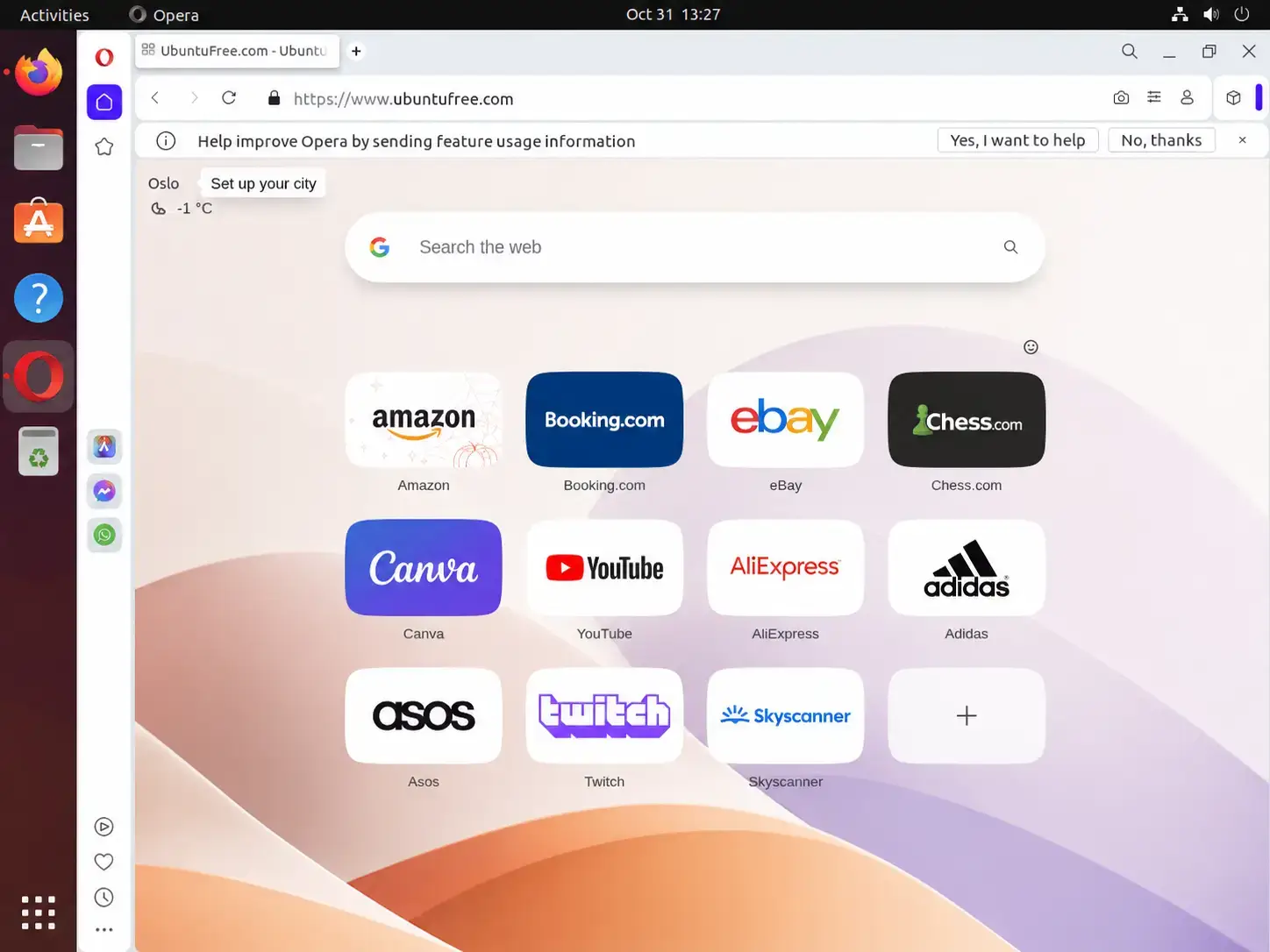
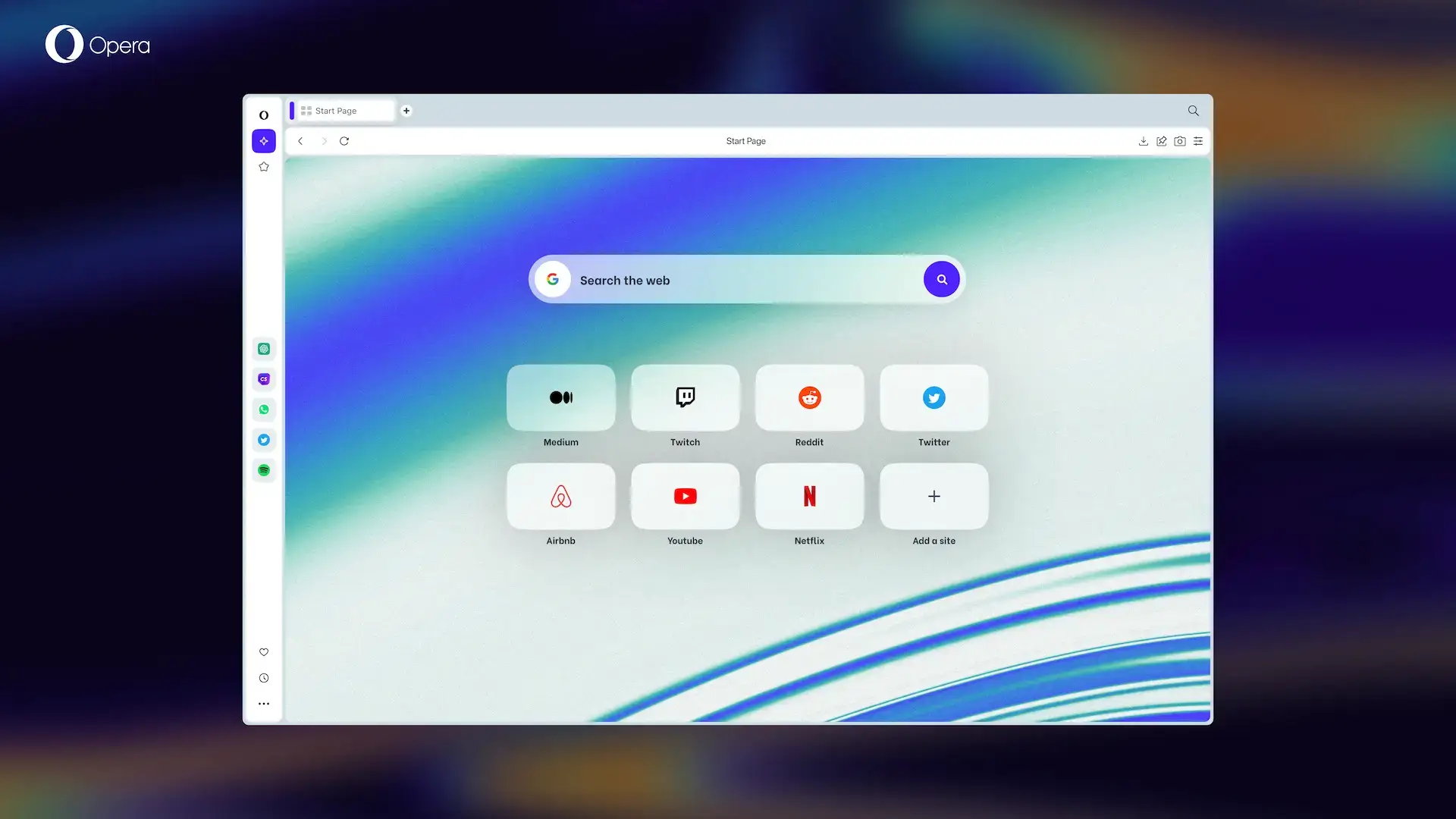
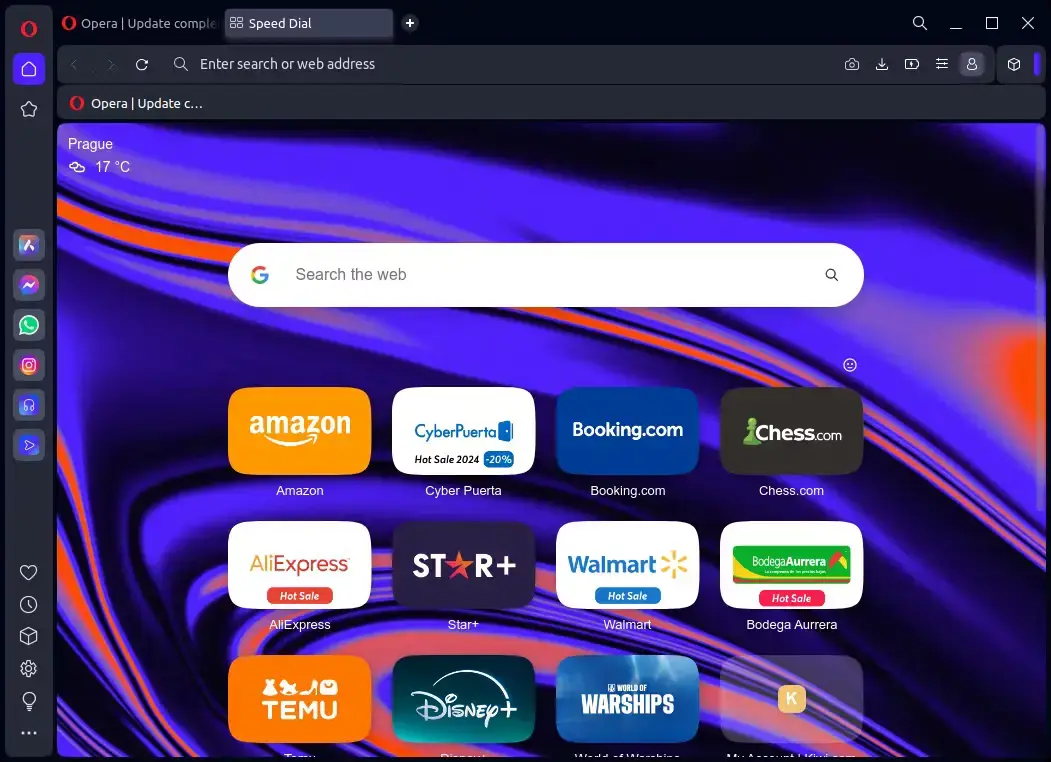
If you are looking for the dedicated gaming browser with RAM limiters, CPU limits, and custom sound profiles, check out our guide on how to install Opera GX on Ubuntu.
Troubleshooting Common Opera Repository Issues
If you run sudo apt update and receive a warning reading “Target Packages is configured multiple times” or “Duplicate sources.list entry” for Opera, your system has registered the repository twice. This commonly happens if you set up the repository manually and also select “Yes” to Opera’s automatic setup prompt during installation.
To fix it, delete the duplicate sources configuration file by running this command in the terminal:
sudo rm /etc/apt/sources.list.d/opera-stable.list
Then run system updates again to verify the warning is gone:
sudo apt update
Frequently Asked Questions
What is the best way to install the Opera browser on Ubuntu?
The official APT repository method is the best choice for long-term use. It adds Opera’s GPG signing key and software repository to your system, allowing the browser to update automatically alongside other system packages when you run standard system updates.
Is Google Chrome or Opera better on Ubuntu?
Both browsers are built on the Chromium engine and support Chrome extensions, but they target different workflows. Google Chrome integrates natively with Google account sync and services, making it standard for work. Opera focuses on built-in productivity features, including a free VPN proxy, sidebar messengers (WhatsApp, Telegram), and tracker blocking.
Is the Flatpak version of Opera on Flathub official?
No. The standard Opera Browser on Flathub is a community-maintained package, not an official release from Opera. While it runs the genuine Opera browser, we recommend the official Snap package or the APT repository if you require direct support from the vendor.
Why do I get a duplicate repository error during apt update after installing Opera?
This occurs if both the manual GPG keyring setup and Opera’s post-installation script add repository files to your system. To fix it, delete the duplicate sources list file by running: sudo rm /etc/apt/sources.list.d/opera-stable.list and keep only the manual list file, or edit them to remove duplicate entries.
Can I install the Opera browser on Ubuntu ARM64 devices like the Raspberry Pi?
No. Opera does not publish official Linux ARM64 packages. The APT, .deb, and Snap packages are compiled exclusively for x86_64 (amd64) hardware. If you are using an ARM64-based device, we recommend using alternative browsers like Firefox or Chromium.
More Ubuntu browser guides: Best Web Browsers for Ubuntu · Install Chrome on Ubuntu · Brave Browser for Ubuntu · Chromium for Ubuntu