 You can install Tangram on Ubuntu using the official Flatpak (Flathub) package or by compiling from source code directly using Meson and Ninja.
Tangram is a modern, lightweight web browser designed specifically to run and organize pinned web applications. Recognized as one of the best web browsers for Ubuntu, Tangram uses GTK4, libadwaita, and the WebKitGTK rendering engine.
This provides clean GNOME desktop integration and isolates each web app in its own secure session, keeping your software accounts completely separate and private.
This step-by-step installation guide covers both setup methods in detail, compares their features, and provides troubleshooting configurations for Ubuntu 24.04 and 26.04 LTS.
Let us know in the comments below if you run into any setup issues, or you can contact us directly for support. We are always here to help you get it running.
Flatpak & Source Compile Guides
Configure the Tangram Web App Browser on your Ubuntu machine. Compare a custom-built setup against containerized (isolated) apps, and run the verified terminal installation scripts.
Quick CLI Setup Cheatsheet
If you are an experienced user looking for a quick installation, copy and paste the commands below for your preferred setup method:
flatpak install flathub re.sonny.Tangram -y
flatpak uninstall re.sonny.Tangram -ysudo apt update && sudo apt install -y git meson ninja-build libgtk-4-dev libadwaita-1-dev libwebkitgtk-6.0-dev git clone https://github.com/sonnyp/Tangram.git && cd Tangram meson setup builddir --prefix=/usr/local meson compile -C builddir sudo meson install -C builddir
sudo meson uninstall -C builddirChoosing the right installation method determines how you receive software updates and how well the app is isolated from your system. Review the comparison below to decide which setup fits your daily workflow.
Tangram Installation Methods Compared
Review the table below to compare the packaging formats, version details, and isolation features of the two installation choices.
| Method | Version Age | Auto-Updates | Isolation (Sandbox) | Best For |
|---|---|---|---|---|
| Official Flatpak | Latest stable release (recommended by the developer) | Automatic (via flatpak update) | Yes (Isolated using Bubblewrap) | Default recommended setup for most users seeking automatic updates and secure app isolation |
| Source Compile | Custom version built from git repository branch (typically latest master) | Manual (requires git pull and manual rebuild) | No (runs natively) | Advanced users who want a custom build that runs directly on their system without container overhead |
Method 1: Install Tangram via Flatpak
The Flatpak version is the official and recommended way to install Tangram. Since Tangram relies on modern graphics libraries and web engines, the Flatpak method is ideal because it bundles all required dependencies inside a single secure container. This keeps your main system clean, provides automatic background updates, and isolates web traffic for better security.
If Flatpak is not yet set up on your Ubuntu desktop, run the command below to install the Flatpak service and connect to the Flathub app library:
sudo apt update
sudo apt install flatpak -y
sudo flatpak remote-add --if-not-exists flathub https://dl.flathub.org/repo/flathub.flatpakrepo
Execute the Flathub installation script to download and set up the stable sandbox package:
flatpak install flathub re.sonny.Tangram -y
Method 2: Compile and Install Tangram from Source Code
If you prefer a native setup that runs directly on your computer without a container, or if you want to compile the code yourself, you can build Tangram from its raw source code. This method compiles the program specifically for your computer and installs it directly into your system files.
Update your system packages and install the necessary compiler tools, git, and developer library headers for the GTK4 graphics and WebKit web engines:
sudo apt update
sudo apt install -y git meson ninja-build libgtk-4-dev libadwaita-1-dev libwebkitgtk-6.0-dev
Retrieve the latest version of the official Tangram source code from GitHub and change into the project folder directory:
git clone https://github.com/sonnyp/Tangram.git
cd Tangram
Set up the build directory folder where the code will be compiled. The prefix option tells the installer to put the finished app in the local system folder:
meson setup builddir --prefix=/usr/local
Compile the source code into a runnable program and install it along with its desktop shortcut onto your system:
meson compile -C builddir
sudo meson install -C builddir
Post-Installation Setup: Adding PWAs and Sandboxing
Once you launch Tangram from your application grid menu, you will be greeted by a clean workspace. To configure your workspace and set up application profiles, review the instructions below.
To start running a web service inside the Tangram interface, follow these steps to add it to your sidebar launcher list:
- Launch Tangram and locate the circular plus (+) icon in the top-left sidebar panel.
- Type or paste the complete URL address of the web app (such as
https://discord.com/apporhttps://web.whatsapp.com) into the input box. - Assign a descriptive name and pick a custom icon or let Tangram auto-fetch the site’s default favicon image.
- Click the Add button. The application will instantly load and lock its icon into your permanent vertical sidebar.
One of Tangram’s best features is its ability to keep website sessions separate. Each web app you add runs in its own private session container. This stops website cookies, saved login info, and history databases from crossing over between apps.
- Multi-Account Logins: You can add the same site multiple times (for example, two separate Gmail icons in your sidebar). This lets you stay logged into two different email accounts at the same time without needing private windows or different browsers.
- Better Privacy: Isolation keeps tracking scripts on one site from reading the files or cookies created by another website.
Tangram Screenshots
-
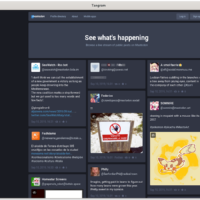
- Screenshot of tangram with dark mode
-
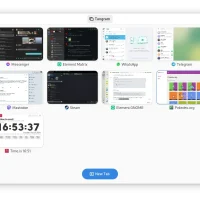
- Tangram new screenshot from Tangram Browser on Ubuntu 26.04: Install Guide & Tips
Troubleshooting Tangram on Ubuntu
If you experience graphics glitches, page rendering freezes, or blank screens inside your pinned web applications, review the common resolutions below.
On computers with older graphics cards or basic graphics drivers, the browser’s built-in 3D hardware acceleration can conflict with the system. This can make web pages load as blank screens or cause page crashes. You can easily fix this by telling the browser engine to use software-based rendering instead.
For the Flatpak installation: Run this override command in your terminal to set the disable environment variable permanently for the sandbox container:
flatpak override --env=WEBKIT_DISABLE_COMPOSITING_MODE=1 re.sonny.Tangram
For the Source-Compiled installation: Launch Tangram from your terminal and prefix the execution command with the environment flag:
WEBKIT_DISABLE_COMPOSITING_MODE=1 tangram
To apply this parameter permanently for your native user profile, you can add export WEBKIT_DISABLE_COMPOSITING_MODE=1 to the bottom of your shell configuration (~/.bashrc or ~/.profile) file.
How to Uninstall Tangram from Ubuntu
If you want to remove Tangram, choose the removal commands matching your installation format and clean up any remaining profile configurations.
1. For the Flatpak Method:
Uninstall the stable sandbox build and clean up unused runtime frameworks:
flatpak uninstall re.sonny.Tangram -y
flatpak uninstall --unused -y
2. For the Source-Compiled Method:
If you kept your build directory folder, navigate to your source path and run the uninstall command:
sudo meson uninstall -C builddir
If you have deleted the build directory, you can manually delete the installed binary and application directories:
sudo rm -f /usr/local/bin/tangram
sudo rm -rf /usr/local/share/re.sonny.Tangram
sudo rm -f /usr/local/share/applications/re.sonny.Tangram.desktop
Clean Up Saved Profiles and Cached Data:
To delete all stored logins, site cookies, cache files, and app structures from your hard drive, run the following cleanup scripts in your terminal:
# Delete configuration directories for the source-compiled version
rm -rf ~/.config/re.sonny.Tangram ~/.cache/re.sonny.Tangram

# Delete configuration directories for the Flatpak version
rm -rf ~/.var/app/re.sonny.Tangram
Frequently Asked Questions
Is Tangram Browser available in the official Ubuntu repositories?
No. Tangram is not packaged in the standard APT repositories of Ubuntu 24.04 or 26.04. The official distribution channel is Flathub (Flatpak), or you can build it directly from source code using Meson and Ninja.
What is the difference between Tangram and a regular web browser?
Unlike standard browsers that use tabs for general web surfing, Tangram is designed specifically to organize and run web applications. It pins sites into a permanent vertical sidebar and runs each application in its own isolated container, allowing you to access multiple accounts on the same service simultaneously.
How do I update Tangram on Ubuntu?
If you installed Tangram via Flatpak, updates are handled automatically by your system or can be triggered manually by running flatpak update in the terminal. If you compiled Tangram from source, you must pull the latest changes from the git repository, run the Meson compile commands again, and reinstall the application.
Can I use multiple logins for the same website in Tangram?
Yes. One of Tangram’s primary features is multi-account sandboxing. Because each web app you add runs in an isolated container session, you can add the same website multiple times (e.g., two different Gmail or Discord accounts) and stay logged into both simultaneously without session crossover.
How do I fix page rendering issues or blank screens in Tangram?
Render issues or page crashes in Tangram are usually caused by WebKitGTK graphics driver conflicts with hardware acceleration. You can fix this by disabling accelerated compositing. Run the flatpak override command flatpak override --env=WEBKIT_DISABLE_COMPOSITING_MODE=1 re.sonny.Tangram to force software rendering.
More Ubuntu web browser guides: Microsoft Edge · LibreWolf · Zen Browser · qutebrowser · Falkon Browser · GNOME Web · Vivaldi Browser · Brave Browser