How to Install OBS Studio on Ubuntu 26.04 and 24.04

Share

OBS Studio is a free app for recording your screen and streaming live to sites like Twitch and YouTube. This guide shows you how to install it on Ubuntu 26.04 and 24.04 in a few minutes, then how to get your first recording going.

Not sure which method to pick? Use the Flatpak. It works on every Ubuntu version and always has the newest OBS.

Method 1: Install OBS Studio with Flatpak (Recommended)

Works on Ubuntu 26.04, 24.04, 26.10 and 22.04. Flatpak is a way to install apps that works on any Linux system and keeps each app in its own box, so it is less likely to clash with the rest of your system. The OBS team publishes OBS Studio 33 on Flathub, the main Flatpak app store.

1

Step 1: Install Flatpak

Ubuntu does not include Flatpak by default. Open a terminal (press Ctrl+Alt+T) and run these two commands. Type your password when asked.

Install Flatpak
sudo apt update
sudo apt install flatpak

Already use Flatpak apps? Skip to step 3. Our things to do after installing Ubuntu 26.04 guide has more on Flatpak.

2

Step 2: Add Flathub

This tells Flatpak where to download apps from.

Add Flathub
flatpak remote-add --if-not-exists flathub https://dl.flathub.org/repo/flathub.flatpakrepo

Doing this for the first time? Log out and back in, or restart. Otherwise Flatpak apps may not show up in your apps list.

3

Step 3: Install OBS Studio

Install OBS Studio from Flathub
flatpak install flathub com.obsproject.Studio

Type y and press Enter when it asks. The first Flatpak install also downloads some shared files that OBS needs (called runtimes), so allow 1 to 2 GB of free space and a few minutes.

4

Step 4: Check that it worked

This shows the installed version and other details. If you see OBS Studio and a version number, you are done.

Check the Flatpak install
flatpak info com.obsproject.Studio

Now open OBS Studio from your apps list. The Open OBS Studio section below has the terminal command too.

Method 2: Install OBS Studio from the Official PPA (Ubuntu 26.04)

A PPA is an extra software source that a developer runs for Ubuntu. This one belongs to the OBS team. OBS then installs and updates through apt, the same tool Ubuntu uses for all its normal software, so it updates when you run sudo apt upgrade.

1

Step 1: Add the OBS Studio PPA

Add the official PPA
sudo add-apt-repository ppa:obsproject/obs-studio
sudo apt update

Press Enter when it asks you to confirm. If the terminal says add-apt-repository: command not found, you are on a minimal install. Run sudo apt install software-properties-common first, then try again.

2

Step 2: Make sure apt will use the PPA

Ubuntu has its own, older OBS package. This check shows which one apt will install:

Check where OBS will come from
apt-cache policy obs-studio

Look at the Candidate line. It should include obsproject, and the list below it should show ppa.launchpadcontent.net/obsproject. If it only shows Ubuntu sources, run sudo apt update again and look for errors.

3

Step 3: Install OBS Studio

Install from the PPA
sudo apt install obs-studio

Then check the version:

Check the installed version
obs --version

On 25 October 2026 the PPA had OBS 32.2.0 for Ubuntu 26.04 and 24.04. The OBS team had not uploaded 33.0 yet. When it arrives, you get it with your normal updates.

Optional

Want OBS 33 right now? Use the .deb file

You do not need this step. A .deb is a single install file, like an .exe on Windows. On Ubuntu 26.04 only, download OBS-Studio-33.0.0-Ubuntu-26.04-x86_64.deb from the OBS Studio 33.0.0 release page, then install it:

Install the downloaded .deb
cd ~/Downloads
sudo apt install ./OBS-Studio-33.0.0-Ubuntu-26.04-x86_64.deb

A .deb installed this way does not update itself. Keep the PPA added so later versions replace it, or use the Flatpak instead.

On Ubuntu 24.04? The PPA still gives you OBS 32.2, which works fine, but OBS 33 and newer are not made for 24.04. Use the Flatpak to get them. Ubuntu 26.10 has no PPA builds yet, so use the Flatpak there too.

Other Ways to Install OBS Studio

Ubuntu’s own package. Ubuntu ships OBS in its universe section (the part of Ubuntu that the community looks after). It needs no extra setup, but it is older: 32.1 on Ubuntu 26.04 and 30.0 on 24.04. Do not add the PPA first if you want this one.

Install Ubuntu’s own OBS package
sudo apt install obs-studio

If apt says it cannot find the package, turn on universe with sudo add-apt-repository universe, then run sudo apt update and try again.

The Snap. Snaps are another app format, built into Ubuntu. There is no official OBS Snap. The obs-studio Snap is made by Snapcrafters, a community group, and was on 32.2.0 when we checked. The OBS team does not support it, so bug reports from it are often closed.

Install the community Snap
sudo snap install obs-studio

Our apt and snap commands guide explains how apt and Snap differ.

Still on Ubuntu 22.04? Use the Flatpak. It has OBS 33, while the PPA stopped at 30.2 for 22.04.

Compare the Methods

Method Ubuntu Made by OBS version Pick it when
Flatpak (Flathub) 26.04, 24.04, 26.10, 22.04 The OBS team 33.0.0 Almost always. Newest version everywhere.
Official PPA 26.04 (24.04 stays on 32.2) The OBS team 32.2.0 You want OBS to update with apt like the rest of Ubuntu.
.deb from GitHub 26.04 only The OBS team 33.0.0 You are on 26.04 and want 33 before it reaches the PPA.
Ubuntu package Any Ubuntu 32.1 (26.04), 30.0 (24.04) You want the simplest install and do not need the newest OBS.
Snap Any Snapcrafters (community) 32.2.0 You prefer Snaps and accept a build the OBS team does not support.

Versions checked on 25 October 2026. Not sure which Ubuntu you have? Run lsb_release -d in a terminal.

Open OBS Studio

From the apps list: press the Super key (the Windows key), type OBS, and click OBS Studio. Right click its icon in the dock and choose Pin to Dash to keep it there.

From the terminal: the command depends on how you installed it.

Open OBS Studio (PPA, .deb, Ubuntu package or Snap)
obs
Open OBS Studio (Flatpak)
flatpak run com.obsproject.Studio

First Run: Let the Setup Wizard Pick Your Settings

The first time OBS opens, it offers to run the Auto-Configuration Wizard. Say yes. Tell it whether you mainly want to stream, record, or only use OBS as a webcam in video calls. It then tests your computer and picks good video settings for you.
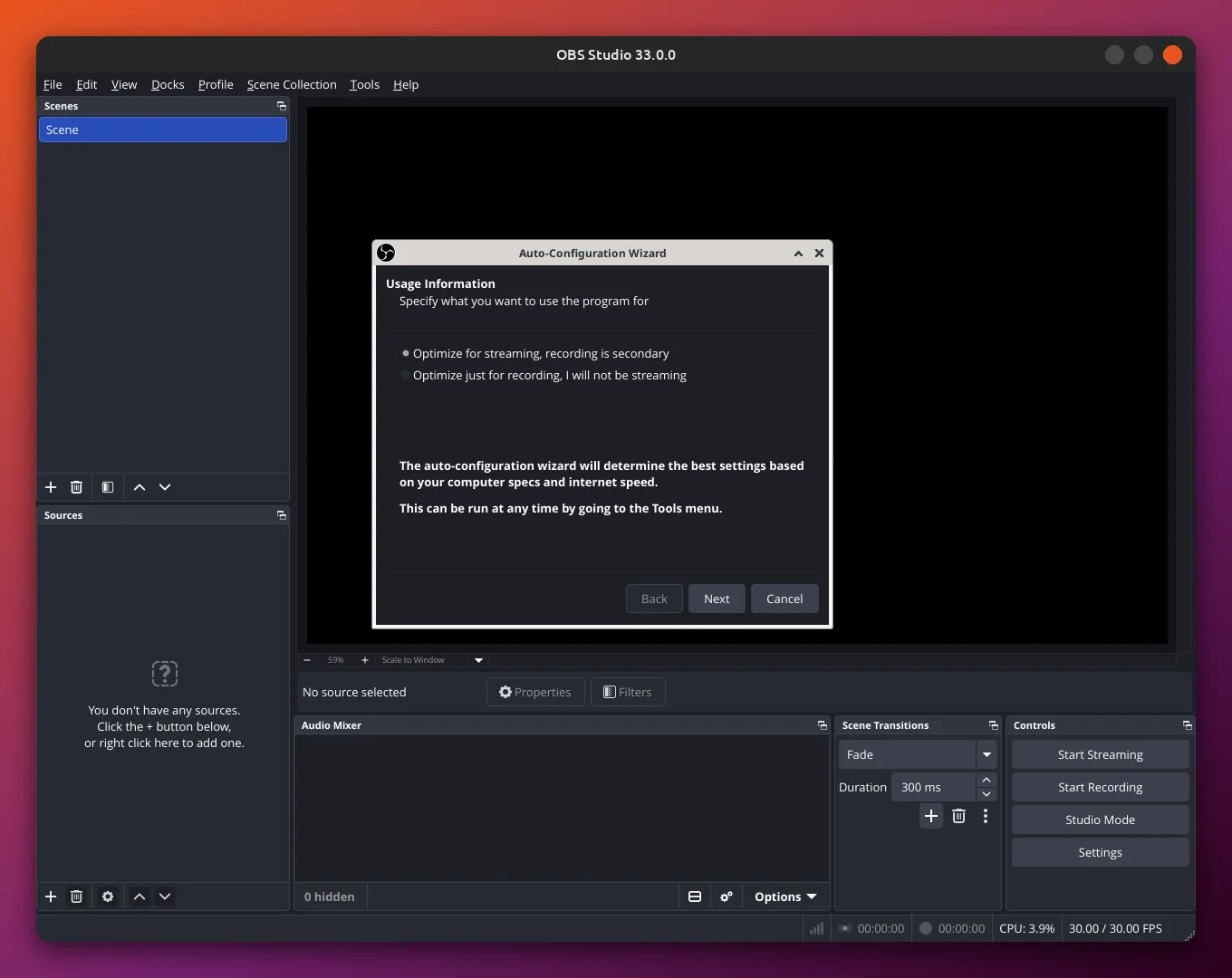
OBS Studio Auto-Configuration Wizard first page asking whether to optimize for streaming, recording or only the virtual camera
The Auto-Configuration Wizard opens on first launch. You can rerun it any time from the Tools menu.

If you stream, it asks for your service, such as Twitch or YouTube, and lets you sign in or paste a stream key (the private code your streaming site gives you). Tick Prefer hardware encoding if your graphics drivers are installed. You can run the wizard again any time from Tools, Auto-Configuration Wizard.

A Quick Look Around OBS Studio

OBS works with scenes and sources. A source is one thing you show, such as your screen, a window, your webcam, an image or your microphone. A scene is a layout of sources. You can make several scenes and switch between them while you record or stream.
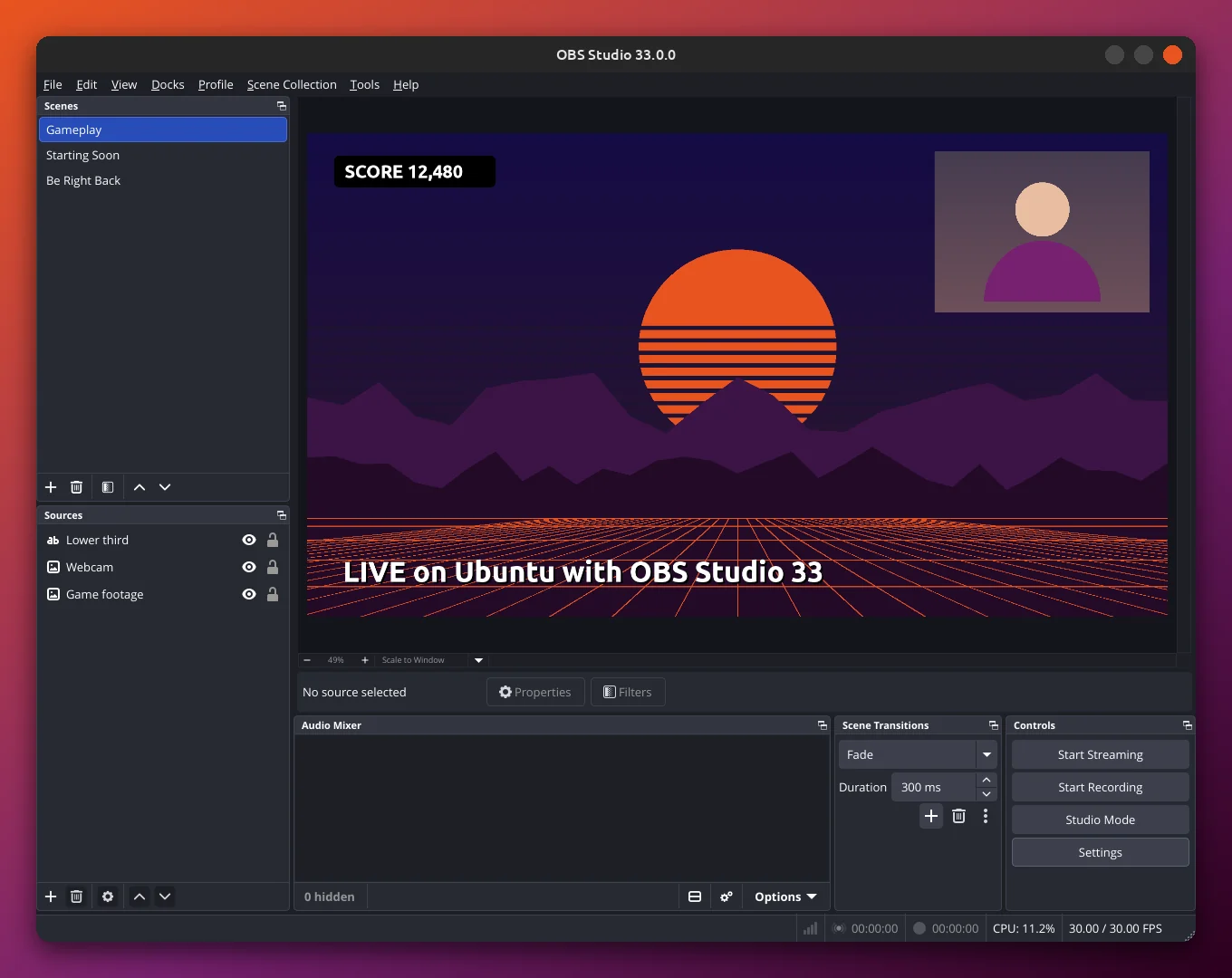
OBS Studio 33.0.0 main window on Linux with Gameplay, Starting Soon and Be Right Back scenes and Lower third, Webcam and Game footage sources in the preview
OBS Studio 33.0.0 (Flatpak) with a simple streaming scene: a game capture, a webcam box and a lower third.

Scenes are listed at the bottom left, with the sources of the current scene next to them. Then come the audio mixer, transitions, and the Start Streaming and Start Recording buttons on the right. The big area at the top shows what your viewers will see. OBS works the same on Linux, Windows and macOS, so any OBS tutorial you find applies here too.

Record Your Screen

Ubuntu uses Wayland by default. Wayland is the system that draws your desktop, and for safety it only lets apps record the screen through PipeWire, Ubuntu’s audio and video sharing service. In OBS, click the + under Sources and choose Screen Capture (PipeWire) for a whole screen, or Window Capture (PipeWire) for one app. Ubuntu then asks which screen or window to share. Pick one and click Share.
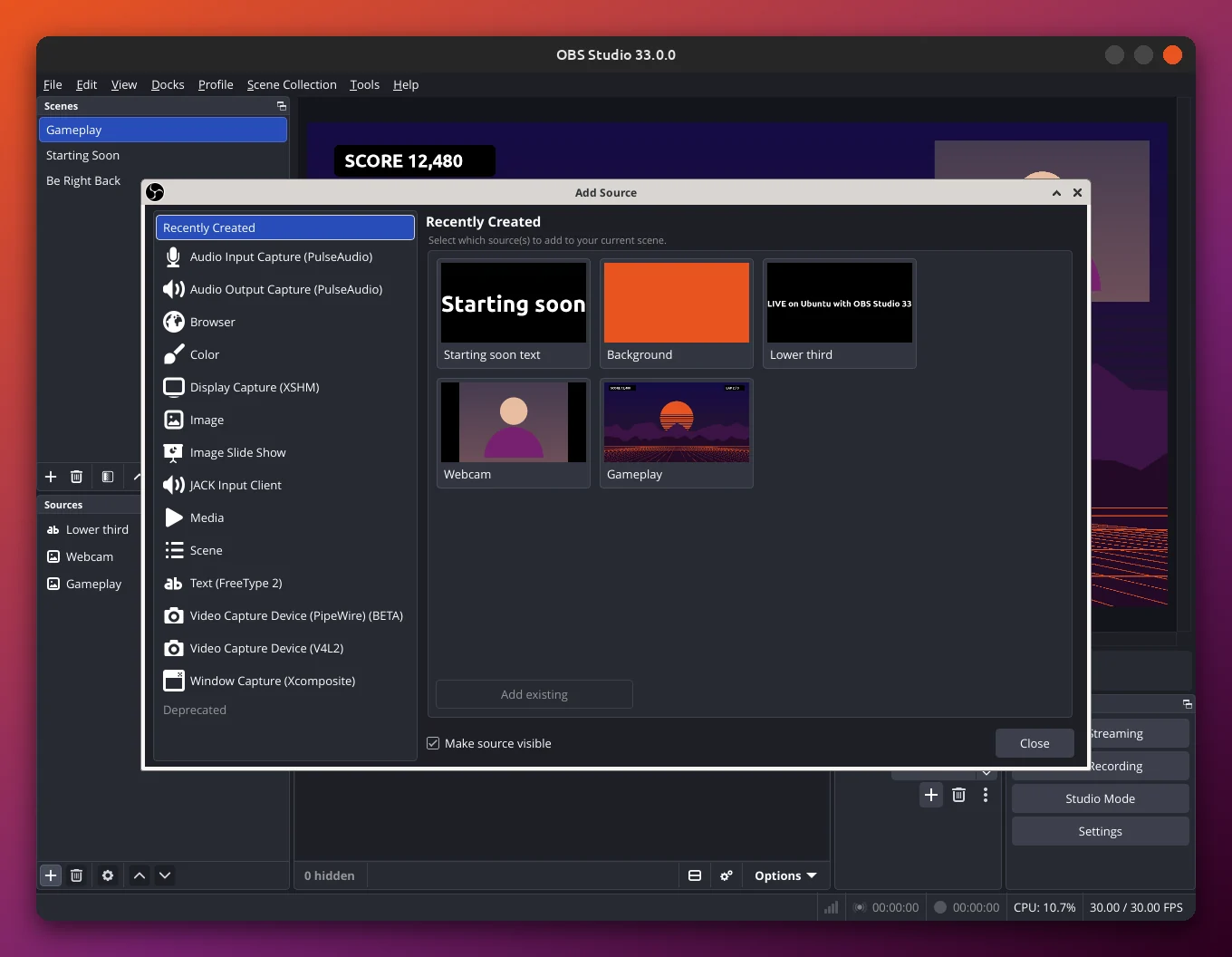
OBS Studio 33 Add Source dialog on Ubuntu listing every source type, including Display Capture (XSHM), Window Capture (Xcomposite), Video Capture Device (V4L2) and Browser, with recently created sources on the right
The Add Source dialog in OBS Studio 33, taken on an X11 session. On the default Ubuntu Wayland session you get Screen Capture (PipeWire) and Window Capture (PipeWire) instead of the XSHM and Xcomposite entries.

On the older X11 session, the list shows Display Capture (XSHM) and Window Capture (Xcomposite) instead, as in the screenshot above. Webcams show up as Video Capture Device (V4L2). Not sure which session you are using? Run this. It prints wayland or x11:

Check your session type
echo $XDG_SESSION_TYPE

Use Your Graphics Card for Smoother Recording

Hardware encoding lets your graphics card do the heavy video work instead of your processor, so games stay smooth while you record or stream. You need the right graphics driver first. Then open Settings, Output and look at the Video Encoder list. The encoder is the part that compresses your video.

Graphics Install first Encoder names in OBS
NVIDIA NVIDIA drivers on Ubuntu NVIDIA NVENC H.264, HEVC and AV1 (AV1 needs an RTX 40 series card or newer)
AMD AMD drivers on Ubuntu FFmpeg VAAPI H.264, HEVC and AV1, depending on the card
Intel Intel graphics drivers on Ubuntu QuickSync H.264, HEVC and AV1, or FFmpeg VAAPI

In Simple output mode, NVIDIA cards also show short names such as Hardware (NVENC, H.264). Switch Output Mode to Advanced to see every encoder.
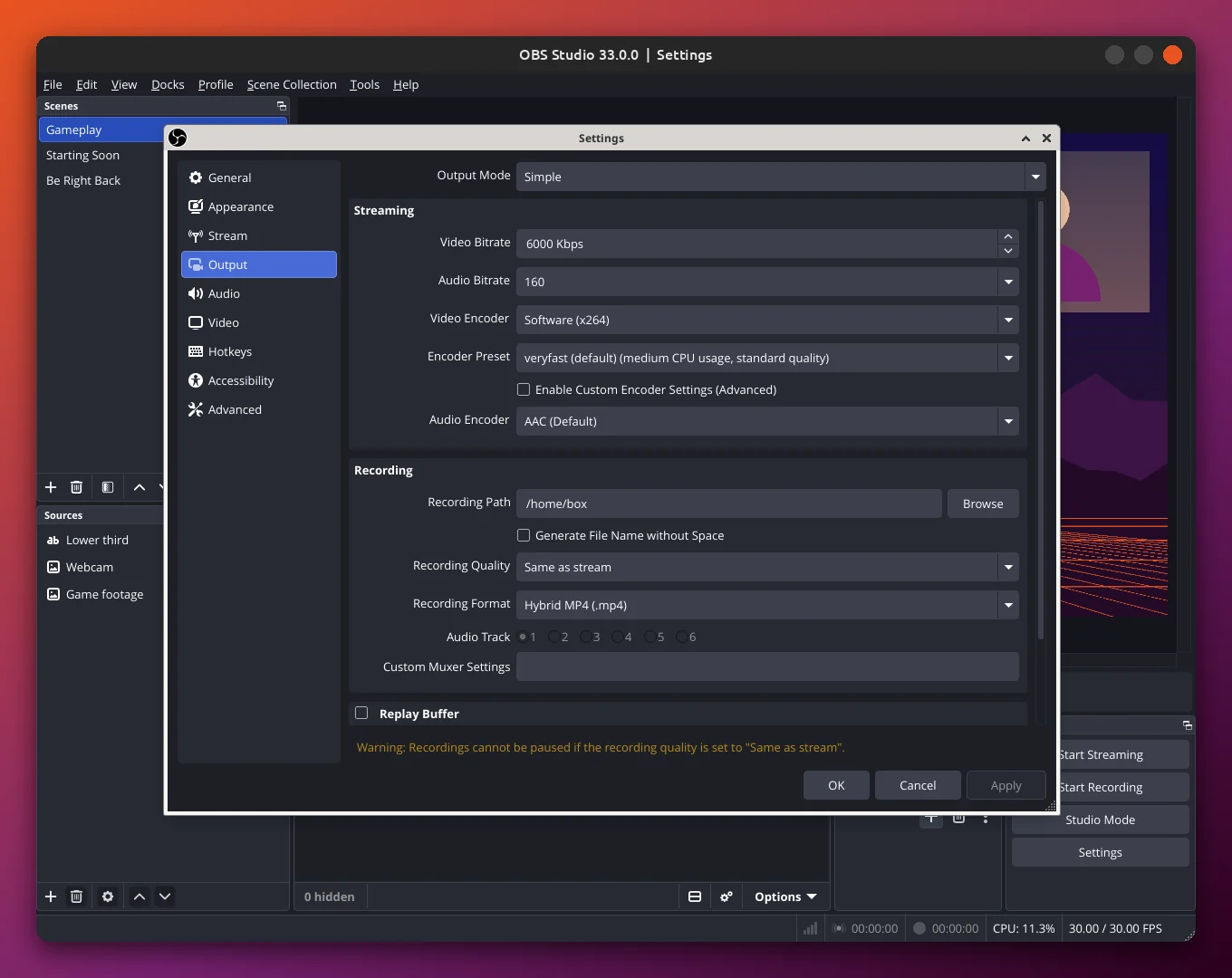
OBS Studio Settings Output page in Simple mode with the Video Encoder drop down showing Software x264
Settings, Output in Simple mode. This test machine has no GPU, so only Software (x264) shows. With working NVIDIA, AMD or Intel drivers you also get hardware encoders here.

NVIDIA: check that the driver is working. This should print your card name and driver version:

Check the NVIDIA driver
nvidia-smi --query-gpu=name,driver_version --format=csv

The Flatpak also needs a small NVIDIA add-on that matches your driver. Flatpak normally adds it for you. After you install or update the NVIDIA driver, run flatpak update and restart OBS.

AMD and Intel: these cards encode through VA-API, a standard way for Linux apps to use the graphics chip for video. The Flatpak brings its own VA-API drivers, so it usually just works. For the PPA, .deb or Ubuntu package, AMD support comes with Ubuntu. On Intel, install the media driver (it covers most Intel chips from 2014 onward):

Intel VA-API driver (PPA, .deb or Ubuntu package)
sudo apt install intel-media-va-driver-non-free

This package lives in the multiverse section, which Ubuntu Desktop turns on by default. To see which video formats your card can encode, install the vainfo tool and run it. Lines that end in EncSlice are formats it can encode:

Check VA-API support
sudo apt install vainfo
vainfo

Keep OBS Studio Updated

Flatpak: Ubuntu’s App Center does not update Flatpak apps, so update them from the terminal. This updates OBS only (run plain flatpak update to update all your Flatpak apps):

Update the Flatpak
flatpak update com.obsproject.Studio

PPA, .deb or Ubuntu package: OBS updates with the rest of your system. To update only OBS:

Update OBS with apt
sudo apt update
sudo apt install --only-upgrade obs-studio

Upgrading to a new Ubuntu version? Ubuntu turns PPAs off during the upgrade. Afterward, check that the PPA supports your new version before you turn it back on, or switch to the Flatpak. Our Ubuntu 26.10 upgrade guide walks you through the upgrade.

Common Problems and Fixes

The screen capture is black, or there are no PipeWire options
You are probably using the wrong source. On Wayland, use Screen Capture (PipeWire), not Display Capture (XSHM). Check your session with echo $XDG_SESSION_TYPE. Check that PipeWire is running with systemctl --user status pipewire; it should say active (running). If the PipeWire options are missing, install the screen sharing helper with sudo apt install xdg-desktop-portal-gnome, then log out and back in.
OBS does not pick up my microphone or desktop sound
Open Settings, Audio. Set Mic/Auxiliary Audio to your microphone. Set Desktop Audio to Default, or to the device whose name ends in .monitor, which carries everything your computer plays. To list your devices, run pactl list sources short (if that command is missing, install it with sudo apt install pulseaudio-utils). If no devices show at all, restart the sound service with systemctl --user restart pipewire pipewire-pulse.
OBS says “Failed to initialize video”
This usually means the graphics driver is missing or out of date. Install the right driver for your card using the links in the graphics card section, restart, and try again. On a Flatpak install, also run flatpak update.
NVENC is missing from the encoder list
Run nvidia-smi to check the NVIDIA driver is loaded. If it errors, install or reinstall the driver. For the Flatpak, run flatpak update so the matching NVIDIA add-on gets installed, then restart OBS.
There is no Start Virtual Camera button
The virtual camera (which lets you use OBS as a webcam in Zoom or Meet) needs an extra system part called v4l2loopback. Install it with sudo apt install v4l2loopback-dkms and restart OBS. This applies to the Flatpak too. If Secure Boot is on, Ubuntu may ask you to set a password and confirm it on the blue screen at the next restart, so the new part is allowed to load.
OBS opens in Safe Mode
OBS offers Safe Mode when it did not close properly last time. It starts without add-ons (plugins) and scripts. If OBS works fine in Safe Mode, a plugin likely caused the crash, so update or remove your plugins one at a time.
A plugin stopped working after updating to OBS 33
OBS 33 moved where plugins are stored. Old locations keep working until OBS 34, but get the latest version of the plugin from its maker to be safe. Flatpak users install plugins as Flatpak add-ons instead.

Remove OBS Studio

Flatpak: remove OBS, then clear out shared files no other app needs:

Remove the Flatpak
flatpak uninstall com.obsproject.Studio
flatpak uninstall --unused

PPA, .deb or Ubuntu package: remove OBS and the PPA, then let apt clean up leftover packages. Read the list apt shows before you confirm.

Remove the apt install
sudo apt remove obs-studio
sudo add-apt-repository --remove ppa:obsproject/obs-studio
sudo apt update
sudo apt autoremove

To confirm OBS is gone, run obs --version or flatpak list --app. You should get “command not found”, or a list without OBS Studio.

Your scenes and settings stay behind, so a reinstall picks up where you left off. Apt installs keep them in ~/.config/obs-studio and the Flatpak keeps them in ~/.var/app/com.obsproject.Studio. To delete them for good, which cannot be undone:

Delete OBS settings and scenes
rm -rf ~/.config/obs-studio
rm -rf ~/.var/app/com.obsproject.Studio

Helpful Resources

OBS Knowledge Base ↗Official guides for every setting
OBS Studio releases ↗Release notes and downloads
OBS Studio on Flathub ↗The official Flatpak
OBS forums ↗Where Linux questions get answered
Next step
Install, run the wizard, press Record

Install the Flatpak, let the wizard pick your settings, add a Screen Capture source and press Start Recording.

Related guides: Twitch on Ubuntu · Best video editors for Ubuntu · Install drivers on Ubuntu · The best software for Ubuntu