 You can install LibreWolf Browser on Ubuntu using the official APT repository (via extrepo), Flatpak (Flathub), or the standalone AppImage. Recognized as one of the best web browsers for Ubuntu, LibreWolf is an open-source web browser based on Firefox that focuses on privacy, security, and user freedom.
By default, it stops background data tracking (telemetry), blocks trackers, stops websites from identifying your device (fingerprinting), and removes ads. Because it is built on the Firefox engine, LibreWolf supports your favorite add-ons while maintaining an independent development team.
This guide provides clear terminal instructions for all three installation methods, compares their features, and explains how updates are configured on Ubuntu 24.04 and 26.04 LTS.
If you run into any setup issues, feel free to drop a comment below or contact us directly for support. We are always here to help you get it running.
APT, Flatpak & AppImage Setup Guides
Configure LibreWolf Browser on your Ubuntu machine. Compare native repository performance against containerized sandboxes, and run the verified terminal setup scripts.
Choosing the right installation method impacts how LibreWolf integrates with your desktop environment and how updates are handled. Below is a detailed breakdown of each method to help you decide.
LibreWolf Installation Methods Compared
Review the table below to compare the package formats, security settings, and auto-update support for the three installation paths.
| Method | Version Age | Auto-Updates | Security Isolation | Best For |
|---|---|---|---|---|
| Official APT (Recommended) | Latest version (native) | System updates (via apt upgrade) | No (runs directly on your system) | Best performance and standard desktop integration |
| Flatpak | Latest version (community container) | Automatic (via flatpak update) | Yes (runs in a secure, isolated box) | Keeping browser files isolated from your system |
| AppImage | Latest version (native) | Manual download or AppImageLauncher | No | Running without installing, USB portability |
Method 1: Install LibreWolf via the Official APT Repository (Recommended)
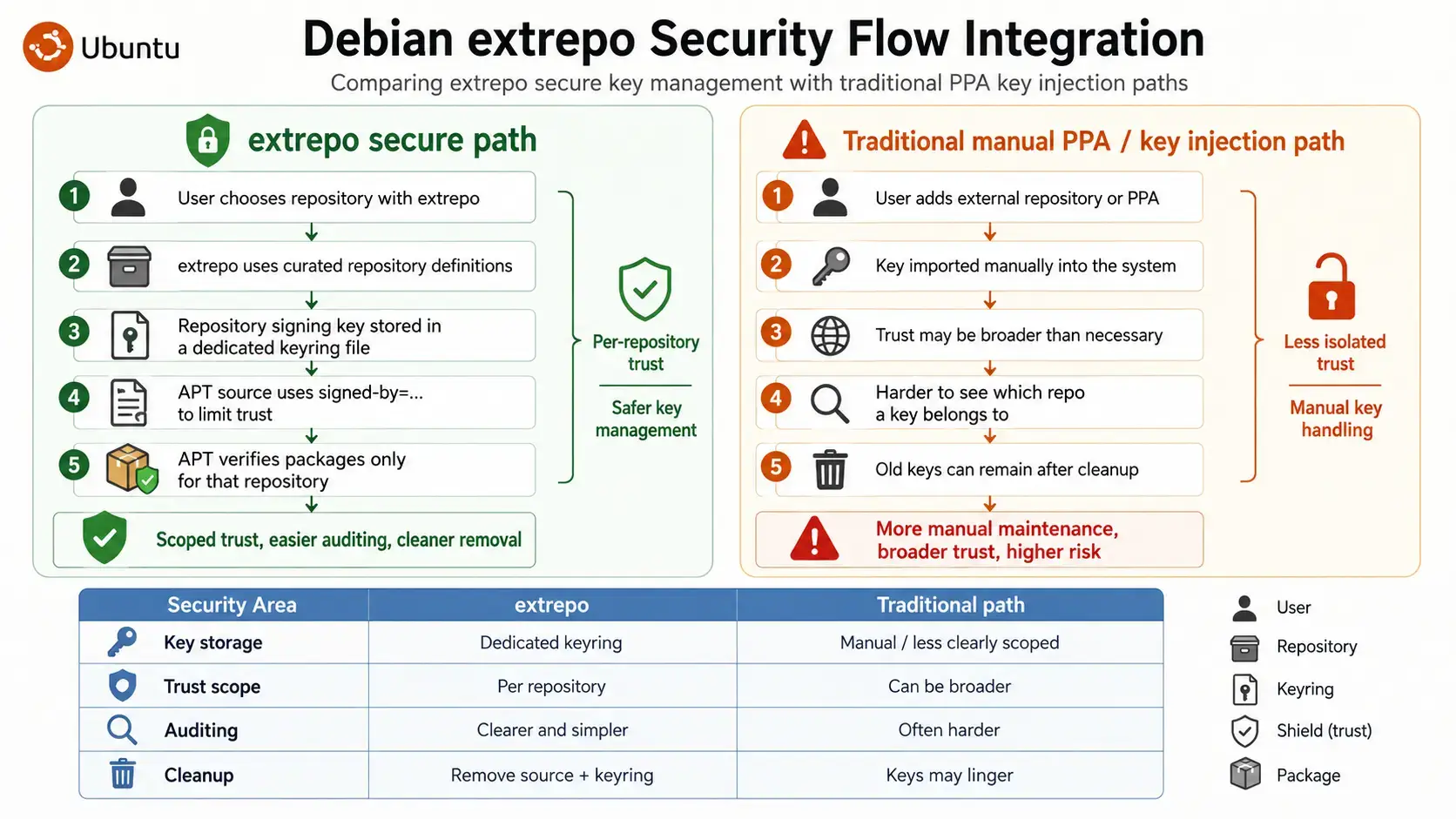
LibreWolf officially uses a tool called extrepo to manage its installation sources on Ubuntu. Traditionally, adding third-party apps required downloading raw security keys and writing long configuration lines. This could sometimes compromise system security if a key got mixed up. The extrepo tool is a secure helper utility. It automatically grabs LibreWolf’s pre-verified configuration and sets up the repository safely in the background. This ensures that LibreWolf’s security keys are only used for LibreWolf updates, keeping your system secure without manual file edits.
Open a terminal window (Ctrl+Alt+T). Refresh your local package listings, and install the extrepo tool on your system:
sudo apt update && sudo apt install extrepo -y
Tell the extrepo manager to download LibreWolf’s official installation setup:
sudo extrepo enable librewolf && sudo extrepo update librewolf
Now update your system’s software list so it sees the new LibreWolf repository, then install the browser:
sudo apt update && sudo apt install librewolf -y
Method 2: Install LibreWolf via Flatpak (Flathub)
Flatpak is a packaging format that runs LibreWolf inside a secure, isolated box (sandbox). This keeps the browser separate from your main operating system, preventing it from accessing your personal files or system settings without your permission. This method is maintained by the LibreWolf community and verified on the Flathub package catalog.
If Flatpak is not already configured on your machine, install the Flatpak service and add the Flathub store:
sudo apt update
sudo apt install flatpak -y
sudo flatpak remote-add --if-not-exists flathub https://dl.flathub.org/repo/flathub.flatpakrepo
Run the flatpak installation command to fetch the browser package:
flatpak install flathub io.gitlab.librewolf-community -y
Method 3: Install and Run LibreWolf via Standalone AppImage
An AppImage is a portable file that lets you run LibreWolf without installing it. It puts the entire browser into a single file that you can double-click and run from any folder, or even run from a USB drive.
Download the AppImage file from the official LibreWolf website. Open your terminal in the directory where the file was saved (usually ~/Downloads) and run the commands to make the file executable and launch it:
# Grant execution permissions
chmod +x LibreWolf*.AppImage

# Run the executable file
./LibreWolf*.AppImage
Recommendation for Menu Integration: Since AppImage files do not show up in your application menu automatically, we recommend using a tool called AppImageLauncher. This tool automatically finds your downloaded AppImage files, adds them to your Ubuntu application menu, and lets you delete or update them easily.
Debian extrepo Security Flow Integration
Post-Installation Settings: Persisting Configuration and Logins via Overrides
LibreWolf is set up to protect your privacy by default. It automatically deletes your history, cache, and cookies every time you close the browser. This stops tracking, but it means you must log back into your accounts every time you open it. If you want the browser to remember your logins, you can customize these settings. Instead of changing them in about:config (where they might get reset during updates), you can save them permanently in a configuration file called librewolf.overrides.cfg.
Create the folder for your settings and open the overrides file in the terminal using the nano editor:
# For Native APT and AppImage Installations:
mkdir -p ~/.librewolf
nano ~/.librewolf/librewolf.overrides.cfg

# For Flatpak Installations:
mkdir -p ~/.var/app/io.gitlab.librewolf-community/.librewolf
nano ~/.var/app/io.gitlab.librewolf-community/.librewolf/librewolf.overrides.cfg
Add the following preference lines. Note that LibreWolf overrides use the defaultPref syntax rather than the standard pref or user_pref tags:
// LibreWolf Custom Overrides Configuration
// Location: ~/.librewolf/librewolf.overrides.cfg

// 1. Keep logins and active sessions (Stop clearing cookies/history on exit)
defaultPref("privacy.clearOnShutdown.cookies", false);
defaultPref("privacy.clearOnShutdown.history", false);

// 2. Enable DRM for video streaming (Netflix, Spotify, Prime Video)
defaultPref("media.gmp-widevinecdm.enabled", true);

// 3. Enable WebGL for 3D maps, canvas games, and rendering engines
defaultPref("webgl.disabled", false);

// 4. Disable fingerprint resistance if sites require native resolution or timezone
defaultPref("privacy.resistFingerprinting", false);
Since LibreWolf is based on Firefox, they store data the same way. You can easily copy your bookmarks, passwords, and history over. Close LibreWolf, open your terminal, and run these commands:
# For Native APT/AppImage (destinations end in .default or similar profile folder):
# Copy bookmarks and history database
cp ~/.mozilla/firefox/*.default-release/places.sqlite ~/.librewolf/*.default/

# Copy saved login credentials and keys
cp ~/.mozilla/firefox/*.default-release/key4.db ~/.librewolf/*.default/
cp ~/.mozilla/firefox/*.default-release/logins.json ~/.librewolf/*.default/

# For Flatpak installations:
cp ~/.mozilla/firefox/*.default-release/places.sqlite ~/.var/app/io.gitlab.librewolf-community/.librewolf/*.default/
cp ~/.mozilla/firefox/*.default-release/key4.db ~/.var/app/io.gitlab.librewolf-community/.librewolf/*.default/
cp ~/.mozilla/firefox/*.default-release/logins.json ~/.var/app/io.gitlab.librewolf-community/.librewolf/*.default/
Note on profile folder names: Replace the asterisk * character with the actual randomized string of your Firefox and LibreWolf profile folders. You can find the exact paths by typing about:profiles inside the browser address bars.
LibreOffice Screenshot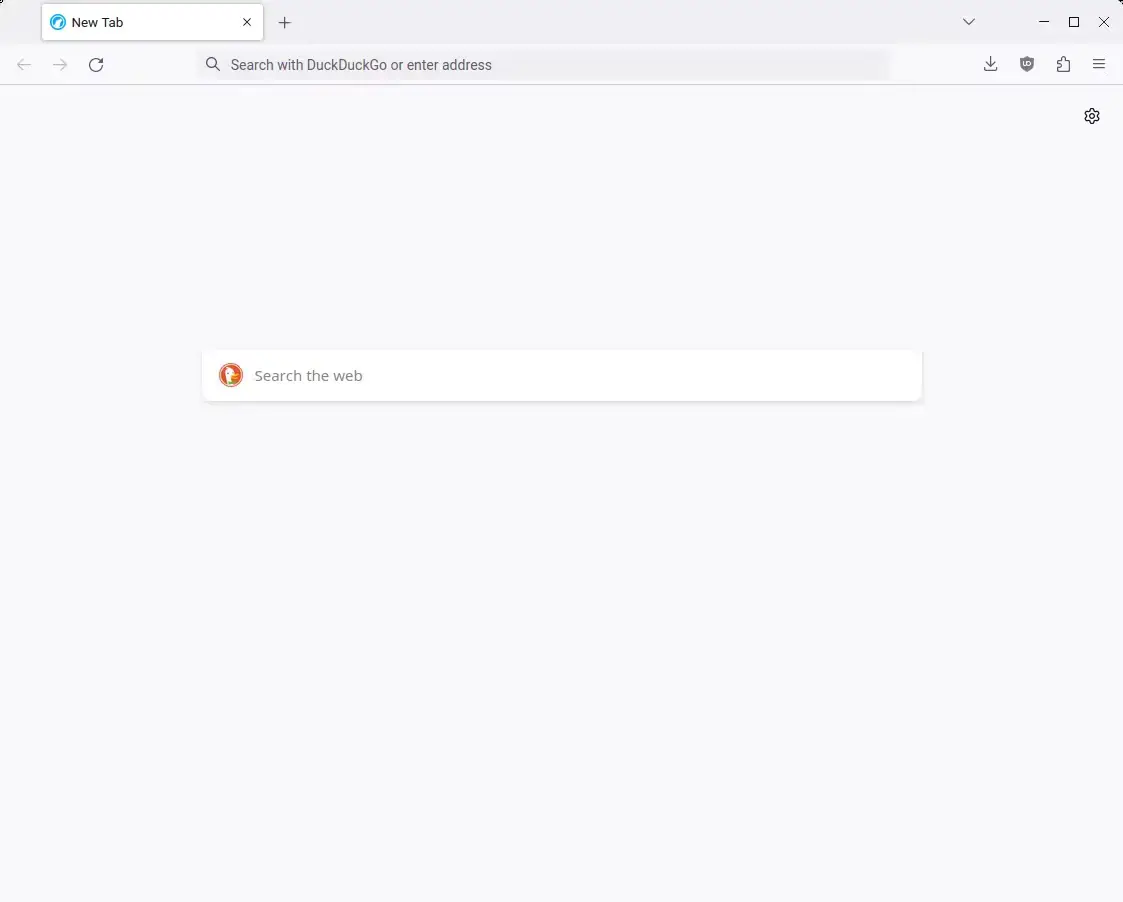
Privacy Comparison: LibreWolf vs Tor Browser
While both browsers protect your privacy on Ubuntu, they work very differently and offer different speeds. Tor Browser (see our Tor Browser installation guide) is built for complete anonymity. It routes your traffic through multiple computers in the Tor network. This keeps you hidden, but it slows down your connection, making it hard to watch videos, download large files, or play games.
On the other hand, LibreWolf uses your regular internet connection (or a VPN). This means it runs at your normal internet speed. It blocks trackers and website fingerprinting without any slowdowns, making it the best choice for everyday browsing and video streaming.
Troubleshooting LibreWolf Usability and Site Issues
Because LibreWolf blocks trackers and scripts by default, some websites, login pages, or 3D maps might not load correctly. Here is how to fix the most common issues.
LibreWolf turns on fingerprint protection by default. This locks your reported screen size, sets your timezone to UTC (which can show the wrong local time on sites), and blocks canvas graphics. If this breaks a website you need, you can turn it off. Type about:config in the address bar, press Enter, accept the warning, search for privacy.resistFingerprinting, and double-click it to set it to false.
LibreWolf turns off DRM playback to avoid running closed-source software code. If you want to watch movies or listen to music on these sites, open LibreWolf Settings, search for “DRM”, and check the box next to Play DRM-controlled content. The browser will download the required plugin automatically.
3D graphics (WebGL) are turned off to prevent websites from identifying your graphics hardware. To enable WebGL for Google Maps 3D or online games, search for webgl.disabled in about:config and set it to false.
If you previously installed LibreWolf using older methods, you might see duplicate repository warnings when running system updates. You can clean up these old files by running this command in your terminal:
sudo rm -f \
    /etc/apt/sources.list.d/librewolf.sources \
    /etc/apt/keyrings/librewolf.gpg \
    /etc/apt/preferences.d/librewolf.pref \
    /etc/apt/sources.list.d/home_bgstack15_aftermozilla.sources \
    /etc/apt/keyrings/home_bgstack15_aftermozilla.gpg \
    /etc/apt/sources.list.d/librewolf.list \
    /etc/apt/trusted.gpg.d/librewolf.gpg \
    /etc/apt/sources.list.d/home:bgstack15:aftermozilla.list \
    /etc/apt/trusted.gpg.d/home_bgstack15_aftermozilla.gpg
How to Uninstall LibreWolf Browser from Ubuntu
If you want to remove LibreWolf from your system, run the commands below for the method you used to install it.
1. For the Native APT Repository Method:
Remove the browser, turn off the repository listing, and update your software list:
sudo apt purge -y librewolf
sudo extrepo disable librewolf
sudo apt update
2. For the Flatpak Method:
Uninstall the Flatpak package and clean up files that are no longer needed:
flatpak uninstall -y io.gitlab.librewolf-community
flatpak uninstall --unused -y
3. For the AppImage Method:
Delete the downloaded AppImage file. If you used AppImageLauncher, right-click the icon in your menu and click remove.
Delete Your Settings and Profile Data:
Uninstalling the browser does not delete your personal bookmarks, passwords, or history. To delete this personal data, run these cleanup commands:
# Delete native profile cache and data
rm -rf ~/.librewolf ~/.cache/librewolf

# Delete Flatpak sandbox profile data
rm -rf ~/.var/app/io.gitlab.librewolf-community/
Frequently Asked Questions
Is LibreWolf Browser officially supported on Ubuntu?
Yes. LibreWolf supports Ubuntu through an official APT repository configured via extrepo, Flatpak via Flathub, and standalone AppImage builds.
What is the recommended method to install LibreWolf on Ubuntu?
The recommended method is the official APT repository via extrepo. This installs LibreWolf as a native package, manages GPG keys and sources list files securely, and updates automatically during system upgrades.
Why does LibreWolf use extrepo instead of standard PPAs or custom GPG imports?
Debian and Ubuntu guidelines discourage adding raw external GPG keys to trusted.gpg.d. The extrepo tool is a secure repository manager that pulls preconfigured repository settings and signs them with dedicated keyrings automatically.
How do I persist my browsing settings and logins in LibreWolf?
By default, LibreWolf clears cookies and history on shutdown. To disable this, open Settings, go to Privacy & Security, scroll down to Cookies and Site Data, and uncheck Delete cookies and site data when LibreWolf is closed, or configure an overrides file.
How can I enable DRM content playback in LibreWolf?
Open LibreWolf Settings, search for DRM, and check Play DRM-controlled content. This downloads and enables the Widevine plugin, allowing you to watch movies on platforms like Netflix or Spotify.
More Ubuntu web browser guides: Zen Browser · qutebrowser · Falkon Browser · GNOME Web · Vivaldi Browser · Brave Browser