Apt and snap are the two package tools you use most on Ubuntu 26.04 LTS and Ubuntu 26.10. Apt installs .deb packages from the Ubuntu archive, while snap installs sandboxed apps from the Snap Store that update themselves in the background. This guide covers the everyday commands for both, with copy-ready examples and a free cheat sheet.
sudo apt update only refreshes package lists. It never installs or upgrades anything by itself.apt upgrade never removes packages. full-upgrade may remove some to resolve dependency changes.autoremove and clean free disk space after kernel updates and big upgrades.snap refresh --hold to pause them.--classic, which gives the snap normal system access.apt policy and snap info show versions and channels before you install.Download the Ubuntu Apt and Snap Commands Cheat Sheet
Every command from this guide on one printable sheet. Grab the PDF, or pick EPUB, DOCX, MOBI or AZW3 for your reader.
Also see Top 40 Linux commands for Ubuntu 26.04, Sudo command cheat sheet, Systemctl and journalctl commands in Ubuntu and Disk and partition commands in Ubuntu.
Apt basics: update, upgrade and install
apt is the friendly front end to the Ubuntu package system. You will still see apt-get in older guides. It works the same way and is the better choice inside scripts because its output format stays stable.
1. Update package lists
Downloads the latest package indexes from the sources in /etc/apt/sources.list.d/ubuntu.sources. Run it before any install or upgrade.
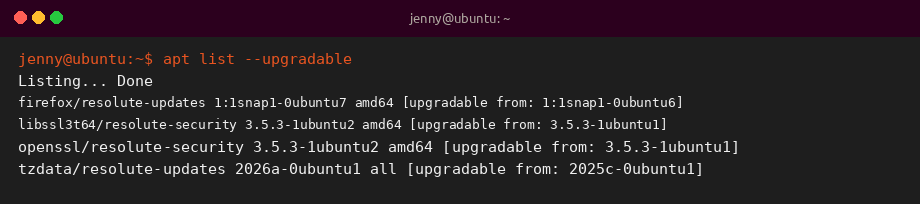
2. List available upgrades
Shows which installed packages have a newer version waiting, without changing anything.
3. Upgrade installed packages
Installs newer versions of everything you already have. It never removes packages.
Add -y to skip the confirmation prompt in scripts.
4. Full upgrade
Like upgrade, but allowed to install or remove packages when dependencies change. Use it for large updates and new kernels.
5. Install packages
Installs one or more packages plus their dependencies from the Ubuntu archive.
6. Install a local .deb file
The ./ prefix tells apt it is a file, so missing dependencies are still pulled from the archive.
Prefer this over dpkg -i, which does not resolve dependencies.
7. Remove a package
Uninstalls the package but keeps its system-wide configuration files.
8. Purge a package and its config
Removes the package and its configuration in /etc. Your personal files in ~ are not touched.
9. Remove unused dependencies
Clears libraries and old kernels that nothing needs anymore.
10. Clean the download cache
Deletes downloaded .deb files from /var/cache/apt/archives. autoclean only removes versions that can no longer be downloaded.
Search and inspect packages
Check what a package is and where it comes from before you install it. These commands are read-only, so they do not need sudo.
11. Search for a package
Searches package names and descriptions.
Pipe through grep or use apt list "*name*" for shorter output.
12. Show package details
Prints the version, size, dependencies and description.
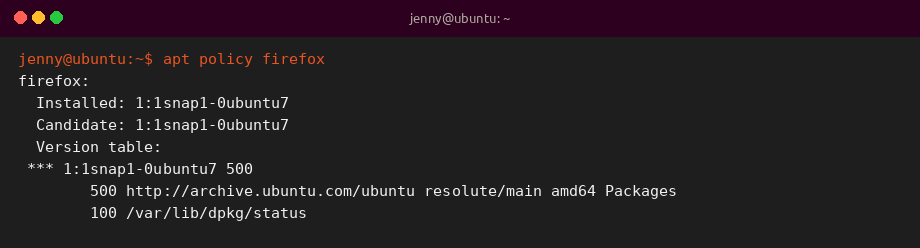
13. Check versions and origin
Shows the installed version, the candidate version and which repository each comes from. On Ubuntu the firefox deb is a transitional package that installs the snap.
14. List installed packages
Lists everything installed. Filter the long list with grep.
15. Find which package owns a file
dpkg -S searches installed packages for a path. dpkg -L lists every file a package installed.
16. Hold a package at its version
Stops apt from upgrading a package until you release it.
Repositories and PPAs
Ubuntu 26.04 stores its sources in the deb822 format in /etc/apt/sources.list.d/ubuntu.sources. Only add third-party sources you trust, because they can replace system packages.
17. Add a PPA
Adds a Launchpad PPA and its signing key, then refreshes the package lists.
18. Remove a PPA
Removes the source again. Run sudo apt update afterwards.
19. Modernize old source files
Apt 3 can convert leftover one-line .list files into the deb822 .sources format.
Snap basics: find, install and update
Snaps are self-contained packages from the Snap Store. snapd is preinstalled, and Firefox, Thunderbird and the App Center are snaps on a default Ubuntu desktop.
20. Find a snap
Searches the Snap Store by name and description.
21. Show snap details and channels
Lists the publisher, description and every channel with its version.
22. Install a snap
Installs from the latest/stable channel by default.
23. Install a classic snap
Classic snaps run without the sandbox. Code editors and SDKs often need this.
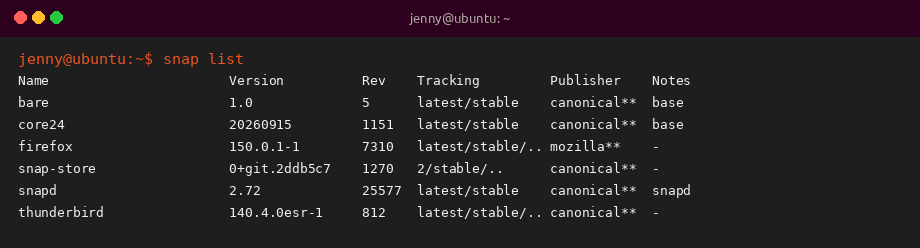
24. List installed snaps
Shows version, revision, tracking channel and publisher for each snap.
25. Refresh snaps now
Updates all snaps immediately. –list only shows pending updates.
26. Switch a snap to another channel
Moves a snap to a different channel, for example to test a beta, and back again.
27. Hold automatic refreshes
Pauses updates for one snap for a set time, or until you release the hold.
28. Revert to the previous revision
Rolls a snap back to the revision it had before the last refresh.
29. Remove a snap
Uninstalls the snap. snapd keeps an automatic snapshot of its data unless you add –purge.
30. Keep fewer old revisions
snapd keeps older revisions for rollback. Lower the number kept to save disk space (minimum 2).
31. Check snap permissions
Shows which interfaces (camera, home, network and so on) a snap is connected to.
Apt vs snap quick reference
| Task | Apt | Snap |
|---|---|---|
| Refresh / update | sudo apt update && sudo apt upgrade |
sudo snap refresh |
| Search | apt search name |
snap find name |
| Details | apt show name |
snap info name |
| Install | sudo apt install name |
sudo snap install name |
| Remove | sudo apt remove name |
sudo snap remove name |
| List installed | apt list --installed |
snap list |
| Pause updates | sudo apt-mark hold name |
sudo snap refresh --hold name |
| Roll back | sudo apt install name=version |
sudo snap revert name |
Tips and best practices
Use apt for system tools, libraries and server software that should follow the Ubuntu release. Use snaps for desktop apps and tools where you want the newest upstream version, or where the deb is only a wrapper for the snap, as with Firefox.
Do not mix sources for the same app without a reason. Installing both the snap and a PPA build of one program can leave two copies with separate settings.
Related Ubuntu command guides
- Top 40 Linux commands for Ubuntu 26.04
- Systemctl and journalctl commands in Ubuntu
- UFW firewall commands in Ubuntu
- Disk and partition commands in Ubuntu
- Chmod and chown commands in Ubuntu
- Linux networking commands
- Advanced Linux commands
- Linux security commands
- Sudo command cheat sheet
- Grep command cheat sheet
- Tar command cheat sheet
- Wget command cheat sheet