The short version: Canonical has released Myna as a technology preview: an opt-in, local, privacy-first speech-to-text agent for Ubuntu Desktop. Press a hotkey, speak, and text lands in the app you are using. It ships as a preview around Ubuntu 26.10 (Stonking Stingray), and Canonical says it should become default with Ubuntu 28.04 LTS.
What Myna is
Named for the bird: Canonical named the project after the myna bird, known for mimicking human speech. On the desktop, Myna listens when you ask it to, turns your speech into text, and inserts that text into the focused application.
First AI milestone on the desktop: in the Ubuntu 26.10 release announcement, Canonical calls Myna the first milestone of its AI-on-Ubuntu roadmap: a speech-to-text agent that uses on-device models, led with accessibility in mind. You can read the wider release picture in our Ubuntu 26.10 new features guide.
Dictation, not a voice assistant: the official preview post is clear. Myna focuses on dictation. It does not control the desktop through voice commands, and features such as wake words, translation and automatic language detection are out of scope for this first stage.
How it works on your machine
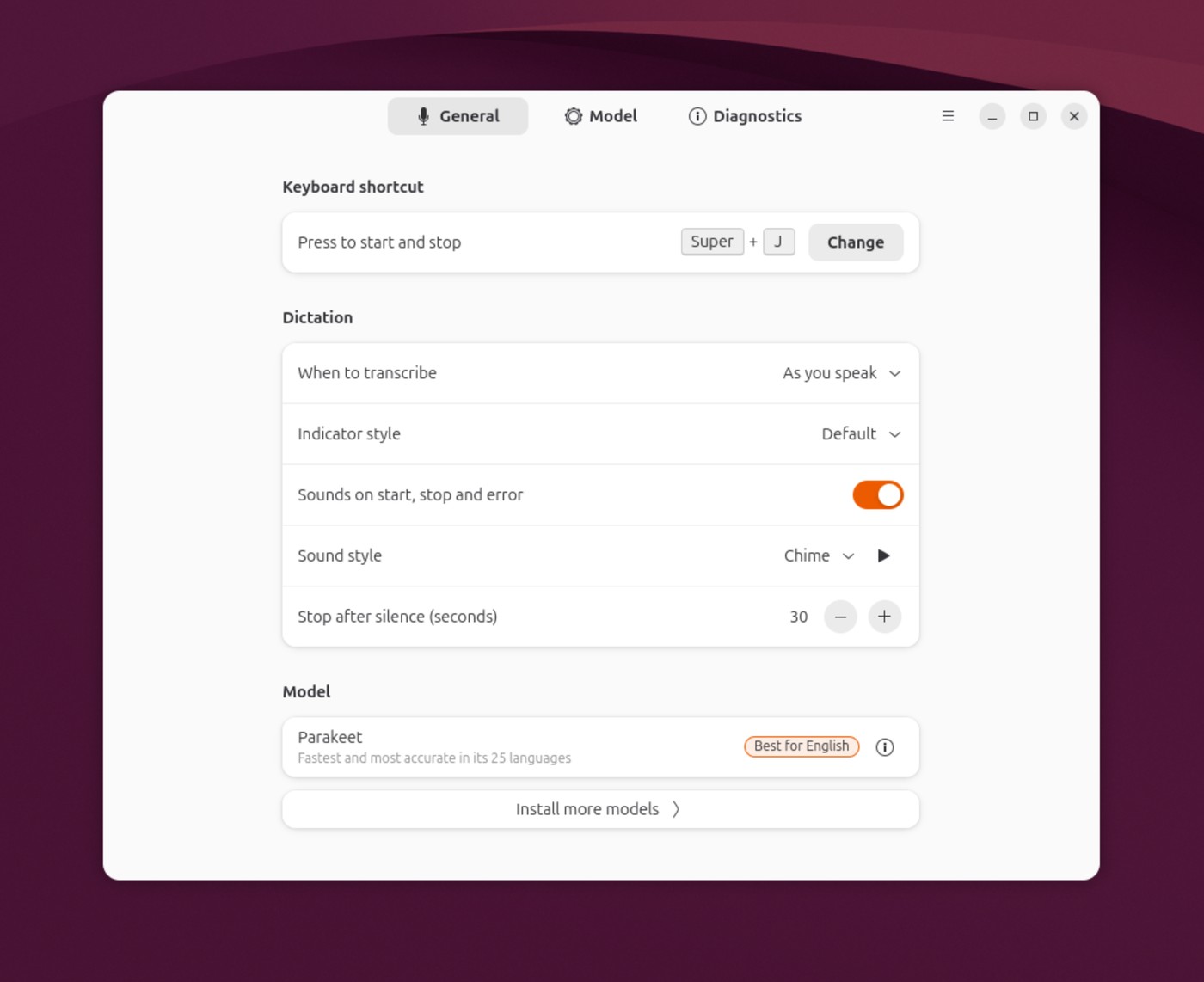
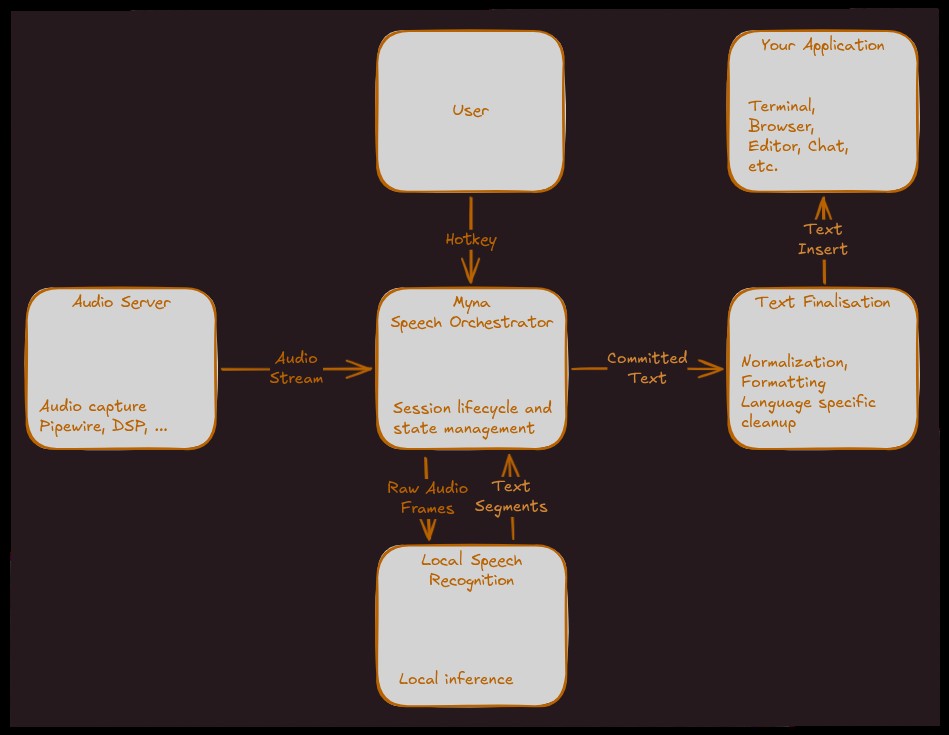
Press, speak, type: focus a text field, use the configured hotkey, speak, and the transcript appears in the app. Canonical’s Settings screenshot shows a default-style shortcut of Super+J with the label “Press to start and stop.” You can change that shortcut in Myna Settings. The Ubuntu 26.10 release notes also describe holding a configurable key; treat the hotkey behavior as configurable and confirm it in your own Settings after install.
Visual feedback: Myna is designed to show clear feedback while recognition is active (activity indicator / notification style depending on the desktop path).
Engines and snaps: the preview supports several recognition engines, including Parakeet, Whisper and FunASR. GitHub release notes for Myna say Myna Settings installs the rest from the Snap Store latest/edge channel as snaps such as myna, myna-parakeet, myna-whisper and myna-funasr. Inference is meant to stay local and confined.
Privacy: local models and a sandboxed stack
Why this matters: many speech tools send audio to a cloud service. Myna’s design goal is the opposite for day-to-day dictation.
From Canonical’s Discourse introduction and the technology preview blog:
- Speech recognition prioritizes local models on your machine.
- After models are installed, no internet connection is required for transcription.
- The microphone is accessed when you explicitly activate dictation.
- Audio is processed in memory and discarded after use; recordings are not uploaded to external services in that described flow.
- The client snap path described in the project docs deliberately avoids a network plug for the orchestrator, keeping audio and text on local sockets and the session bus.
Sandboxing: recognition backends ship as snaps. That gives Ubuntu a confined place to run models and to update them through snapd. For related security themes in this release, see our note on security updates and changes in Ubuntu 26.10.
Requirements at a glance
If you still need to move up from 26.04, follow our upgrade to Ubuntu 26.10 guide before you lean on 26.10-only desktop polish.
How to try it
These steps come from Canonical’s technology preview blog and the project’s GitHub release notes.
- Add the PPA and install Myna Settings:
sudo add-apt-repository ppa:canonical-desktop-team/myna sudo apt install myna-config - Open Myna Settings from Activities and follow the on-screen setup. Settings installs the dictation client, a speech model and (on GNOME) the related Shell pieces from snaps.
- Choose a model / engine (Parakeet, Whisper or FunASR) based on language needs and hardware. On a supported NVIDIA GPU, a GPU-accelerated engine may be offered.
- Focus a text field, press the configured hotkey, speak, and check the transcript. Adjust the shortcut in Settings if Super+J (or whatever you see) conflicts with another shortcut.
Expect rough edges: Canonical labels this a technology preview. Early testers report good accuracy on some machines, plus app-specific text-injection quirks (for example around Enter / new paragraphs) while the IBus-based injection path matures.
What we could not pin to a single official number: a full public matrix of minimum RAM / VRAM per engine, the complete language list for every model, and a single documented default hotkey string beyond what appears in Canonical’s Settings screenshot (Super+J) and user reports. Check Myna Settings and the model cards on your system for the live values.
What’s next
Toward 28.04 LTS: Canonical’s Ubuntu 26.10 announcement says Myna will continue to evolve and, as Ubuntu 28.04 LTS approaches, will be included by default with Ubuntu.
Broader AI desktop ideas: the same announcement frames Myna as an early step toward more natural, intent-driven desktop help (for example asking Ubuntu to help investigate failing tests). That future scope is aspirational; the shipping preview is still “press hotkey and dictate.”
Hardware expansion: NVIDIA acceleration is available now on supported cards. Canonical staff have said support for additional accelerators (and more than only x86-64 over time) is planned. Exact Intel / AMD GPU dates were not published in the sources we checked.
Should you install it today?
Yes, if you want offline dictation for notes, email or coding comments, you run GNOME on Wayland, and you are willing to report bugs on github.com/canonical/myna.
Wait, if you need a polished voice assistant, rock-solid behavior on X11 or non-GNOME flavors, or a guaranteed language pack before you have tried the model picker yourself.
Bottom line
Myna is the first serious, privacy-minded speech-to-text path Canonical has put in front of Ubuntu Desktop users as a first-party preview. Install it from the PPA, let Settings pull the snaps, pick a local model, and dictate into real apps. Keep feedback flowing while the team hardens text injection and expands hardware support on the road to 28.04 LTS.
Sources: Ubuntu Blog (Myna technology preview), Ubuntu Discourse (Introducing Myna), canonical/myna on GitHub.