Bazzite is our top Linux distro for gaming in 2026, particularly if you want Steam, Proton, GPU drivers and controller support handled before you first log in.
Three others suit different people. Nobara gives you a conventional desktop with the gaming fixes already applied, Pop!_OS is the smoothest route on NVIDIA laptops that double as work machines, and CachyOS is for people who want an Arch base and recent packages.
If a driver or a game will not cooperate after you install, leave a comment below or contact us and we will help you work through it.
BazziteNobaraPop!_OSCachyOSSteamOSUbuntuPikaOSGarudaManjaroDrauger OSLakkaSparky GameOver
Which gaming distros are worth installing on a modern PC?
These six are the ones to choose between if you have hardware from roughly the last eight years and you mainly play through Steam. They are ranked by how much work they save you, not by how fast they claim to be.
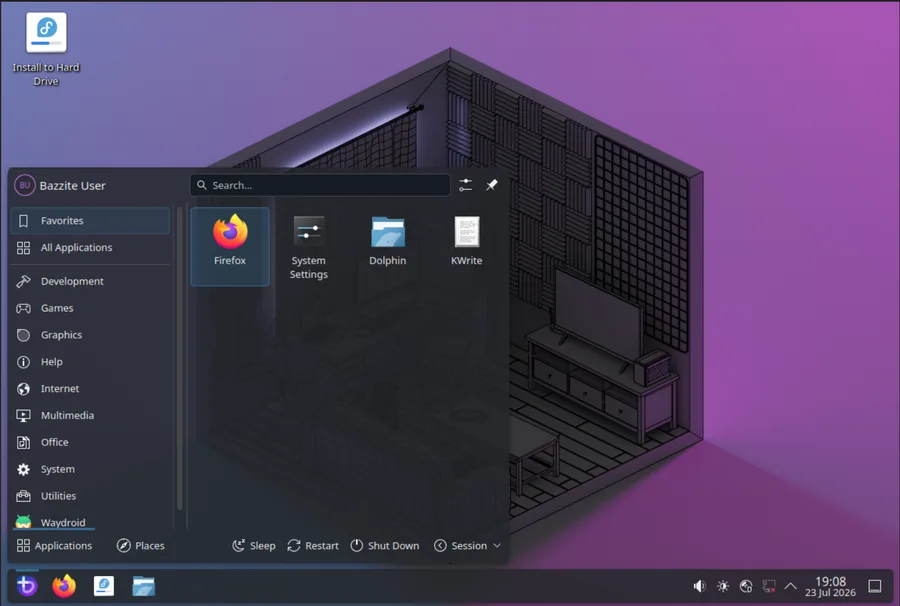
Bazzite is built on Fedora Atomic and arrives with GPU drivers, Steam, Proton tooling and controller support already configured. Its updates are image-based, so the previous version of the system stays on disk and a bad update can be undone at boot. Choose it if you want to install once and then play.
Most gaming distros are a normal system with gaming packages added. Bazzite is closer to an appliance. Every machine runs the same system image, so it tends to just work, and if an update breaks something you pick the previous image at the boot menu. There are separate builds for desktops, TVs and handhelds.
- Steam, Proton tooling, codecs and drivers are all set up already
- Rollback at boot after a bad update
- Separate desktop, HTPC and handheld images
- Gaming Mode gives you a console-like front end on a normal PC
- It does not work like normal Linux. Everyday apps come from Flatpak, and command line tools go in a container rather than on the system itself, so there is a little to learn
- NVIDIA and Intel graphics inside Gaming Mode are still marked as beta with known issues
- Downloads and updates are large because you are pulling whole system images
ujust on your first day. It prints Bazzite’s own list of one-line setup commands, covering things like installing Decky Loader, switching to emulator tooling and enabling Gaming Mode at boot, so you do not have to hunt for the instructions.ExplainingComputers walks through Bazzite on a desktop PC, including Gaming Mode.
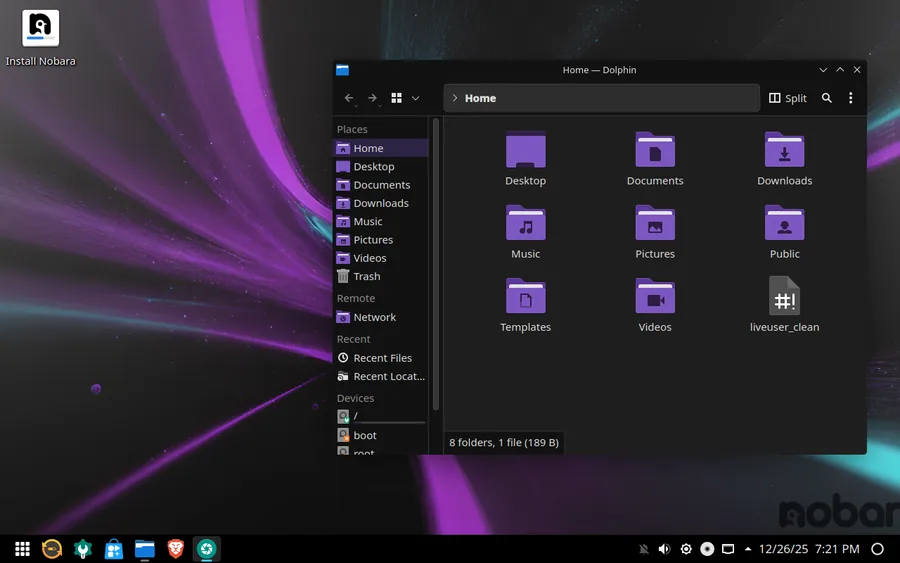
Nobara is Fedora with the work already done: gaming drivers, media codecs, kernel patches and a set of fixes that Fedora itself will not ship. It behaves like an ordinary desktop Linux system, so nothing you already know stops applying. Choose it if Bazzite’s image-based model puts you off.
Nobara is built by the developer behind Proton-GE, so the fixes that land here are usually the same ones that make games run for everyone else. It removes the two jobs that catch out new Fedora users, installing graphics drivers and installing media codecs, and it comes in five editions including builds for a TV or a handheld.
- A conventional desktop, so normal Linux knowledge applies
- NVIDIA and AMD drivers plus codecs configured out of the box
- Maintained by the Proton-GE developer
- Five editions including HTPC and handheld builds
- A small team, so major version upgrades occasionally need manual steps that a large distro would automate
- Fedora moves quickly, which means more updates than an LTS release
- No rollback safety net comparable to Bazzite’s
dnf upgrade yourself. Several of Nobara’s fixes are applied by that updater, and bypassing it is the usual way people end up with a half-patched system.OnlineComputerTips compares the Nobara editions and shows what is preconfigured.
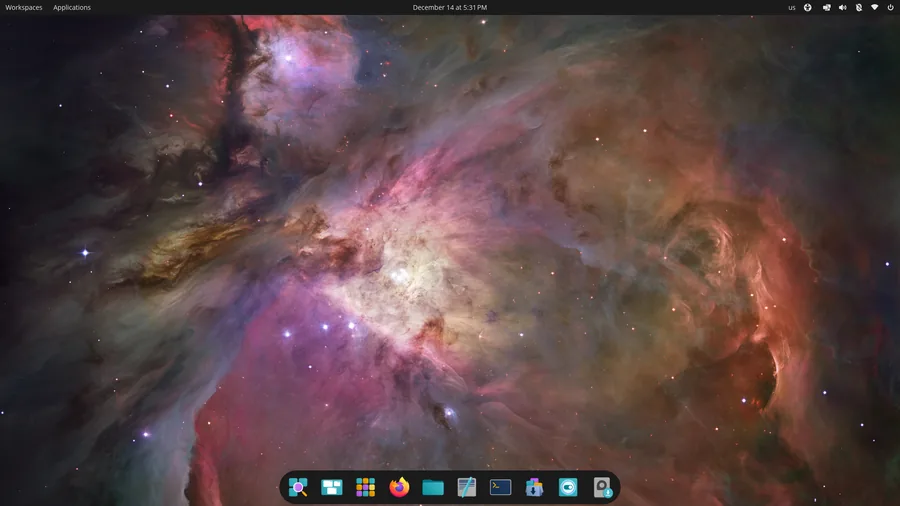
Pop!_OS is System76’s Ubuntu-based desktop, now built around COSMIC, the desktop environment the company wrote itself. Its practical advantage for gamers is a separate installer image with the NVIDIA driver already on it, which removes the single most common first-day problem. Choose it if the machine is a laptop with an NVIDIA GPU that also has to do your job.
System76 sells Linux laptops, so laptops with two graphics chips are a problem they have to solve for paying customers. Pop!_OS lets you switch between the built-in and the NVIDIA chip and reboot into it. COSMIC is the big change of the last year: written from scratch, very good at tiling windows, and younger than GNOME or KDE.
- A dedicated NVIDIA ISO with the driver already installed
- Graphics switching built in, which matters on laptops
- Ubuntu LTS underneath, so Ubuntu guides and extra software sources work
- COSMIC’s tiling is excellent when the machine is also a work machine
- COSMIC is still young compared with GNOME and KDE, with a smaller extension ecosystem
- No gaming software is pre-installed, so you set up Steam and Proton yourself
- It is a general desktop first, so nothing is tuned specifically for frame rates
Learn Linux TV reviews Pop!_OS 24.04 and the COSMIC desktop in full.
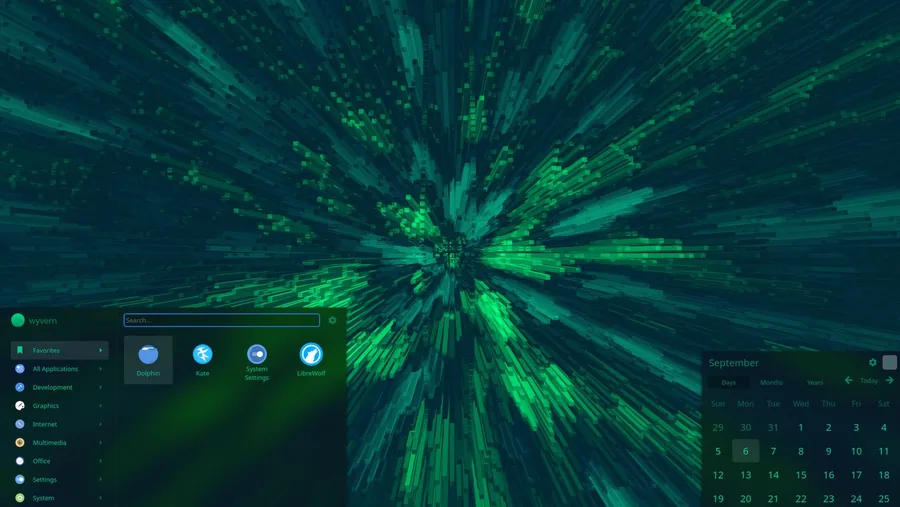
CachyOS is Arch Linux with a proper installer, its own kernel, and packages rebuilt to make use of newer processors. It gives you very recent drivers and kernels without a manual Arch install. Choose it if you enjoy tuning a system and want the newest graphics software, not because you expect a distro to hand you extra frames.
CachyOS builds its own kernel and rebuilds its packages to suit newer processors. Be clear-eyed about what that buys you. In real games the difference against a well set up mainstream distro is small and inconsistent, because frame rate comes from the driver, the Proton version and the game itself. The honest reason to run it is very current software with the setup already done.
- Arch’s package freshness without a manual install
- Custom kernels with selectable schedulers
- A wide choice of desktops during installation
- Handheld and gaming-oriented images are available
- Do not expect a meaningful frame rate gain purely from switching distro
- Rolling release, so updates arrive constantly and occasionally break something
- You are expected to read what an update is doing before applying it
sudo pacman -S cachyos-gaming-meta. It pulls in the gaming libraries and dependencies together, and CachyOS Hello can add the launchers alongside it.Ancient Gameplays benchmarks CachyOS against Windows on AMD and NVIDIA, which is the honest way to judge the performance claims.
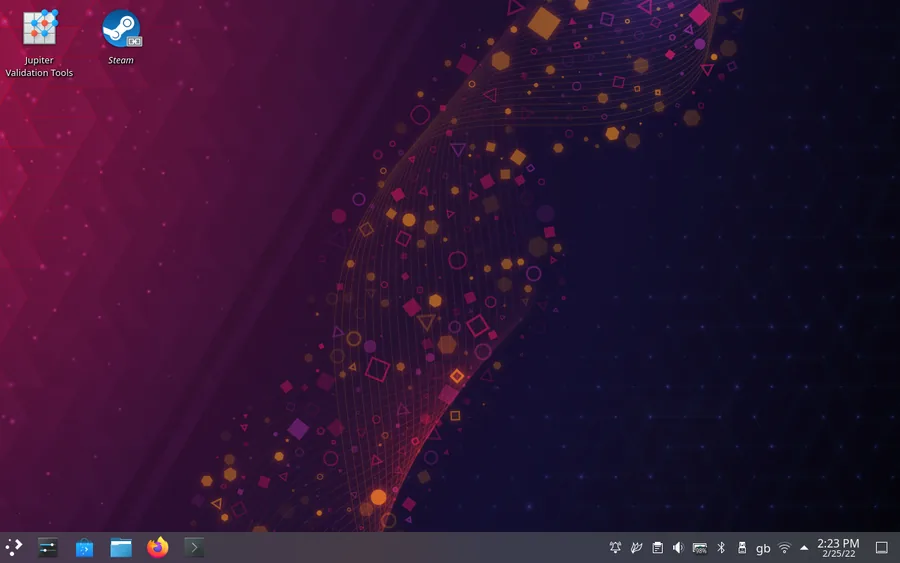
SteamOS is Valve’s own Arch-based system, and it is the best controller-first experience on Linux because the whole interface is Steam. It is no longer Steam Deck only: Valve now ships an installer for ordinary PCs with AMD graphics. It is still the wrong pick for a general-purpose desktop or an NVIDIA card.
Ignore older articles, this changed in the last year. Valve now supports installing SteamOS on ordinary PCs with AMD graphics, so a living room build around an AMD card and a controller is a supported route rather than a hack. NVIDIA support is being worked on, but it is not something to rely on today.
- The best controller and TV experience available on Linux
- Officially supported on ordinary AMD desktop PCs now
- Per-game Proton settings and suspend or resume work properly
- Maintained by the company that funds most Linux gaming work
- NVIDIA support is still in development, so do not install it on an NVIDIA card yet
- Hardware support outside AMD and supported handhelds is limited
- A poor general-purpose desktop, because it is locked down on purpose
- Games outside Steam need extra work to add
A full SteamOS 3.8 install on an ordinary desktop PC, showing Gaming Mode in use.
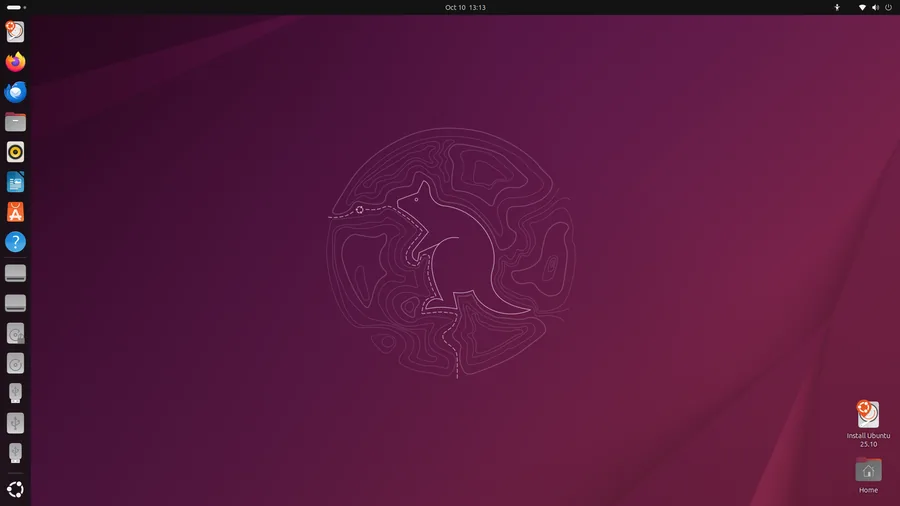
Ubuntu is not a gaming distro and does not pretend to be one, but it is still the right answer for a lot of people. It has more documentation, more third-party support and more answered questions than every other entry here combined. Choose it if you are new to Linux, or if the machine has to do many jobs and gaming is only one of them.
The gap between Ubuntu and a dedicated gaming distro is an afternoon of setup, not a permanent difference. Install the driver, install Steam, turn on Proton for all titles, and you are running the same games on the same software. What you get back is the largest support base in desktop Linux, which is worth a lot when something breaks at 11pm.
- More documentation and community answers than anything else here
- Five years of support on an LTS release, so you can leave it alone
- Almost every third-party Linux application supports it first
- Driver installation is a few clicks in a graphical tool
- Nothing is pre-configured for gaming, so budget an afternoon
- LTS kernels and drivers lag behind, which occasionally matters on a brand new GPU
- Snap packaging is not to everyone’s taste, and Steam runs better from the deb or Flatpak
Which gaming distros suit a specific job?
The next six are not general recommendations. Each one is the right answer to a narrow question: a Debian base with the gaming side already built, heavy customisation, an approachable Arch system, a lean desktop, retro consoles, or a PC that is genuinely old. If none of those describe you, stop at the six above.
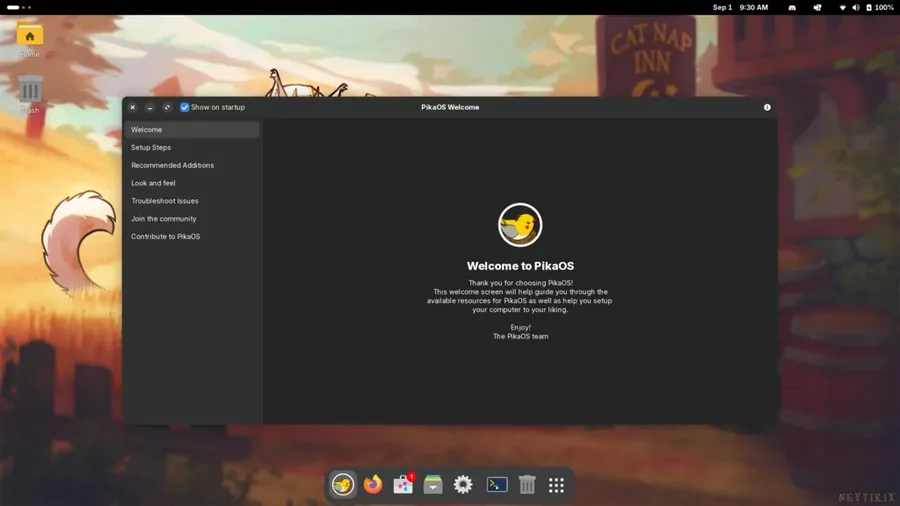
PikaOS is the answer for people who want a gaming system built on Debian rather than Fedora or Arch. It ships a tuned kernel, the usual gaming tools already installed, and separate NVIDIA install images for every desktop it offers. Choose it if you prefer Debian packaging and you do not want to assemble the gaming side yourself.
Every other gaming-first system here is built on Fedora or Arch. PikaOS is the Debian one, and it is not a reskin. It builds its own kernel and ships Steam, Wine, Lutris and Heroic ready to use, with a tool called Pikman putting updates, apps and kernel choices in one place. The separate NVIDIA image is the detail most people will care about.
- A serious gaming distro that is not Fedora or Arch based
- Separate NVIDIA install images for every desktop edition
- Steam, Lutris, Heroic, Gamescope and MangoHud set up already
- Pikman handles updates, kernels and schedulers in one place
- Debian Sid is the unstable branch, so this is rolling and occasionally breaks, unlike Debian stable
- A smaller project and a smaller community than Bazzite or Nobara
- Its packages are built for newer processors, so a very old CPU is not supported
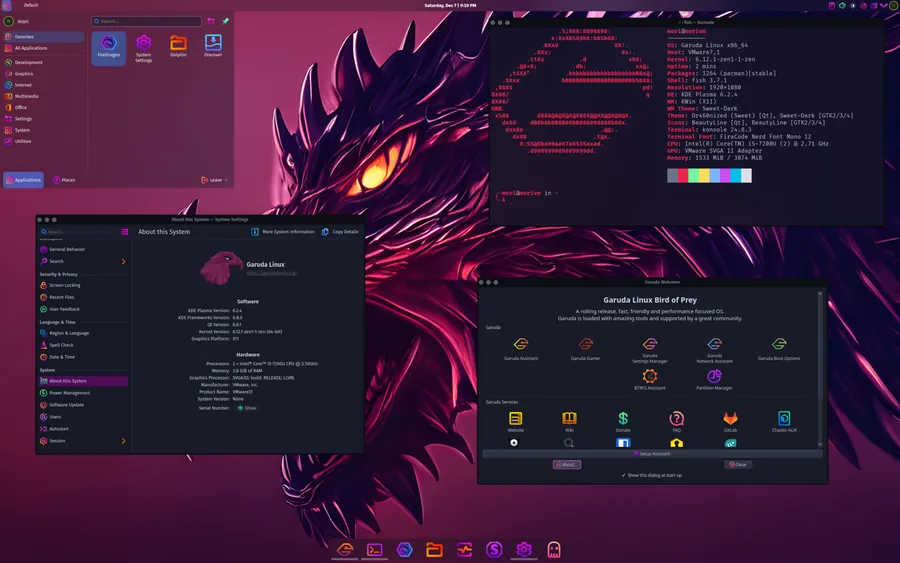
Garuda is an Arch-based system with a heavily themed KDE desktop, its own set of graphical management tools and automatic filesystem snapshots. There is a gaming edition that bundles Steam, Lutris, Wine and emulators. Choose it if you want to spend time making a desktop yours.
The useful part is not the theming, it is the safety net. Garuda snapshots the whole system before every update, so a bad one rolls back from the boot menu. Its Assistant tool puts drivers, kernels and maintenance behind buttons instead of commands, which takes a lot of the fear out of running Arch.
- Automatic system snapshots before updates, undone from the boot menu
- Graphical tools for drivers, kernels and maintenance
- A gaming edition with launchers and emulators already installed
- Very fast, very current packages
- The default theme is divisive and heavy on system resources
- Rolling release, so it needs regular attention
- A lot of custom tooling to learn that does not transfer to other distros
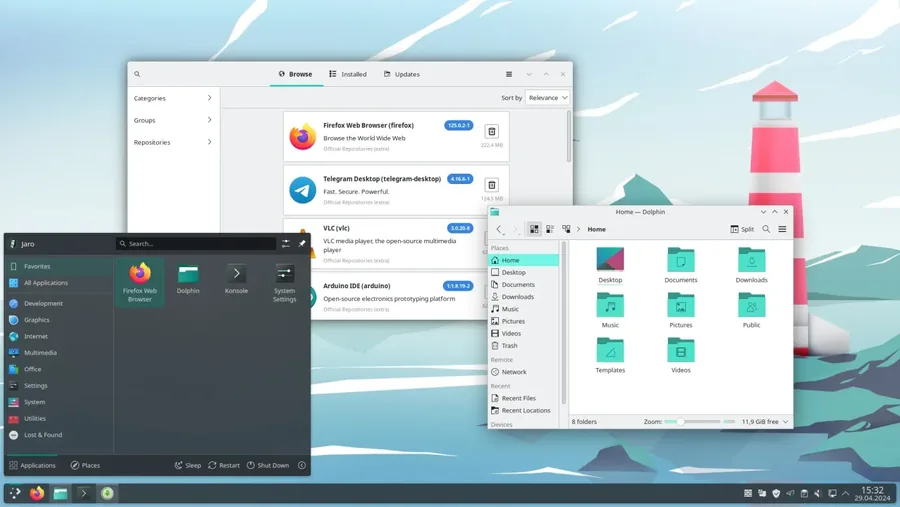
Manjaro takes Arch, holds packages back for a short testing period, and adds a graphical installer plus tools for drivers and kernels. It is not gaming-specific, but it gives you recent graphics drivers with a lot less risk than plain Arch. Choose it if you want current software and a normal installer.
Manjaro’s hardware tool installs the right graphics driver for you, and its kernel manager lets you keep an older kernel alongside a newer one and choose at boot. On awkward hardware that saves an evening. Holding Arch packages back catches some breakage, but it also means you are not always on the newest driver, which is occasionally the thing that fixes a game.
- Automatic driver detection and installation
- Keep several kernels installed and choose one at boot
- Access to the AUR, Arch’s huge community software archive, which has almost every gaming tool in it
- Three well-maintained desktop editions
- Because Manjaro holds packages back, community AUR software built for current Arch sometimes will not install
- Nothing about it is set up for gaming out of the box
- Still a rolling release, so it needs regular updating
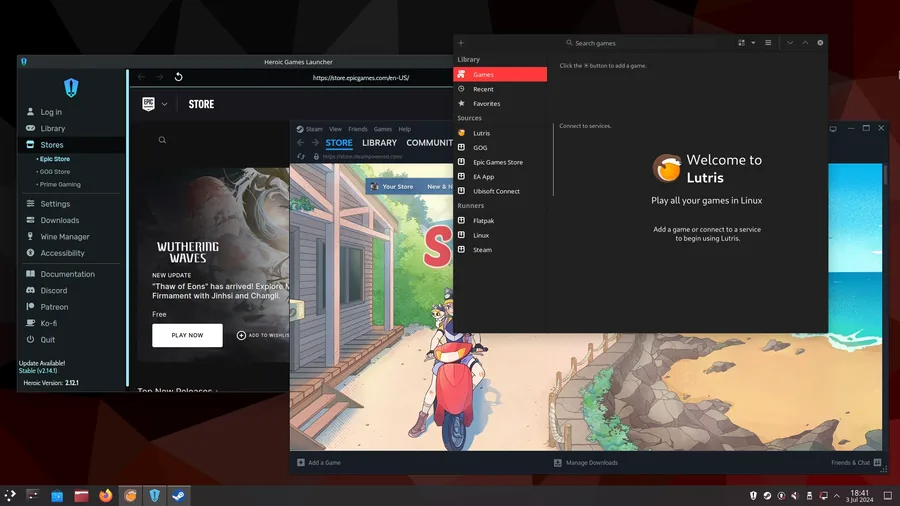
Drauger OS is an Ubuntu LTS system stripped down so that as much of the machine as possible is available to games. Its recent releases moved the desktop to KDE Plasma. Choose it if you want a lean gaming desktop on modest hardware and you are comfortable with a small project.
The idea is sound. Start from Ubuntu LTS, strip out what a gaming machine does not need, and leave the memory and processor to the game. On an older PC that is a real difference. The caution is scale: this is a small project with infrequent releases, which is fine for a second machine and risky for your only one.
- Ubuntu LTS underneath, so Ubuntu instructions still apply
- Deliberately light, which helps on modest hardware
- Recently modernised around KDE Plasma
- Gaming-oriented kernel configuration by default
- A very small team and a small community, so support is thin
- Releases are infrequent
- Little advantage over Ubuntu plus an hour of setup on a modern PC
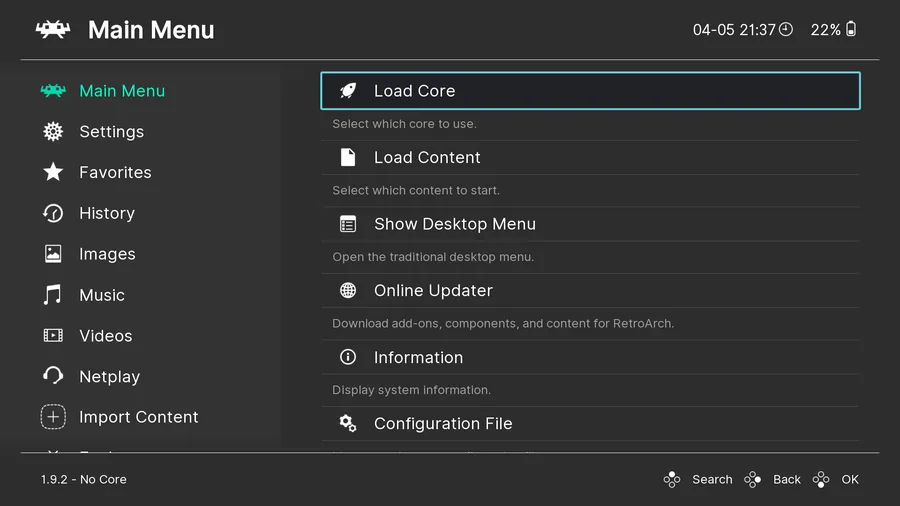
Lakka is not a desktop distribution at all. It is a small system that boots directly into RetroArch and turns a PC, a mini PC or a Raspberry Pi into an emulation console. Choose it if the machine’s only job is retro games on a television.
Because it does one thing and does it without argument. Write the image to a USB stick or a memory card, plug in a controller, add your game files, and you have a console. There is no desktop to maintain, and the interface is built to be driven from a gamepad across the room. It still gets regular updates, including images for Raspberry Pi and for CRT screens.
- Boots straight into a controller-driven console interface
- Runs well on very low-powered hardware, including Raspberry Pi
- Shader and CRT output support for authentic scaling
- Nothing to maintain once it is set up
- No Steam, no Proton, no modern PC games at all
- Not a desktop system, so it cannot be your main install
- You supply your own game files, and the legality of that is your responsibility
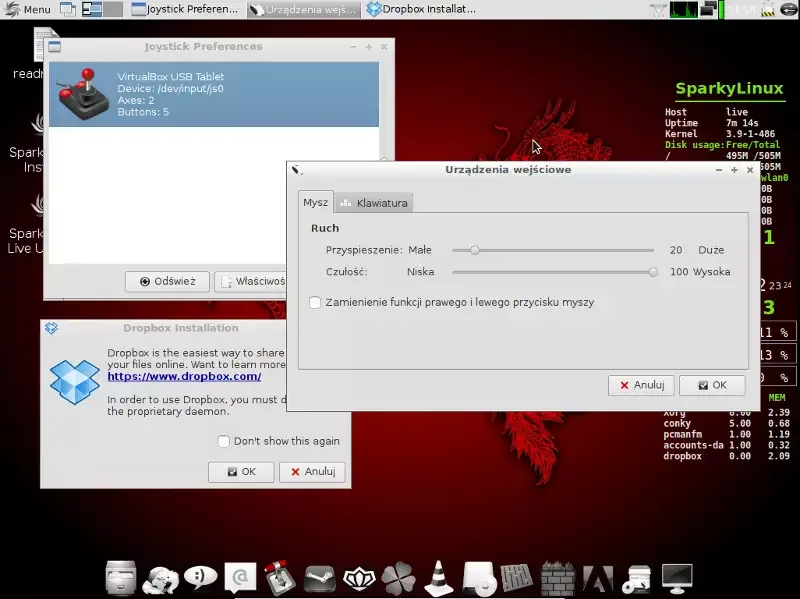
Sparky’s GameOver edition is a Debian-based system with a light desktop, a large bundle of open source games, and the Linux gaming tools already installed. Choose it when the hardware is genuinely old and the alternative is the machine sitting unused.
GameOver is one of Sparky’s special editions, refreshed alongside the main releases and built on Debian stable. The bundle is the point: a light Xfce desktop plus open source games, emulators, Wine and the usual launchers, on hardware where a modern desktop would struggle. Debian stable does mean older graphics drivers, which is the one place old is unhelpful.
- Runs on hardware most current distros have given up on
- A large bundle of open source games and emulators included
- Debian stable underneath, so it needs very little attention
- Wine and gaming tools pre-installed
- Debian stable ships older graphics drivers, which hurts newer games
- The desktop looks dated next to everything else on this list
- A smaller community than Ubuntu or Fedora when you need help
Compare all 12 side by side: base, drivers, Steam readiness and skill level
| Distro | Best for | Base | NVIDIA support | Steam readiness | Skill level |
|---|---|---|---|---|---|
| Bazzite | Gaming as the main job of the PC | Fedora Atomic | Driver pre-installed | Ready on first boot | Beginner |
| Nobara | A normal desktop, tuned for games | Fedora | Driver pre-installed | Ready on first boot | Beginner |
| Pop!_OS | NVIDIA laptops and work plus play | Ubuntu LTS | Separate NVIDIA ISO | Install Steam yourself | Beginner |
| CachyOS | Recent packages and tuning | Arch | Offered during install | Near ready, light setup | Intermediate |
| SteamOS | Controller-first AMD systems | Arch | Not yet, in development | It is Steam | Beginner on supported hardware |
| Ubuntu | Beginners who want documentation | Debian | Driver in the repositories | Install Steam yourself | Beginner |
| PikaOS | A gaming system on a Debian base | Debian Sid | Separate NVIDIA ISO | Ready on first boot | Intermediate |
| PikaOSGaruda | Heavy customisation | Arch | Offered during install | Gaming edition is close | Intermediate |
| Manjaro | Arch without the manual install | Arch | Driver tool included | Install Steam yourself | Intermediate |
| Drauger OS | A lean gaming desktop | Ubuntu LTS | Driver available | Light setup | Intermediate |
| Lakka | Retro consoles and emulation | LibreELEC | Limited, not the target | No Steam at all | Beginner for its own job |
| Sparky GameOver | Older PCs and bundled games | Debian | Driver available | Light setup | Intermediate |
Which Linux Gaming Distro Should You Choose?
Gaming is the main purpose of the PC and you want the setup handled for you, with a rollback if an update goes wrong.
You want a conventional desktop that behaves like normal Linux, with the gaming drivers, codecs and fixes already applied.
You have NVIDIA hardware, especially a laptop, and the machine also has to do real work.
You are comfortable with Arch, you want very recent packages, and you enjoy having the tuning options in front of you.
You are building a controller-first machine for a television around an AMD graphics card. Not on NVIDIA yet.
You are newer to Linux and you value documentation, compatibility and the largest support community over pre-configuration.
You want a gaming-ready system built on Debian rather than Fedora or Arch, and an NVIDIA image that saves you installing the driver.
You want to shape the desktop yourself and you want snapshots taken automatically before every update.
The machine’s only job is retro consoles and emulation on a television, driven entirely by a gamepad.
The hardware is genuinely old and the realistic goal is indie titles, emulation and open source games.
Frequently asked questions about Linux gaming distros
What is the best Linux distro for gaming?
Bazzite is the best all-round choice for most people in 2026, because Steam, Proton, GPU drivers and controller support are configured before you first log in, and a bad update can be undone at the boot menu. Nobara is the better pick if you want a normal desktop system with the same gaming work already done, and CachyOS is the better pick if you are comfortable with Arch and want the newest packages.
Is Bazzite better than Ubuntu for gaming?
For gaming alone, yes. Bazzite arrives ready to play and Ubuntu does not. But Ubuntu is the better choice if the machine is also your work computer, because it has far more documentation, more third-party application support and a five year support window. The performance difference between the two, once both are set up, is small.
Which Linux distro is best for NVIDIA GPUs?
Pop!_OS is the easiest starting point, because System76 publishes a separate installer image with the NVIDIA driver already on it and includes graphics switching for laptops. Bazzite and Nobara also ship NVIDIA drivers by default. Ubuntu handles NVIDIA well but expects you to install the driver after setup. Avoid SteamOS on an NVIDIA card for now, since official support is still being developed.
Is Linux gaming faster than Windows?
Sometimes, and not reliably. Some titles run a few percent faster under Proton than they do natively on Windows, some run a few percent slower, and a few run much worse or refuse to start. The outcome depends on the game, the GPU, the driver version, the Proton version and how the system is configured. Treat any claim that Linux is simply faster with suspicion, and do not expect a change of distro to give you frames on its own.
Do all Steam games work on Linux?
No. Proton runs a large share of the catalogue and single player games are usually fine, but some competitive multiplayer titles are blocked by anti-cheat the publisher has not switched on for Linux. You can look any game up on ProtonDB to see how it runs. Where a title will not install, several of the biggest ones stream instead, which our guide to GeForce NOW on Linux covers.
More Linux guides: Best Linux Distros for Beginners · Try Linux Distros Online · Steam Link on Ubuntu