 You can install GNOME Music on Ubuntu with Flatpak for a recent version across supported Ubuntu releases, or with APT for the version supplied by Ubuntu.
Flatpak is the recommended option for most readers because Ubuntu 24.04 and 22.04 carry older GNOME Music versions. Choose APT if you prefer to update it alongside the rest of Ubuntu.
GNOME Music is a focused player for music stored on your computer. It automatically organizes local tracks by album, artist, and song, and it supports search, playlists, shuffle, repeat, and a simple play queue.
This guide covers installation on Ubuntu 26.04, 24.04, and 22.04 LTS, plus library setup, updates, troubleshooting, and safe removal.
If you need help, leave a comment or contact us.
Build a Clean, Searchable Local Library
Choose Flatpak or APT, import music from your personal collection, organize playlists, and keep the player updated without losing your audio files.
GNOME Music Installation Methods Compared
Both methods install the same music player, but they update differently. Use this table to choose the one that fits you best.
| Method | Version and Updates | Best For | Tradeoff |
|---|---|---|---|
| Flatpak (Flathub) Recommended |
A recent version through Flathub | Readers who want newer GNOME features and predictable versions | Larger first download and app permissions to review |
| APT Native option |
Version supplied through Ubuntu updates | Readers who prefer regular Ubuntu updates | Older Ubuntu releases carry older GNOME Music versions |
Version note: GNOME lists Music 50.0 as its newest release. At the time of checking, Ubuntu 26.04 and Flathub were still on version 49, while Ubuntu 24.04 and 22.04 provided older versions. Versions change, so use the checks below instead of relying on a fixed number.
Method 1: Install GNOME Music via Flatpak (Recommended)
Use Flatpak if you want a recent GNOME Music release that behaves consistently on Ubuntu 26.04, 24.04, and 22.04. GNOME’s application page directs Linux users to Flathub. Choose either this method or APT to avoid creating two Music entries in the application menu.
Refresh Ubuntu’s package list, then install Flatpak if you do not already have it:
sudo apt update && sudo apt install flatpak -y
Add Flathub to your account. This command does nothing if you have already added it:
flatpak remote-add --if-not-exists --user flathub https://flathub.org/repo/flathub.flatpakrepo
Install GNOME Music from Flathub. Read the permissions and confirm when prompted:
flatpak install --user flathub org.gnome.Music
Check the installed version and the permissions granted to the app before you launch it:
flatpak info org.gnome.Music
flatpak info --show-permissions org.gnome.Music
About the Flathub permission label: Flathub currently marks this package as potentially unsafe because it asks for several permissions. Read them before continuing. Keep your music in the standard Music folder and avoid granting access to more folders unless you know why it is needed. Log out and back in if the app does not appear in the application menu immediately.
Method 2: Install GNOME Music via Ubuntu APT
APT installs the version supplied for your Ubuntu release. It updates with the rest of Ubuntu, but Ubuntu 26.04, 24.04, and 22.04 do not all provide the same GNOME Music version.
Update the package list so Ubuntu can find the newest GNOME Music version available for your release:
sudo apt update
Install GNOME Music and the supporting parts it needs to run:
sudo apt install gnome-music -y
Check the exact version installed on your computer:
apt policy gnome-music
dpkg-query -W -f='${Version}\n' gnome-music
If Ubuntu cannot find GNOME Music: The app is in Ubuntu’s Universe repository. Run these commands to enable it, then install GNOME Music again:
sudo apt install software-properties-common -y
sudo add-apt-repository universe
sudo apt update
sudo apt install gnome-music -y
How to Launch GNOME Music
Open the application grid, search for Music, and select the GNOME Music icon. The first scan may take a moment if your Music folder contains a large collection.
You can also start the app from Terminal. Use the command that matches your installation method:
# Flatpak installation
flatpak run org.gnome.Music

# APT installation
gnome-music
If two Music icons appear, check the app details in your software manager or launch each version from Terminal. Remove the copy you do not intend to maintain.
How to Add Music to Your GNOME Music Library
GNOME Music is not built around a traditional Open File button. It discovers supported audio files in the Music directory assigned to your user account, then presents them as albums, artists, and songs.
Find your configured Music folder
Run this command to display the folder GNOME applications recognize as your music directory:
xdg-user-dir MUSICFor most English-language installations, the result is /home/your-name/Music. Copy or move your audio files into that folder using Files. Organizing them into artist and album subfolders helps you manage the collection outside the player, although GNOME Music mainly uses the track details stored inside each file.
Check track details
If an album is split into several entries or appears under Unknown Artist, the files probably have incomplete or inconsistent tags. GNOME Music reads details such as artist, album, title, disc number, and embedded artwork. Correct those tags with a music tag editor, then restart Music so the collection can refresh.
External drives: GNOME Music works most reliably with files in your Music folder. Giving the Flatpak access to an external drive does not guarantee that GNOME Music will add those files to its library. Keep your main library in the standard folder, or choose a player that lets you select any library location.
Using GNOME Music: Albums, Playlists, Search, and Queue
The interface deliberately keeps advanced audio management out of the way. Use the main views to browse albums, artists, or songs, and select a track to begin playback.
GNOME Music is best when you want a clean local player that feels at home on a GNOME desktop. If you need podcasts, internet radio, extensive format conversion, audio effects, or streaming-service integration, a broader media player may suit you better.
How to Update and Upgrade GNOME Music
Update GNOME Music through the same source you used to install it. Mixing commands will not update the other package type.
Update the Flatpak version
flatpak update org.gnome.MusicCheck the installed version and branch after the update:
flatpak info org.gnome.MusicUpdate the APT version
sudo apt update
sudo apt upgrade
APT updates GNOME Music only when Ubuntu publishes a newer version for your release. It does not move an older Ubuntu LTS release to GNOME’s newest version automatically.
Troubleshooting Common GNOME Music Problems
Songs do not appear in the library
First confirm the configured Music folder and check whether it contains audio files:
xdg-user-dir MUSIC
find "$(xdg-user-dir MUSIC)" -maxdepth 2 -type f | head
Move a known working MP3, FLAC, Ogg Vorbis, or Opus file into that folder. Close GNOME Music, wait briefly for the music index to find the file, then reopen the player. A large library can take longer to appear after the first installation.
The Flatpak cannot access the Music folder
Inspect the package permissions:
flatpak info --show-permissions org.gnome.MusicThe filesystem section should include access to xdg-music. Reset locally changed permissions if an earlier override removed the expected access:
flatpak override --user --reset org.gnome.MusicA track appears but will not play
Test another common format first. If only certain formats fail in the APT installation, add common GStreamer codec support:
sudo apt update
sudo apt install gstreamer1.0-libav gstreamer1.0-plugins-ugly
Codec availability and legal restrictions can vary by country. Install only the formats you are permitted to use.
Playback works but there is no sound
Open Ubuntu’s Sound settings and confirm the correct output device is selected. Start playback, then check the application volume in the sound panel. Also test a system sound or another media player to determine whether the problem affects GNOME Music or the entire audio session.
Album artwork or artist names are incorrect
GNOME Music depends on the tags stored inside each file. Correct the album, album artist, track artist, title, disc number, and embedded cover art with a music tag editor. Files that look organized in folders can still appear incorrectly when their embedded metadata differs.
If APT was interrupted or reports unfinished dependencies, repair the package state and resume the installation:
sudo dpkg --configure -a
sudo apt --fix-broken install
sudo apt install gnome-music
If the user-level Flatpak installation has damaged objects, repair it and retry the app update:
flatpak repair --user
flatpak update org.gnome.Music
These commands repair package information and installed Flatpak files. They do not remove music from your Music folder.
How to Uninstall GNOME Music Safely
Use the removal command that matches your installation method. Removing the application does not delete audio files in your Music folder.
Remove the Flatpak installation
flatpak uninstall --user --delete-data org.gnome.MusicReview the shared Flatpak components before removing them. Another Flatpak app may still need them:
flatpak uninstall --user --unusedRemove the APT installation
sudo apt remove gnome-musicPreview packages that APT considers unused before cleaning them:
sudo apt autoremove --dry-runRun sudo apt autoremove only after confirming that the proposed packages are no longer needed by other desktop applications.
Interface Screenshots
Explore GNOME Music’s album library, artist browsing, playlists, play queue, and playback controls.
-
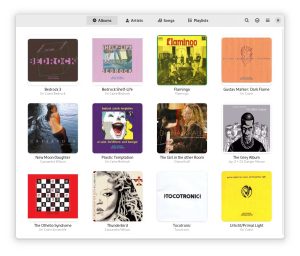
- Albums list from GNOME Music Player for Ubuntu: Download and Install
-
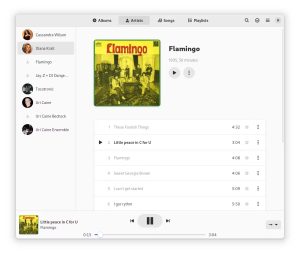
- Artists list from GNOME Music Player for Ubuntu: Download and Install
-
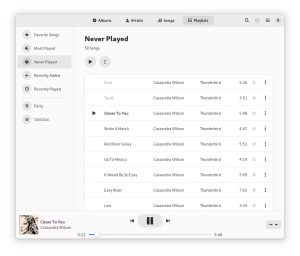
- Options never played from GNOME Music Player for Ubuntu: Download and Install
-
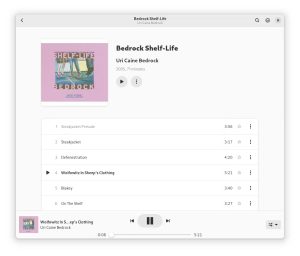
- Playing a song from GNOME Music Player for Ubuntu: Download and Install
GNOME Music on Ubuntu FAQ
Is GNOME Music the default music player on Ubuntu?
No. GNOME Music is an official GNOME application, but a standard Ubuntu installation may not include it. You can add it with Flatpak or the gnome-music package from Ubuntu’s Universe repository.
Should I install GNOME Music with Flatpak or APT?
Flatpak is the better choice when you want a recent, consistent GNOME Music release across supported Ubuntu versions. APT is better when you prefer the Ubuntu package that updates with the rest of your system, even if its version is older.
Why does GNOME Music not show my songs?
GNOME Music normally discovers audio files from the Music folder defined for your account. Move or copy supported audio files into that folder, wait for indexing to finish, and restart the app. Flatpak users should also confirm that the app can access the Music folder.
Can GNOME Music play Spotify, internet radio, or podcasts?
GNOME Music is designed primarily for a local music collection. It is not a Spotify client, podcast manager, or full internet-radio application. Choose a dedicated streaming app or a broader player if those features are essential.
How do I update GNOME Music on Ubuntu?
Update an APT installation with sudo apt update followed by sudo apt upgrade. Update the Flatpak installation with flatpak update org.gnome.Music. Always use the update command that matches your original installation method.
Will uninstalling GNOME Music delete my songs?
No. Removing the GNOME Music application does not delete audio files stored in your Music folder. Optional cleanup commands can remove the app’s settings and cache, but this guide keeps those commands separate from your music collection.
Install GNOME Music with the package source that fits your update preferences, then keep your tagged audio files in the standard Music folder for reliable discovery.
More Ubuntu audio guides: Best Music Players for Ubuntu · Best Media Players for Ubuntu