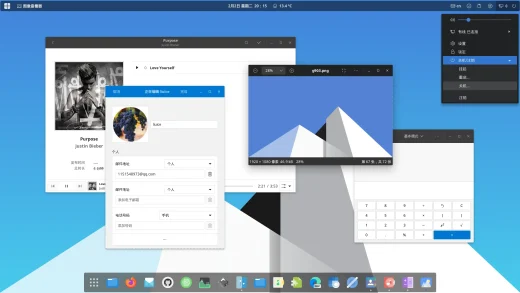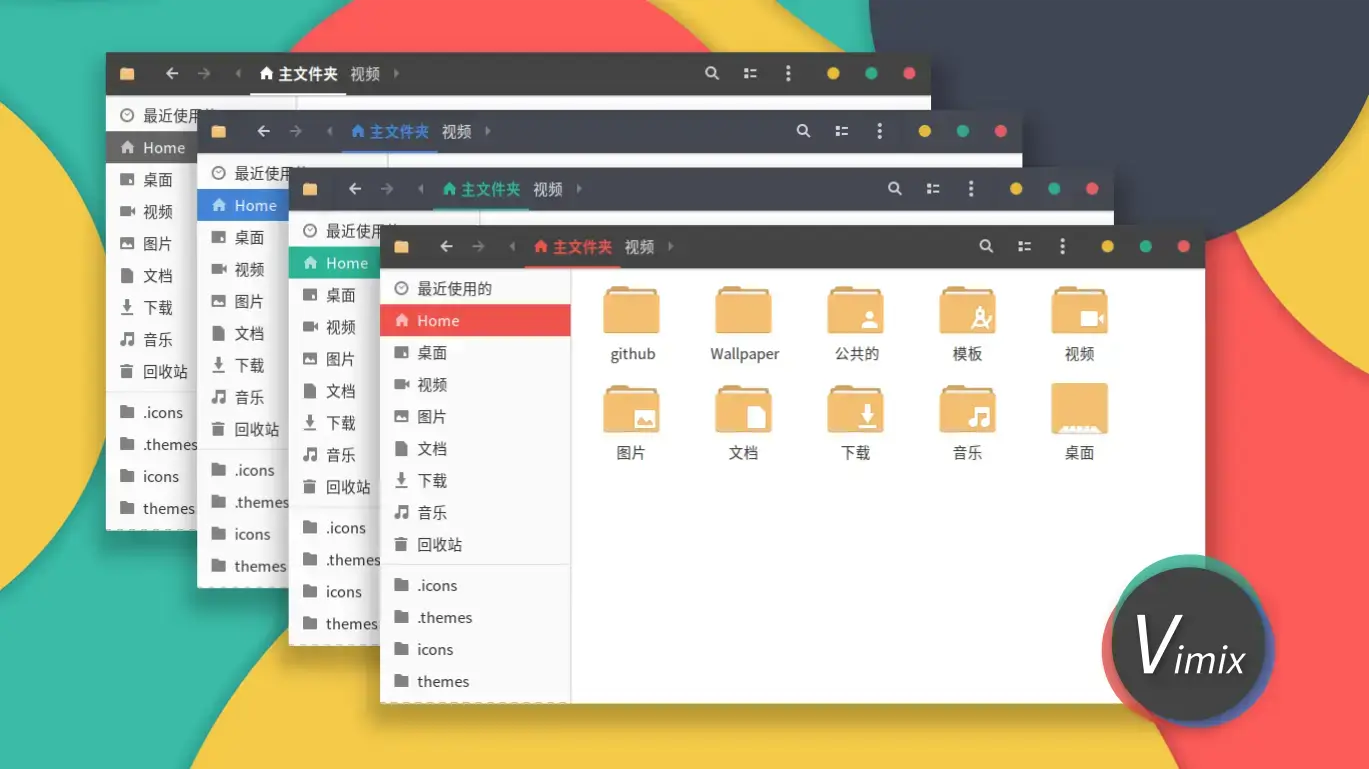
Vimix is available on GitHub and OpenDesktop, and you can install it on Ubuntu by cloning the repo and running a simple script. It is a flat Material Design theme that covers GTK2, GTK3, and GNOME Shell with rich color options and modern lines. Below we have instructions on how to get it up and running, screenshots and bonus terminal commands to unlock all his color variants.
Feel free to leave a comment or contact us directly for any feedback or help.
Quick Facts
How to Install Vimix on Ubuntu
You can install Vimix on Ubuntu by cloning the GitHub repo and running the install script. Here is how.
Step 1: Install the Required Packages
Vimix needs the Murrine engine for GTK2 apps. Install it first.
Step 2: Clone and Install Vimix
Clone the repo and run the install script. By default it installs all color and brightness variants.
Apply the Theme
Open GNOME Tweaks (install it with sudo apt install gnome-tweaks if you do not have it), go to Appearance, and select your preferred Vimix variant under the Applications dropdown. Try Vimix-Doder-dark for a sleek dark blue look or Vimix-Ruby for bold red accents.
Screenshots
-
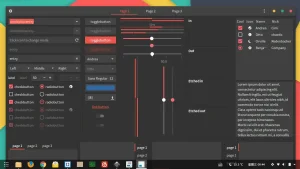
- Color red adrea option
-
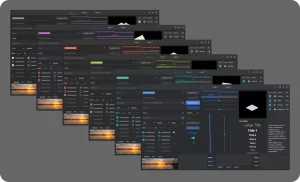
- Different color options from
-
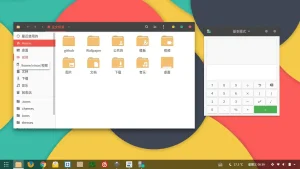
- Light background folders
-
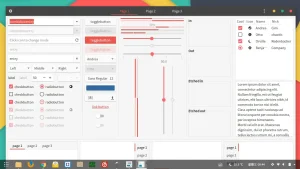
- Light background options
-
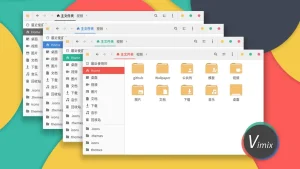
- Light color option varient for theme
-
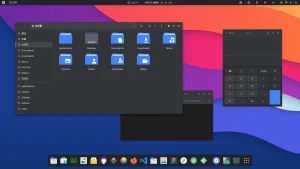
- New look
What Makes Vimix Worth Installing?
Vimix is a solid Material Design theme that fills the gap left by Arc’s slowdown. It offers a lot of named color variants including popular ones like (Doder for blue, Beryl for teal, Ruby for red, and Amethyst for purple), each available in standard, light, dark, and compact modes. That gives you over a dozen combinations to match your wallpaper and icon theme. The GNOME Shell styling is especially well done, with a clean top bar and polished overview animations. If you liked Arc but want something that still gets updates, Vimix is the natural next step.
✓ 4 Named Colors ✓ Light + Dark + Compact ✓ GNOME Shell Theme ✓ Arc Alternative ✓ Actively Updated
Download Vimix GTK Theme
Get the latest version from any of these official sources.
Frequently Asked Questions
How do I install Vimix theme on Ubuntu?
Clone the GitHub repository with git clone https://github.com/vinceliuice/Vimix-gtk-themes.git, then run ./install.sh inside the folder. This installs all variants to your themes directory.
Does Vimix theme work on Ubuntu 24.04 and 26.04?
Yes. Vimix works on Ubuntu 24.04 and Ubuntu 26.04. It supports GNOME, XFCE, and other GTK-based desktop environments.
What color variants does Vimix include?
Vimix includes Doder (blue), Beryl (teal), Ruby (red), and Amethyst (purple) color variants. Each color comes in standard, light, dark, and laptop (compact) versions.
Where can I download Vimix GTK theme?
You can download Vimix from its official GitHub repository or from OpenDesktop. GitHub is the recommended source for the latest version.
Is Vimix GTK theme still maintained?
Yes. Vimix is actively maintained by vinceliuice on GitHub. The project continues to receive updates and new releases for modern GNOME versions.
More Ubuntu Customization Guides
Pair Vimix with a matching icon theme or cursor for a fully polished desktop.