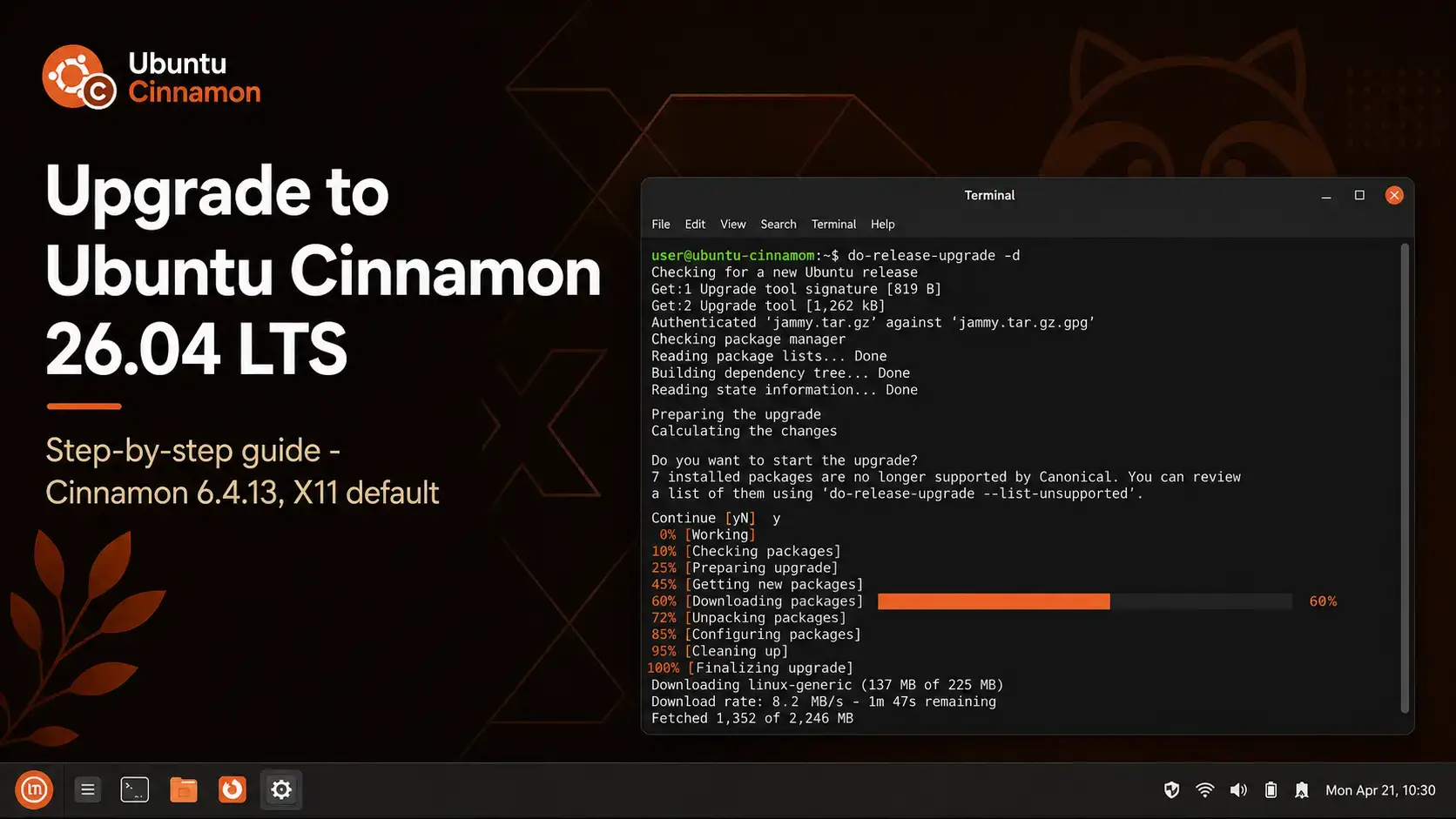
The complete step-by-step guide for upgrading from Ubuntu Cinnamon 24.04 LTS to 26.04 LTS. Covers Cinnamon config backup, Spices compatibility, the do-release-upgrade process, and what to check after the upgrade finishes.
ubuntu-cinnamon-desktop before upgrading to ensure all desktop components are correctly present-d flag until thenNo Wayland – What That Means for You
Unlike some other Ubuntu flavors that switched to Wayland in 26.04, Ubuntu Cinnamon stays on X11. This is intentional. The Cinnamon desktop environment does not yet treat Wayland as its default session, and the project is not forcing that transition on users in this release.
The practical effect: your upgrade is straightforward from a display server perspective. Tools that depend on the X11 protocol – screen recorders like OBS and SimpleScreenRecorder, remote desktop tools, certain older productivity apps – continue to work exactly as they did on 24.04. Nothing in your workflow breaks because of a session change.
The new desktop default theme in 26.04 is worth knowing about. Ubuntu Cinnamon 26.04 adds a new Ubuntu-Cinnamon color-neutral theme alongside the existing Yaru variants. If your panel or application chrome looks different after the upgrade, this is why. You can switch themes in Cinnamon Settings under Themes.
Which Upgrade Path Applies to You?
Not every Ubuntu Cinnamon version can upgrade directly to 26.04. The table below shows the supported paths. If your current version is not listed as a direct source, follow the step column to know what to do first. If you would prefer a clean install over an in-place upgrade, the Ubuntu Cinnamon 26.04 download page has the official ISO link and verification steps.
| Current Version | Direct to 26.04? | What to Do |
|---|---|---|
| Ubuntu Cinnamon 24.04 LTS | Yes | Follow this guide directly |
| Ubuntu Cinnamon 25.10 (Questing Quokka) | Yes | Follow this guide directly – support ends July 2026, upgrade soon |
| Ubuntu Cinnamon 22.04 LTS | No | Upgrade to 24.04 first, then to 26.04 |
| Ubuntu Cinnamon 23.10 / 25.04 (EOL) | No | These releases are end-of-life. Fresh install of 26.04 recommended |
| Ubuntu Cinnamon 20.04 LTS or older | No | Upgrade through each LTS in sequence, or do a fresh install |
Before You Upgrade – 5 Steps
Do not skip this section. Cinnamon stores configuration data across more locations than most desktop environments, and a few minutes of preparation here can save you a frustrating session recovering panel settings after the upgrade.
The upgrade preserves your home directory, but hardware failures and power cuts do not care about timing. Back up anything important before starting. A full system snapshot is ideal if you are on a virtual machine.
Cinnamon stores your settings across three locations. Run all three commands before starting:
tar -czf ~/cinnamon-spices-backup-$(date +%Y%m%d).tar.gz ~/.local/share/cinnamon
dconf dump /org/cinnamon/ > ~/cinnamon-dconf-$(date +%Y%m%d).txt
The first backs up per-applet configs. The second saves your downloaded Spices. The third exports your Cinnamon settings from dconf. If anything breaks after the upgrade, you can restore from these files.
The ubuntu-cinnamon-desktop meta-package ensures all required Cinnamon components are present before the upgrade tool runs. If it is missing or was partially removed at some point, the upgrade may not install all 26.04 desktop components correctly.
The upgrade tool will refuse to run if your system has pending updates. Run all four commands and reboot if the kernel was updated.
sudo apt upgrade
sudo apt dist-upgrade
sudo apt autoremove
The update-manager-core package provides the do-release-upgrade command. It is usually already installed on Ubuntu Cinnamon 24.04, but this confirms it.
How to Upgrade via Terminal
This is the recommended method. It works on any Ubuntu Cinnamon system and gives you the most visibility into what the upgrade is doing.
Make sure the Cinnamon desktop meta-package is present before proceeding. This command installs it if missing and confirms it if already installed.
Because the automatic LTS-to-LTS upgrade prompt is not yet enabled (it activates with 26.04.1 in August 2026), use the -d flag. This tells the tool to fetch the newly available release directly. Ubuntu Cinnamon 26.04 is a full production release – the -d flag does not mean unstable.
After 26.04.1 ships in August 2026, you can drop the -d flag and run sudo do-release-upgrade on its own.
The tool walks you through a series of prompts. Here is what to expect at each stage:
The tool checks for blockers, then shows a summary: how many packages will be upgraded, installed, and removed. Read this. If anything looks unexpected, press N to cancel and investigate before continuing.
The tool downloads all required packages. This is the longest part on slower connections. The terminal shows a progress bar. Do not close the terminal or interrupt this process.
For system configuration files you have previously modified, the tool asks whether to keep your version or install the package maintainer’s version. If you have not customized the file, choose the maintainer’s version. If you have, keep yours and compare the two manually after the upgrade.
Near the end of the process, the upgrade tool may ask you to close open applications and will terminate the Cinnamon session to replace desktop components. Once all packages are installed, it prompts for a full system reboot. Choose yes – the system reboots into Ubuntu Cinnamon 26.04.
When you run sudo do-release-upgrade -d on a remote system over SSH, the tool automatically opens a secondary SSH port (default: 1022) as a fallback in case your main connection drops during the upgrade. Before starting, open port 1022 through your firewall. If you use UFW: sudo ufw allow 1022/tcp. The tool will remind you and wait for confirmation before continuing.
A clean install gives you a fresh Cinnamon 6.4.13 setup with no leftover configuration from older releases. Get the official ISO directly.
How to Upgrade via Software Updater (Desktop Only)
The graphical upgrade path uses Software Updater. There is one important caveat: Software Updater will not show a 26.04 upgrade prompt until Ubuntu Cinnamon 26.04.1 ships in August 2026. Until then, you need to launch it with a flag that tells it to check for newly available releases. Before using this method, still complete Steps 1-5 in the pre-upgrade section above.
Software Updater opens and begins checking for updates. After applying any pending updates, it will show a banner: “Ubuntu Cinnamon 26.04 LTS is now available.” Click Upgrade to begin. The GUI walks you through the same process as the terminal method – with a visual progress bar and dialog boxes for configuration decisions. Total time: 40-60 minutes.
When the upgrade finishes, Software Updater will ask you to restart. Click Restart Now. Your system reboots into Ubuntu Cinnamon 26.04 with Cinnamon 6.4.13 on X11.
After the Upgrade – What to Check
Once the system reboots into Ubuntu Cinnamon 26.04, run through these checks to confirm everything is working correctly. The Cinnamon version check and Spices update are specific to this flavor.
The output should show Ubuntu 26.04 LTS and codename resolute.
Should return Cinnamon 6.4.13. If it reports an older version, run sudo apt upgrade to pull any remaining updates.
Should report a 7.x kernel version.
sudo apt upgrade
A handful of packages often have updates available immediately after a release upgrade.
Open Cinnamon Settings, then go to Applets (or Desklets / Extensions). Click the Spices tab and check for updates. Applets that have not been updated for Cinnamon 6.4 may cause errors – update them before relying on them, or remove any that remain broken.
Known Issues and Fixes
These are the issues most likely to affect users upgrading from Ubuntu Cinnamon 24.04. Most have clear solutions or workarounds.
Cause: Old Cinnamon configuration files can conflict with Cinnamon 6.4’s updated component structure. Panels may appear incomplete or applets may fail to load on first login after the upgrade.
Fix: If you backed up your config before upgrading (Step 2 above), you can restore specific files from the archive. To restore your dconf settings: dconf load /org/cinnamon/ < ~/cinnamon-dconf-YYYYMMDD.txt. For a clean reset without losing app data, rename the panel config and let Cinnamon regenerate defaults:
Log out and back in. Cinnamon will recreate defaults from the 26.04 layout. You can then re-add your preferred applets manually.
Cause: Third-party Spices applets that have not been updated for Cinnamon 6.4 can cause the Spices Update applet to crash, especially when it tries to process multi-version applets or outdated translation data.
Fix: Open Cinnamon Settings and go to Applets. Remove any applets that show errors. Then move the applets folder temporarily and restart Cinnamon to identify the problematic one:
Press Ctrl+Alt+Esc to restart Cinnamon. If the panel recovers, move your applets back one at a time to find which one caused the crash.
Cause: Ubuntu Cinnamon 26.04 adds a new color-neutral Ubuntu-Cinnamon theme. During the upgrade, the desktop theme may switch to this new default, making the panel and window decorations look different from your previous setup.
Fix: Open Cinnamon Settings and go to Themes. Select your preferred theme from the list. Your previous theme should still be available unless you were using a theme that was removed in 26.04.
Cause: The upgrade tool disables third-party PPAs during the upgrade to prevent conflicts. They are not deleted, just disabled. Some may also not yet have packages built for Ubuntu 26.04.
Fix: Open Software & Updates, go to the Other Software tab, and re-enable the PPAs you need. Run sudo apt update after. If a PPA fails, check whether the maintainer has released a 26.04-compatible version yet.
Cause: Ubuntu 26.04 drops support for cgroup v1. If your system uses it – typically on machines running older Docker versions or container workloads – the upgrade tool will refuse to continue. Desktop-only systems are almost never affected by this.
Check if you are affected:
If the file does not exist or returns empty, you are on cgroup v1. If it returns content, you are on cgroup v2 and are not affected. To fix: upgrade Docker to version 20.10 or later, or configure your system to use the unified cgroup hierarchy before retrying the upgrade.
If the upgrade is interrupted – by a power cut, a dropped SSH connection, or a package error – do not panic and do not try to reboot straight away. Open a terminal and run these two commands in order. They repair packages left in a half-installed state and resolve broken dependencies.
sudo apt install -f
Once both commands complete without errors, run the upgrade command again. The tool will pick up where it left off rather than starting from scratch.
Frequently Asked Questions
Can I upgrade directly from Ubuntu Cinnamon 22.04 to 26.04?
No. Ubuntu Cinnamon follows the same LTS upgrade path as Ubuntu. You cannot skip releases. You must first upgrade from Ubuntu Cinnamon 22.04 LTS to 24.04 LTS, then from 24.04 LTS to 26.04 LTS. Run sudo do-release-upgrade on your 22.04 system first to reach 24.04, then repeat the process.
Why does do-release-upgrade say no new release found on my Ubuntu Cinnamon 24.04 system?
This is expected. The automatic LTS-to-LTS upgrade prompt is not enabled until the first point release, which for 26.04 is planned for around August 2026. To upgrade before then, run sudo do-release-upgrade -d to access the release directly. The -d flag means development or newly released, not unstable. Ubuntu Cinnamon 26.04 is a full production release.
Does Ubuntu Cinnamon 26.04 switch to Wayland after the upgrade?
No. Ubuntu Cinnamon 26.04 stays on X11 by default. The Cinnamon desktop does not use Wayland as its default session in this release. Your screen recorders, remote desktop tools, and X11-dependent applications will continue to work exactly as before. You will not see any session change at the login screen after the upgrade.
What Cinnamon configuration files should I back up before upgrading?
Back up three locations. The ~/.cinnamon folder holds per-applet configuration including panel launcher contents. The ~/.local/share/cinnamon folder contains your downloaded Spices – applets, desklets, and extensions. The dconf database at /org/cinnamon/ stores your Cinnamon settings. Use dconf dump /org/cinnamon/ > ~/cinnamon-dconf.txt to export it. Commands for all three are in the pre-upgrade checklist section of this guide.
Will my Cinnamon Spices applets still work after upgrading to 26.04?
Most built-in Cinnamon applets will work fine. Third-party Spices applets from the Cinnamon Spices repository may need updates after the upgrade. Applets that have not been updated for Cinnamon 6.4 can cause the Spices Update applet to crash. After upgrading, update your Spices through Cinnamon Settings before relying on them, and remove any that cause errors.
What is the ubuntu-cinnamon-desktop meta-package and why does it matter?
ubuntu-cinnamon-desktop is the meta-package that pulls in the complete set of Ubuntu Cinnamon desktop components. Making sure it is installed before running the upgrade ensures the upgrade tool installs all required 26.04 Cinnamon components correctly. If it was partially removed at some point, the upgrade may miss components. Run sudo apt install ubuntu-cinnamon-desktop before starting.
How long does the upgrade from Ubuntu Cinnamon 24.04 to 26.04 take?
On a typical broadband connection, the full upgrade takes between 40 and 60 minutes including the download, package installation, and reboot. The process is largely unattended after the initial prompts, so you can leave it running.
More Ubuntu Cinnamon 26.04 guides: Ubuntu Cinnamon 26.04 ISO Download · What’s New in Ubuntu Cinnamon 26.04 · Ubuntu Cinnamon 26.04 Wallpapers