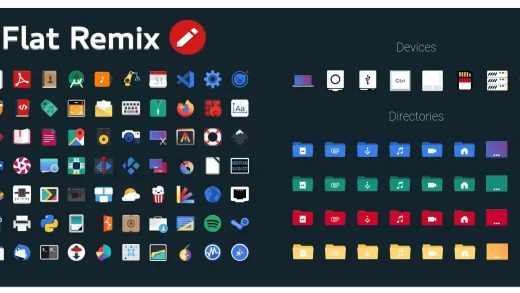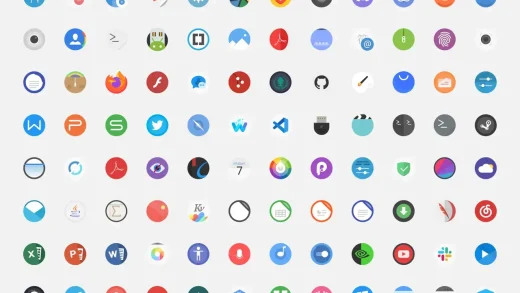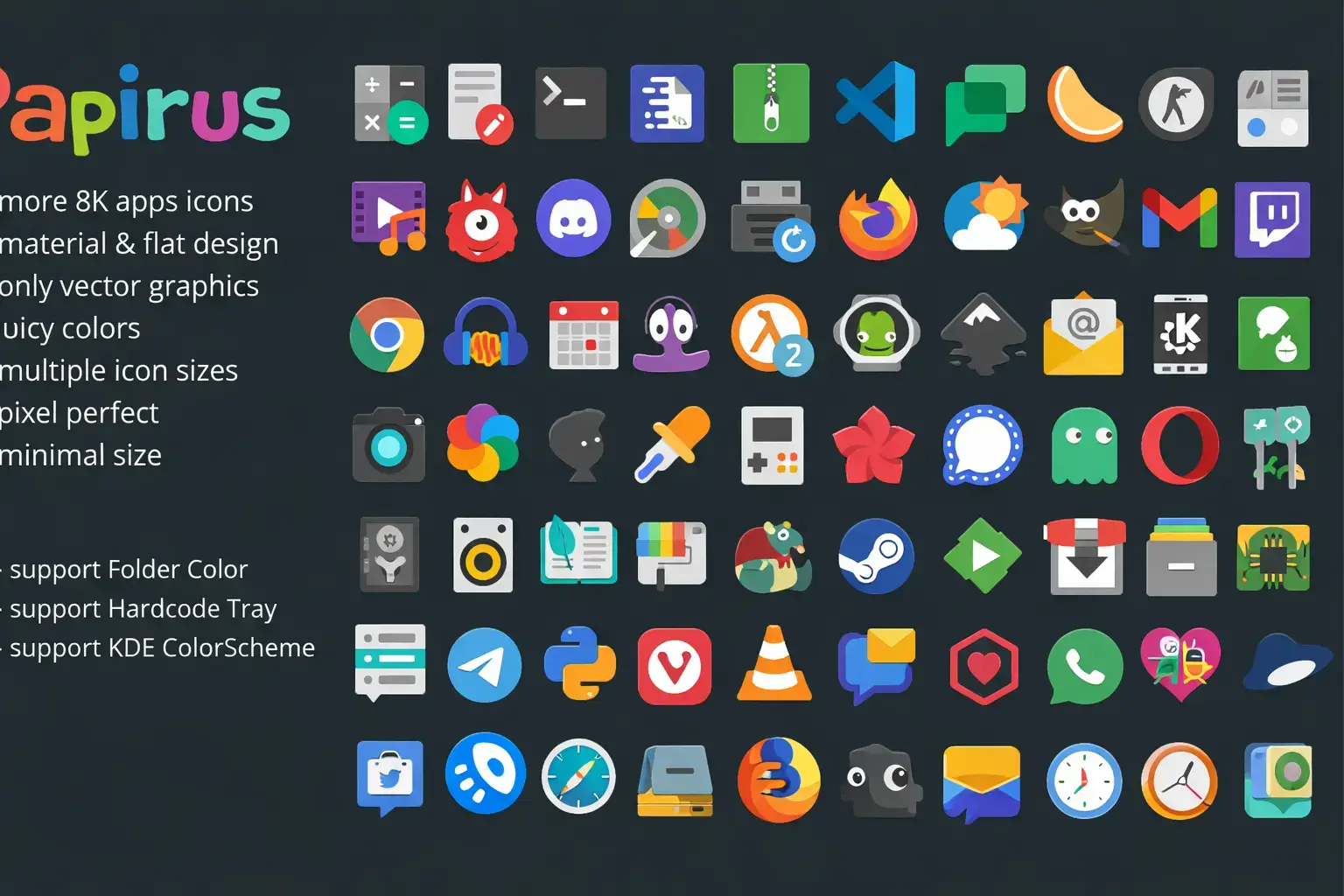
Papirus is available on GitHub, the Snap Store, and through an official PPA, and you can install it on Ubuntu with a single terminal command. It gives your desktop a clean, modern flat look with strong color consistency across hundreds of apps. Below, we walk through how to install and apply Papirus step by step.
Feel free to leave a comment or contact us directly for any feedback or help.
Quick Facts
How to Install Papirus on Ubuntu
You can install Papirus on Ubuntu in three ways: through the official PPA, Snap, or a GitHub script. Here is how each method works.
Option 1: Install with the Official PPA (Recommended)
This is the easiest way to install Papirus. The PPA keeps your icons updated automatically whenever you run system updates.
Option 2: Install with Snap
If you prefer Snap packages, this one-line command handles everything. Snap versions also work inside sandboxed apps like Firefox.
Option 3: Install from GitHub (Latest Version)
Use this if you want the absolute latest icons directly from the source. This script also works as an updater if you run it again later.
Apply the Icon Theme
Open GNOME Tweaks (install it with sudo apt install gnome-tweaks if you do not have it), go to Appearance, and select Papirus under the Icons dropdown. You will also find Papirus-Dark and Papirus-Light variants there.
Screenshots
-
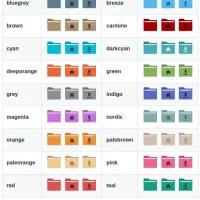
- Different colors
-
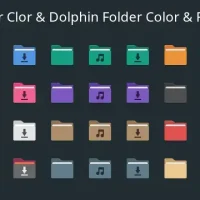
- Folders look
-
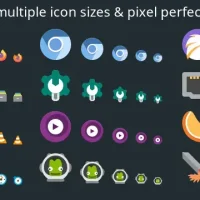
- Multiple icon sizes
-
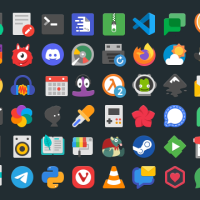
- Preview
What Makes Papirus Worth Installing?
Papirus covers more apps than almost any other Linux icon theme. Where most icon packs leave gaps that force your desktop to fall back to ugly default icons, Papirus fills in hundreds of them with consistent, clean designs. It ships in three variants (standard, dark, and light), supports custom folder colors, and even works with KDE colorschemes. If you want one icon theme that just works everywhere without constant visual compromises, this is the safest pick.
✓ Broad App Coverage ✓ Still Active ✓ Great Daily Driver ✓ Folder Colors ✓ 3 Variants
Bonus: Change Your Folder Colors
Papirus supports custom folder colors through the papirus-folders script. You can change all your folder icons to a different color with one command.
Download Papirus Icon Theme
Get the latest version from any of these official sources.
Frequently Asked Questions
How do I install Papirus icons on Ubuntu?
The easiest way is to add the official PPA by running sudo add-apt-repository ppa:papirus/papirus, then sudo apt update, and finally sudo apt install papirus-icon-theme. You can also install it as a Snap with sudo snap install icon-theme-papirus.
Does Papirus work on Ubuntu 24.04 and Ubuntu 26.04?
Yes. Papirus works on both Ubuntu 24.04 and Ubuntu 26.04. It supports GNOME desktops and receives regular updates that keep it compatible with newer Ubuntu releases.
Where can I download Papirus icon theme?
You can get Papirus from its official GitHub page, the Snap Store, or Pling. The GitHub page and PPA are the most recommended sources because they always have the latest version.
Is Papirus still being updated in 2026?
Yes. Papirus is one of the most actively maintained Linux icon themes. The GitHub repository has over 7,700 commits and continues to receive new icon additions and fixes regularly.
Can I use Papirus on KDE or XFCE instead of GNOME?
Yes. Papirus works on GNOME, KDE Plasma, XFCE, Cinnamon, MATE, and most other Linux desktop environments. It also includes KDE colorscheme support and folder color customization.
Can I change Papirus folder colors?
Yes. Papirus supports custom folder colors through the papirus-folders script. You can change folder colors system-wide by running a simple terminal command after installing the script.
More Ubuntu Customization Guides
Pair Papirus with a matching GTK theme or cursor for a fully polished desktop.