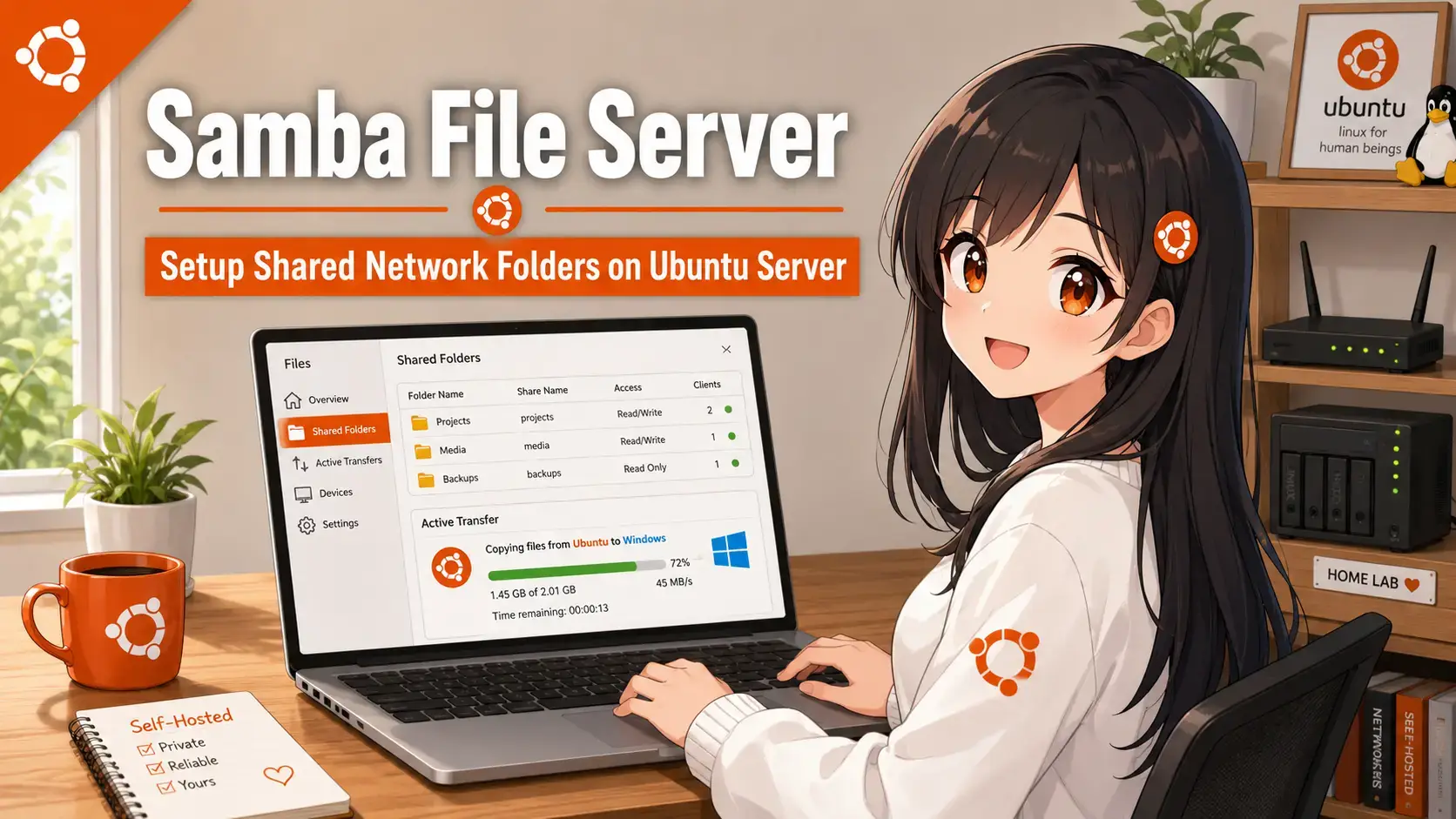
 To set up a Samba file server on Ubuntu, install the samba package, configure shared folders in smb.conf, create Samba user accounts, and allow connections through the UFW firewall. Setting up a network file share allows you to easily share music, videos, and documents between different operating systems on your local network. This guide walks you through the entire installation and configuration process.
On Ubuntu Server
A complete guide to configuring public guest folders, secure authenticated user shares, file permission mapping, and client network mounting for home labs and business networks.
Samba is a software suite that handles print and file services using the Server Message Block (SMB) protocol. It allows Linux systems to share folders with Windows systems or macOS systems. Follow these clean steps to configure a secure network storage server.
Step 1. Install Samba on Ubuntu
Before sharing directories, you must install the core Samba service binaries. We will also install helper utilities to support mounting remote filesystems.
sudo apt update
sudo apt install samba cifs-utils -y
This command updates package metadata lists and installs the Samba sharing daemon along with CIFS support utilities.
sudo systemctl status smbd
The status command shows if the Samba server program is active. You should see a green status line indicating that the service is running.
Step 2. Create Shared Folders & Local Permissions
Samba works as an intermediary. It cannot grant permissions that the host filesystem blocks. We will create two directories under the recommended site-specific storage mount point: a public guest folder and a secured private directory.
sudo mkdir -p /srv/samba/public
sudo chown nobody:nogroup /srv/samba/public
sudo chmod 777 /srv/samba/public
These commands create a public folder, hand ownership to the anonymous host profiles, and open full read-and-write permissions so anyone on your network can store files without logging in.
sudo mkdir -p /srv/samba/private
sudo groupadd sambashares
sudo chgrp sambashares /srv/samba/private
sudo chmod 770 /srv/samba/private
These commands create a directory for personal or sensitive files, create a new local user group, assign group-level access, and lock down folder access so that only members of the group can view or write files.
Step 3. Define Share Rules in smb.conf
The central configuration file determines how folders are shared across the network. We will back up the default configuration file first, then append our custom share blocks.
sudo cp /etc/samba/smb.conf /etc/samba/smb.conf.backup
Creating a backup copy ensures you can easily restore your server configuration if you make a mistake while editing.
sudo nano /etc/samba/smb.conf
Open the configuration settings in your terminal text editor. Scroll to the bottom of the file and append the following share profiles:
[PublicShare]
   comment = Public Shared Folder
   path = /srv/samba/public
   browsable = yes
   writable = yes
   guest ok = yes
   read only = no
   force user = nobody

[PrivateShare]
   comment = Secure Private Folder
   path = /srv/samba/private
   browsable = yes
   writable = yes
   guest ok = no
   read only = no
   valid users = @sambashares
   force group = sambashares
   create mask = 0660
   directory mask = 0770
Save your changes in nano by pressing Ctrl+O, then exit by pressing Ctrl+X.
Understanding these settings helps you manage your folder sharing rules securely:
| Parameter | Function | Description |
|---|---|---|
| path | Directory Location | Specifies the physical location of the folder on the server drive. |
| browsable | Visibility Toggle | Allows network clients to search and find this shared folder in Explorer. |
| guest ok | Access Security | Determines if users can access files anonymously without entering a password. |
| valid users | User Limits | Restricts folder access to specific system users or groups (prefixed with @). |
Step 4. Create Samba User Accounts
Samba does not use Linux login passwords directly. Instead, it maintains its own secure user credentials file database. However, any user database entry must match an existing local Linux shell account.
sudo adduser smbuser
sudo usermod -aG sambashares smbuser
This creates a local user named `smbuser` and adds them to our custom `sambashares` group. If you want to use an existing Linux user, skip the first command and only run the group modification command.
sudo smbpasswd -a smbuser
You will be prompted to type and confirm a Samba password for this user. This is the credential client computers will use to mount and connect to the secure shared folders.
Step 5. Configure Firewall & Restart Services
Samba services must be restarted to apply the new configuration. We must also adjust the local server firewall to allow network storage clients to connect.
testparm
This tool checks the syntax of `/etc/samba/smb.conf` to make sure there are no typos. If it shows no errors, proceed.
sudo systemctl restart smbd nmbd
This restarts both the SMB file sharing daemon and the NetBIOS name registration daemon to activate your new directory shares.
sudo ufw allow Samba
This command opens up TCP and UDP ports required for local sharing. Your server is now ready to receive client connections.
Step 6. Connect from Client Devices
Use the following connection strings to access your new folders from a local client machine. You will need your server’s local IP address (run ip a on your server terminal to find it).
Open File Explorer, click the address bar at the top, and enter your server IP address prefixing it with double backslashes:
\\YOUR_SERVER_IP\PublicShare
Press Enter. To connect to the secure folder, enter \\YOUR_SERVER_IP\PrivateShare instead and type in your Samba username and password when prompted.
Open Finder, click **Go** in the top menu bar, select **Connect to Server**, and enter your server IP address using the smb protocol prefix:
smb://YOUR_SERVER_IP/PublicShare
Press Connect. For private shared access, enter the credentials you registered using smbpasswd when the login dialog box appears.
If you see a connection error or a permission denied message, check the server daemon logs to verify what is failing:
sudo tail -n 20 /var/log/samba/log.smbd
This command shows the end of the Samba system log, which reports connection attempts, login errors, and permission blocks.
Frequently Asked Questions
What protocol does Samba use for sharing?
Samba uses the SMB (Server Message Block) protocol, which is natively supported by Windows, macOS, and Linux clients for network file sharing.
Can I use Samba without password protection?
Yes, you can configure guest shares in Samba by setting guest ok = yes. This allows any user on your local network to access the shared files without authentication.
Why can’t I write to my Samba shared folder?
This usually happens because the underlying Linux filesystem permissions do not allow writes, even if Samba is set to read only = no. You must ensure the shared folder is owned by the correct user or group, or set permissions using chmod.
Do I need to create local Linux accounts for Samba users?
Yes. Every Samba user must first exist as a local user on the Ubuntu server. After creating the local account, you link it to the Samba service by running the sudo smbpasswd -a username command.
What ports does Samba use?
Samba primarily uses TCP port 445 for modern SMB traffic, along with TCP port 139 and UDP ports 137 and 138 for legacy NetBIOS services. The ufw allow Samba command automatically opens all necessary ports.
Can I access a Samba share over the internet?
You should not expose Samba directly to the public internet as it is not designed to be public-facing. For remote access, connect to your server using a secure VPN (such as WireGuard) first, then mount the Samba share locally.
More Ubuntu server guides: How to Install Ubuntu Server · Automatic Security Updates · Ubuntu Keyboard Shortcuts · How to share your files with Windows