5 Min Read · Free and Open Source · Beginner Friendly
OnlyOffice on Ubuntu
To install OnlyOffice on Ubuntu, add its official apt repository and run sudo apt install onlyoffice-desktopeditors. It is a free office suite for documents, spreadsheets, presentations and PDFs, and it works with Microsoft Office files.
This guide covers the repository, the .deb, Flatpak and Snap, plus fonts, updates and removal. If a step does not work on your system, leave a comment below or contact us and we will help you sort it out.
A blue licence screen will appear partway through. It belongs to Microsoft’s fonts, which OnlyOffice installs alongside itself. Press Tab to select Ok, press Enter, then choose Yes to accept.
3
Step 3: Open it
Look for ONLYOFFICE in your applications menu, or run onlyoffice-desktopeditors in a terminal.
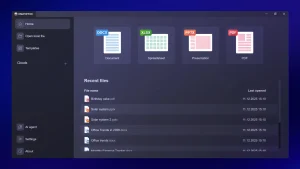
The start screen lets you create a document, spreadsheet, presentation or PDF form, or open a file you already have. Double-clicking a DOCX, XLSX or PPTX file in Files also works once you set OnlyOffice as the default app under Open With.
Other Ways to Install OnlyOffice
OnlyOffice also comes as a .deb file, a Flatpak and a Snap. All three are published by OnlyOffice itself.
The repository install already brings in Microsoft’s core fonts, including Arial, Times New Roman, Verdana and Courier New. That is the licence screen from Step 2.
Calibri and Cambria are not in that set. OnlyOffice includes Carlito, which has exactly the same letter widths as Calibri, so pages break in the same places. For Cambria, add Caladea:
Add Caladea, the Cambria match
sudo apt install fonts-crosextra-caladea
Using the Flatpak, Snap or .deb and missing Arial or Times New Roman? Install the core fonts on their own with sudo apt install ttf-mscorefonts-installer. All three use the fonts installed on Ubuntu.
Fonts of your own go in ~/.local/share/fonts. Restart OnlyOffice and they appear in the font list.
Connect OnlyOffice to a Cloud
OnlyOffice can open and save files directly in ONLYOFFICE DocSpace, Nextcloud, ownCloud, Seafile, kDrive, Box, Dropbox, Moodle and Liferay.
Open the Clouds section on the start screen, choose your service and sign in with its address and your account. Files you open from there save back to the cloud, and other people can edit them with you at the same time.
OnlyOffice Screenshots
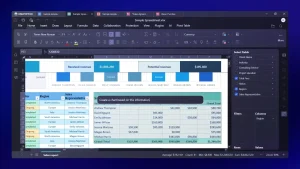
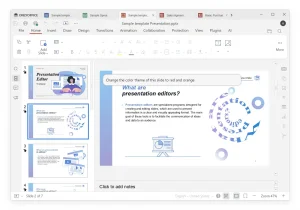
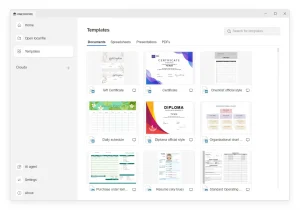
The start screen, the document, spreadsheet and presentation editors, PDF editing and the AI agent. Images: ONLYOFFICE.
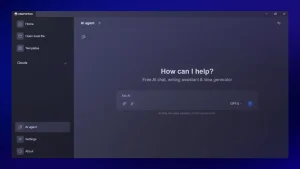
The AI agent in OnlyOffice
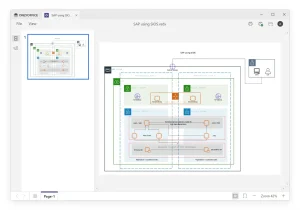
A diagram open in OnlyOffice
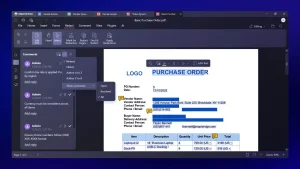
Editing a PDF in OnlyOffice
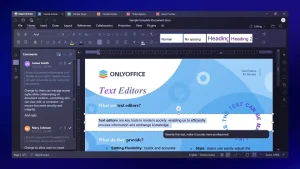
A text document in OnlyOffice
A spreadsheet in OnlyOffice
Slides in OnlyOffice on Ubuntu
Document templates in OnlyOffice
The start screen with recent files
Keeping OnlyOffice Updated
With the repository, new versions arrive with your normal system updates. Software Updater picks them up, or run:
Update everything, including OnlyOffice
sudo apt update && sudo apt upgrade
The Flatpak updates with flatpak update. The Snap updates itself. The .deb never updates, so download a new one or switch to the repository. Upgrading from version 9 or older to 10? Version 10 does not carry over your cloud sign-ins. Sign in again in the Clouds section, and re-enter your user name in Settings if you had set your own.
If Something Goes Wrong
What you see
The install stops on a blue screen about ttf-mscorefonts-installer
FIX Press Tab to select Ok, press Enter, then choose Yes.
It is the licence for Microsoft’s fonts. The mouse does nothing on this screen, which is why it looks frozen.
What you see
E: Unable to locate package onlyoffice-desktopeditors
FIX Run Step 2 again, including sudo apt update.
apt does not know about the repository yet. On an arm64 machine this error is expected, because the repository has no arm64 build. Use the .deb, Flatpak or Snap.
What you see
NO_PUBKEY 8320CA65CB2DE8E5
FIX Run Step 1 again, then Step 2.
apt found the repository but not the key that proves its packages are genuine.
What you see
The Snap cannot see your USB drive
FIX Run sudo snap connect onlyoffice-desktopeditors:removable-media
Snaps cannot see removable drives until you allow it. You only do this once.
What you see
The Flatpak installed, but OnlyOffice is not in the menu
FIX Log out and back in.
Ubuntu picks up Flatpak apps at login, so this only happens after your first Flatpak.
Remove OnlyOffice
Repository or .deb install. Purge the app, then remove the repository and key:
Purge also deletes OnlyOffice’s settings and app data for every user on the computer. To keep them, use sudo apt remove onlyoffice-desktopeditors instead. Flatpak:
Yes. OnlyOffice Desktop Editors is free and open source, and it needs no account. Only the paid cloud and server products cost money.
Which install should I use?
Use the apt repository, so OnlyOffice updates with the rest of Ubuntu. Pick the Flatpak or Snap if you prefer sandboxed apps, or the .deb if you are on arm64.
Does OnlyOffice open Word, Excel and PowerPoint files?
Yes. DOCX, XLSX and PPTX are its own formats, so files go back and forth without conversion. It also opens the older DOC, XLS and PPT files, and edits PDFs.
Does OnlyOffice run on arm64?
Yes, through the .deb, the Flatpak or the Snap. The apt repository only has amd64 builds.
Does OnlyOffice work offline?
Yes. The editors work fully offline. You only need a connection to install, update, or open files from a cloud.