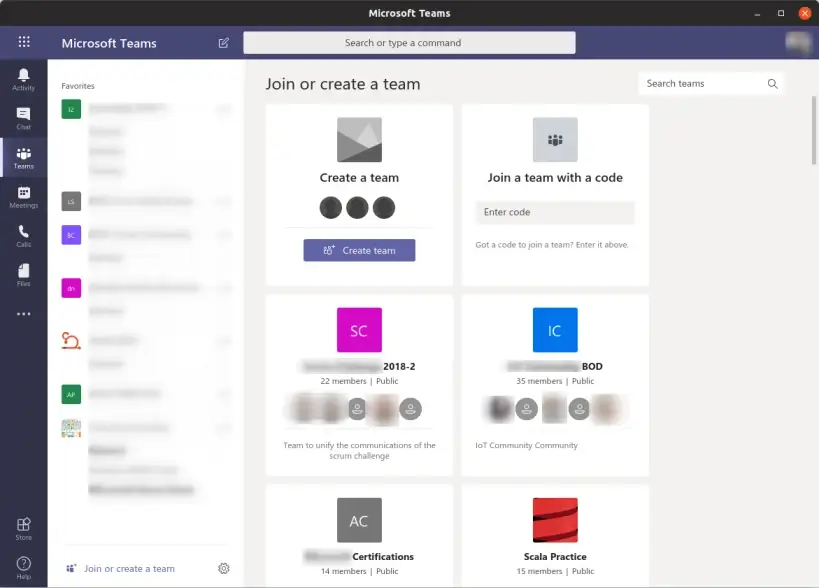
You can use Microsoft Teams on Ubuntu through the official Teams progressive web app in Microsoft Edge or Google Chrome. That is the best first choice for most Ubuntu users because Microsoft points Linux users to the Teams PWA instead of a native Linux desktop package.
If you want a separate desktop-style launcher, the community Teams for Linux app is also available through Flatpak and Snap. It is useful, but it is not official Microsoft software. Think of it as an unofficial wrapper around the Teams web app, not a replacement for Microsoft’s own Linux route.
Install Teams as a PWA in Edge or Chrome if you want the official Microsoft-supported Linux path. Use Teams for Linux only if you prefer a community desktop wrapper with tray and package-manager behavior.
Best Ways to Use Microsoft Teams on Ubuntu
The right Teams setup depends on whether you want the official Microsoft route or a separate desktop wrapper. Start with the PWA if you use Teams for work, school, meetings, calls, chat, calendar, and file access. Try Teams for Linux only if you specifically want a community app wrapper outside the browser window.
Method 1: Use the Official Microsoft Teams PWA
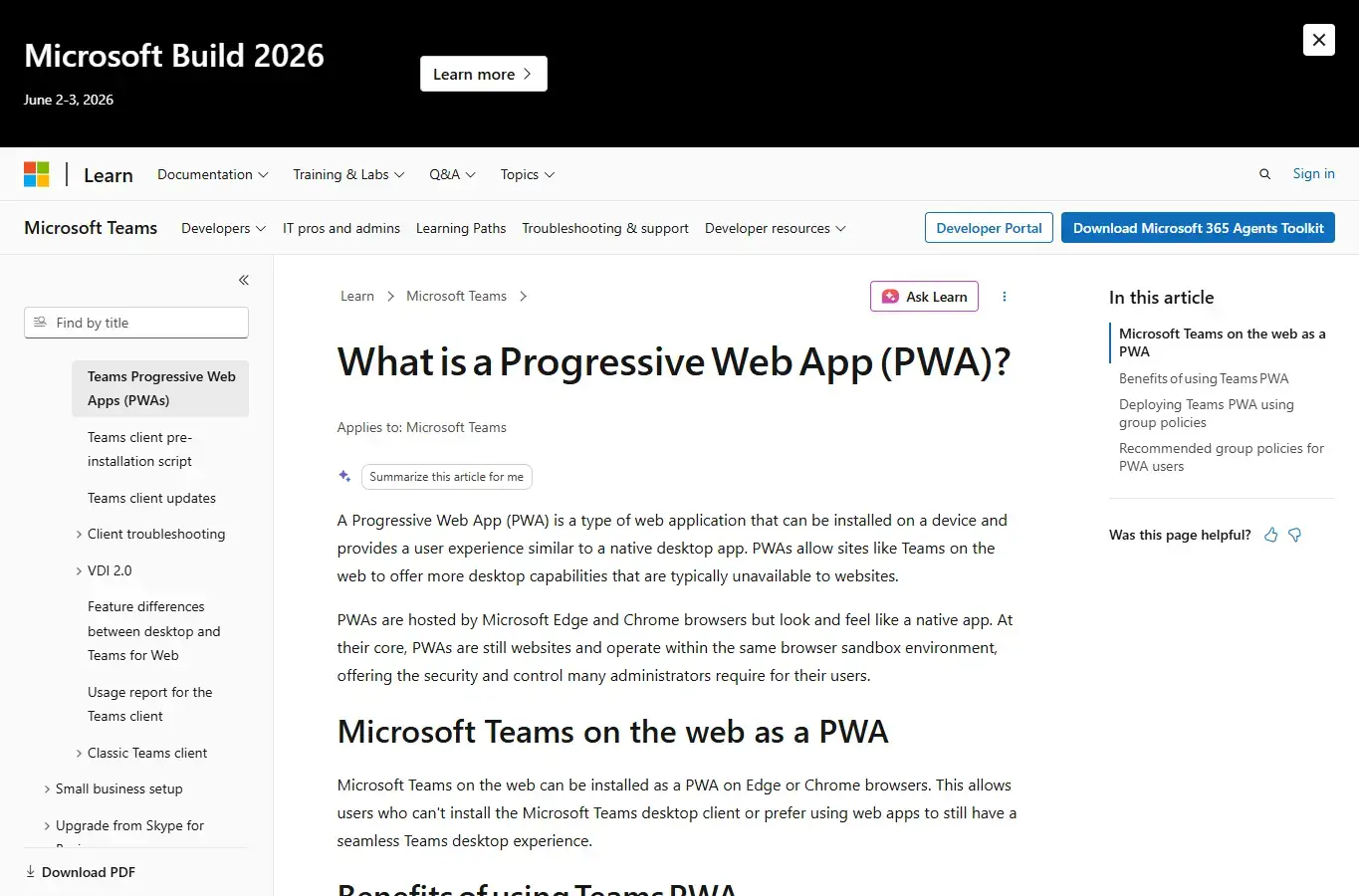
This is the best method for most Ubuntu users. A progressive web app opens like a separate app, can be pinned to your dock or app launcher, and still runs through the browser engine. Microsoft lists the Teams PWA as the Linux option on its Teams download page.
- Install or open Microsoft Edge or Google Chrome on Ubuntu.
- Go to teams.microsoft.com.
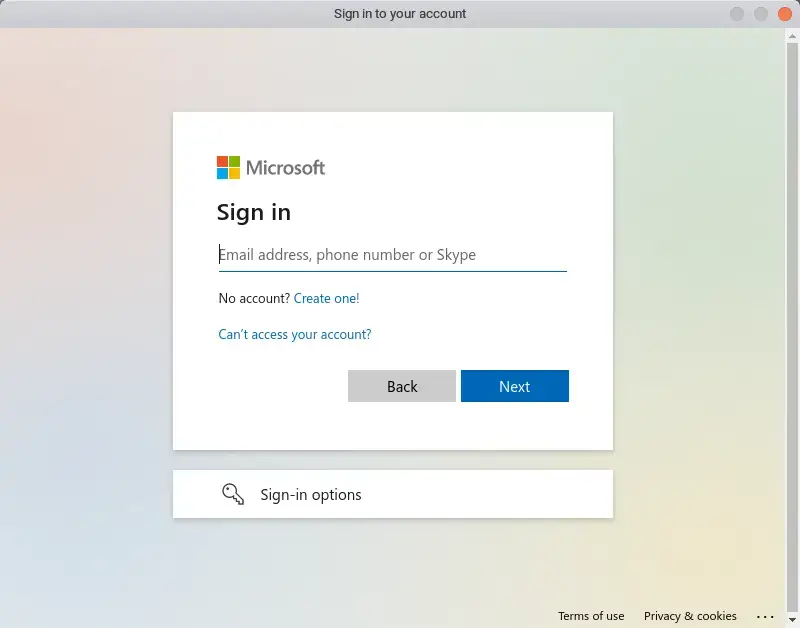
- Sign in with your Microsoft work, school, or personal account.
- Open your browser’s app install option. In Edge, use the apps option from the menu. In Chrome, use the install option in the address bar or browser menu when available.
- Name the app Microsoft Teams, then install it.
- Open Teams from Ubuntu’s app menu the next time you need it.
Note: The Teams PWA is still Teams on the web. It can feel like a desktop app, but browser permissions control notifications, camera, microphone, and screen sharing.
Method 2: Install Teams for Linux with Flatpak
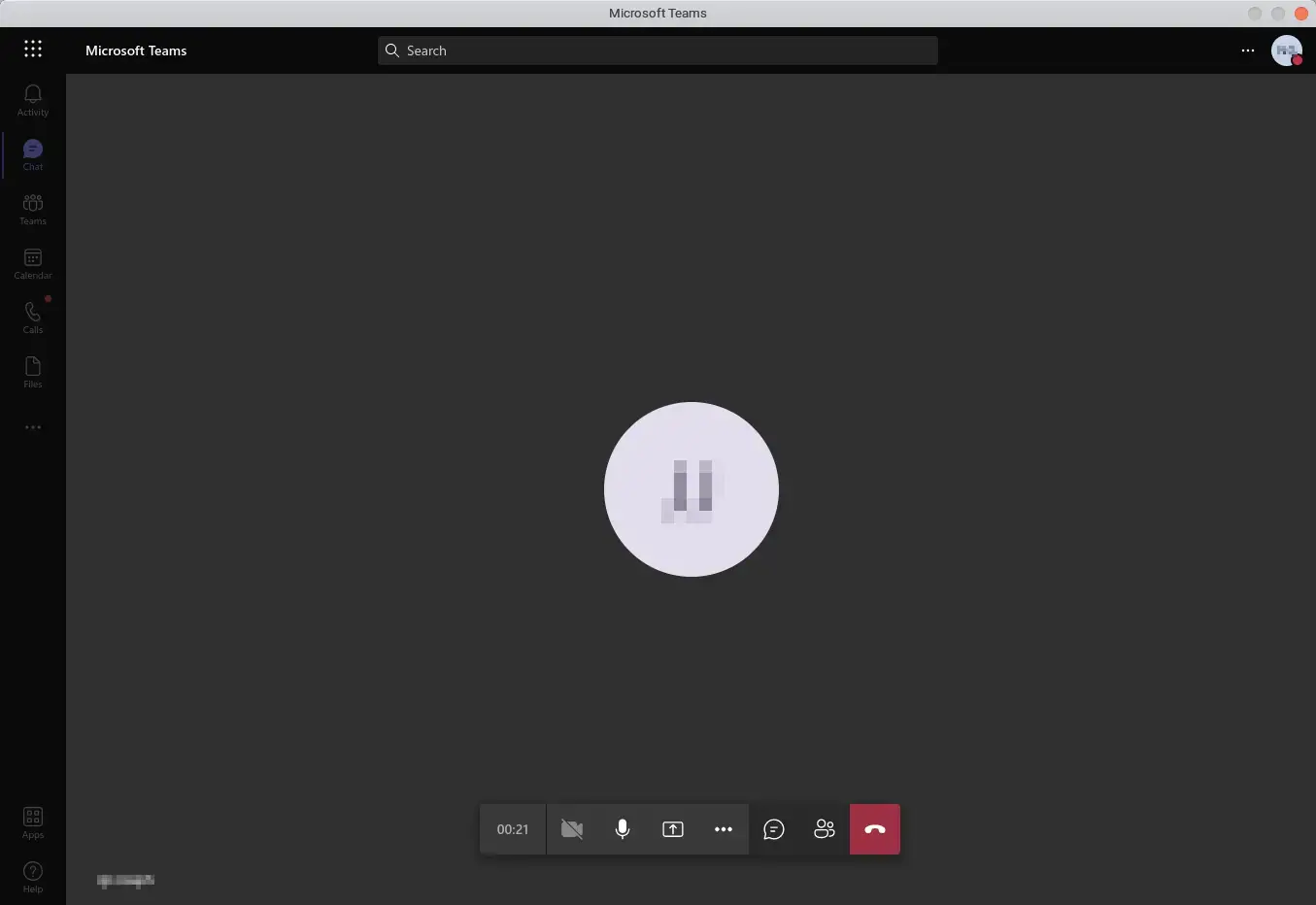
Flatpak is a good option if you already use Flathub and want a desktop-style wrapper. Flathub lists the app as Portal for Teams by Ismael Martinez and describes it as an unofficial Microsoft Teams client for Linux.
sudo apt update
sudo apt install flatpak
flatpak remote-add --if-not-exists flathub https://flathub.org/repo/flathub.flatpakrepo
flatpak install flathub com.github.IsmaelMartinez.teams_for_linux
Launch it with:
flatpak run com.github.IsmaelMartinez.teams_for_linuxNote: This is not a Microsoft app. It wraps the Teams web app in Electron, so some behavior still depends on Teams on the web and Linux desktop permissions.
Method 3: Install Teams for Linux with Snap
Snap is convenient on standard Ubuntu desktops because Snap support is usually already installed. The Snap Store package name is teams-for-linux, not teams or microsoft-teams.
sudo snap install teams-for-linuxAfter installation, open Teams for Linux from the app menu, or run:
teams-for-linuxNote: The Snap Store lists Ismael Martinez Ramos as the publisher. The package page links to the Teams for Linux GitHub project, which says it is independent and not affiliated with Microsoft.
Method 4: Use Teams in a Browser Without Installing a PWA
You do not have to install anything if you only use Teams occasionally. Open Teams in Edge or Chrome, sign in, allow the permissions you need, and keep the tab pinned while you work.
- Open Edge or Chrome.
- Go to teams.microsoft.com.
- Sign in with your Microsoft account.
- Allow notifications, microphone, and camera when prompted.
- Bookmark the page or pin the tab for faster access.
Best for: users who only join occasional meetings, shared computers, or Ubuntu installs where you do not want extra app entries.
First Setup After Opening Teams
After you open Teams on Ubuntu, spend a few minutes checking the basics before joining a real meeting. This is especially important if you use Teams for work or school, where account policies can affect sign-in, calendar access, and device permissions.
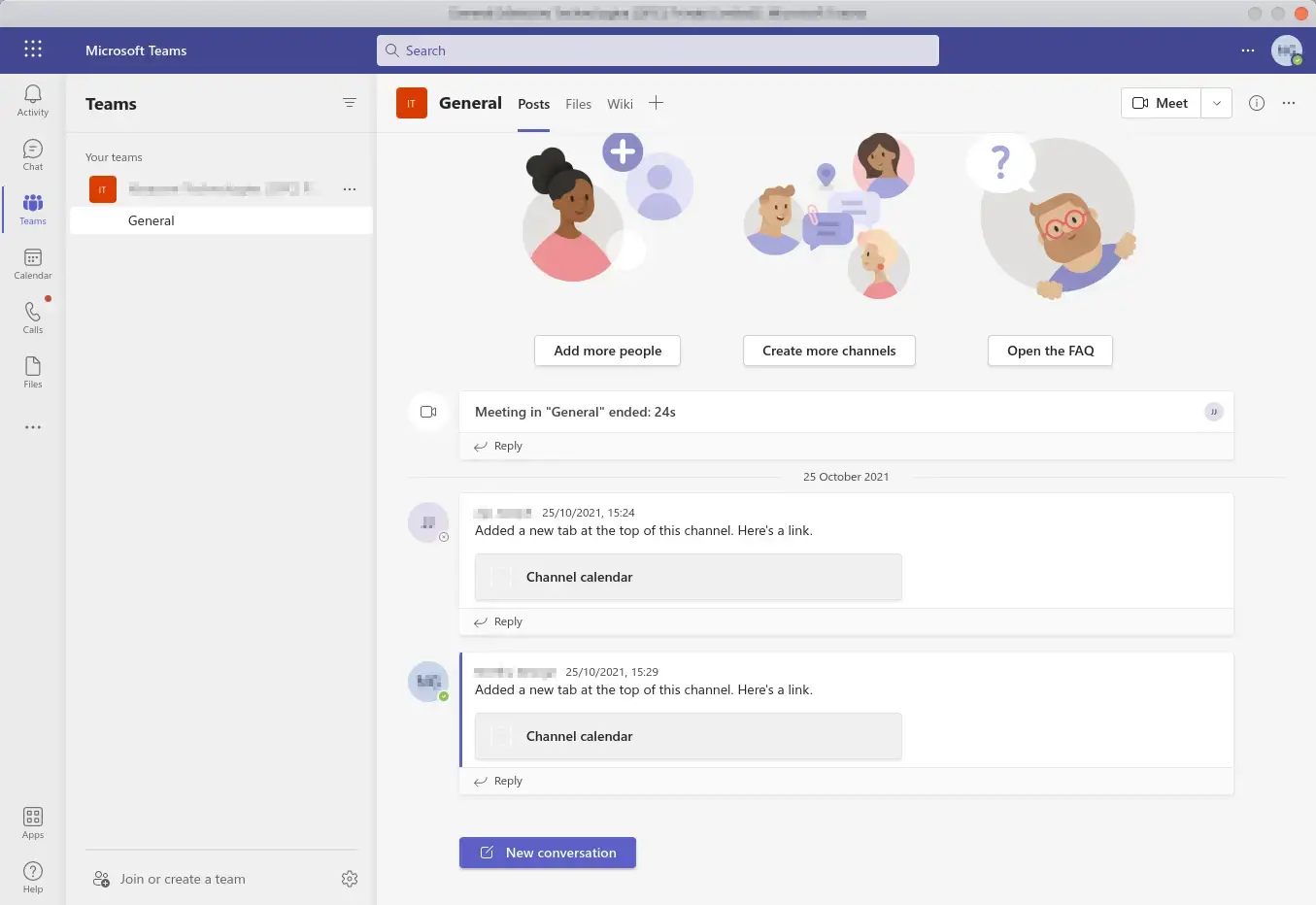
Setup Checklist
- Sign in with the right Microsoft account, especially if you have both personal and work accounts.
- Open a test meeting or device settings screen before an important call.
- Check your microphone and speakers.
- Check your camera preview.
- Allow Teams notifications in the browser or wrapper app.
- Try a screen-share test if your meetings require presenting.
- Pin the PWA or app to your Ubuntu dock if you use it daily.
If you use multiple Microsoft accounts, keep one browser profile for work and another for personal use. This helps avoid repeated sign-in loops and account switching confusion.
Microphone, Camera, Notifications, and Screen Sharing
Most Teams problems on Ubuntu come down to permissions. The app needs browser or system access to your camera, microphone, notifications, and screen capture.
Microphone
Allow microphone access when the browser or app asks. If Teams cannot hear you, check Ubuntu sound settings and the browser permission icon near the address bar.
Camera
Test the camera before a meeting. If another app is using the camera, close it and reload Teams.
Notifications
Allow notifications in Teams and in your browser. Also check Ubuntu notification settings if alerts do not appear.
Screen Sharing
Screen sharing can depend on your desktop session and browser. If it fails, try Edge or Chrome, reload Teams, and check whether Ubuntu allowed screen capture.
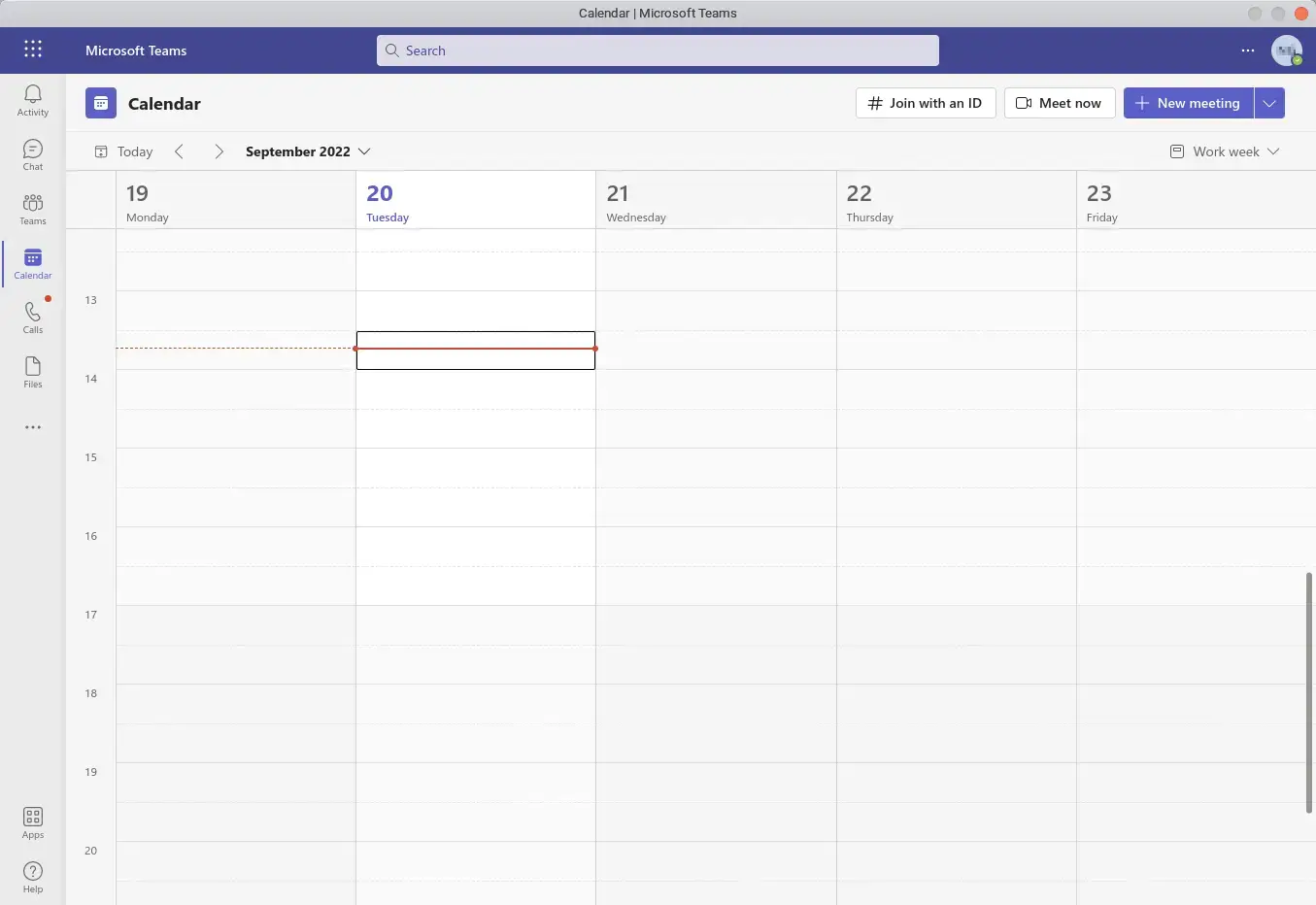
Note: If a feature works in one browser but not another, keep the working browser for Teams. That is usually faster than changing your whole Ubuntu desktop session just before a meeting.
Useful Microsoft Teams Keyboard Shortcuts
These shortcuts are useful in the Teams web app and PWA on Ubuntu with a PC keyboard. Some shortcuts can vary by browser focus, meeting state, and Teams settings, so test the meeting shortcuts before relying on them in a live call.
To see the full current list inside Teams, press Ctrl+Period or open the keyboard shortcuts panel from Teams settings.
Troubleshooting Microsoft Teams on Ubuntu
If Teams opens but does not behave correctly, start with the browser or package route you are using. A PWA issue is usually fixed in Edge or Chrome settings. A Teams for Linux issue may need Flatpak, Snap, or project-specific troubleshooting.
Teams Keeps Asking Me To Sign In
Try a dedicated browser profile for Teams, allow cookies for Microsoft sign-in pages, and avoid switching between several Microsoft accounts in the same browser profile.
Notifications Do Not Appear
Check Teams notification settings, browser notification permissions, and Ubuntu notification settings. If you installed the PWA, also make sure the PWA is allowed to run in the background if your browser offers that option.
Camera Or Microphone Is Missing
Open Ubuntu sound and camera settings, then check the browser or app permission prompt. If you blocked access earlier, reset the permission from the browser’s site settings and reload Teams.
Screen Sharing Fails

Try the official PWA in Edge or Chrome first. If you use Teams for Linux, test Flatpak and Snap behavior separately because screen capture can vary by package format, desktop session, and sandbox permissions.
How to Remove Microsoft Teams from Ubuntu
Use the removal method that matches the way you set up Teams.
Remove the Teams PWA from Edge or Chrome
Open your browser’s installed apps page, find Microsoft Teams, then remove or uninstall it. The exact menu wording depends on the browser version.
Remove Teams for Linux Flatpak
flatpak uninstall com.github.IsmaelMartinez.teams_for_linuxRemove Teams for Linux Snap
sudo snap remove teams-for-linuxRemove Local Teams for Linux Settings
Only remove local settings if you are sure you do not need saved app preferences or cached sessions.
rm -rf ~/.config/teams-for-linuxRelated Ubuntu Messaging and Browser Guides
If you are setting up a full communication desktop on Ubuntu, these related guides may help:
- Microsoft Edge on Ubuntu
- Discord on Ubuntu
- Telegram on Ubuntu
- WhatsApp on Ubuntu
- Facebook Messenger on Ubuntu
- Signal on Ubuntu
- Slack on Ubuntu
Microsoft Teams on Ubuntu FAQ
Can I install Microsoft Teams on Ubuntu?
Yes. The official Microsoft-supported Linux route is the Microsoft Teams progressive web app in Microsoft Edge or Google Chrome. You can also use the unofficial Teams for Linux wrapper through Flatpak or Snap if you want a separate desktop-style app.
What is the best way to use Microsoft Teams on Ubuntu?
For most Ubuntu users, the best option is the official Teams PWA in Edge or Chrome. It comes from Microsoft, works through Teams on the web, and can still feel like a desktop app when installed as a PWA.
Is Teams for Linux an official Microsoft app?
No. Teams for Linux is an independent, unofficial wrapper around the Teams web app. It can be useful, but it is not affiliated with Microsoft and should not be described as an official Teams desktop client.
Does Microsoft Teams screen sharing work on Ubuntu?
Screen sharing can work on Ubuntu, but it depends on your browser, desktop session, and permissions. If screen sharing fails, check browser permissions, try Edge or Chrome, and make sure Ubuntu allows screen capture for the browser or app you are using.
Can I uninstall Microsoft Teams from Ubuntu later?
Yes. If you installed the Teams PWA, remove it from Edge or Chrome’s installed apps list. If you installed Teams for Linux, remove it with the matching Flatpak or Snap uninstall command.