Install Mistral on Ubuntu
Two commands. Mistral is not a program you install, it is a file Ollama downloads and runs, so Ollama goes on first and Mistral arrives the moment you ask for it.
If you would rather watch it happen, the video below tests 3B, 8B and 14B one at a time. It was recorded shortly after the December 2025 release, so the version numbers are a snapshot. The commands have not changed.
Which Mistral Should You Install?
This is the part that trips people up, and it is not about your hardware. Mistral has two names that differ by one letter, and they are not the same age.
mistral is the original 7B model from 2024. It works, it is Apache 2.0, and it is the most downloaded model in the family because it has had the longest to collect downloads. It is not the current one.
ministral-3 is the small family Mistral released in December 2025, in three sizes. It reads images, it handles a 256K context instead of 32K, and the 3B version is smaller than the old 7B while being two generations newer.
Searching Ollama for “mistral” does not return it, because the name starts with “mini” rather than “mi-s”. That is why it is easy to miss, and worth knowing before you go looking for the others.
With the naming sorted, the size question is easy. A model needs roughly its download size in free memory, plus a little spare. If it fits in your graphics card’s memory it will be fast. If it only fits in ordinary RAM it still works, just more slowly.
Download sizes are Ollama’s published figures. The memory column is the usual rule of thumb rather than an official requirement, because Ollama does not publish one.
Start at 8b and move only if you have a reason. Drop to 3b if the machine is old or the answers arrive too slowly. Move to 14b if you have the memory spare and want better reasoning, which is a real step up and still fits a decent laptop. Swapping is cheap, because each model is a separate download that sits alongside the others and comes off again with ollama rm.
Why Mistral Feels Fast
Mistral’s reputation is speed rather than topping benchmark charts, and the reason has nothing to do with the size of the file. These models are trained to answer in fewer words.
Some models work through a problem at length before they reply, and most of that working never appears on your screen. You still wait for it. Mistral says its small models match rivals of the same size while producing up to ten times less text along the way, and that is what you notice on an ordinary machine. The answer starts sooner and it ends sooner.
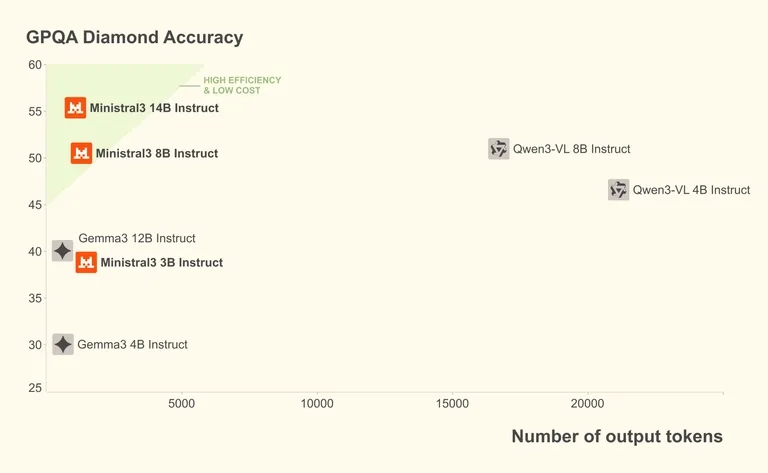
This is Mistral’s own chart, not an independent test, and a company’s own chart always flatters the company. Look at the shape of it rather than the scores. Accuracy runs up the side and the amount of text produced runs along the bottom, so anything in the top left corner is giving good answers without rambling. All three Ministral models are in that corner.
Which one you want. If you mostly want quick answers, a summary, a shell command, a paragraph tidied up, this family will feel faster than a model of the same size that thinks out loud first. If you would rather a model took its time over something hard, install magistral instead, which is the same family making the opposite choice.
Use It Day to Day
Three commands cover almost everything. You do not have to open a chat session to use the model.
Put the question in quotes after the model name. This is the one worth remembering, because it also works on the end of a pipe, so you can feed it a file:
Ministral 3 can look at images, which the old 7B cannot. Add the file path at the end of the command. Handy for a screenshot of an error message, or a photo of a page you would rather not retype:
This is the first command to reach for when the disk fills up, because it lists every model you have pulled and what each one is costing you:
Prefer to work in an editor rather than a terminal? Most of the editors in our roundup of code editors for Ubuntu can talk to a local model through an add-on. And if you want something that reads your files and runs commands for you rather than just answering questions, our guide to installing DeepSeek Harness on Ubuntu sets that up, and you can point it at devstral instead.
What Mistral Actually Is

Mistral answers questions, rewrites text and explains code, much like ChatGPT does. It comes from Mistral AI, a French company, and there are two ways to use it.
The quick way is in a browser. Vibe is Mistral’s own hosted assistant, free to use, and it is the fastest way to see whether you like the answers before you download anything. It was called Le Chat until May 2026, so older articles still use that name.
The other way is the one this page covers. Mistral releases its models as files you can download, so the same assistant runs on your own machine instead of theirs. Nothing you type is sent anywhere, it costs nothing to keep using, and it works with the network cable pulled out. That is the trade: the browser version is quicker to start, the local one is yours.
If you go local, start small. Ministral 3 comes in 3B, 8B and 14B, and the 3B runs on an ordinary laptop with no graphics card. Bigger models write better, but you wait longer for every reply, so move up only if the answers disappoint you.
When to Pick Mistral Instead
All four install the same way, so pick by what you want it for.
Quick answers on a normal laptop. The smallest model here that is still worth using.
The widest choice of sizes, and a proper coding model if you want one.
Hard problems, maths and tricky bugs, if you do not mind waiting for the answer.
The one most other software expects, so it is the easiest to plug into things.
None of this is a commitment. Each one is a command to add and a command to remove, so install two and see which you prefer.
Fix Common Problems
The most common problems, and how to fix them.
Remove It Cleanly
Models are files, so removing one is a single command and it frees the full download size straight away. Remove each tag you pulled by name, because they are stored separately:
mike@ubuntu:~$ ollama rm ministral-3

mike@ubuntu:~$ ollama rm ministral-3:3b
That removes Mistral but leaves Ollama installed and any other models untouched. To remove Ollama itself as well, stop and disable the service, delete the binary at /usr/local/bin/ollama and remove the model directory. Run ollama list first if you are unsure what you would be deleting.
Ministral can read images, and dragging a screenshot into a chat window is easier than typing a file path. Our guide to installing Open WebUI on Ubuntu adds that browser window on top of the Ollama you already have.
Frequently Asked Questions
Which Mistral model should I install on Ubuntu?
Run ministral-3, which is a 6.0GB download and wants about 16GB of RAM or an 8GB graphics card. If your machine is lighter, ministral-3:3b is 3.0GB and runs on an ordinary laptop. Do not start with plain mistral, which is the original 7B from 2024 and older than the 3b despite being larger.
Is Mistral free to use?
Yes. Ministral 3, the original Mistral 7B, Devstral and Magistral are all released under the Apache 2.0 licence, which permits commercial use, so you can run them at work without asking anyone. Running them locally through Ollama costs nothing beyond electricity, and there is no account, API key or usage limit. Two models in the wider family, Codestral and the largest Mistral tier, carry a more restrictive licence, but neither is something most people can run locally anyway.
What is the difference between Mistral and Ministral?
Mistral is the 7B model from 2024 and Ministral 3 is the small family released in December 2025, in 3B, 8B and 14B sizes. Ministral reads images, handles a 256K context instead of 32K, and its smallest version is a smaller download than the older 7B. Searching Ollama for mistral does not return Ministral, so it is easy to miss.
Do I need a graphics card to run Mistral?
No. Every model here runs on the processor alone, just more slowly. A card helps a great deal, but only if the whole model fits in its memory, so an 8GB card running a model that fits will beat a larger card running one that does not. Check which is happening with ollama ps.
Does anything I type get sent to Mistral AI?
No. Once the model file is downloaded it runs entirely on your machine, and you can disconnect from the internet and keep using it. That is a property of running a model locally rather than a promise anyone is making to you, which is the reason local models are worth the disk space.
One command installs it, one more starts it, and the small one is not the compromise here. It is the point.
Related guides: Install Ollama on Ubuntu · Install Qwen on Ubuntu · Install DeepSeek on Ubuntu · Install Llama on Ubuntu · Install DeepSeek Harness on Ubuntu · Best Open Source AI Tools for Ubuntu