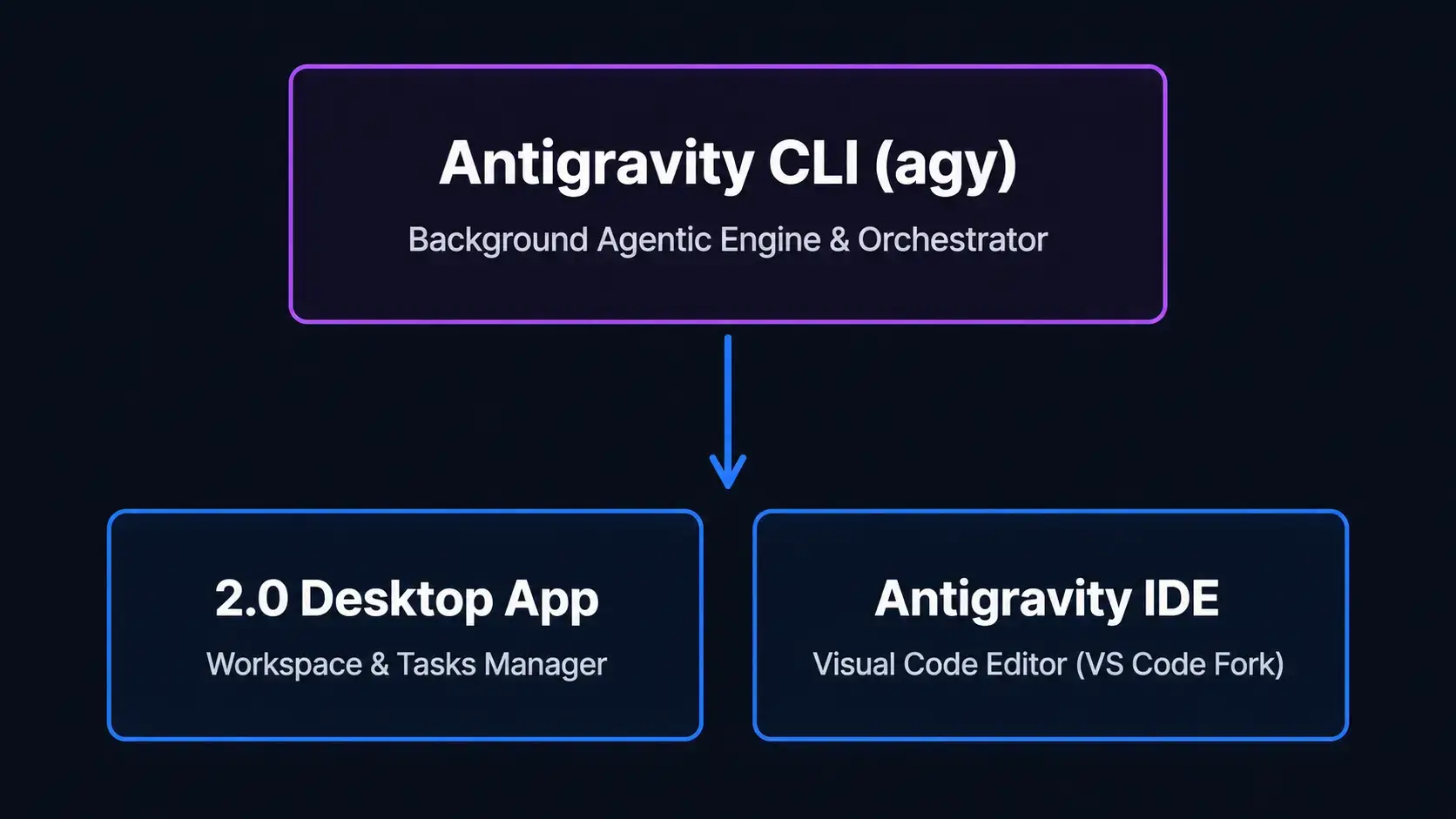
You can install Google Antigravity 2.0 on Linux and Ubuntu by choosing from three separate, independent products: the standalone Google Antigravity 2.0 Desktop App for workspace and task orchestration, the custom Antigravity IDE visual editor, and the lightweight Antigravity CLI (agy) command-line agent engine.
Since version 2.0, the platform splits background execution from frontend visual workflows, allowing developers to choose only the components that fit their local setups.
This comprehensive installation guide covers step-by-step setup guides for all three tools on Ubuntu 24.04 and 26.04 LTS, details automated helper scripts for tarball deployments, and provides solutions to common keyring loops and AppArmor crashes.
If any of these steps fail on your system, please drop a comment below or contact us and we will help you get it resolved.
Desktop App, IDE & CLI Setup
Set up Google’s decoupled agentic AI development environment on your Linux system. Learn how to configure the standalone Desktop App, the visual IDE editor, and the command-line engine.
Install the Desktop App
Three products, and you do not need all three. The Desktop App runs the agents, the IDE is the editor, the CLI is the same engine in a terminal. There is a comparison further down.
Google ships the Desktop App as a tarball rather than an apt package, so the helper script below installs it and handles updates. It is the workspace dashboard, the subagent panels and the task manager.
Refresh your local system repositories and install the utility commands required by the installer script:
sudo apt update
sudo apt install curl tar desktop-file-utils python3 -y
Next, the helper script. It detects your architecture, fetches the current tarball, installs under /opt/antigravity, sets up the Chromium sandbox helper and registers the launcher:
sudo tee /usr/local/bin/update-antigravity > /dev/null <<'EOF'
#!/usr/bin/env bash
set -euo pipefail
if [ "$(id -u)" -ne 0 ]; then
	echo "Run with sudo: sudo update-antigravity" >&2
	exit 1
fi
download_page="https://antigravity.google/download"
install_root="/opt/antigravity"
command_link="/usr/local/bin/antigravity"
desktop_file="/usr/share/applications/antigravity.desktop"
icon_file="/usr/share/icons/hicolor/512x512/apps/antigravity.png"
old_icon_file="/usr/share/icons/hicolor/scalable/apps/antigravity.svg"
case "$(uname -m)" in
x86_64 | amd64) platform="linux-x64" ;;
aarch64 | arm64) platform="linux-arm" ;;
*)
	echo "Unsupported architecture: $(uname -m)" >&2
	exit 1
	;;
esac
for required_command in curl tar python3; do
	if ! command -v "$required_command" >/dev/null 2>&1; then
		echo "$required_command is required to install Antigravity." >&2
		exit 1
	fi
done
if [ -L "$command_link" ]; then
	command_target=$(readlink -f "$command_link" || true)
	case "$command_target" in
	"$install_root"/*) ;;
	*)
		echo "$command_link points to $command_target. Move it before rerunning this helper." >&2
		exit 1
		;;
	esac
elif [ -e "$command_link" ]; then
	echo "$command_link exists and is not a symlink. Move it before rerunning this helper." >&2
	exit 1
fi
tmp_parent="${TMPDIR:-/var/tmp}"
mkdir -p "$tmp_parent"
tmpdir=$(mktemp -d "$tmp_parent/antigravity.XXXXXX")
trap 'rm -rf "$tmpdir"' EXIT
download_html="$tmpdir/download.html"
download_js="$tmpdir/download.js"
archive="$tmpdir/Antigravity.tar.gz"
archive_list="$tmpdir/archive-list.txt"
icon_staged="$tmpdir/antigravity.png"
curl -fsSL --compressed --retry 3 -o "$download_html" "$download_page"
main_js_url=$(
	python3 - "$download_html" "$download_page" <<'PY'
import re
import sys
from pathlib import Path
from urllib.parse import urljoin
html = Path(sys.argv[1]).read_text()
page_url = sys.argv[2]
matches = re.findall(r'(?:src|href)="([^"]*main-[^"]+\.js)"', html)
if not matches:
    raise SystemExit("Could not find the Antigravity download bundle")
print(urljoin(page_url, matches[-1]))
PY
)
curl -fsSL --compressed --retry 3 -o "$download_js" "$main_js_url"
download_fields=$(
	python3 - "$download_js" "$platform" <<'PY'
import re
import sys
from pathlib import Path
bundle = Path(sys.argv[1]).read_text(errors="replace")
platform = sys.argv[2]
start = bundle.find('id:"antigravity-2"')
end = bundle.find('},{name:"command",id:"antigravity-cli"', start)
if start == -1 or end == -1:
    raise SystemExit("Could not find Antigravity 2.0 downloads")
section = bundle[start:end]
match = re.search(r'href:"([^"]+/' + re.escape(platform) + r'/Antigravity\.tar\.gz)"', section)
if not match:
    raise SystemExit(f"Could not find a download for {platform}")
url = match.group(1)
version_match = re.search(r'/antigravity-hub/([^/]+)/', url)
if not version_match:
    raise SystemExit("Could not parse Antigravity version from download URL")
print(version_match.group(1).split("-", 1)[0], url)
PY
)
read -r version download_url <<<"$download_fields"
if [ -z "$version" ] || [ -z "$download_url" ]; then
	echo "Could not parse the Antigravity download page." >&2
	exit 1
fi
case "$platform" in
linux-x64) expected_top_dir="Antigravity-x64" ;;
linux-arm) expected_top_dir="Antigravity-arm64" ;;
esac
expected_target="$install_root/$expected_top_dir/antigravity"
sandbox_path="$install_root/$expected_top_dir/chrome-sandbox"
installed_version=$(cat "$install_root/.linuxcapable-version" 2>/dev/null || true)
desktop_matches=no
if [ -f "$desktop_file" ] &&
	grep -q '^Icon=antigravity$' "$desktop_file" &&
	grep -q '^StartupWMClass=Antigravity$' "$desktop_file"; then
	desktop_matches=yes
fi
if [ "$installed_version" = "$version" ] &&
	[ -x "$expected_target" ] &&
	[ -L "$command_link" ] &&
	[ "$(readlink -f "$command_link")" = "$expected_target" ] &&
	[ "$desktop_matches" = yes ] &&
	[ -f "$icon_file" ]; then
	if [ ! -e "$sandbox_path" ] || [ "$(stat -c '%U:%G:%a' "$sandbox_path")" = "root:root:4755" ]; then
		printf 'Antigravity %s is already installed at %s\n' "$version" "$install_root/$expected_top_dir"
		exit 0
	fi
fi
printf 'Downloading Antigravity %s for %s...\n' "$version" "$platform"
curl -fsSL --retry 3 -o "$archive" "$download_url"
tar -tzf "$archive" >"$archive_list"
top_dir=$(sed -n '1{s#/.*##;p;q}' "$archive_list")
case "$top_dir" in
Antigravity-*) ;;
*)
	echo "Unexpected archive layout: $top_dir" >&2
	exit 1
	;;
esac
if [ "$top_dir" != "$expected_top_dir" ]; then
	echo "Unexpected archive directory: $top_dir" >&2
	exit 1
fi
tar -xzf "$archive" -C "$tmpdir"
if [ ! -x "$tmpdir/$top_dir/antigravity" ]; then
	echo "The Antigravity launcher was not found in the archive." >&2
	exit 1
fi
python3 - "$tmpdir/$top_dir/resources/app.asar" "$icon_staged" <<'PY'
import json
import struct
import sys
from pathlib import Path
asar = Path(sys.argv[1])
output = Path(sys.argv[2])
with asar.open("rb") as archive:
    archive.read(4)
    header_size = struct.unpack("<I", archive.read(4))[0]
    archive.read(4)
    json_size = struct.unpack("<I", archive.read(4))[0]
    header = json.loads(archive.read(json_size).decode())
icon = header["files"]["icon.png"]
with asar.open("rb") as archive:
    archive.seek(8 + header_size + int(icon["offset"]))
    output.write_bytes(archive.read(int(icon["size"])))
PY
rm -rf "${install_root}.new"
mkdir -p "${install_root}.new"
cp -a "$tmpdir/$top_dir" "${install_root}.new/"
printf '%s\n' "$version" >"${install_root}.new/.linuxcapable-version"
if [ -f "${install_root}.new/$top_dir/chrome-sandbox" ]; then
	chown root:root "${install_root}.new/$top_dir/chrome-sandbox"
	chmod 4755 "${install_root}.new/$top_dir/chrome-sandbox"
fi
if [ -d "$install_root" ]; then
	rm -rf "${install_root}.previous"
	mv "$install_root" "${install_root}.previous"
fi
mv "${install_root}.new" "$install_root"
ln -sfn "$install_root/$top_dir/antigravity" "$command_link"
mkdir -p "$(dirname "$icon_file")"
install -m 0644 "$icon_staged" "$icon_file"
rm -f "$old_icon_file"
tee "$desktop_file" >/dev/null <<DESKTOP
[Desktop Entry]
Name=Antigravity
Comment=Google Antigravity 2.0 agent platform
Exec=$command_link %U
Icon=antigravity
Terminal=false
Type=Application
Categories=Development;IDE;
StartupNotify=true
StartupWMClass=Antigravity
DESKTOP
if command -v update-desktop-database >/dev/null 2>&1; then
	update-desktop-database /usr/share/applications >/dev/null 2>&1 || true
fi
if command -v gtk-update-icon-cache >/dev/null 2>&1; then
	gtk-update-icon-cache -q /usr/share/icons/hicolor 2>/dev/null || true
fi
printf 'Installed Antigravity %s at %s\n' "$version" "$install_root/$top_dir"
EOF
sudo chmod +x /usr/local/bin/update-antigravity
Run the helper script to complete the Desktop App installation:
sudo update-antigravity
Verify that the launcher symlink, desktop configuration, and icons are in place:
readlink -f /usr/local/bin/antigravity
grep -E '^(Name|Exec|Icon|Categories|StartupWMClass)=' /usr/share/applications/antigravity.desktop
test -f /usr/share/icons/hicolor/512x512/apps/antigravity.png && echo "Icon verified"
Verify AppArmor and Sandbox State
Ubuntu restricts unprivileged user namespaces. The script gives chrome-sandbox root ownership and 4755 permissions so the app runs without disabling AppArmor system-wide. Confirm it took:
sysctl -n kernel.apparmor_restrict_unprivileged_userns 2>/dev/null || echo "Not restricted"
stat -c '%U %G %a %n' /opt/antigravity/Antigravity-*/chrome-sandbox
Install the Antigravity IDE
The IDE is a VS Code fork, so you get the usual editor workflows and extensions plus a view for auditing what the agents did. The script installs it under /opt/antigravity-ide/Antigravity-IDE.
Create the automated IDE setup and update helper script:
sudo tee /usr/local/bin/update-antigravity-ide > /dev/null <<'EOF'
#!/usr/bin/env bash
set -euo pipefail
if [ "$(id -u)" -ne 0 ]; then
	echo "Run with sudo: sudo update-antigravity-ide" >&2
	exit 1
fi
download_page="https://antigravity.google/download"
install_root="/opt/antigravity-ide"
command_link="/usr/local/bin/antigravity-ide"
desktop_file="/usr/share/applications/antigravity-ide.desktop"
icon_file="/usr/share/icons/hicolor/512x512/apps/antigravity-ide.png"
archive_top_dir="Antigravity IDE"
install_dir="Antigravity-IDE"
case "$(uname -m)" in
x86_64 | amd64) platform="linux-x64" ;;
aarch64 | arm64) platform="linux-arm" ;;
*)
	echo "Unsupported architecture: $(uname -m)" >&2
	exit 1
	;;
esac
for required_command in curl tar python3; do
	if ! command -v "$required_command" >/dev/null 2>&1; then
		echo "$required_command is required to install Antigravity IDE." >&2
		exit 1
	fi
done
if [ -L "$command_link" ]; then
	command_target=$(readlink -f "$command_link" || true)
	case "$command_target" in
	"$install_root"/*) ;;
	*)
		echo "$command_link points to $command_target. Move it before rerunning this helper." >&2
		exit 1
		;;
	esac
elif [ -e "$command_link" ]; then
	echo "$command_link exists and is not a symlink. Move it before rerunning this helper." >&2
	exit 1
fi
tmp_parent="${TMPDIR:-/var/tmp}"
mkdir -p "$tmp_parent"
tmpdir=$(mktemp -d "$tmp_parent/antigravity-ide.XXXXXX")
trap 'rm -rf "$tmpdir"' EXIT
download_html="$tmpdir/download.html"
download_js="$tmpdir/download.js"
archive="$tmpdir/Antigravity-IDE.tar.gz"
archive_list="$tmpdir/archive-list.txt"
curl -fsSL --compressed --retry 3 -o "$download_html" "$download_page"
main_js_url=$(
	python3 - "$download_html" "$download_page" <<'PY'
import re
import sys
from pathlib import Path
from urllib.parse import urljoin
html = Path(sys.argv[1]).read_text()
page_url = sys.argv[2]
matches = re.findall(r'(?:src|href)="([^"]*main-[^"]+\.js)"', html)
if not matches:
    raise SystemExit("Could not find the Antigravity download bundle")
print(urljoin(page_url, matches[-1]))
PY
)
curl -fsSL --compressed --retry 3 -o "$download_js" "$main_js_url"
download_fields=$(
	python3 - "$download_js" "$platform" <<'PY'
import re
import sys
from pathlib import Path
bundle = Path(sys.argv[1]).read_text(errors="replace")
platform = sys.argv[2]
start = bundle.find('id:"antigravity-ide"')
end = bundle.find('},{name:"download",id:"antigravity-sdk"', start)
if start == -1 or end == -1:
    raise SystemExit("Could not find Antigravity IDE downloads")
section = bundle[start:end]
match = re.search(r'href:"([^"]+/' + re.escape(platform) + r'/Antigravity%20IDE\.tar\.gz)"', section)
if not match:
    raise SystemExit(f"Could not find an IDE download for {platform}")
url = match.group(1)
version_match = re.search(r'/stable/([^/]+)/', url)
if not version_match:
    raise SystemExit("Could not parse Antigravity IDE version from download URL")
print(version_match.group(1).split("-", 1)[0], url)
PY
)
read -r version download_url <<<"$download_fields"
if [ -z "$version" ] || [ -z "$download_url" ]; then
	echo "Could not parse the Antigravity IDE download page." >&2
	exit 1
fi
expected_target="$install_root/$install_dir/antigravity-ide"
sandbox_path="$install_root/$install_dir/chrome-sandbox"
installed_version=$(cat "$install_root/.linuxcapable-version" 2>/dev/null || true)
desktop_matches=no
if [ -f "$desktop_file" ] &&
	grep -q '^Icon=antigravity-ide$' "$desktop_file" &&
	grep -q '^StartupWMClass=antigravity-ide$' "$desktop_file"; then
	desktop_matches=yes
fi
if [ "$installed_version" = "$version" ] &&
	[ -x "$expected_target" ] &&
	[ -L "$command_link" ] &&
	[ "$(readlink -f "$command_link")" = "$expected_target" ] &&
	[ "$desktop_matches" = yes ] &&
	[ -f "$icon_file" ]; then
	if [ ! -e "$sandbox_path" ] || [ "$(stat -c '%U:%G:%a' "$sandbox_path")" = "root:root:4755" ]; then
		printf 'Antigravity IDE %s is already installed at %s\n' "$version" "$install_root/$install_dir"
		exit 0
	fi
fi
printf 'Downloading Antigravity IDE %s for %s...\n' "$version" "$platform"
curl -fsSL --retry 3 -o "$archive" "$download_url"
tar -tzf "$archive" >"$archive_list"
top_dir=$(sed -n '1{s#/.*##;p;q}' "$archive_list")
if [ "$top_dir" != "$archive_top_dir" ]; then
	echo "Unexpected archive directory: $top_dir" >&2
	exit 1
fi
tar -xzf "$archive" -C "$tmpdir"
if [ ! -x "$tmpdir/$archive_top_dir/antigravity-ide" ]; then
	echo "The Antigravity IDE launcher was not found in the archive." >&2
	exit 1
fi
icon_source="$tmpdir/$archive_top_dir/resources/app/resources/linux/code.png"
if [ ! -f "$icon_source" ]; then
	echo "The Antigravity IDE icon was not found in the archive." >&2
	exit 1
fi
rm -rf "${install_root}.new"
mkdir -p "${install_root}.new/$install_dir"
cp -a "$tmpdir/$archive_top_dir/." "${install_root}.new/$install_dir/"
printf '%s\n' "$version" >"${install_root}.new/.linuxcapable-version"
if [ -f "${install_root}.new/$install_dir/chrome-sandbox" ]; then
	chown root:root "${install_root}.new/$install_dir/chrome-sandbox"
	chmod 4755 "${install_root}.new/$install_dir/chrome-sandbox"
fi
if [ -d "$install_root" ]; then
	rm -rf "${install_root}.previous"
	mv "$install_root" "${install_root}.previous"
fi
mv "${install_root}.new" "$install_root"
ln -sfn "$install_root/$install_dir/antigravity-ide" "$command_link"
mkdir -p "$(dirname "$icon_file")"
install -m 0644 "$icon_source" "$icon_file"
tee "$desktop_file" >/dev/null <<DESKTOP
[Desktop Entry]
Name=Antigravity IDE
Comment=Google Antigravity IDE
Exec=$command_link %U
Icon=antigravity-ide
Terminal=false
Type=Application
Categories=Development;IDE;
MimeType=x-scheme-handler/antigravity-ide;application/x-antigravity-workspace;
StartupNotify=true
StartupWMClass=antigravity-ide
DESKTOP
if command -v update-desktop-database >/dev/null 2>&1; then
	update-desktop-database /usr/share/applications >/dev/null 2>&1 || true
fi
if command -v gtk-update-icon-cache >/dev/null 2>&1; then
	gtk-update-icon-cache -q /usr/share/icons/hicolor 2>/dev/null || true
fi
printf 'Installed Antigravity IDE %s at %s\n' "$version" "$install_root/$install_dir"
EOF
sudo chmod +x /usr/local/bin/update-antigravity-ide
Execute the installer helper to set up the Antigravity IDE on your system:
sudo update-antigravity-ide
Confirm the IDE installation state and path configuration:
readlink -f /usr/local/bin/antigravity-ide
grep -E '^(Name|Exec|Icon|Categories|StartupWMClass)=' /usr/share/applications/antigravity-ide.desktop
stat -c '%U %G %a %n' /opt/antigravity-ide/Antigravity-IDE/chrome-sandbox
Install the CLI (agy)
The Antigravity CLI (executable name: agy) is a lightweight agent engine runner that executes code updates inside background terminal sessions. It compiles, tests, and resolves code issues directly inside directory workspaces.
Install curl on your system if you skipped the earlier graphical setup sections:
sudo apt update
sudo apt install curl -y
Run the official Google shell script installer. This downloads the CLI binary and saves it to your local user directory at ~/.local/bin/agy:
curl -fsSL https://antigravity.google/cli/install.sh | bash
Add the local bin folder to your shell path variables so the terminal can resolve the agy command. Append the export configuration to your ~/.bashrc and apply the changes:
# Append to bash configuration file
grep -qxF 'export PATH="$HOME/.local/bin:$PATH"' "$HOME/.bashrc" || echo 'export PATH="$HOME/.local/bin:$PATH"' >> "$HOME/.bashrc"
# Refresh path configurations in current terminal
export PATH="$HOME/.local/bin:$PATH"
source ~/.bashrc
Verify that the command resolves correctly and check the current engine version:
command -v agy
agy --version
Create an optional CLI updater helper to easily check and apply future CLI updates:
mkdir -p "$HOME/.local/bin"
tee "$HOME/.local/bin/update-antigravity-cli" > /dev/null <<'EOF'
#!/usr/bin/env bash
set -euo pipefail
export PATH="$HOME/.local/bin:$PATH"
if [ ! -x "$HOME/.local/bin/agy" ]; then
	curl -fsSL https://antigravity.google/cli/install.sh | bash
else
	"$HOME/.local/bin/agy" update
fi
"$HOME/.local/bin/agy" --version
EOF
chmod +x "$HOME/.local/bin/update-antigravity-cli"
The Older APT Package (Optional)
Google maintains a legacy Artifact Registry APT repository for older versions of the Antigravity IDE (version 1.23.2). If your projects require the older editor package, configure the GPG security key and registration files:
# Set up key directory
sudo install -d -m 0755 /etc/apt/keyrings
# Register the Artifact Registry repository key
curl -fsSL https://us-central1-apt.pkg.dev/doc/repo-signing-key.gpg | sudo gpg --dearmor --yes -o /etc/apt/keyrings/antigravity-repo-key.gpg
# Create the repository sources entry using modern DEB822 format
sudo tee /etc/apt/sources.list.d/google-antigravity.sources > /dev/null <<'EOF'
Types: deb
URIs: https://us-central1-apt.pkg.dev/projects/antigravity-auto-updater-dev/
Suites: antigravity-debian
Components: main
Signed-By: /etc/apt/keyrings/antigravity-repo-key.gpg
EOF
# Update indices and install the package
sudo apt update
sudo apt install antigravity -y
Google Antigravity vs. Other AI Coding Agents
Unlike single-turn chat completion assistants, Google Antigravity 2.0 relies on a multi-agent tree architecture. These agents work recursively to plan files, execute system tests, and resolve compiler warnings before reporting back. Below is a comparison table showing how the Antigravity engine differs from other popular developer AI tools:
| AI Coding Platform | Google Antigravity 2.0 | Claude Code | Cursor / Windsurf | GitHub Copilot |
|---|---|---|---|---|
| Execution Model | Runs multiple automated agents that work together in a tree structure | Runs a single automated helper inside your terminal | Runs automated tasks inside custom editor sidebars | Offers code suggestions and a side-panel chat helper |
| Terminal Interface | Yes, standalone background command engine | Yes, standard command-line utility | No (requires a visual editor window) | No (operates only as a panel inside standard editors) |
| Editor Integration | Separate tool (works alongside any editor, compiler, or IDE) | Separate tool (runs independently inside your terminal) | Built directly into custom versions of the VS Code editor | Installs as an add-on plugin for standard editors |
Google Antigravity 2.0 Product Ecosystem
Google Antigravity 2.0 splits operations into a standalone desktop application, a custom VS Code editor fork, and a terminal command-line runner. Use the comparison table below to determine which components match your local setup:
| Criterion | Antigravity 2.0 Desktop App | Antigravity IDE | Antigravity CLI (agy) |
|---|---|---|---|
| Interface Type | Standalone Desktop App (GUI) | Visual Code Editor (VS Code Fork) | Command-line Interface (CLI) |
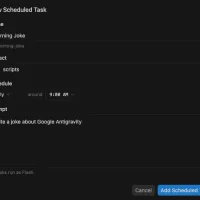
| Primary Purpose | Project orchestration, subagent monitoring, and scheduled coding tasks | Direct file writing, visual debugging, and extensions management | Lightweight background agent runner and terminal automation |
| Best For | Visual task planning and multi-repository management | Standard programming sessions needing direct file editing | Headless servers, terminal-centric developers, and SSH scripts |
| Installation Method | Linux tarball extraction with helper script | Linux tarball extraction with helper script | Official shell installer script (curl download) |
| Target Audience | Desktop developers, architects, and product managers | Full-stack software engineers and desktop programmers | DevOps engineers, sysadmins, and terminal users |
Launching and Signing In
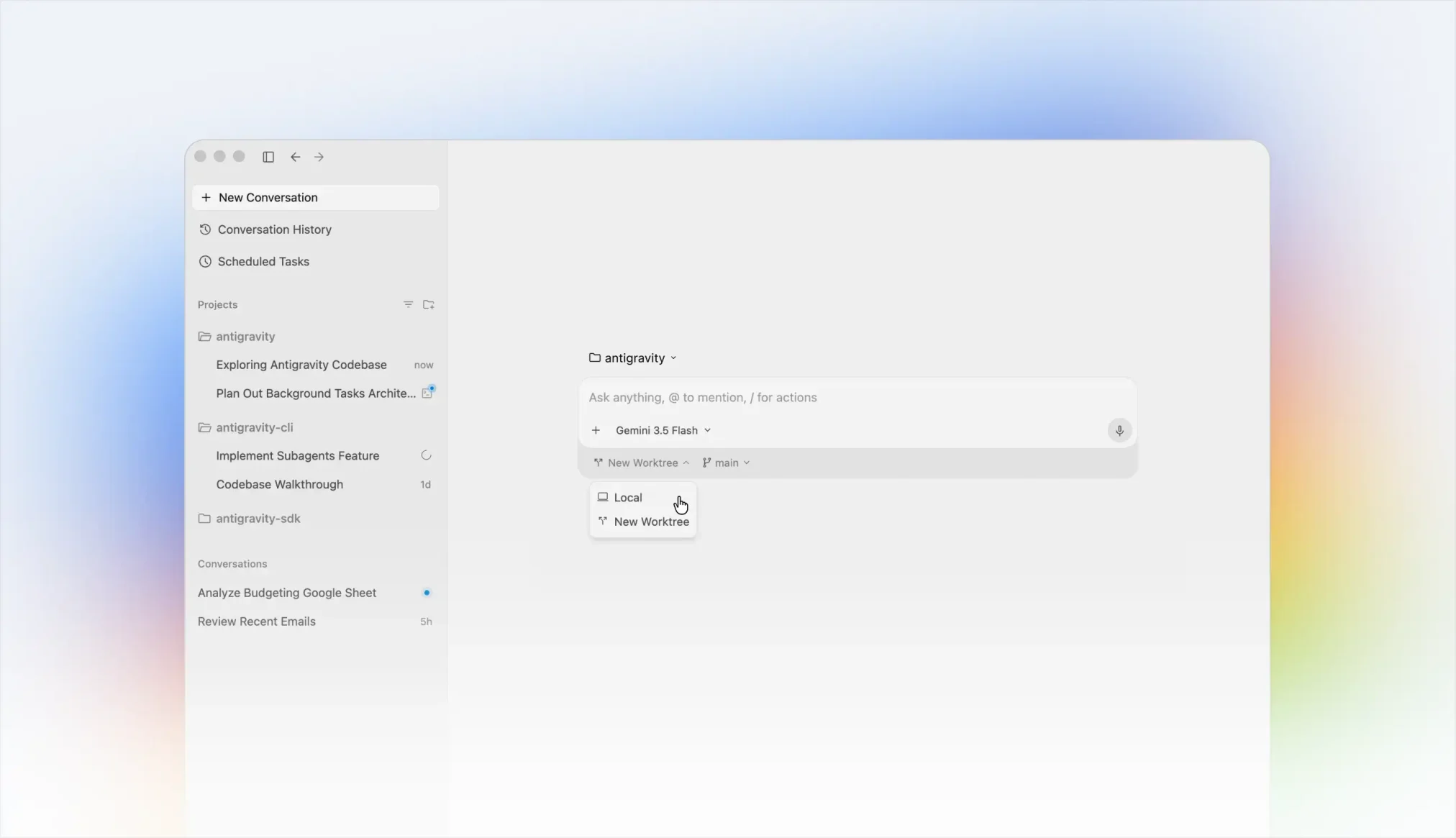
The Desktop App and IDE can be started from GNOME’s Activities application dashboard, or executed directly from any desktop terminal emulator. Use the detailed sections and screenshots below to verify your launcher configurations.
Launch Google Antigravity 2.0 Desktop App
To run the standalone desktop interface, launch the program from your desktop activities panel or type the terminal path command:
antigravity
Launch Antigravity IDE
To run the editor interface, search for “Antigravity IDE” in your applications search bar, or run the launcher command from your desktop shell environment:
antigravity-ide
CLI Authentication Flow
Start the browser-based login flow to authenticate the agy command-line runner. If you are operating over an SSH connection, the CLI will output a web URL you can copy and paste into a browser on a different computer, then return the authorization code back to the terminal prompt:
agy auth login
You can run commands directly using a non-interactive print prompt or open an interactive prompt inside a target coding folder:
# Single print mode command
agy --print "Provide a summary of the source code files in this directory."
# Interactive CLI mode
agy --prompt-interactive "Help me debug compilation failures."
Several key operations can be triggered by typing commands directly into the active agy terminal workspace:
| Command | Action Description |
|---|---|
? |
Shows built-in help and options list |
@ |
Allows autocomplete tagging of local project files |
! |
Runs a local shell command directly from the agent terminal |
/agents |
Opens active subagent panels to track parallel work trees |
/tasks |
Displays background task details and logs |
/logout |
Removes and clears credentials files from your system |
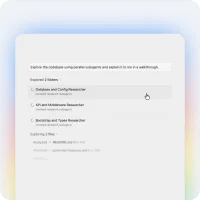
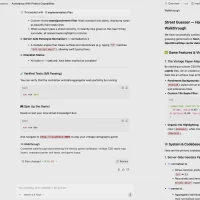
Google Antigravity 2.0 Screenshots
-
- Scheduled tasks antigravity from Google Antigravity: How to install for Linux
-
- Schedule new task dark mode from Google Antigravity: How to install for Linux
-
- Subagents antigravity from Google Antigravity: How to install for Linux
-
- New layout antigravity 2.0 from Google Antigravity: How to install for Linux
Google Antigravity 2.0 Beginners Guide
If you prefer a visual walk-through to help you get started with the platform, watch the official Google Antigravity 2.0 Beginners Guide video below, created by the Antigravity engineering team themselves:
Troubleshooting
Five things go wrong often enough on Linux to be worth naming. Each one below is a symptom and a fix.
The Keyring Authentication Loop (libsecret Failures)
In an SSH session, WSL2 or a minimal window manager, agy asks you to sign in every time you launch it. The Secret Service keyring is not running in that shell.
To resolve this authentication loop, install the required D-Bus and Gnome Keyring daemon packages:
sudo apt update
sudo apt install -y dbus-x11 libsecret-1-0 gnome-keyring
Then have D-Bus and the keyring start with your shell. Append this to ~/.bashrc:
# Start keyring and D-Bus for session persistence
if [ -n "$BASH_VERSION" ]; then
  export $(dbus-launch)
  eval "$(echo "" | gnome-keyring-daemon --unlock)"
  eval "$(gnome-keyring-daemon --start)"
  export SSH_AUTH_SOCK
fi
AppArmor Restrictions and IDE Crashes
On Ubuntu 24.04 and 26.04 the IDE can exit the moment it starts, because AppArmor puts Electron under its restricted user namespace profile. Check the kernel log:
sudo journalctl -k --since "10 minutes ago" --no-pager | grep -iE 'apparmor.*antigravity-ide|trap.*antigravity-ide'
If you see an unprivileged_userns entry for the IDE, give the executable its own AppArmor profile rather than loosening the system-wide setting:
sudo install -d -m 0755 /etc/apparmor.d/local
if [ -f /etc/apparmor.d/abi/5.0 ]; then
  apparmor_abi="5.0"
elif [ -f /etc/apparmor.d/abi/4.0 ]; then
  apparmor_abi="4.0"
else
  apparmor_abi=""
fi
if [ -n "$apparmor_abi" ]; then
  sudo touch /etc/apparmor.d/local/antigravity-ide
  sudo tee /etc/apparmor.d/antigravity-ide > /dev/null <<EOF
abi <abi/${apparmor_abi}>,
include <tunables/global>
profile antigravity-ide "/opt/antigravity-ide/Antigravity-IDE/antigravity-ide" flags=(unconfined) {
  userns,
  "/opt/antigravity-ide/Antigravity-IDE/antigravity-ide" mr,
  include if exists <local/antigravity-ide>
}
EOF
  sudo apparmor_parser -r /etc/apparmor.d/antigravity-ide
fi
Black Desktop or IDE Window (Wayland GPU Bugs)
A window that opens black is usually Electron’s GPU acceleration against your Wayland session. Test with it off:
antigravity --disable-gpu
antigravity-ide --disable-gpu
If Wayland still drops the graphics rendering context, force the apps to fall back to an Xwayland session:
ELECTRON_OZONE_PLATFORM_HINT=x11 antigravity --disable-gpu
ELECTRON_OZONE_PLATFORM_HINT=x11 antigravity-ide --disable-gpu
Running Inside Virtual Machines (VirtualBox, QEMU/KVM, VMware)
Inside a virtual machine the apps may not launch, may show black, or may crawl, because VM graphics drivers drop the GPU context Electron expects. Per-hypervisor fixes:
For VirtualBox:
- Ensure 3D Acceleration is enabled in the VM settings under Display.
- Install the guest additions inside the guest OS:
sudo apt install virtualbox-guest-x11. - If the window remains black, run the launchers with the software rendering override:
LIBGL_ALWAYS_SOFTWARE=1 antigravity.
For QEMU/KVM (Virt-Manager & GNOME Boxes):
- In Virt-Manager, select the VM’s Video Virtio hardware device and check the box for 3D Acceleration.
- Under the Display Spice hardware entry, set Listen Type to None and check the box for OpenGL.
- Install the spice guest agents:
sudo apt install spice-vdagent.
For VMware Workstation & Player:
- Enable Accelerate 3D graphics in your Virtual Machine Settings under Display.
- Update the guest Mesa drivers, or set mks.enable3d = “FALSE” in the VM’s .vmx file to turn off 3D at the hypervisor.
URI Scheme Callback Redirections (antigravity:// Conflicts)
An old desktop entry can swallow the antigravity:// or antigravity-ide:// callback, so sign-in never returns to the CLI. Check what is registered:
xdg-settings get default-url-scheme-handler antigravity
xdg-settings get default-url-scheme-handler antigravity-ide
If the query returns a legacy configuration file, remove the stale links or update the scheme pointers under ~/.config/mimeapps.list or ~/.local/share/applications/.
If your configuration files become corrupted or authentication is stuck in a loop, run these commands to reset the engine workspace profiles:
1. Wipe Local CLI Configurations and Profile Paths
This command deletes cached CLI settings, subagent context configurations, and saved key profiles.
2. Trigger a Fresh Login Session
Use the force flag to start the authorization process from a clean state and register the URI callback handler.
How to Uninstall Google Antigravity
If you need to remove Google Antigravity and restore your original configuration, follow the removal sections below matching your installation choices.
Uninstall the Antigravity 2.0 Desktop App
Delete the installation directories, desktop entry, command link, icon, and helper files:
sudo rm -rf /opt/antigravity /opt/antigravity.previous /opt/antigravity.new
sudo rm -f /usr/local/bin/antigravity
sudo rm -f /usr/local/bin/update-antigravity
sudo rm -f /usr/share/applications/antigravity.desktop /usr/share/applications/antigravity-x11.desktop
sudo rm -f /usr/share/icons/hicolor/512x512/apps/antigravity.png
sudo update-desktop-database /usr/share/applications || true
Uninstall the Antigravity IDE
Remove the installation folders, symlink, helpers, app launcher, and optional AppArmor profile:
sudo rm -rf /opt/antigravity-ide /opt/antigravity-ide.previous /opt/antigravity-ide.new
sudo rm -f /usr/local/bin/antigravity-ide
sudo rm -f /usr/local/bin/update-antigravity-ide
sudo rm -f /usr/share/applications/antigravity-ide.desktop /usr/share/applications/antigravity-ide-x11.desktop
sudo rm -f /usr/share/icons/hicolor/512x512/apps/antigravity-ide.png
if [ -f /etc/apparmor.d/antigravity-ide ]; then
  sudo apparmor_parser -R /etc/apparmor.d/antigravity-ide || true
  sudo rm -f /etc/apparmor.d/antigravity-ide /etc/apparmor.d/local/antigravity-ide
fi
sudo update-desktop-database /usr/share/applications || true
Uninstall the Antigravity CLI
Remove the command binary and update script from your user-local directories:
rm -f "$HOME/.local/bin/agy" "$HOME/.local/bin/update-antigravity-cli"
hash -r
Helpful Antigravity Resources & Communities
For community help, advanced CLI customizations, or deep architectural overviews, check out these developer communities and resources:
- r/GoogleAntigravity on Reddit – Connect with other developers, share configurations, and troubleshoot Linux environment layouts.
- Google Developer Antigravity Forum – Read updates, query deep technical API limits, and check troubleshooting notes from DeepMind developers.
- Google Antigravity Documentation – Read official instructions for developers using the CLI and IDE tools.
- Google Antigravity 2.0 Beginners Guide (Video) – Watch the official beginners setup tutorial from the Google Antigravity engineering team.
Frequently Asked Questions
What are the three products in the Google Antigravity 2.0 ecosystem?
The Google Antigravity 2.0 ecosystem contains the standalone Desktop App for project and task management, the Antigravity IDE which is a visual editor fork of VS Code, and the Antigravity CLI (agy) which is the background agent execution engine.
How do I install the Google Antigravity 2.0 Desktop App on Linux?
Download the official Linux tarball, extract it under /opt/antigravity, register the chrome-sandbox binary with root ownership and 4755 permissions, and create a desktop launcher file under /usr/share/applications/antigravity.desktop.
Why does the Antigravity CLI keep prompting me to log in on Linux?
This authentication loop happens when the D-Bus Secret Service or Gnome Keyring is not running or accessible in your current shell session. Installing dbus-x11 and gnome-keyring, and running them in your ~/.bashrc file, resolves the loop.
How do I fix the Antigravity IDE crashing immediately on Ubuntu 24.04 or 26.04?
This crash is caused by Ubuntu’s unprivileged user namespace restrictions. You can resolve it by creating a dedicated AppArmor profile under /etc/apparmor.d/antigravity-ide with unconfined flags and userns access.
Is there an official Snap or Flatpak package for Google Antigravity 2.0?
No, Google does not maintain official Snap or Flatpak packages for Google Antigravity 2.0. You must install the products using the official CLI shell installer script, standalone tarballs, or the legacy APT package for older versions.
More Linux development guides: Visual Studio Code · Docker Setup · PowerShell for Linux
Related guides: Install ChatGPT on Ubuntu · Install Claude Desktop on Ubuntu · Install Cursor on Ubuntu · Install Grok Bot on Ubuntu · Install Visual Studio Code on Ubuntu · Install Devin Desktop on Ubuntu · More AI guides for Ubuntu