You can install Discord on Ubuntu with Discord’s official DEB package, Flatpak, Snap, or the official tar.gz download. For most Ubuntu users, the official DEB package is the best first choice because it comes from Discord’s own download page and installs cleanly with Ubuntu’s package tools.
Flatpak and Snap are still useful if you prefer app-store style installs, but they need honest wording. They are package-source routes with their own update behavior and possible sandbox limits, especially around screen sharing, Rich Presence, file access, and Game Activity.
The DEB package is the most natural route on Ubuntu if you want Discord’s own Linux desktop build. Use Flatpak or Snap if you prefer those app stores or want a simpler install path from your software center.
Best Ways to Install Discord on Ubuntu
The right Discord install method depends on how you want updates and app permissions to work. Start with the official DEB if you want Discord’s own Ubuntu-friendly Linux package. Use Flatpak or Snap if you prefer a store package. Use the tar.gz download only if you are comfortable managing a manual app folder.
Method 1: Install Discord with the Official DEB Package
This is the best starting point for most Ubuntu users. Discord provides a Linux DEB download on its official download page, and Ubuntu can install that file with APT.
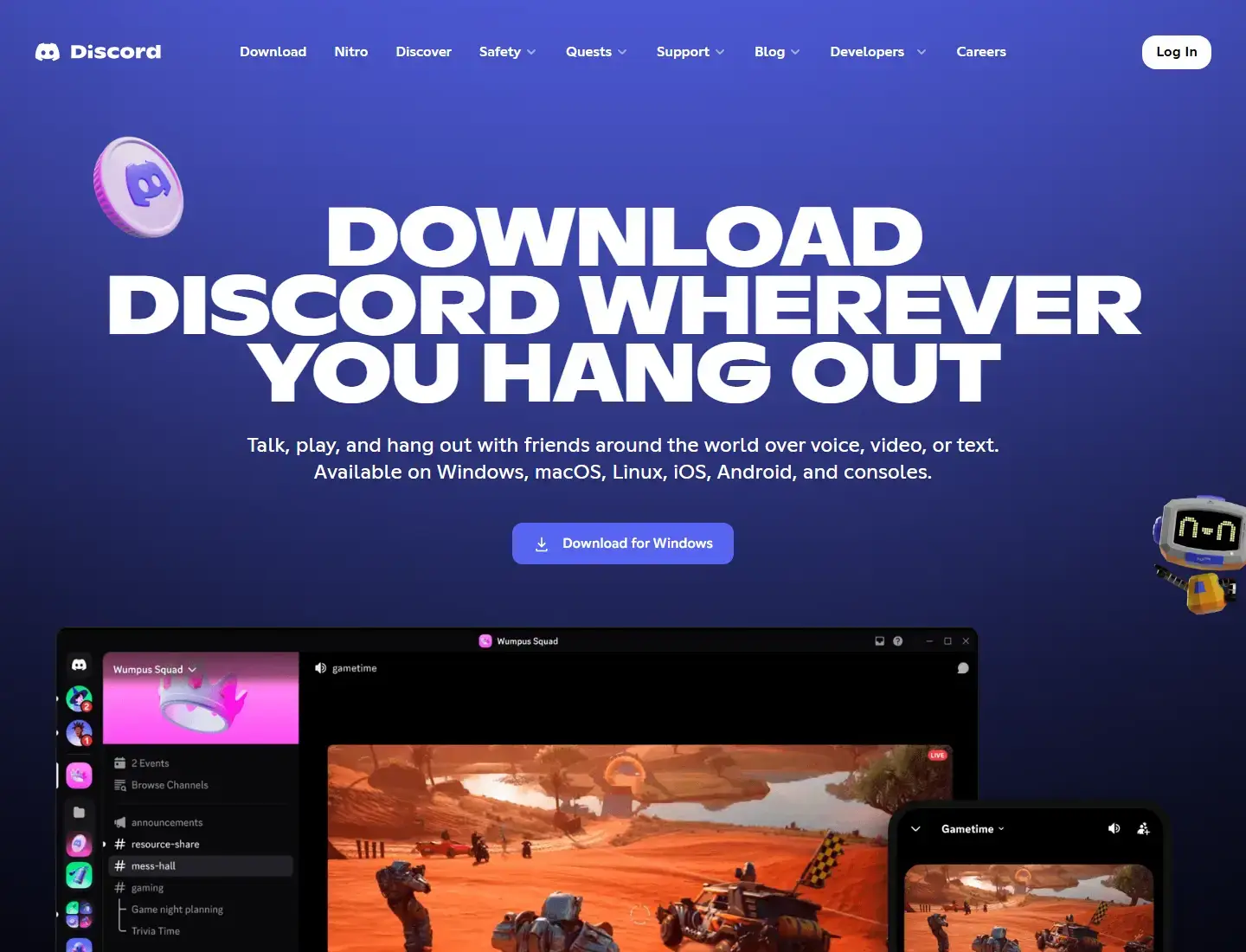
- Open discord.com/download.
- Choose the Linux deb download.
- Save the file to your Downloads folder.
- Open a terminal and install the downloaded file.
cd ~/Downloads
sudo apt install ./discord-*.deb
After installation, open Discord from the Ubuntu app menu, or run:
discordNote: This uses APT to install a local DEB file. It does not mean Discord is available as sudo apt install discord from Ubuntu’s normal repositories.
Method 2: Install Discord with Flatpak
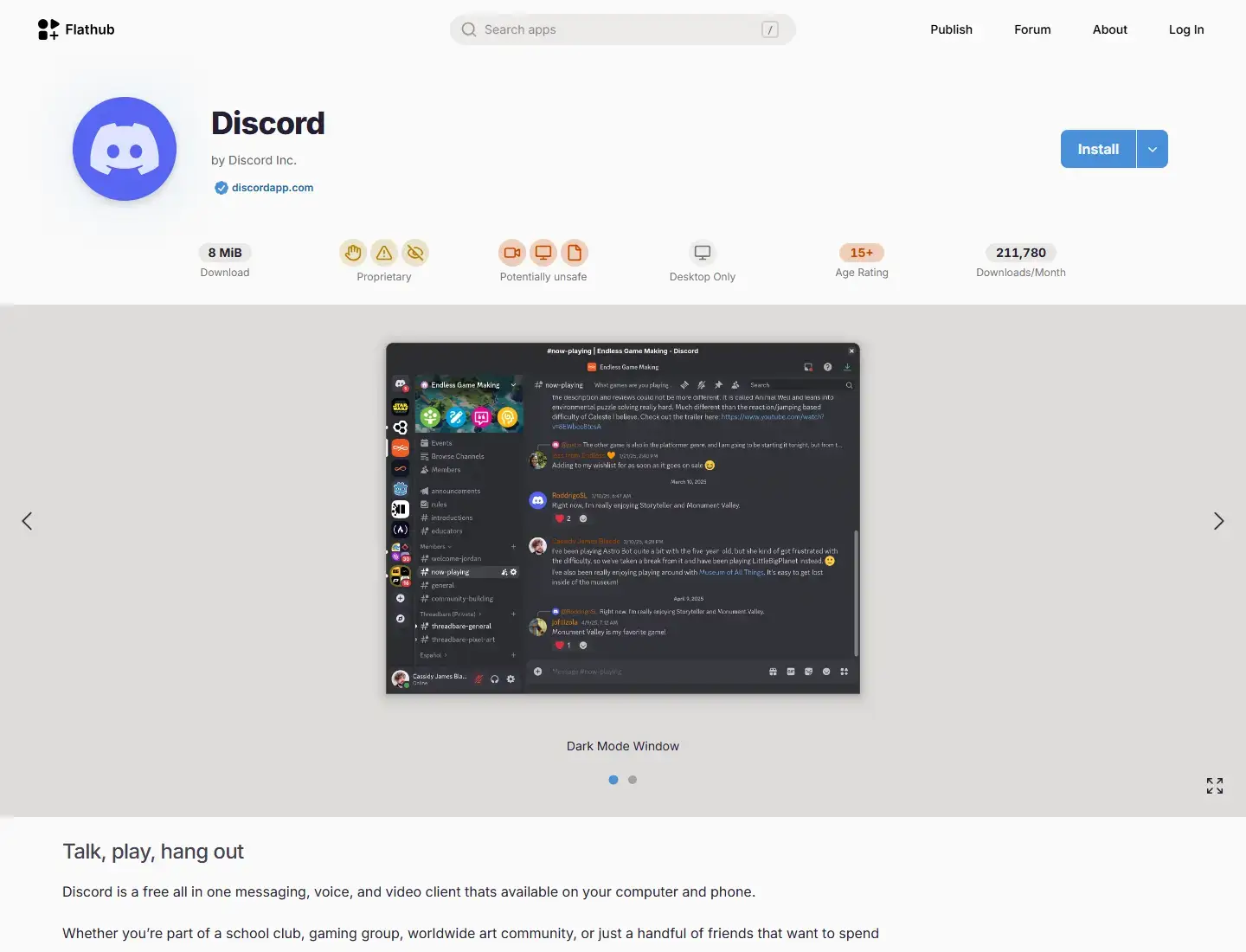
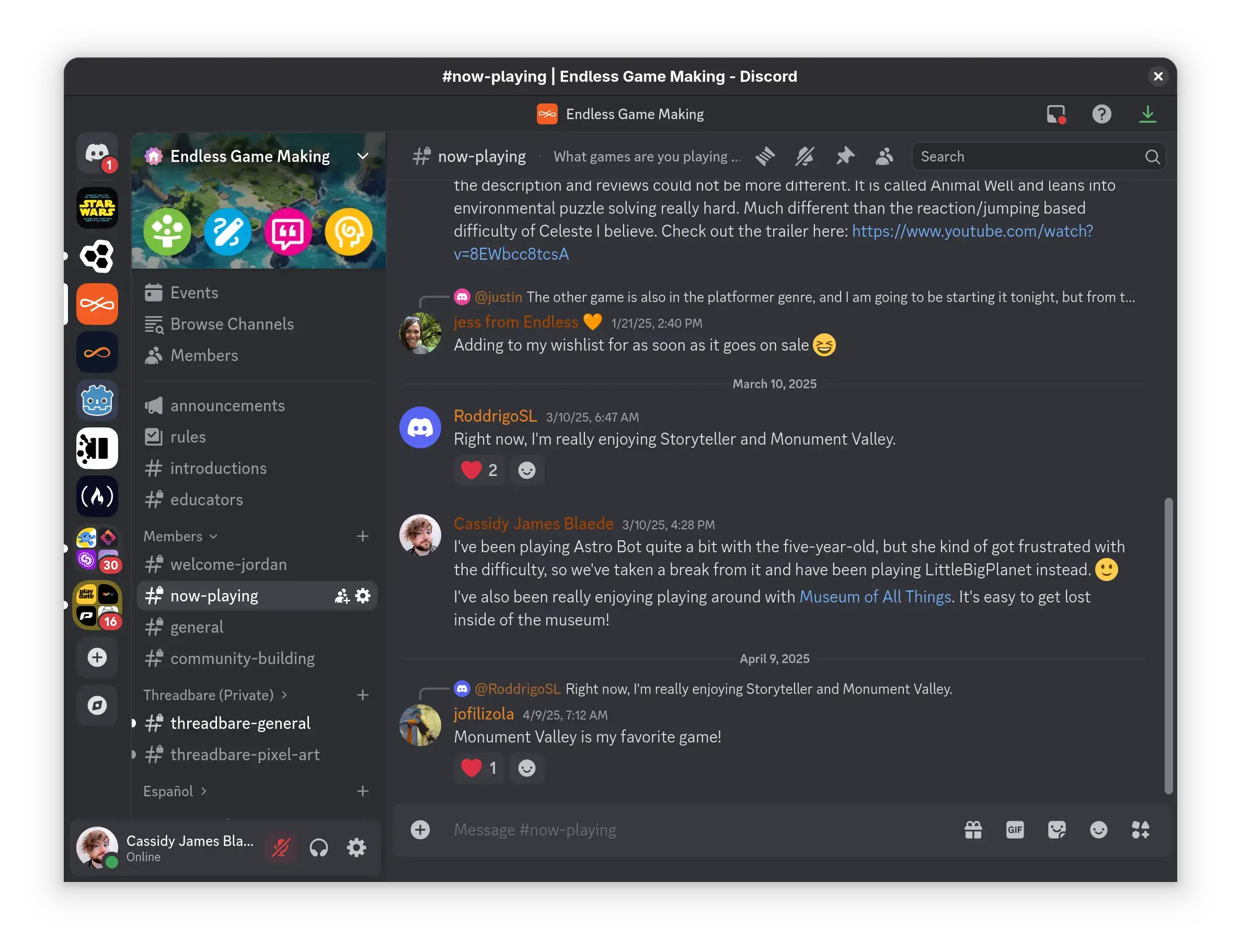
Flatpak is a good option if you already use Flathub or want Discord managed through a Linux app-store style system. Flathub lists the Discord app as proprietary and published under Discord Inc.
sudo apt update
sudo apt install flatpak
flatpak remote-add --if-not-exists flathub https://flathub.org/repo/flathub.flatpakrepo
flatpak install flathub com.discordapp.Discord
Launch Discord with:
flatpak run com.discordapp.DiscordNote: Flathub notes that sandboxing can affect Game Activity, unrestricted file access, and Rich Presence. If those features matter, test them after login.
Method 3: Install Discord with Snap
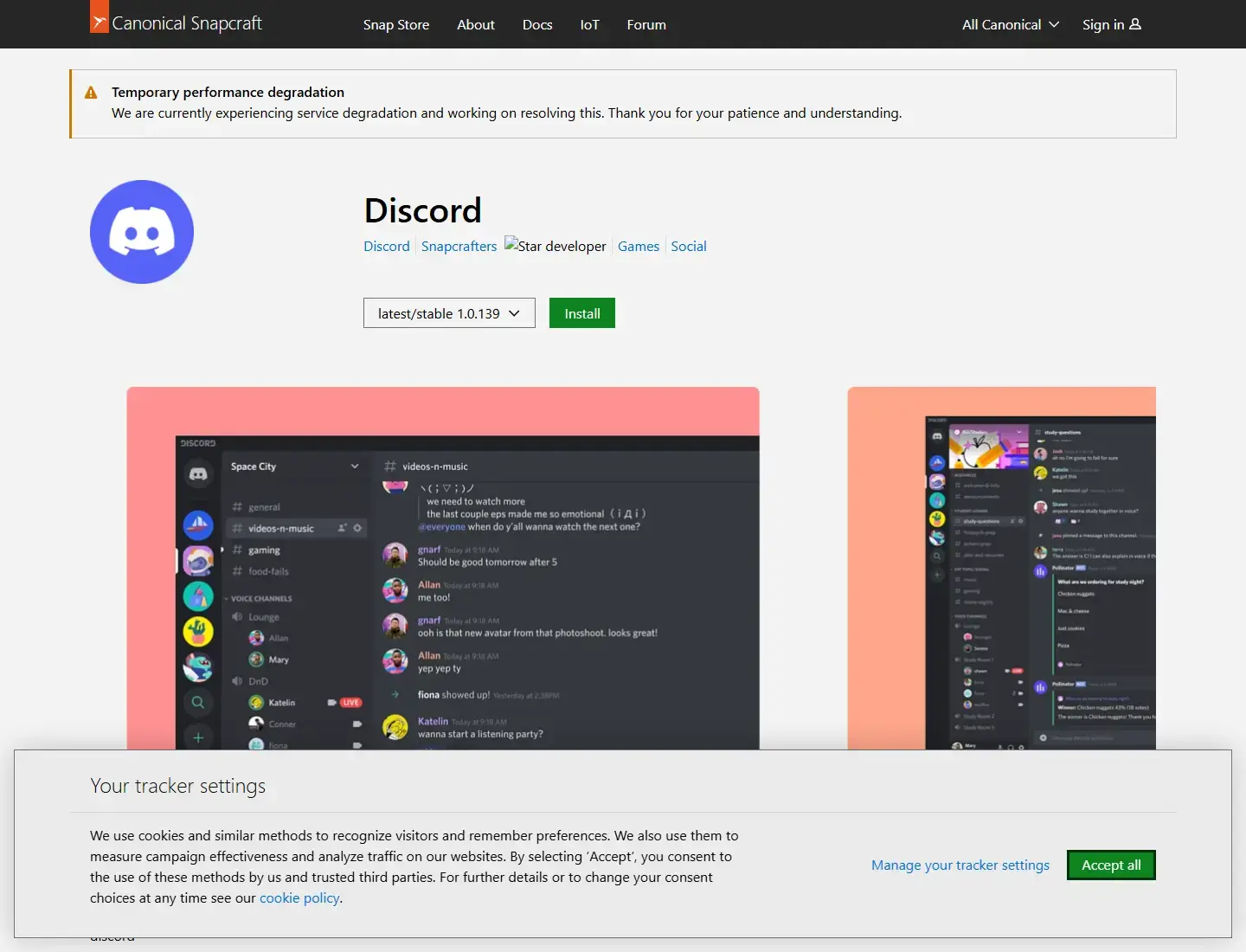
Snap is convenient on standard Ubuntu desktops because Snap support is usually already installed. The Discord snap is easy to install, but it should be described clearly as a Snap Store package route.
sudo snap install discordOpen Discord from the app menu, or run:
discordNote: The Snap Store page says this package is maintained by Snapcrafters and is not necessarily endorsed or officially maintained by Discord upstream.
Method 4: Install the Official Discord tar.gz Download
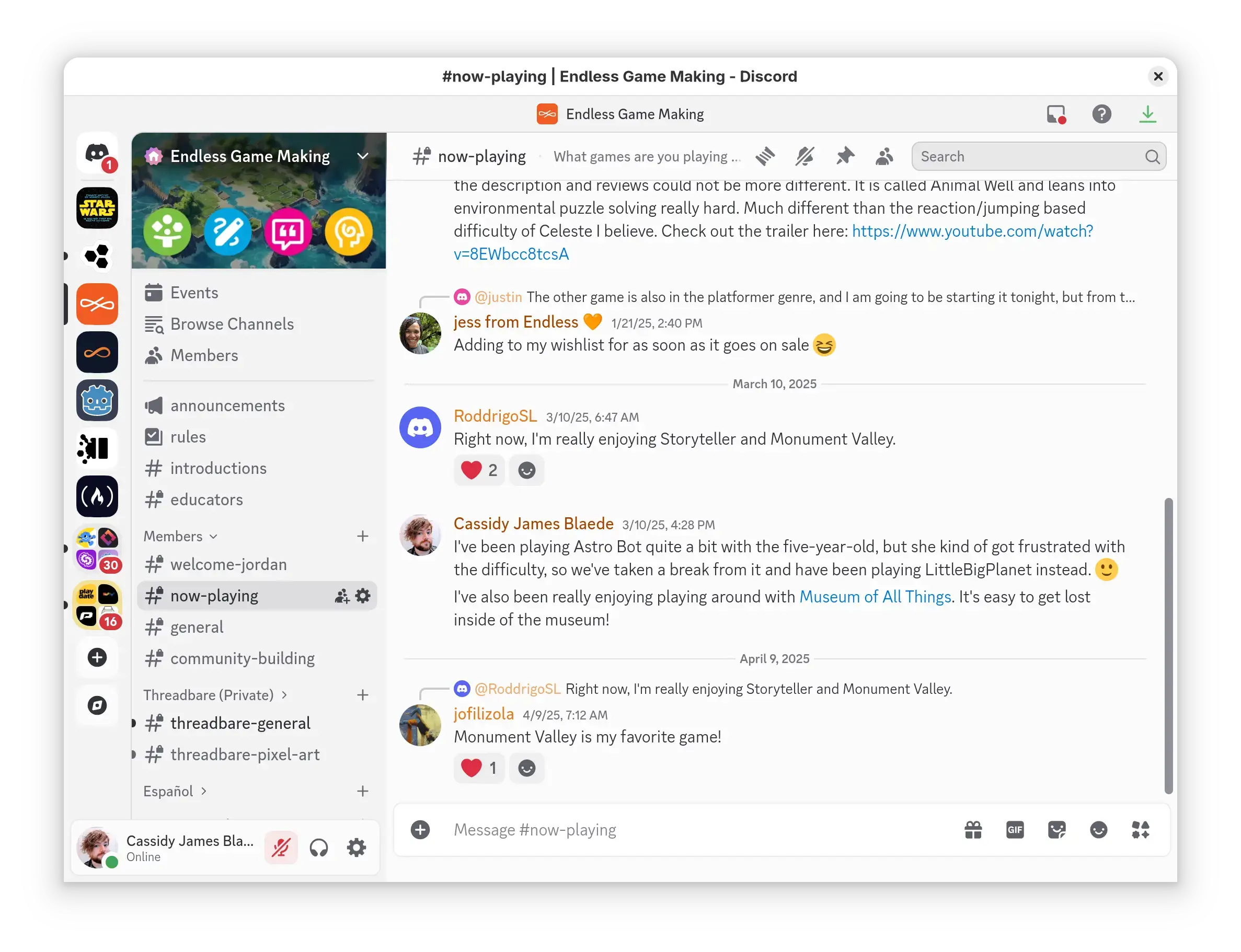
Discord also offers an official Linux tar.gz download. This is useful if you specifically want the upstream archive, but it is more manual than installing the DEB package.
- Open discord.com/download.
- Choose the Linux tar.gz download.
- Save it to your Downloads folder.
- Extract it and move the Discord folder into /opt.
cd ~/Downloads
tar -xzf discord-*.tar.gz
sudo mv Discord /opt/Discord
sudo ln -sf /opt/Discord/Discord /usr/local/bin/discord
Launch Discord with:
discordTip: If Discord does not appear in the app menu after a manual tar.gz install, launch it from the terminal first. For most users, the DEB package is easier.
Set Up Discord After Installing It
After installation, open Discord from the Ubuntu app menu. Sign in to your Discord account, or create one if you are new to Discord. If you use two-factor authentication, keep your phone or authenticator app nearby.
First Setup Checklist
- Sign in and confirm any two-factor authentication prompt.
- Open Discord settings and check Voice & Video.
- Choose the right microphone, speaker, and camera.
- Allow desktop notifications if you want message and call alerts.
- Check whether Discord should start automatically when you log in.
- Test screen sharing before an important call or stream.
If Discord opens but audio or screen sharing does not work the way you expect, the install probably succeeded. The next thing to check is your Ubuntu desktop session, permissions, and package format.
Microphone, Camera, Notifications, and Screen Sharing
Discord depends on normal desktop permissions for calls, notifications, and screen capture. These can behave differently depending on whether you installed the official DEB, Flatpak, Snap, or the tar.gz build.
Microphone and Speaker
Open Discord’s Voice & Video settings and choose the correct input and output device. If nothing appears, check Ubuntu sound settings first.
Camera
Test the camera inside Discord before joining a call. If you use Flatpak, also check whether the app has the needed device permission.
Notifications
Check both Discord notification settings and Ubuntu notification settings. Do Not Disturb, Focus mode, or desktop-specific settings can mute alerts.
Screen Sharing
Screen sharing can depend on Wayland or X11 behavior. If sharing a window fails, try sharing a different window, update Discord, or test from an X11 session if your desktop offers one.
Note: Rich Presence and Game Activity may not behave the same across every install method. Flathub specifically notes sandbox-related limitations for Game Activity, unrestricted file access, and Rich Presence.
Fix Common Discord Problems on Ubuntu
Discord Does Not Open
Try launching Discord from the terminal with discord. If you used Flatpak, run flatpak run com.discordapp.Discord so you can see any error output.
The App Menu Icon Is Missing
Log out and sign back in. For a manual tar.gz install, launch Discord once from the terminal and consider creating a desktop entry if you plan to keep that route.
Discord Says an Update Is Required
For the DEB route, download the newest DEB from Discord and install it again. For Flatpak, run flatpak update. For Snap, run sudo snap refresh discord.
Voice or Screen Share Fails
Check Discord’s Voice & Video settings, Ubuntu sound settings, and your session type. If you installed Flatpak, review the app permissions in your software center or Flatseal.
How to Uninstall Discord from Ubuntu
Use the uninstall command that matches the method you used to install Discord.
Official DEB Package
sudo apt remove discordFlatpak
flatpak uninstall com.discordapp.DiscordSnap
sudo snap remove discordOfficial tar.gz Download
sudo rm -rf /opt/Discord
sudo rm -f /usr/local/bin/discord
Before removing Discord from a shared computer, sign out of the desktop app. You can also review active sessions and connected apps from your Discord account settings.
More Ubuntu Messaging and Social Apps
If you are setting up a full communication desktop on Ubuntu, these related guides may help:
Discord on Ubuntu FAQ
Can I install Discord on Ubuntu?
Yes. You can install Discord on Ubuntu with Discord’s official DEB package, Flatpak, Snap, or the official tar.gz download from Discord.
What is the best way to install Discord on Ubuntu?
For most Ubuntu users, the official DEB package from Discord is the best first choice because it is Discord’s own Linux build and works naturally with Ubuntu’s package tools. Flatpak and Snap are easier app-store style options if you prefer those formats.
Is Discord available in Ubuntu’s normal APT repositories?
Discord is not a normal Ubuntu archive package in the same way as many open source apps. Use APT to install the downloaded DEB file with sudo apt install ./discord-*.deb, but do not expect sudo apt install discord to work from Ubuntu’s default repositories.
Is the Discord Snap official?
The Snap Store lists a Discord snap, but the package page says it is maintained by Snapcrafters and is not necessarily endorsed or officially maintained by Discord upstream. Treat it as a convenient Snap package route, not the primary official route.
Why does screen sharing, Rich Presence, or Game Activity behave differently on Ubuntu?
These features can depend on your desktop session, permissions, and package format. Wayland, sandboxing, and Flatpak permissions can affect screen capture, file access, Rich Presence, and Game Activity.