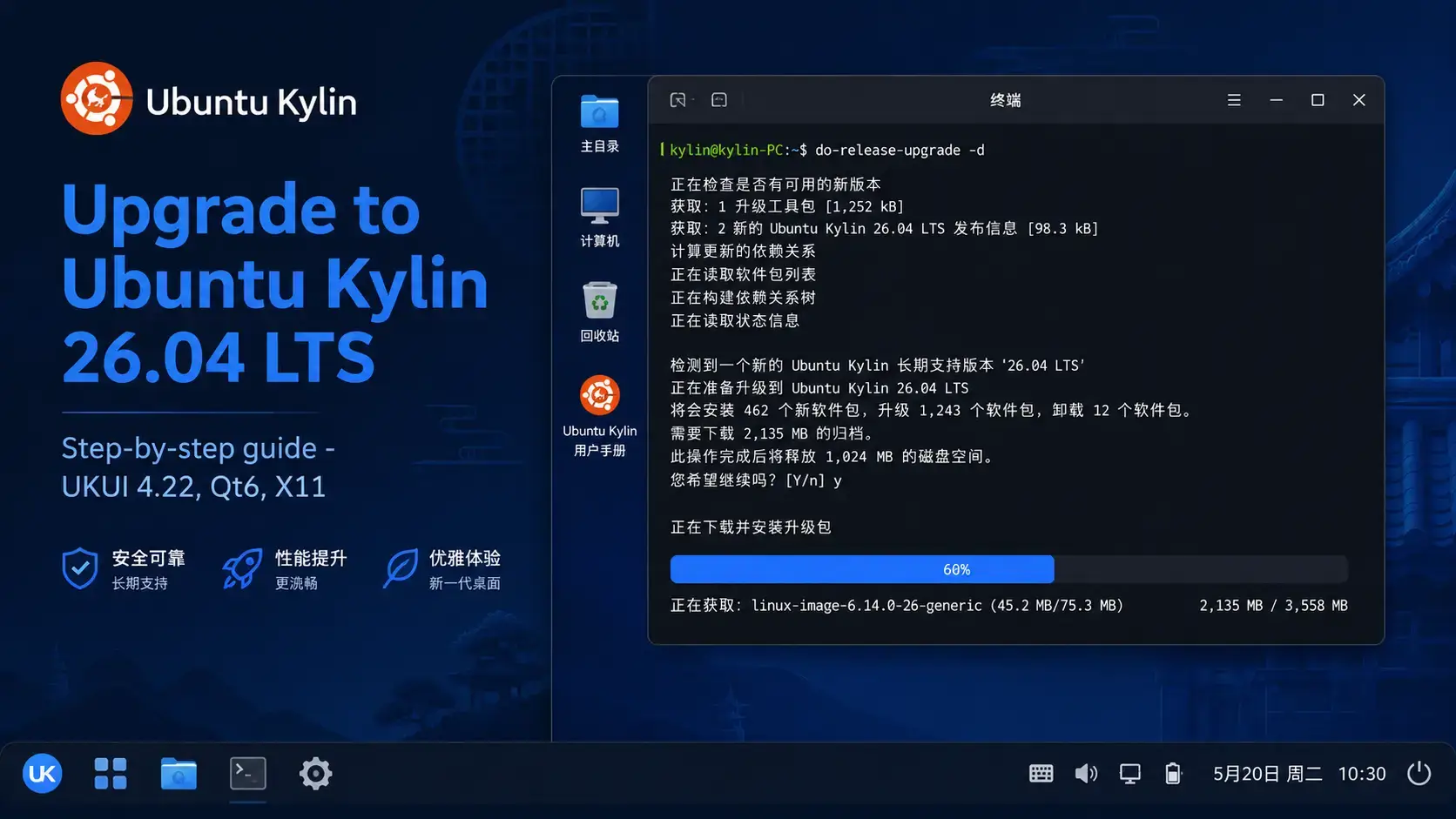
The complete step-by-step guide for upgrading from Ubuntu Kylin 24.04 LTS to 26.04 LTS. Covers UKUI config backup, the full Qt6 transition, input method reselection, the do-release-upgrade process, and what to check after the upgrade finishes.
~/.config/ukui and any custom UKUI theme files before starting-d flag until thenThe Biggest Change: UKUI Is Now Fully Qt6
If you are upgrading from Ubuntu Kylin 24.04, the most significant change under the hood is the desktop environment itself. Ubuntu Kylin 24.04 ran UKUI on a mix of Qt5 and Qt6 components. Ubuntu Kylin 26.04 completes that transition – UKUI 4.22 is built entirely on Qt6 with a Qt 6.10.2 baseline. Every Qt5 UKUI component is replaced during the upgrade.
For most users, this is invisible in daily use. The desktop looks and behaves like UKUI. But the configuration format for some components has changed, and custom themes or panel layouts that were created under the Qt5 versions may not load correctly after the upgrade. The most important thing you can do before upgrading is back up your ~/.config/ukui folder and any custom UKUI theme files you have applied.
The new libukui-quick-platform library also ships in 26.04, giving UKUI better control over desktop style at a system level. If you have applied any system-wide UKUI theme through the Control Center, note your current settings before upgrading, as you may need to reapply them through the updated Control Center after the upgrade is complete.
Which Upgrade Path Applies to You?
Not every Ubuntu Kylin version can upgrade directly to 26.04. The table below shows the supported paths. If your current version is not listed as a direct source, follow the step column first. If you would prefer a clean install over an in-place upgrade, the Ubuntu Kylin 26.04 download page has the official ISO link and verification steps.
| Current Version | Direct to 26.04? | What to Do |
|---|---|---|
| Ubuntu Kylin 24.04 LTS | Yes | Follow this guide directly |
| Ubuntu Kylin 25.10 | Yes | Follow this guide directly – use -d flag until 26.04.1 ships |
| Ubuntu Kylin 22.04 LTS | No | Upgrade to 24.04 first, then follow this guide |
| Ubuntu Kylin 23.10 / 25.04 (EOL) | No | These releases are end-of-life. Fresh install of 26.04 recommended |
| Ubuntu Kylin 20.04 LTS or older | No | Upgrade through each LTS in sequence, or do a fresh install |
Before You Upgrade – 5 Steps
Do not skip this section. Ubuntu Kylin has two upgrade-specific considerations that do not appear in a generic Ubuntu upgrade guide: the UKUI configuration backup and the input method check. A few minutes here can prevent a frustrating recovery session later.
The upgrade preserves your home directory, but hardware failures and power cuts do not care about timing. Back up anything important before starting. A full system snapshot is ideal if you are on a virtual machine.
The Qt6 UKUI components handle configuration differently from the Qt5 versions in 24.04. Back up your UKUI settings folder and any custom theme files before starting:
If you have installed custom UKUI themes, also back up ~/.local/share/themes/ and ~/.local/share/icons/ before proceeding.
Input method settings can reset after the UKUI upgrade. Before starting, note which input method you are using (iBus-Rime or Fcitx5) and which input schemas are enabled – for example, Pinyin, Wubi, or Cangjie. You may need to reselect these in UKUI Control Center after the upgrade. A quick screenshot of your current input method settings takes thirty seconds and saves time later.
The ukui-desktop-environment meta-package ensures all required UKUI components are present before the upgrade tool runs. If it is missing or was partially removed, the upgrade may not correctly install the new Qt6 components.
The upgrade tool will refuse to run if your system has pending updates. Run all four commands and reboot if the kernel was updated before continuing.
sudo apt upgrade
sudo apt dist-upgrade
sudo apt autoremove
How to Upgrade via Terminal
This is the recommended method. It works on any Ubuntu Kylin system and gives you the most visibility into what the upgrade is doing.
Make sure the UKUI desktop meta-package is present before proceeding. This command installs it if missing and confirms it if already installed.
The update-manager-core package provides the do-release-upgrade command. It is usually already installed on Ubuntu Kylin 24.04, but this confirms it.
Because the automatic LTS-to-LTS upgrade prompt is not yet enabled (it activates with 26.04.1 in August 2026), use the -d flag. This tells the tool to fetch the newly available release directly. Ubuntu Kylin 26.04 is a full production release – the -d flag does not mean unstable.
After 26.04.1 ships in August 2026, you can drop the -d flag and run sudo do-release-upgrade on its own.
The tool walks you through a series of prompts. Here is what to expect at each stage:
The tool checks for blockers, then shows a summary: how many packages will be upgraded, installed, and removed. Read this. A removal count that includes Qt5 UKUI packages is expected – these are being replaced by the new Qt6 versions. If anything else looks unexpected, press N to cancel and investigate before continuing.
The tool downloads all required packages. The terminal shows a progress bar. Do not close the terminal or interrupt this process.
For system configuration files you have previously modified, the tool asks whether to keep your version or install the package maintainer’s version. If you have not customized the file, choose the maintainer’s version. If you have, keep yours and compare the two manually after the upgrade.
Near the end of the process, the upgrade tool will ask you to close open applications and will terminate the UKUI session to replace desktop components. Once all packages are installed, it prompts for a full system reboot. Choose yes – the system reboots into Ubuntu Kylin 26.04 with UKUI 4.22.
When you run sudo do-release-upgrade -d on a remote system over SSH, the tool automatically opens a secondary SSH port (default: 1022) as a fallback in case your main connection drops during the upgrade. Before starting, open port 1022 through your firewall. If you use UFW: sudo ufw allow 1022/tcp. The tool will remind you and wait for confirmation before continuing.
A clean install gives you a fresh UKUI 4.22 setup with no leftover configuration from older releases. Get the official 5.3 GB AMD64 ISO directly.
How to Upgrade via Software Updater (Desktop Only)
The graphical upgrade path uses Software Updater. There is one important caveat: Software Updater will not show a 26.04 upgrade prompt until Ubuntu Kylin 26.04.1 ships in August 2026. Until then, you need to launch it with a flag that tells it to check for newly available releases. Before using this method, still complete the five pre-upgrade steps above.
Software Updater opens and begins checking for updates. After applying any pending updates, it will show a banner: “Ubuntu Kylin 26.04 LTS is now available.” Click Upgrade to begin. The GUI walks you through the same process as the terminal method with a visual progress bar and dialog boxes for configuration decisions. Total time: 45-75 minutes.
When the upgrade finishes, Software Updater will ask you to restart. Click Restart Now. Your system reboots into Ubuntu Kylin 26.04 with UKUI 4.22.
After the Upgrade – What to Check
Once the system reboots into Ubuntu Kylin 26.04, run through these checks. Several of them are specific to Ubuntu Kylin and will not appear in a generic Ubuntu upgrade guide.
Should show Ubuntu 26.04 LTS and codename resolute.
Should report a 7.x kernel version.
Should show version 4.22.x. If you see a 4.20.x or older version, run sudo apt dist-upgrade to catch any remaining packages.
Open UKUI Control Center and navigate to Input Method. Confirm your preferred method (iBus-Rime or Fcitx5) is selected and your input schemas are active. If Chinese input is not working, reselect your method here and log out then back in.
sudo apt upgrade
A handful of packages often have updates available immediately after a release upgrade.
Open UKUI Control Center and check your desktop theme, panel layout, and appearance settings. The Qt6 UKUI components may have reset some visual preferences. Use your pre-upgrade backup to reference what settings you had if needed.
Known Issues and Fixes
These are the issues most likely to affect users upgrading from Ubuntu Kylin 24.04. Most have clear solutions or workarounds.
Cause: The Qt6 UKUI components handle panel and appearance configuration differently from the Qt5 versions in 24.04. Some settings stored in ~/.config/ukui/ may not be read correctly by the new components, causing the panel or desktop to load with default settings on first login.
Fix: Open UKUI Control Center and reapply your preferred desktop theme, panel position, and appearance settings. If you backed up your config before upgrading, you can compare specific files from the archive. For a full reset to UKUI 4.22 defaults, rename the config folder and log out: mv ~/.config/ukui ~/.config/ukui.bak, then log back in.
Cause: Input method configuration can reset when UKUI is upgraded because the Qt6 components reinitialize input method integration differently. The packages for iBus-Rime and Fcitx5 themselves are retained, but the active selection and schema configuration may not carry over.
Fix: Open UKUI Control Center, navigate to Input Method, and reselect your preferred input method. Then confirm your active schemas (Pinyin, Wubi, Cangjie, etc.) are enabled. Log out and back in to apply the change. If iBus-Rime is not showing any schemas, run:
Cause: The Qt6 rewrite of Peony may handle bookmark and sidebar configuration differently from the Qt5 version shipped with Ubuntu Kylin 24.04. Custom sidebar locations, network shares, or bookmarked folders you added in the old Peony may not appear after the upgrade. This is a configuration migration gap, not a broken installation.
Fix: Your bookmarks are most likely stored in ~/.config/gtk-3.0/bookmarks – check whether that file still exists and contains your old entries. If it does, Peony should pick them up once you re-open it. If sidebar entries are still missing, re-add them manually by navigating to the folder in Peony and using the right-click menu to bookmark it. Peony also stores its own config in ~/.config/peony/ – if that folder exists from the 24.04 install, compare it with what the new version expects. If Peony itself fails to launch, run a full package sync first:
sudo apt dist-upgrade
Affects: Users who installed Sogou Input Method manually from the Sogou website. Sogou is not included in the official Ubuntu Kylin image – if you never installed it, skip this.
Cause: The Sogou Linux package depends on Qt5 libraries including libqt5qml5, libqt5quick5, and fcitx-frontend-qt5. Ubuntu 26.04 transitions away from Qt5 in the default package set, and the Qt5 libraries that Sogou requires may no longer be installed or may be in a broken state after the upgrade.
Fix: Check whether the required Qt5 libraries are still present after the upgrade:
If they are missing, try reinstalling them manually. If Sogou still does not work, the most reliable fallback is to switch to iBus-Rime or Fcitx5, both of which are fully supported in Ubuntu Kylin 26.04 and do not depend on Qt5. Rime in particular covers Pinyin, Wubi, and Cangjie with excellent customization options.
Cause: The upgrade tool disables third-party PPAs during the upgrade to prevent conflicts. They are not deleted, just disabled. Some may also not yet have packages built for Ubuntu 26.04.
Fix: Open Software & Updates, go to the Other Software tab, and re-enable the PPAs you need. Run sudo apt update after re-enabling each one. If a PPA fails to fetch, check whether the maintainer has released a 26.04-compatible version yet.
If the upgrade is interrupted – by a power cut, a dropped SSH connection, or a package error – do not panic and do not try to reboot straight away. Open a terminal and run these two commands in order. They repair packages left in a half-installed state and resolve broken dependencies.
sudo apt install -f
Once both commands complete without errors, run the upgrade command again. The tool will pick up where it left off rather than starting from scratch.
Frequently Asked Questions
Can I upgrade directly from Ubuntu Kylin 22.04 to 26.04?
No. Ubuntu Kylin follows the same LTS upgrade path as Ubuntu. You cannot skip releases. You must first upgrade from Ubuntu Kylin 22.04 LTS to 24.04 LTS, then from 24.04 LTS to 26.04 LTS. Run sudo do-release-upgrade on your 22.04 system first to reach 24.04, then repeat the process.
Why does do-release-upgrade say no new release found on my Ubuntu Kylin 24.04 system?
This is expected. The automatic LTS-to-LTS upgrade prompt is not enabled until the first point release, which for 26.04 is planned for around August 2026. To upgrade before then, run sudo do-release-upgrade -d to access the release directly. The -d flag means development or newly released, not unstable. Ubuntu Kylin 26.04 is a full production release.
What happens to my UKUI settings and themes after upgrading to 26.04?
UKUI 4.22 in 26.04 is built entirely on Qt6. The Qt5 UKUI components from 24.04 are replaced during the upgrade. Custom UKUI theme files and settings stored in ~/.config/ukui may not carry over correctly because the Qt6 versions handle configuration differently. Back up that folder before upgrading. After the upgrade, your desktop will load the default UKUI 4.22 appearance, and you can reapply customizations through UKUI Control Center.
Will my Chinese input method still work after the upgrade?
In most cases yes, but you may need to reselect your input method after the upgrade. Both iBus-Rime and Fcitx5 are supported in Ubuntu Kylin 26.04. After logging in for the first time, open UKUI Control Center, go to Input Method, and confirm your preferred method is still active and your schemas are enabled. If input is not working, reselect your method and log out then back in.
Does Ubuntu Kylin 26.04 change the default session to Wayland?
No. Ubuntu Kylin 26.04 still defaults to X11 via LightDM with the ukui-greeter. There is no session change when upgrading from 24.04. Your login experience will look familiar. Wayland is available as an option at the login screen but is not the default, and this upgrade does not require any session switching.
Is there an ARM or Raspberry Pi upgrade path for Ubuntu Kylin?
No. Ubuntu Kylin 26.04 is AMD64 only. There is no ARM image and no Raspberry Pi image for this release. The upgrade path in this guide applies only to AMD64 hardware. No upgrade path exists for ARM architectures.
I installed Sogou Input Method manually. Will it still work after upgrading to 26.04?
Possibly not without intervention. The Sogou Linux package depends on Qt5 libraries including libqt5qml5, libqt5quick5, and fcitx-frontend-qt5. Ubuntu 26.04 transitions away from Qt5, and those libraries may be removed or broken during the upgrade. After upgrading, check whether the Qt5 dependencies are still present with dpkg -l libqt5qml5 libqt5quick5. If Sogou remains broken, the practical alternative is iBus-Rime or Fcitx5 – both are fully supported in Ubuntu Kylin 26.04 and cover Pinyin, Wubi, and Cangjie without Qt5 dependencies.
How long does the upgrade from Ubuntu Kylin 24.04 to 26.04 take?
On a typical broadband connection, the full upgrade takes between 45 and 75 minutes including the download, package installation, and reboot. The process is largely unattended after the initial prompts, so you can leave it running. Allow a few extra minutes after the upgrade to recheck your input method settings and reapply any UKUI appearance preferences.
More Ubuntu Kylin 26.04 guides: Ubuntu Kylin 26.04 ISO Download · What’s New in Ubuntu Kylin 26.04 · Ubuntu Kylin 26.04 Wallpapers