The first thing to do after installing Ubuntu 26.04 is update it: run sudo apt update && sudo apt full-upgrade in a terminal, then reboot. After that, install your drivers, add media codecs, turn on the firewall and set up backups.
Those five cover what a new install is missing. The other ten are worth doing when you have time: Flatpak apps, a few desktop settings, free Ubuntu Pro updates and a firmware check. If a step does not behave on your machine, leave a comment below or contact us and we will help you sort it out.
In this order. Updates and drivers can both ask for a reboot, so do them before you open anything you care about.
1
Install every update
Open a terminal with Ctrl + Alt + T, then refresh the package lists and install everything waiting:
Update Ubuntu
sudo apt update && sudo apt full-upgrade
full-upgrade also takes updates that bring in a new package, such as a new kernel, which plain upgrade holds back. Firefox and the other Snap apps update themselves, but you can push them now:
Update Snap apps now
sudo snap refresh
Reboot if anything asks you to. Software Updater in the app menu does the same apt job if you prefer clicking.
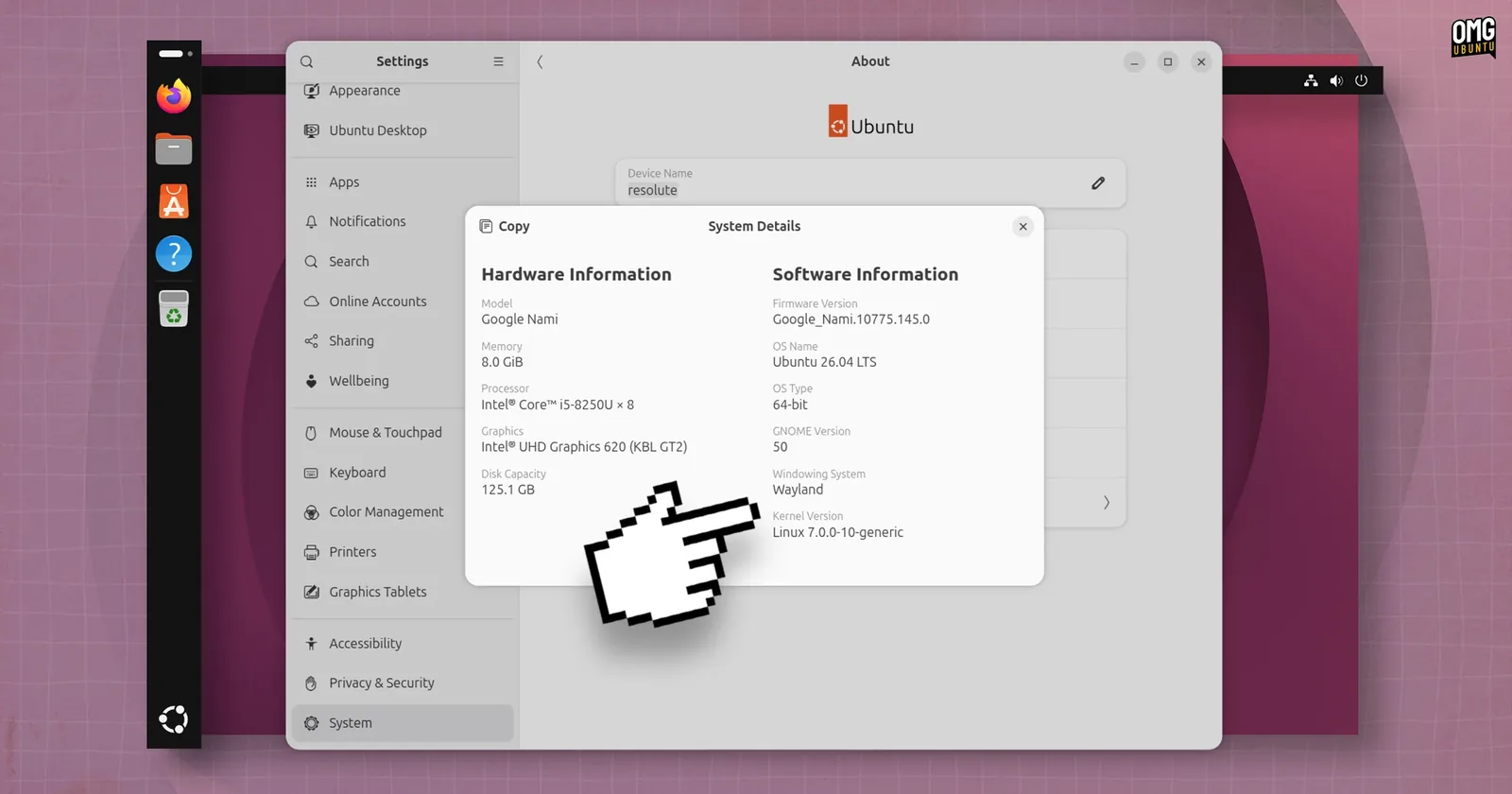
Settings, then System, then About, then System Details: the release, GNOME version, Wayland session and kernel on one screen. Screenshot by OMG! Ubuntu.
2
Install your graphics and Wi-Fi drivers
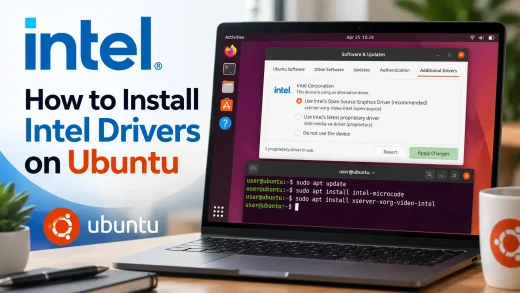
Ubuntu 26.04 no longer includes the Software & Updates app, and its Additional Drivers tab went with it. Guides written for older releases still send you there. The tool that did the real work is still installed. Ask it what your hardware needs:
List drivers for this machine
sudo ubuntu-drivers list
An empty list is normal on Intel and AMD graphics, whose drivers are already in the kernel. If it shows an NVIDIA or Wi-Fi driver, install the recommended one and reboot:
Install the recommended drivers
sudo ubuntu-drivers install
If you ticked the third-party software box during installation, this may already be done. Want the old window back? It is still in the archive:
Bring back Software & Updates
sudo apt install software-properties-gtk
3
Add media codecs and Microsoft fonts
Ubuntu plays most audio and video out of the box, and 26.04 turns on hardware video decoding for Intel and AMD graphics by default. This package fills the gaps and adds fonts like Arial and Times New Roman, so shared documents look the way they were written:
Install codecs and fonts
sudo apt install ubuntu-restricted-extras
Partway through, the terminal stops at a licence screen for the fonts. The mouse does nothing there. Press Tab to highlight OK, press Enter, then choose Yes the same way.
Ubuntu ships a simple firewall called ufw, but leaves it switched off. Turning it on blocks connections coming in from the network and leaves everything you start yourself working:
Enable the firewall
sudo ufw enable
Check it with sudo ufw status:
mike@ubuntu:~$ sudo ufw status
Status: active
If you later let other machines in, open that one service first, for example sudo ufw allow ssh. Sharing folders with Windows needs sudo ufw allow samba, which our file sharing guide walks through.
5
Set up backups
Two jobs, two tools. One keeps your files, the other lets you undo a bad update.
Your files: Backups (Déjà Dup). It comes with the Extended install but not the Default one. If it is not in your app menu:
Install Backups
sudo apt install deja-dup
Open Backups, choose an external drive, a network folder or a cloud account, and switch on automatic backups. Restore one file once to prove it works.
The system: Timeshift. It takes snapshots of Ubuntu itself, so a driver or update that breaks the desktop can be rolled back in minutes. It leaves your home folder out by default, which is why you want both.
Install Timeshift
sudo apt install timeshift
Open it, choose RSYNC, pick a drive with room, and keep a few daily snapshots. It deletes old ones for you.
Get More Apps
6
Add Flatpak and Flathub
App Center installs Snaps and Ubuntu packages. Plenty of desktop apps publish first, or only, on Flathub, and App Center cannot install those. Add Flatpak and the Flathub store:
Restart, and Flatpak apps you install will show up in the app grid. Every app page on flathub.org has its own install command.
Want a store window for them? sudo apt install gnome-software-plugin-flatpak adds one, but it installs a second store app called Software next to App Center. Many people skip it and use the terminal.
7
Install the apps you actually use
Search App Center first. In 26.04 it also installs a .deb file you downloaded from a vendor, so a double-click on the file is enough.
The apps people most often add first, each with its own guide:
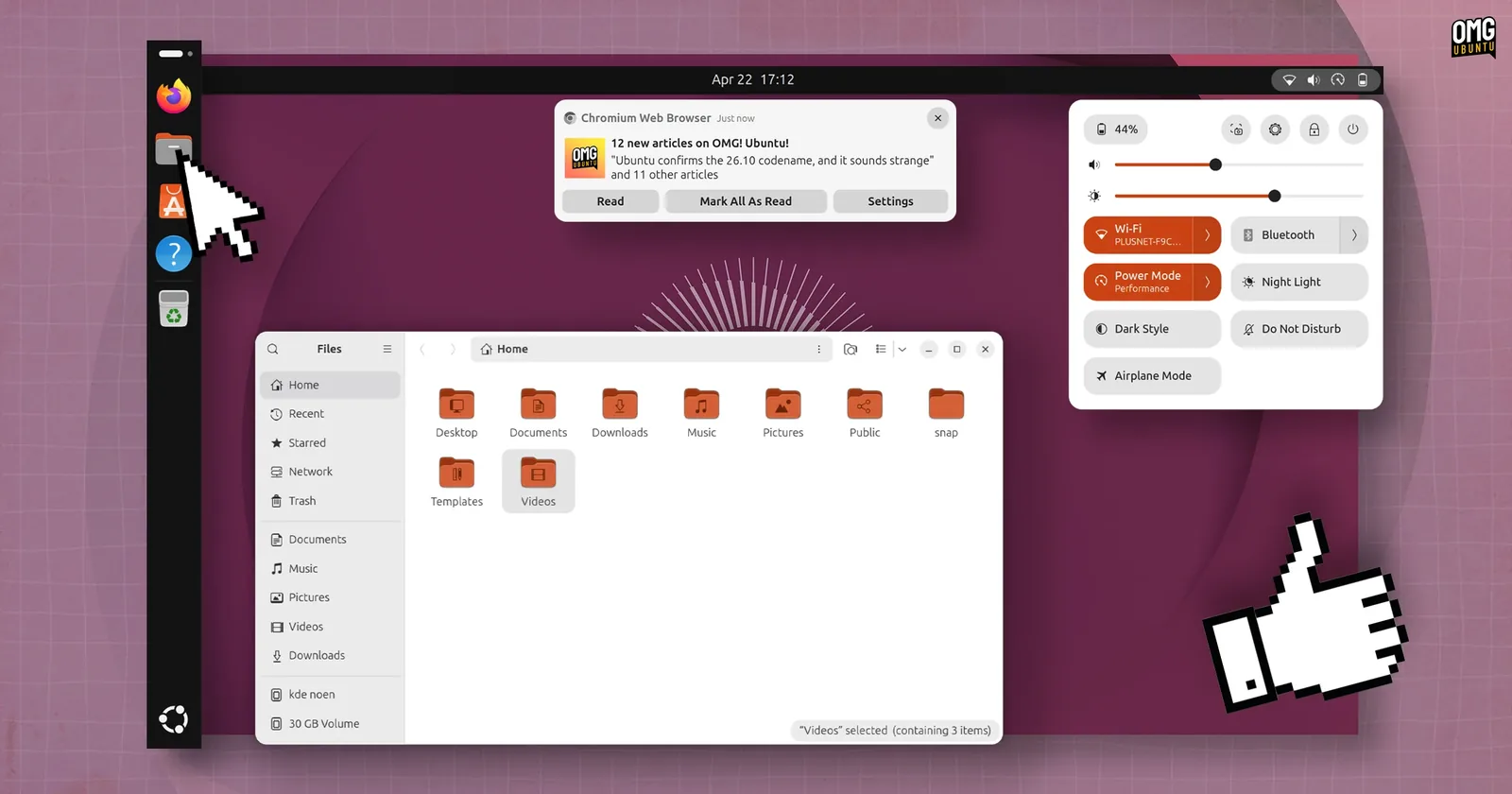
Click the top-right corner to open Quick Settings. Dark Style, Night Light and the power mode are one click each. The accent colour lives in Settings, Appearance.
Quick Settings holds Wi-Fi, Bluetooth, Power Mode, Night Light and Dark Style in one menu. Screenshot by OMG! Ubuntu.
Tweaks covers fonts, title bar buttons and apps that start at login. Extension Manager browses and installs GNOME extensions without a browser add-on.
Keep extensions few. They are the usual reason a desktop misbehaves after a GNOME update. If something breaks, turn them all off in Extension Manager first.
Worth Doing This Week
12
Turn on Ubuntu Pro, free
Ubuntu Pro is free for personal use on up to five machines. It extends security fixes to the community packages in the universe archive, which standard updates do not cover, and adds Livepatch, which applies kernel security fixes without a reboot.
Attach this machine
sudo pro attach
The terminal shows a short code. Enter it at ubuntu.com/pro/attach, sign in, and keep the Free Personal Token selected. pro status shows what is now switched on.
13
Keep searches on your machine
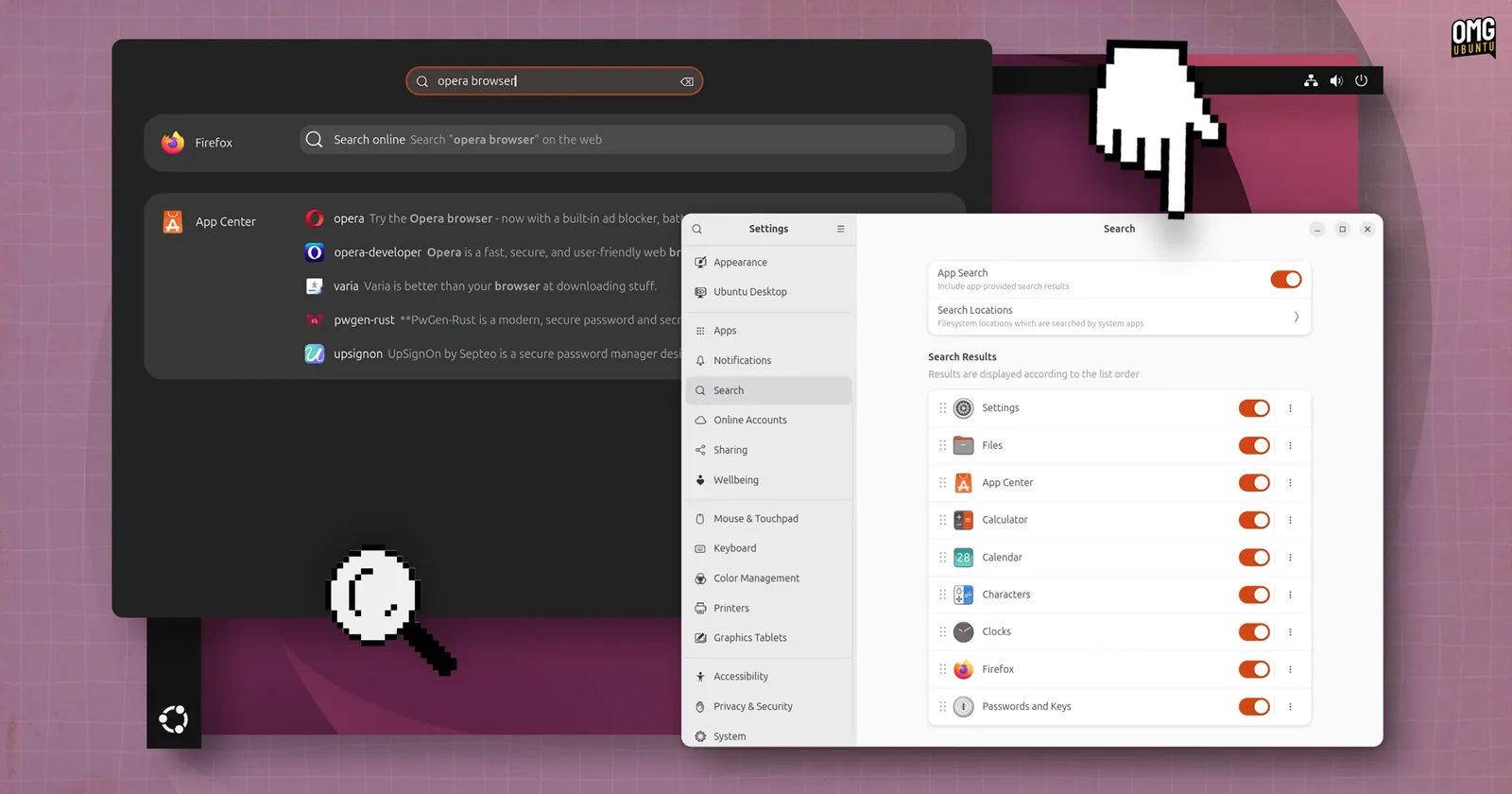
Typing in Activities now lists apps from App Center you have not installed, and offers to search the web for what you typed. To keep search local, switch those sources off in Settings, Search.
A search for a browser returns App Center suggestions and a web search row. Settings, Search turns each source on or off. Screenshot by OMG! Ubuntu.
14
Fix the clock if you also run Windows
If Windows shows the wrong time after you boot Ubuntu, the two systems disagree about the hardware clock. Tell Ubuntu to use local time, as Windows does:
The screen stays black after installing the NVIDIA driver
Restart and open the boot menu: hold Shift as the machine starts, or tap Esc on most newer PCs. Choose Advanced options, then a recovery mode entry, then root. Remove the driver and restart:
Remove the NVIDIA driver from recovery mode
mount -o remount,rw /
apt purge '^nvidia-.*'
reboot
Ubuntu comes back on the open source driver. Try sudo ubuntu-drivers list again and install a different version from the list.
Fix
The codec install stopped and will not finish
It is waiting on the font licence screen. Press Tab, then Enter. If you closed the terminal while it was waiting, let the package manager finish the job:
Finish an interrupted install
sudo dpkg --configure -a
Fix
Flathub apps do not appear
Log out and back in once after adding Flathub. They will never appear in App Center, which only handles Snaps and Ubuntu packages. Look for them in the app grid, or in Software if you installed the plugin.
Fix
Something stopped connecting after turning on the firewall
Allow that one service, for example sudo ufw allow ssh. To see what is open, run sudo ufw status verbose. sudo ufw disable switches the firewall off entirely while you work it out.
Watch the Setup
A walk-through of the same ground on Ubuntu 26.04: updates, codecs, drivers, Flatpak, extensions, Tweaks and the dual boot clock fix.
Ubuntu Pro ↗The free personal token and what it covers
r/Ubuntu ↗Where 26.04 problems get asked about and answered
Frequently Asked Questions
What should I do first after installing Ubuntu 26.04?
Install updates with sudo apt update && sudo apt full-upgrade, then reboot. Drivers, media codecs, the firewall and backups come next. Those five cover most of what a fresh install is missing.
Where did Software & Updates go in Ubuntu 26.04?
It is no longer installed by default, and the Additional Drivers tab went with it. Use sudo ubuntu-drivers install for drivers, or bring the app back with sudo apt install software-properties-gtk.
Do I need to install drivers on Ubuntu 26.04?
Only for some hardware. Intel and AMD graphics use drivers already in the kernel. NVIDIA graphics and some Wi-Fi cards need an extra driver, and sudo ubuntu-drivers install picks the right one for you.
Is the firewall on by default in Ubuntu?
No. The ufw firewall is installed but switched off. Run sudo ufw enable to block incoming connections while everything you start yourself keeps working.
Should I use Snap or Flatpak on Ubuntu 26.04?
Both work side by side. Snaps come through App Center and need no setup. Add Flatpak when an app you want is only on Flathub, or when Flathub has the newer version.
Is Ubuntu Pro really free?
Yes, for personal use on up to five machines. It adds security fixes for the universe archive and Livepatch. It is optional: Ubuntu 26.04 gets standard security updates until April 2031 either way.
Another machine still on 24.04?
Bring it up to 26.04 without a reinstall
The upgrade keeps your files and apps. Then come back and run through this list.