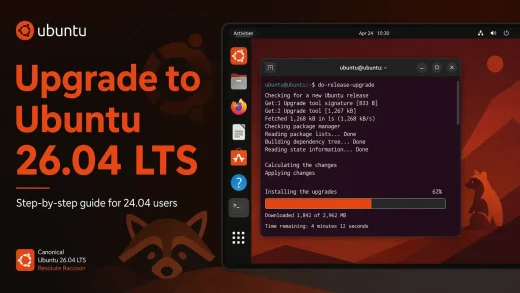
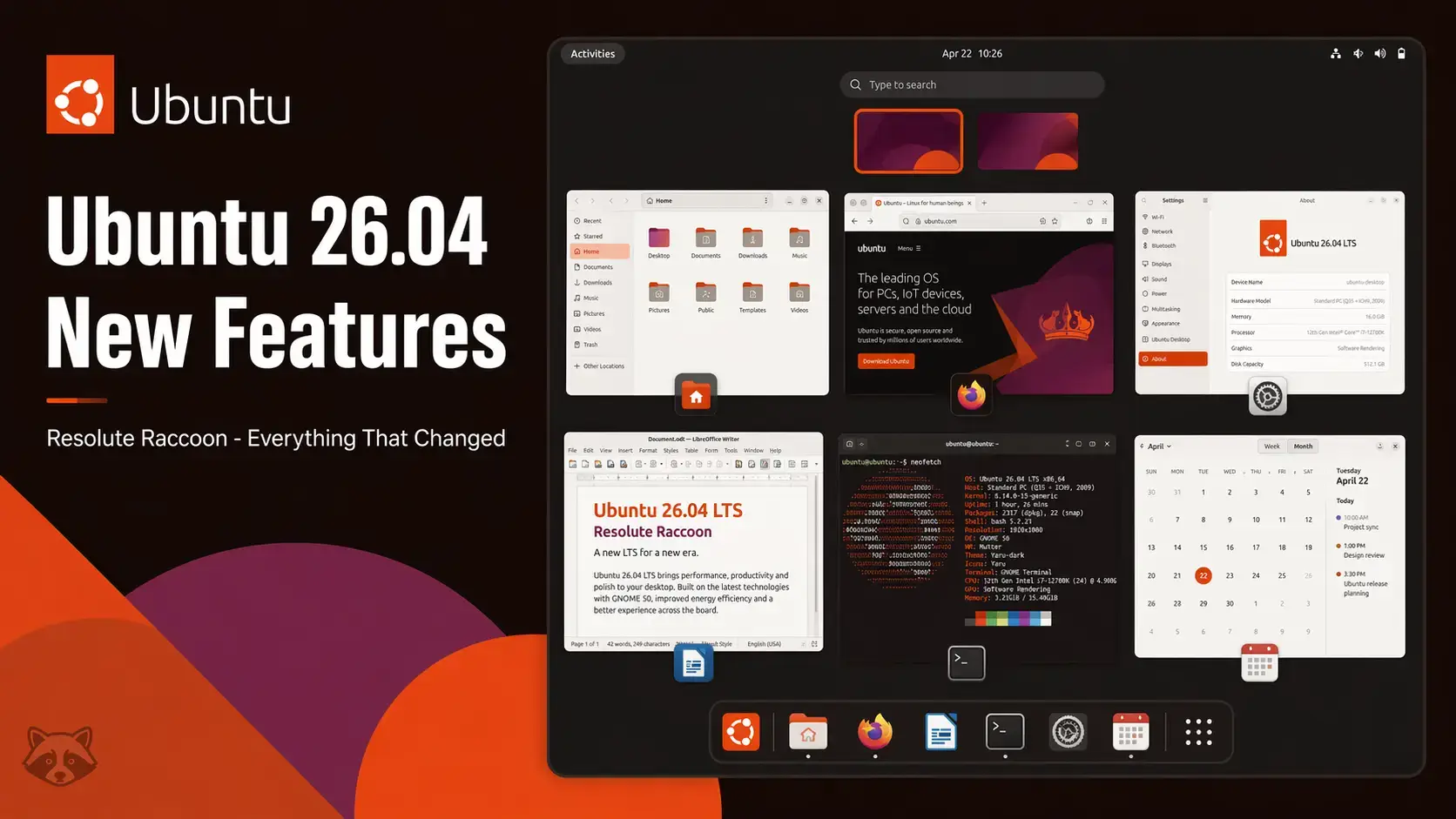
 Ubuntu 26.04 LTS Resolute Raccoon ships with GNOME 50, Linux kernel 7.0, a Wayland-only desktop, the first official ARM64 desktop ISO, and built-in disk encryption available from the installer. Below is a complete breakdown of every major change worth knowing about before you upgrade or install fresh.
Resolute Raccoon
Every major change in this LTS release – from the kernel and desktop to the installer, default apps, and ARM64 support.
GNOME 50 – New Desktop Experience
Ubuntu 26.04 ships with GNOME 50, the first major GNOME release to ship exclusively on Wayland. The desktop itself looks familiar, but a number of things work noticeably better.
The Activities overview has been redesigned with a cleaner grid layout. Open windows and workspaces are easier to distinguish at a glance. The animation when opening and closing Activities is faster and less distracting.
Multi-monitor setups behave more predictably in GNOME 50. Each display now has its own independent workspace strip. Moving windows between screens is smoother, and hotplug behavior when connecting or disconnecting a monitor has been significantly improved.
Fractional scaling (125%, 150%, 175%) is now enabled and stable by default. On high-DPI displays this removes the blurry text that affected older Ubuntu releases. Previously fractional scaling required enabling an experimental flag in GNOME Tweaks.
Variable refresh rate support is enabled by default for displays that support it. This reduces screen tearing and produces smoother visuals when the frame rate fluctuates – most noticeably in games and video playback on compatible monitors.
Keyboard navigation across the shell has been expanded. More panels and system dialogs can be navigated without a mouse. Focus indicators are more visible, which also helps accessibility.
The notification system in GNOME 50 groups repeated notifications from the same app more aggressively, reducing clutter in the notification tray. Persistent notifications now display more detail inline before you need to expand them.
Wayland Only – X11 Login Removed
This is the change most likely to affect existing users. Ubuntu 26.04 removes the option to start an X11 session from the login screen. The desktop now starts on Wayland every time, with no toggle available.
| Category | Status in Ubuntu 26.04 |
|---|---|
| Most desktop applications | Work normally via XWayland. No action needed. |
| Browsers (Firefox, Chrome) | Run natively on Wayland. Performance is improved over XWayland mode. |
| Screen recorders | Tools built for Wayland (OBS 30+, GNOME Screen Recorder) work fine. Older tools may need updates. |
| Remote desktop (RDP/VNC) | GNOME Remote Desktop supports Wayland natively. Third-party VNC servers may need updating. |
| Gaming (Steam, Lutris) | Games run via XWayland with no issues in most cases. GameMode and MangoHud work under Wayland. |
Linux Kernel 7.0
Ubuntu 26.04 ships with Linux kernel 7.0, a significant step forward from the 6.x series that powered Ubuntu 24.04. The jump brings hardware support for newer components that were not available when Ubuntu 24.04 shipped.
First Official ARM64 Desktop ISO
Ubuntu 26.04 is the first release where Canonical publishes an official Ubuntu Desktop ISO for ARM64. Previously, ARM64 users had to use the server ISO and install a desktop environment manually, or rely on community images.
| Device Type | ARM64 ISO Support |
|---|---|
| Snapdragon X laptops | Supported. Kernel 7.0 includes the necessary platform drivers. |
| Apple Silicon (M1/M2/M3) | Supported inside a virtual machine (UTM, Parallels). Bare metal installs on Apple Silicon still require Asahi Linux. |
| Raspberry Pi 4 / 5 | Supported. Raspberry Pi images are available separately at cdimage.ubuntu.com. |
| ARM development boards | Varies by board. Use the ARM64 ISO on boards with known Ubuntu support. Check cdimage.ubuntu.com for board-specific images. |
Installer Changes – Encryption and New Install Options
The Ubuntu desktop installer received two changes in 26.04 that make a real difference for everyday installs.
The installer now includes a TPM-backed encryption option on the disk setup screen. On supported hardware, the encryption keys are stored in your computer’s security chip (TPM) and unlocked automatically at startup – no passphrase to type each time. A recovery key is shown at the end of installation so you can still access your data if something goes wrong. No manual setup or terminal commands needed.
The old “Minimal vs Normal” install choice is gone. It has been replaced with “Default selection” and “Extended selection.” Default includes Firefox, LibreOffice core, Thunderbird, and the standard GNOME apps – enough for most people right away. Extended adds more media tools, additional fonts, and extra office apps. You can add anything you want later using the terminal or the App Center.
Default Application Changes
Several default applications have been updated or replaced in Ubuntu 26.04.
| Application | Ubuntu 24.04 | Ubuntu 26.04 | Notes |
|---|---|---|---|
| Image editor | GIMP 2.10 | GIMP 3.0 | Rewritten layer effects, improved color management, better tablet support |
| Linux kernel | 6.8 | 7.0 | New hardware support, AMD/Intel GPU improvements, ARM64 platform drivers |
| Desktop environment | GNOME 46 | GNOME 50 | Redesigned Activities, better multi-monitor, fractional scaling stable |
| Display server | Wayland (X11 optional) | Wayland only | X11 login session removed. XWayland handles legacy apps. |
| Firefox | Snap | Snap (latest) | Continues as a Snap. Runs natively on Wayland by default. |
| LibreOffice | 24.2 | 25.8 | Included in Default selection. Better Excel compatibility and Markdown support added. |
| Image viewer | Eye of GNOME | Loupe | Modern replacement. Supports touch gestures, cropping, rotating, and flipping images directly. |
| Video player | Totem | Showtime | Clean modern player with controls that fade out during playback. Included in Extended selection. |
| Boot startup system | initramfs-tools | Dracut | A behind-the-scenes change. Dracut is a more modern tool for preparing the system to boot. Most users will never notice it. |
Desktop and Server ISOs available now. Free. Supported until April 2031.
What Did Not Change
Worth noting for users upgrading from 24.04: several things that were rumored to change did not.
Firefox Is Still a Snap – Here Is What That Means
Firefox ships as a Snap package in Ubuntu 26.04, the same as it has since Ubuntu 22.04. For most people this makes no practical difference – it opens, it works, it updates automatically. But it does come up a lot, so here is a plain explanation of the situation.
A Snap is a self-contained app package. It runs in a sandboxed area separate from the rest of your system. Firefox as a Snap opens and runs exactly like a normal browser. The main differences are that it takes slightly longer to launch on the first open after a reboot, and it updates on Canonical’s schedule rather than Firefox’s own release timing.
You can replace the Snap version with a standard deb package using Mozilla’s official APT repository. This gives you Firefox from Mozilla directly, updated on Mozilla’s own schedule. The process requires a few terminal commands. Search “install firefox deb ubuntu 26.04” for a current step-by-step guide – several well-maintained ones exist.
Frequently Asked Questions
What is the biggest change in Ubuntu 26.04?
The two biggest changes are GNOME 50 and the removal of the X11 login option. GNOME 50 brings a redesigned Activities overview, smoother animations, and better multi-monitor support. Removing X11 as a login option means the desktop runs on Wayland only, though XWayland is still installed so most older applications continue to work without changes.
Does Ubuntu 26.04 still support X11 applications?
Yes. Ubuntu 26.04 no longer offers an X11 session at the login screen, but XWayland is installed by default. XWayland is a compatibility layer that lets applications built for the older X11 system run inside a Wayland session. The vast majority of X11 applications open and run normally. The main exceptions are tools that need direct access to the X11 server itself, such as some screen capture utilities and remote desktop tools.
What kernel does Ubuntu 26.04 use?
Ubuntu 26.04 ships with Linux kernel 7.0. This is a significant jump from the 6.x series and brings improved driver support for newer hardware, better performance on AMD and Intel graphics, and stronger ARM64 platform support.
What is new in GNOME 50?
GNOME 50 includes a redesigned Activities overview that shows open windows and workspaces in a cleaner layout, improved keyboard navigation, faster animations, and better behavior with multiple monitors and variable refresh rate displays. The notification system has also been refined. GNOME 50 is available in Ubuntu 26.04 running on Wayland only.
What changed with the Ubuntu installer in 26.04?
Two things changed. First, the installer now offers TPM-backed disk encryption on the disk setup screen. On supported hardware, your drive is encrypted automatically and unlocked at startup without a passphrase. A recovery key is shown at the end of setup. Second, the old “Minimal vs Normal” install choice has been replaced with “Default selection” and “Extended selection.” Default includes Firefox, LibreOffice, Thunderbird, and standard GNOME apps. Extended adds more tools on top of that.
Is GIMP 3.0 included in Ubuntu 26.04?
Yes. Ubuntu 26.04 ships with GIMP 3.0 as the default image editor, replacing GIMP 2.10 which had been the default for many years. GIMP 3.0 brings a rewritten layer effects system, improved color management, and better compatibility with graphics tablets.
Can I upgrade to Ubuntu 26.04 from an older version?
Yes. You can upgrade directly from Ubuntu 24.04 LTS to 26.04 LTS using the built-in upgrade tool. Open Software Updater, or run sudo do-release-upgrade in a terminal. Upgrading from 25.10 is also supported. If you are on 22.04 or older, Canonical recommends a fresh install or upgrading in steps through each LTS release.
More Ubuntu 26.04 guides: Ubuntu 26.04 Desktop Download · Ubuntu Server 26.04 Download · Resolute Raccoon Wallpapers