 You can install Steam on Ubuntu using the native APT package manager from the official Ubuntu Multiverse repository, the sandboxed Flatpak package via Flathub, or the Canonical-maintained Snap package.
Steam is the world’s most popular PC gaming distribution platform, developed by Valve. By installing Steam on Ubuntu, you not only gain access to thousands of native Linux games, but you also unlock the ability to play an enormous library of Windows-exclusive titles using Steam Play (Proton), Valve’s powerful built-in compatibility layer.
This guide provides step-by-step terminal instructions for installing and configuring Steam on Ubuntu 26.04, 24.04, and 22.04 LTS. We cover the recommended native APT package, Flatpak installation, the official Snap package, enabling the 32-bit architecture prerequisite, and how to activate Steam Play (Proton) for Windows games.
If any of these steps fail on your system, please drop a comment below or contact us and we will help you get it resolved.
APT, Flatpak & Snap Setup Walkthroughs
Configure the Steam gaming client on your system. Learn how to install the native packages, enable 32-bit application support, and activate Proton to play Windows games.
Choosing the correct installation format significantly impacts how Steam integrates with your system’s hardware drivers and secondary game drives. Review the comparison grid below to select the option that best fits your requirements.
Steam Installation Methods Compared
Review the installation choices below to evaluate release containment levels, filesystem access permissions, and desktop integration capabilities.
| Method | Source channel | Sandbox isolation | Best For |
|---|---|---|---|
| APT Multiverse (Recommended) | Ubuntu Multiverse Repository | None (Native system access) | Maximum compatibility, easy access to secondary hard drives, full GPU driver access. |
| Flatpak (Flathub) | Flathub Container Registry | Strict sandbox restriction | Users who prefer containerized apps. Requires manual permission overrides for secondary drives. |
| Snap (Snap Store) | Snapcraft Store (Canonical) | Strict snap confinement | Experimental. Often suffers from UI bugs and external drive limitations. Not officially supported by Valve. |
Prerequisite: Enable 32-Bit Architecture
Before installing Steam natively via APT, you must enable 32-bit architecture on your system. A massive portion of legacy video games and core Steam client libraries rely on 32-bit dependencies. Without this support, Steam will fail to launch correctly.
Open your terminal using the shortcut key combination Ctrl+Alt+T and run the following command to inform your package manager that it is allowed to download and install 32-bit libraries:
sudo dpkg --add-architecture i386
Method 1: Install Steam via APT (Recommended)
Installing Steam through the APT package manager using the Multiverse repository is the most reliable method. Because it runs natively on your system, it has unimpeded access to your graphics drivers, gaming controllers, and secondary hard drives.
Steam is closed-source software, so it resides in Ubuntu’s Multiverse repository. Enable the repository by running:
sudo add-apt-repository multiverse -y
Update your APT repository indexes to fetch the latest package definitions (including the new 32-bit libraries and the Multiverse software):
sudo apt update
Finally, install the Steam launcher package. This step will automatically pull in a large number of necessary 32-bit libraries and graphics drivers:
sudo apt install steam -y
Once the installation finishes, you can launch Steam from your application menu. Upon its first launch, it will download an update of a few hundred megabytes to pull the latest client files directly from Valve’s servers.
Method 2: Install Steam via Flatpak (Flathub)
If you prefer running sandboxed applications to keep your host system pristine, Flatpak is a popular alternative. By isolating Steam from system configuration directories, the application runs within a containerized environment. Keep in mind that you may need to apply filesystem overrides if you want to save game downloads to external hard drives.
If Flatpak is not yet configured on your computer, install the daemon package via APT:
sudo apt update && sudo apt install flatpak -y
Add the official Flathub remote server to query and pull application packages:
flatpak remote-add --if-not-exists flathub https://flathub.org/repo/flathub.flatpakrepo
Fetch and install the Steam container build from Flathub:
flatpak install flathub com.valvesoftware.Steam -y
Method 3: Install Steam via the Snap Store
The Steam Snap package is maintained by Canonical, but it is not officially supported by Valve. Because of its strict containerization rules, many users report issues with games refusing to launch, inability to recognize external hard drives (where game libraries might be stored), and conflicts with Vulkan drivers. We strongly advise using the APT method if you encounter unresolvable bugs.
If you prefer to use Canonical’s Snap ecosystem despite the warnings, the installation is straightforward as Snap is built directly into Ubuntu.
Run the snap install command in your terminal to fetch the container:
sudo snap install steam
Crucial Post-Installation: How to Enable Steam Play (Proton)
By default, Steam on Linux will only let you install games that have native Linux ports. To unlock access to your entire Windows gaming library, you must enable Steam Play (powered by Valve’s Proton compatibility layer).
Launch Steam and log into your account. In the top-left corner of the Steam interface, click on Steam, and then click on Settings from the dropdown menu.
In the settings sidebar, click on the Compatibility tab (on older clients, this may be labeled “Steam Play”).
Ensure that the toggle for Enable Steam Play for supported titles is checked. Crucially, also toggle on Enable Steam Play for all other titles. From the “Run other titles with” dropdown box, select the latest stable version of Proton. Click OK. Steam will prompt you to restart the client to apply these changes.
Interface Screenshots
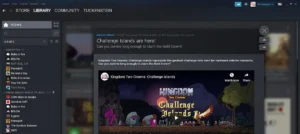
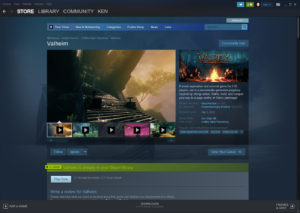
Below are screenshots of the Steam graphical interface running natively on the Ubuntu desktop, showcasing the library view and the Proton compatibility settings:
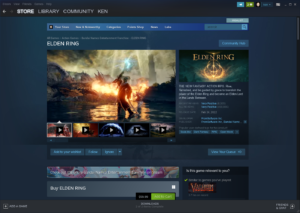
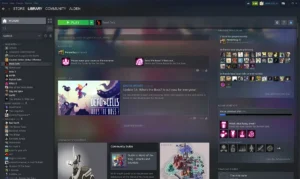
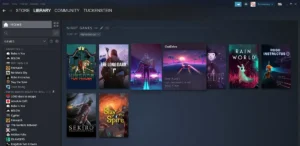
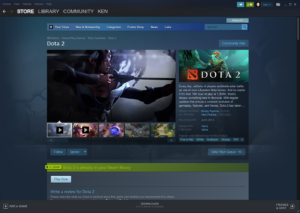
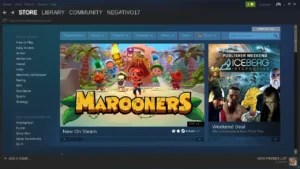
-
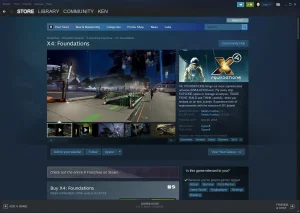
- X4 steam official page from How to Install Steam on Ubuntu
Video Tutorial
If you prefer a visual walkthrough, watch the following video demonstrating how to set up gaming and install Steam on Ubuntu 26.04 LTS.
How to Completely Uninstall Steam
If you need to remove Steam to troubleshoot a problem or free up drive space, follow the cleanup instructions below that correspond to your active installation format. Warning: Uninstalling Steam may delete games installed within its default directory. Move your game library to a safe folder first if you wish to keep your game files.
Remove the Steam application using the package manager that handles your current installation.
For APT installations:
sudo apt remove steam -y
sudo apt autoremove --purge -y
For Flatpak installations:
flatpak uninstall com.valvesoftware.Steam -y
flatpak uninstall --unused -y
For Snap installations:
sudo snap remove --purge steam
Use the links below to check game compatibility on Linux and access official support:
Frequently Asked Questions
Find quick answers to the most common questions regarding Steam capabilities and compatibility on Linux.
Is Steam available in the default Ubuntu repositories?
Yes, Steam is available via Ubuntu’s Multiverse repository. You can install it using the native package manager by first enabling the multiverse repo with: sudo add-apt-repository multiverse, and then running: sudo apt install steam -y.
How do I run Windows games on Ubuntu using Steam?
To play Windows-only games on Ubuntu, you must enable Steam Play (Proton). Open Steam, navigate to Settings > Compatibility, and check the boxes for “Enable Steam Play for supported titles” and “Enable Steam Play for all other titles.” Select the latest version of Proton from the dropdown menu and restart the client.
Why shouldn’t I use the Steam Snap package?
While Canonical provides a Snap package for Steam, its strict containerized sandbox environment often causes issues. Users frequently report problems accessing games installed on secondary hard drives, missing Vulkan drivers, and UI bugs. The native APT method is highly recommended for the best gaming experience.
How do I enable 32-bit architecture for Steam on Ubuntu?
Many Steam components and legacy games require 32-bit libraries to function. You can enable 32-bit architecture on Ubuntu by opening your terminal and running the command: sudo dpkg --add-architecture i386.
Do I need to manually update Steam after installing via APT?
No. When you launch Steam for the first time, it downloads its own internal update framework. The Steam client will automatically update itself to the latest version directly from Valve’s servers whenever you launch the application.
More Ubuntu guides: Setup Steam Link on Ubuntu · Install Lutris on Ubuntu · Install Wine on Ubuntu · How to install PlayOnLinux on Ubuntu