 You can install GIMP on Ubuntu using the native APT package manager from the official Universe repository, Flatpak package via Flathub, or the verified Snap package from the Snap Store.
GIMP (GNU Image Manipulation Program) is a free, open-source image editor and digital paint tool.
Frequently used as a powerful alternative to Adobe Photoshop, it supports layers, customizable brushes, and many extension plugins. With the release of GIMP 3.x, the software introduces a redesigned interface, non-destructive filters, native Wayland support, and local AI tool integrations.
This guide provides step-by-step terminal instructions to install GIMP on Ubuntu 26.04, 24.04, and 22.04 LTS. We cover native packages, Flatpak filesystem permission overrides, official Snaps, setup options, local AI features, and clean uninstallation.
Let us know in the comments below if you run into any setup issues, or you can contact us directly for support.
APT, Flatpak, & Snap Setup Walkthroughs
Configure the GIMP image editor on your system. Learn how to choose the right package format for your Ubuntu version, manage directory sandbox permissions, and set up local AI plugins.
Choosing the correct installation format affects how GIMP integrates with system directories, sandbox constraints, and how frequently it receives update releases. Review the comparison grid below to select the option that best fits your requirements.
GIMP Installation Methods Compared
Review the installation choices below to evaluate release updates, containment levels, filesystem access permissions, and desktop integration capabilities.
| Method | Source Channel | Ubuntu Version Matrix | Sandboxed? | System Integration |
|---|---|---|---|---|
| APT Universe | Ubuntu Universe Repository | 26.04: v3.2.x 24.04: v2.10.36 22.04: v2.10.30 |
No sandbox (full system access) | Full disk access, standard theme integration, lightweight footprint. |
| Flatpak (Flathub) | Flathub Container Registry | All releases: v3.2.x (Upstream) | Strict sandbox | Requires terminal commands to access external drives or custom folders. |
| Snap (Snap Store) | Snapcraft Store (Official GIMP) | All releases: v3.2.x (Upstream) | Confined snap | Auto-updates enabled, full access to home folder. |
Method 1: Install GIMP via the Ubuntu Universe Archive (APT)
Installing GIMP via the default APT package manager is the simplest way to get native performance and clean theme integration. Because GIMP is in Ubuntu’s Universe repository, it shares system files and matches your desktop style. Updates arrive alongside standard system package upgrades.
Since Ubuntu LTS releases freeze package versions for stability, the default repository version matches the OS release date. Ubuntu 22.04 carries GIMP 2.10.30, Ubuntu 24.04 carries GIMP 2.10.36, and Ubuntu 26.04 features GIMP 3.2. If you are on an older Ubuntu version and need GIMP 3.2, choose Flatpak or Snap instead.
Most desktop editions have Universe enabled. On minimal installations or server packages, ensure it is added to your software sources:
sudo add-apt-repository universe -y
Update your APT repository indexes to fetch the latest package definitions:
sudo apt update
Install the GIMP package from the Universe archive. APT will automatically download the necessary dependencies required to run the image editor:
sudo apt install gimp -y
Check the installation state and verify the installed package version using the policy tool:
apt-cache policy gimp
Method 2: Install GIMP via Flatpak (Flathub)
If you want the latest GIMP version on older Ubuntu releases or prefer isolated applications, Flatpak is the best choice. It runs GIMP in a sandbox, keeping it separate from the rest of your system. This requires more disk space for runtime files but prevents software conflicts.
Because Flatpak isolates the application, GIMP cannot access folders outside ~/Downloads by default. If you want to load custom brushes, fonts, or save images to external drives, you must allow folder access using a terminal command (shown in Step 4).
If Flatpak is not yet configured on your computer, install the daemon package via APT:
sudo apt update && sudo apt install flatpak -y
Add the official Flathub remote server to query and pull application packages:
flatpak remote-add --if-not-exists flathub https://dl.flathub.org/repo/flathub.flatpakrepo
Fetch and install the verified GIMP flatpak package from Flathub:
flatpak install flathub org.gimp.GIMP -y
By default, GIMP’s Flatpak wrapper cannot read or write outside your primary ~/Downloads folder. To grant the container full write access to external drives or custom directories (for example, a secondary drive mounted at /media/DataStorage), run this override command in your terminal:
flatpak override --user --filesystem=/media/DataStorage org.gimp.GIMP
Replace /media/DataStorage with the actual absolute path to your custom storage folder.
Method 3: Install GIMP via the Snap Store
For a simple package that updates automatically in the background, Snap is a great choice. Snap support is built directly into Ubuntu, so you do not need to add external repositories. The GIMP snap is officially maintained by the GIMP team.
Open your terminal using the shortcut key combination Ctrl+Alt+T and run the snap command:
sudo snap install gimp
After installation, the desktop environment will register the new snap directories, and GIMP will appear in your application listings.
How to Launch GIMP on Ubuntu
GIMP requires an active graphical session (X11 or Wayland) to render its interface. You can launch the application from the desktop launcher or execute startup commands inside a terminal window.
Open your desktop application grid, type GIMP in the search search bar, and click the Wilber application icon to start the editor.
Run the launch command matching your selected installation type:
For APT installation builds:
gimp
For Flatpak container builds:
flatpak run org.gimp.GIMP
For Snap package builds:
snap run gimp
Modern Features & Local AI Capabilities in GIMP
GIMP now supports local AI tools. By updating to a modern toolkit, GIMP can run neural networks directly on your computer. This lets you use AI generation and image filters locally, without monthly subscriptions or cloud fees.
Apply blurs, shadows, and color corrections without overwriting your original image. You can change filter settings or turn them off at any time.
Generate images, expand borders, or edit parts of your canvas locally. Using community plugins, GIMP connects to Stable Diffusion running on your own CPU or graphics card.
Intel’s OpenVINO toolkit speeds up local AI tasks. You can automatically delete backgrounds, select objects, and clean up image noise in seconds.
Turn small or pixelated images into high-resolution graphics. GIMP’s local AI models predict missing details to create sharp results.
Interface Screenshots
See what the GIMP desktop interface looks like running on the Ubuntu desktop environment.
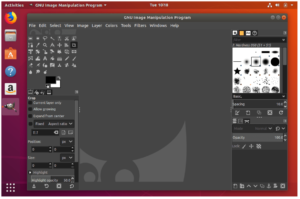
-
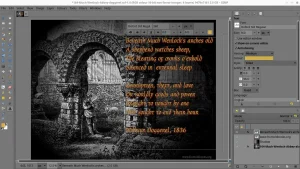
- Adding custom text from How to Install GIMP on Ubuntu 26.04 – Complete Guide
-
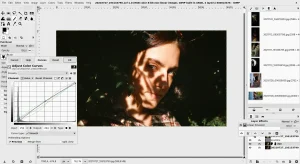
- Edit colors with ai from How to Install GIMP on Ubuntu 26.04 – Complete Guide
-
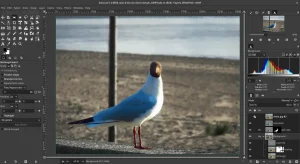
- Edit xcf image from How to Install GIMP on Ubuntu 26.04 – Complete Guide
-
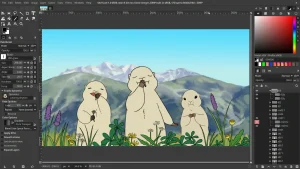
- Eidting image in gimp from How to Install GIMP on Ubuntu 26.04 – Complete Guide
Troubleshooting Common Issues
Below are common issues you might run into when installing or running GIMP on Ubuntu, along with their solutions.
This is usually caused by broken settings or folder conflicts from older versions. To clear GIMP’s cache and start fresh, run this command in your terminal:
rm -rf ${XDG_CACHE_HOME:-$HOME/.cache}/gimp/
If you use a drawing tablet and pressure sensitivity is not working on Ubuntu’s default Wayland desktop, open GIMP and go to Edit > Input Devices. Find your tablet, change its mode from Disabled to Screen, and save the settings. If issues continue, log out and select the Ubuntu on Xorg session from the login screen.
How to Completely Uninstall GIMP and Remove Cache Files
To uninstall GIMP, use the commands matching your installation method. This will remove GIMP from your system and clean up local settings folders.
Uninstall GIMP using your package manager:
For APT installations:
sudo apt remove gimp -y
sudo apt autoremove --purge -y
For Flatpak installations:
flatpak uninstall org.gimp.GIMP -y
flatpak uninstall --unused -y
For Snap installations:
sudo snap remove gimp
Package managers leave your settings folders behind to protect custom brushes and presets. To delete these folders and free up space, run the commands for your installation method:
# Clean native APT configuration files
rm -rf ~/.config/GIMP ~/.local/share/GIMP

# Clean Flatpak application caches
rm -rf ~/.var/app/org.gimp.GIMP

# Clean Snap configuration directories
rm -rf ~/snap/gimp
Use the links below to access community forums, source code repositories, and official documentation guides for GIMP troubleshooting:
Frequently Asked Questions
Is GIMP 3.2 available natively on Ubuntu?
Yes, Ubuntu 26.04 LTS includes GIMP 3.2 in its default repositories. Older versions like Ubuntu 24.04 and 22.04 carry GIMP 2.10 instead.
How do I install the latest GIMP version on older Ubuntu releases?
If you use Ubuntu 24.04 or 22.04, install GIMP via Flatpak or Snap. These formats provide the latest version and update automatically.
Why can’t the Flatpak version of GIMP access my custom brushes or external storage?
Flatpak applications run in a sandbox for safety. To let GIMP read files on external drives or custom folders, run this terminal override command: flatpak override --user --filesystem=/path/to/folder org.gimp.GIMP.
Can I use AI tools locally in GIMP on Ubuntu?
Yes. You can run features like background removal, image upscaling, and generative fill locally by installing Intel’s OpenVINO plugins for GIMP or community Stable Diffusion scripts.
How do I completely remove GIMP and clear all custom settings?
Uninstall GIMP using your package manager (APT, Flatpak, or Snap), and then delete the settings folders in your home directory (rm -rf ~/.config/GIMP or rm -rf ~/.var/app/org.gimp.GIMP).
Related graphics editors guides: Best Photo Editors on Ubuntu · Install Blender on Ubuntu · Install Krita on Ubuntu · Install Shotcut on Ubuntu