 You can install Calibre on Ubuntu using the official upstream binary installer script, the native APT package manager from the default repositories, or the Flatpak package via Flathub.
Calibre is the premier open-source e-book management suite for Linux. It provides a complete toolkit to manage your digital library, convert e-book formats (such as EPUB, PDF, and MOBI), edit book metadata, fetch news feeds, read files in a built-in viewer, and sync libraries directly to hardware e-readers like Kindle and Kobo.
This guide provides step-by-step terminal instructions to install, configure, and upgrade Calibre on Ubuntu 26.04, 24.04, and 22.04 LTS. We cover the developer-recommended binary script (system-wide and isolated), native APT package setups, Flathub container installations, Wayland graphical crash overrides, sandboxed USB device detection fixes, and clean uninstallation procedures.
If you run into issues, leave a comment below or contact us for support.
Official Script, APT & Flatpak Walkthroughs
Configure the Calibre e-book management suite on your desktop. Learn how to run the upstream binary installer, resolve sandboxed USB e-reader permissions, set Wayland overrides, and upgrade your library manager.
Choosing the correct installation format affects how Calibre integrates with your system libraries, accesses external devices, and how frequently it receives features like annotation exports or booksheleves. Review the comparison grid below to select the option that best fits your workflow.
Calibre Installation Methods Compared
Evaluate version update channels, containment, USB device hardware accessibility, and desktop integration capabilities across the 3 installation choices.
| Method | Channel Source | Ubuntu Version Matrix | Sandbox Isolation | USB E-Reader Integration |
|---|---|---|---|---|
| Official Script | Calibre Upstream Binary | Always latest stable release (9.11.0+) | None (Full system access or isolated user-space folder) | Native, automatic detection via USB |
| APT Default | Ubuntu Universe Repository | Stable frozen build (often months/years outdated) | None (Full system access) | Native, automatic detection via USB |
| Flatpak (Flathub) | Flathub Container Registry | Rolling community package (regular updates) | High (Sandboxed container environment) | Requires manual Flatpak override command to detect devices |
Method 1: Install Calibre via the Official Upstream Binary Script (Recommended)
The Calibre developers officially recommend installing their pre-compiled Linux binary package. This script downloads the binary file structure directly from Calibre’s servers and sets up the app with all necessary dependencies, libraries, and desktop launch configurations. This ensures you always receive the newest upstream features (such as annotation exports and Bookshelf UI updates) rather than frozen OS repository packages.
You can execute this installation in one of two configurations depending on whether you want system-wide integration or a portable, non-root directory.
Option A: System-Wide Installation (Requires sudo)
This is the standard installation method. It installs Calibre to /opt/calibre and registers executable links under /usr/bin, making it available to all user accounts on the desktop.
Ensure your system has wget and xz-utils (required to download and extract the installation files) configured by executing this setup command in your terminal:
sudo apt update && sudo apt install wget xz-utils -y
Fetch the installer script directly from the Calibre download servers and run it. The command utilizes sudo -v to validate credentials before execution:
sudo -v && wget -nv -O- https://download.calibre-ebook.com/linux-installer.sh | sudo sh /dev/stdin
Check the installation location registration to verify that your system can locate the native Calibre application:
which calibre
Option B: Isolated User-Space Installation (No root/sudo Required)
If you do not have administrative access to your Ubuntu desktop, or if you prefer a self-contained installation that doesn’t modify system folders, you can direct the installer to configure Calibre entirely within your home directory.
Run the script and specify an alternate installation directory path alongside the isolated installation flag:
wget -nv -O- https://download.calibre-ebook.com/linux-installer.sh | sh /dev/stdin install_dir=~/calibre-bin isolated=y
To open the Calibre package without typing the directory structure, add the folder path to your user shell configuration:
echo 'export PATH="$PATH:$HOME/calibre-bin"' >> ~/.bashrc && source ~/.bashrc
Method 2: Install Calibre via the Default Repositories (APT)
Ubuntu includes Calibre in its default Universe software library. This method is the simplest for users who prefer standard system updates, as the installation uses the native package manager. However, be aware that Ubuntu freezes package versions at release. The version in the default library is commonly outdated, lacks newer features, and may fail to connect to modern Kindle or Kobo firmware updates.
Verify that the universe software archive is enabled on your desktop system:
sudo add-apt-repository universe -y
Update your local system repository catalog records to fetch the universe metadata index:
sudo apt update
Run the package installation command to pull the utility dependencies and execute setups:
sudo apt install calibre -y
Method 3: Install Calibre via Flatpak (Flathub)
If you prefer running applications inside isolated folders (called sandboxes) for security, Calibre is available on the Flathub store. This package is maintained by the community and receives regular rolling updates. Running Calibre under Flatpak keeps it separate from your core system files, though it restricts automatic access to personal folders and physical USB ports.
If Flatpak is not yet set up on your system, install the core package manager service:
sudo apt update && sudo apt install flatpak -y
Add the Flathub catalog to your system to access and download Flatpak applications:
flatpak remote-add --if-not-exists flathub https://dl.flathub.org/repo/flathub.flatpakrepo
Download and configure the community Calibre environment from Flathub:
flatpak install flathub com.calibre_ebook.calibre -y
Advanced Configuration: Wayland Startup Crash Fixes
Modern versions of Ubuntu (such as 24.04 and 26.04 LTS) use the Wayland display server by default instead of legacy X11. Because Calibre is built using the Qt interface toolkit, it can occasionally experience display errors, window sizing bugs, or crash immediately at launch under Wayland desktop sessions.
If Calibre fails to launch or crashes with window exceptions, you can force it to run using X11 compatibility mode (Xwayland) in your desktop session. Test launch from terminal using terminal flags:
QT_QPA_PLATFORM=xcb calibre
To make this override persistent across terminal launches, append it to your system profile settings:
echo 'export QT_QPA_PLATFORM=xcb' >> ~/.profile && source ~/.profile
USB Hardware & Kindle/Kobo E-Reader Sandbox Access Fixes
A major feature of Calibre is syncing books directly to physical e-readers (such as Amazon Kindle, Kobo, or Nook devices) over USB. However, if you installed Calibre using **Flatpak**, you will find that it cannot detect any plugged-in e-readers out of the box because the app runs inside a security sandbox block.
Follow these overrides to grant Calibre container access to physical device ports:
For Flatpak installations (grant raw device nodes):
flatpak override --user --device=all com.calibre_ebook.calibre
Verify hardware dialout permissions:
If devices are still not showing up, ensure your Ubuntu user account belongs to the standard dialout and plugdev groups:
sudo usermod -aG dialout,plugdev $USER
Note: You must log out of your Ubuntu desktop session and log back in for this group assignment to take effect.
Advanced Configuration: Set Calibre as the Default E-Book Reader
If your system does not open e-books in Calibre automatically when you double-click them, you can set it as the default app by running these commands in your terminal:
To configure Calibre as the default application to open EPUB, MOBI, and PDF document files from your file manager, execute the following association commands:
# Associate Calibre with EPUB, MOBI, and PDF formats
xdg-mime default calibre-lrfviewer.desktop application/epub+zip
xdg-mime default calibre-lrfviewer.desktop application/x-mobipocket-ebook
xdg-mime default calibre-ebook-viewer.desktop application/pdf
How to Update and Upgrade Calibre on Ubuntu
To maintain library stability and ensure device database compatibility, keep your Calibre installation updated. The terminal update procedures depend on the method you used to install the software.
Run the update command that corresponds to your packaging format:
For Official Binary Script Installations (System-Wide):
sudo -v && wget -nv -O- https://download.calibre-ebook.com/linux-installer.sh | sudo sh /dev/stdin
For Isolated User-Space Installations:
wget -nv -O- https://download.calibre-ebook.com/linux-installer.sh | sh /dev/stdin install_dir=~/calibre-bin isolated=y
For APT Installations:
sudo apt update && sudo apt upgrade calibre -y
For Flathub Flatpak Installations:
flatpak update com.calibre_ebook.calibre -y
How to Completely Uninstall Calibre and Clean configuration files
If you need to remove Calibre, select the uninstallation pathway below that corresponds to your original packaging method. These steps purge program binaries, remove repository records, and delete custom user setting profiles.
Purge the Calibre application binaries using the tool matching your active setup type:
For Official Binary Script Installations (System-Wide):
sudo calibre-uninstall
For Isolated User-Space Installations:
rm -rf ~/calibre-bin
For APT installations:
sudo apt purge calibre -y && sudo apt autoremove -y
For Flathub Flatpak Installations:
flatpak uninstall com.calibre_ebook.calibre -y && flatpak uninstall --unused -y
Uninstalling the software leaves configuration files in your user space. To remove these leftover configuration directories, run the commands that match your package type:
# Delete native APT and Script configuration data
rm -rf ~/.config/calibre

# Delete Flatpak sandbox data caches
rm -rf ~/.var/app/com.calibre_ebook.calibre
Interface Screenshots
To inspect the Calibre application menus, library configurations, and design options on Ubuntu, refer to the screenshots layout gallery below:
-

- Book details ui from How to Install Calibre on Ubuntu 26.04 – Complete Guide
-
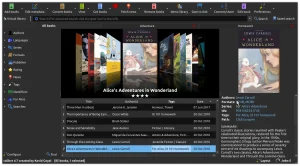
- Dark theme ui from How to Install Calibre on Ubuntu 26.04 – Complete Guide
-
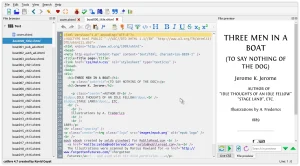
- Editor ui from How to Install Calibre on Ubuntu 26.04 – Complete Guide
-

- List of books ui from How to Install Calibre on Ubuntu 26.04 – Complete Guide
-
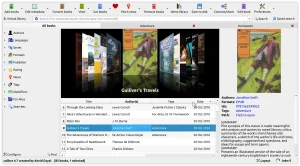
- Main ui from How to Install Calibre on Ubuntu 26.04 – Complete Guide
-
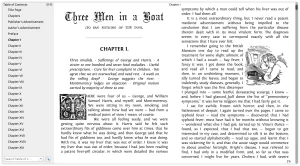
- Reading book ui from How to Install Calibre on Ubuntu 26.04 – Complete Guide
Use the links below to access the official manual, forums, user discussions, and support pages for Calibre:
- Official Calibre User Manual – Read the complete handbook covering e-book conversion, database management, and news setups.
- r/calibre Subreddit Community – Join user discussions, troubleshoot custom recipes, and share library layouts with other members.
- MobileRead Calibre Forums – Access the primary discussion board where developers and power users support the software.
- Calibre Support Portal – File bug reports, check the development changelog, or review direct download guides.
Frequently Asked Questions
Why is the official binary installer script recommended over the APT version?
The official binary installer script fetches the latest upstream release directly from Calibre developers. Since Ubuntu repositories freeze package versions at release time, the APT version (sudo apt install calibre) is often months or years out of date and lacks newer features, bug fixes, or compatibility updates for modern e-reader devices.
How do I fix Calibre failing to detect my Kindle or Kobo e-reader?
Sandboxed packages like Flatpak restrict hardware access. If you installed Calibre via Flatpak, grant device access by running: flatpak override --user --device=all com.calibre_ebook.calibre. In addition, ensure your user account has permission to access connected USB hardware by running: sudo usermod -aG dialout,plugdev $USER.
How do I run Calibre on Ubuntu using Wayland if it crashes at startup?
Calibre uses the Qt graphical toolkit. If it crashes under the Wayland display server, you can force it to run using the X11 compatibility layer (Xwayland) by running: QT_QPA_PLATFORM=xcb calibre in your terminal. You can make this persistent by adding export QT_QPA_PLATFORM=xcb to your ~/.profile or editing Calibre’s desktop launcher entry.
Can I install Calibre without root (sudo) privileges?
Yes. You can run an isolated installation of Calibre by specifying a custom directory where you have write access. Run: wget -nv -O- https://download.calibre-ebook.com/linux-installer.sh | sh /dev/stdin install_dir=~/calibre-bin isolated=y. This downloads Calibre entirely inside ~/calibre-bin without requiring sudo.
How do I update Calibre to the latest version on Ubuntu?
If you used the official binary installer, simply run the installation command again to fetch and install the latest files. For APT, run sudo apt update && sudo apt upgrade calibre -y. For Flatpak, run flatpak update com.calibre_ebook.calibre -y.
More guides: LibreOffice for Ubuntu Guide · Inkscape for Ubuntu Guide · GNOME Music on Ubuntu Guide · Shotcut for Ubuntu Guide