 Learning how to use Docker Compose on Ubuntu 26.04 LTS allows you to define and run multi-container applications using a single docker-compose.yml configuration file. The modern Docker Compose V2 utility coordinates web servers, databases, and cache layers under a unified private network with simple terminal commands. Before you begin, ensure you have Docker installed on your system. If you need to set it up, follow our companion guide on how to install Docker on Ubuntu 26.04 LTS.
Multi-Container Orchestration & Syntax Guide
Learn to structure docker-compose.yml files, configure networks and volumes, run a complete WordPress stack, and manage containers using native Docker Compose V2 commands.
What is Docker Compose?
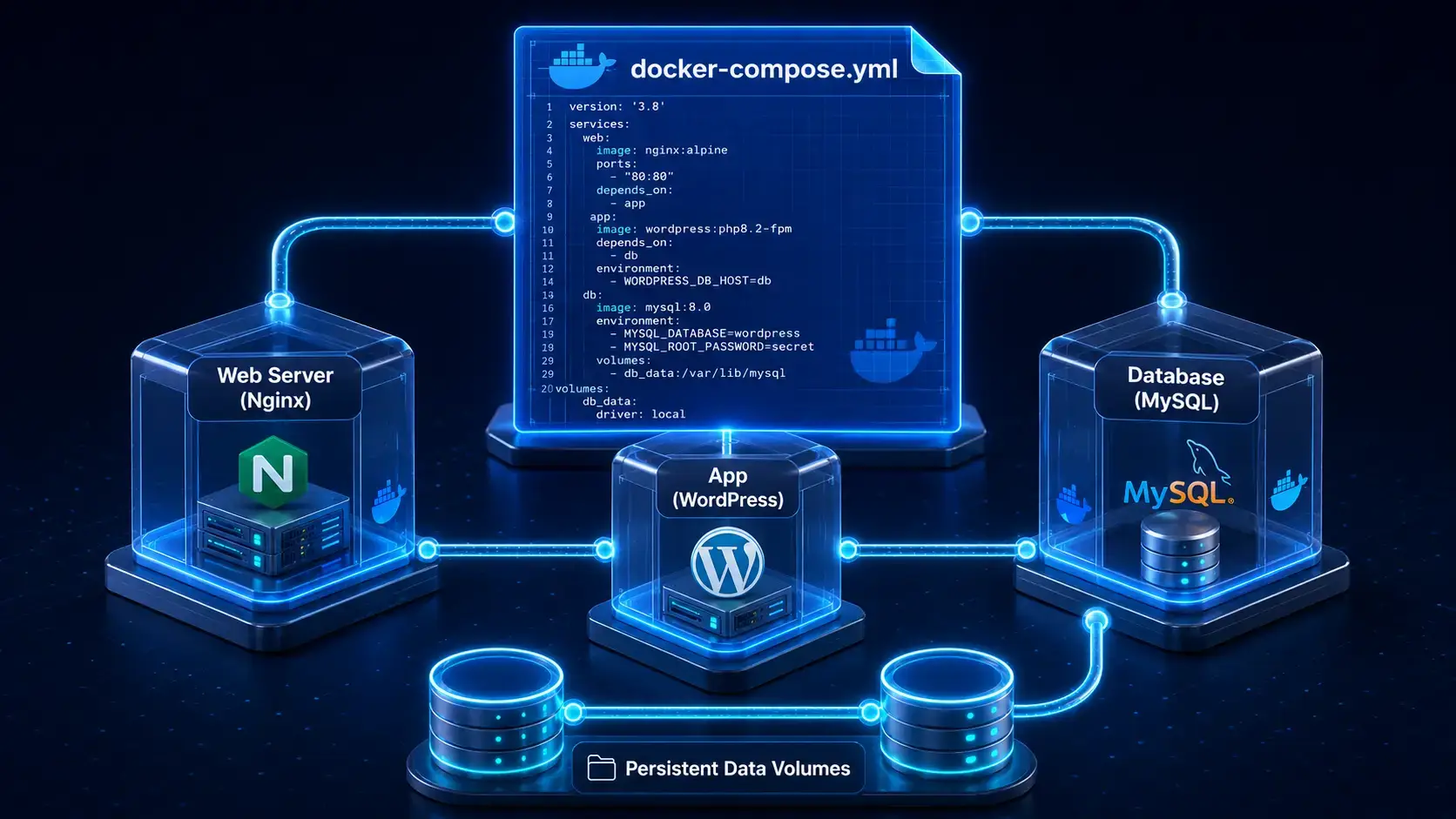
When deploying containerized applications, running a single container is rarely sufficient. A typical web application requires a frontend web server, a backend application service, a database engine, and a cache store. Managing these services using individual, manual docker run commands is inefficient and error prone. You must manually construct networks, handle link arguments, ensure correct startup order, and track separate storage paths.
Docker Compose solves this problem by allowing you to define your entire multi-container architecture in a single configuration file named docker-compose.yml. In this file, you declare your services, configurations, dependencies, networks, and persistent data volumes. Once defined, you can initialize, start, inspect, update, and shut down the entire stack using a single command in your terminal.
Core docker-compose.yml Syntax Explained
Docker Compose files are written in YAML format. The configuration uses structured indentation to define services, volumes, and networks. Below is an annotated template demonstrating the core configuration fields you will use in daily development:
# Defines the services (containers) that compose your application
services:
  # Name of your service container (used as a local DNS hostname)
  web_server:
    # Docker image to pull from Docker Hub
    image: nginx:alpine
    # Friendly container name shown in Docker CLI lists
    container_name: web_nginx
    # Automatic restart policy (always, unless-stopped, or on-failure)
    restart: always
    # Maps container ports to host ports (host_port:container_port)
    ports:
      - "8080:80"
    # Configuration variables passed directly to the container
    environment:
      - NGINX_PORT=80
    # Mounts a host folder or a named volume inside the container
    volumes:
      - html_data:/usr/share/nginx/html
    # Connects the container to a specific virtual network
    networks:
      - app_network

# Defines persistent volumes that save data even when containers are deleted
volumes:
  html_data:

# Defines private virtual networks so containers can talk to each other securely
networks:
  app_network:
    driver: bridge
By using these service names, containers automatically resolve one another. For example, a web application container can communicate with a database container using the host address db on their shared private bridge network, without needing hardcoded IP addresses.
Real-World Working Example: WordPress and MySQL
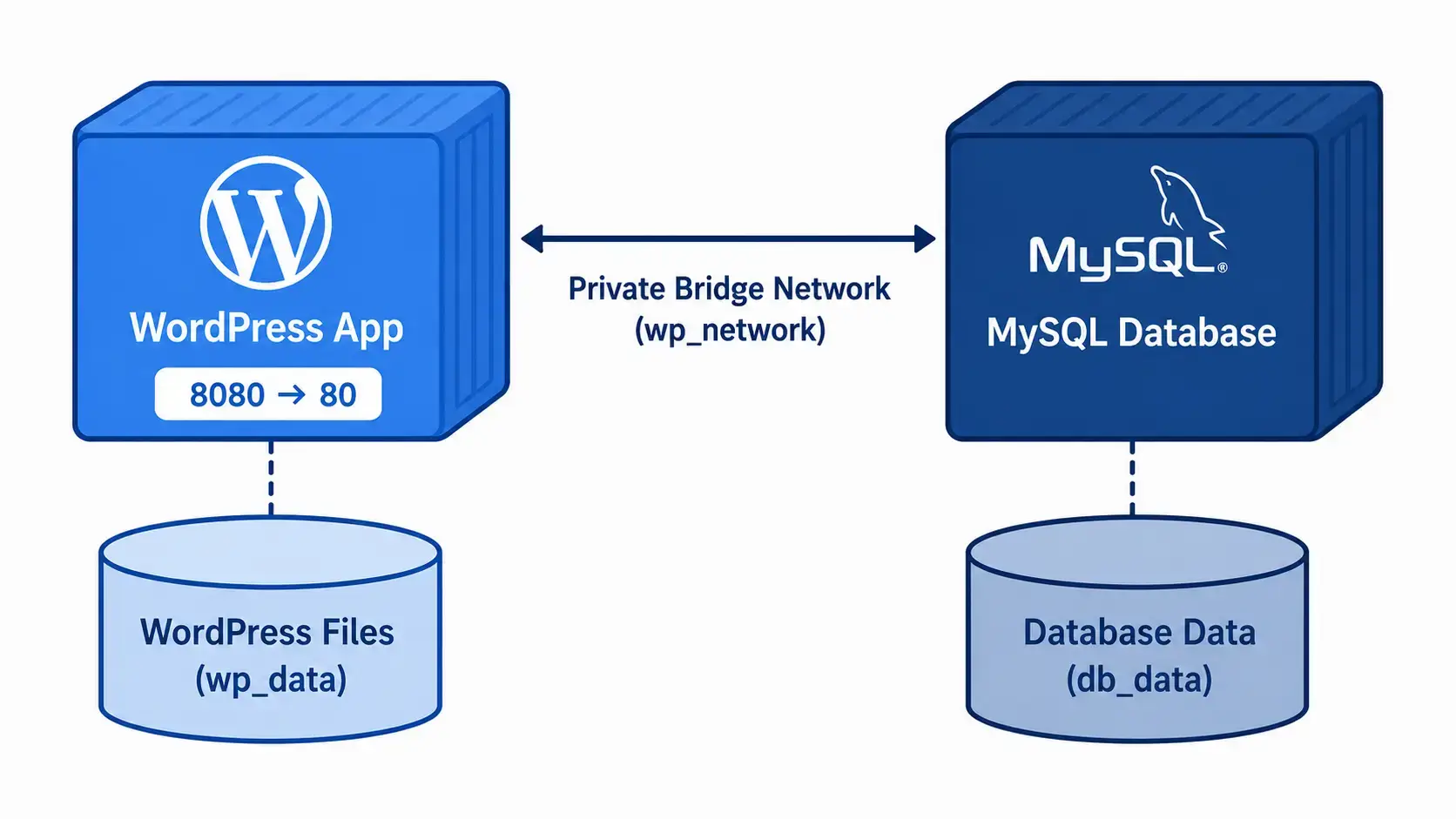
To understand how Docker Compose coordinates containers, we will build a working multi-container deployment: a WordPress web application backed by a MySQL database. This stack uses two services, two persistent volumes, and a private bridge network.
Create a new folder in your home directory to keep your project files organized, then navigate into it:
mkdir ~/wordpress-db
cd ~/wordpress-db
Open a new file named docker-compose.yml in your terminal using the Nano text editor:
nano docker-compose.yml
Paste the following complete configuration directly into the editor:
services:
  db:
    image: mysql:8.0
    container_name: wordpress_db
    restart: always
    environment:
      MYSQL_ROOT_PASSWORD: your_root_password
      MYSQL_DATABASE: wordpress
      MYSQL_USER: wordpress
      MYSQL_PASSWORD: your_wordpress_password
    volumes:
      - db_data:/var/lib/mysql
    networks:
      - wp_network

  wordpress:
    image: wordpress:latest
    container_name: wordpress_app
    restart: always
    ports:
      - "8080:80"
    environment:
      WORDPRESS_DB_HOST: db
      WORDPRESS_DB_USER: wordpress
      WORDPRESS_DB_PASSWORD: your_wordpress_password
      WORDPRESS_DB_NAME: wordpress
    volumes:
      - wp_data:/var/www/html
    networks:
      - wp_network
    depends_on:
      - db

volumes:
  db_data:
  wp_data:

networks:
  wp_network:
    driver: bridge
Save the file and exit the editor by pressing Ctrl+O, hitting Enter, and then pressing Ctrl+X.
Instruct Docker Compose to download the images, set up the private network, create the storage volumes, and start both containers in the background:
docker compose up -d
Your terminal will display download progress bars followed by status lines indicating that the network, volumes, and containers are being created.
Check the status of your running stack to confirm both containers are active and port 8080 is correctly mapped:
docker compose ps
You can also view the application logs in real time to check database setup or troubleshooting errors by running: docker compose logs -f.
Open your web browser and navigate to http://localhost:8080. You will see the official WordPress installation screen. The application is successfully communicating with the database running in the separate wordpress_db container on the background network.
Essential Docker Compose Commands
To manage Compose stacks efficiently, familiarize yourself with these core commands. Always run these commands from the directory containing your project’s docker-compose.yml file:
| Command | Action | Best Used For |
|---|---|---|
| docker compose up -d | Starts all containers in the background | Initial stack launch or applying configuration updates |
| docker compose down | Stops and removes containers and networks | Cleaning up resources when the stack is no longer needed |
| docker compose ps | Lists all running containers and their states | Verifying service health and port mappings |
| docker compose logs -f | Follows real-time application logs | Debugging application errors or connection failures |
| docker compose restart | Restarts services without recreating containers | Applying quick configuration modifications or resets |
| docker compose exec [srv] [cmd] | Runs command inside a container | Running shell commands or database tasks inside the container |
| docker compose pull | Pulls updated images from Docker Hub | Upgrading stack containers to newer image versions |
| docker compose config | Checks syntax of the compose configuration | Verifying indentation and layout settings before deployment |
Docker Compose V2 vs. Legacy V1 Syntax
Docker Compose has transitioned from the deprecated V1 version to the modern V2 framework. Understanding the differences prevents configuration issues when reviewing legacy documentation:
The primary change is how the command is executed. Compose is no longer a separate program; it is now a native plugin built directly into the Docker CLI:
docker compose up -d
docker compose down
docker compose ps
docker-compose up -d
docker-compose down
docker-compose ps
If you encounter tutorials referencing the hyphenated docker-compose command, replace it with the space syntax on modern systems. Standalone V1 installations have reached the end of their official support.
Troubleshooting Common Docker Compose Issues
If you see a bind: address already in use error during startup, the host port you specified is already being used by another service or application. Find the process occupying the port:
sudo lsof -i :8080
If the conflict is another container, stop it. Alternatively, modify the host mapping in your docker-compose.yml file to use a free port (for example, change "8080:80" to "9090:80"), and rerun your launch command.
If the web application container crashes on initial startup, the database container was likely still setting up its database files when the application attempted to connect. While depends_on guarantees startup order, it does not wait for database readiness. Resolve this by adding healthchecks to your database service configuration:
# Example DB Healthcheck configuration
services:
  db:
    image: mysql:8.0
    healthcheck:
      test: ["CMD", "mysqladmin", "ping", "-h", "localhost"]
      interval: 10s
      timeout: 5s
      retries: 5
  wordpress:
    image: wordpress:latest
    depends_on:
      db:
        condition: service_healthy
When using host bind mounts (such as ./html:/var/www/html), the directory on the host inherits host owner permissions, which might lock out the container’s internal running user (such as www-data with UID 33). Fix this by ensuring correct ownership on your host mount directory, or use Docker named volumes (for example, wp_data) which automatically assign correct permissions on creation.
If Compose cannot find values referenced inside your configuration file, ensure your environment variables are stored in a file named exactly .env in the same folder as your docker-compose.yml file. Verify how Docker Compose parses environment declarations by running this check command:
docker compose config
Frequently Asked Questions
What is the difference between docker-compose and docker compose?
docker-compose (with a hyphen) is the deprecated standalone Python script (Compose V1). docker compose (with a space) is Docker Compose V2, which is a native Go plugin integrated directly into the Docker CLI. On Ubuntu 26.04 LTS, you should always use the modern space syntax: docker compose.
Is Docker Compose installed automatically with Docker on Ubuntu?
Yes, if you install Docker using the official Docker CE repository and include the docker-compose-plugin package. If you installed Docker via the older docker.io package or snap, you may need to install it separately. We recommend using the official Docker repository to ensure both are installed and work together seamlessly.
How do I update a container running under Docker Compose?
To update a service, run: docker compose pull to download the latest image versions, and then run: docker compose up -d. Compose will automatically recreate only the containers that have newer images available, leaving the rest of the stack running uninterrupted.
Can I run multiple Docker Compose projects on the same Ubuntu server?
Yes. Docker Compose uses the directory name of the docker-compose.yml file as the default project name. This isolates the containers, volumes, and networks of different projects from one another, allowing you to run multiple separate stacks on the same machine without conflicts (as long as they do not bind to the same host ports).
What is the difference between docker compose up and docker compose start?
docker compose up reads the docker-compose.yml file, builds or pulls images, creates containers, sets up networks and volumes, and starts them. docker compose start only starts existing containers that were previously stopped, and will not check for updates or configuration changes in your YAML file.
More Ubuntu 26.04 guides: Install Docker on Ubuntu · Ubuntu Server 26.04 Download · Ubuntu Server Manual · Upgrade to Ubuntu 26.04 LTS