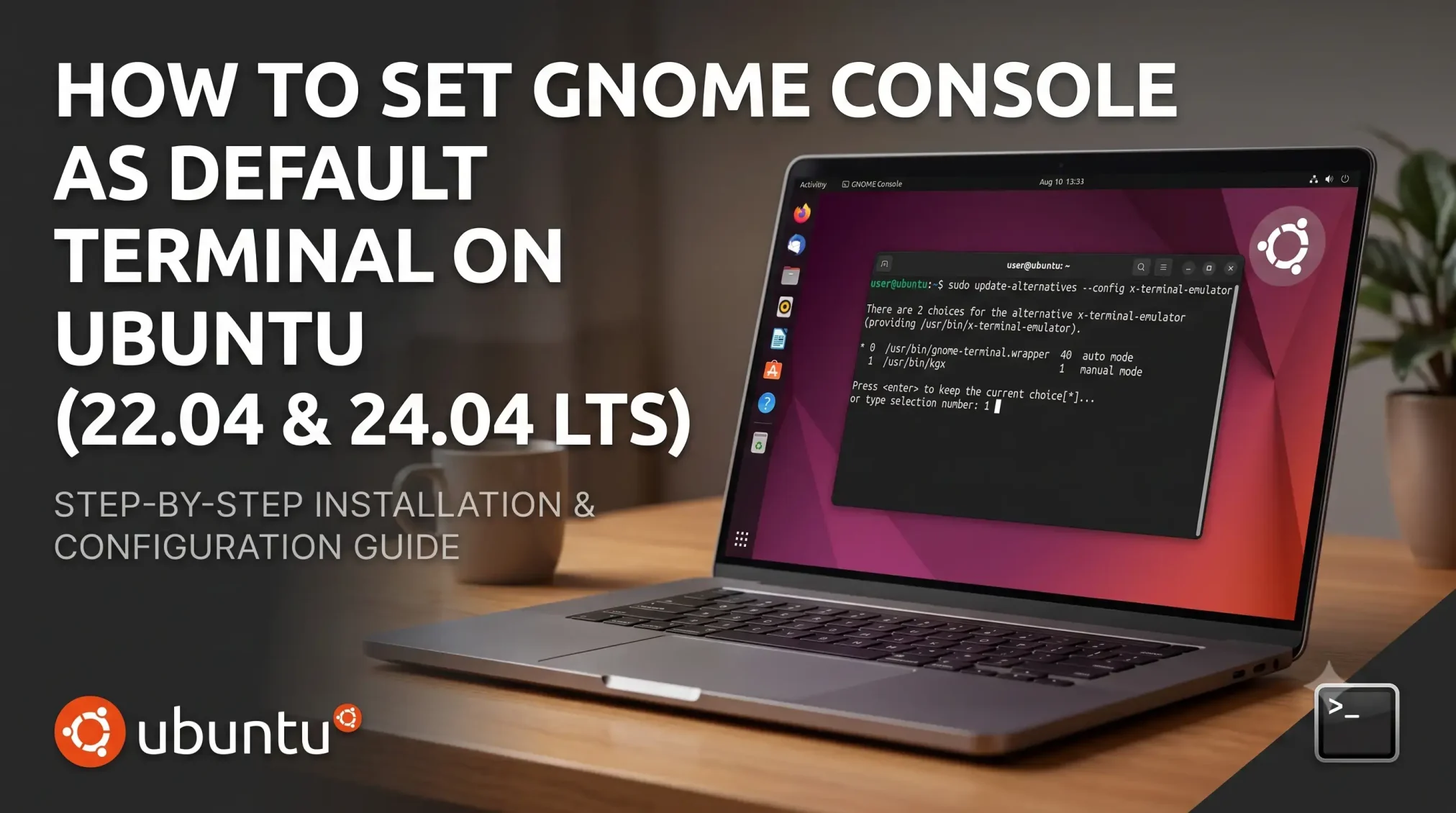
 You can set GNOME Console as your default terminal on Ubuntu 22.04 LTS or 24.04 LTS by registering it with the system terminal manager and selecting it from the interactive config list.
While Console is already the pre-installed default in modern releases like Ubuntu 26.04 LTS, setting it up manually on older, supported versions takes only a couple of commands.
What is GNOME Console?
Console (known in the system package manager as kgx) is a lightweight terminal program built for the GNOME desktop environment. Unlike the older GNOME Terminal, it focuses on absolute simplicity, adaptive window resizing, and smart safety features to help you avoid common command-line mistakes.
GNOME Terminal vs. GNOME Console
Step 1: Install GNOME Console
If you are using Ubuntu 24.04 LTS or older, Console is not pre-installed on your system. Open your current terminal window and run the following commands to install it from the default Ubuntu repositories:
sudo apt update
sudo apt install gnome-console -y
Step 2: Set it as the Default Terminal
The configuration steps to link Console to your global keyboard shortcut (Ctrl+Alt+T) depend on which Ubuntu version you are currently running.
Method A: For Ubuntu 22.04 LTS and 24.04 LTS
These versions manage default applications through system alternatives. Register Console as a terminal choice and then choose it from the interactive menu:
sudo update-alternatives --install /usr/bin/x-terminal-emulator x-terminal-emulator /usr/bin/kgx 1
sudo update-alternatives --config x-terminal-emulator
When prompted by the system configuration menu, type the number that corresponds to the path /usr/bin/kgx and press Enter to save your selection.
Method B: For Ubuntu 25.04, 25.10, and 26.04 LTS
Newer versions of Ubuntu bypass the system-wide alternatives framework for user-specific settings files. If you have upgraded your system and Console is not launching, use these commands to set it up manually:
mkdir -p ~/.config
echo "org.gnome.Console.desktop" > ~/.config/ubuntu-xdg-terminals.list
Official Documentation:
Ubuntu Desktop Guide