The best mouse cursor themes for Ubuntu 2026 right now are Bibata, Frieren, Phinger, Notwaita, and WhiteSur. All of these run perfectly on modern high-resolution (4K) monitors without turning into a blurry mess, natively supporting GNOME 50 and Wayland.
If you are tired of the default system mouse pointer and want something that matches your desktop completely, whether that is a neon cyberpunk aesthetic, a soothing environment, a pixel-perfect replica of macOS, or even animated anime cursors like Frieren, we have found the best custom cursor options for you right here.
We cover visual style, 4K display readiness, and exact terminal commands to install each of the 25 top cursor themes. We link directly to official GitHub, Snapcraft, and Gnome-Look pages so you grab the most secure and up-to-date versions immediately. Feel free to leave a comment below or contact us directly and tell us what you think.
Top Picks at a Glance
- Best for 4K Monitors: Bibata, Phinger, Moga
- Best for Developers: Catppuccin, XCursor-Pro
- Best Modern & Anime: Frieren, Sweet, GoogleDot
- Easiest to Install (Snap): Bibata, Notwaita
What are the best cursor themes on Ubuntu?
1
Bibata
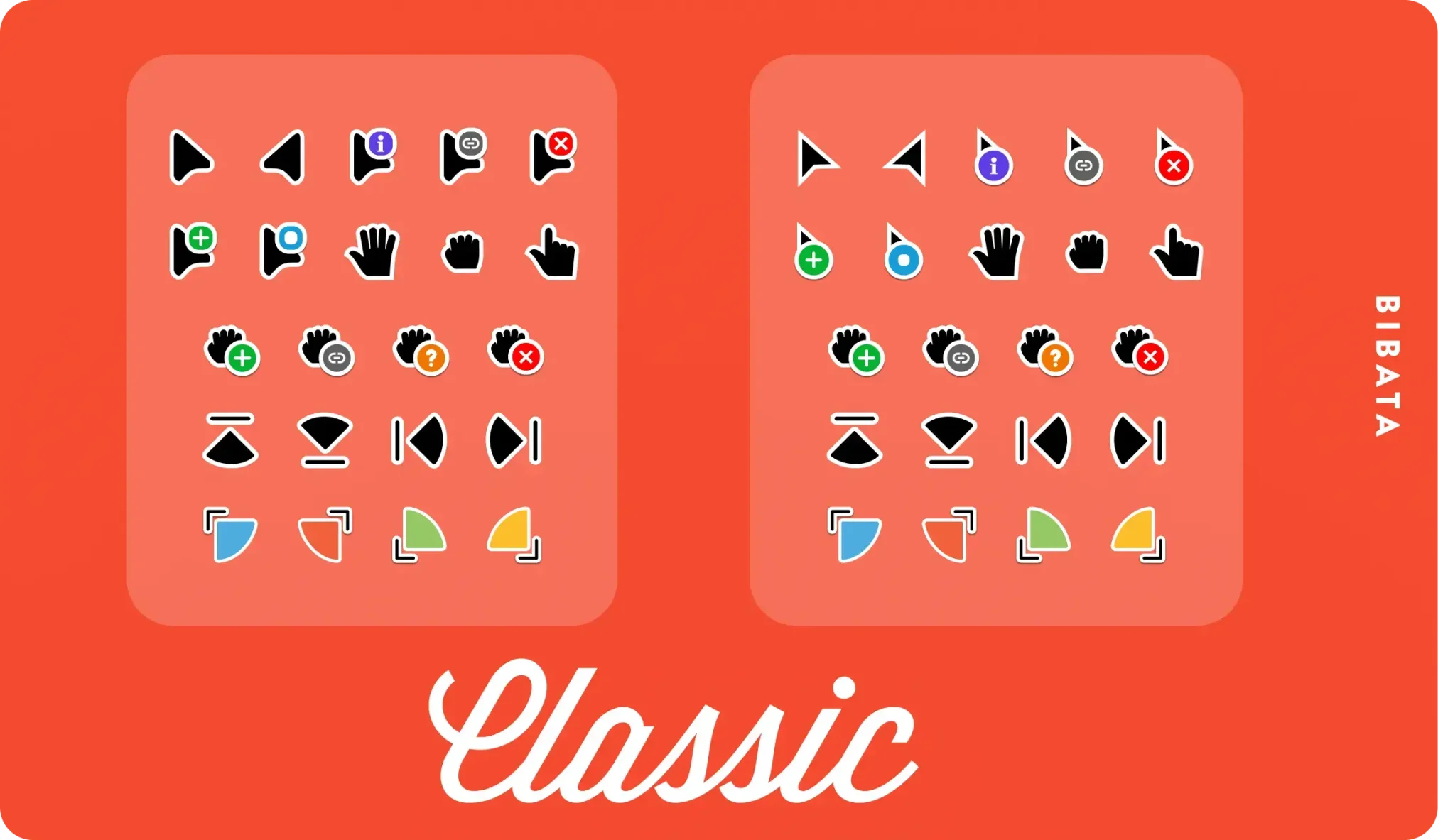 Bibata is the most popular choice for Ubuntu users because it looks super clean and stays sharp even on big 4K monitors. It comes in a few colors like Amber, Classic, and Ice.
Modern LookSharp EdgesStandard Pick
Why We Like It: You can install it through the Snap store, which means it keeps working perfectly even inside apps like Firefox without any extra setup.
Terminal Install
sudo snap install cursor-theme-bibata
2
Catppuccin Cursors
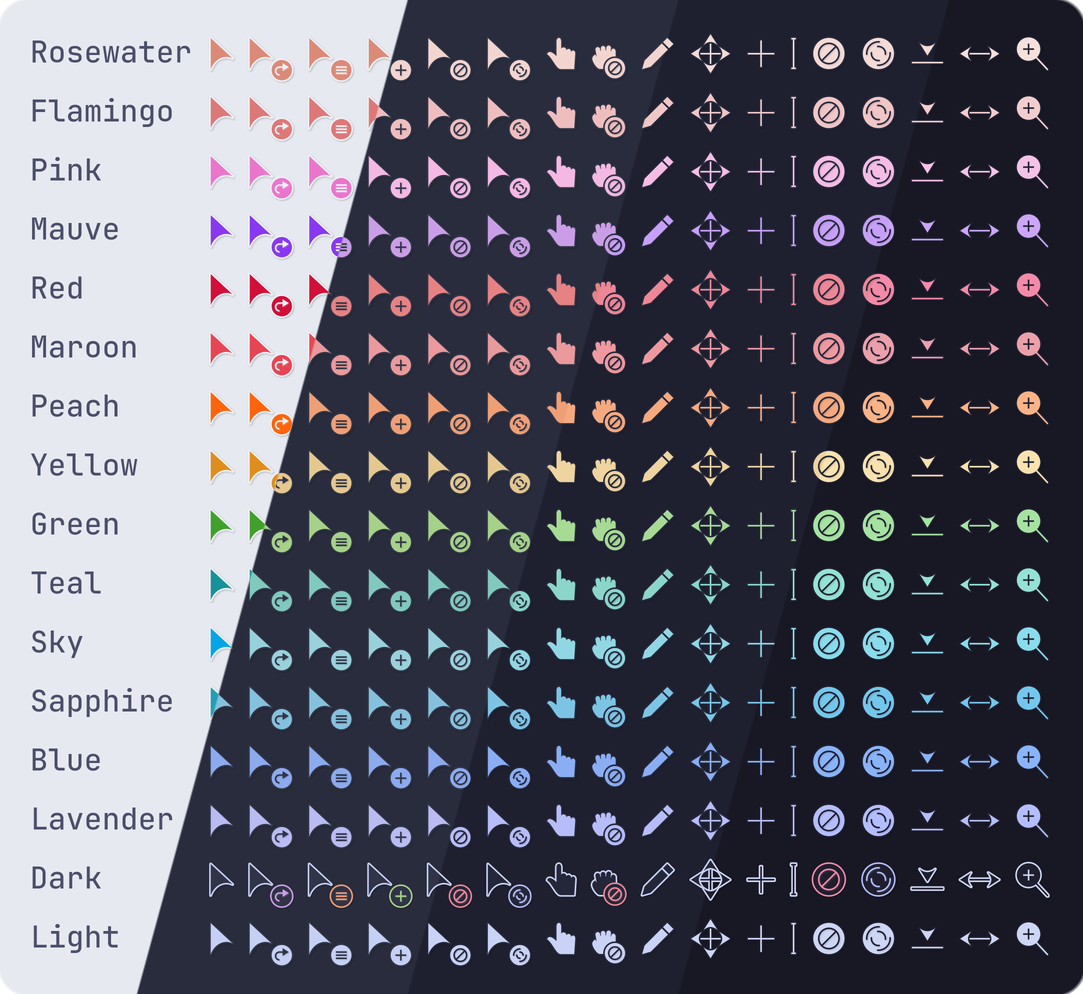 Catppuccin is a set of soft, eye-friendly cursors that use light purple and teal colors. It fits perfectly if you are already using other Catppuccin themes on your desktop.
Soft ColorsEasy on EyesRecent Update
Why We Like It: If you spend all day coding or writing, these warm colors help stop your eyes from getting tired compared to bright white arrows.
Terminal Install
sudo snap install cursor-theme-catppuccin
3
GhostLine
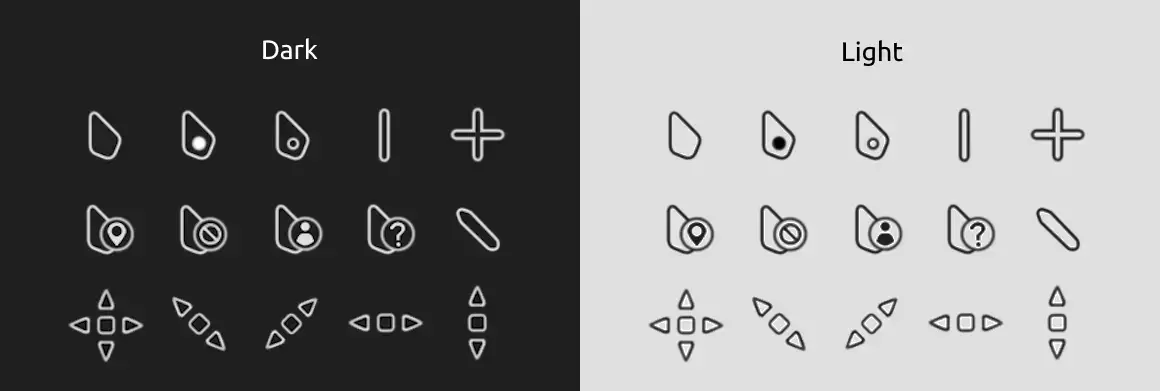 GhostLine is a simple, thin mouse pointer that stays out of your way. It has very thin white borders and small, smooth animations for when your computer is busy.
Very ThinClean DesignSimple Animation
Why We Like It: It removes all the big shadows and thick lines, so you can see exactly where you are clicking without any distractions.
Terminal Install
git clone https://github.com/patinhooh/ghostline-cursor-theme.git
cd ghostline-cursor-theme
# Extract manual files to ~/.icons
4
WhiteSur
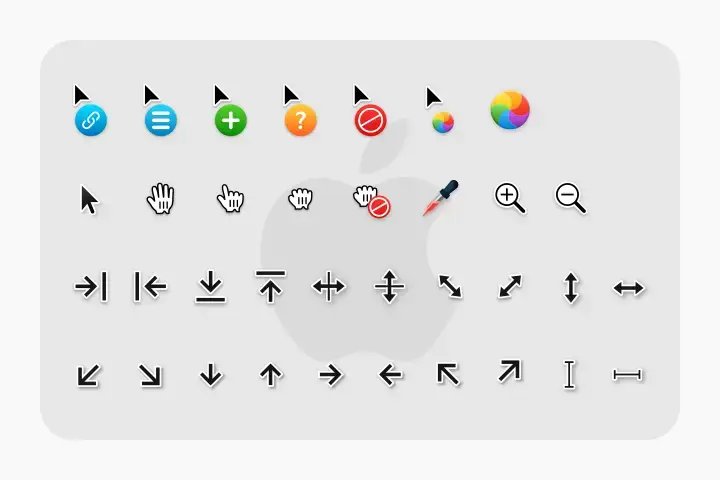 WhiteSur is a perfect copy of the macOS mouse pointers for Ubuntu. It features the classic black arrow with a sharp white border and the spinning “beachball” loading icon.
Mac LookHigh Quality4K Ready
Why We Like It: While most Mac ports look blurry, WhiteSur was built specifically for high-resolution screens so it never looks stretched or pixelated.
Terminal Install
git clone https://github.com/vinceliuice/WhiteSur-cursors.git
cd WhiteSur-cursors
./install.sh
5
Notwaita
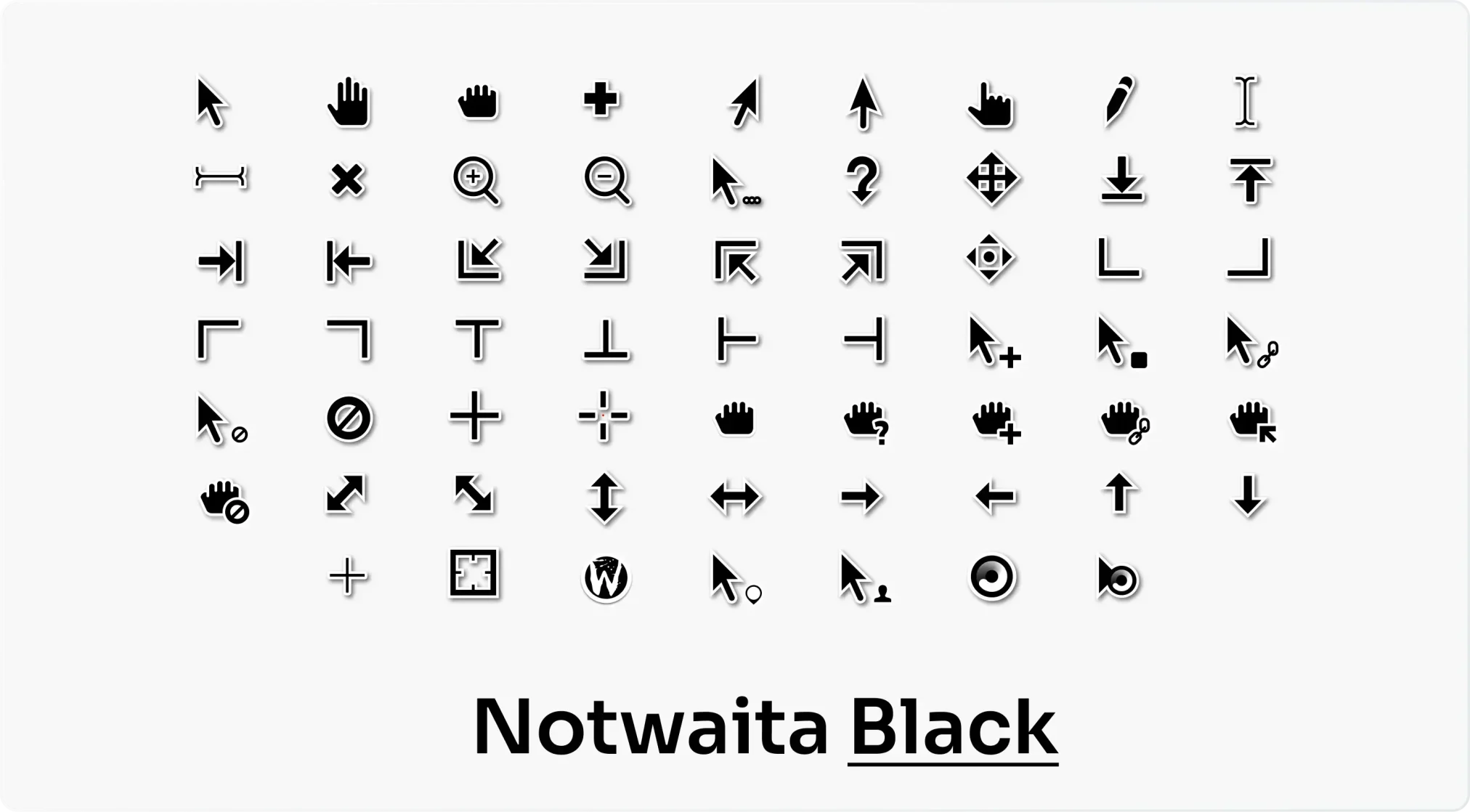
Notwaita is a clean upgrade of the standard Ubuntu look. It comes in black, gray, and white, making the default mouse pointers look much sharper on modern screens.
Standard UpgradeVery SmoothSnap Version
Why We Like It: It looks like the normal Ubuntu mouse arrow but fixes the blurry edges you usually see when moving it quickly on high-speed monitors.
Terminal Install
sudo snap install cursor-theme-notwaita
6
Nordzy Cursors
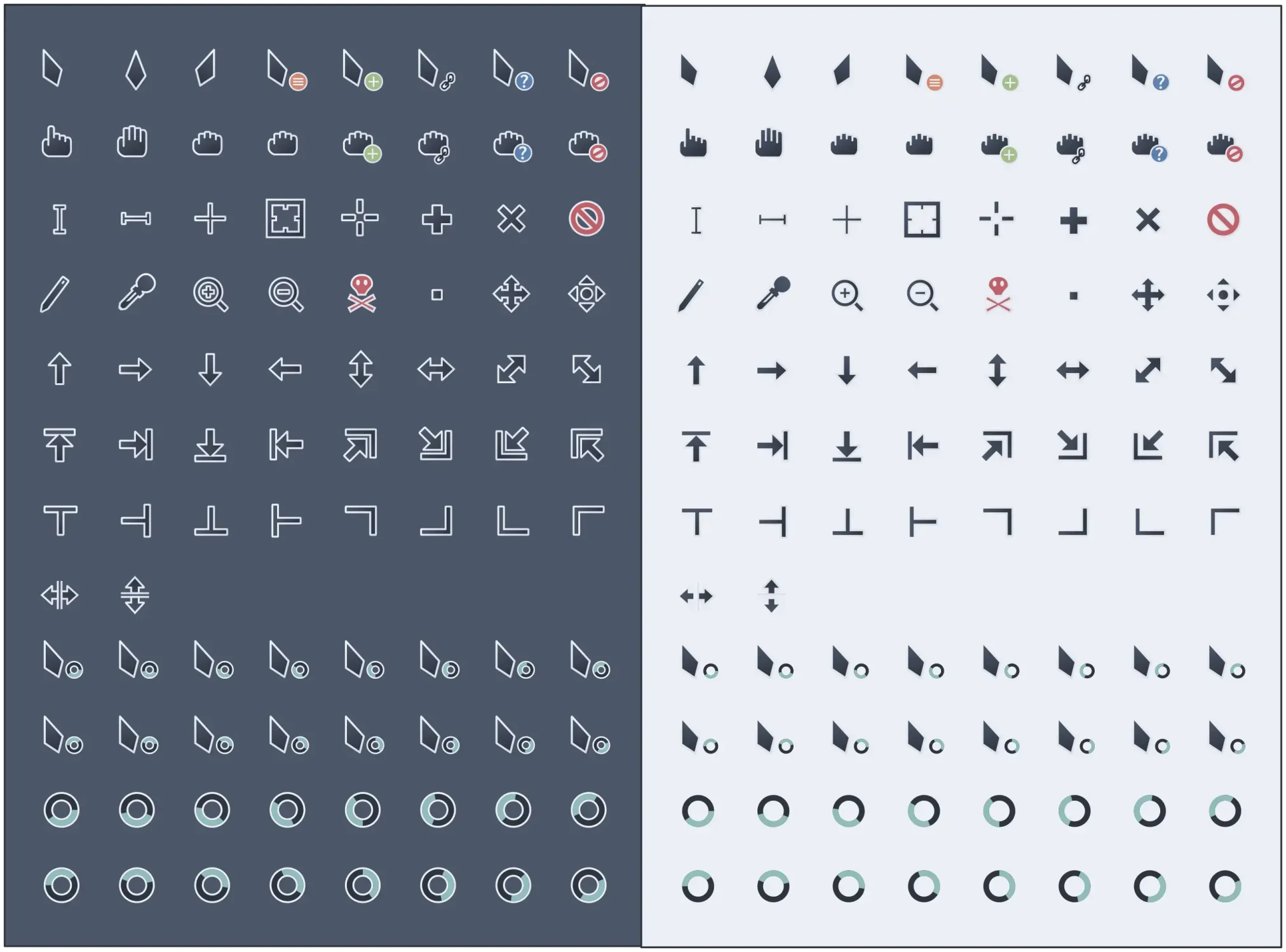 Nordzy is a simple, modern cursor set made to match the popular Nord color style. It adds a professional look to your desktop without using any bright or distracting colors.
Nord StyleVery SimpleDark Mode Pick
Why We Like It: It avoids the harsh black and white colors used in standard themes, giving you a softer, more elegant look that works great with dark mode.
Terminal Install
git clone https://github.com/guillaumeboehm/Nordzy-cursors.git
cd Nordzy-cursors
# Extract manual files to ~/.icons
7
BreezeX Cursors
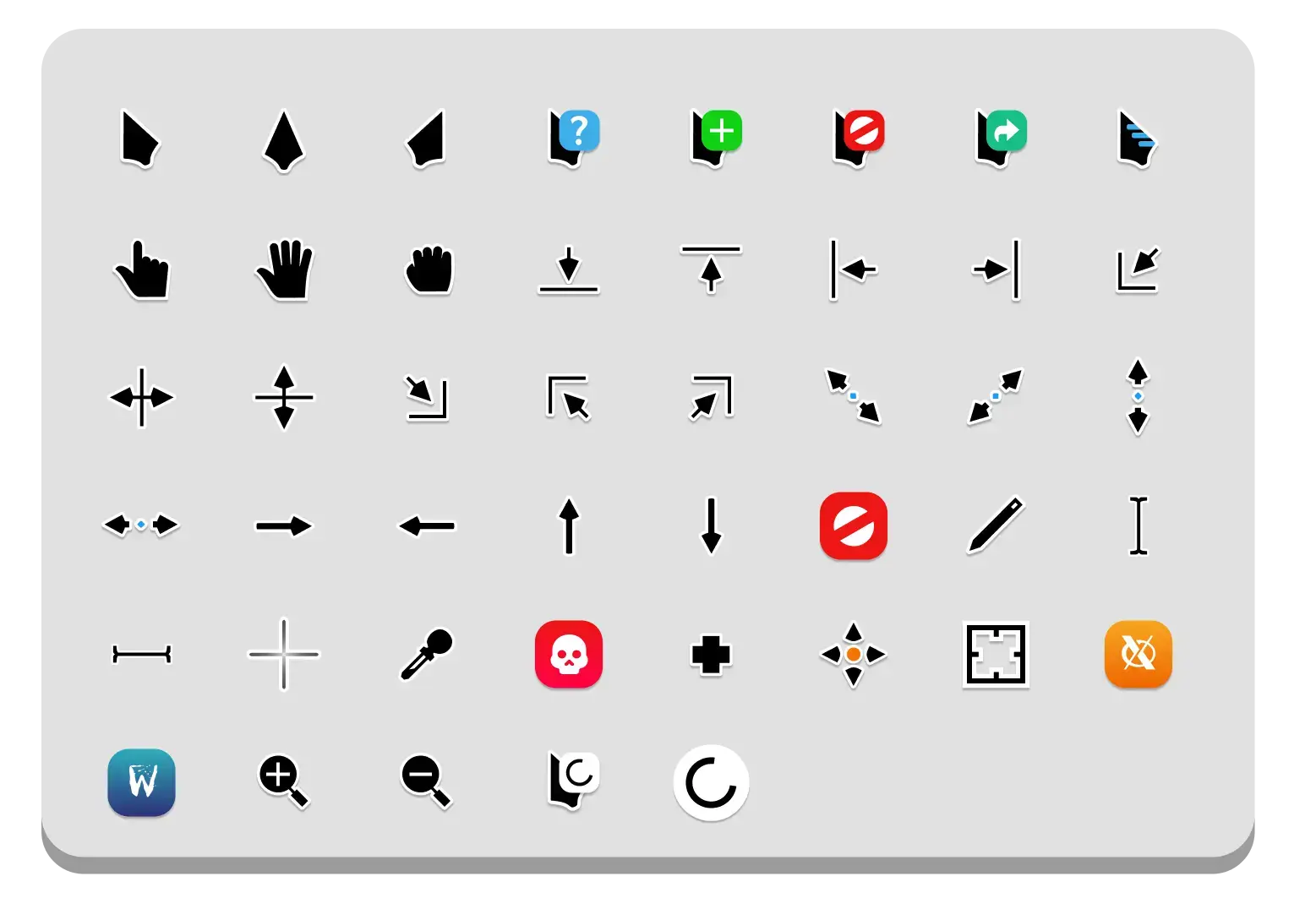
BreezeX is a high-quality version of the classic KDE Breeze cursors, rebuilt from scratch to work perfectly on new 4K resolutions.
Works on All OSHigh DefinitionClean White
Why We Like It: It takes the very easy-to-read look of the standard KDE pointers and makes sure they never look blurry or pixelated on modern screens.
Terminal Install
git clone https://github.com/ful1e5/BreezeX_Cursor.git
cd BreezeX_Cursor
# Extract manual files to ~/.icons
8
GoogleDot
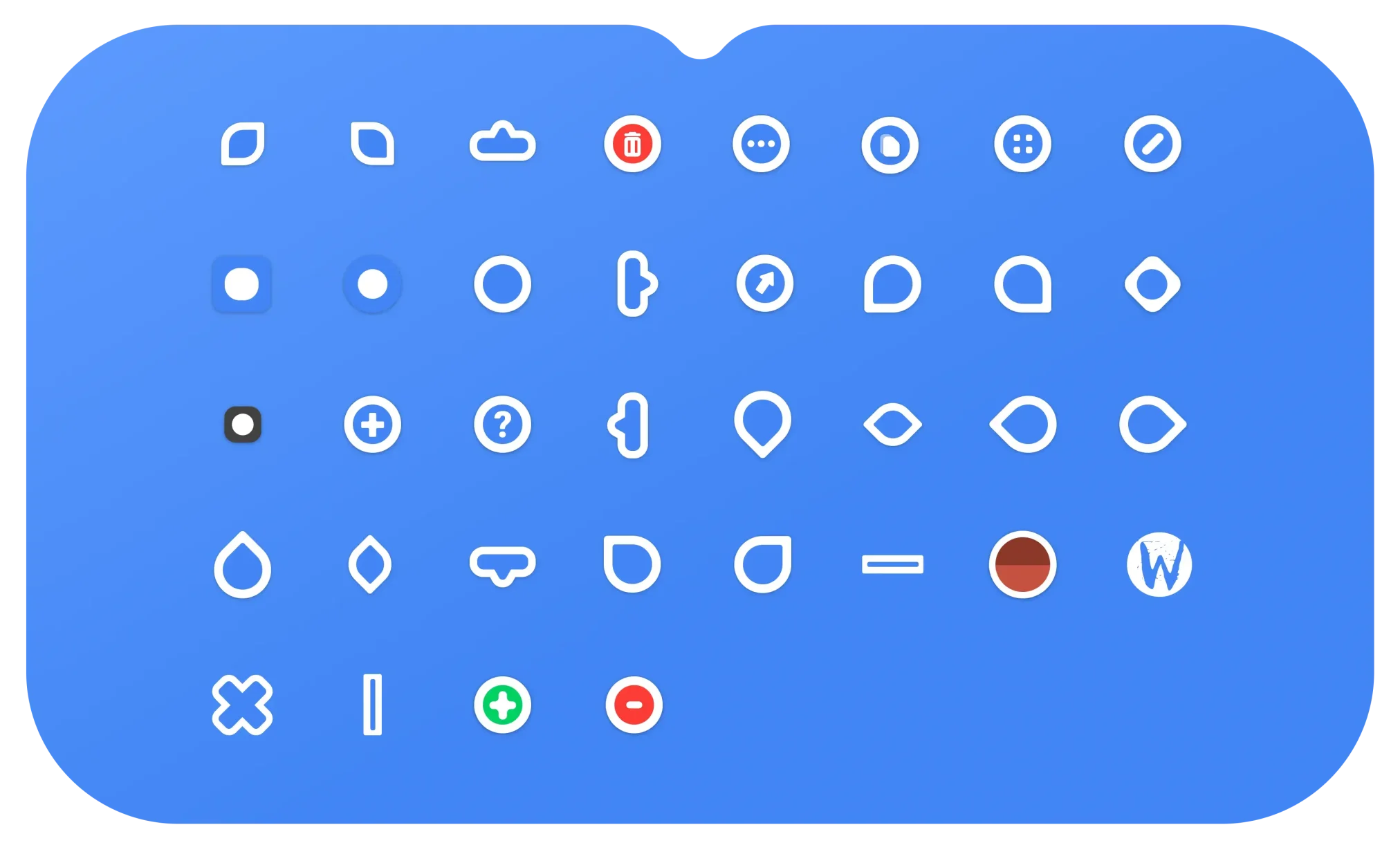 GoogleDot is a simple black and white set that uses Google’s colorful spinning dots whenever you are waiting for something to load.
Google LookFun DotsSnap Available
Why We Like It: The smooth dot animation feels much more modern than the old-fashioned hourglass or simple spinning circles you usually see.
Terminal Install
sudo snap install cursor-theme-googledot
9
Windows Modern Cursors
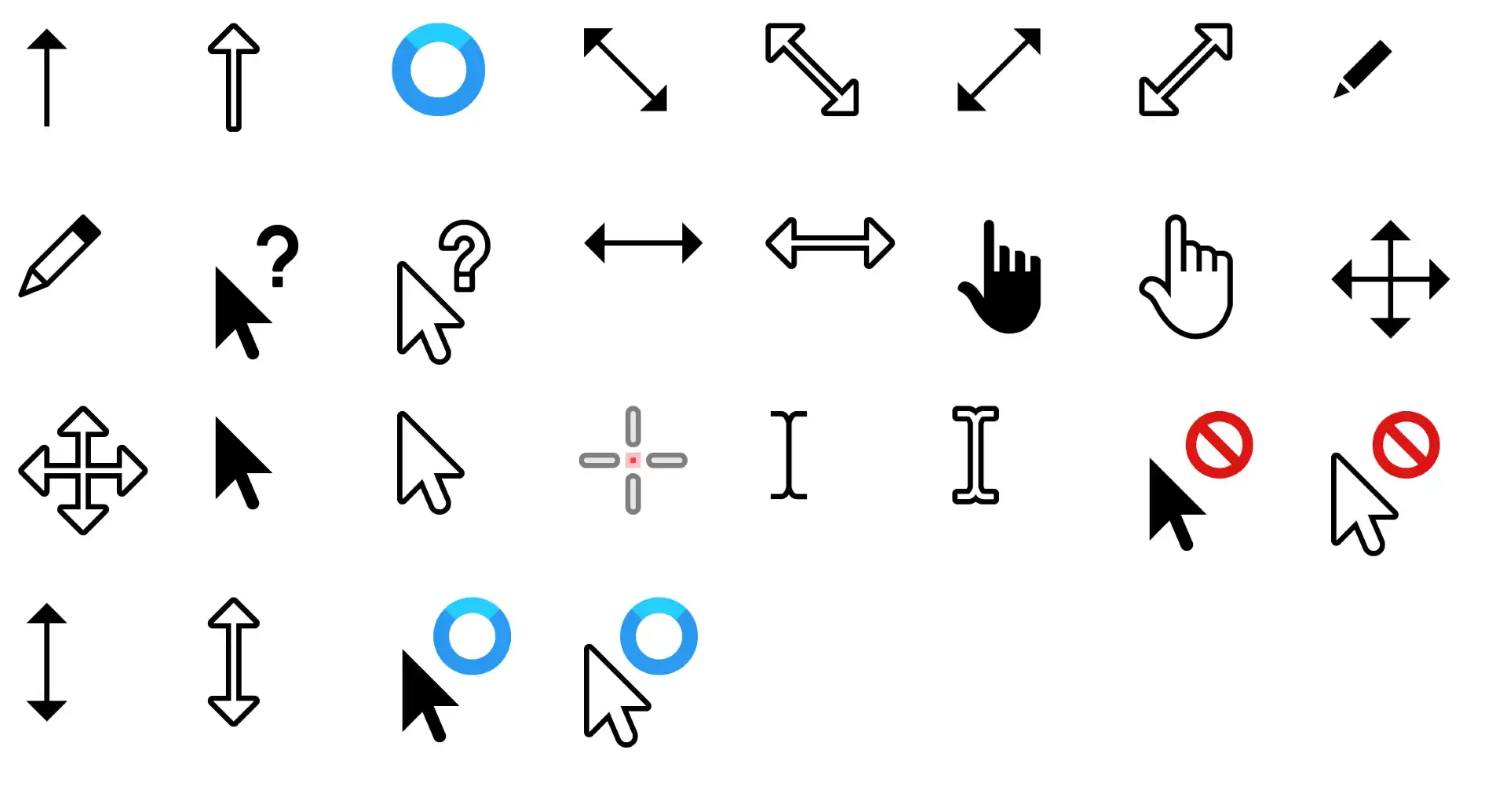
This is a really good copy of the Windows 11 mouse pointers, rebuilt specifically for Linux so they always show up at the right size.
Win 11 LookDark Mode PickVery Smooth
Why We Like It: If you use a dark theme, these pointers look great because they were designed specifically to be easy to see against dark backgrounds.
Terminal Install
git clone https://github.com/NurudinImsirovic/windows-cursors-modern.git
cd windows-cursors-modern
# Manual installation required
10
Phinger Cursors
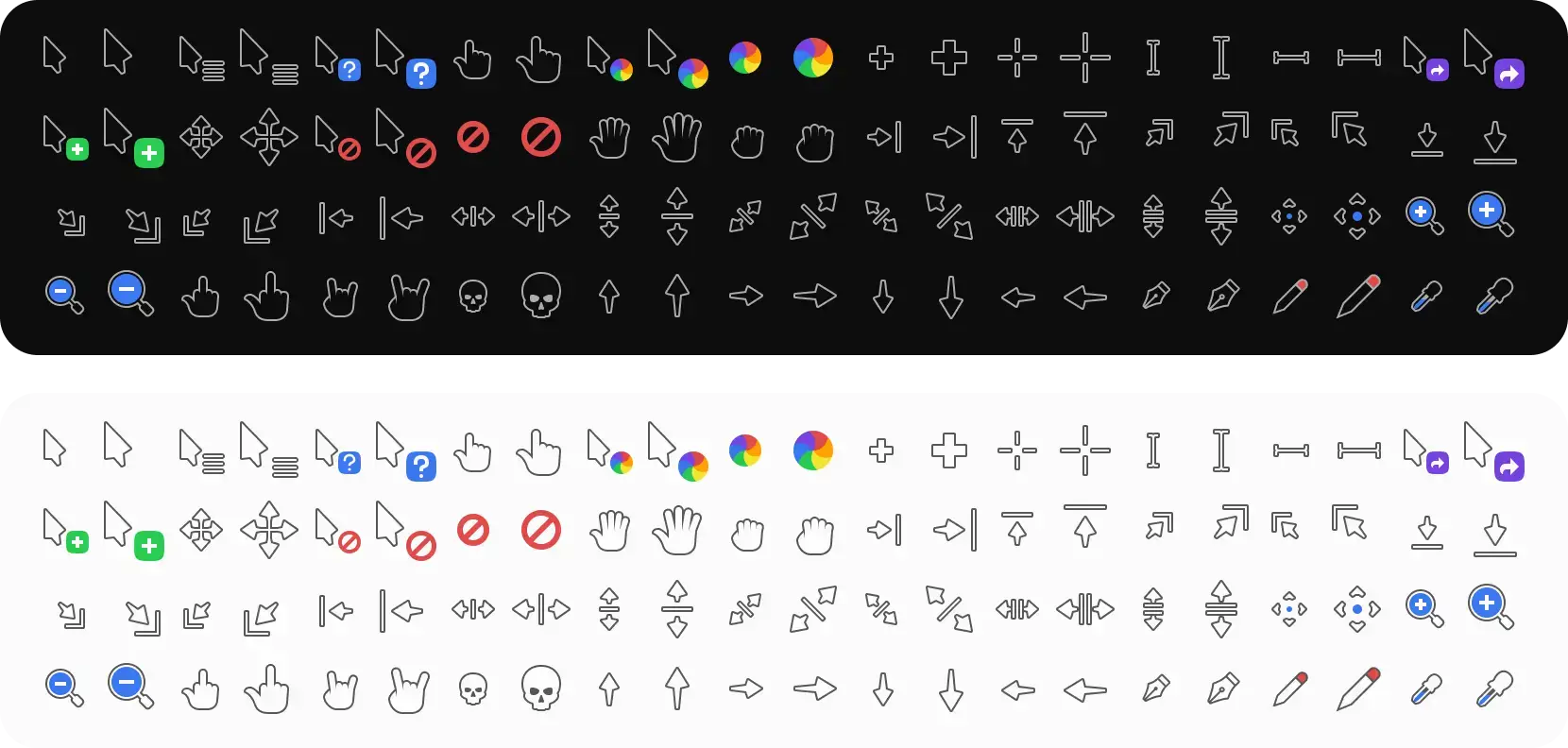 Phinger is a perfectly clean and sharp cursor that looks great on any screen size. You can choose between dark, light, and even left-handed versions.
Super CleanLeft-Hand PickNo Blurry Edges
Why We Like It: If you have a huge monitor and notice your current mouse looks a bit blurry, Phinger will fix that by looking perfectly sharp no matter how big you make it.
Terminal Install
git clone https://github.com/phisch/phinger-cursors.git
cd phinger-cursors
# Extract manual files to ~/.icons
11
Rosé Pine Cursors
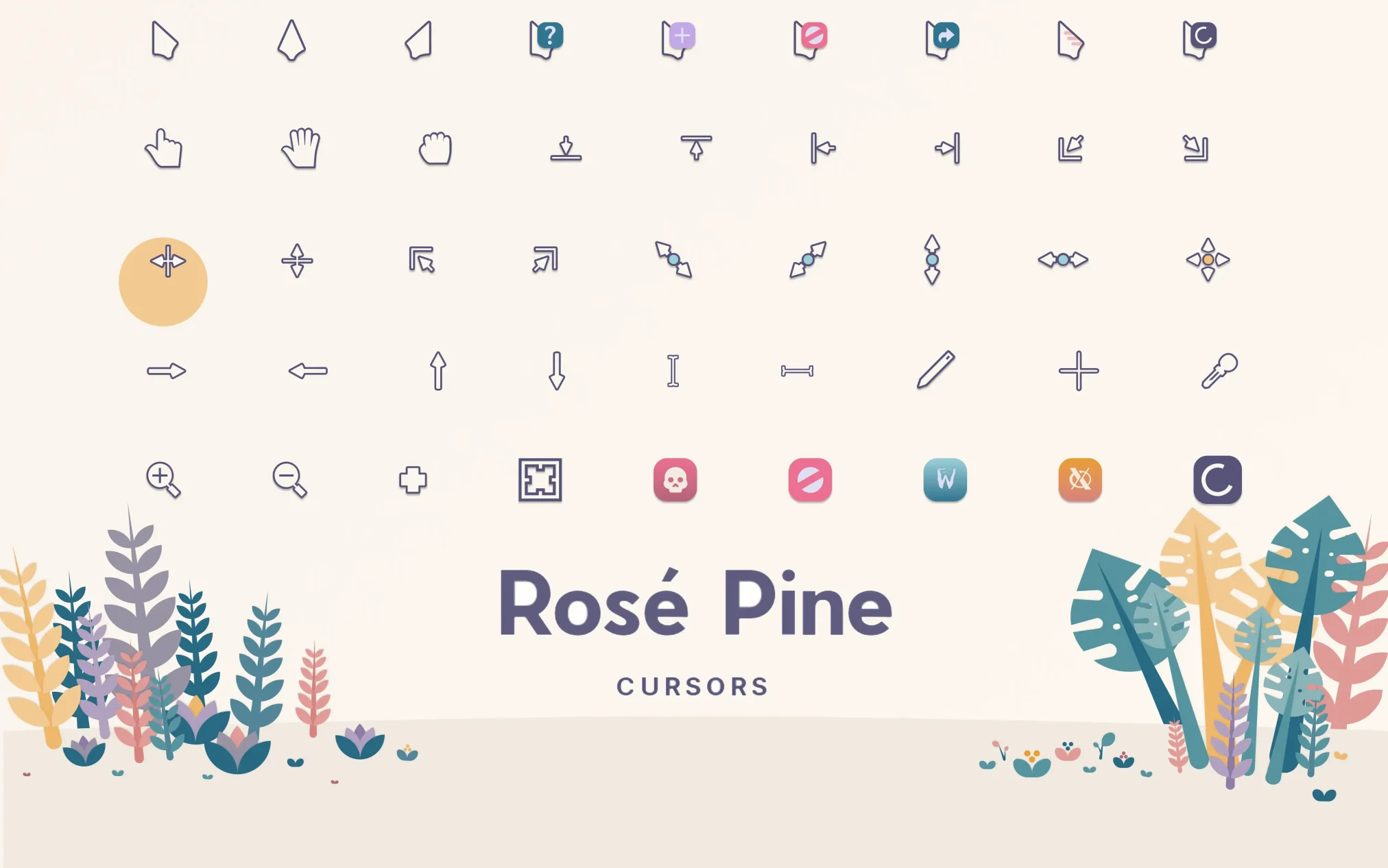 Rose Pine is a set of warm, soft colors like purple and green that are very easy on your eyes. It is built to look cozy and professional at the same time.
Cozy ColorsSoft TonesEye-Friendly
Why We Like It: It really helps stop your eyes from hurting if you work on your computer late at night. The colors are much nicer than standard black and white.
Terminal Install
git clone https://github.com/rose-pine/cursor.git
cd cursor
# Extract manual files to ~/.icons
12
XCursor-Pro
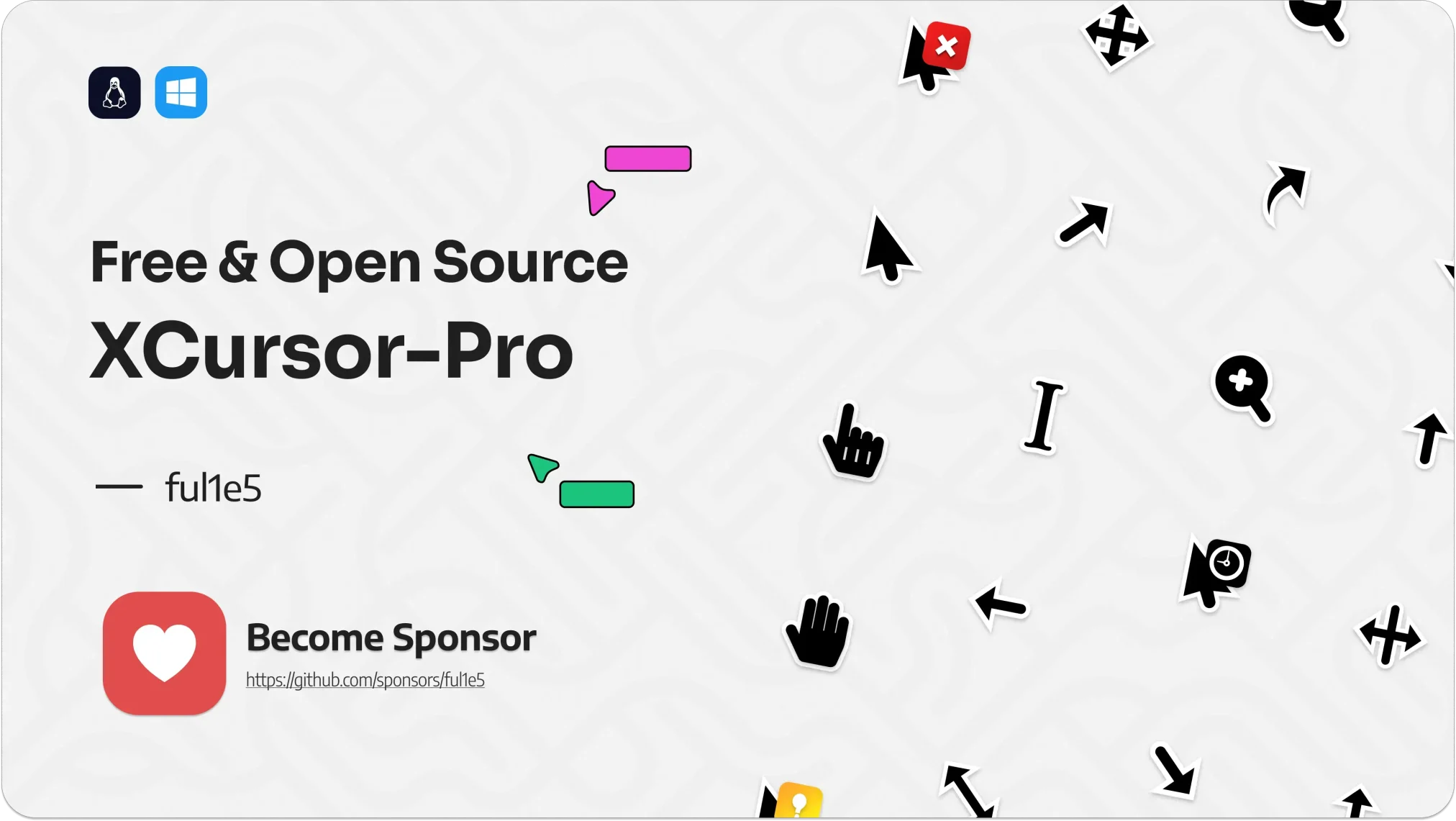 XCursor-Pro is a very simple and easy-to-see mouse pointer. It uses plain black and white shapes with zero distractions, making it perfect for work.
Simple LookHigh ContrastGreat for Work
Why We Like It: The high-contrast edges make it easy to find your mouse quickly, even if you are using multiple big monitors at once.
Terminal Install
git clone https://github.com/ful1e5/XCursor-pro.git
cd XCursor-pro
# Extract manual files to ~/.icons
13
Bibata Translucent
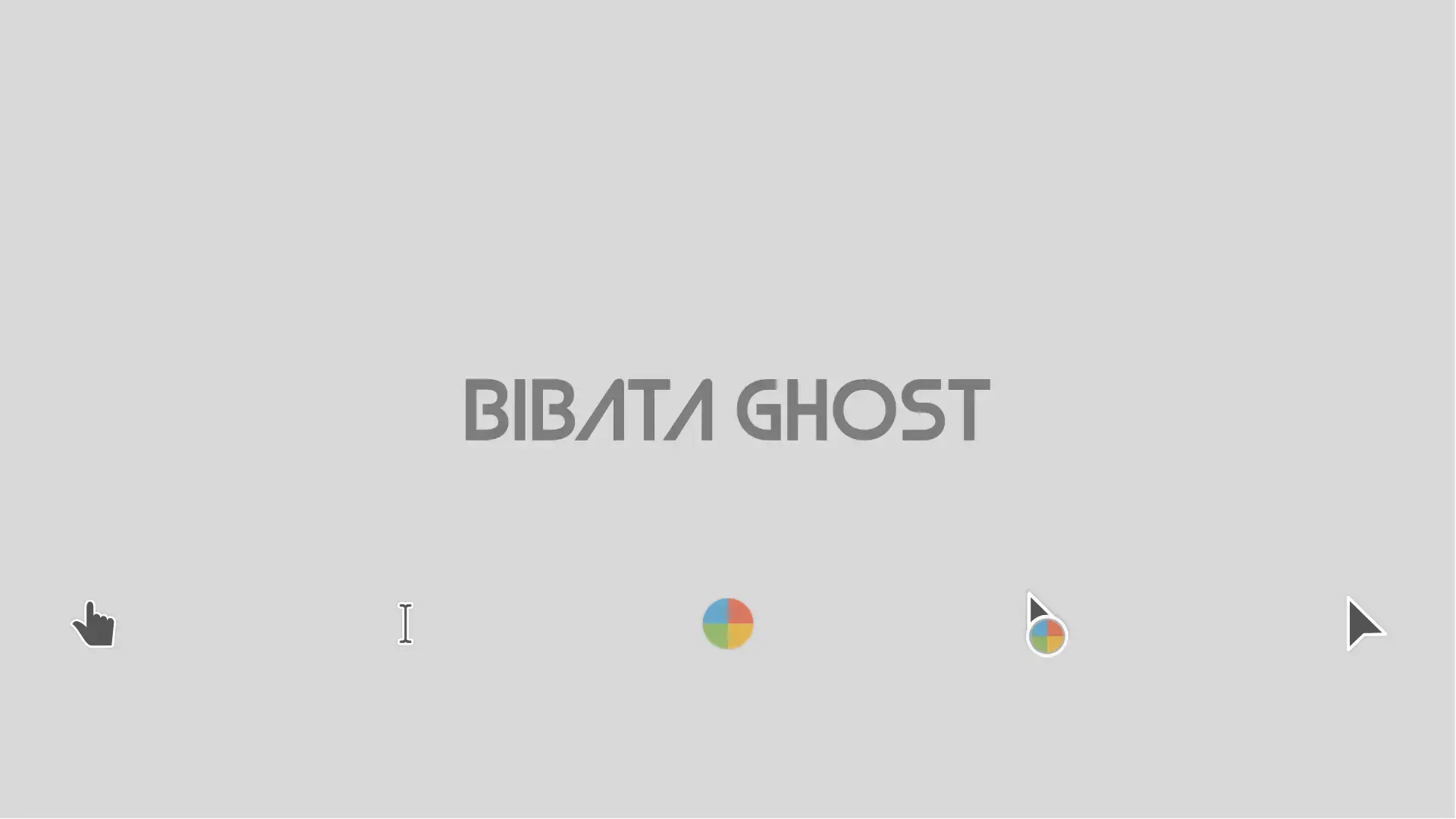 This is a really cool theme where the mouse pointer looks like frosted glass. You can actually see the background of your desktop through the cursor itself.
See-ThroughPremium FeelUnique Look
Why We Like It: Usually, see-through effects on Linux look glitchy, but this one is built so well that it looks perfectly smooth on any background.
Terminal Install
git clone https://github.com/RogueScholar/Bibata_Cursor_Translucent.git
cd Bibata_Cursor_Translucent
# Extract manual files to ~/.icons
14
Layan Cursors
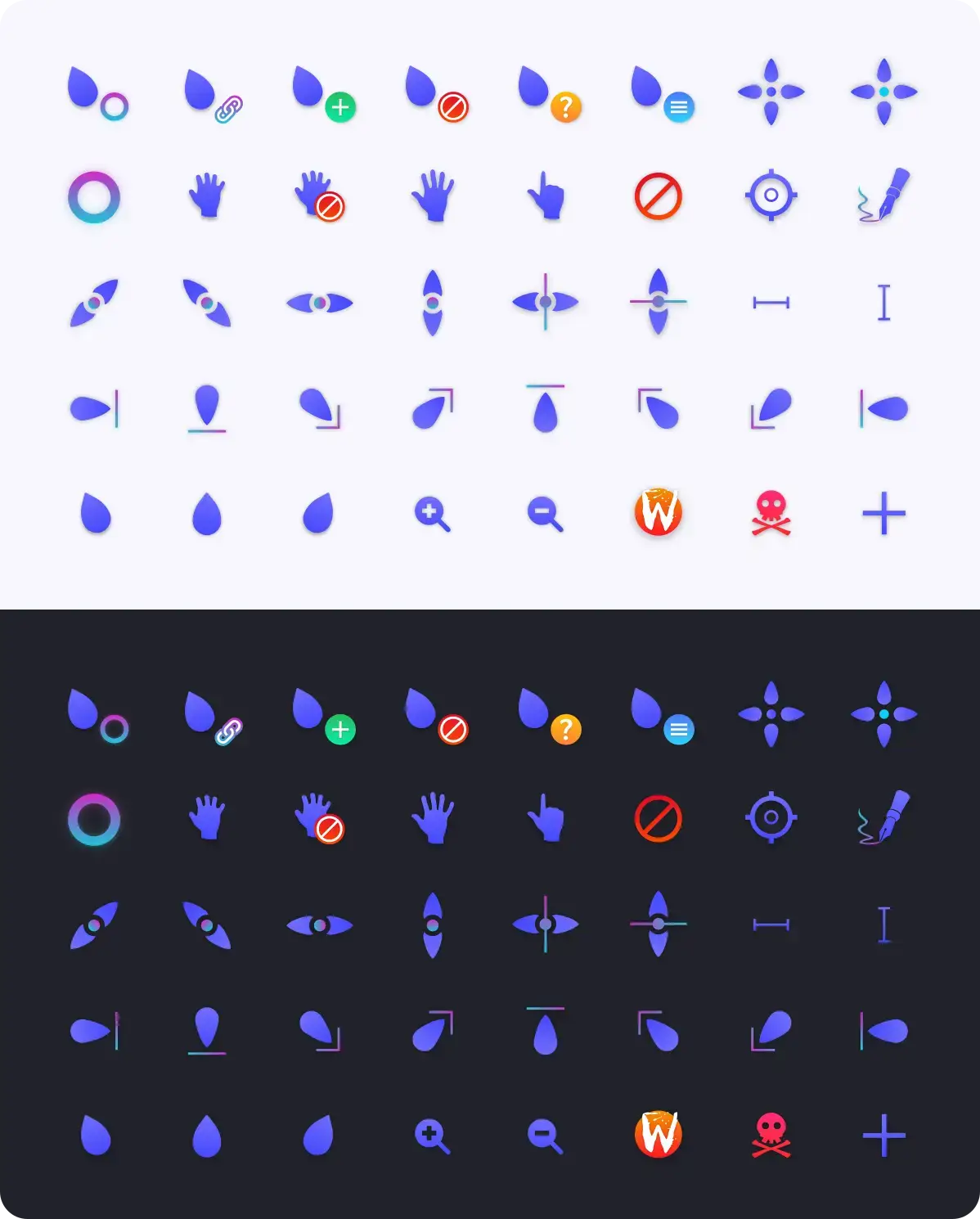 Layan uses smooth color changes from deep blue to purple on the mouse pointer. It was made to match the Layan desktop theme perfectly.
Soft GradientsMatches ThemesClean Look
Why We Like It: It looks really nice and colorful but the edges are still very sharp, so you can always see exactly what you are clicking on.
Terminal Install
git clone https://github.com/vinceliuice/Layan-cursors.git
cd Layan-cursors
./install.sh
15
BlueArchive-Cursors
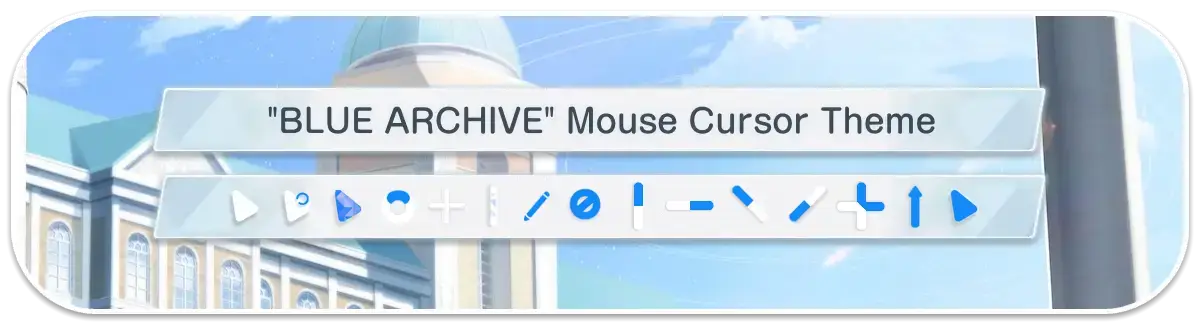 This is a fun gaming-themed cursor set inspired by RPG video games. Even though it looks different, it is built very well so it still feels like a normal mouse pointer.
Gaming LookFun DesignEasy to Use
Why We Like It: Most “fun” or themed cursors are hard to use, but this one keeps a very accurate point so you can still highlight text or click small buttons easily.
Terminal Install
git clone https://github.com/makipom/BlueArchive-Cursors.git
cd BlueArchive-Cursors
# Extract manual files to ~/.icons
16
Vimix Cursors
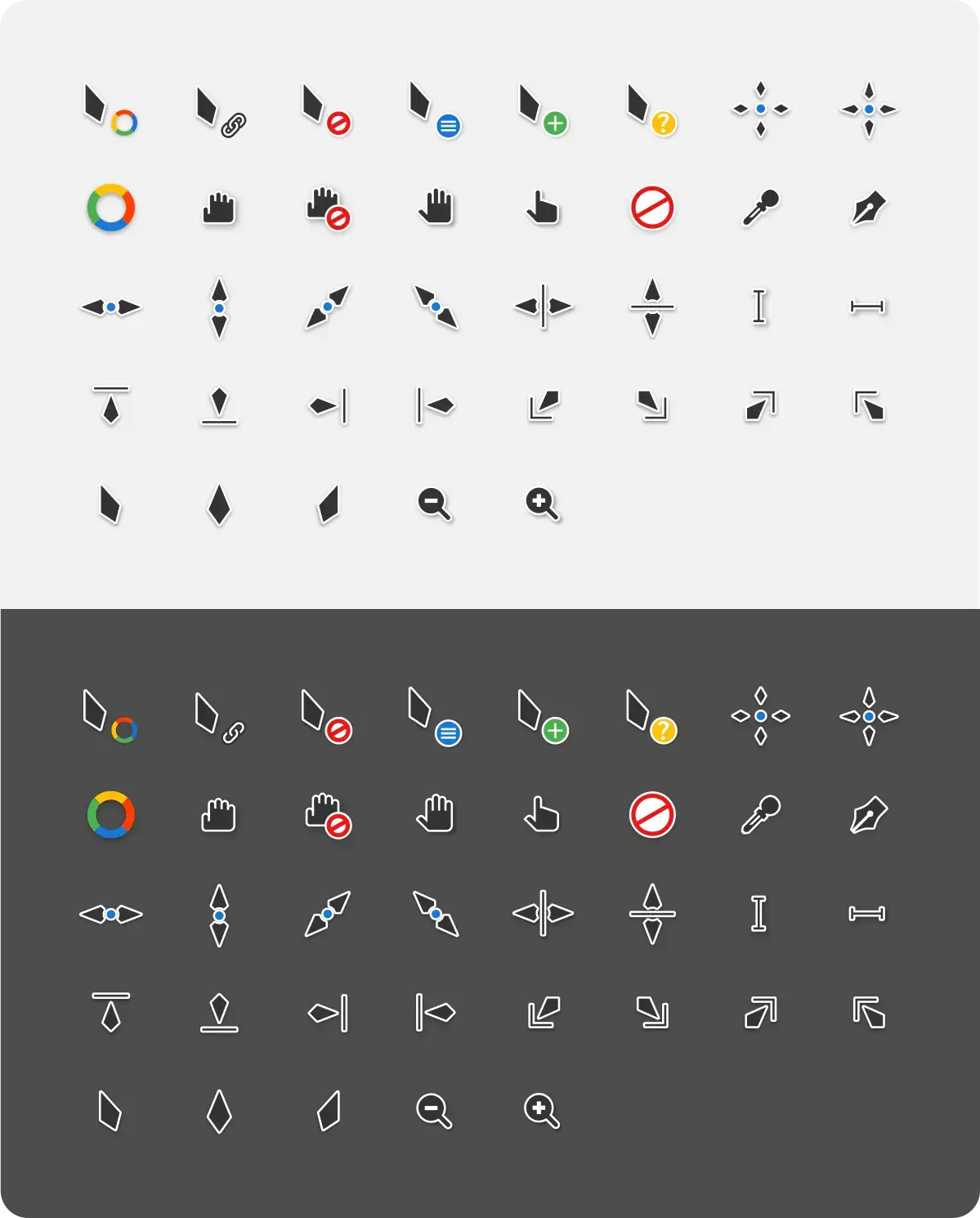 Vimix is a clean design with soft shadows that make it look like the mouse pointer is floating. It uses standard black and white colors for a professional look.
Soft ShadowsClassic ColorsWorks Great
Why We Like It: The soft shadows give it a very high-quality feel, making it look modern without being too flashy for a work computer.
Terminal Install
git clone https://github.com/vinceliuice/vimix-cursors.git
cd vimix-cursors
./install.sh
17
Apple Cursor
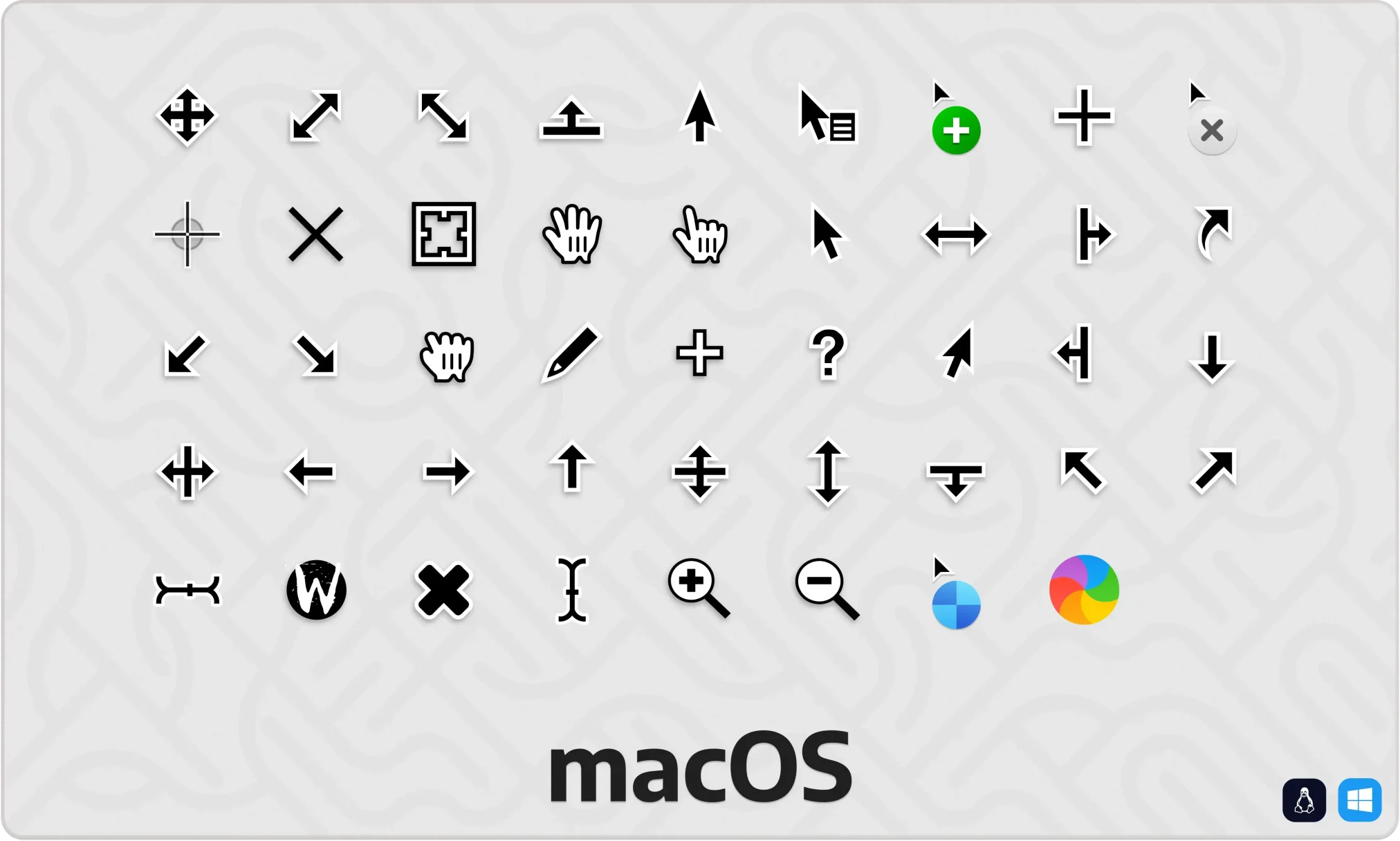 This is a simple copy of the Mac mouse pointer for Ubuntu. It includes the standard arrow and the classic loading circle that Mac users are familiar with.
Mac ExperienceSimple PickGood Animation
Why We Like It: It’s straightforward and works perfectly. If you just want the Apple look without any fancy extras, this is the best version to get.
Terminal Install
git clone https://github.com/ful1e5/apple_cursor.git
cd apple_cursor
# Extract manual files to ~/.icons
18
Moga Cursor
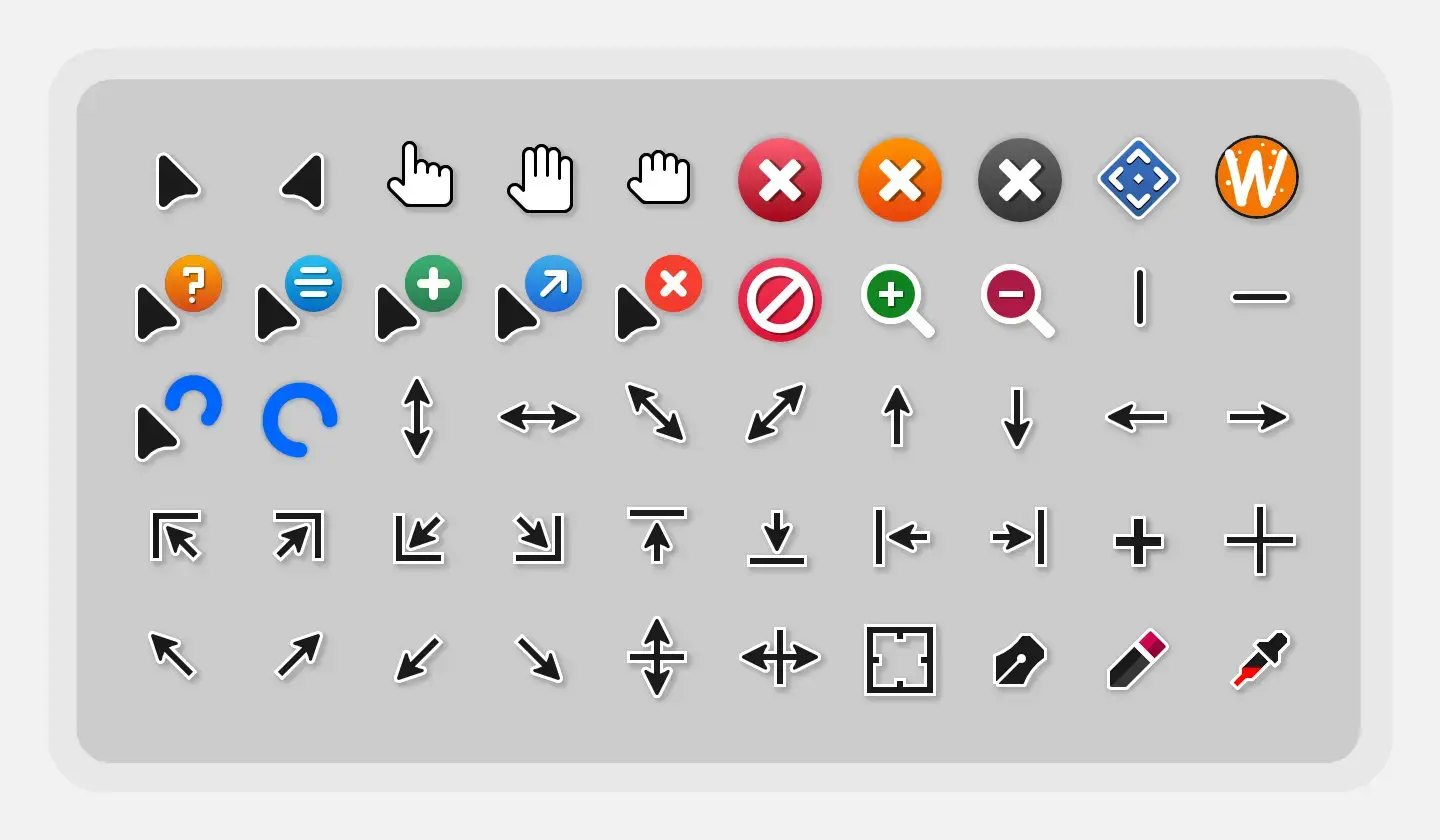 Moga is a clean and professional cursor set built from scratch for modern screens. It supports very high resolutions, staying perfectly sharp even if you resize it up to 96px on a large 4K display.
New for 2026Sharp HDPIVery Professional
Why We Like It: It was designed for maximum visibility on giant monitors. It avoids the blurry edges that older themes have, making your desktop feel premium and easy to look at.
Terminal Install
# Download and extract to ~/.icons folder manually
19
Fuchsia Cursor
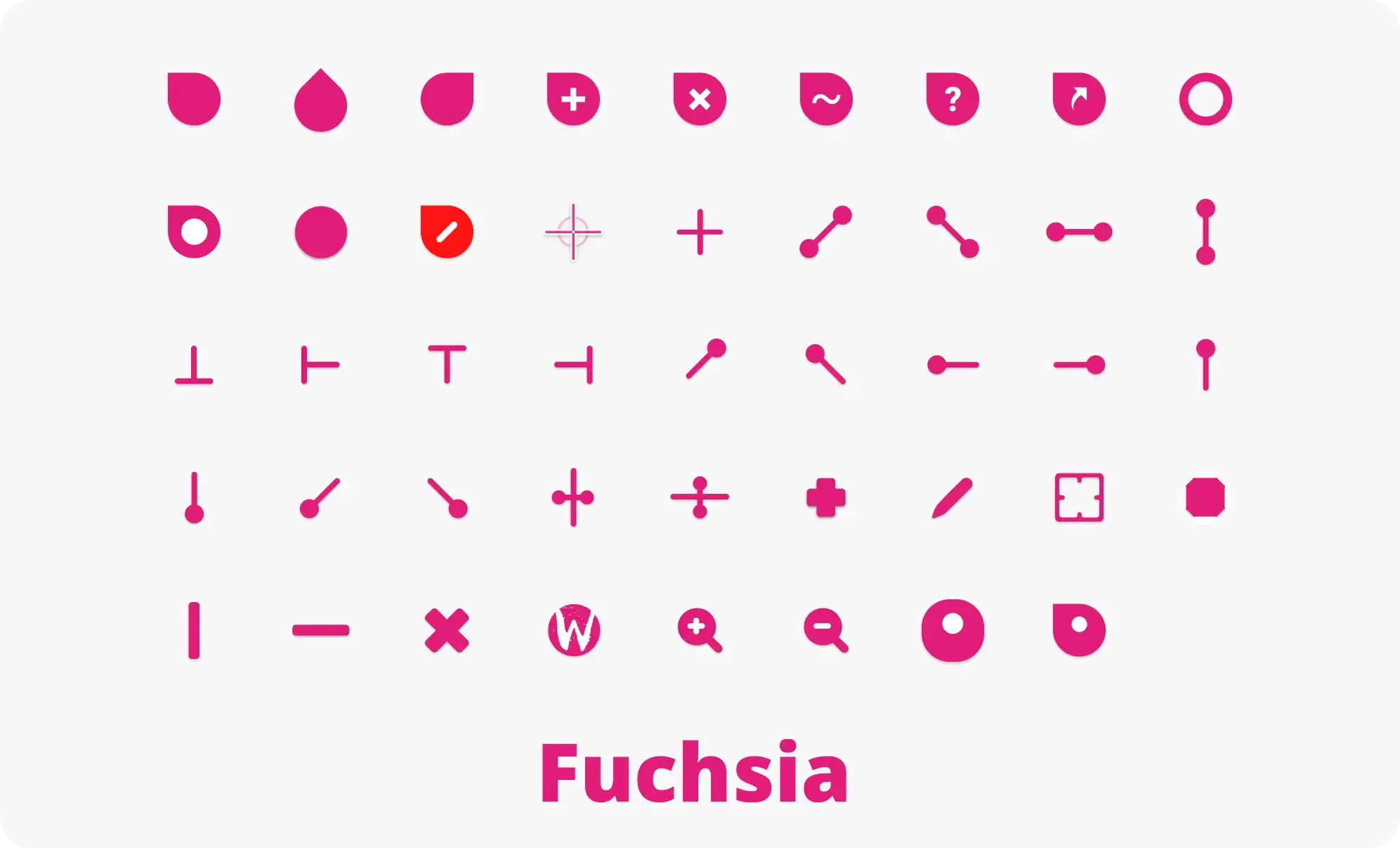 Fuchsia Cursor is a new look that doesn’t have the usual arrow tail. It uses simple shapes to help you focus precisely on where you are clicking.
Modern ShapesNo Arrow TailHigh Precision
Why We Like It: By removing the tail, your eye is drawn only to the sharp point of the shape. It makes highlighting text or clicking links feel faster and easier.
Terminal Install
git clone https://github.com/ful1e5/fuchsia-cursor.git
cd fuchsia-cursor
# Extract manual files to ~/.icons
20
Banana Cursor
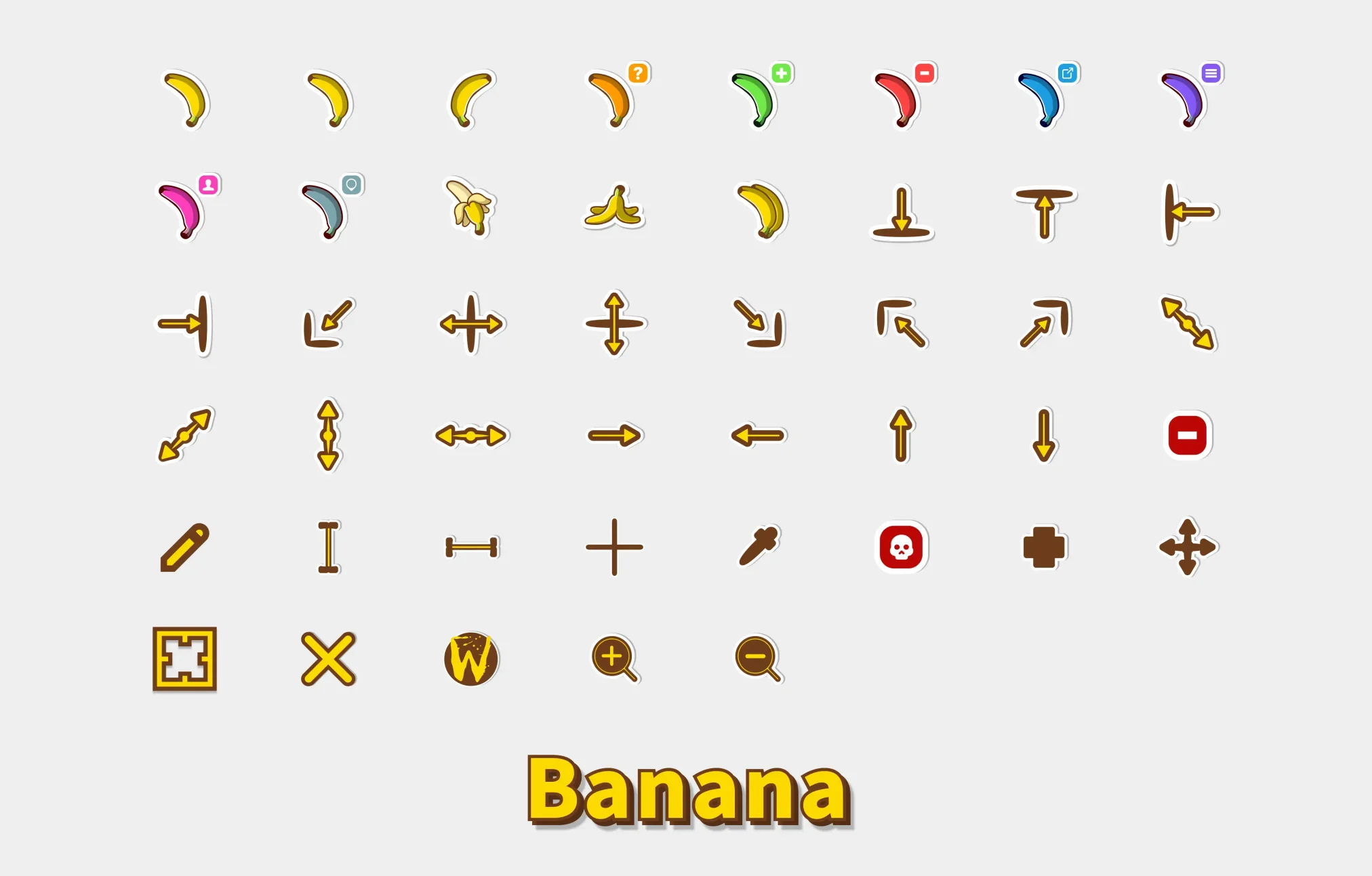 The Banana Cursor is exactly what it sounds like: a mouse pointer shaped like a banana. Even though it is funny, it is built really well and works smoothly on high-resolution screens.
Funny DesignEasy to SeeHigh Quality
Why We Like It: It shows how much fun you can have with Linux customization. Despite being a joke, it is built just as well as professional themes and never feels glitchy.
Terminal Install
git clone https://github.com/ful1e5/banana-cursor.git
cd banana-cursor
# Extract manual files to ~/.icons
21
Oreo Cursors
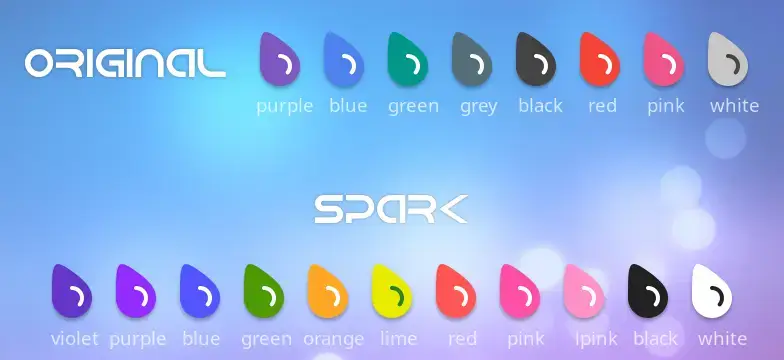 Oreo is a colorful cursor set that uses circles instead of the usual arrow shape. It has very smooth animations and bright colors that stand out.
Circle DesignFun ColorsVery Smooth
Why We Like It: It offers one of the biggest changes from a standard mouse pointer, adding a big pop of color and a unique feel to your desktop.
Terminal Install
git clone https://github.com/varlesh/oreo-cursors.git
cd oreo-cursors
# Build or extract to ~/.icons
22
Frieren [Animated]
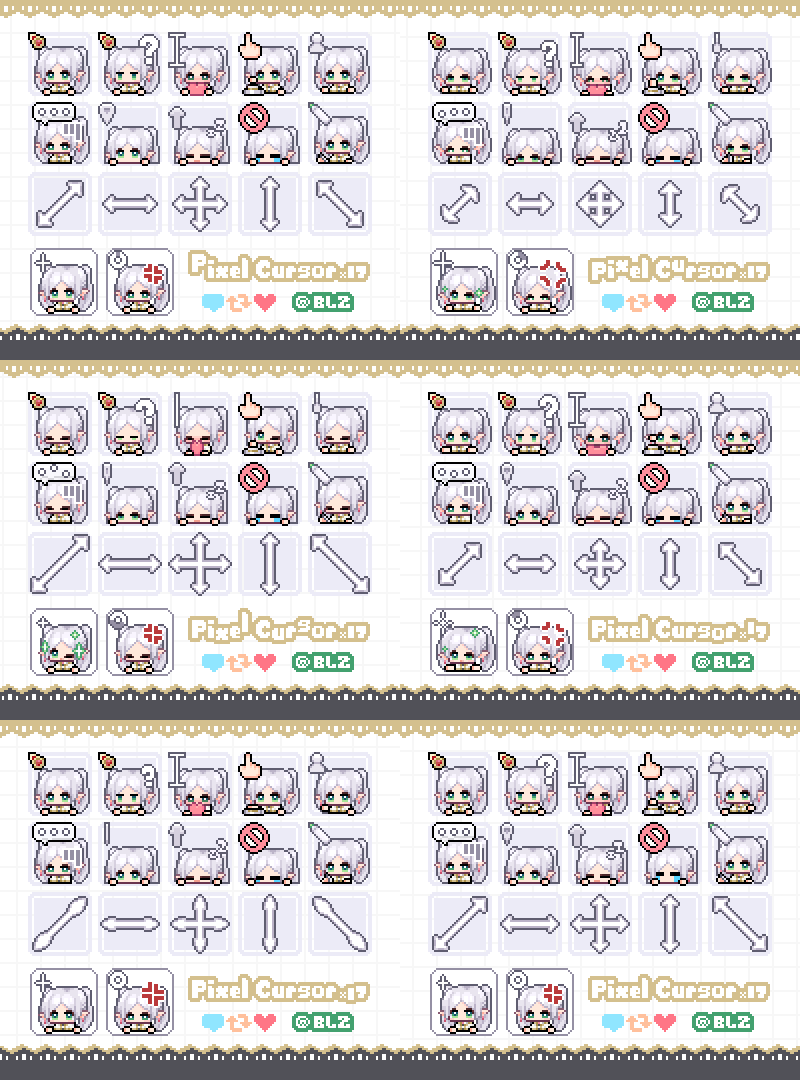 Frieren is a charming anime-themed cursor set based on the popular series Frieren: Beyond Journey’s End. It features cute pixel art and smooth animations for different mouse actions.
Anime StyleAnimatedPixel Art
Why We Like It: It adds a lot of personality to your desktop. Unlike most simple arrows, these cursors transform into tiny animated characters that make using your computer feel more fun.
Terminal Install
# Download from Gnome-Look and extract to ~/.icons
23
Bibata Modern Ice
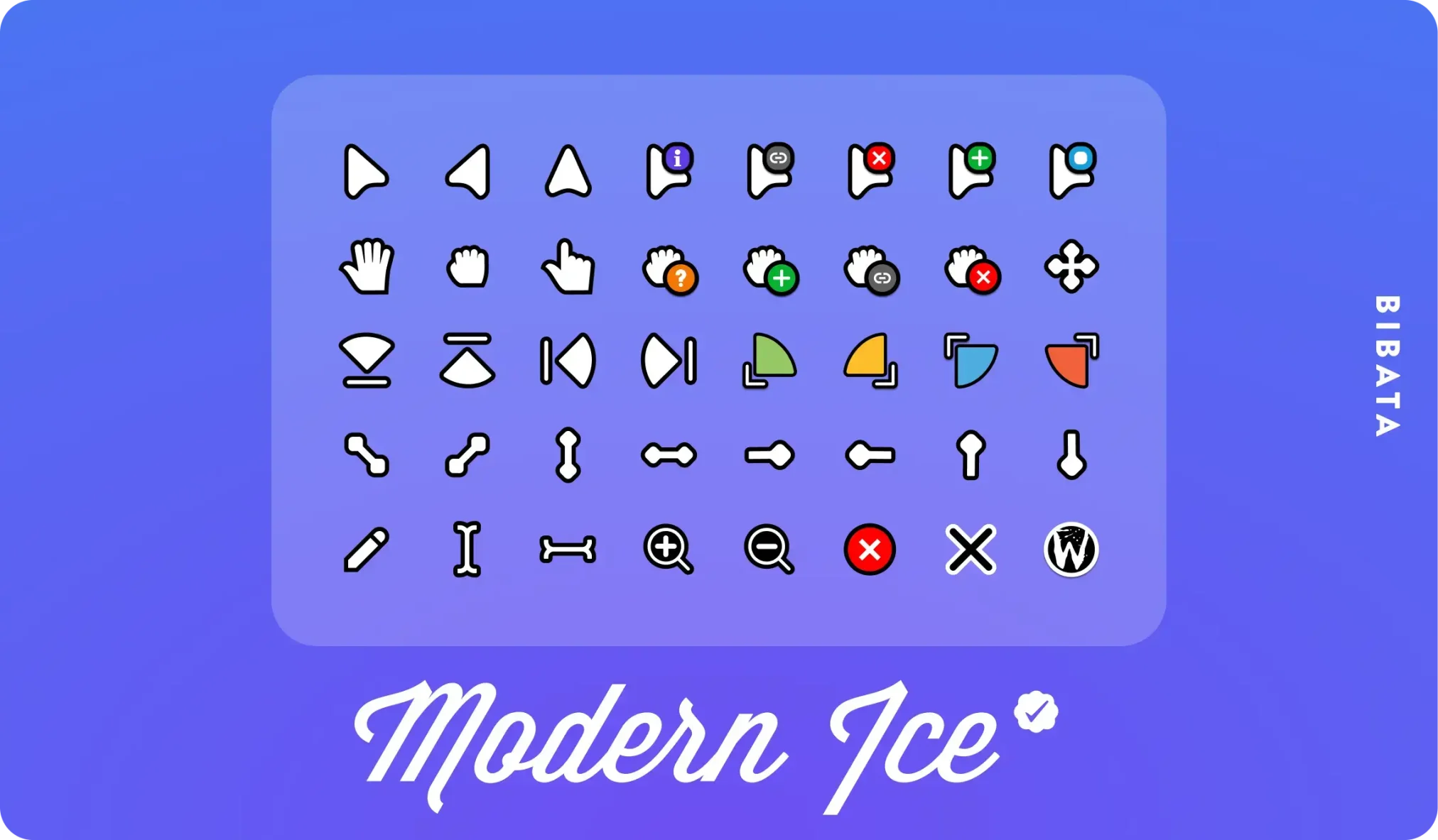 Bibata Modern Ice is the clean white version of the Linux community’s favorite cursor set. It uses a minimalist “material design” style that looks incredibly sharp and easy to read.
Classic WhiteMinimalistHigh Contrast
Why We Like It: The “Ice” version offers perfect contrast if you use a dark desktop theme. It is widely considered the gold standard for being both stylish and very practical for daily work.
Terminal Install
# Extract and place in ~/.icons folder
24
Future Cursors
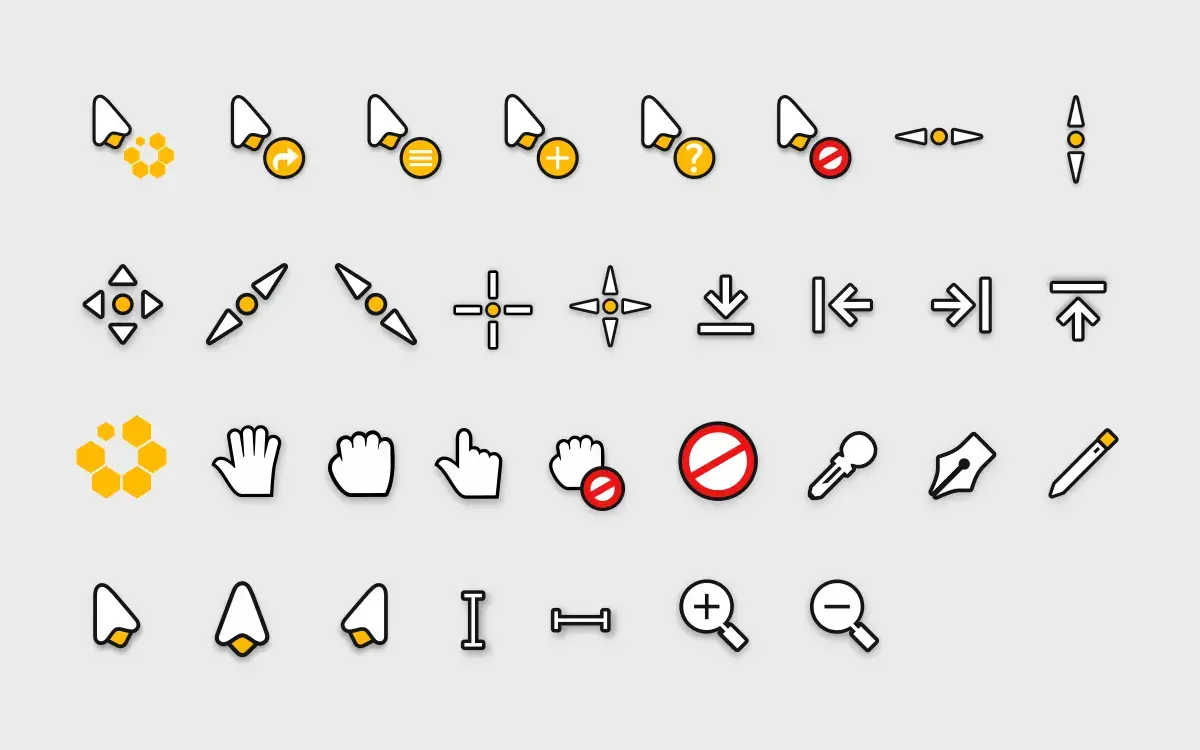 Future Cursors use a sleek, sci-fi design with unique outlines and glowing highlights. They look very different from standard pointers and fit perfectly with dark customization setups.
Sci-Fi LookGlowing AccentsGaming Pick
Why We Like It: It was updated in 2026 specifically for 4K displays. The glowing tips make it much easier to track your mouse during fast movements or gaming.
Terminal Install
# Extract and place in ~/.icons folder
25
Sweet Cursors
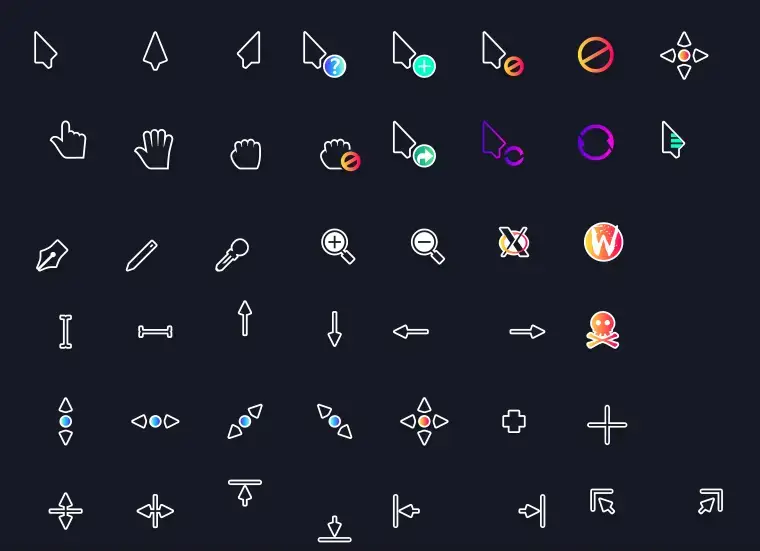 Sweet Cursors use bright neon pink and blue gradients to create a vibrant “vaporwave” look. They are designed to match the popular Sweet desktop theme perfectly.
Neon StyleVibrantVaporwave Pick
Why We Like It: If you want your desktop to pop with color, this is the best choice. The neon edges make the mouse pointer extremely easy to find even on busy, colorful wallpapers.
Terminal Install
# Extract and place in ~/.icons folder
How to Install Ubuntu Cursors Fast
If a cursor has a Snap package, install it that way to make sure it functions inside modern sandboxed flatpaks and browser environments! For other setups, do it manually.
1. Download the Assets
Download the compiled archives directly from the developer GitHub or Gnome-Look pages provided above.
2. Directory Install
Extract your downloaded folder and drag it directly into either ~/.icons or ~/.local/share/icons.
3. Activate in Tweaks
Open up GNOME Tweaks, jump to the Appearance tab, and flip the cursor selection over to your newly downloaded pack.
Frequently Asked Questions
Why does my custom Linux cursor turn back to default inside Firefox?
Because browsers like Firefox and Chromium are usually Snap containers on Ubuntu 26.04. They block internal access to hidden system icon files. Install Snap versions of your cursor themes whenever possible to fix this permissions bug entirely.
What is the absolute best custom OS cursor to download in 2026?
Bibata is heavily agreed upon as the greatest, most bulletproof custom cursor to download right now on Linux environments due to its vast 4K vector support.
Why does my mouse pointer look so blurry on an expensive 4K monitor?
You likely downloaded a legacy bitmap theme from five years ago. Upgrade to modern themes like WhiteSur, Phinger, or Bibata who engineer their packages using raw scalable vectors instead of flat pixel rips.
How do I install custom Wayland cursor themes without using the terminal?
Simply download the cursor file, extract it, and place the folder inside your `~/.icons` directory. Then, open up the GNOME Tweaks application and change your cursor setting under the Appearance tab.
Can I use Windows 11 mouse pointers or macOS cursors on my Ubuntu machine?
Yes! Custom Linux packages like WhiteSur perfectly recreate the macOS Big Sur and Sonoma experience, while the Windows Modern Cursors package flawlessly translates the Windows 11 aero pointers directly into native Ubuntu formats.
Complete Your Desktop Setup
Now that you have transformed your cursor, do not forget to overhaul the rest of your desktop aesthetics with our other guides:
Views: 9,642